Fake Chat Video Export Settings: MP4, GIF, MOV, WebM, 1:1
Making the clip is half the job. The other half is getting a file that fits where it is going: a full-screen vertical MP4 for TikTok, a square for a feed post, a transparent overlay for your video editor, a small GIF for an article. MockClip's export panel now covers all of those, and several of its options are new. Transparent MOV and WebM exports, a square layout that keeps typing in shot, bezel-less squares, and a full export panel on phones all arrived at the end of September 2026.
This guide is the reference for every export setting: what each one does, what file it produces, and which to pick for each destination. The clip below is one of the new combinations, a ChatGPT conversation exported as a bezel-less 1:1 square.
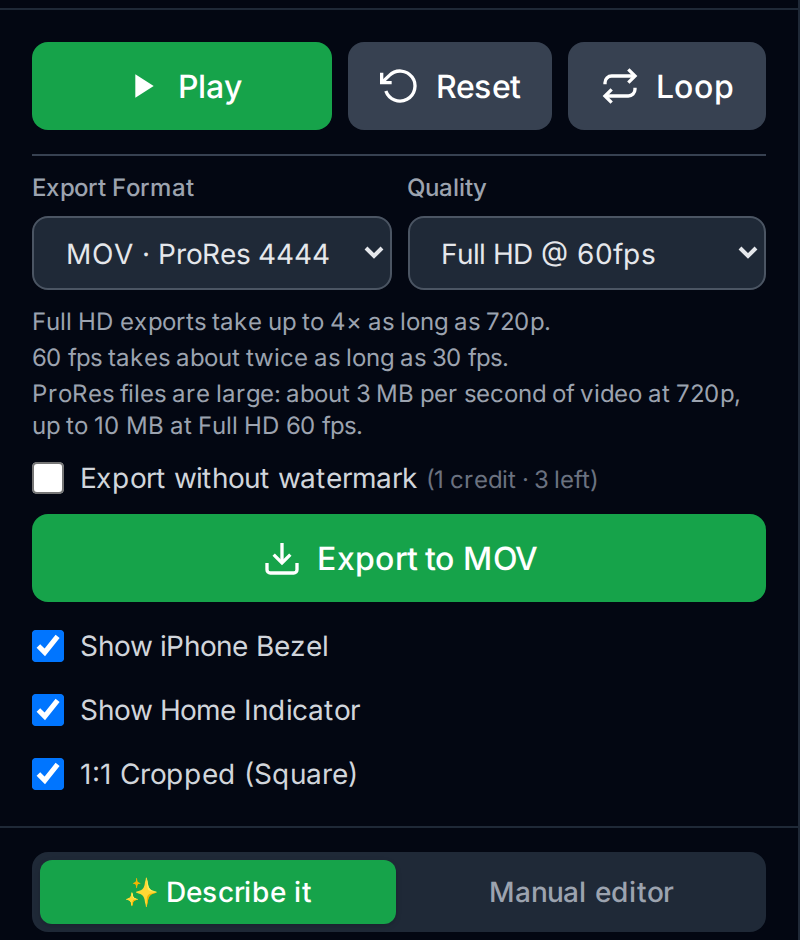
The export panel at a glance
On a desktop, the export settings sit at the top of the left panel on every template, above the Describe it and Manual editor tabs. That placement matters: the frame and export settings belong to the page, not to the clip's content, so they stay the same whichever way you write the clip.
From top to bottom:
- Export Format — MP4, GIF, MOV or WebM
- Quality — 720p or Full HD, at 15, 24, 30 or 60 fps
- Export-time notes — short hints that appear when a setting will make the export slower or larger
- Export without watermark — for signed-in free accounts with credits
- Export to … — the button, which names the format it will produce
- Show iPhone Bezel — the phone frame on or off, followed by the options that depend on it
Export formats
| Format | Video | Transparency | Best for |
|---|---|---|---|
| MP4 Video | H.264 | No | TikTok, Reels, Shorts, any social post |
| GIF Animation | 256-colour GIF, up to 720 px wide | No | Articles, emails, chats, docs |
| MOV · ProRes 4444 (transparent) | ProRes 4444, 10-bit | Yes | Overlays in desktop video editors |
| WebM · VP9 (transparent) | VP9 with alpha | Yes | Overlays on web pages, small transparent files |
MP4 Video is the default and the format to use unless you have a reason not to. Every phone, every social network and every editor plays it. MockClip encodes it with H.264 and mixes in the template's sound effects, such as the keyboard clicks and the send and notification sounds, when sound is on.
GIF Animation has no sound and is capped at 720 pixels wide. MockClip builds a colour palette from the clip itself so the bubbles and text stay clean. Use it where video does not autoplay well: inside an article, an email, a chat message or a README.
MOV · ProRes 4444 (transparent) and WebM · VP9 (transparent) are the two formats with an alpha channel. They matter for the notification templates, whose background can be set to Transparent: everything outside the banner is invisible in the file, so it sits on top of your footage without a green screen. MOV is the editing format: large and detailed. WebM is the web format: small, and it plays with transparency in browsers. The transparent notification video guide covers both in depth.
Quality and frame rate
The Quality dropdown combines resolution and frame rate into one choice:
- 720p @ 15fps, 24fps, 30fps or 60fps
- Full HD @ 15fps, 24fps, 30fps or 60fps
The default, 720p @ 30fps, is the right choice for most chat clips. Chat animations are mostly text appearing and bubbles sliding, and 30 fps shows that motion smoothly. 720p keeps exports fast and files small, and short-form platforms show it sharply on a phone.
Use Full HD when the clip will be shown large, such as on a desktop page, a presentation screen or a 1080p edit, or when you plan to scale or crop it in an editor. Use 60 fps when the clip includes fast scrolling or you are editing it into 60 fps footage. Use 15 or 24 fps to make GIFs smaller.
The editor tells you the cost of each choice under the pickers. Pick Full HD and it notes "Full HD exports take up to 4× as long as 720p." Pick 60 fps and it notes "60 fps takes about twice as long as 30 fps." Pick ProRes and it notes "ProRes files are large: about 3 MB per second of video at 720p, up to 10 MB at Full HD 60 fps."
Output sizes
The exported file's size in pixels depends on the quality and the aspect ratio:
| Aspect ratio | 720p | Full HD |
|---|---|---|
| 9:16 (vertical) | 720×1280 | 1080×1920 |
| iPhone (9:19.5) | 720×1560 | 1080×2340 |
| 3:2 (landscape) | 1080×720 | 1620×1080 |
| 1:1 (square) | 720×720 | 1080×1080 |
GIF exports are scaled down to at most 720 pixels wide, so a Full HD GIF comes out at the same size as a 720p one.
For a deeper look at choosing the aspect ratio, resolution and frame rate for each destination, including how to check an export before you publish it, see chat video aspect ratio and FPS.
The phone frame: bezel, aspect ratio and bars
Show iPhone Bezel decides whether the clip is drawn inside an iPhone frame. With it on, you get the rounded frame, the Dynamic Island and the status bar, which makes the clip read instantly as a phone screen. Two options follow:
- Show Home Indicator — the bar at the bottom of the screen.
- 1:1 Cropped (Square) — the square version of the framed phone, on templates that support it.
With the bezel off, the app screen fills the frame on its own and you choose its shape:
- Aspect Ratio — 9:16 (Vertical), iPhone, 3:2 (Landscape) or 1:1 (Square)
- Show Status Bar — the 9:41 clock, signal and battery at the top
- Show Home Indicator — the bar at the bottom
The bezel-less vertical formats are useful when the clip will be placed inside your own phone mockup or a screen recording, or when the platform's own interface already frames the video.
Square 1:1 exports
The six chat templates, WhatsApp, iMessage, ChatGPT, Telegram, Messenger and Instagram DM, lay the conversation out to fit a square. The header, the newest messages, the input bar and the keyboard all stay inside it, so typing is in shot. The iMessage and phone call notification templates also offer 1:1 and show the top of the screen, where the banner is. The phone call, Tinder and Reddit templates stay vertical.
A square can be framed (bezel on, 1:1 Cropped (Square)) or bare (bezel off, Aspect Ratio: 1:1 (Square)). The square chat video guide covers when to use each, and how to write a conversation that reads well in the smaller space.
Backgrounds: transparent, chroma key and image
The iMessage notification and phone call notification templates are made to be laid over other footage, so they have a Background setting the chat templates do not:
- Default (Theme Color) — a plain light or dark background
- Chroma Key (Solid Color) — a flat colour of your choice, green by default, to key out in your editor
- Custom Image — a picture of your choice behind the banner
- Transparent (Alpha Channel) — nothing behind the banner, when exported as MOV or WebM
The Describe it panel has the same choice in its appearance strip as Default, Transparent and Chroma key. For the keying workflow, see the green screen notification guide.
Exporting on a phone
The editor works on a phone, and the export settings are all there. On a narrow screen, they sit in a collapsible Frame & export section at the top of the editor. Its summary line shows the current choice, for example "Bezel 1:1 · MP4 · 720p 30fps", so you can check the settings without opening it. Open it to change the format, quality, bezel, aspect ratio and bars. The Export button and the watermark option are in the bar at the bottom of the screen, next to play, reset and loop.
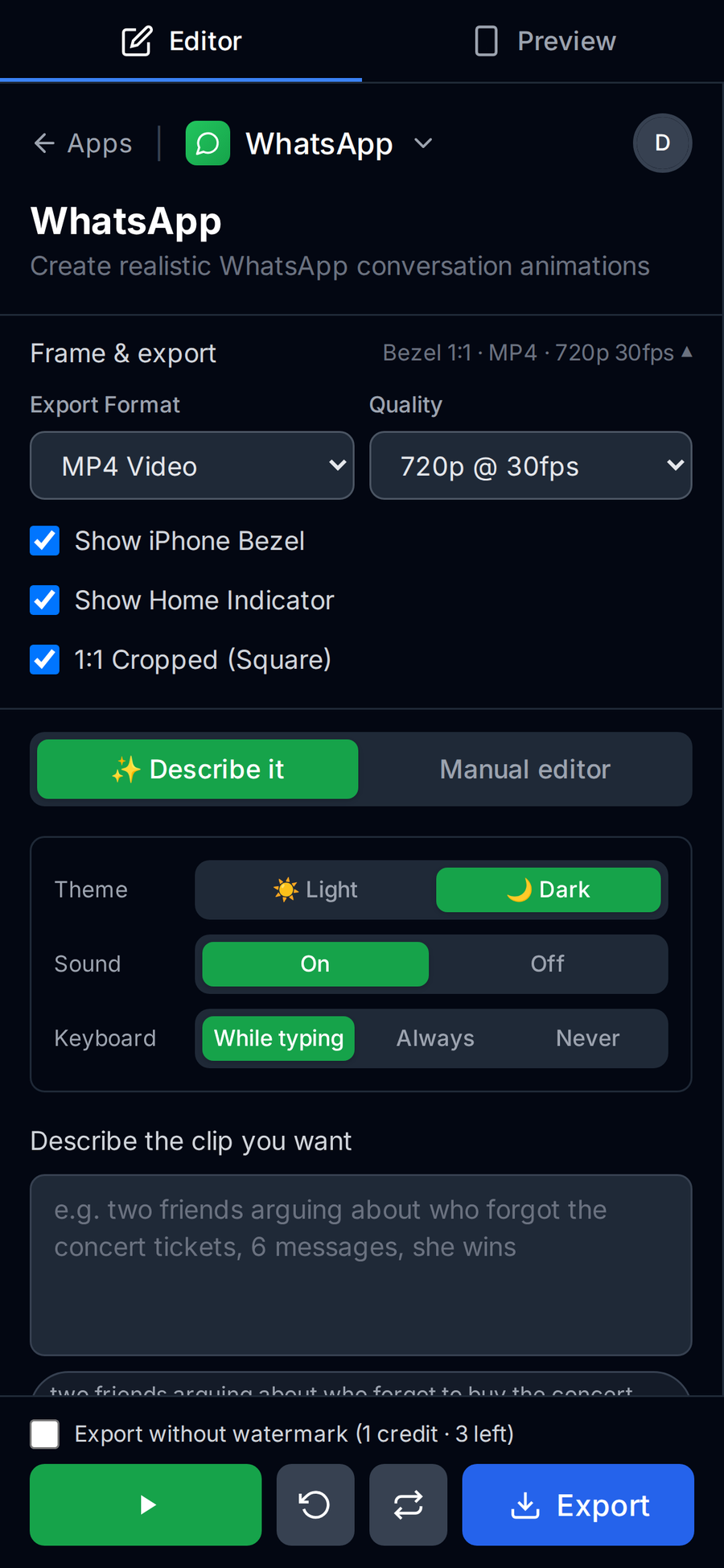
Exporting on a phone can take longer than on a computer, because the video is encoded on the device itself. Keep phone exports at 720p and 30 fps unless you need more.
Export speed and browsers
Every MockClip export is rendered and encoded in your browser, then downloaded. Nothing is uploaded to a server, so your clip stays on your device, and there is no queue.
That also means your browser and your machine set the speed:
- Chrome and Edge are the fastest. Exports run 5–10× faster in them than in Firefox, and the editor shows that hint when it detects Firefox.
- 720p is up to 4× faster than Full HD, and 30 fps about twice as fast as 60 fps.
- The transparent formats take longer than MP4, because each frame keeps much more information.
- Clip length counts. A 10-second clip exports much faster than a 60-second one.
Keep the tab open and in the foreground while it exports, and the file downloads when it is done.
Watermark, credits and Pro
Every format, quality and aspect ratio is available on the free plan. What differs is the watermark:
- Free exports carry a small MockClip watermark that moves around the frame.
- Export without watermark (1 credit) appears for signed-in free accounts that have credits. Tick it and that one export comes out clean, for one credit.
- Pro removes the watermark from every export, with no credit needed.
The watermark rule is applied when the file is rendered, so it is the same for every format and for exports started from a link. See the pricing page for current prices.
Free to start. Pick a format, a quality and a frame, and download the file.
Open the editor and exportExporting from a link
A MockClip clip can be shared as a link that carries the whole clip, and a few URL parameters control how it opens and exports:
?config=— the clip itself. The config can also carry two top-level frame fields:videoFormat("9:16","9:19.5","3:2"or"1:1") andshowBezel(trueorfalse).&format=— the export format:mp4,gif,movorwebm.&autoExport=1— starts the export as soon as the page has loaded, and downloads the file when it is done.
Together, a link like /app/imessage-notification?config=…&format=mov&autoExport=1 opens the clip and downloads a ProRes MOV without a click. That is useful for scripts and automations that produce many clips. Quality, the status bar and the home indicator are not link parameters. Exports from a link use the default 720p at 30 fps.
Exporting from Claude or ChatGPT (MCP)
MockClip's MCP server lets Claude, ChatGPT and other assistants create clips from a chat. Each tool accepts videoFormat and showBezel, so you can ask for "a square WhatsApp clip without the phone frame" and the link opens in that framing. The notification tools also accept a transparent background.
The link an assistant returns opens the clip and exports an MP4 at 720p and 30 fps. For another format, add &format=mov, &format=webm or &format=gif to the link, or open it and pick the format in the panel before exporting. The guide to connecting MockClip to Claude and ChatGPT covers the setup.
Which settings to pick for each destination
| Destination | Format | Frame | Quality |
|---|---|---|---|
| TikTok, Reels, Shorts | MP4 | Bezel on, 9:16 | 720p or Full HD, 30 fps |
| Feed post | MP4 | 1:1, with or without bezel | 720p or Full HD, 30 fps |
| Overlay in a video editor | MOV (ProRes) | Notification, Transparent, bezel off | Match your edit |
| Overlay on a web page | WebM | Notification, Transparent, bezel off | 720p, 30 fps |
| Slide or presentation | MP4 | 1:1 or 3:2, bezel off | Full HD, 30 fps |
| Article, email, chat | GIF | 1:1 or 9:16 | 720p, 15–24 fps |
| Green screen in a mobile editor | MP4 | Notification, Chroma key | 720p or Full HD |
Common problems and fixes
The export is slow. Use Chrome or Edge, choose 720p at 30 fps, and keep the tab in the foreground.
The MOV plays only audio. VLC and Windows Media Player cannot decode ProRes 4444 with alpha. The file is fine; open it in your video editor.
The transparent background came out coloured. The format was MP4 or GIF, which have no alpha channel. Export as MOV or WebM.
There is no 1:1 option. The template has no square layout, or the bezel is off and the square is in the Aspect Ratio dropdown.
The GIF is large. Lower the frame rate to 15 or 24 fps, and shorten the clip.
The watermark is still there. Free exports carry it. Use a credit with Export without watermark, or see Pro on the pricing page.
Quick start checklist
- Write the clip in Describe it or the Manual editor.
- Choose the frame: bezel on or off, then 9:16, 1:1, iPhone or 3:2.
- Choose the format: MP4 for social, GIF for articles, MOV or WebM for transparent overlays.
- Choose the quality: 720p at 30 fps by default, Full HD for large screens.
- Press Export to … and keep the tab open until the download starts.
Related MockClip templates and guides
- Transparent notification videos with MOV and WebM alpha
- Square 1:1 chat video export
- AI fake chat video generator: Describe it
- Fake chat video maker: the complete free guide
- Connect MockClip to Claude and ChatGPT
- Green screen iPhone notification videos
Frequently Asked Questions
Which video formats can MockClip export?
Four: MP4 Video (H.264), GIF Animation, MOV · ProRes 4444 (transparent) and WebM · VP9 (transparent). MP4 is the default and the right choice for social media. MOV and WebM carry an alpha channel for overlays. GIF suits articles, emails and chats.
What resolution and frame rate do MockClip exports use?
Quality offers 720p or Full HD at 15, 24, 30 or 60 fps. A vertical 9:16 export is 720×1280 at 720p and 1080×1920 at Full HD. The default is 720p at 30 fps.
Can I export a square or landscape video?
Yes. With the iPhone bezel on, tick 1:1 Cropped (Square) on the chat and notification templates. With the bezel off, the Aspect Ratio dropdown offers 9:16, iPhone, 3:2 landscape and 1:1 square.
How do I export a video with a transparent background?
On the iMessage notification and phone call notification templates, set Background to Transparent and export as MOV · ProRes 4444 (transparent) or WebM · VP9 (transparent). MP4 and GIF have no alpha channel and fall back to the theme colour.
Can I export on my phone?
Yes. On a phone, the frame and export options sit in a collapsible Frame & export section at the top of the editor, and the export button is in the bar at the bottom. Every format, quality and aspect ratio is available.
Is exporting free?
Yes. Every format, quality and aspect ratio is available on the free plan. Free exports carry a small MockClip watermark. Pro removes it, and a signed-in free account with credits can spend one credit to export a single clip without it. See the pricing page for current prices.
Are my clips uploaded anywhere when I export?
No. The video is rendered and encoded in your browser, then downloaded straight to your device.
Related Articles
Transparent Notification Video: MOV and WebM Alpha Export
Export iMessage and phone call notification videos with a real alpha channel as ProRes 4444 MOV or VP9 WebM. Drop them on any footage, no green screen to key.
Square Chat Video: Export 1:1 Fake Text Clips for Any Feed
Export WhatsApp, iMessage, ChatGPT, Telegram, Messenger and Instagram DM clips as 1:1 square videos, with or without the iPhone frame. Typing stays in shot.
AI Fake Chat Video Generator: Describe It, Get the Clip
Type what the clip should be and MockClip's Describe it mode writes the messages and timing for WhatsApp, iMessage, ChatGPT, Tinder and more. Refine by second.
Fake Chat Video Maker Free: Create Text Conversation Videos
Free fake chat video maker for TikTok and Reels. Create realistic animated text conversations with iMessage, WhatsApp, and Instagram DM interfaces in minutes.
Chat Video Aspect Ratio and FPS: Pick the Right Export Size
Choose the aspect ratio, resolution and frame rate for a chat video: 9:16, iPhone, 3:2 and 1:1 sizes, 720p vs Full HD, 15 to 60 fps, matched to destination.