Transparent Notification Video: MOV and WebM Alpha Export
A notification that pops up over real footage sells a moment better than any caption. The usual way to get one is a green screen: export the banner on a flat colour, key the colour out in your editor, then clean up the fringe around the rounded corners. It works, but it is a step you repeat on every clip, and it fails the moment your footage has the same green in it.
MockClip's notification templates now export with a real alpha channel instead. Set the background to Transparent, choose MOV · ProRes 4444 or WebM · VP9, and the file you download has nothing behind the banner at all. Put it on a track above your footage and it just sits there, with clean edges and no keying. The demo below is exactly that: a MockClip export placed over moving footage with no other processing.
What a transparent notification video is
A video file normally stores three colour values per pixel: red, green and blue. A video with an alpha channel stores a fourth value that says how opaque each pixel is. Where alpha is zero, the pixel is invisible and whatever is on the track below shows through. Where it is full, you see the pixel.
For a notification overlay, that means the banner is opaque, the rounded corners are smoothly anti-aliased against whatever is beneath them, and the rest of the frame is empty. Your editor treats the clip as a layer, the same way it treats a PNG with a transparent background, except it moves.
Only some formats can carry alpha. MP4 with H.264, the format every phone and social network uses for final videos, cannot. That is why MockClip adds two formats built for it:
- MOV · ProRes 4444 (transparent) — Apple ProRes 4444 in a QuickTime container, with a 4:4:4 colour layout and an alpha channel. It is the standard way to hand transparent footage between desktop editors.
- WebM · VP9 (transparent) — VP9 video with alpha in a WebM container. It is far smaller, and it is the format browsers play with transparency on a web page.
Which templates support it
The Transparent background is available on the two templates that are built to be overlaid on other footage:
- iMessage notification — stacked message banners with sender, preview text and avatar, sliding or fading out
- Phone call notification — the incoming call banner with caller name and the accept and decline buttons
The chat templates (WhatsApp, iMessage, ChatGPT and the rest) draw a full app screen that fills the frame, so there is nothing behind them to make transparent. For those, the new export options worth knowing are the 1:1 square export and bezel-less framing.
How to export a transparent notification, step by step
- Open the iMessage notification or phone call notification template.
- Write the notifications. In Describe it mode, type what should happen ("three texts from Maya, the last one in capitals") and let the AI write the banners and timing. In the Manual editor, add each banner by hand with its sender, text, delay and display duration.
- Set the background to transparent:
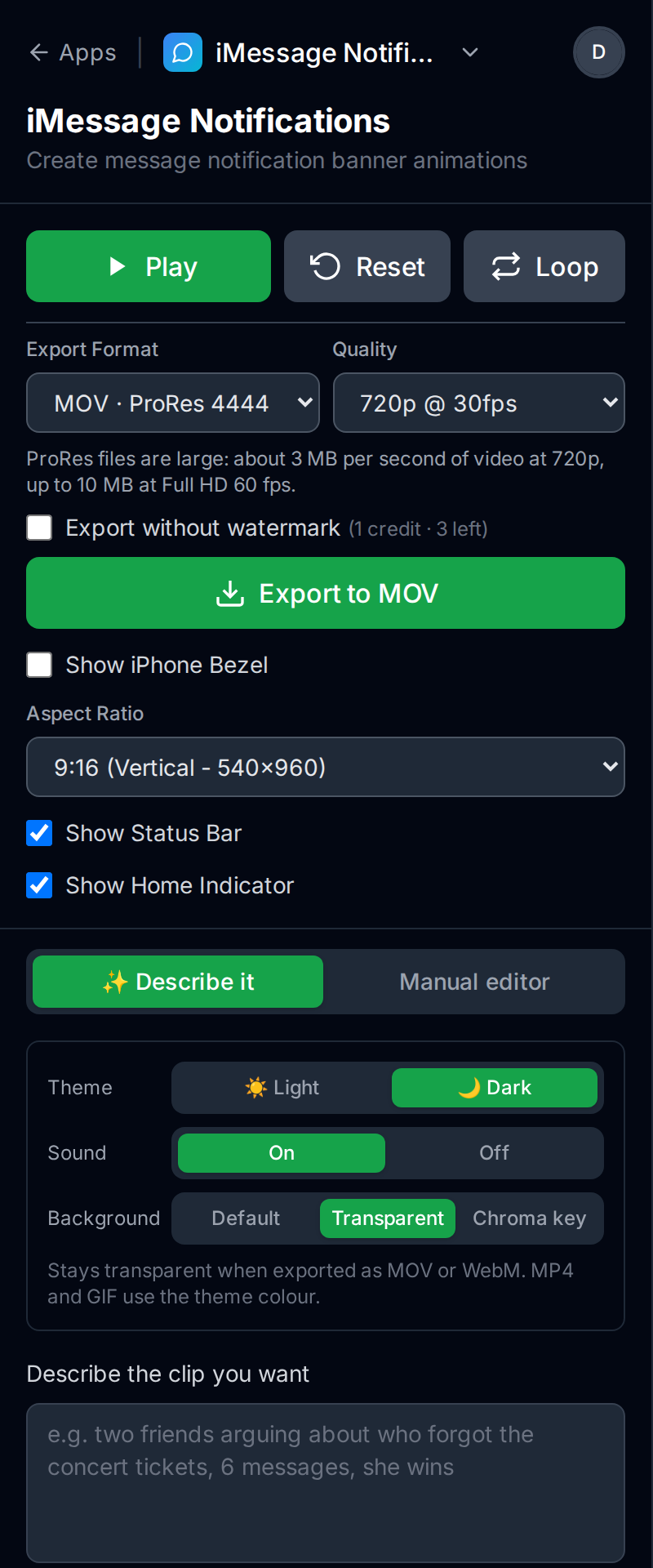
- In the Describe it panel, the appearance strip has a Background row. Choose Transparent.
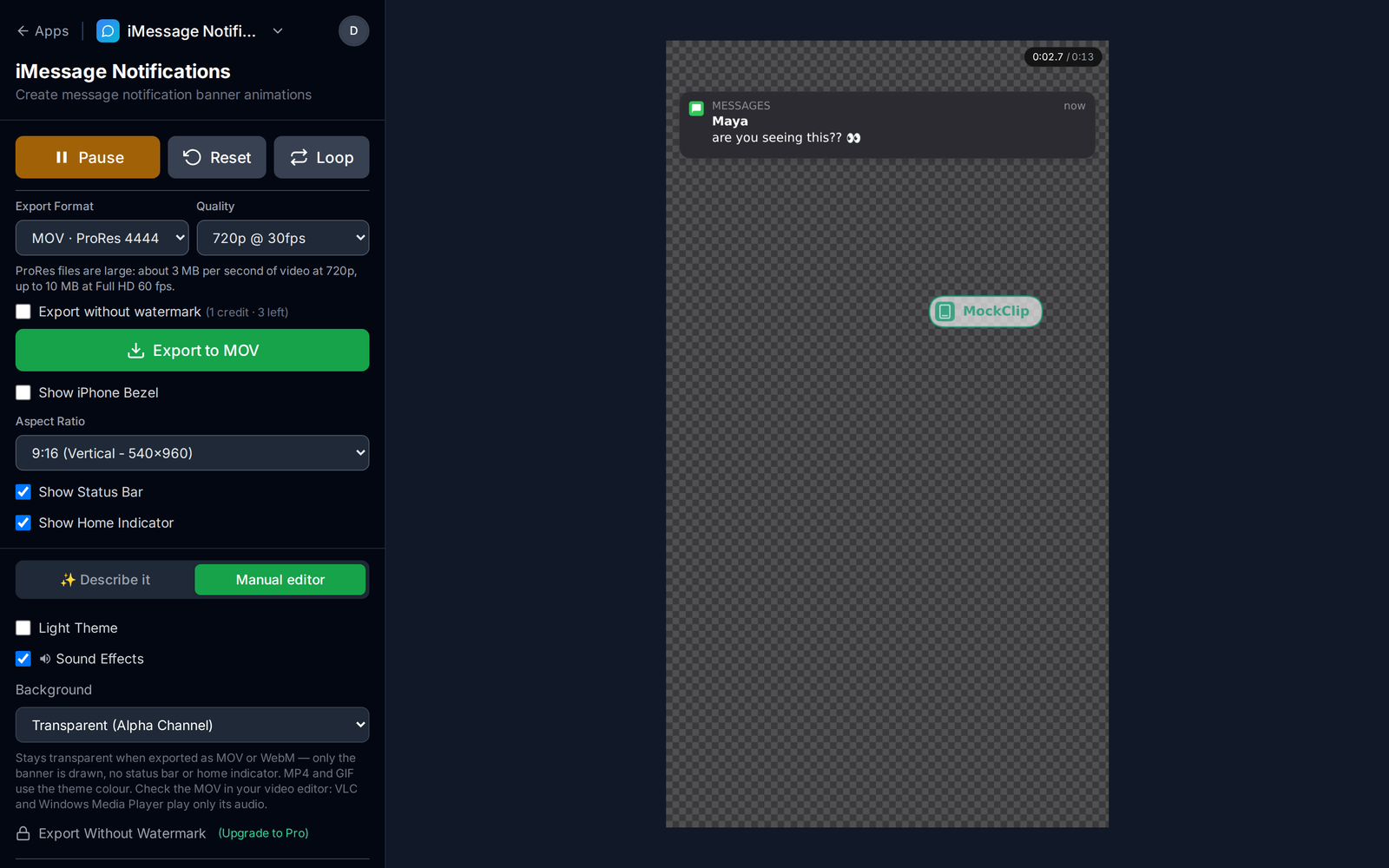
- In the Manual editor, open the Background dropdown and choose Transparent (Alpha Channel).
- Untick Show iPhone Bezel if you want only the banner. With the bezel on, the phone frame is drawn too and the screen area inside it stays see-through, which is useful when you want the frame in the shot.
- Set Export Format to MOV · ProRes 4444 (transparent) or WebM · VP9 (transparent), and pick a Quality.
- Press Export to MOV (or Export to WEBM). The file renders in your browser and downloads when it is done.
The preview shows a checkerboard wherever the frame will be transparent, so you can see before exporting exactly what will cover your footage and what will not.
What is drawn and what is left out
With Background set to Transparent and the bezel off, MockClip draws only the notification banners. The status bar, the clock and the home indicator are left out on purpose. They belong to a phone screen, and on an overlay they would float over your footage on their own.
Two things are still drawn on top of the banner area:
- The banner itself — the rounded card, the app icon, the sender name, the message text, the "now" timestamp and the avatar if you set one.
- The MockClip watermark on free exports — it moves around the frame the same way it does on an MP4. Pro exports and credit exports leave it out (more on that below).
If you switch the format back to MP4 Video or GIF Animation while the background is Transparent, the export falls back to the theme colour behind the banner. Those formats have no alpha channel, so the editor tells you so under the Background setting: "MP4 and GIF use the theme colour."
MOV or WebM: which one to pick
Both formats give you the same transparent result. They differ in size, in where they play, and in how much detail they keep.
| MOV · ProRes 4444 | WebM · VP9 | |
|---|---|---|
| Best for | Desktop video editors | Web pages, smaller files |
| Alpha channel | Yes, full | Yes, full |
| Colour detail | 4:4:4, 10-bit | 4:2:0, 8-bit |
| File size | Large (about 3 MB per second at 720p) | A fraction of the MOV |
| Audio | Uncompressed PCM | Opus |
| Plays in VLC / Windows Media Player | Audio only | Depends on the player |
Pick MOV (ProRes 4444) when the clip goes into a desktop video editor. ProRes 4444 is the format editing software expects for transparent footage, and it keeps every pixel of the banner's text sharp. The trade-off is size. The editor warns you under the format picker: "ProRes files are large: about 3 MB per second of video at 720p, up to 10 MB at Full HD 60 fps." The 13-second, 720p demo at the top of this page came out at about 34 MB as a MOV.
Pick WebM (VP9) when the clip will be played on a web page, for example a landing page that shows a notification sliding over a product photo, or when you simply need a small file. The same 13 seconds is a fraction of the MOV's size. VP9 throws away some colour detail to get there, which is rarely visible on a notification banner but can show on fine coloured edges.
If you are not sure, export the MOV first. It is the safer choice for editing, and you can always export the WebM later from the same clip.
Putting the overlay on your footage
The workflow is the same in any editor that reads the alpha channel:
- Import your main footage and put it on the bottom video track.
- Import the MockClip MOV or WebM and put it on the track above.
- Line up the first banner with the moment it should appear. Each banner's Delay Before in MockClip controls when it slides in relative to the start of the file.
- Scale or move the overlay if you want the banner lower or smaller. Because only the banner is opaque, it keeps clean edges at any position.
- Export your edit as usual, for example as an MP4 for TikTok, Reels or Shorts.
You do not need a keying effect, a mask or a blend mode. If you see a black or coloured box behind the banner after step 2, your editor ignored the alpha channel. Check that the clip's alpha or transparency setting is on in its properties. If your editor has no such setting, use the chroma key export described below.
Checking the file before you edit
A transparent MOV can look broken in the wrong player. VLC and Windows Media Player cannot decode ProRes 4444 with alpha, so they play only the audio. The editor says so under the Background setting, because it is the first thing most people try. The file is fine. Drop it into your editor on top of some footage to check it.
A browser is a quick way to check a WebM. Drag the file into a Chrome or Edge tab on a page with a coloured background, or put it in a <video> tag, and the transparent area shows the page behind it.
Export speed and quality settings
The transparent formats render in your browser like every other MockClip export, so nothing is uploaded. Speed depends on your machine and your settings:
- Quality offers 720p or Full HD at 15, 24, 30 or 60 fps. The editor notes that "Full HD exports take up to 4× as long as 720p" and that "60 fps takes about twice as long as 30 fps."
- The transparent formats take longer than MP4. In our tests in a Chromium browser, a 5-second clip exported as WebM in about 11 seconds and as ProRes MOV in about 20 seconds.
- Browser matters. Exports run 5–10× faster in Chrome or Edge than in Firefox, and the editor shows that hint when it detects Firefox.
For a notification overlay, 720p at 30 fps is enough for most short-form edits: the banner text is large and the motion is simple. Use Full HD when the overlay will be scaled up in your edit or the final video is 1080p and you want the banner text at its sharpest.
Transparent export vs green screen
Chroma key is not going away. Both notification templates still offer Chroma Key (Solid Color) with any colour you want, and our guide to green screen iPhone notification videos covers that workflow. Here is when each one fits:
| Transparent (MOV or WebM) | Chroma key (MP4) | |
|---|---|---|
| Keying step in your editor | None | Required |
| Edges | Clean, anti-aliased | Can fringe around rounded corners |
| Footage with green in it | No conflict | Pick another key colour |
| File size | Large (MOV) or small (WebM) | Small |
| Works in editors without alpha support | No | Yes |
Use transparent when your editor reads alpha, which most desktop editors do. Use chroma key when you edit in an app that only understands MP4, or when you want one file that works everywhere.
Making the notification itself
The export settings only matter if the notification looks right. A few things that make a banner overlay convincing:
- Keep the preview text short. A real notification truncates long messages. One short line reads at a glance, which is all a viewer gets.
- Stagger the banners. Several banners from the same sender, a fraction of a second apart, feel like a real burst of texts. Set Delay Before to 0.3–0.6 seconds between them.
- Let each one stay long enough to read. Display Duration of 2.5–4 seconds covers most short messages.
- Pick the theme to match the footage. The dark theme sits better over night scenes and dark footage, the light theme over bright daylight footage.
- Add an avatar. A photo in the banner makes the sender feel like a real contact.
The iMessage notification generator guide and the fake phone call notification guide cover every field of both templates in detail.
Using Describe it for the banners
You do not have to fill in the banners by hand. The Describe it panel, the default view on every MockClip template, writes the whole clip from one sentence: "three texts from my landlord, the last one says yes to the dog" becomes three banners with senders, text and timing. The same panel has the appearance strip with the Background row, so you can describe the clip, set it to Transparent and export the MOV without opening the Manual editor at all. Our Describe it guide covers how the AI writes clips and how to change a single moment by pointing at the second.
Free to start. Set Background to Transparent, pick MOV or WebM, and drop it on your footage.
Export a transparent notificationWatermark and pricing
Every export format, including MOV and WebM, is available on the free plan. Free exports carry a small MockClip watermark that moves around the frame. On a transparent export, the watermark is drawn on top of the transparent area like the banner is.
Two ways to export without it:
- Pro removes the watermark from every export.
- Export without watermark (1 credit) appears next to the export button for signed-in free accounts that have credits, and spends one credit on that single file.
See the pricing page for current prices.
Common problems and fixes
The MOV plays as audio only or a black screen. You opened it in VLC or Windows Media Player. They cannot decode ProRes 4444 with alpha. Check the file in your editor.
There is a black box behind the banner in my editor. The editor did not read the alpha channel. Look for an alpha or transparency option in the clip's properties. If your editor has none, export with Chroma Key (Solid Color) instead.
The background is the theme colour, not transparent. The export format is MP4 or GIF. Switch to MOV · ProRes 4444 (transparent) or WebM · VP9 (transparent).
The status bar and clock are missing. That is intentional in transparent mode: only the banner is drawn, so nothing else floats over your footage.
The export is slow. Switch to 720p and 30 fps, and use Chrome or Edge. Full HD at 60 fps in ProRes is the slowest combination.
The file is huge. ProRes is large by design. Use WebM if size matters more than editing quality.
Quick start checklist
- Open the iMessage notification or phone call notification template.
- Write the banners in Describe it or the Manual editor.
- Set Background to Transparent.
- Untick Show iPhone Bezel for a banner-only overlay.
- Choose MOV · ProRes 4444 for editing or WebM · VP9 for the web.
- Export, then put the file on a track above your footage.
- If your editor shows a black box, switch to the chroma key export.
Related MockClip templates and guides
- Fake chat video export settings: every format and option
- Green screen iPhone notification videos
- iMessage notification generator
- Fake phone call notification video
- Square 1:1 chat video export
- AI fake chat video generator: Describe it
Frequently Asked Questions
How do I export a notification video with a transparent background?
Open the iMessage notification or phone call notification template on MockClip, set Background to Transparent (in the Describe it panel) or to Transparent (Alpha Channel) (in the Manual editor), then choose MOV · ProRes 4444 (transparent) or WebM · VP9 (transparent) as the Export Format and press Export. Everything outside the banner is fully transparent in the file.
Should I pick MOV or WebM?
Pick MOV (ProRes 4444) for desktop video editors: it is the standard transparent intermediate format and keeps the most detail. Pick WebM (VP9) when the file goes on a web page or you need a much smaller file. Both carry a full alpha channel.
Why does my MOV play as a black screen or audio only?
VLC and Windows Media Player cannot decode ProRes 4444 with alpha, so they play only the sound. The file is fine. Check it by dropping it into your video editor on a track above some footage.
Can I still use a green screen instead?
Yes. Chroma Key stays available on both notification templates, with any colour you want. Use it for editors that ignore alpha channels, then key the colour out as usual.
Do MP4 and GIF exports support transparency?
No. MP4 (H.264) and GIF have no alpha channel in MockClip. With Background set to Transparent, an MP4 or GIF export falls back to the theme colour behind the banner.
Which templates have the Transparent background?
The iMessage notification and phone call notification templates. They are the two templates built to sit on top of other footage. Chat templates draw a full app screen, so a transparent background does not apply to them.
Is the transparent export free?
Yes. Every export format is available on the free plan. Free exports carry a small MockClip watermark. Pro removes it from every export, and a free account with credits can spend one credit to export a single clip without it. See the pricing page for current prices.
Related Articles
Green Screen iPhone Notification Videos (Chroma Key Ready)
Export iPhone text and call notifications on a pure green background — ready to chroma key over any footage in CapCut, Premiere, or DaVinci.
iMessage Notification Generator: Fake Lock Screen Video
Make a fake iMessage notification video free in the browser. Set the sender, preview text and timing, then export MP4, GIF or a transparent MOV.
How to Create a Fake Phone Call Notification Video
Make realistic incoming call notification videos for comedy skits and viral content. Free browser tool with animation and MP4 export.
Fake Chat Video Export Settings: MP4, GIF, MOV, WebM, 1:1
Every MockClip export setting explained: MP4, GIF, transparent MOV and WebM, 720p and Full HD, 1:1 square, bezel-less frames, watermark, mobile and links.
Square Chat Video: Export 1:1 Fake Text Clips for Any Feed
Export WhatsApp, iMessage, ChatGPT, Telegram, Messenger and Instagram DM clips as 1:1 square videos, with or without the iPhone frame. Typing stays in shot.