Text Message Animation in CapCut: Chat & Notification Guide
CapCut is where a lot of short-form ads and TikToks are cut, and text messages are one of the most common things editors need to add. A friend's reply popping up, a notification interrupting a scene, a whole conversation playing out while the creator reacts in the corner. CapCut's own text tools can fake a bubble, but they do not do typing indicators, read receipts, the keyboard sliding up, or the exact iOS look that makes viewers believe it.
The quick way is to animate the conversation in MockClip, export it as a video, and use it as an overlay in CapCut. This guide shows the setup on desktop and mobile, how to key notification banners off a green background, and how to time a chat to music for a TikTok or an ad.
Pick the right export for the edit
| Edit style | MockClip template and settings | In CapCut |
|---|---|---|
| Full-screen conversation | iMessage chat, 9:16, bezel off, MP4 | Main track or overlay at full size |
| Chat next to a person on camera | iMessage chat, bezel on, MP4 | Overlay, scaled into a corner |
| Banners over footage | iMessage notification, Chroma Key background, MP4 | Overlay + chroma key |
| Incoming call over a scene | Phone call notification, Chroma Key, MP4 | Overlay + chroma key |
| A phone in a real hand | iMessage chat with a hand-held scene, MP4 | Main track as a cutaway |
Every row except the hand-held scene works on MockClip's free plan.
Step 1: Make the chat in MockClip
- Open the iMessage template (or WhatsApp, Instagram DM, Messenger and the others; the workflow is identical).
- Set the contact name and avatar.
- Add the messages. For each one, choose who sends it, write the text, and set the delay before it appears. Turn on the typing indicator for replies; the "…" bubble is what sells the moment. The typing indicator guide covers the timing.
- Add tapbacks, "Delivered" and "Read", or an image message where the story needs them.
- Under Frame & export:
- For a full-screen chat, untick Show iPhone Bezel and choose the 9:16 format.
- For a phone floating next to a face cam, keep the bezel on.
- Set Quality to Full HD and press Export. The MP4 downloads when it has rendered in your browser.
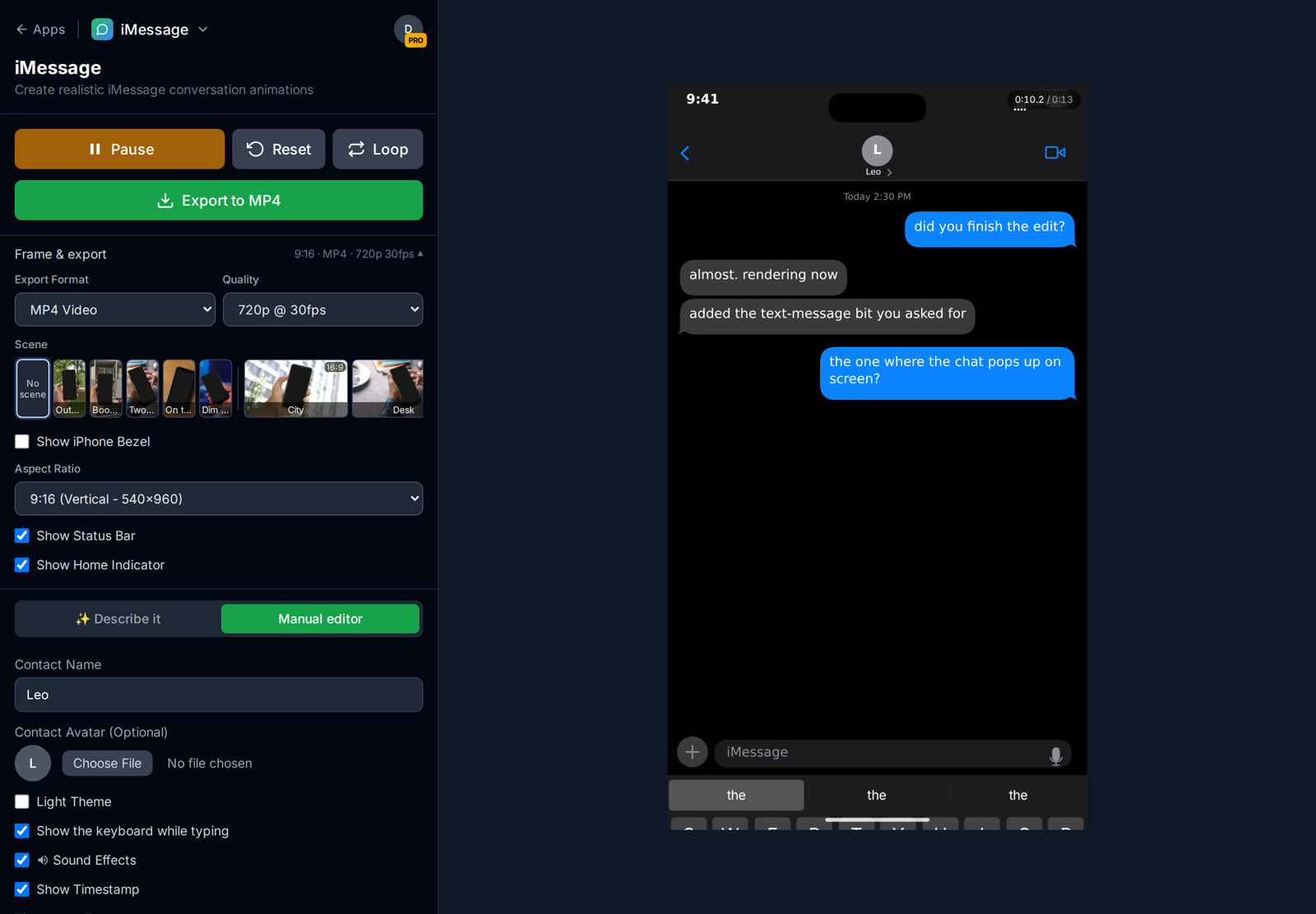
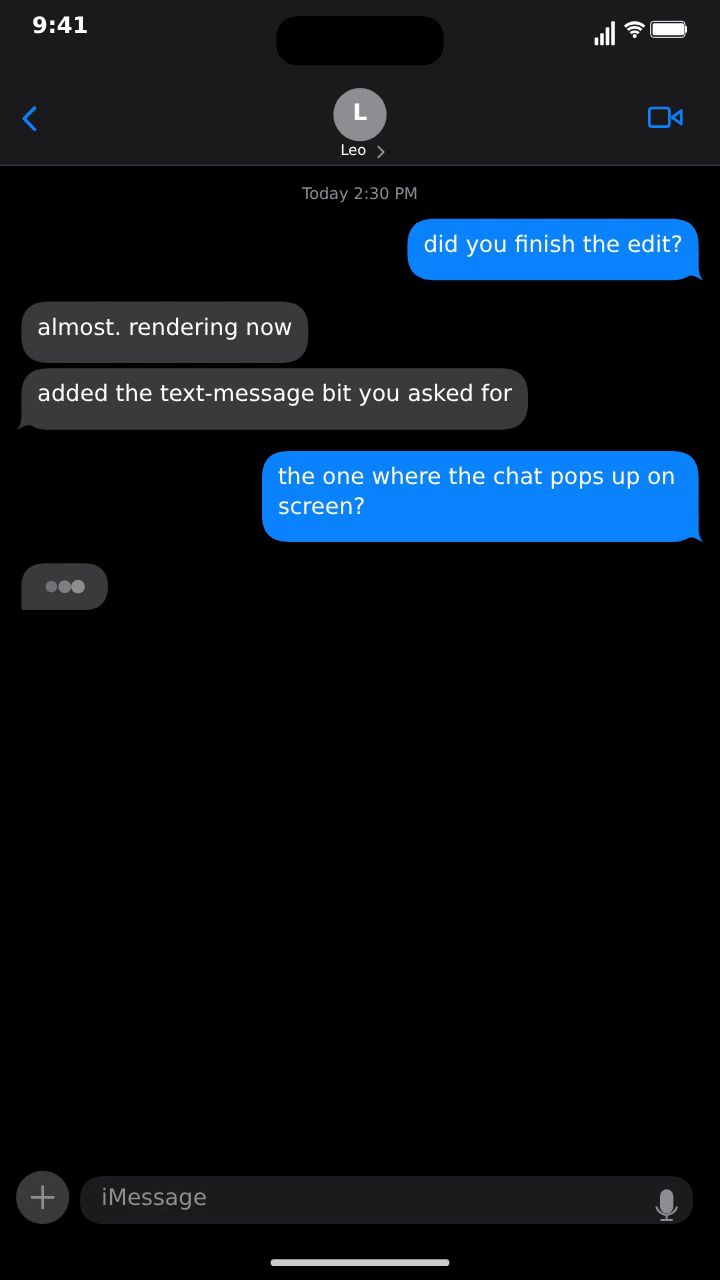
The Full HD 9:16 export is 1080×1920: exactly the size of a vertical CapCut project, so a bezel-less chat fills the frame with no scaling.
Step 2: Add it in CapCut desktop
- Import the MP4 into your project's media.
- Drag it onto the timeline above your main clip so it becomes an overlay track.
- With the overlay selected, use the Basic settings under the Video tab to set Scale and Position. For a picture-in-picture chat, scale to around 50–60% and move it to one side.
- For a phone-shaped overlay, keep it on the bezel version and add a subtle shadow or stroke to separate it from busy footage.
- Trim the overlay so it starts on the moment the first message should appear.
Step 2 (mobile): Add it in the CapCut app
- Save the MP4 to your phone (AirDrop, cloud drive or a download on the phone itself, since MockClip works in mobile browsers too).
- In your CapCut project, tap Overlay → Add overlay and choose the MockClip clip.
- Pinch to scale it and drag it into place.
- Drag the overlay's edges on the timeline to trim it, and move it to line up with your main footage.
Step 3: Notification banners with chroma key
For a notification sliding in over a scene, export the iMessage notification template with Background set to Chroma Key (Solid Color). Pure green is the default; choose another colour if your footage has green in it. Untick Show iPhone Bezel, Show Status Bar and Show Home Indicator so only the banners are drawn on the green.
Then, in CapCut:
- Add the green MP4 as an overlay above your footage.
- Select it and open the background removal tools (Remove BG on desktop under the Video tab, or in the clip toolbar on mobile).
- Choose Chroma key, tap the colour picker, and select the green.
- Raise Intensity until the green is gone, and add a little Shadow if the edges look too sharp.
MockClip draws the background as one perfectly flat colour, so the key is clean straight away: no shadows, no creases, no uneven light like a filmed green screen. The green screen notification guide has more detail on picking a key colour.
About transparent files. MockClip also exports notifications as transparent ProRes 4444 MOV or VP9 WebM, which is the cleanest option in desktop editors such as Premiere Pro and DaVinci Resolve. For CapCut, the chroma-key MP4 is the dependable choice on both desktop and mobile.
Step 4: Time it to the beat
Short-form edits live on rhythm, and a chat that lands on the beat feels intentional.
- Set delays in MockClip, then fine-tune in CapCut. Plan roughly where each message lands when you write the chat. Small adjustments are easier by sliding the overlay on the timeline than by re-exporting.
- Use CapCut's beat markers. Add beats to your music track, then line the first bubble up with a marker.
- Split for pauses. If you need a longer pause before the punchline, split the overlay on the frame before the last message and drag the second half later. Freeze the first part's last frame to fill the gap.
- Keep the sound. MockClip's send and receive sounds are in the export. Lower them under the music rather than muting them; the "whoosh" helps the viewer notice each message.
A worked example: the reaction TikTok
The most common CapCut chat edit is the reaction format: a creator on camera reacts while a conversation plays out beside them. Here is a fifteen-second version from start to finish.
- Script it. Five messages, a setup and a punchline. In the demo above, a friend asks whether the edit is finished, and the twist is that the text-message bit took two minutes.
- Export the chat. iMessage template, dark theme, keyboard on auto so it slides up while "you" type, bezel on, 9:16, Full HD.
- Film the reaction. Shoot the creator in vertical video, framed slightly to one side to leave room for the phone.
- Build the edit. Creator footage on the main track. The MockClip MP4 as an overlay, scaled to about 55% and placed on the empty side. Add a light stroke or shadow so the phone separates from the background.
- Sync the reactions. Play through and nudge the overlay so each reaction lands a few frames after the matching message appears. People react to reading, not to the bubble appearing.
- Add captions. Use CapCut's auto captions for anything the creator says, positioned so they do not cover the phone.
- Export at 1080p and the project's frame rate.
The same layout works for duets, "reading my DMs" videos and storytime formats. Swap the iMessage template for Instagram DM or WhatsApp to match the story.
Desktop or mobile?
| CapCut desktop | CapCut mobile | |
|---|---|---|
| Making the chat | MockClip in a desktop browser | MockClip in a mobile browser works, but export is quicker on a computer |
| Adding the overlay | Drag above the main track | Overlay → Add overlay |
| Precise timing | Easier: zoomable timeline, frame stepping | Workable with pinch-zoom |
| Chroma key | Video tab → Remove BG | Clip toolbar → Remove BG |
| Best for | Long edits, ads, many versions | Quick personal posts |
For ads and anything with several versions, build on desktop: the bigger timeline makes beat-syncing and revisions much faster.
Pop-in effects with keyframes
A chat overlay that simply appears can feel abrupt. Two small touches make it feel produced:
- Scale in. Add a keyframe on the overlay's first frame at 90% scale and another four or five frames later at full size. The phone pops in with a slight bounce.
- Slide in. Keyframe the position from just below the frame to its final spot over six to eight frames, so the phone rises into view like someone lifting it.
- Fade out on the cut. A three-frame opacity fade at the end of the overlay keeps the exit from feeling like a mistake.
Keep the effects short. The animation inside the chat (typing, bubbles, the keyboard) is what the viewer should watch, so the overlay itself should settle quickly.
Exporting from CapCut for paid ads
When the edit is an ad, the export settings matter as much as the creative:
- Resolution: 1080p. Upload the highest quality you have; the ad platform compresses it anyway.
- Frame rate: match the source. MockClip exports 15, 24 or 30 fps on every plan, 60 fps on Creator and Studio.
- Licence and watermark: paid ads and client work need MockClip's Studio plan, which also exports the brand-free apps without a watermark. On Free, Pro and Creator, MockClip videos are for your own content, monetised posts on your own channels included.
- Versions: export a square cut-down for feed placements. MockClip's 1:1 square export fits the conversation into the square, which is cleaner than cropping a vertical edit.
Using it in TikTok and Reels ads
Chat overlays are a staple of performance creative. A few things to keep in mind when the CapCut edit is an ad:
- The last bubble is often hidden. TikTok and Reels draw the caption and buttons over the bottom of the video, and in a chat the newest message appears at the bottom. Scale the chat slightly or move it up so the last message stays visible.
- Make it work muted. Many viewers scroll with the sound off. The chat must carry the story on its own.
- Test the hook. Changing the first message takes seconds in MockClip. Export three versions and test them as separate ads. The text message ad creatives guide has a full testing plan, and the UGC scripts post has 30 hooks to start from.
- Use a brand-free app in ads. MockClip's iMessage and other real-app templates recreate designs owned by other companies, and its licence grants no rights in those brands. For paid ads, build the chat in the brand-free apps, such as Text Chat or Lock Screen Notifications, under your own or your client's name and colour.
Common problems
The chat looks soft. Export Full HD rather than 720p, and check CapCut's export resolution is 1080p as well.
A green line around the banner. Raise the chroma key intensity a little, or export again with a key colour further from anything in the banner.
The chat is cropped at the top. Your project is not 9:16. Change the project's aspect ratio, or keep the bezel on and scale the phone down.
The timing drifts. Make sure the MockClip export's frame rate matches your project (30 fps is the safe default).
The overlay covers the creator's face. Scale the phone down, move it higher, or switch to a bezel-less chat placed in the top half of the frame while the creator sits in the bottom half.
Which plan you need
Every template, MP4 and GIF in 720p and Full HD, and chroma key backgrounds are free, with a small MockClip watermark; Pro removes it with a one-time payment. Transparent MOV and WebM, 60 fps and hand-held scenes are part of Creator. On Free, Pro and Creator, your MockClip videos are for your own content, monetised posts on your own channels included; work for clients and paid ads need Studio, and the brand-free apps are the templates made for them. Real-app templates such as iMessage recreate designs owned by other companies, which MockClip is not affiliated with; the terms explain how you may use them. Details on the pricing page.
Animate an iMessage conversation and export a 1080×1920 MP4 that drops straight into a vertical CapCut edit.
Make a chat for CapCutFrequently Asked Questions
How do I add a text message animation in CapCut?
Make the animation as a video file in MockClip, then add it to your CapCut project as an overlay above your main clip. Use a bezel-less iMessage chat export for a full-screen conversation, or a notification exported on a green background and keyed with CapCut's chroma key for banners over footage.
Where is chroma key in CapCut?
Select the overlay clip, then look for the background removal tools: on desktop under the Video tab's Remove BG section, on mobile in the clip's toolbar under Remove BG. Choose Chroma key, pick the green with the colour picker and raise the intensity until the green disappears. Menu names move between CapCut versions, so look for 'chroma key' if the layout differs.
Can CapCut use a transparent MOV?
MockClip exports transparent ProRes 4444 MOV and VP9 WebM on the Creator and Studio plans, which suit desktop editors such as Premiere Pro and DaVinci Resolve. For CapCut, the chroma-key MP4 is the most dependable route: it works in the desktop and mobile apps alike.
Do CapCut's built-in templates do the same thing?
CapCut templates give you a fixed design you fill with your text. MockClip draws the actual app interface, with typing indicators, read receipts, reactions, the keyboard and the right sounds, and you control every message and every delay. That matters when the chat is the story rather than decoration.
What size should I export for a CapCut TikTok edit?
Export vertical 9:16 in Full HD, which is 1080×1920 and matches a TikTok or Reels project exactly. Turn the iPhone bezel off if you want the chat screen to fill the frame, or keep it on to show a phone floating over your footage.
Related Articles
How to Add an iMessage Text Scene in Premiere Pro (2026)
Add an animated iMessage conversation or notification to a Premiere Pro edit: transparent ProRes 4444 overlays, Ultra Key for green screen, and phone screens.
Text Message Animation in DaVinci Resolve: The Fast Way
Add animated text messages and iPhone notifications to DaVinci Resolve without building bubbles in Fusion: transparent ProRes 4444, Delta Keyer, chat cutaways.
Text Message Ad Creatives for Meta and TikTok Ads (2026)
How to make text message ad creatives for Meta and TikTok ads: hook formats, script structure, specs and placements, and how to build the chat video in minutes.
Green Screen iPhone Notification Videos (Chroma Key Ready)
Export iPhone text and call notifications on a pure green background — ready to chroma key over any footage in CapCut, Premiere, or DaVinci.
iMessage Typing Indicator Video: How to Animate the Pause
Animate the iMessage typing bubble as an MP4 — including the cancelled-typing beat where the dots appear, hold, and vanish without a reply arriving.