Green Screen iPhone Notification Videos (Chroma Key Ready)
If you make reaction videos, product demos, or TikToks where a fake iPhone notification pops up on top of existing footage, you need the notification on a transparent-ready background — not baked into a home screen.
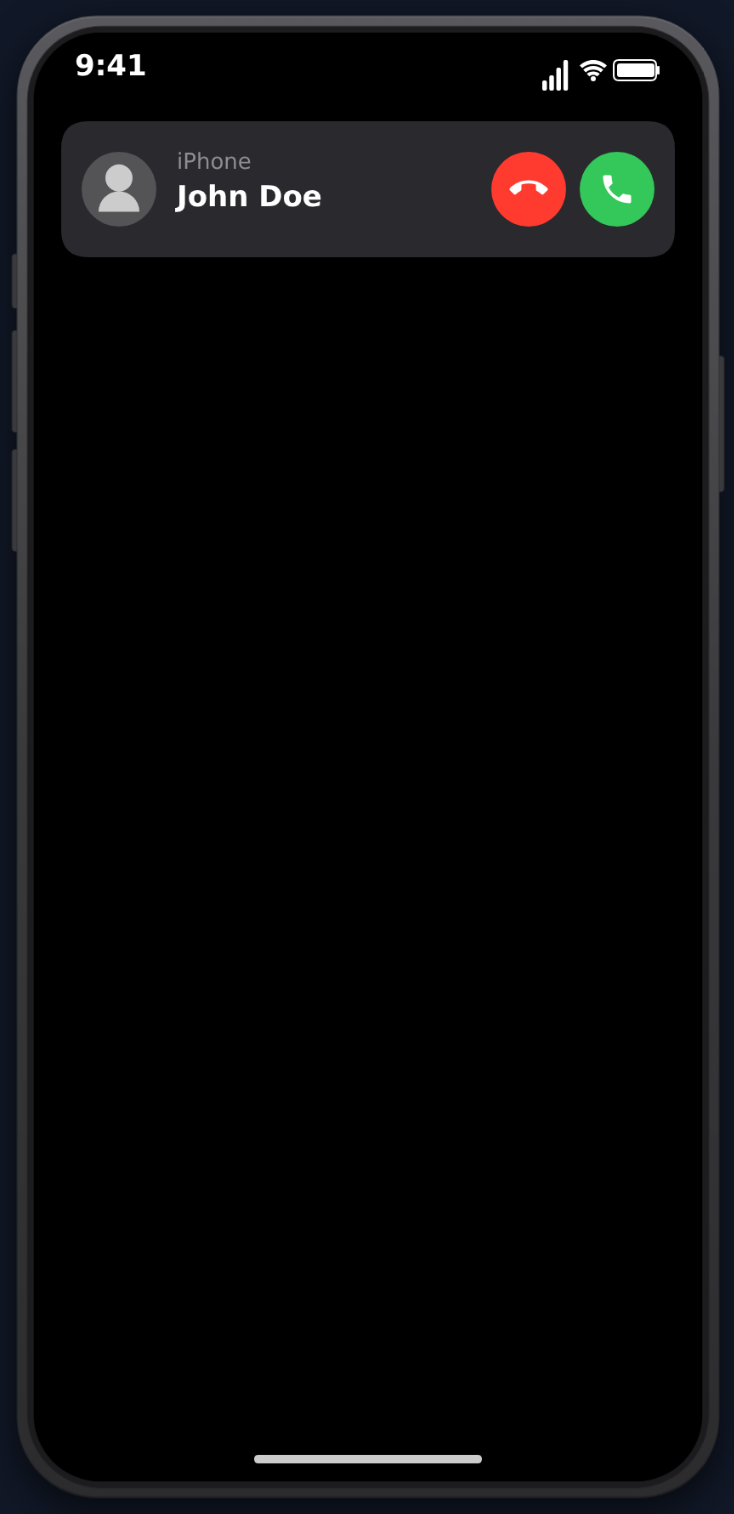 MockClip is one of the few mockup tools that exports notifications on a pure chroma background out of the box.
Why Green Screen Notifications Work
Most "fake notification" generators render a full iPhone lock screen. That's fine if you want the whole phone in the shot, but it's useless when you want the notification to float over a vlog, a gameplay clip, or a b-roll background.
A chroma-keyable export means:
- Overlay on any footage — your own video, stock clips, screen recordings.
- Animate the notification independently — scale, slide, shake it in your editor.
- Keep the iOS styling — banner shape, blur, avatar, sender name — without the rest of the phone frame.
How MockClip Exports a Green Screen Notification
Both the iMessage notification and phone call notification editors expose a Background dropdown with three options: Default (Theme Color), Chroma Key (Green Screen), and Custom Image.
Pick Chroma Key (Green Screen) and a Color picker appears, along with a hex field. The default is pure green (#00FF00) — the most compatible keying color across every editor. You can change it to blue, magenta, or any hex value if your background footage has green in it (common for nature clips or anything with grass).
Everything outside the notification banner renders as a flat solid color. The notification itself — the rounded banner, the blurred background of the banner, the avatar, the text — stays intact and keys cleanly.
Building the Notification
For iMessage notifications, each notification card in the editor exposes:
- Sender Name — the contact name shown in bold
- Message Preview — the preview text (auto-truncated on long strings)
- Avatar (Optional) — upload a picture for the contact
- Delay Before (s) — seconds to wait before the notification slides in
- Display Duration (s) — seconds to stay on screen before auto-dismissing (default 4)
- Dismiss Style — Slide Up or Fade Out
You can stack multiple notifications in a single export — they appear in sequence with your configured delays, which is perfect for a "spam" gag or a buildup of messages.
For phone call notifications, you control Caller Name, Label (e.g. "iPhone", "mobile"), Avatar, Ring Duration (seconds), and Outcome — Accept Call, Decline Call, or Unanswered (auto-dismiss). With the transition-to-full-screen toggle on, an accepted call animates from the banner into the full call screen — still on the chroma background.
Keying the Export
Export as MP4. In your editor:
- Drop the MP4 on a track above your main footage.
- Apply your editor's chroma key effect (CapCut → Effects → Chroma Key; Premiere → Ultra Key; DaVinci → 3D Qualifier).
- Pick the green color.
- Nudge the similarity/tolerance until the edges of the banner are clean.
The solid flat color keys almost perfectly — there's no gradient, no shadow, no compression artifacts to fight.
Practical Use Cases
- Reaction content. A TikTok where a fake notification from "mom" drops over your face-cam reaction.
- Story hooks. Start a video with an incoming text preview that teases the topic.
- Fake prank notifications. Layer a call from "the boss" over an unrelated clip for comedic timing.
- Product explainers. Overlay an app notification on a screen recording to show what users would see.
Try It
Open the iMessage notification editor or phone call notification editor, set Background to Chroma Key (Green Screen), and export. The green screen is baked into the MP4 — no additional setup in your editor needed beyond a keying effect.
Frequently Asked Questions
Does MockClip actually export notifications on a green screen?
Yes. Both the iMessage notification and phone call notification editors have a Background setting. Pick 'Chroma Key (Green Screen)' and the entire background renders as a solid color (default #00FF00) so everything except the notification itself can be keyed out in your editor.
Can I change the chroma color?
Yes. When Background is set to 'Chroma Key (Green Screen)', a Color picker and hex field appear. Green (#00FF00) is the default, but you can switch to blue, magenta, or any custom hex if your footage has green elements that would bleed through.
Which notifications support the chroma background?
The iMessage notification template and the phone call notification template both offer the same three Background options: 'Default (Theme Color)', 'Chroma Key (Green Screen)', and 'Custom Image'. Custom Image lets you upload any background picture instead of a flat color.
What do I use to key out the green in my editor?
Any video editor with a chroma key or color key effect works — CapCut's 'Chroma Key' on mobile, Premiere Pro's 'Ultra Key', DaVinci Resolve's '3D Qualifier', or Final Cut's 'Keyer'. Import the MP4, apply the effect, and pick the green.
Related Articles
How to Create a Fake Phone Call Notification Video
Make realistic incoming call notification videos for comedy skits and viral content. Free browser tool with animation and MP4 export.
How to Make Fake iMessage Prank Text Videos
Create funny fake iMessage conversation videos for pranks and comedy content. Typing bubbles, read receipts, and MP4 export.
How to Make Phone Mockup Videos for TikTok
Create phone mockup videos optimized for TikTok. Step-by-step guide with templates, timing tips, and export settings.