Phone Screen Replacement Without After Effects (2026 Guide)
The shot is everywhere in ads, app launches and explainer videos: a hand holding a phone, and on the screen, exactly the conversation or app screen the story needs. The classic way to make it is a green-screen phone, a tracking pass in After Effects (usually with Mocha), a corner pin, a key, roto for the fingers that cross the screen, and some colour matching so the screen does not look stuck on. It is a skilled job, and on a deadline it is the shot that slips.
This guide covers the options when you do not have After Effects, or do not have the time for it: what your editor can do on its own, where that breaks down, and how MockClip's hand-held scenes do the whole composite in the browser for chat, notification and app mockups.
Why screen replacement is hard
A convincing replacement has to get five things right at once:
- Tracking. The phone moves with the hand, so the four corners of the screen move every frame. A planar tracker follows the screen as a surface; a point tracker drifts.
- Perspective. The screen is rarely square to the camera. The replacement has to be distorted to the same perspective, frame by frame.
- Occlusion. When a thumb or finger crosses the screen, it must stay in front of the replacement. That means a matte, usually hand-drawn roto or a careful key.
- Edges. The screen edge, the rounded corners and the camera cutout (notch, Dynamic Island or punch hole) need clean, soft edges, or the screen looks pasted on.
- Light. A real screen picks up reflections and falloff from the room. A perfectly flat, bright replacement looks fake.
After Effects with Mocha handles all five well, which is why it is the default. Without it, you are choosing which of the five to compromise on.
Option 1: Corner pin in your editor
Every major editor has a corner pin: Premiere Pro's Corner Pin effect, DaVinci Resolve's Fusion page tools, and similar transform controls elsewhere.
How it works. Put the bezel-less screen recording or animation above the footage, add the corner pin, and drag the four corners onto the phone's screen. For a moving phone, keyframe the corners every few frames.
Where it works. A phone lying on a desk, or held very still on a tripod shot. Short shots of two or three seconds.
Where it breaks. Any natural hand movement. Keyframing four corners every few frames is slow, and the result wobbles between keyframes. Fingers over the screen need a separate mask. Most editors give up on corner pins for anything longer than a few seconds.
If you are taking this route with a MockClip animation, export the chat with Show iPhone Bezel off so you have only the screen to pin. The Premiere guide and the DaVinci Resolve guide cover the import side.
Option 2: Tracking tools in your editor
Some editors include tracking that can drive a corner pin. Resolve's Fusion page has tracking tools, and Premiere can track masks. These get you closer to the After Effects result on your own footage, at the cost of setup time and a learning curve, and occlusion still needs a matte you build yourself. If you have your own shot of a specific phone and person, this is the route to learn.
Option 3: A ready-made phone mockup video
Stock sites sell "phone mockup" videos with a green screen, and some include a tracking file for After Effects. Without After Effects, you are back to option 1 with someone else's footage. Template marketplaces also sell mockup projects, but those are After Effects or Premiere project files that need the same skills.
Option 4: MockClip hand-held scenes
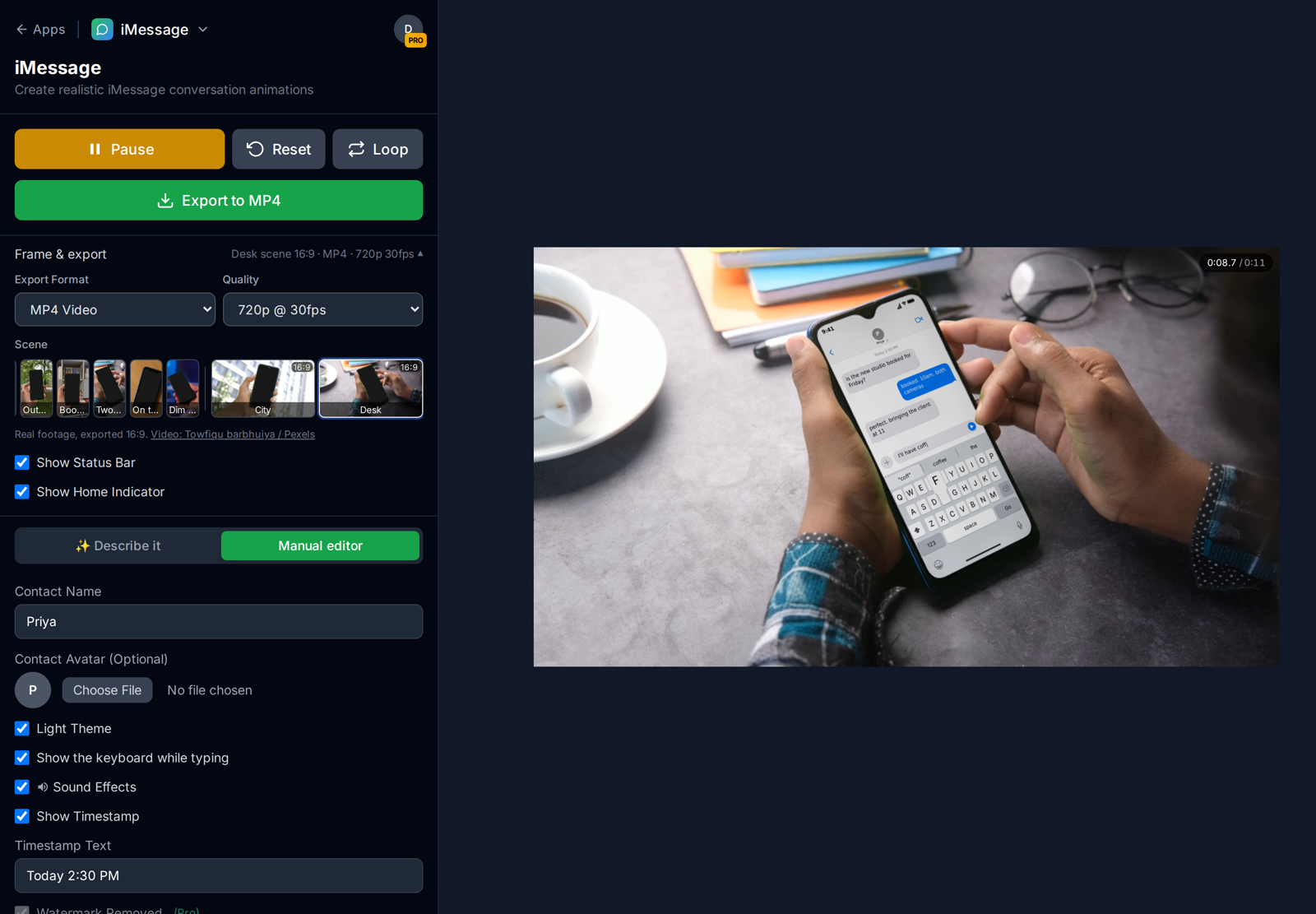
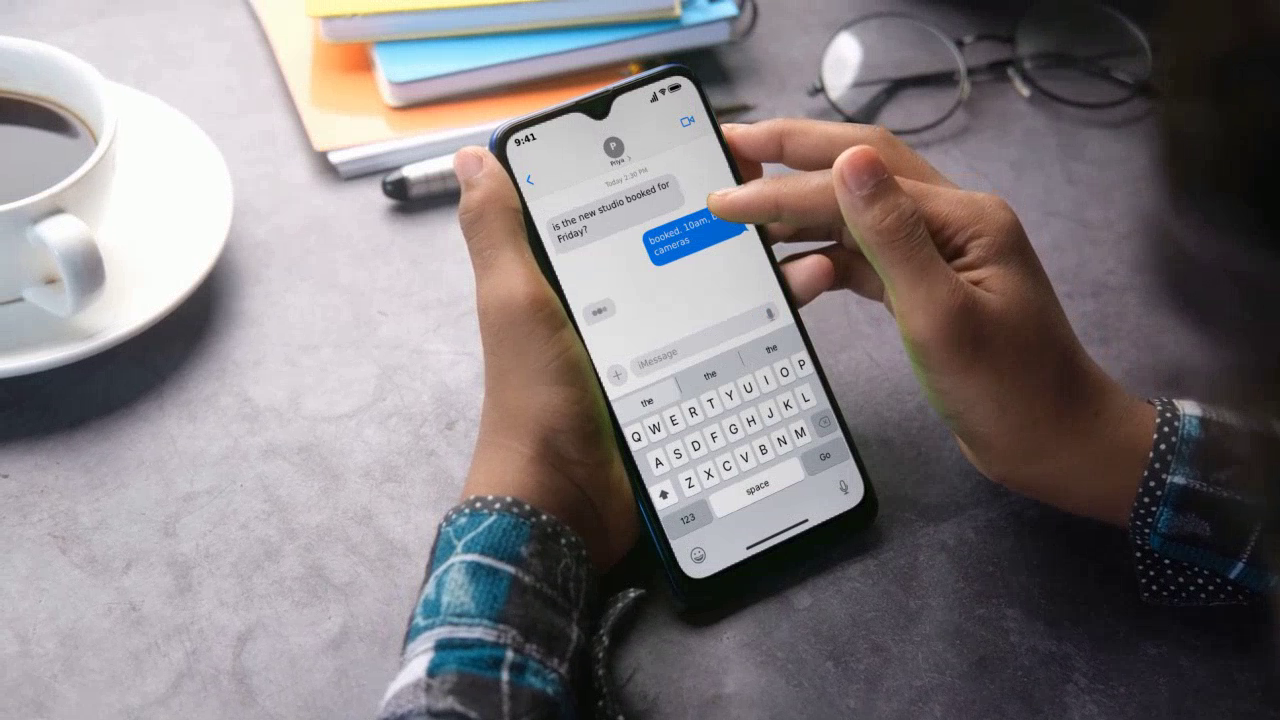
For chat, notification and app mockups, MockClip ships a library of hand-held scenes: real footage of a hand holding a phone, already prepared with a screen track for every frame and a matte. You choose a scene in the editor, and MockClip composites your clip onto the phone's screen in the browser.
What the scene takes care of:
- Per-frame tracking. Each scene stores the screen's four corners for every frame, so the clip follows the hand.
- Perspective, without squeezing. The clip renders at the shape of the real phone's screen (not a stretched iPhone screen) and is mapped onto it in perspective.
- Occlusion. The matte keeps the hand in front. In the "Two hands" scene, a finger crosses the screen edge and covers the clip as it should.
- The camera cutout. The matte keeps the real phone's notch, Dynamic Island or punch hole visible, and MockClip turns off its own drawn island so there is only one.
- Light. The screen's light falloff from the footage is applied to the clip, so it sits in the shot.
- Edges. The screen edge is softened to match the footage, with no green fringe.
The scenes
| Scene | Aspect | Export size | Good for |
|---|---|---|---|
| Outdoors | 9:16 | 720×1280 / 1080×1920 | Lifestyle, travel, delivery apps |
| Bookshelf | 9:16 | 720×1280 / 1080×1920 | Education, reading, home |
| Two hands | 9:16 | 720×1280 / 1080×1920 | Typing shots; a finger crosses the screen edge |
| On the desk | 9:16 | 720×1280 / 1080×1920 | Work, productivity, B2B |
| Dim room | 9:16 | 720×1280 / 1080×1920 | Late-night texts, drama, thrillers |
| City | 16:9 | 1280×720 / 1920×1080 | YouTube, presentations, urban apps |
| Desk | 16:9 | 1280×720 / 1920×1080 | Explainers, SaaS demos |
| Neon | 16:9 | 1280×720 / 1920×1080 | Nightlife, gaming; phone with a Dynamic Island |
| Studio | 16:9 | 1280×720 / 1920×1080 | Clean product shots; a small phone in a wide frame |
The phone is held upright in all of them. The 16:9 scenes put the upright phone in a landscape frame with the footage around it, which is the shape YouTube videos and slide decks need.
How to make a hand-held shot, step by step
- Open any template: iMessage, WhatsApp, Instagram DM, ChatGPT, Tinder, the notification templates, or one of the brand-free apps. Every template works on a scene.
- Build the clip as usual: messages, timing, typing, reactions.
- Open Frame & export and find the Scene row. It shows No scene, then the 9:16 scenes, then the 16:9 scenes with a "16:9" badge.
- Click a scene. The preview switches to the footage with your clip on the phone. Previewing is free, so try several.
- Choose Quality (Full HD for final delivery) and press Export. Scene exports take longer than a plain export, usually a minute or two, because every frame is composited in your browser.
- Download the MP4 and drop it into your edit as a cutaway, or post it as it is.
A scene sets the output size itself. The bezel, the aspect-ratio choice and transparency do not apply to a scene, and scene exports are always opaque, since the footage fills the frame. The footage loops smoothly, so it covers clips of any length.
Notifications on a scene. The iMessage notification and phone call notification templates draw an iOS lock screen on a scene: a wallpaper, the date and a large clock, with the banners stacked under the clock. A banner over a flat colour would look like a blank phone in real footage, so the lock screen is drawn automatically.
When to use which option
| Situation | Best option |
|---|---|
| Your own footage of a specific actor and phone | Tracking in your editor, or After Effects |
| A static phone on a table, short shot | Corner pin in your editor |
| A chat, notification or app shot that needs to look filmed | MockClip hand-held scene |
| Many variants of the same shot (ads, A/B tests) | MockClip hand-held scene |
| A 16:9 YouTube or presentation insert | MockClip 16:9 scene |
The last two rows are where the time saving is biggest. Changing one line of a chat and re-exporting a composited shot takes a couple of minutes. In After Effects, every variant is another render of a tracked comp, and every copy change is a trip back into the project.
Tips for believable hand-held shots
- Pick the scene for the story. A late-night text belongs in "Dim room", a work message in "On the desk". The footage carries mood.
- Match the theme. Use the dark theme for dim scenes and the light theme for daylight ones. A bright white app in a dark room glows unnaturally.
- Keep the text big enough. In a 9:16 scene the phone fills about half the frame height; in the 16:9 scenes it is smaller. Short messages read best. For long messages, use a full-screen chat instead of a scene.
- Use the scene as a cutaway. In a longer edit, a two-second scene shot establishes "she is reading her phone", and a full-screen chat can follow for the content.
- Mind the sound. The export includes the app sounds. In a filmed context, a quieter notification sound feels more natural than a loud one.
A quick checklist before you export
- Play the preview through once on the scene. Check that no message is too long to read at the phone's size in the frame.
- Check the first frame. The scene starts on the footage straight away, so make sure the first message or banner is not already half-way through its animation; add a short delay before it if needed.
- Check the end. Leave a second after the last message so the shot does not cut while the viewer is still reading.
- Pick Full HD for anything that will be published or delivered to a client; use 720p for drafts and internal reviews, since it exports faster.
- If the shot is for a client, export the same clip without a scene too. A full-screen version is useful as a follow-up shot and as a fallback if the client prefers it.
Use cases
App launch and product videos. Show an app's key screen in a real hand without filming anyone. The app demo video guide covers building the screen sequence; a scene adds the filmed look. For product teams, the brand-free AI Assistant Chat and Text Chat apps put your own product's name and colour on the phone.
Paid social ads. Hand-held shots look like UGC, which is what performs in TikTok and Reels ads. Put a brand-free app such as Text Chat on the scene and pair it with a strong chat hook from the text message ad creatives guide; paid ads need the Studio plan.
YouTube and explainer videos. The 16:9 scenes drop straight into a landscape timeline as a 1920×1080 insert.
Client work. Agencies and freelancers can deliver a tracked hand-held shot without booking a shoot, using a brand-free app under the client's name on the Studio plan. The guide to chat mockups for client videos covers briefs, revisions and delivery.
For more on mockup formats across social platforms, see the app mockup videos guide.
Requirements and limits
- Scene export runs in your browser and needs WebGL2. Recent Chrome, Edge and Firefox work. Safari needs version 16.4 or later and is slower to export.
- The phone is upright in every scene. There are no tilted or lying-flat scenes.
- The footage is prepared stock footage of a hand and phone. You cannot upload your own footage yet; scenes with your own footage are marked as coming soon for Studio.
Which plan you need
Previewing any hand-held scene is free on every plan. Exporting a scene is part of the Creator plan, together with transparent MOV and WebM and 60 fps; Studio includes everything in Creator. On Free, Pro and Creator, your MockClip videos are for your own content, monetised posts on your own channels included; work for clients and paid ads need Studio, and the brand-free apps are the templates made for them. Real-app templates such as iMessage recreate designs owned by other companies, which MockClip is not affiliated with; the terms explain how you may use them. See the pricing page for current prices.
Build a chat, pick a scene under Frame & export, and preview it on real footage for free.
Try a hand-held sceneFrequently Asked Questions
How do I replace a phone screen in a video without After Effects?
If you need your own footage, editors such as Premiere Pro and DaVinci Resolve can pin a clip to a screen with corner pin keyframes or Fusion's tracking tools, which works for short, steady shots. If what you need is a believable shot of a hand holding a phone with your chat or app on it, MockClip's hand-held scenes do the whole composite in the browser: pick a scene, and the clip is tracked onto the phone's screen in real footage.
What are MockClip hand-held scenes?
They are short clips of real footage of a hand holding a phone with a green screen, prepared with a per-frame screen track and matte. MockClip renders your clip at the screen's real shape and composites it onto the phone, including the hand's movement, the light falloff on the screen, and a finger crossing the screen edge where the footage has one.
Which scenes and sizes are available?
Nine scenes: five vertical 9:16 (outdoors, bookshelf, two hands, on the desk, dim room) that export at 720×1280 or 1080×1920, and four landscape 16:9 (city, desk, neon, studio) that export at 1280×720 or 1920×1080 for YouTube and presentations. The phone is held upright in all of them.
Do hand-held scenes work with every template?
Yes. Every chat, feed and notification template can go on a scene. The two notification templates draw an iOS lock screen behind the banners on a scene, with a wallpaper, the date and a large clock, so the phone does not look blank.
Is it free?
Previewing any scene is free. Exporting a scene needs a Creator or Studio plan. Studio will also add scenes with your own footage; that option is marked as coming soon on the pricing page.
Can I use my own footage of a phone?
Not yet. The shipped scenes are prepared stock footage. Using your own footage is listed as coming soon in the Studio plan. Until then, for your own shot, use a tracker in your editor or After Effects.
Related Articles
How to Add an iMessage Text Scene in Premiere Pro (2026)
Add an animated iMessage conversation or notification to a Premiere Pro edit: transparent ProRes 4444 overlays, Ultra Key for green screen, and phone screens.
Text Message Animation in DaVinci Resolve: The Fast Way
Add animated text messages and iPhone notifications to DaVinci Resolve without building bubbles in Fusion: transparent ProRes 4444, Delta Keyer, chat cutaways.
App Mockup Videos for Social Media: A Complete Guide
How to make app mockup videos for TikTok, Reels and Shorts: every MockClip template, the editor steps, export settings per platform and the mistakes to avoid.
How to Make an App Demo Video Without Coding or Screen Recording
Create a polished app demo video without writing code, recording your screen, or learning After Effects. The complete 2026 workflow.
Chat Mockups for Client Videos: An Agency Workflow Guide
How agencies, freelance editors and small businesses make chat mockups for client videos: briefs, copy sign-off, app choice, revisions, brand safety, delivery.