Square Chat Video: Export 1:1 Fake Text Clips for Any Feed
Vertical 9:16 is the right shape for TikTok, Reels and Shorts, where the video fills the phone screen. It is the wrong shape almost everywhere else. In a feed post, a presentation slide, a blog article, a newsletter or a product page, a tall phone recording turns into a narrow strip with a lot of empty space beside it. A square video sits in all of those places at full width.
MockClip has had a square option for a while, but on chat templates it used to crop the top of the phone, which cut off the input bar and the keyboard, so a square clip never showed anyone typing. That is fixed. The chat templates now lay the conversation out to fit the square: the header, the newest messages, the input bar and the keyboard all stay in shot. And you can now make the square with or without the iPhone frame.
What the 1:1 export does
A 1:1 export is a square video: 720×720 pixels at 720p quality, 1080×1080 at Full HD. What goes into the square depends on whether the iPhone bezel is on.
- With the bezel on, you get the top part of the phone, frame included: the rounded corners, the Dynamic Island, the status bar, and the app below it. The chat templates arrange the conversation inside that visible area. Older messages scroll up out of view as new ones arrive, the same way they do on a real phone.
- With the bezel off, you get the app screen alone as a flat square, with no phone frame. The status bar and the home indicator are separate toggles.
In both cases, the square is a real layout, not a crop applied after the fact. The preview shows exactly what the export will contain.
Which templates support the square format
The six chat templates fit the conversation into the square:
- WhatsApp — typing, ✓ and ✓✓ marks, reactions, the keyboard while you type
- iMessage — blue and grey bubbles, Delivered and Read, tapbacks
- ChatGPT — the prompt being typed, then the reply streaming in
- Telegram — reply quotes, read marks, typing in the header
- Messenger — photo grids, read avatars, the typing bubble
- Instagram DM — the DM thread with typing and seen
Two notification templates also offer 1:1, and they show the top of the screen, which is where the banner slides in:
The phone call, Tinder and Reddit templates are full-screen layouts with the important parts spread from top to bottom, so they stay vertical and do not show the square option.
How to export a square chat video
- Open a chat template, for example WhatsApp.
- Write the conversation in Describe it ("two coworkers deciding who presents on Monday, 5 messages") or add messages by hand in the Manual editor.
- Choose the framing:
- With the phone frame: keep Show iPhone Bezel ticked and tick 1:1 Cropped (Square) below it.
- Without the phone frame: untick Show iPhone Bezel and set Aspect Ratio to 1:1 (Square).
- Press Play and watch the preview. It is the same square the export will render.
- Choose an Export Format (MP4 for social posts) and a Quality (720p or Full HD), then press Export.
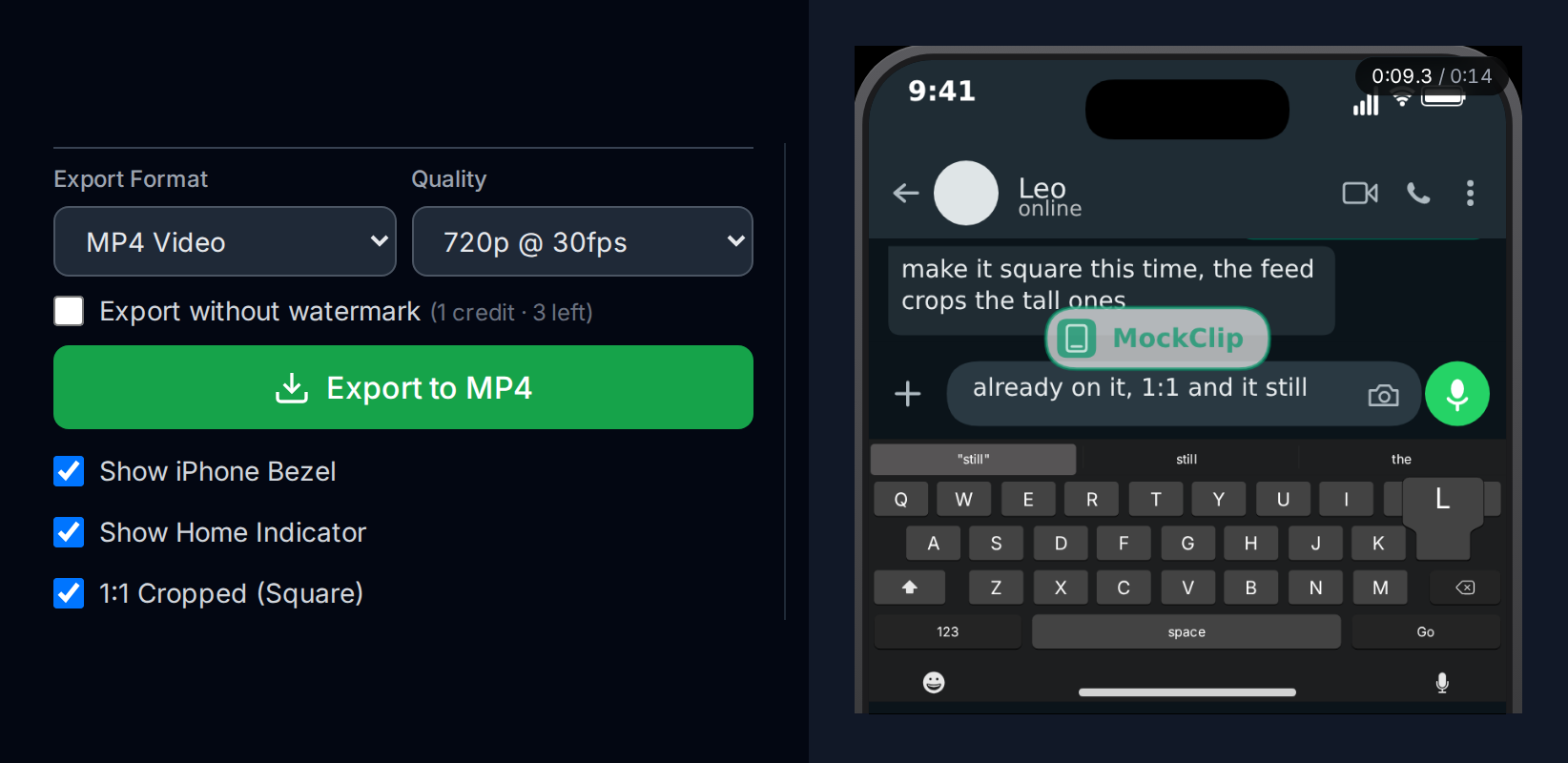
The frame settings sit above the Describe it and Manual editor tabs, so they apply the same way whichever mode you use to write the clip.
With the bezel or without it
Both squares are useful. They answer different questions.
Keep the bezel when the viewer needs to know it is a phone. The rounded frame, the Dynamic Island and the status bar make it read as "someone's phone screen" in a fraction of a second, which matters for story-style content: an argument, a reveal, a prank, a customer conversation.
Drop the bezel when the app is the point and the phone is noise. A ChatGPT answer in a slide deck, a support conversation in a product page, or a chat embedded in an article all read better as the bare app screen. Without the frame, you also get every pixel of the square for the conversation itself.
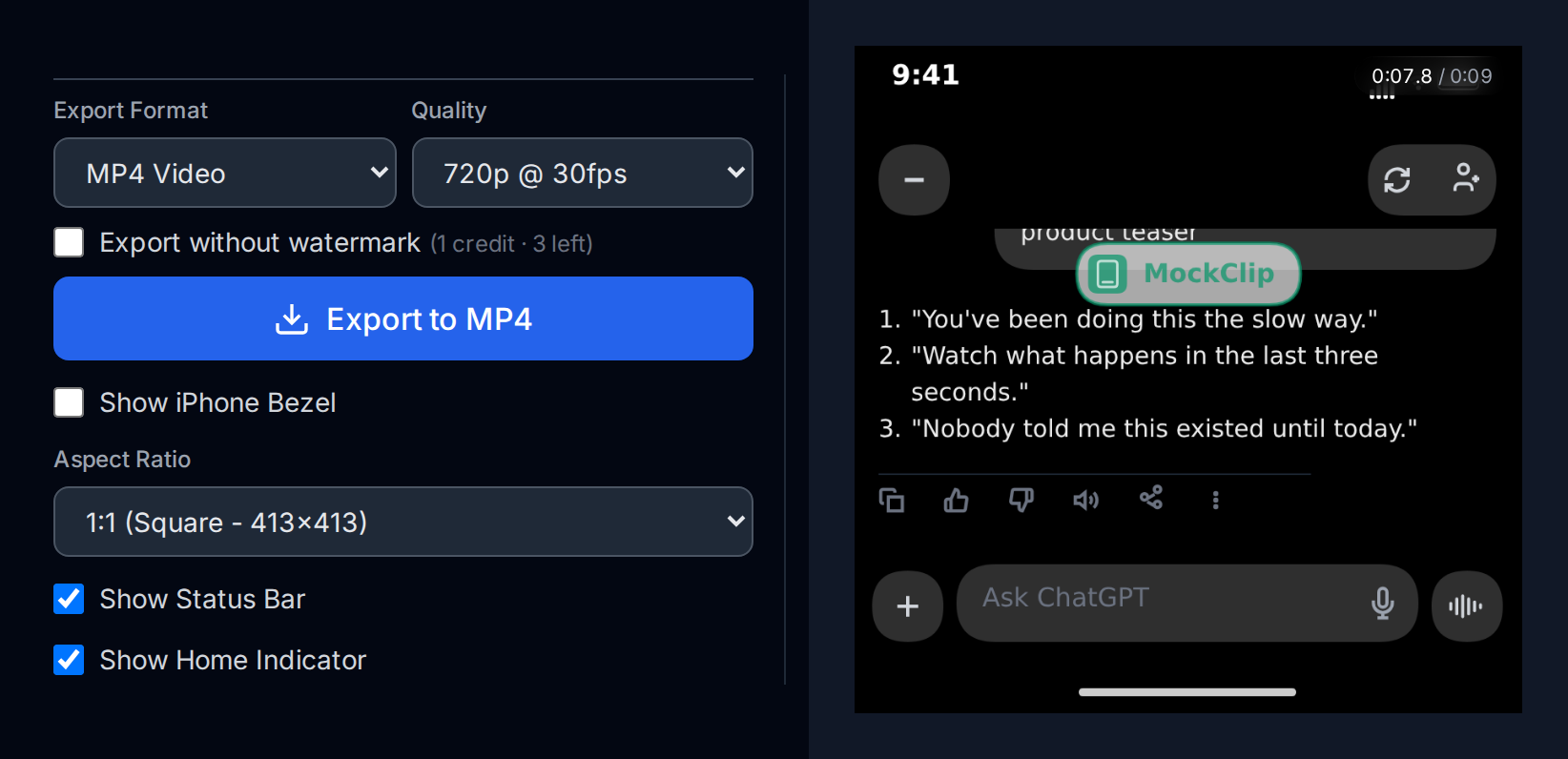
With the bezel off, two more options appear:
- Show Status Bar — the 9:41 clock, signal, Wi-Fi and battery at the top. Untick it for a cleaner app-only look.
- Show Home Indicator — the bar at the bottom of the screen. It now follows its toggle in 1:1 too, where it used to be forced off.
Why typing stays in shot
On a phone, the input bar and the keyboard live at the bottom of the screen. A simple square crop of a phone keeps the top and throws the bottom away, so every "user is typing" moment disappears from the video: the message just appears, with no build-up.
MockClip's chat templates handle the square as its own layout. In 1:1, the visible area is shorter, so the template places the input bar and the on-screen keyboard at the bottom of the square instead of the bottom of the full phone, and keeps the newest messages just above them. When the user types, you see the letters land in the input bar and the keys light up. When the other person types, you see their typing indicator. When a message is sent, it moves up into the thread above the keyboard.
The keyboard follows the same setting as in vertical videos. In the Describe it panel, the Keyboard row offers While typing, Always and Never. If you want more room for messages in the square, choose Never.
Writing a conversation that fits a square
A square holds fewer lines than a tall phone screen. A few habits keep a square clip readable:
- Keep messages short. One or two lines per bubble. A long paragraph pushes everything else out of view.
- Use more messages instead of longer ones. Five short messages read better in a square than two long ones, and they keep the clip moving.
- Give each message time. Older messages scroll out of view sooner in a square, so let each one stay on screen long enough to read before the next arrives.
- Put the punchline last. The last message stays in view at the end of the clip, so make it the one that matters.
- Turn the keyboard off for reading-heavy clips. With Keyboard: Never, the thread gets the full height of the square.
Writing a square clip with Describe it
The Describe it panel writes the whole conversation from one sentence, and it works the same in the square. Two things help it produce a clip that suits the shape:
- Ask for short messages. Add "short messages" or "one line each" to the description. The AI writes the length you ask for.
- Name the count. "5 messages" or "6 messages" keeps the clip tight. A square shows the last few messages at a time, so a long thread scrolls a lot.
A description like "a customer asks a bakery if they deliver on Sundays, 5 short messages, friendly ending" gives you a clip that reads well at 720×720. If one moment needs changing, point at the second instead of rewriting the description: "at 0:06 make the reply shorter". The Describe it guide explains how refining by the second works, and the prompt ideas list has more descriptions to start from.
Where square chat videos work best
Square is a general-purpose shape. A few places where it is a better fit than 9:16:
- Feed posts. A square video takes the full width of a feed post and needs no cropping to look right on desktop and mobile.
- Presentations and demos. A square clip fits next to text on a slide. A bezel-less ChatGPT square is a clean way to show a prompt and an answer in a pitch.
- Websites and landing pages. A square chat clip fits a two-column layout beside a headline, where a tall phone recording would push the page down.
- Newsletters and articles. Square GIFs and MP4s sit inline with text without taking over the screen.
- Ads with several placements. One square file can go into placements that would otherwise each need their own crop.
For full-screen short-form video, keep 9:16. Our guides to WhatsApp chat videos for YouTube Shorts and ChatGPT conversation videos for TikTok cover the vertical format.
Square clips from links and the MCP server
The frame settings now travel with a clip. A MockClip ?config= link can carry two top-level fields next to the app config:
videoFormat—"9:16","9:19.5","3:2"or"1:1"showBezel—trueorfalse
A link with "videoFormat": "1:1" opens the template in the square framing, with the bezel on or off as set. On a template without a square layout, 1:1 falls back to 9:16.
Every tool of the MockClip MCP server accepts the same two fields. If you make clips from Claude or ChatGPT, you can ask for a square one directly ("make it a 1:1 square without the phone frame") and the link opens in that framing. The guide to connecting MockClip to Claude and ChatGPT and the integrations page cover the setup.
Free to start. Tick 1:1 Cropped (Square), or turn the bezel off and pick 1:1.
Make a square chat videoExport formats and quality in square
The square works with every export format and quality setting:
| Format | Square output | Notes |
|---|---|---|
| MP4 Video | 720×720 or 1080×1080 | The default for social posts |
| GIF Animation | Up to 720 wide | No audio; good for articles and emails |
| MOV · ProRes 4444 | 720×720 or 1080×1080 | Alpha channel; made for the notification overlays |
| WebM · VP9 | 720×720 or 1080×1080 | Alpha channel; smaller files than MOV |
Quality offers 720p or Full HD at 15, 24, 30 or 60 fps. For a chat clip, 30 fps is plenty. Use Full HD when the clip will be shown large, for example on a slide or a desktop page.
For notification overlays with a fully transparent background, see the transparent notification video guide. For every export option in one place, see the export settings guide.
On a phone
The editor works on phones too. On a narrow screen, the frame and export options sit in a collapsible Frame & export section at the top of the editor. Its summary line shows the current choice, for example "Bezel 1:1 · MP4 · 720p 30fps". Open it to switch the bezel, tick 1:1 Cropped (Square), or pick an aspect ratio, then export from the bar at the bottom.
Watermark and pricing
Square exports are free, like every other format. Free exports carry a small MockClip watermark that moves around the frame. Pro removes it from every export, and a signed-in free account with credits can tick Export without watermark (1 credit) to export a single clip without it. See the pricing page for current prices.
Common problems and fixes
I don't see the 1:1 option. The template has no square layout (phone call, Tinder, Reddit), or the bezel is off. With the bezel off, the square is in the Aspect Ratio dropdown instead of the checkbox.
The keyboard covers the conversation. Set Keyboard to Never in the Describe it panel, or shorten the messages.
A message scrolls away before it can be read. Increase the delay before the next message, or split long messages into shorter ones.
My link opened in 9:16. Check that videoFormat is a top-level field of the config, next to the app fields, and that the template supports the square.
Quick start checklist
- Open a chat template: WhatsApp, iMessage, ChatGPT, Telegram, Messenger or Instagram DM.
- Write the conversation with short messages.
- Tick 1:1 Cropped (Square), or untick the bezel and pick 1:1 (Square).
- Play the preview and check every message is readable.
- Export as MP4 at 720p or Full HD.
Related MockClip templates and guides
- Fake chat video export settings: every format and option
- Transparent notification videos with MOV and WebM alpha
- WhatsApp chat animation generator
- Connect MockClip to Claude and ChatGPT
- App mockup videos for social media
- AI fake chat video generator: Describe it
Frequently Asked Questions
How do I export a chat video in 1:1 square format?
With Show iPhone Bezel on, tick 1:1 Cropped (Square) under the bezel options. With the bezel off, set Aspect Ratio to 1:1 (Square). Then export as usual. The file is 720×720 at 720p quality or 1080×1080 at Full HD.
Which MockClip templates support the square format?
The six chat templates lay the conversation out to fit the square: ChatGPT, iMessage, WhatsApp, Telegram, Messenger and Instagram DM. The iMessage notification and phone call notification templates also offer 1:1 and show the top of the screen, where the banner is. The phone call, Tinder and Reddit templates stay vertical.
Does the typing still show in a square video?
Yes. In 1:1, the chat templates fit the header, the latest messages, the input bar and the on-screen keyboard inside the square, so the user's typing is in shot instead of cropped off the bottom of the phone.
Can I export a square video without the phone frame?
Yes. Untick Show iPhone Bezel and choose 1:1 (Square) in the Aspect Ratio dropdown. You get the app screen alone as a square, with optional status bar and home indicator.
Can I make a square clip through a link or the MCP server?
Yes. A ?config= link can carry videoFormat set to 1:1 and showBezel set to true or false, and every MockClip MCP tool accepts the same two fields. The clip opens in the square framing.
Is the square export free?
Yes. Every aspect ratio and export format is available on the free plan. Free exports carry a small MockClip watermark, which Pro or a single credit removes. See the pricing page for current prices.
Related Articles
Fake Chat Video Export Settings: MP4, GIF, MOV, WebM, 1:1
Every MockClip export setting explained: MP4, GIF, transparent MOV and WebM, 720p and Full HD, 1:1 square, bezel-less frames, watermark, mobile and links.
Transparent Notification Video: MOV and WebM Alpha Export
Export iMessage and phone call notification videos with a real alpha channel as ProRes 4444 MOV or VP9 WebM. Drop them on any footage, no green screen to key.
WhatsApp Chat Animation Generator: Create Viral Videos
Free WhatsApp chat animation generator for creating realistic message videos. Animate conversations with typing indicators, read receipts, and timestamps.
How to Connect MockClip to Claude and ChatGPT (MCP Setup Guide)
Step-by-step guide to configure MockClip inside Claude Desktop and ChatGPT using the Model Context Protocol. Generate conversation mockup videos from plain-English prompts.
App Mockup Videos for Social Media: A Complete Guide
How to make app mockup videos for TikTok, Reels and Shorts: every MockClip template, the editor steps, export settings per platform and the mistakes to avoid.