How to Make a ChatGPT Conversation Video for TikTok
ChatGPT conversation videos are one of the most replicated formats on TikTok and Reels right now. A user types a prompt, the AI streams a response word by word, the blinking cursor holds attention frame by frame, and the viewer stays glued to the screen waiting for the punchline, the revelation, or the absurd answer. The format works because it borrows every engagement mechanic from the real ChatGPT interface — the typing animation, the thinking indicator, the streaming reveal — and compresses them into a vertical video that fits the short-form feed.
This guide covers why ChatGPT videos perform on TikTok and Reels, how to write conversations that hold viewers past the 3-second mark, the step-by-step workflow in MockClip's ChatGPT template, platform-specific posting strategies, and the content patterns that separate a 500-view clip from a 500K-view clip.
Why ChatGPT conversation videos work on TikTok
Four mechanics compound to make the format effective in short-form feeds.
The streaming reveal holds attention. Every word appears one at a time. The viewer cannot skim ahead, cannot skip to the punchline, and cannot predict exactly when the line will land. That forced linearity is the strongest watch-time mechanism in short-form video — the viewer's brain is locked into the pace of the text because there is no faster way to consume it.
The interface is universally recognized. The dark ChatGPT screen with the rounded input bar at the bottom is one of the most familiar UIs on the internet. When it appears in a TikTok, the viewer instantly understands what they're looking at. That recognition buys you a full second of attention before you even deliver content — and on TikTok, one second is the difference between a swipe and a watch.
The prompt is the hook. The user message at the top of the screen does the work of a title card, a caption, and a thesis statement in one line. "Write me a breakup text for someone who still uses Internet Explorer" tells the viewer exactly what they're about to see, sets the comedic expectation, and creates a curiosity gap that only the streaming response can fill. The prompt-response structure is a built-in hook-payoff machine.
The thinking indicator builds suspense. The pulsing dot or spinning "Reasoning..." label before the response starts is dead time that creates anticipation. Viewers who have used ChatGPT have been conditioned to wait through that animation — the format piggybacks on that conditioning.
The combination of these four mechanics explains why ChatGPT conversation videos consistently outperform static text posts, talking-head clips, and even standard meme formats on engagement metrics. The format is inherently optimized for the metric that matters most: watch time.
What makes a ChatGPT TikTok video go viral
The format provides the delivery mechanism. The content determines the reach. Three patterns dominate the top-performing ChatGPT TikTok videos.
The absurd prompt
The user asks ChatGPT something ridiculous, and the response is either earnestly helpful (which makes it funnier) or matches the absurdity. Examples:
- "Explain quantum physics but you're a disappointed Italian grandmother"
- "Write a Yelp review for the Garden of Eden"
- "Describe my life as a Netflix synopsis"
The comedy comes from the contrast between the formal AI response format and the ridiculous premise. The streaming animation sells the joke because the punchline builds word by word.
The emotional reveal
The user asks something personal or vulnerable, and ChatGPT's response is unexpectedly moving. Examples:
- "Write me the text I wish my dad had sent me"
- "What would my dog say if they could talk?"
- "Write a letter from my future self"
These videos perform because the streaming text format turns the response into a slow emotional reveal. Viewers watch the whole thing because each new line adds a layer. The comment section fills with personal stories, which drives engagement.
The practical flex
The user asks ChatGPT something genuinely useful, and the response is so good that viewers screenshot or save it. Examples:
- "Write me a TikTok script about why you should never text your ex at 3am"
- "Give me 5 side hustles I can start this weekend with zero money"
- "Write a resume bullet point for someone who was a stay-at-home parent"
These videos perform on saves and shares rather than comments. The streaming animation makes the content feel more valuable because viewers watch it being "created" in real time.
For a larger bench of prompt ideas across all conversation formats, see AI conversation video content ideas.
Step-by-step: creating a ChatGPT video for TikTok
The workflow from blank editor to finished MP4 takes about five minutes. Here's every step.
Step 1: Open the ChatGPT template
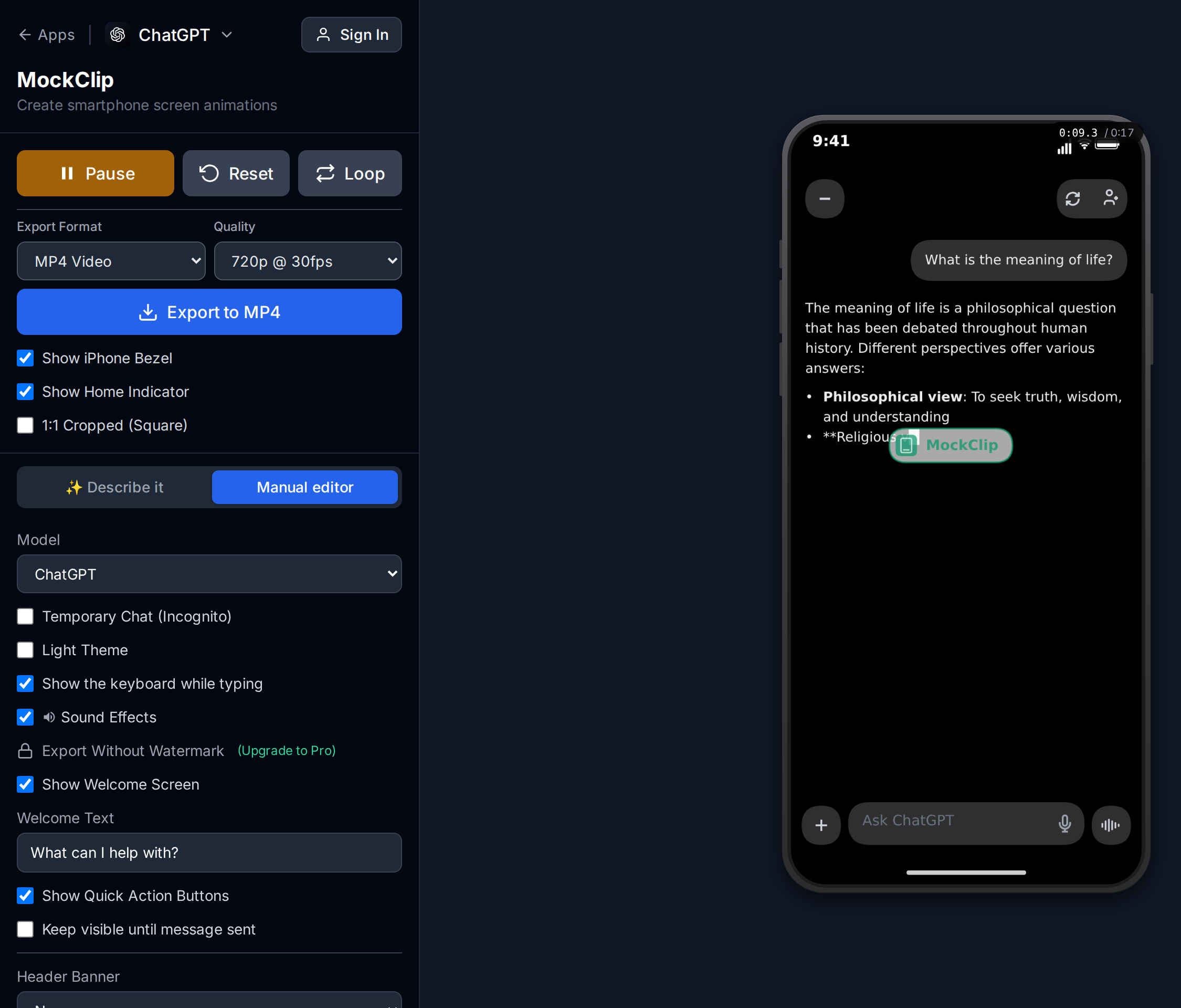
Go to mockclip.com/app/chatgpt. The editor loads with a sample conversation. Press Play to see the full animation cycle — streaming text, thinking indicator, cursor — so you know what the export will look like before you start editing.
Step 2: Write the user prompt
The user message is the first thing viewers see. It needs to do three jobs:
- Set the premise — what is the viewer about to watch?
- Create a curiosity gap — why should they keep watching?
- Be short — one to two sentences maximum. Long prompts lose the TikTok audience before the AI response even starts.
Strong prompt patterns:
- The command: "Write me a breakup text for someone who..." — direct, funny premise
- The question: "What would happen if I..." — curiosity-driven
- The challenge: "Explain [complex topic] but you're a [absurd character]" — sets up contrast comedy
Weak prompt patterns to avoid:
- Multi-paragraph prompts — nobody reads a wall of text in a TikTok
- Generic questions — "Tell me a joke" gives the viewer no reason to stay
- Prompts that need context — if the viewer needs background information, the video won't work in-feed
Step 3: Write the assistant response
The assistant message is where the content lives. Write it yourself — do not paste a real ChatGPT output. You are scripting a video, not recording a screen.
Key principles:
- Front-load the hook. The first line of the response should land within 3-5 seconds of the streaming animation starting. If the response opens with "Sure, here's..." or "Great question!", cut it. Start with the content.
- Write for streaming speed. Each word appears one at a time. Read your response out loud at the speed the streaming animation will play it. If a line feels slow when read word by word, it will feel slow in the video.
- End with a punchline or emotional peak. The last line of the response is the last thing the viewer sees before the video loops or ends. Make it land.
- Use bold and formatting. MockClip renders markdown — bold text and line breaks add visual rhythm to the streaming animation and help viewers track the response as it builds.
Step 4: Add action indicators (optional)
MockClip supports the same action labels that appear in the real ChatGPT interface. Before the assistant response streams, you can show a spinning indicator with a label like:
- "Reasoning..." — for analytical or thoughtful responses
- "Searching the web..." — for responses that pretend to pull live data
- "Analyzing image..." — for image-related prompts
The action indicator adds 2-4 seconds of suspense before the response starts streaming. Use it when the delay builds anticipation. Skip it when you want the response to start immediately.
To add one, set the action field on the assistant message in the editor. Pick the action type and set the duration.
Step 5: Configure the theme and model label
Theme: Dark mode is the default and the right call for TikTok. The dark interface matches the ChatGPT UI that viewers recognize, and dark backgrounds perform better in feeds where users scroll in low light.
Model label: MockClip lets you set the model name displayed in the header. "GPT-4o" is the most recognized label right now. Pick whatever fits your content — the label is a small detail, but it signals authenticity to viewers who use ChatGPT daily.
Step 6: Preview and export
Press Play and watch the full animation. Check:
- Does the prompt read clearly in the first 2 seconds?
- Does the streaming speed feel natural — not too fast to read, not too slow to bore?
- Does the punchline or emotional peak land at the end of the response?
- Is the total video length between 15-45 seconds?
When the timing is right, hit Export. MockClip renders the animation frame-by-frame to a 1080x1920 vertical MP4. The file is ready for direct upload to TikTok, Reels, or Shorts.
Free to use. No sign-up. Browser-based.
Open the ChatGPT conversation editorPlatform-specific posting strategy
The same ChatGPT video performs differently on each platform depending on how you frame it.
TikTok
TikTok is where the format was born and where it performs best. The algorithm rewards watch time above everything else, and the streaming text animation is a watch-time machine.
Sound: Export from MockClip is silent by default. Add a trending sound or a lo-fi background track in the TikTok editor. The sound does not need to match the content — it just needs to not distract. Trending sounds get a minor algorithmic boost.
Caption: Write the caption as a second hook. "wait for it..." or "the last line sent me" gives viewers a reason to watch the whole streaming animation. Do not repeat the prompt in the caption — the prompt is already on screen.
Hashtags: 3-5 maximum. Include at least one format-specific hashtag (#chatgpt, #aichat, #fakechatgpt) and one topic-specific hashtag that matches your content.
First comment: Post a comment immediately after uploading. "What would you ask ChatGPT?" or "Should I do a part 2?" seeds the comment section and signals engagement to the algorithm.
Posting time: Early evening (7-10 PM local) on weekdays consistently outperforms other time slots for short-form content.
Instagram Reels
Reels rewards slightly different behavior than TikTok. The algorithm weighs saves and shares more heavily, and the audience skews slightly older.
Caption: Reels captions are more visible than TikTok captions. Write a one-sentence teaser that primes the emotional response: "the response actually made me cry" or "I can't believe AI wrote this."
Cover image: Instagram lets you set a custom cover for the Reel. Screenshot the ChatGPT prompt (the user message) and use it as the cover. This gives the Reel a clear, recognizable thumbnail in grid view.
Audio: Same as TikTok — add a trending audio or background music in the Reels editor.
For broader Reels-specific formatting, see Instagram Reels mockup video guide.
YouTube Shorts
Shorts indexes titles for search in a way TikTok and Reels don't. This means your ChatGPT Short can surface in YouTube search results weeks or months after posting.
Title: Write the title like a search query. "I asked ChatGPT to write my breakup text" or "ChatGPT explains quantum physics as an Italian grandma" — these are titles people actually search for.
Description: Include 2-3 relevant keywords. YouTube's search engine reads the description and uses it for ranking.
Thumbnail: YouTube Shorts auto-generates thumbnails from the video. Since your video is a ChatGPT interface, the thumbnail will naturally look like a ChatGPT conversation — which is recognizable and clickable.
For YouTube Shorts-specific deep dives, see fake text conversation video for YouTube Shorts.
Advanced features for better ChatGPT TikToks
MockClip's ChatGPT template includes several features that take a basic conversation video to the next level.
Thinking animation
The pulsing white circle that appears before an assistant response starts streaming. It mimics the real ChatGPT "thinking" state and adds 1-3 seconds of suspense. Use it on the first assistant message to build anticipation after the prompt. Skip it on follow-up messages in multi-turn conversations where the pacing should be faster.
Action indicators with custom labels
Beyond the built-in action types (Reasoning, Searching, Browsing, Analyzing image), you can set a custom label. "Judging your life choices..." or "Consulting the universe..." adds a comedic beat before the response. The spinning loader animation sells it as real UI behavior.
Streaming speed control
Each message has an adjustable streaming speed. Faster streaming works for punchy, short responses where the energy is high. Slower streaming works for emotional or dramatic responses where you want the viewer to absorb each word. The default speed is calibrated to match the real ChatGPT interface.
Error messages
MockClip can render the red ChatGPT error box with custom text. "Something went wrong. Please try again." or a custom error message. This is the punchline mechanic for comedy videos where ChatGPT "refuses" to answer or "crashes" after a wild prompt.
Multi-turn conversations
For longer-format content (30-60 seconds), build a multi-turn conversation with 3-4 messages. The rhythm of prompt-response-prompt-response creates a conversational flow that holds attention longer than a single exchange. Each turn should escalate — funnier, more absurd, or more emotionally intense.
Image generation blocks
If your content involves ChatGPT "creating" an image, MockClip renders a blur-to-clear reveal animation that mimics DALL-E output. Upload any image, set the reveal duration, and choose whether the image appears before or after the text response. The generate-then-reveal animation is visually striking and gives viewers a second moment to react.
For a deep dive on the image generation animation specifically, see ChatGPT image generation animation video.
Content ideas for ChatGPT TikTok videos
Here are proven content categories with specific prompt examples you can adapt.
Comedy and absurdist humor
- "Explain my job to a medieval peasant" (streaming response in ye-olde English)
- "Write a LinkedIn post but you're brutally honest about what you actually do"
- "Describe Monday morning like a nature documentary narrator"
- "Write my dating profile but you can only use the truth"
Emotional and relatable content
- "Write the apology I never got from [person]"
- "What would you tell someone who's about to give up on their dream?"
- "Write a letter from my childhood self to adult me"
- "Describe what it feels like to miss someone without saying the word 'miss'"
Practical and educational
- "Give me a 30-day plan to learn [skill] from scratch"
- "Write 5 cold email templates that actually get replies"
- "Explain [complex topic] so a 10-year-old understands it"
- "What are 3 things most people waste money on without realizing?"
Trending format hooks
- "POV: ChatGPT is your therapist" — set the prompt as a therapy-style question
- "This AI wrote my resignation letter" — practical with a comedic spin
- "I asked AI to roast my resume" — self-deprecating humor that drives saves
For a larger library of conversation ideas across all MockClip templates, see AI conversation video content ideas.
Writing tips for maximum watch time
The difference between a ChatGPT TikTok that gets 500 views and one that gets 500K views is almost always in the writing. The tool and animation are the same — the script is the variable.
The first five words of the response matter most. By the time the streaming animation hits word five, the viewer has decided whether to keep watching or swipe. If those five words are "Sure! Here is a" — swipe. If those five words are "Your ex is currently" — watch.
Write for the streaming speed. Read your response out loud, one word at a time, with a half-second gap between each word. If a sentence feels tedious at that pace, it will feel tedious in the video. Cut filler words. Every word should pull its weight.
End on a punchline, not a summary. The real ChatGPT adds "Let me know if you'd like me to adjust anything!" at the end of responses. Do not include this. Your last line should be the strongest line in the response — the joke, the emotional peak, the surprising fact. The video loops immediately after, so the last impression is the lasting one.
Use line breaks for pacing. The streaming animation pauses briefly at line breaks. A well-placed line break before a punchline creates a micro-beat of suspense. Two short lines hit harder than one long paragraph.
Bold the important phrases. MockClip renders markdown bold in the streaming text. Bold text draws the eye and creates visual rhythm in the animation. Use it on key phrases, punchlines, and emotional beats.
Common mistakes to avoid
Response is too long. A ChatGPT response that takes 45 seconds to stream will lose most TikTok viewers before it finishes. Keep responses tight — 50-100 words for comedy, up to 150 words for emotional content. Every word must earn its spot.
Prompt is too complex. If the viewer needs to re-read the prompt, you've lost them. One sentence. One idea. One curiosity gap.
No emotional arc. The best ChatGPT TikToks have a beginning, middle, and end within a single response. Open with setup, build through the middle, land the ending. Flat responses that list things without escalation lose viewers at the midpoint.
Streaming speed is wrong. Too fast and viewers can't read. Too slow and they get bored. The default MockClip speed is calibrated to match the real ChatGPT interface — start there and adjust only if your specific content needs it.
No sound. MockClip exports silent video intentionally. Always add audio in the platform editor before posting. A trending sound, a lo-fi beat, or even a voiceover reading the response — any audio outperforms silence in the feed.
Posting without a caption hook. The video alone does most of the work, but a caption like "wait for the last line" or "save this for later" gives the algorithm a signal that the content is engaging. Don't skip it.
How MockClip compares to other approaches
Several methods can produce a ChatGPT conversation video. Here is how they stack up for TikTok creators.
Screen recording a real ChatGPT conversation. Works, but you cannot script the response. The AI writes what it writes, and re-rolling until you get a good take is slow. You also cannot control streaming speed, add dramatic pauses, or include error messages for comedic effect. Screen recordings also capture notifications, battery indicators, and other UI noise.
Editing a screen recording in a video editor. Better control, but hours of work per video. You need to cut out the re-rolls, crop the interface, overlay a clean version, and manually time everything. Not viable at the content volume TikTok rewards.
Using a general-purpose animation tool. After Effects, Motion, or similar tools can recreate the ChatGPT UI from scratch. The result is perfect, but the effort is disproportionate — hours of work for a 30-second TikTok. Professional studios use this; creators don't.
MockClip. Browser-based, purpose-built for the ChatGPT format. Five minutes from blank editor to finished MP4. The streaming animation, thinking indicator, action labels, error messages, and image generation blocks are all built in. You write the conversation, the tool handles the animation and export. For the specific comparison between MockClip and general editors, see best fake text message video makers.
Quick start
- Open mockclip.com/app/chatgpt
- Write a one-sentence user prompt that sets up a curiosity gap
- Write an assistant response — front-load the hook, end with a punchline
- Optionally add a "Reasoning..." action indicator for suspense
- Press Play to preview the streaming animation
- Export the vertical MP4
- Upload to TikTok, add a trending sound and a short caption hook
You can have a finished ChatGPT conversation video in under five minutes. No account, no install, no subscription required. For watermark-free exports, see the Pro plan.
Related guides and templates
- ChatGPT conversation template — the editor used in this guide
- How to create a fake ChatGPT conversation video — the full-format pillar guide
- ChatGPT streaming text animation effect — deep dive on the streaming mechanic
- ChatGPT image generation animation video — image reveal feature guide
- AI conversation video content ideas — prompt library for all formats
- How to go viral with fake conversation videos — cross-platform strategy
- Instagram Reels mockup video guide — Reels-specific workflow
- Fake text conversation video for YouTube Shorts — Shorts-specific workflow
- Best fake text message video makers — tool comparison
- Pricing — Pro tier for watermark-free exports
Frequently Asked Questions
How do I make a fake ChatGPT conversation video for TikTok?
Open MockClip's ChatGPT template at mockclip.com/app/chatgpt, type your conversation messages, press Play to preview the streaming animation, and hit Export. You get a vertical 1080x1920 MP4 ready for TikTok — no editing software needed.
Is MockClip free for making ChatGPT TikTok videos?
Yes. The ChatGPT template runs in the browser with no sign-up. Free exports include a small watermark; the Pro plan removes it and unlocks higher-resolution renders.
Can I make the ChatGPT text stream word by word?
Yes. MockClip automatically animates assistant messages with a word-by-word streaming effect and blinking cursor, exactly like the real ChatGPT interface. You can adjust the streaming speed per message.
What video format does MockClip export for TikTok?
MockClip exports MP4 at 1080x1920 vertical — the exact format TikTok, Instagram Reels, and YouTube Shorts expect. No conversion or resizing needed.
Can I show ChatGPT thinking or searching before it answers?
Yes. MockClip supports action indicators like 'Searching the web...', 'Reasoning...', and 'Analyzing image...' with a spinning loader animation that mirrors the real ChatGPT UI.
Can I use dark mode for my ChatGPT TikTok video?
Yes. MockClip's ChatGPT template supports both light and dark themes. Dark mode is the default and matches the interface most viewers recognize.
How long should a ChatGPT conversation video be for TikTok?
The strongest TikTok format is 15-45 seconds. A two-message exchange (one user prompt, one assistant response) with streaming text typically runs 15-25 seconds. Three to four messages fill a 30-45 second window. Keep it tight — the format loses power past 60 seconds.
Can I add images that ChatGPT generates in the video?
Yes. MockClip's image-block feature plays a blur-to-clear reveal animation that mimics DALL-E generation. Upload any image, set whether it appears before or after the assistant's text, and the animation handles the rest.
Related Articles
How to Create a Fake ChatGPT Conversation Video
The complete 2026 guide to creating realistic fake ChatGPT conversation videos for TikTok, YouTube Shorts, and Reels — no coding, no editing, free.
How to Recreate the ChatGPT Streaming Text Effect in Videos
Add the iconic ChatGPT word-by-word streaming text animation to your videos. No coding or screen recording needed.
Animate the ChatGPT Image Generation Effect (Blur Pulse to Reveal)
Recreate the ChatGPT AI image generation animation — blur pulse while generating, then sharp reveal — in video mockups with no screen recording.
50 AI Conversation Video Ideas That Actually Go Viral
Proven content ideas for fake ChatGPT conversation videos. Prompts, formats, and hooks that drive millions of views on TikTok and Reels.
How to Go Viral With Fake Conversation Videos in 2026
Data-driven strategies for going viral with fake conversation videos on TikTok, Reels, and Shorts. Hooks, timing, and growth tactics.