How to Make a Fake Basecamp Chat Video (Step by Step)
A fake Basecamp chat video is a short clip of two people talking in a Basecamp ping, built from a script instead of recorded from a real account. It is useful when you need to show how a team talks at work: an onboarding video, a remote-work explainer, a training module, a skit about deadlines. This guide walks through making one in MockClip, from the first message to the exported file, using only what the Basecamp template draws.
One thing to know before you start: this is a computer template. The clip shows the ping on the desktop page, inside a browser window, as a 16:9 video. There is no phone version of it and no vertical export. That shape is the point, because it drops straight into a YouTube video, a webinar or a slide.
Why a staged ping beats a screen recording
Recording a real Basecamp account gives you the real interface and none of the control. Real names, real projects and real client details sit in the frame. You cannot make a colleague type at the moment your voiceover needs it. And if a line is wrong, you have to ask someone to send it again.
A staged ping solves all three. You write both sides, you decide when each message lands, and nothing from your actual workspace appears on screen. For training and onboarding content that matters twice: the example conversation can be the ideal version of the exchange, and nobody's private messages end up in a video that new hires will watch for years.
It also reads quickly. A chat is a scene with two characters and built-in pacing: a question, a pause while someone types, an answer. Viewers follow it without narration, which leaves your voiceover free to explain why the exchange works.
How MockClip's Basecamp template works
The template is a canvas renderer. You describe the conversation in the editor and the preview redraws it frame by frame. The export runs the same renderer, so what you preview is what you download.
The frame holds these parts:
- A plain browser window. Three coloured dots and an address pill showing the site's address. You can switch the window off and show the bare page.
- The navigation row across the top of the page.
- The conversation, with the other person's name and avatar at its top.
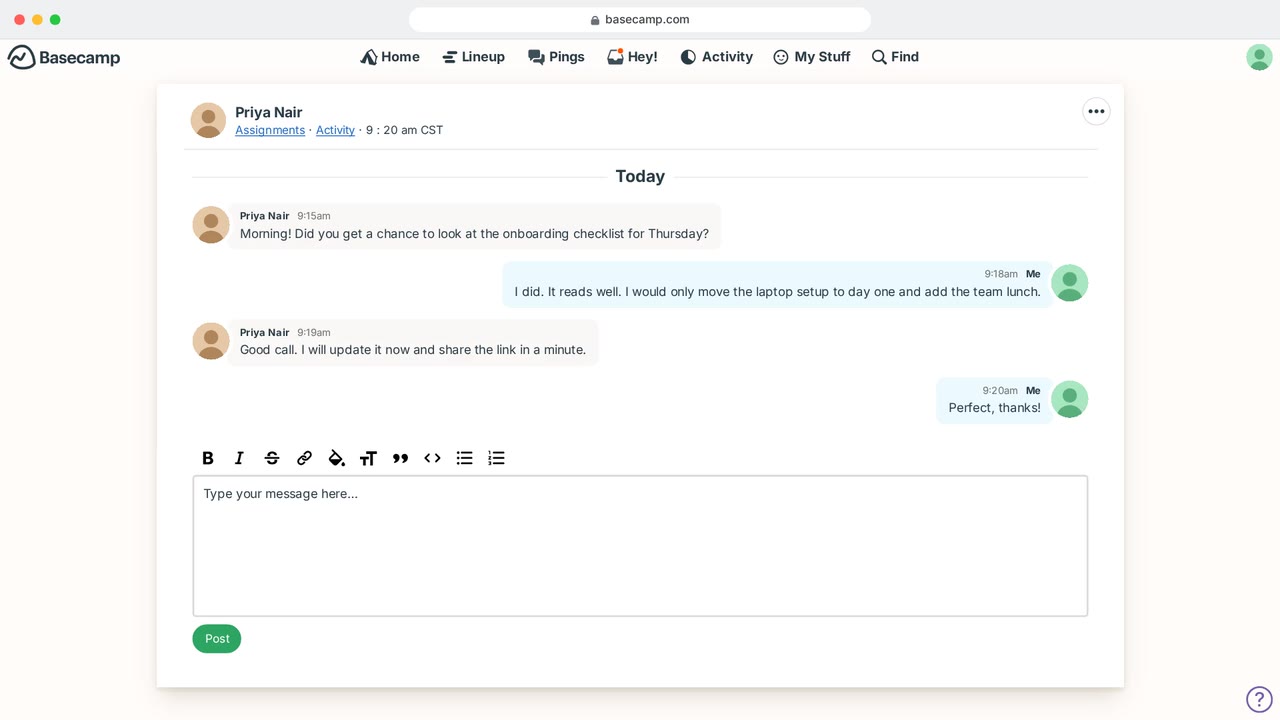
- Message cards. Every message is a card with the sender's name, the time and their avatar. Their cards sit on the left and yours on the right.
- Date lines. A centred line such as
Todayabove the first message, and above any later one. - The text box, where your own messages are typed before they are posted.
Because it is a description and not a recording, every one of those values is yours to set, and nothing leaks in from a real account.
Step-by-step: building the conversation
Open the Basecamp template. The page opens on the Describe it panel; this guide uses the manual editor, which needs no account. We will rebuild the conversation from the demo above: a colleague asks about an onboarding checklist, gets one concrete suggestion and agrees to update it. Four messages, twelve seconds.
Step 1: Set the two people
At the top of the editor, type Priya Nair in the contact name field. Open the chat settings next to it and add her avatar if you have a photo for the character. Then set your own side: Your avatar, and Your name if your cards should say something other than Me.
Leave Your name empty when the video is told from your point of view. Fill it in when the clip is a scene between two named colleagues, for example in a training video where the narrator talks about both of them in the third person.
Step 2: Write the messages
At the bottom of the editor are two buttons: + Their Message and + My Message. Add the four lines in order:
- Their message:
Morning! Did you get a chance to look at the onboarding checklist for Thursday? - My message:
I did. It reads well. I would only move the laptop setup to day one and add the team lunch. - Their message:
Good call. I will update it now and share the link in a minute. - My message:
Perfect, thanks!
Each row has a sender toggle, so a line added on the wrong side takes one click to fix. Drag a row to change the order. On a phone-sized screen the rows have move up and move down buttons instead.
Four messages is a good length for a first clip. Every card carries a name, a time and an avatar, so each one takes more room on the page than a chat bubble would, and a short exchange keeps all of it in view.
Step 3: Give every card a time
Open each row and fill in Timestamp. The demo uses 9:15am, 9:18am, 9:19am and 9:20am. The field is free text, so write the time the way your story needs it.
The times do real work. Three minutes between the question and the answer says the reply was considered. One minute between the answer and the thank-you says the matter is closed. Viewers read those gaps even when they do not notice they are doing it.
Step 4: Add the date line
In the first row, set Date line above to Today. A centred line appears above the first card, with a thin rule on either side of the word. Leave the field empty on a message and no line is drawn above it.
Any later message can carry its own date line. That is how you show a conversation that continues the next morning, which is covered further down.
Step 5: Time their typing
For each of Priya's messages, set Typing Duration (s). While it runs, a card with three animated dots shows where her message is about to appear. The demo uses 1.4 seconds before the opening question and 1.2 before the shorter reply.
Then set Delay Before (s) on every message. This is the pause after the previous message. The demo keeps it at half a second throughout, which gives a brisk exchange. Raise it on the one message that should feel like it took a while.
Free to use. No sign-up for the manual editor. Browser-based.
Open the Basecamp editorStep 6: Type your own replies into the text box
For each of your messages, tick Show typing in input field and set Typing Speed (chars/sec). The message is then typed character by character into the text box and posted when it is complete. The demo uses 22 characters per second, which is fast enough to keep the clip short and slow enough to read along.
The text box wraps. A long reply runs onto new lines as it is typed, the way the real box does, so a two-sentence answer does not get cut off at the edge.
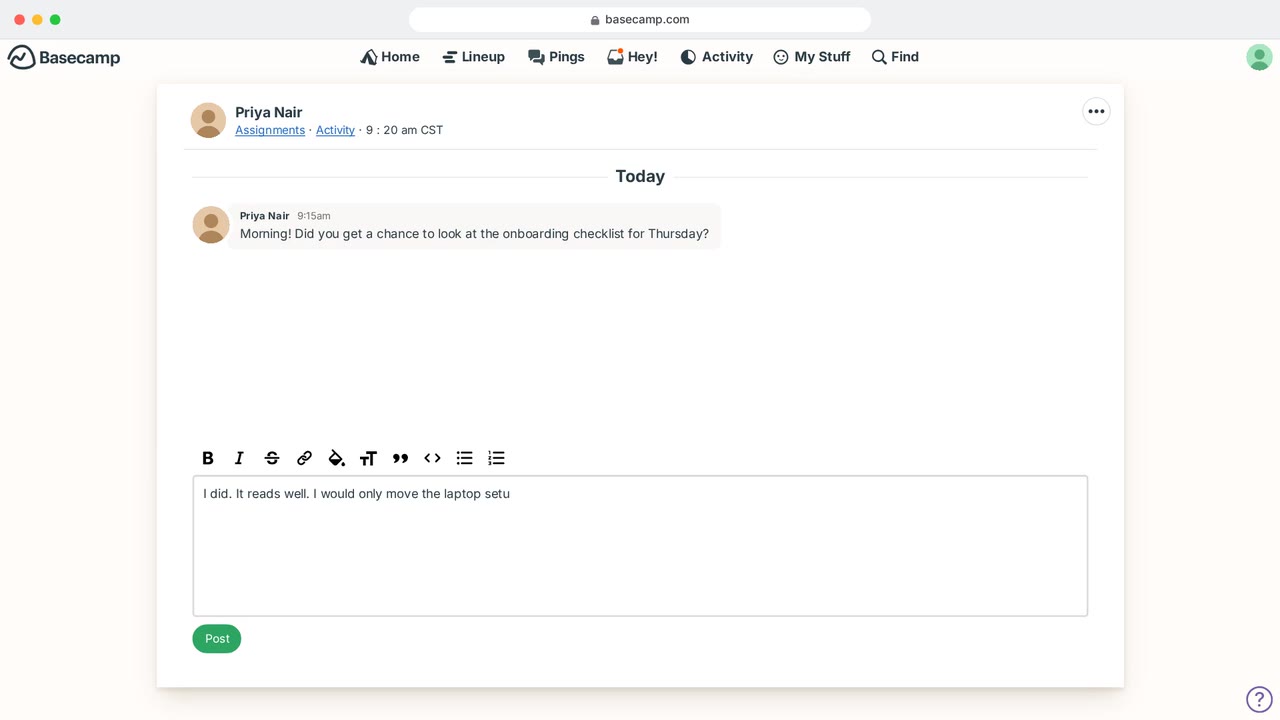
If you leave the box unticked, your message appears as a finished card after its delay. Use that for a quick Perfect, thanks! when you want the ending to land fast, and keep the typed version for the reply that carries the content.
Step 7: Choose the theme, the window and the zoom
Switch to the Scene & look tab. Three settings matter for this template:
- Theme. Light or dark. Pick one and keep it for every clip in the same video.
- Show Browser Window. On, the page sits inside the browser window with its dots and address pill. Off, the clip is the bare page. Keep the window when the video should read as "this is someone's screen"; drop it when the clip will sit inside another frame, such as a slide.
- Zoom. The slider enlarges the whole page the way a browser's zoom does, up to 120 %. The video keeps its size. Zoom in when the clip will play in a small player or inside a busy layout.
Step 8: Preview and export
Play the preview from the start and watch it once without touching anything. Check that every card has a time, that the typing card shows before each of Priya's messages, and that your replies finish typing before they post.
Then export. The clip is 16:9 at 1280x720, as an MP4 or a GIF, at 15, 24 or 30 fps. That is free on every plan, with a small watermark. The Pro plan removes the watermark and unlocks Full HD; 60 fps is part of the Creator plan. The pricing page has the current plans.
Timing that reads like a real workday
Three numbers set the rhythm of the clip: the delay before a message, how long the other person types, and how fast you type.
- Match typing time to message length. A one-line answer after a long typing card looks wrong, and so does a paragraph after half a second. Around a second for a short line and closer to two for a long one is a sound starting point.
- Vary the delays. If every message waits exactly half a second, the conversation feels mechanical. Keep most delays short and stretch one, usually the pause before the reply that matters.
- Let the last card sit. A clip that ends the instant the final message appears feels cut off. If the video continues after the ping, hold on the finished conversation in your edit.
- Type the important reply, pop the small ones. Typing into the text box draws the eye to the bottom of the page. Use it on the line your voiceover is about to discuss.
The on-screen times and the animation timing are separate things. A reply can be stamped three minutes later and still arrive one second later in the clip. The stamp tells the story; the delay keeps the video moving.
Writing dialogue that sounds like a work ping
A ping is not a group chat and it is not an email. It is one person asking another something specific. Lines that sound right tend to share a few habits:
- One question per message.
Did you get a chance to look at the onboarding checklist for Thursday?is a complete ask with an object and a date. The viewer knows what is at stake after one card. - Answers that include the decision.
I would only move the laptop setup to day one and add the team lunchis a reply the other person can act on. Vague answers make a dull video. - Full sentences, light punctuation. Work messages are tidier than texts between friends. A
Morning!at the start is enough warmth. - A clear close.
Perfect, thanks!tells the viewer the exchange is over. Without it, the clip looks like it stopped mid-thought. - Fictional names. Invent the two people. Do not use a real colleague's or client's name on a staged conversation.
If the script is long, split it into two clips, each with its own point. Two short pings with a line of narration between them hold attention better than one page of cards.
Using date lines to show async work
The date line is the feature that makes this template good for remote-work content. A conversation that crosses a night is the clearest picture of async work there is, and a date line shows it in one word.
Put Monday above the first message and Tuesday above the third. Stamp the question 5:40pm and the answer 8:05am. Nobody was interrupted, nobody stayed late, and the question still got a full answer. That is the whole argument for working asynchronously, told in four cards.
The Date line above field is free text, so Today, Yesterday, a weekday or a date all work. Use the same style for every date line in a clip.
What the template does not do
It helps to know the edges before you write the script:
- One-to-one only. The template plays a ping between two people. There are no Campfire group chats, to-do lists or message boards.
- Text only. No photos, files, voice notes, reactions or stickers. Links do not open.
- The page around the conversation is fixed. The navigation row and the controls around the text box are drawn as part of the page and are not editable or clickable.
- 16:9 only. No vertical or square clip, no camera scenes or backgrounds behind the browser window, no on-screen keyboard.
- No saved projects. Export the clip when it is done. Do not plan on reopening the same conversation from a link later.
If the script needs a group conversation with several named authors, the Slack template draws a channel with a separate author per message. It is a phone template, so the clip is vertical.
Where the 16:9 clip fits
The landscape frame matches the places work content is usually watched:
- YouTube videos and webinars. The clip fills the frame without cropping. Cut to it when the narration reaches the example.
- Slides. Export a GIF, or an MP4 if your presentation tool plays video, and place it on a slide. Turning the browser window off gives a cleaner fit.
- Onboarding and training modules. One ping per lesson: the question, the answer, the takeaway.
- Blog posts and documentation. A short GIF shows a conversation pattern faster than a paragraph describes it.
For TikTok, Reels or Shorts, be realistic about the shape. The clip is landscape and stays landscape. Place it inside a vertical edit in your own video editor, for example as the top half of a split screen with you talking underneath, or zoomed in on the conversation. Raising the zoom to 120 % first helps the cards stay readable at that size. If you want a chat that is vertical from the start, use one of MockClip's phone templates; the guide to making a fake Slack conversation video covers the closest work-themed one.
Starting from a description
If you would rather describe the exchange than type every field, there are two routes.
Describe it is the default panel on the template page. Type a sentence about the conversation, for example two colleagues moving a deadline, and the AI drafts the messages and their timing. You can refine the draft and then open it in the manual editor to adjust any field by hand. Describe it requires signing in. The Describe it guide explains the workflow.
From Claude or ChatGPT. MockClip's MCP server has a create_basecamp_conversation tool. It takes the contact name, optional avatars and your own name, the theme, and up to twenty messages with their timestamps, delays, typing settings and date lines. It returns a link that opens the finished animation in MockClip. The setup guide shows how to connect it.
Both routes produce the same kind of conversation as the editor. Every word is still written or approved by you; the renderer only draws it.
Keeping it honest
A staged conversation is a storytelling device. Keep it one:
- Do not impersonate real people. Use invented names for both sides.
- Do not present a staged exchange as a real one. In a training video, say it is an example. In a skit, a "dramatised" note in the caption removes any doubt.
- Do not stage a client or a colleague saying something they never said.
On licensing: MockClip is not affiliated with Basecamp, and the template recreates a design that belongs to its owner. On the Free, Pro and Creator plans, videos are for your own content, including monetised posts on your own channels. For paid ads or client work, the terms say to use a brand-free app; Work Chat is MockClip's own brand-free work conversation page, also drawn as a desktop page at 16:9. The guide to brand-free mockups for ads goes through that case, and the pricing page lists what each plan covers.
Common mistakes to avoid
- Too many messages. Cards are tall. A long conversation pushes the first lines out of the viewer's memory before the last one lands. Split it.
- Times that contradict the story. A reply stamped before its question, or a "next morning" answer with no new date line above it.
- Identical typing times. The same typing duration on a five-word line and a thirty-word line looks automated.
- Writing a script that needs a file.
See the attached PDFpromises something the template does not draw. Have the character sayI will share the link in a minuteinstead, as the demo does. - Planning a vertical export. There is none. Decide at the start whether the clip goes into a landscape video or into a vertical edit as an inset.
- Leaving the zoom at 100 % for a small player. If the clip will be an inset, zoom in before exporting.
Quick start
- Open the Basecamp template.
- Contact name and avatar; your avatar, and your name if the cards should not say Me.
- Four to six messages with + Their Message and + My Message.
- A timestamp on every card and a date line above the first.
- Typing durations for their messages, delays for all of them.
- Show typing in input field on the reply that matters.
- Theme, browser window and zoom in the Scene & look tab.
- Export a 16:9 MP4 or GIF.
Related MockClip templates and guides
- Basecamp ping maker — the template used in this guide
- Basecamp chat video ideas for remote teams — ten scripts for onboarding, async work and agency content
- Work Chat — the brand-free desktop work conversation
- How to make a fake Slack conversation video — a work channel on a phone, with several authors
- How to make a fake LinkedIn message video — a one-to-one work conversation on a phone
- How to make an app demo video without coding — using mockup clips in product videos
- Connect MockClip to Claude or ChatGPT — MCP setup
- Pricing — plans, watermark and Full HD
Frequently Asked Questions
What is the easiest way to make a fake Basecamp chat video?
Open MockClip's Basecamp template in the browser, name the two people, write the messages for both sides, set the delays and typing times, then preview the clip and export it as an MP4 or a GIF. The manual editor works without an account.
What does the video show?
A Basecamp ping, the one-to-one chat, as it looks on a computer: the page inside a plain browser window with the site's address, the navigation row, the other person's name at the top of the conversation, message cards with a name, a time and an avatar, date lines and the text box.
Can I show someone typing before a message arrives?
Yes. Before each of the other person's messages a card with three animated dots shows for the typing duration you set. Your own messages can be typed character by character into the text box before they are posted.
Can I export a vertical Basecamp video for TikTok or Reels?
No. The template draws a desktop page, so the clip is always 16:9. For a vertical post, place the landscape clip inside a vertical edit in your own video editor, or use one of MockClip's phone templates for a native vertical chat.
Does the template cover Campfire group chats, to-dos or file attachments?
No. It plays a ping between two people as text messages. Campfire group chats, to-do lists, message boards, photos, files and reactions are not included.
Is it okay to make a fake Basecamp conversation?
Staged conversations for skits, tutorials, training and explainers are fine. Do not impersonate real people and do not present a staged exchange as a real one. MockClip is not affiliated with Basecamp, which is a trademark of 37signals LLC.
Can I make it from Claude or ChatGPT instead of the editor?
Yes. MockClip's MCP server has a create_basecamp_conversation tool that accepts the names, the theme and up to twenty messages with their times, delays and typing settings, and returns a link to the finished animation.
Related Articles
Basecamp Chat Video Ideas for Remote Teams and Agencies
Ten Basecamp chat video ideas with ready scripts for remote teams, agencies and async-work creators: onboarding, handoffs, deadlines and 16:9 ping clips.
How to Make a Fake Slack Conversation Video (Free)
Step-by-step: script, time and export a fake Slack channel video in your browser, with teammates, reactions, @mentions, typing and the Threads list. Free.
How to Make a Fake LinkedIn Message Video (Free, Online)
Step-by-step: build a fake LinkedIn message video in your browser, with a recruiter chat, typing, a video meeting card and the call preview screen. Free.
How to Make an App Demo Video Without Coding or Recording
Make an app demo video in the browser with no code and no screen recording: script a chat-style product demo, brand it with your app name and export MP4.
AI Fake Chat Video Generator: Describe It, Get the Clip
Type what the clip should be and MockClip's Describe it mode writes the messages and timing for WhatsApp, iMessage, ChatGPT, Tinder and more. Refine by second.