How to Make a Fake Slack Conversation Video (Free)
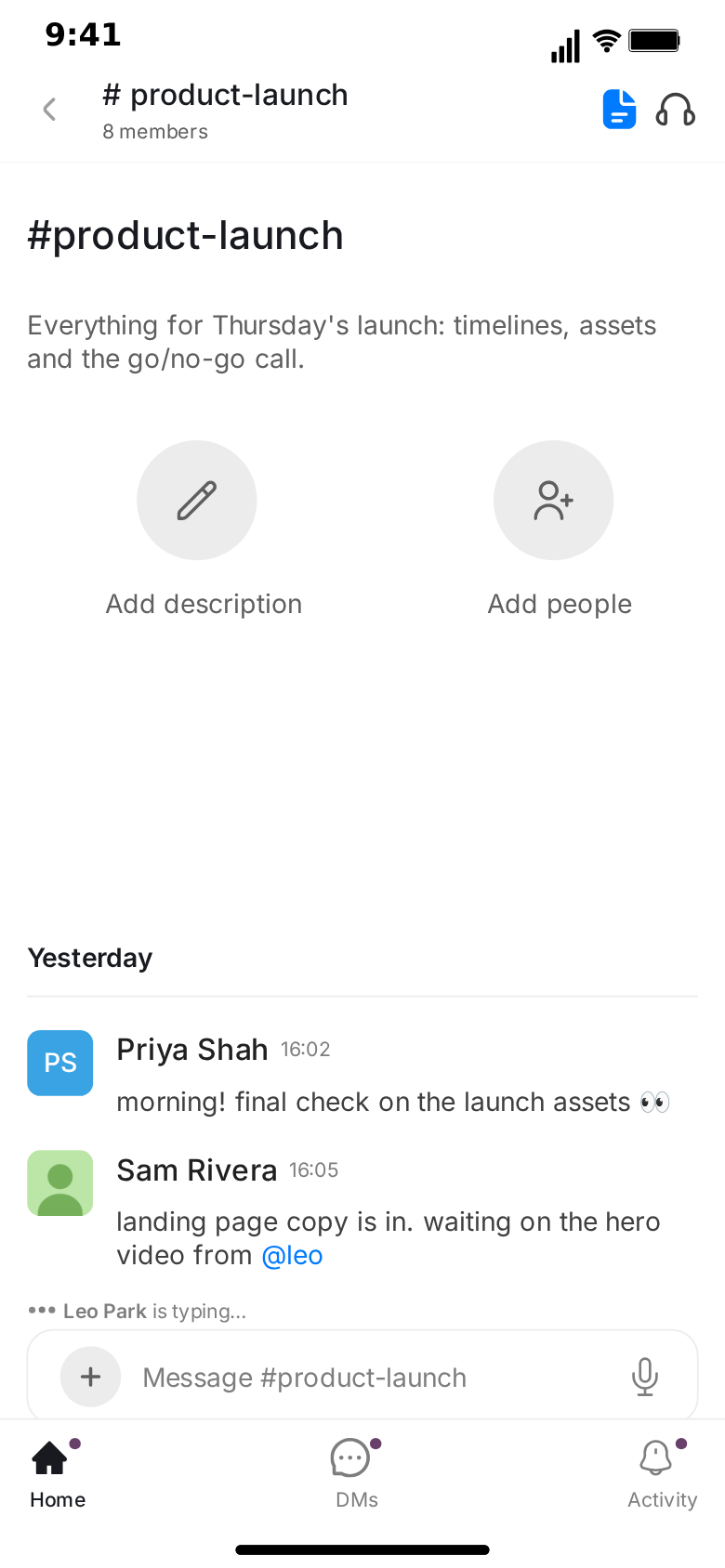
A fake Slack conversation video is a short clip that looks like someone screen-recorded a team channel on their phone: messages arriving one by one under rounded-square avatars and bold names, reaction chips piling up under the good news, an @mention lighting up, and "Leo Park is typing…" just above the input bar. This tutorial walks through making one with the free Slack template in MockClip, from the default project to an exported MP4, with the timing and writing choices that make the result believable.
Everything below happens in the browser. You do not need Slack, a workspace, a video editor or design skills, and nothing is ever sent. MockClip is an independent tool and is not affiliated with Slack.
What you will make
By the end you will have a vertical video, around 15 to 25 seconds long, that:
- opens on the Threads list, with a channel group at the top,
- shows a touch indicator on the channel and pushes into it,
- shows the channel's opening block, then a "Yesterday" divider with two messages from different teammates,
- shows "Leo Park is typing…" above the input bar before each of Leo's replies, and your own reply typed into the input bar letter by letter,
- adds reaction chips under the big announcement,
- pops back out at the end.
You can stop at any step. A clip that is only the channel is just as valid.
Step 1: Open the Slack template
Go to the Slack editor. It opens on a ready-made launch-day channel. Press Play once before you change anything: seeing the default flow tells you what each control will do.
The editor has two tabs. Describe it turns a sentence into a full channel conversation with AI; it needs a Google or GitHub sign-in. Manual editor shows every field and works without an account. This tutorial uses the Manual editor, but you can start with Describe it and switch over to adjust the result.
Step 2: Name the channel
At the top of the Manual editor:
- Contact Name is the channel title in the header. The default reads "# product-launch". The input bar's placeholder follows it, so it reads "Message #product-launch".
- Contact Status is the member line under it: "8 members", "3 members", "142 members". A bigger number makes the channel feel like a whole company; a small one makes it feel like a side project.
- Your name and Your avatar are used on every message you send. Set something that fits the story; if the clip is about you, use an invented display name rather than your real one.
Below those settings sits the opening block: the channel name in large type, a description, and the "Add description" and "Add people" buttons. Fill in a title and a one-line description such as "Everything for Thursday's launch: timelines, assets and the go/no-go call." Untick "Show the opening block above the first message" if you want the channel to start straight on the conversation. When visible, the block sits above the first message and scrolls up and away once the messages fill the screen.
Pick the theme here too. Tick Light Theme for the light look of the design, or leave it off for the dark version.
Step 3: Write the messages
Add messages with the button at the bottom of the list. For each one:
- Choose Me or Other.
- Type the text.
- For a teammate's message, fill in the author name and, if you like, upload an avatar. Leave the photo out and the avatar shows the author's initials on a coloured tile.
- On the first message of a run, set a Timestamp such as "09:14".
Messages from the same author that follow each other are grouped: the first shows the avatar, the name and the time, and the next ones stack under it without a header. A message from a different author starts a new run. That grouping is what makes a channel look like Slack rather than a generic chat. If you want a header on a message that would otherwise be grouped, or want to hide one, use the Avatar + name line switch on that message.
Two small things make a message look native:
- @mentions such as "@leo" are drawn in the link colour.
- Links are drawn in the link colour too, whether they are full URLs or bare domains like "drive.example.com/hero-final".
Keep each message short. On a phone screen in a vertical video, one line reads at a glance and four lines read as homework.
Step 4: Add reactions and date dividers
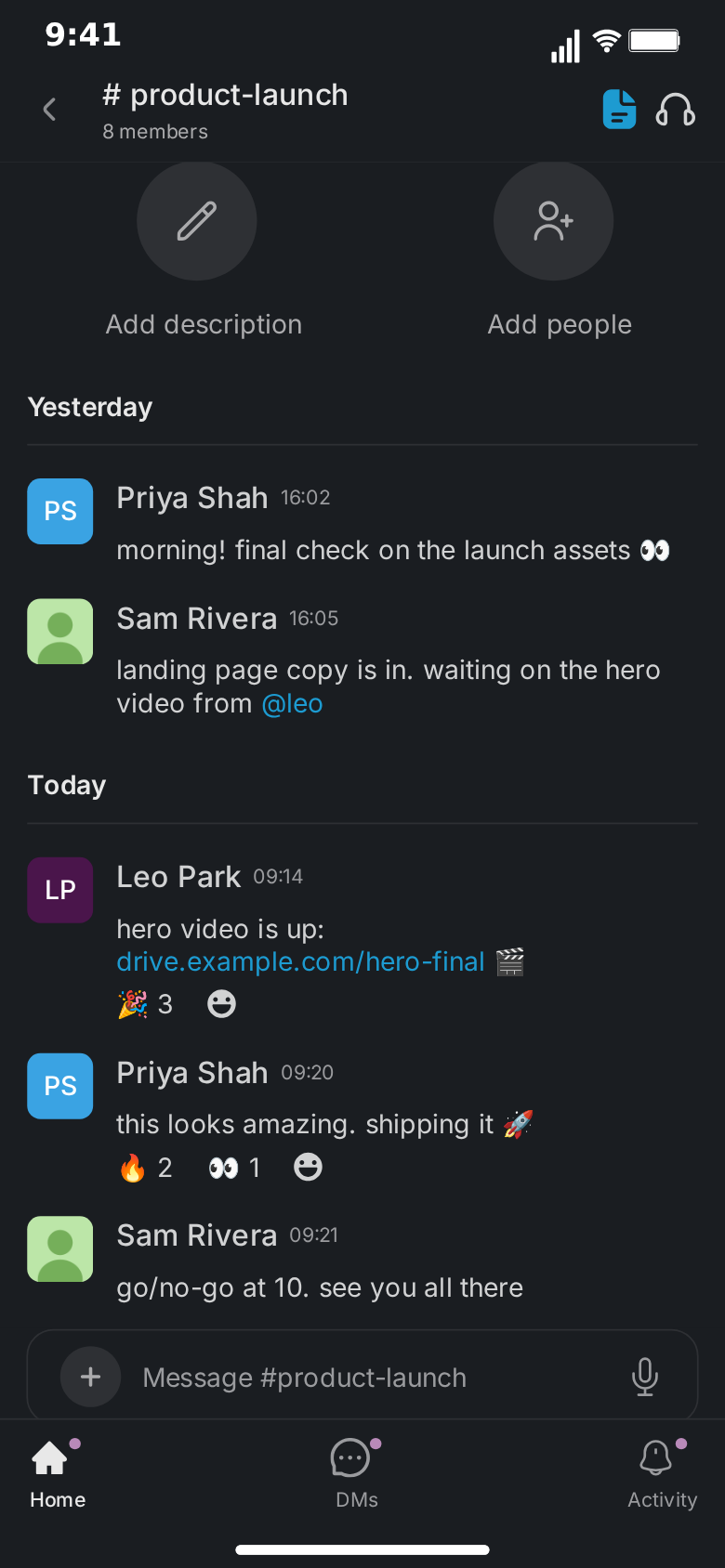
Two small elements do a lot of storytelling.
Reactions. Each message has a reactions field. Type "🎉 3" for a single chip, or "🔥 2, 👀 1" for two. A bare emoji counts as one. The chips appear under the message, followed by the add-reaction button, and they arrive together with the message. Use them as a chorus: "🎉 3" under the launch announcement is the team cheering without anyone typing.
Date dividers. Type "Yesterday" or "Today" into Date line above on a message. A left-aligned label over a full-width rule appears above it. The first message of the channel is stamped "Today" automatically unless it has its own divider; untick Date line above the first message if you do not want that.
Two messages under "Yesterday", a "Today" divider, then the first message of the morning is a classic opening: the viewer understands that time passed and something changed before anyone says what.
Step 5: Set the pacing
Each message has a Delay Before in seconds; the default is half a second. A teammate's message also has a Typing Duration: for that long, "Leo Park is typing…" (or whoever is next) shows above the input bar with animated dots, naming the author of the message that is about to land. The default is 1.5 seconds.
Your own messages work differently. Tick Show typing in input field and set a Typing Speed in characters per second; the text appears in the input bar letter by letter, then sends. Fifteen characters per second looks like a normal thumb; eight looks hesitant; twenty-five looks like someone who has typed this exact sentence many times before.
Some rules of thumb:
- 0.4 to 0.8 seconds between messages in a quick run from the same author.
- 1 to 2 seconds of typing before a reply that matters.
- 2 to 3 seconds of typing before the punchline. In Slack, the wait is often the joke.
Step 6: Choose the screens
The Video flow strip decides what the clip shows. Besides the channel, the template has two screens you edit as text:
- Threads list. Channel groups with their messages, a huddle summary card and media thumbnails. The names, times and text are fields you can change when you select the screen.
- Thread view. One thread: a huddle summary at the top, the replies, a NEW divider before the unread ones and the "Add a reply" input at the bottom.
The default flow is Threads list, tap, push into the channel, play the messages, pop back. You can add the thread view to the flow, remove the Threads list, or keep the whole clip on the channel. A touch indicator shows where the finger taps before each screen change; turn the taps off if you prefer hard cuts.
These screens are shown in the flow rather than played as animated chats. Use them as establishing shots and cutaways; the channel is where the story moves.
Step 7: Preview and export
Press Play and watch the whole clip. Check three things: that every message is readable at the speed it appears, that the punchline has room to breathe, and that nothing important hides behind the input bar.
Then pick the format. 9:16 vertical suits TikTok, Reels and Shorts; the 1:1 square crop suits feeds. Choose MP4 for platforms and GIF for chats, docs and slides, at 720p or Full HD and anywhere from 15 to 60 fps. You can show or hide the iPhone bezel. Free exports carry a small watermark; Pro removes it.
A complete example script
Here is a launch-day channel written out so you can see how the pieces combine. It runs about 18 seconds as a Threads list, channel, Threads list clip. In this version, you are Sam Rivera.
| # | Side | Author | Content | Settings |
|---|---|---|---|---|
| 1 | Other | Priya Shah | morning! final check on the launch assets 👀 | Date line above: "Yesterday", timestamp "16:02", typing 1.2 s |
| 2 | Me | Sam Rivera | landing page copy is in. waiting on the hero video from @leo | Timestamp "16:05", typed into the input bar at 15 chars/s |
| 3 | Other | Leo Park | hero video is up: drive.example.com/hero-final 🎬 | Date line above: "Today", timestamp "09:14", typing 2 s, reactions "🎉 3" |
| 4 | Other | Priya Shah | this looks amazing. shipping it 🚀 | Timestamp "09:20", typing 1 s, reactions "🔥 2, 👀 1" |
| 5 | Me | Sam Rivera | go/no-go at 10. see you all there | Timestamp "09:21", typed into the input bar |
Notice what each row is doing. The "Yesterday" divider and Priya's check-in set the deadline. Your reply mentions @leo, so the viewer knows who everyone is waiting for before Leo says a word. The "Today" divider marks the overnight gap; Leo's typing line is the longest pause in the clip because his message is the payoff. The reactions under messages 3 and 4 are the team's response, delivered without extra lines. The last message closes the scene.
To make your own, keep the structure and swap the content: a divider and a setup, a mention that points at the person everyone is waiting for, a long typing pause, the payoff, the reactions.
Making variations quickly
Once one clip works, variations take minutes.
- Swap the cast. Change the author names on teammates' messages and your own name; every header updates, and avatars without photos update their initials.
- Change the payoff. Rewrite one message only. The setup can stay identical across a series.
- Flip the theme. Export the same script in light and dark and test which performs better with your audience.
- Change the opening. The same conversation opened from the Threads list, from the thread view, or straight on the channel feels like three different videos.
- Shorten for GIF. Drop the setup, keep the last three messages and their reactions, and export a GIF for a team update or a slide.
Readability checklist
Before exporting, watch the preview once at phone size and check:
- Every message can be read in the time it stays on screen before the next one pushes it up.
- The punchline is not under the platform's caption area at the bottom of a 9:16 video.
- No more than three or four authors appear in the first ten seconds.
- Authors are easy to tell apart at a glance. If you upload avatars, pick pictures that look different from each other.
- Reactions are believable for the channel size: "🎉 47" in a "3 members" channel gives the fake away.
Writing tips that make it believable
Workplace names. Slack display names usually look like real names: "Priya Shah", "Maya Chen". Always invent them.
Slack-shaped messages. Short, lowercase, a little terse. "go/no-go at 10", "landing page copy is in", "quick sync?" read as authentic; three-paragraph messages read like email.
Mentions with a purpose. Every @mention should point at someone who matters in the next beat.
Moving timestamps. "09:14", then "09:20", then "09:21". Identical times on every header look generated.
A clear turn. The channel should change direction once: the build breaks, the deadline moves, the intern finds the bug. Everything before it sets it up; reactions are the only thing that comes after.
Using AI to write the conversation
If you would rather not write the script, switch to Describe it and type one sentence: "the build breaks the night before launch, Leo fixes it at 2 am, everyone reacts". The AI drafts the messages, authors and timing for you to adjust; follow-up instructions refine it. It requires a Google or GitHub sign-in, and the Describe it guide explains the allowances.
From an AI assistant, MockClip's MCP server offers a create_slack_conversation tool that returns a link to the finished clip. The integrations page lists it, and the guide to connecting MockClip to Claude and ChatGPT shows the setup.
Troubleshooting
A message shows no avatar or name. It continues a run from the same author. Turn on its "Avatar + name line" switch, or put a message from someone else in between.
Two date labels at the top. The first message is stamped "Today" automatically. Untick "Date line above the first message" if your first message has its own divider.
A teammate's message shows the wrong name. Fill in the author field on that message; each teammate's message carries its own author.
The opening block takes too much space. Hide it, or shorten its description. It scrolls away on its own once messages fill the screen.
Text is cut off. Long messages wrap; very long ones push earlier messages off the top. Split them into several shorter lines from the same author.
Where to go next
The Slack chat animation generator overview lists every element of the template. For short-form strategy and skit ideas, the guide to Slack channel videos for TikTok and Shorts covers hooks and pacing. The same workflow applies to the other chat templates: see how to make a fake Discord conversation video or the free fake chat video maker guide, and browse every template from the app picker.
Free to use. No sign-up. Browser-based.
Make a fake Slack conversationFrequently Asked Questions
How do I make a fake Slack conversation video?
Open MockClip's Slack template, set the channel title and member line, write the messages and give each teammate's message an author name, add reactions and date dividers, set the delays and typing time, arrange the screens in Video flow, then press Play and export MP4 or GIF. It all runs in the browser.
Do I need a Slack account or workspace?
No. The template draws the Slack-style interface itself. Nothing is sent through Slack, no workspace is imported, and the manual editor works without a MockClip account.
How do I add several teammates to one channel?
Choose Other on a message and fill in its author name, and optionally upload an avatar. Each message can have a different author. Without a photo, the avatar shows the author's initials on a coloured tile.
How do I group several messages under one name?
Send them from the same author one after another. The first message of a run shows the avatar, name and time; the following ones stack underneath. Each message also has an 'Avatar + name line' switch to force the header on or off.
Can I show someone typing?
Yes. Set a typing duration on a teammate's message and 'Leo Park is typing…' appears above the input bar for that long, naming the author of that message. Your own messages can be typed into the input bar at a characters-per-second speed you choose.
Can I add reactions to a message?
Yes. Type them into the reactions field as '🎉 3, 👀 1'. A bare emoji counts as one. The chips appear under the message together with the add-reaction button.
Related Articles
Slack Chat Animation Generator: Make Fake Channel Videos
Free Slack chat animation generator. Animate a team channel with authors, reactions, mentions, typing and the Threads list. Export MP4 or GIF in your browser.
Slack Channel Videos for TikTok and Shorts: Skit Guide
Turn workplace Slack skits into TikTok, Reels and Shorts videos: launch-day panic, the 4:58 pm quick sync, reply-all chaos. Scripts, timing and export tips.
How to Make a Fake Discord Conversation Video (Free)
Step-by-step: script, time and export a fake Discord DM video in the browser, with call cards, date dividers, typing and the DM list. Free, no sign-up needed.
Fake Chat Video Maker Free: Create Text Conversation Videos
Free fake chat video maker for TikTok and Reels. Create realistic animated text conversations with iMessage, WhatsApp, and Instagram DM interfaces in minutes.