Basecamp Chat Video Ideas for Remote Teams and Agencies
Most advice about remote work is abstract: write things down, default to async, protect people's focus. A short clip of two people doing exactly that in a chat makes the point faster than a slide of bullet points. This post collects ten Basecamp chat video ideas, each with a script you can paste into MockClip's Basecamp template and adapt.
The ideas are written for remote teams, agencies and people who make onboarding, async-work and productivity content. All of them are staged examples: invented people, invented projects, a conversation written to teach or entertain. None of them needs anything the template does not draw.
What the template gives you to work with
Every idea below uses the same small set of parts, so it is worth knowing them first.
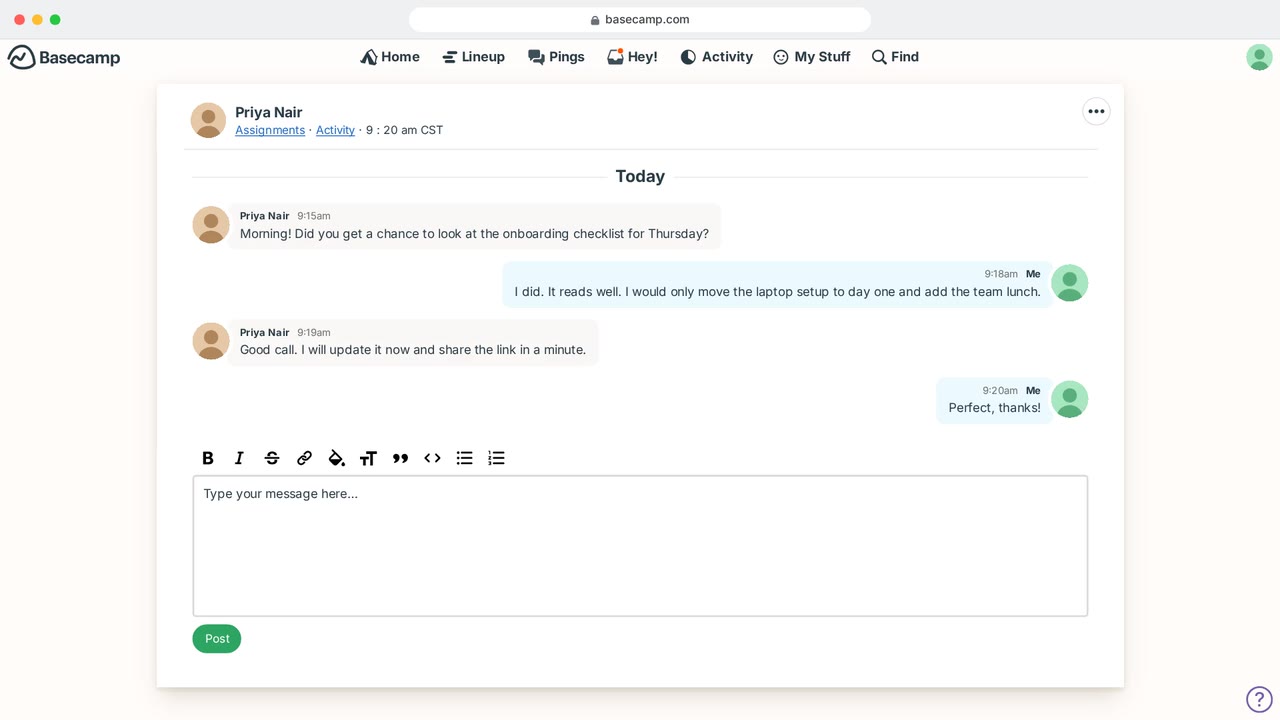
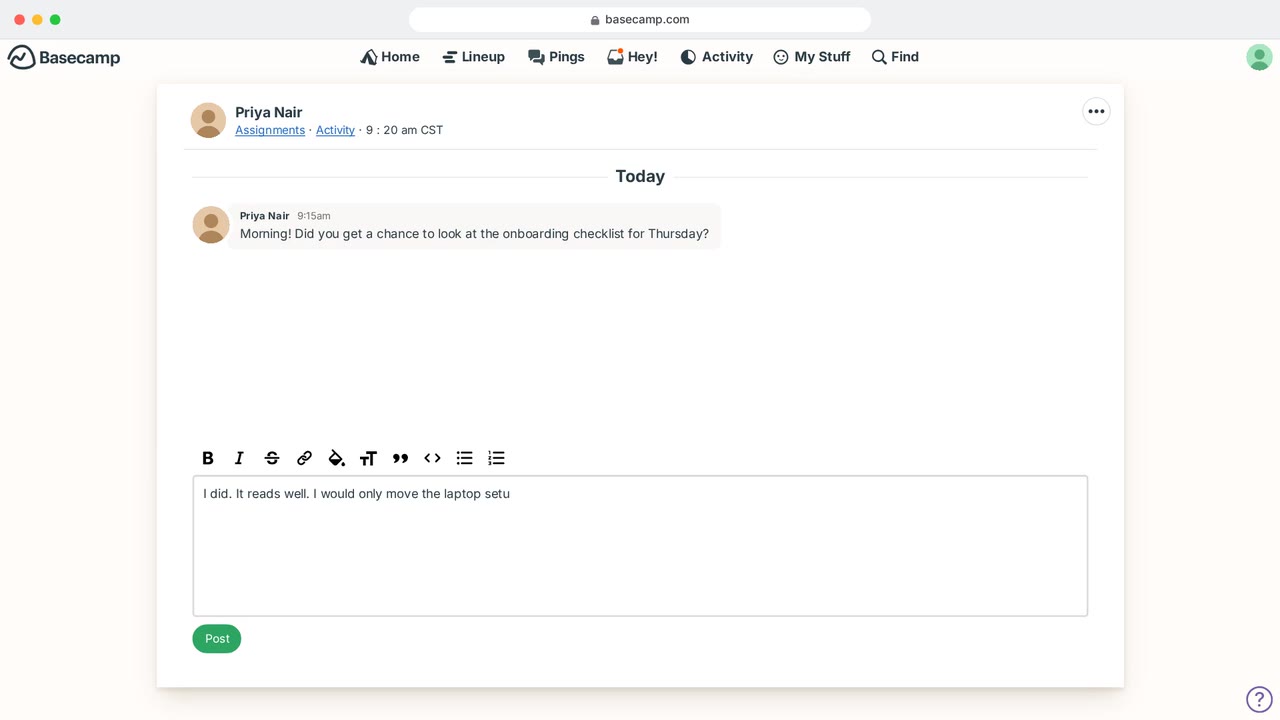
The clip is a Basecamp ping, the one-to-one chat, on the desktop page. It plays inside a plain browser window as a 16:9 video. Each message is a card with the sender's name, the time and their avatar. The other person's cards sit on the left and yours on the right. A centred date line can sit above the first message and above any later one. Before each of the other person's messages, a card with three animated dots shows for as long as you set. Your own messages can be typed character by character into the text box before they are posted.
That is the whole toolkit: two people, text, times, date lines and typing. There are no group chats, files, photos, reactions, to-dos or message boards, and no vertical export. Good scripts for this format lean on the two things it does well, which are names with times on every card and date lines that show time passing.
If you have not used the template before, the step-by-step Basecamp guide covers every field. The scripts here assume you know where the buttons are.
How to read the scripts
Each script lists the messages in order. Them is a message added with + Their Message; You is one added with + My Message. The time in brackets goes in Timestamp. Where a date line is given, it goes in Date line above on that message.
For timing, start from these defaults and adjust by ear: half a second in Delay Before (s), a Typing Duration (s) of one to two seconds on their messages depending on length, and Show typing in input field ticked on your longest reply with Typing Speed (chars/sec) around 20.
Change the names. Every name in this post is invented, and yours should be too.
Ten Basecamp chat video ideas with scripts
The ideas run from the simplest, a four-card exchange, to ones that use two date lines or two clips.
Idea 1: The meeting that became a ping
Use it for: onboarding videos, "how we work" pages, a talk about fewer meetings.
The point of this clip is that a small decision took four messages instead of a thirty-minute call. It is the default conversation in the template, so you can open the page and watch it before changing a word.
- Them (
9:15am, date lineToday):Morning! Did you get a chance to look at the onboarding checklist for Thursday? - You (
9:18am):I did. It reads well. I would only move the laptop setup to day one and add the team lunch. - Them (
9:19am):Good call. I will update it now and share the link in a minute. - You (
9:20am):Perfect, thanks!
Why it works: the question names the object and the day, the answer contains the decision, and the times show the whole thing took five minutes. Narrate over it or let it play silent.
Idea 2: The answer that arrived overnight
Use it for: async-work explainers, remote hiring pages, productivity channels.
This is the clearest picture of async work the template can draw. A question goes out at the end of one person's day and is answered at the start of the other's.
- Them (
5:40pm, date lineMonday):Before I log off: is the pricing page copy final, or should I wait before building it? - You (
8:05am, date lineTuesday):Final as of this morning. I changed one headline, the rest is as you saw it. - You (
8:06am):The doc is updated, so you can build straight from it. - Them (
9:30am):Great, starting now.
Why it works: the two date lines do the storytelling. Nobody was interrupted in the evening, and the work still started on time. Hold on the Tuesday line for a beat in your edit so viewers register it.
Idea 3: The first-day question
Use it for: onboarding modules, culture videos, a welcome video for new hires.
New people hesitate to ask. A clip that shows a small question getting a friendly, complete answer tells them it is safe to ask.
- You (
10:02am, date lineToday):Hi Dana, quick first-day question. Where do I find the brand guidelines? - Them (
10:04am):Welcome! They are in the Marketing project, in the folder called Brand. - Them (
10:04am):Ask me anything this week. There are no silly questions on day one. - You (
10:05am):Found them. Thank you!
Why it works: the clip is told from the new hire's side, so the viewer's own cards are the ones asking. Leave Your name empty so the cards say Me.
Paste a script, set the timing and export a 16:9 clip. The manual editor needs no sign-up.
Open the Basecamp templateIdea 4: The good question and the bad question
Use it for: communication training, productivity content, a manager's guide.
Make two clips and play them back to back. In the first, the question is vague and costs three extra messages. In the second, the same question is asked well and is answered in one.
Clip A, the vague version
- You (
2:10pm, date lineToday):Hey, do you have a minute? - Them (
2:25pm):Sure, what is up? - You (
2:26pm):It is about the report. - Them (
2:31pm):Which report?
Clip B, the clear version
- You (
2:10pm, date lineToday):No rush: in the Q3 report, should churn include paused accounts? I need it by Thursday. - Them (
2:25pm):Exclude paused accounts. Finance counts them as active. Thursday is fine. - You (
2:26pm):Clear, thank you.
Why it works: the timestamps make the cost visible. Clip A is twenty-one minutes in and still has no answer. Clip B is done in sixteen. Keep the same two people and the same theme in both so the only difference is the writing.
Idea 5: The handoff across time zones
Use it for: distributed teams, follow-the-sun support, agency and client teams in different regions.
A handoff note is one of the most reusable things a remote team can learn. Show a good one.
- Them (
6:05pm, date lineWednesday):Handing over the launch checklist. Done: copy, images, redirects. - Them (
6:06pm):Open: the signup form still needs a test on mobile. Nothing else is blocked. - You (
7:50am, date lineThursday):Picked it up. The form works on mobile now. Launching at ten. - Them (
4:15pm):Saw it go live. Nice work.
Why it works: done, open, blocked. The structure is the lesson, and the date lines show that the two people were never online at the same moment.
Idea 6: The deadline that moved
Use it for: project management content, agency process videos, a talk about honest estimates.
Moving a deadline is uncomfortable. A model exchange shows how to do it early and with a reason.
- You (
11:20am, date lineToday):I need to move the design review from Friday to Tuesday. The research calls ran long. - You (
11:21am):Friday would mean reviewing half-finished screens. - Them (
11:34am):Tuesday works. Thanks for flagging it on Wednesday and not on Friday morning. - You (
11:35am):Will do the same next time.
Why it works: the reply praises the early warning, which is the behaviour you want viewers to copy. Type the first message into the text box so the viewer reads the bad news at reading speed.
Idea 7: The update that replaced the standup
Use it for: async-work content, team rituals, engineering and product teams.
Show a status update that makes a daily call unnecessary.
- Them (
9:00am, date lineToday):Morning update. Yesterday: finished the export bug. Today: starting the billing page. - Them (
9:01am):One question for you: should invoices show the company name or the account owner? - You (
9:40am):Company name. Thanks for the update, nothing else from me.
Why it works: three cards, and the only item that needed a second person got a direct answer. The forty-minute gap in the timestamps shows that the reply waited until it was convenient.
Idea 8: The call that was not needed
Use it for: productivity channels, deep-work content, skits about meeting culture.
This one can be played straight or for laughs.
- Them (
3:02pm, date lineToday):Do you have time for a quick call about the homepage? - You (
3:05pm):I am in the middle of something until four. Can you write down the question? I will answer in ten minutes. - Them (
3:09pm):Fair. Should the hero show the product or the customer photo? - You (
3:11pm):The product. We tested the customer photo in spring and it did worse. - Them (
3:11pm):That was the whole call. Thanks.
Why it works: the last line is the punchline and the lesson at once. Give message 3 a longer typing duration so the viewer feels the other person thinking about how to phrase it.
Idea 9: The feedback that was easy to hear
Use it for: management training, design and writing teams, mentoring content.
Written feedback is hard to do well. Show a version that is specific and kind.
- Them (
1:15pm, date lineToday):I read your draft of the case study. The opening is strong and the numbers section is clear. - Them (
1:16pm):One thing to change: the middle part explains our process before the reader knows the result. I would swap those two sections. - You (
1:30pm):That makes sense. I will swap them and send a new version tomorrow. - Them (
1:31pm):No hurry. It is already good.
Why it works: what is good, one thing to change, why. In your narration, point at the second card and name the pattern.
Idea 10: The agency and the client
Use it for: agency process pages, case-study intros, a pitch about how you communicate.
Stage a typical client exchange to show how your team handles a late request. Use an invented client, never a real one.
- Them (
4:45pm, date lineThursday):Could we add a second landing page before Monday's launch? - You (
4:58pm):We can, but not without moving something. Option one: launch Monday with one page and add the second on Wednesday. - You (
4:59pm):Option two: both pages, launch Wednesday. I would pick option one. - Them (
9:10am, date lineFriday):Option one. Thanks for laying it out.
Why it works: it shows a team that answers a scope change with options instead of a yes or a no. Fill in Your name with a fictional account manager so the clip reads as a scene between two named people.
A note on licensing for this idea. On the Free, Pro and Creator plans, videos are for your own content, including monetised posts on your own channels. If the clip is part of a deliverable for a client or a paid ad, the terms say to use a brand-free app, and that licence is part of the Studio plan. Work Chat is MockClip's own brand-free work conversation page, drawn as a desktop page at 16:9 like this one. The guide to brand-free mockups for ads explains the difference, and the pricing page lists what each plan covers.
Making the timing carry the idea
The scripts only work if the rhythm matches the story. A few rules that apply to all ten:
- Stamp times for the story, set delays for the video. A reply can be stamped hours later and still arrive a second later in the clip. The stamp is what viewers read; the delay is what they feel.
- Give long messages longer typing. Before a two-sentence card from the other person, let the three-dot card run closer to two seconds. Before a short
Thanks, under a second. - Type one reply per clip into the text box. It draws the eye to the bottom of the page and slows the viewer down to reading speed. Use it on the line that carries the lesson.
- Use a date line whenever a night passes. Without it, an
8:05amreply after a5:40pmquestion reads as a mistake. - Stop at six cards. If the script needs more, it is two clips.
Where these clips fit
The clip is 16:9 at 1280x720, with Full HD from the Pro plan. That shape decides where it works best.
Landscape video. A YouTube explainer, a webinar or a recorded talk takes the clip without cropping. Cut to it when you reach the example, then cut back.
Slides and documents. Export a GIF for a slide or a handbook page. In the Scene & look tab, switch off Show Browser Window when the clip sits inside another frame, and raise Zoom, which goes up to 120 %, when it will be shown small.
Onboarding courses. One idea per lesson. Ideas 1, 3 and 5 make a short series on how the team asks, answers and hands over.
Vertical platforms. There is no vertical or square version of this template. For TikTok, Reels or Shorts, place the landscape clip inside a vertical edit in your own video editor, for example as the top half of a split screen with your commentary below, or zoomed in on the conversation. If you want a work chat that is vertical from the start, the Slack template is a phone clip of a channel with several authors, and the guide to fake Slack conversation videos walks through it.
Drafting scripts faster
You do not have to type all ten by hand.
Describe it. On the template page, type one sentence, such as "a designer asks a developer whether the copy is final and gets the answer the next morning". The AI drafts the messages and their timing. Refine it, then open the result in the manual editor to fix names and times. Describe it requires signing in; the manual editor does not.
Claude or ChatGPT. MockClip's MCP server has a create_basecamp_conversation tool. Give your assistant one of the scripts above and it can pass the contact name, your name, the theme and up to twenty messages with timestamps, delays, typing settings and date lines. The tool returns a link that opens the finished animation in MockClip. The connection guide covers setup.
Either way, read the draft before you export. The script is the content, and a generated line that sounds slightly off is the first thing a viewer notices.
Keeping staged conversations honest
Every idea here is a demonstration, not evidence. Treat it that way in the video:
- Do not impersonate real people. Invent both names, and invent the client in Idea 10.
- Do not present a staged exchange as a real one. Say "here is an example" in a tutorial; add a "dramatised" note to a skit.
- Do not put words in the mouth of a real colleague, customer or company.
MockClip is not affiliated with Basecamp. The template recreates the look of the interface for video mockups, and the brand belongs to its owner.
Quick start
- Open the Basecamp template.
- Pick one idea and paste its lines with + Their Message and + My Message.
- Rename both people. Add avatars.
- Fill in every timestamp and each date line from the script.
- Set typing durations for their messages and tick Show typing in input field on your key reply.
- Choose the theme; set the browser window and zoom for where the clip will play.
- Export a 16:9 MP4 or GIF.
Related MockClip templates and guides
- Basecamp ping maker — the template these scripts are written for
- How to make a fake Basecamp chat video — every field, step by step
- Work Chat — the brand-free desktop work conversation
- How to make a fake Slack conversation video — a channel with several authors, on a phone
- Slack chat animation generator — what the Slack template draws
- How to make an app demo video without coding — mockup clips in product videos
- Pricing — plans, watermark and Full HD
Frequently Asked Questions
What are good Basecamp chat video ideas for a remote team?
Short one-to-one exchanges that show a working habit: settling a checklist without a meeting, a question answered the next morning, a handoff across time zones, a new hire's first-day question, a deadline moved with a clear reason. Each fits in four to six message cards.
How many messages should one clip have?
Four to six is a good range. Every message is a card with a name, a time and an avatar, so cards take more room than chat bubbles. The example clip in this post has four messages and runs twelve seconds.
Can I show a group chat or a Campfire?
No. The Basecamp template plays a ping between two people. For a work channel with several named authors, MockClip's Slack template draws one, as a vertical phone clip.
Can I post these clips on TikTok, Reels or Shorts?
The clip is always 16:9. For a vertical post, place it inside a vertical edit in your own video editor, for example as the top half of a split screen or zoomed on the conversation, or use a phone template for a native vertical chat.
Can an agency use these clips for client work or paid ads?
On the Free, Pro and Creator plans, videos are for your own content. For client work and paid ads, the terms say to use a brand-free app, such as Work Chat, and the licence for that is part of the Studio plan. Check the pricing page for what each plan covers.
Can the AI write the script for me?
Yes. In Describe it, type a sentence about the exchange and the AI drafts the messages and their timing, which you can refine and then edit by hand. Describe it requires signing in. The manual editor works without an account.
Is MockClip affiliated with Basecamp?
No. The template is an independent recreation of the interface for video mockups. Basecamp is a trademark of 37signals LLC.
Related Articles
How to Make a Fake Basecamp Chat Video (Step by Step)
Step-by-step guide to a fake Basecamp chat video: a ping in a browser window with message cards, a typing card, date lines and a 16:9 MP4 or GIF export.
How to Make a Fake Slack Conversation Video (Free)
Step-by-step: script, time and export a fake Slack channel video in your browser, with teammates, reactions, @mentions, typing and the Threads list. Free.
Slack Chat Animation Generator: Make Fake Channel Videos
Free Slack chat animation generator. Animate a team channel with authors, reactions, mentions, typing and the Threads list. Export MP4 or GIF in your browser.
How to Make an App Demo Video Without Coding or Recording
Make an app demo video in the browser with no code and no screen recording: script a chat-style product demo, brand it with your app name and export MP4.
Brand-Free App Mockups for Ads: Chat, Notification & AI UIs
Original, unbranded app mockups for ads and client videos: a text chat, lock screen notifications, an AI assistant and a dating app, in your own name and colour