How to Make a Fake LinkedIn Message Video (Free, Online)
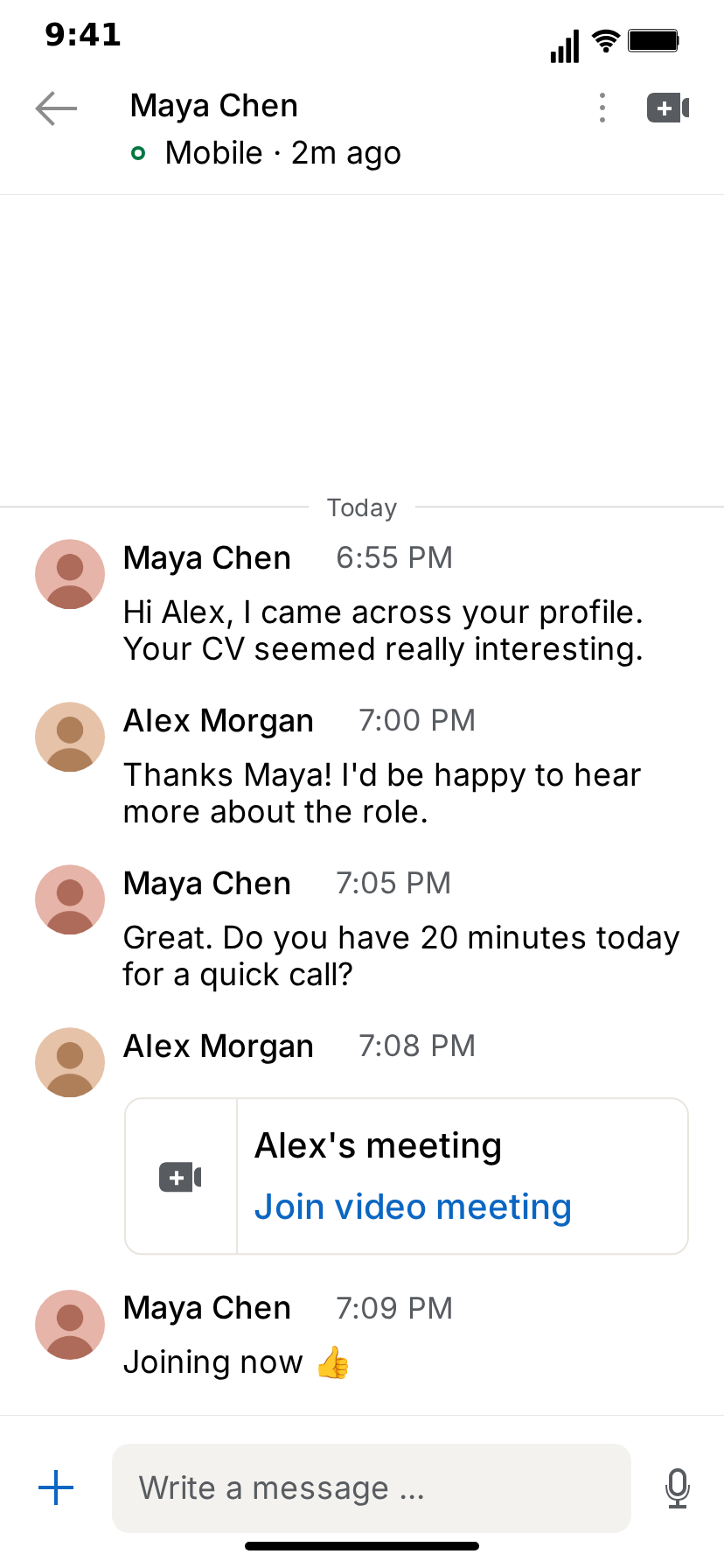
A fake LinkedIn message video is a short clip that looks like someone screen-recorded a LinkedIn conversation on their iPhone: a recruiter reaches out, the status line under their name flips to "typing", a reply is typed into the message bar, a video meeting card drops into the thread, and the clip cuts to the camera preview right before the call. It is the most recognizable format there is for career stories: job offers, cold pitches, awkward networking, the recruiter who did not read the CV.
This tutorial walks through making one with the free LinkedIn template in MockClip, from the default project to an exported MP4, with the timing and writing choices that make the result believable.
Everything happens in the browser. You do not need a LinkedIn account, a video editor or design skills. There is no LinkedIn login and nothing is sent anywhere: every name, headline and message in the clip is something you typed. MockClip is an independent tool and is not affiliated with LinkedIn.
What you will make
By the end you will have a vertical video, around 15 to 25 seconds long, that:
- opens on the Messaging inbox, a list of conversations with avatars, names, previews and times,
- taps the top row and pushes into the conversation with your contact,
- shows the contact's messages arriving one by one, with "typing" and animated dots in the status line before each one,
- types your replies into the "Write a message …" bar letter by letter and sends them,
- drops a video meeting card into the thread, with a camera icon, a title and a blue "Join video meeting" link,
- fades to the call preview, with your name and headline over a dark camera preview and a blue Join button,
- and, if you want, fades once more into the connected video call screen.
You can stop at any point. A clip that is only the conversation, with no inbox and no call screens, is just as valid and often the tighter cut for short-form.
Step 1: Open the LinkedIn template
Go to the LinkedIn editor. It opens on a ready-made conversation: Maya Chen, a recruiter, writes to Alex Morgan that his CV seemed really interesting, Alex says he would be happy to hear more about the role, Maya asks for a quick 20-minute call, Alex posts a meeting card, and Maya answers "Joining now 👍". Press Play once before you change anything. Watching the default clip shows you what every field in the editor does.
The editor has a few blocks: the screen tabs (the chat, Messaging, Call preview and Video call), the contact and profile fields, the list of messages, the pacing controls, the video flow strip, and the theme and sound switches. It is easiest to work top-down: set up the two people, write the messages, then decide which screens play.
Step 2: Set up the two people
A LinkedIn conversation in this template is always one-to-one: you and one contact. Fill in both sides first.
- Contact Name. The person in the header and on their messages. Use an invented name.
- Contact Status. The line under the name, such as "Mobile · 2m ago". While it reads Mobile, Active, online or now, a small green presence ring appears in front of it. Change it to something like "Away" and the ring disappears, which quietly tells viewers the other person is not around.
- Contact Avatar (Optional). Upload a picture for the contact's round avatar. Without one, the template draws a neutral generated avatar. Use your own images or ones you have the right to use.
- Your name and Your avatar. These are used on your own rows. They are the account owner in the story, usually the job seeker, the founder or the person being pitched.
The header also shows a back arrow, a kebab menu and a video icon, the same layout people recognize from the app, so you do not need to set anything else for it to read as LinkedIn messaging.
Step 3: Write the messages
Each message in the list is either yours or the contact's. Every message has its text, a Timestamp (free text, so "6:55 PM", "9:12 AM" or "Yesterday" all work) and a Delay Before (s): the pause before it appears.
LinkedIn draws messages as flat rows, everyone left-aligned, rather than bubbles on two sides. The first message of a run shows a round avatar, the sender's name and the time. Further messages from the same person stack underneath without repeating the header. Each message has a checkbox, Avatar + name line (off = continues the previous message), so you control this directly: tick it to start a fresh run, untick it to let a message continue the one above. Two short messages in a row from a nervous candidate read better than one long paragraph.
Date lines. A message can carry a Date line above: a centred label between two thin rules, such as "Today" or "Yesterday". The first message gets one automatically ("Date line above the first message"), and you can switch that off. Add a second date line further down when the conversation jumps a day. "Yesterday" over a message and "Today" over the reply tells viewers somebody took their time.
Write the way people actually write on LinkedIn: polite, a little formal, slightly too enthusiastic. "Hi Alex, I came across your profile" is a real opening line, and the formality is half the comedy when the content goes somewhere unexpected.
Step 4: Add a meeting card and system lines
Two checkboxes on any message turn it into something other than text.
Meeting card. Tick it and the message becomes an outlined card under the sender's name and time: a camera icon on the left, a title such as "Alex's meeting" and a blue "Join video meeting" link. It is the natural turning point of a recruiter story: the chat is over, the call is about to start. Edit the title to match the scene, for example "Maya's meeting" when the recruiter is the one who sends it.
System line. Tick it and the message becomes a grey line in the thread, such as "Maya Chen joined the video meeting.", with a blue link word at the end ("Join"). Use it right after a meeting card to show that the other person is already waiting, which adds urgency to the cut to the call screens.
The Join links are part of the drawing. They are not clickable and do not start anything, which is exactly what you want in a mockup.
Step 5: Set the pacing
The difference between a believable clip and a stiff one is almost entirely timing. Four controls matter:
- Delay Before (s) on every message. The pause before the message starts. Short delays read as an eager back-and-forth; a long delay before a reply is a reaction shot in itself.
- Typing Duration (s) on the contact's messages. For this long, the status line under the contact's name shows "typing" with dots, and then the message appears. Two seconds of typing followed by a one-word answer is a joke all by itself.
- Typing Speed (chars/sec) for your own messages. Your text is typed into the "Write a message …" bar at this speed and then sent. A slow speed reads as hesitation, a fast one as excitement.
- Show typing in input field. Leave it on to see your replies being typed in the message bar. Turn it off and your messages simply appear, which suits a fast montage.
A rule of thumb: give viewers at least as long to read a message as it takes to read it aloud slowly. The default project is a good reference point; copy its rhythm and adjust from there.
Step 6: Choose the screens
The conversation is only one of four screens. The video flow strip in the editor picks which screens play, in what order, and with which transition between them.
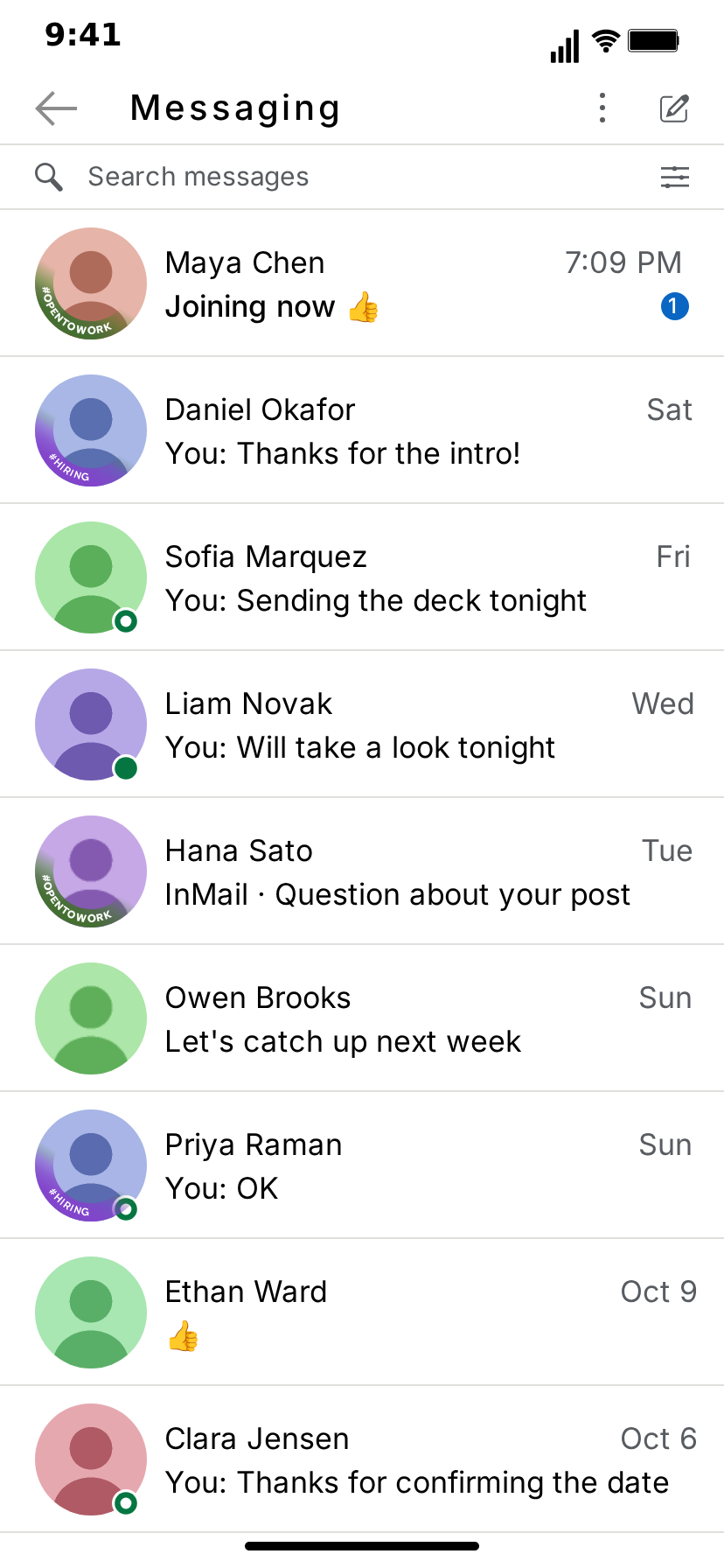
- Messaging. The inbox: a list of conversations, each with an avatar, a name, a preview line, a time and an optional online dot. Its first row follows the conversation you animate, so it always shows your contact and their last message. The other rows are yours to fill in, and they are worth a minute: a believable inbox makes the main conversation feel like one of many.
- The chat. The conversation from steps 2 to 5.
- Call preview. The camera preview before joining a call, with your name and headline in the corner and a blue Join button.
- Video call. The connected call, with the other person's name and headline. Connects after (s) sets how long it takes to connect.
Each move between screens uses a push, pop or fade transition. A push from the inbox into the chat looks like a tap on a row; a fade from the chat to the call preview looks like the app switching modes. Touch indicators show where the finger taps before each move, so viewers can follow along.
A strong default flow for a recruiter story: Messaging, push into the chat, fade to Call preview. Start on the inbox for context, end on the preview for the cliffhanger.
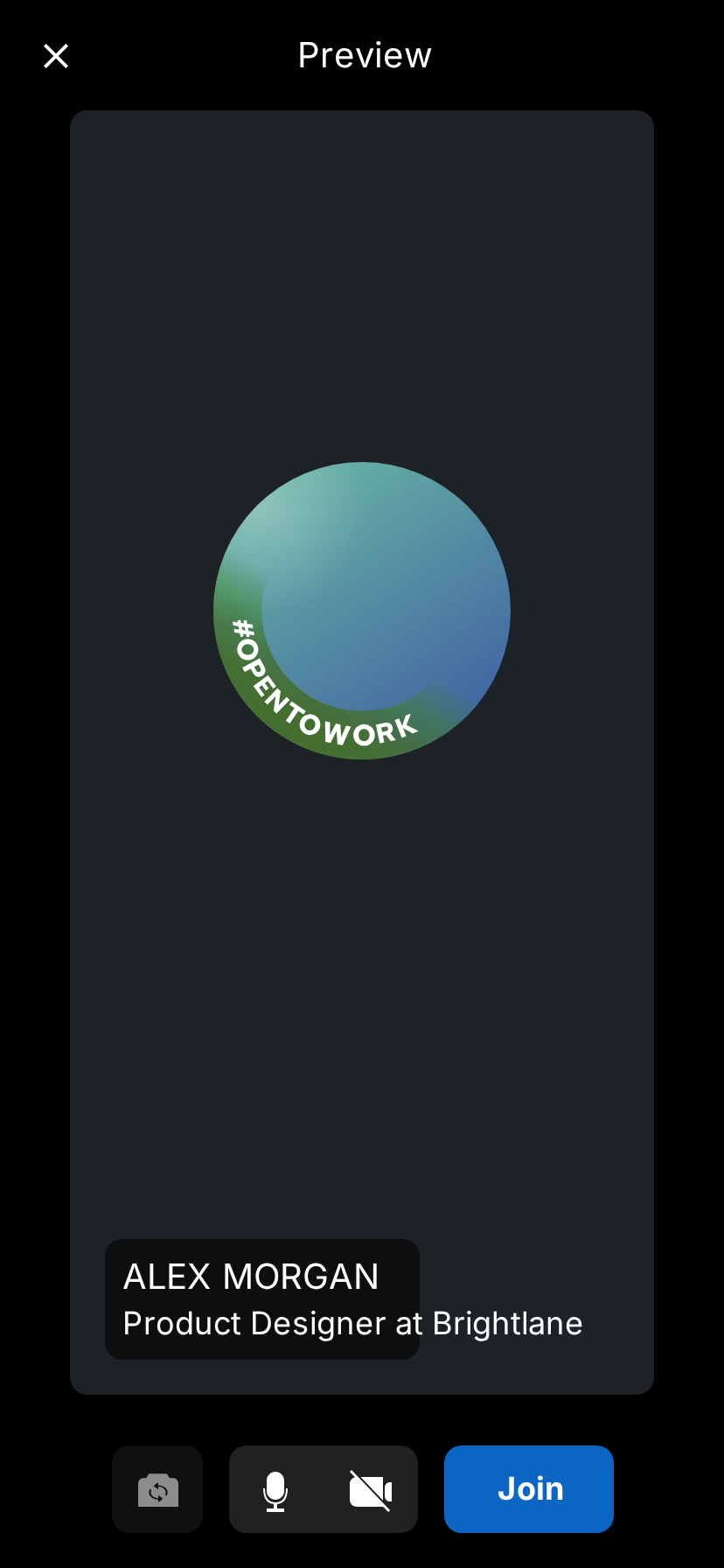
Fill in the call screens to match the story. The headline is a detail people read: "Product Designer at Brightlane" is ordinary, and an ordinary headline makes the clip feel real. An absurd one, like "Chief Vibes Officer", makes it a joke. Use an invented company either way.
Step 7: Light or dark
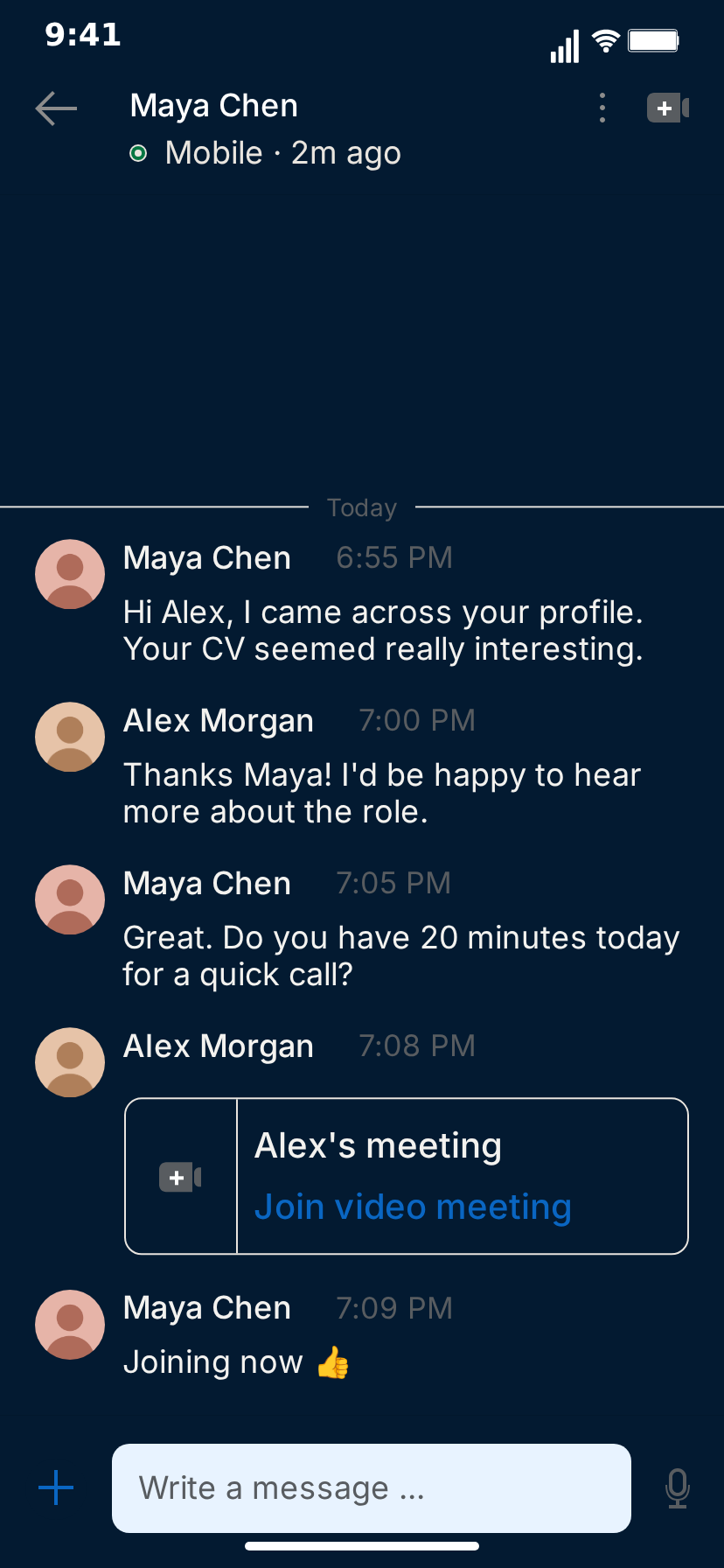
The Light Theme checkbox switches between the white light theme and LinkedIn's navy dark theme. Both are drawn from the design, so neither looks like an afterthought. Light reads like a phone during the working day and suits office, hiring and sales stories. Dark reads like late-night scrolling and suits the "a recruiter messaged me at 11 pm" kind of story. Export the same clip in both and see which your audience prefers.
Step 8: Preview and export
Turn Sound Effects on or off, then press Play and watch the whole clip. Check three things: that each message stays on screen long enough to read, that the typing in the status line is visible before the contact's messages, and that the cut to the call preview lands right after the meeting card.
Then choose the frame and format. 9:16 vertical suits TikTok, Reels and Shorts; the 1:1 square crop suits feeds, and the square video guide covers when it is worth it. You can show or hide the iPhone bezel. Export MP4 for platforms or GIF for slides and chats, at 720p or Full HD and 15 to 30 fps, or 60 fps on the Creator plan. The export settings guide explains which combination suits which platform.
The manual editor works without an account. Free exports carry a small watermark; the plans on the pricing page remove it.
A complete example script
Here is the default recruiter clip written out, so you can see how the pieces fit. It runs about 20 seconds with the inbox and the call preview.
Contact Name: Maya Chen. Contact Status: Mobile · 2m ago. Your name: Alex Morgan. Theme: light.
| # | Who | Message | Timing |
|---|---|---|---|
| 1 | Maya | "Hi Alex, I came across your profile. Your CV seemed really interesting." | Date line "Today", typing 1.5 s |
| 2 | Alex | "Thanks Maya! I'd be happy to hear more about the role." | Delay 1 s, typed in the bar |
| 3 | Maya | "Great. Do you have 20 minutes today for a quick call?" | Typing 1.5 s |
| 4 | Alex | Meeting card: "Alex's meeting" / "Join video meeting" | Delay 1 s |
| 5 | Maya | "Joining now 👍" | Typing 1 s |
Video flow: Messaging, push into the chat, then fade to Call preview with ALEX MORGAN and "Product Designer at Brightlane".
Notice what each part does. Maya's opener is the hook, and every viewer who has ever received one recognizes it. Alex's reply is eager but professional. The meeting card ends the text conversation and promises the next scene, and the call preview delivers it.
Making variations quickly
Once one clip works, variations take minutes.
- Change the last message. Keep everything and replace "Joining now 👍" with "Actually, can we reschedule to next quarter?". Same setup, opposite ending.
- Flip the roles. Make yourself the recruiter and the contact the candidate, and the same template tells the story from the hiring side.
- Drop the call screens. End on the chat for a tighter 12-second cut.
- Start on the inbox. Fill the Messaging rows with other conversations that set up the story, then push into the main one.
- Swap the theme. Light for daytime stories, dark for late-night ones.
Writing tips that make it believable
Keep the register. LinkedIn messages are polite and a little stiff: "Hope you're well", "Happy to connect", "Would love to learn more". Put a ridiculous request inside that register and the contrast does the work.
Short rows. Two or three short messages in a run read better than one wall of text, and the stacked layout makes them look natural.
Headlines that fit the person. The headline on the call screens is a character detail. A recruiter is "Talent Partner at" an invented company; a founder is "Building something new".
Times that add up. If Maya writes at 6:55 PM and Alex replies at 7:00 PM, keep the following timestamps moving forward. A mismatched timeline is the easiest giveaway.
Invented names only. Use invented names for every person and every company, and keep real people and real employers out of the story.
Using AI to write the conversation
If you would rather not write the script yourself, switch to Describe it and type one sentence, such as "A recruiter messages Alex about a role, asks for a call, and Alex sends a meeting link". The AI drafts the messages and timing for you to adjust. It needs a Google or GitHub sign-in to MockClip, and the Describe it guide explains how it works. If you use Claude or ChatGPT, MockClip's MCP server has a create_linkedin_message_conversation tool that builds the clip from a chat; the MockClip MCP guide shows how to connect it.
Troubleshooting
Two messages from the same person both show the name and avatar. Untick "Avatar + name line" on the second one so it continues the previous message.
The contact's message appears without the typing status. Give it a Typing Duration of a second or more.
My reply appears at once instead of being typed. Check that "Show typing in input field" is on, and lower the Typing Speed if it types too fast to notice.
There is no green ring before the status. The ring only shows while the status reads Mobile, Active, online or now.
The clip starts with an extra date line. Switch off "Date line above the first message".
The cut to the call feels abrupt. Add a second or two of Delay Before on the message after the meeting card, or use a fade transition in the video flow.
A note on fair use
The LinkedIn template is for skits, tutorials, product mockups and education. MockClip is independent and is not affiliated with, endorsed by or sponsored by LinkedIn Corporation; LinkedIn is a trademark of LinkedIn Corporation. Write every message yourself, use invented names and companies, and do not present a made-up conversation as a real one or use it to impersonate a real person or organization.
Where to go next
For short-form story ideas with ready-to-build scripts, read LinkedIn message video ideas for TikTok, Reels and Shorts. If your story is a team channel rather than a one-to-one chat, the Slack conversation tutorial covers the Slack template. Every template is in the app picker, and more tutorials are on the blog.
Free to use. No sign-up. Browser-based.
Make a fake LinkedIn message videoFrequently Asked Questions
How do I make a fake LinkedIn message video?
Open MockClip's LinkedIn template, fill in the contact's name and status, write the messages for you and the contact, set the delays and typing time, optionally add a video meeting card and pick which screens play in the video flow, then press Play and export MP4 or GIF. It all runs in the browser.
Do I need a LinkedIn account?
No. The template draws the LinkedIn-style screens itself. There is no LinkedIn login, nothing is sent through LinkedIn, and the manual editor works without a MockClip account.
Can I add more than two people to the conversation?
No. The template is a one-to-one conversation between you and one contact. Every message is either yours or the contact's.
Can I show the contact typing?
Yes. Give a contact message a Typing Duration and the status line under the contact's name switches to 'typing' with dots for that long before the message appears. Your own messages are typed into the 'Write a message …' bar at the speed you set.
Does the Join button start a real video call?
No. The meeting card, the call preview and the video call screen are drawn and animated for the clip. Nothing is joined and no real video is shown.
Is MockClip affiliated with LinkedIn?
No. MockClip is an independent tool and is not affiliated with, endorsed by or sponsored by LinkedIn Corporation. LinkedIn is a trademark of LinkedIn Corporation. Use the template for parody, education, tutorials and mockups, and do not present a made-up conversation as real or use it to impersonate real people or companies.
Related Articles
LinkedIn Message Video Ideas for TikTok, Reels and Shorts
Recruiter outreach, job-hunt wins, cold pitches, referral asks and networking humour: LinkedIn message skit ideas with who-says-what scripts you can build.
How to Make a Fake Slack Conversation Video (Free)
Step-by-step: script, time and export a fake Slack channel video in your browser, with teammates, reactions, @mentions, typing and the Threads list. Free.
Fake Chat Video Export Settings: MP4, GIF, MOV, WebM, 1:1
Every MockClip export setting explained: MP4, GIF, transparent MOV and WebM, 720p and Full HD, 1:1 square, bezel-less frames, watermark, mobile and links.