How to Make a Fake Airbnb Message Video (2026 Guide)
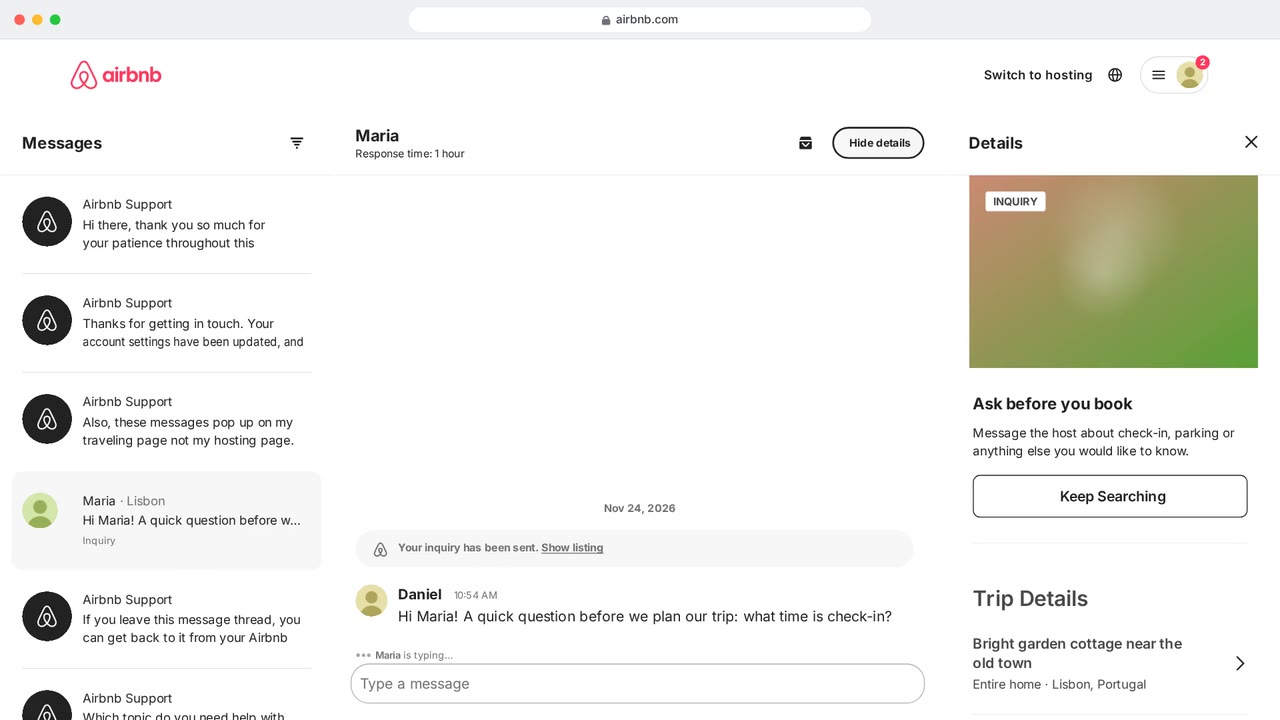
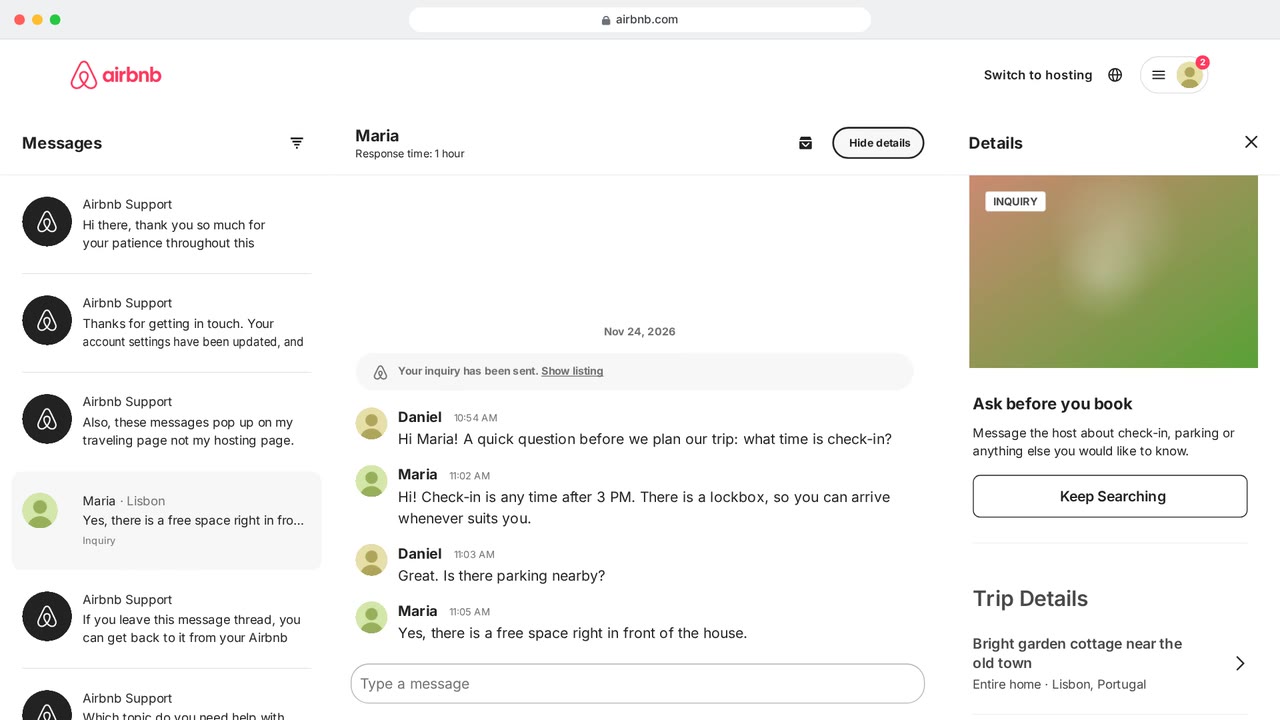
A fake Airbnb message video shows a conversation between a guest and a host playing out on the Airbnb Messages page: the inquiry goes out, the guest types a question, a line says the host is typing, the answer lands. This guide walks through making one in MockClip, from the host's name to the exported MP4, using only features that exist in the Airbnb Messages template.
One thing to know before you start: this is a computer template. It draws the Messages page of the desktop site inside a browser window, with the inbox on the left, the thread in the middle and the listing panel on the right. The clip is always 16:9. That suits YouTube videos, webinars, course lessons and slides, and it changes how you use the clip on TikTok or Reels. A later section covers that honestly.
Why an Airbnb message video works
The message thread is where most of hosting happens. Questions before a booking, check-in details, a late arrival, a request the host has to turn down: all of it is written in that thread. If you teach hosting, review listings or tell travel stories, the thread is often the thing you most want to show.
The problem is that a real thread belongs to two people. A screen recording of your own inbox shows a real guest's name, photo and plans, and usually a few other conversations in the list beside it. A staged conversation shows none of that. You write both sides, you choose the names, and nothing from your account ends up in the frame.
The page also carries more context than a phone chat does. The listing panel tells the viewer which place the conversation is about. The inbox shows that this thread is one of several. The response time under the host's name sets an expectation before a single message appears. A viewer who has booked a stay or hosted one reads all of that at a glance.
How MockClip's Airbnb template works
The template is a canvas renderer. You describe the conversation in the editor; the preview redraws every frame from that description. The export is the same renderer running at video resolution, so what you preview is what you download.
Because it is a description and not a recording, you control the names, the times, who types when and how long each pause lasts. The page is the guest's side of the conversation: you write as the guest, and the contact is the host.
What is on the page
The clip shows the whole page inside a plain browser window with three coloured dots and the site's address:
- The inbox, on the left. A list of conversations. The open one is highlighted and shows the host's name with the city, a preview of the latest message and a status line.
- The thread, in the middle. The host's name and response time at the top, then the messages. Each run of messages starts with the sender's avatar, name and time. Centred date lines mark the day. Automated notices are grey pills with a short line and a link. At the bottom is the message field.
- The listing panel, on the right. A label over the picture, a notice with a title and a short text, and the listing's title and place.
What you can change and what is fixed
You can change the conversation, both people's names and avatars, the host's response time, and the listing's title, place, city, status, label and notice. The other inbox rows and the rest of the page are fixed, so plan your story around the open conversation and the listing panel.
The conversation is one guest and one host, in text. There are no photos, files, voice notes or reactions in the thread, the link in a notice is drawn but does not open anything, and the template has no booking or payment screens.
A note before you start
Keep the conversation fictional. Use made-up names, a made-up listing and wording you wrote yourself. Do not impersonate a real host or guest, do not present a staged exchange as a real one, and do not write a notice or a message that reads like a booking confirmation, a reservation code or a receipt. A "dramatised" or "example conversation" note in your caption or on screen removes any doubt.
MockClip is an independent recreation of the interface for video mockups. It is not affiliated with Airbnb, and Airbnb is a trademark of Airbnb, Inc.
Step-by-step: building the conversation
Open the Airbnb Messages template. It opens with a sample conversation already filled in, the same one as the clip above: a guest called Daniel asks a host called Maria what time check-in is and whether there is parking nearby. We will rebuild it field by field, so you know where everything lives when you write your own.
Step 1: Name the host and yourself
Type the host's name in the contact field at the top of the editor: Maria. The name becomes the title of the thread and the name on the open row of the inbox.
Then open Chat settings. Add a Contact Avatar (Optional) if you want a face instead of the default. Fill in Your name with Daniel and add Your avatar for your side of the thread. In the response time field, type the whole line that sits under the host's name, for example Response time: 1 hour.
Step 2: Describe the listing
Still in Chat settings, find The page around the conversation. These fields fill the listing panel and the open inbox row:
- Listing Title:
Bright garden cottage near the old town - Listing Place:
Entire home · Lisbon, Portugal - City:
Lisbon, shown beside the host's name in the inbox row - Status:
Inquiry, the small line under the preview in the inbox row - Label:
INQUIRY, the tag over the picture in the panel - Notice Title:
Ask before you book - Notice Text:
Message the host about check-in, parking or anything else you would like to know.
Keep the place, the city and the listing title consistent with each other and with the messages. If the guest asks about the walk to the old town, the listing should be near one.
Step 3: Open with an automated notice
Add the first message and tick Automated notice. Two fields appear: the line (Your inquiry has been sent.) and the link text (Show listing). Leave the message text empty. The message is now drawn as a grey pill with the line and an underlined link, in place of a normal row with an avatar.
In Date line above, type Nov 24, 2026. The centred date line sits above the notice and marks the start of the day. Chat settings also has a Date line above the first message option, on by default, which stamps the first message with a date line even when it has none of its own; in that case the line reads Today.
Step 4: Write the messages
Use + My Message and + Their Message to add the lines, and give each a Timestamp:
- You:
Hi Maria! A quick question before we plan our trip: what time is check-in?at10:54 AM - Host:
Hi! Check-in is any time after 3 PM. There is a lockbox, so you can arrive whenever suits you.at11:02 AM - You:
Great. Is there parking nearby?at11:03 AM - Host:
Yes, there is a free space right in front of the house.at11:05 AM
One notice and four messages make a 13 second clip. The two people alternate here, so each message is a full row with the sender's avatar, name and time, and the thread fills quickly: four to six messages is a comfortable length for one clip.
Free to use. No sign-up for the manual editor. Browser-based.
Open the Airbnb Messages editorStep 5: Time the typing
For each of the host's messages, set Typing Duration (s). While it runs, a line above the message field shows the host's name and "is typing" with animated dots. The sample uses 1.4 seconds for the longer answer and 1.2 for the short one. A longer answer deserves a longer typing line; a one-word answer barely needs one.
Set Delay Before (s) on each message for the pause after the previous one. Half a second keeps the exchange moving.
For your own messages, tick Show typing in input field and set Typing Speed (chars/sec). The text types into the "Type a message" field and is then sent. The sample uses 22 characters per second, which is quick enough that a full sentence does not hold up the clip.
Step 6: Use runs for follow-up messages
Each run of messages starts with the sender's avatar, name and time. When the same person sends two messages in a row, the second one continues the first without repeating them. Use this when a host adds a short follow-up, such as a note about the lockbox after the check-in time: add it as a second host message and it sits under the first as part of the same run.
A message that continues a run shows no time of its own, so the timestamp that counts is the one on the first message of the run. Each message also has an Avatar + name line option; switched off, the message is drawn as a continuation of the one above it.
Step 7: Choose the look and export
Pick the light or the dark theme. In the Scene tab, Show Browser Window keeps the page inside the browser window with its address; untick it to show the bare page, which is useful when the clip sits inside another frame in your edit.
Export the clip as an MP4 or a GIF. The free export is 720p with a small watermark, at 15 to 30 frames per second. Pro removes the watermark and unlocks Full HD, and 60 fps is part of the Creator plan. The pricing page has the details.
The inbox row and the listing panel
Two parts of the page work for you without any extra steps.
The open row of the inbox follows the clip. Its preview is always the latest message on screen, so when the host's answer lands in the thread, the row on the left changes with it. The list and the thread never disagree, which is one of the details that makes a staged page read as a real one.
The listing panel stays in view for the whole clip. Use it to set the scene: the listing title tells the viewer what kind of place this is, and the notice gives you one more line of context. For a tutorial, a notice such as Ask before you book frames the conversation as a pre-booking question. For a story, a listing title with some character does more than an opening caption would.
Letting Describe it write the first draft
If you would rather start from a sentence than from empty fields, use Describe it, the default panel on the template's page. Type a description, for example a guest asks an Airbnb host whether a late arrival would be a problem, and the AI drafts the messages and their timing for the template. The result opens in the manual editor, where you can change every line. Describe it requires signing in; the manual editor does not. The Describe it guide explains how it works.
Writing messages that sound like a guest and a host
A booking thread has its own register. It is more polite than a chat between friends and less formal than an email.
- Open with the name.
Hi Maria!is a natural way for a guest to start. A host replyingHi Daniel,reads as attentive. - One question per message. Check-in in one message, parking in the next. The viewer follows a thread of single questions far more easily than a paragraph with three.
- Make the host's answers specific.
Any time after 3 PManda free space right in front of the housesound like a real host.Sure, no problemsounds like nobody. - Keep sentences complete. Hosts write to strangers, so they tend to write full sentences. Save the lowercase fragments for a phone chat template.
- Leave out anything that identifies a real place. No real addresses, door codes or phone numbers, even invented ones that look plausible.
Timestamps and date lines that tell the story
Every run of messages shows its time next to the sender's name, and viewers read those times.
- A few minutes between question and answer matches a response time of
1 hourin the header and shows a responsive host. In the sample, the question goes out at 10:54 AM and the answer arrives at 11:02 AM. - A gap of hours tells a different story. A question at
9:12 PMand an answer at7:40 AMis a host who was asleep, which may be exactly the lesson of your tutorial. - A new date line moves the thread to another day. Put
Nov 25, 2026in Date line above on the first message of the next day to show a follow-up the morning after. - Keep the response time honest with the timestamps. A header that says
Response time: 1 hourabove an answer that took nine hours is a contradiction, unless that contradiction is the point.
Five conversation patterns that work
- The clear answer. One question, one specific answer, a thank-you. This is the pattern in the demo, and it is the base for most hosting tutorials.
- The late arrival. The guest lands at midnight and asks if that is a problem. The host explains self check-in.
- The polite no. The guest asks for something the listing does not allow, and the host declines without sounding cold.
- The slow reply. A question in the evening, a date line, an answer the next morning. Good for a lesson about response times.
- The red flag. A fictional host asks to move the conversation somewhere else, and the guest declines. Good for scam awareness, clearly labelled as an example.
The companion post, Airbnb message video ideas for hosts, has full scripts for each of these.
Using the clip: YouTube, slides and vertical video
The clip is 16:9, so it drops into a YouTube video, a webinar recording, a course lesson or a presentation without cropping. For a talking-head video, cut to the clip full screen while you explain what the host is doing well, then cut back.
There is no vertical or square version of a computer clip. For TikTok, Reels and Shorts you have two honest options. The first is to place the landscape clip inside a vertical edit in your own video editor: as the top half of a split screen with your face below it, or zoomed in on the thread so the messages are large enough to read on a phone. The second is to tell the same story in a phone template. MockClip's WhatsApp and iMessage templates produce a native vertical chat, and the brand-free text chat does the same without any real app's design.
One more limit to plan around: this template recreates a real site's interface, so it is for your own content. For paid ads or client work, the terms point you to a brand-free template such as the text chat. The pricing page explains the plans.
Generating the same video from Claude or ChatGPT
If you would rather describe the conversation than click through the editor, MockClip's MCP server has a create_airbnb_conversation tool. It takes the host's name, the theme, up to twenty messages with their times, date lines, automated notices and typing settings, plus your own name, the response time and the page fields for the listing panel and the inbox row. It returns a link that opens the finished animation in MockClip. The setup guide shows how to connect it.
How it compares to the alternatives
Screen recording your real inbox gives you the real page but no control. You cannot show a conversation that never happened, and real guests' names and messages end up in the frame, which is a privacy problem before it is an editing problem. Blurring them afterwards is slow and easy to get wrong.
Building the page by hand in a slide tool or a video editor gives you control but no motion: the typing line, the text typing into the message field and the inbox row that follows the thread all have to be animated by hand.
Among MockClip's own templates, the closest sibling is the Etsy message template, which draws a buyer and a shop on a similar three-part desktop page. The Messenger template has both a phone and a computer layout if you need the same conversation in both shapes. Choose the Airbnb template when the conversation is about a stay and the listing panel is part of the story.
Common mistakes to avoid
- Writing ten long messages. Rows are tall on a desktop page, and once the thread is full the earliest ones move up out of view. Keep one clip to one question and its answer, or two.
- Planning the clip as a vertical video. It is 16:9; decide at the start how it will sit in your edit.
- Changing the listing title but not the city or the place, so the panel and the inbox row disagree.
- Giving every host message the same typing duration. Match it to the length of the answer.
- Writing a notice that looks like a booking confirmation or a receipt. Keep notices to neutral lines such as the inquiry notice.
- Describing photos, files or reactions in your narration. The thread is text only.
- Using a real host's name, a real listing or a real conversation. Write a fictional one.
Quick start
- Open the Airbnb Messages template.
- Host's name and avatar, your name and avatar, the response time line.
- Listing title, place, city, status, label and notice.
- One automated notice with a date line above it.
- Four to six messages with timestamps.
- Typing durations for the host, typing in the message field for you, delays between messages.
- Light or dark theme, browser window on or off.
- Export MP4 or GIF.
Related MockClip templates and guides
- Airbnb Messages video maker: the template used in this guide
- Airbnb message video ideas for hosts: scripts for hosting tutorials, training, travel stories and scam awareness
- Etsy message template: a buyer and a shop on a desktop page
- How to make a fake Messenger conversation video: the Messenger version of this tutorial
- How to make a fake Telegram conversation video: a phone chat with a chats list and a screen flow
- Marketplace scam awareness video: how to write red-flag examples that teach
- Export settings guide: resolution, frame rate and format
- Connect MockClip to Claude or ChatGPT: MCP setup
- Pricing: Pro for watermark-free exports
Frequently Asked Questions
What is the easiest way to make a fake Airbnb message video?
Open MockClip's Airbnb Messages template in the browser. Name the host, write the messages for both sides, edit the listing details, set the delays and typing times, then export an MP4 or a GIF. The manual editor works without an account.
What does the finished video show?
The Airbnb Messages page as it looks on a computer, inside a browser window: the inbox on the left, the thread in the middle and the listing panel on the right. Messages appear as rows with an avatar, a name and a time, under centred date lines.
Can I show the automatic lines a thread has, such as the inquiry notice?
Yes. Tick Automated notice on a message and it is drawn as a grey pill with your line and an optional link, such as 'Your inquiry has been sent.' with 'Show listing', in place of a normal message row.
Can I export the video as a vertical 9:16 clip?
No. The template draws a desktop page, so the clip is always 16:9. For TikTok, Reels or Shorts, place the landscape clip inside a vertical edit in your own video editor, or use one of MockClip's phone templates for a native vertical chat.
Which parts of the page can I change?
The conversation, both people's names and avatars, the host's response time, and the listing's title, place, city, status, label and notice. The other inbox rows and the rest of the page are fixed.
Is it okay to make fake Airbnb message videos?
Fictional conversations for tutorials, training, skits and stories are fine in most places. Do not impersonate real people, do not present a staged exchange as real, and do not use the format for fraud. MockClip is not affiliated with Airbnb.
Can I make it from Claude or ChatGPT instead of the editor?
Yes. MockClip's MCP server has a create_airbnb_conversation tool that accepts the host's name, the messages, the response time and the listing details, and returns a link to the finished animation.
Related Articles
Airbnb Message Video Ideas for Hosts and Travel Creators
Airbnb message video ideas with full scripts for hosts, co-hosts, travel creators and rental educators: tutorials, training, stories and scam awareness.
How to Make a Marketplace Scam Awareness Video (Free)
Make short safety videos that show common Facebook Marketplace scam red flags as fictional chats, each ending on the safe reply. Free, exports MP4.
How to Make a Fake Messenger Conversation Video (2026)
Step-by-step guide to a realistic fake Messenger conversation video: the new-friend intro, photo grids, read avatars, the keyboard, sheets, calls and stories.
How to Make a Fake Telegram Conversation Video (2026)
Step-by-step guide to a realistic fake Telegram conversation video: reply quotes, image attachments, ✓✓ read marks, typing in the header and the peek preview.
Fake Chat Video Export Settings: MP4, GIF, MOV, WebM, 1:1
Every MockClip export setting explained: MP4, GIF, transparent MOV and WebM, 720p and Full HD, 1:1 square, bezel-less frames, watermark, mobile and links.