How to Make a Fake Telegram Conversation Video (2026)
Fake Telegram conversation videos are among the most watchable formats on TikTok, Reels and Shorts: a chat opens, someone types, a reply lands with a quote, a file arrives at the worst possible moment. This guide walks through making one in MockClip, from the first message to the exported MP4, using only features that exist in the Telegram template.
The template is different from most chat-video tools in one important way: it animates more than the conversation. The clip can start on the chats list, push into the chat, show a long-press peek preview and pop back out. We will use all of that.
Why fake Telegram videos work
Telegram is the default messenger for hundreds of millions of people, and its interface carries a distinct visual signature: the blue header, the doodle wallpaper, the green outgoing bubbles with a tiny ✓✓ next to the time. Viewers who use Telegram every day recognise a Telegram video before they read a word, and that recognition is what stops the scroll.
The format also suits storytelling. A chat is a two-character scene with built-in pacing: typing, a pause, a reply. Reply quotes let one character answer a specific earlier line. Attachments add a third element to react to. The chats list adds a frame around the story, the way an establishing shot frames a scene.
How MockClip's Telegram template works
The template is a canvas renderer. You describe the conversation in the editor on the left; the phone on the right redraws every frame from that description. The export is the same renderer running at video resolution, so what you preview is what you download.
Because it is a description rather than a recording, you control everything: names, status, timestamps, who types when, which message is quoted, what the attachment is called, when each ✓ turns into ✓✓. Nothing from your real phone leaks into the frame.
Step-by-step: building the conversation
Open the Telegram template. We will build a short story: a friend confirms plans, discovers the plans are tonight rather than tomorrow, receives the invite as an attachment, and rushes out.
Step 1: Name the contact and set a status
Enter Sofia Almeida in Contact Name and online in Contact Status. The status appears under the name in the header and in the chats list. Use online when the conversation is live; use last seen … when a message is going to be ignored for a while.
Step 2: Write the messages
In Messages, add the lines one by one and mark each as sent by you or by the contact:
- Contact:
hey, are you still coming tonight?at20:41 - You:
yes!! leaving in 10 minat20:41 - You:
wait, tonight? I thought it was tomorrow 😅at20:42 - Contact: an image attachment,
invite.png,1.2 MB, at20:42 - Contact:
it's TONIGHT. 8pm. don't be late 🙃at20:43 - You:
on my way 🏃at20:43
Six messages is a comfortable length for a 20 to 25 second clip. Short bubbles keep the animation moving; Telegram wraps text early on a phone-width frame.
Step 3: Add the reply quote
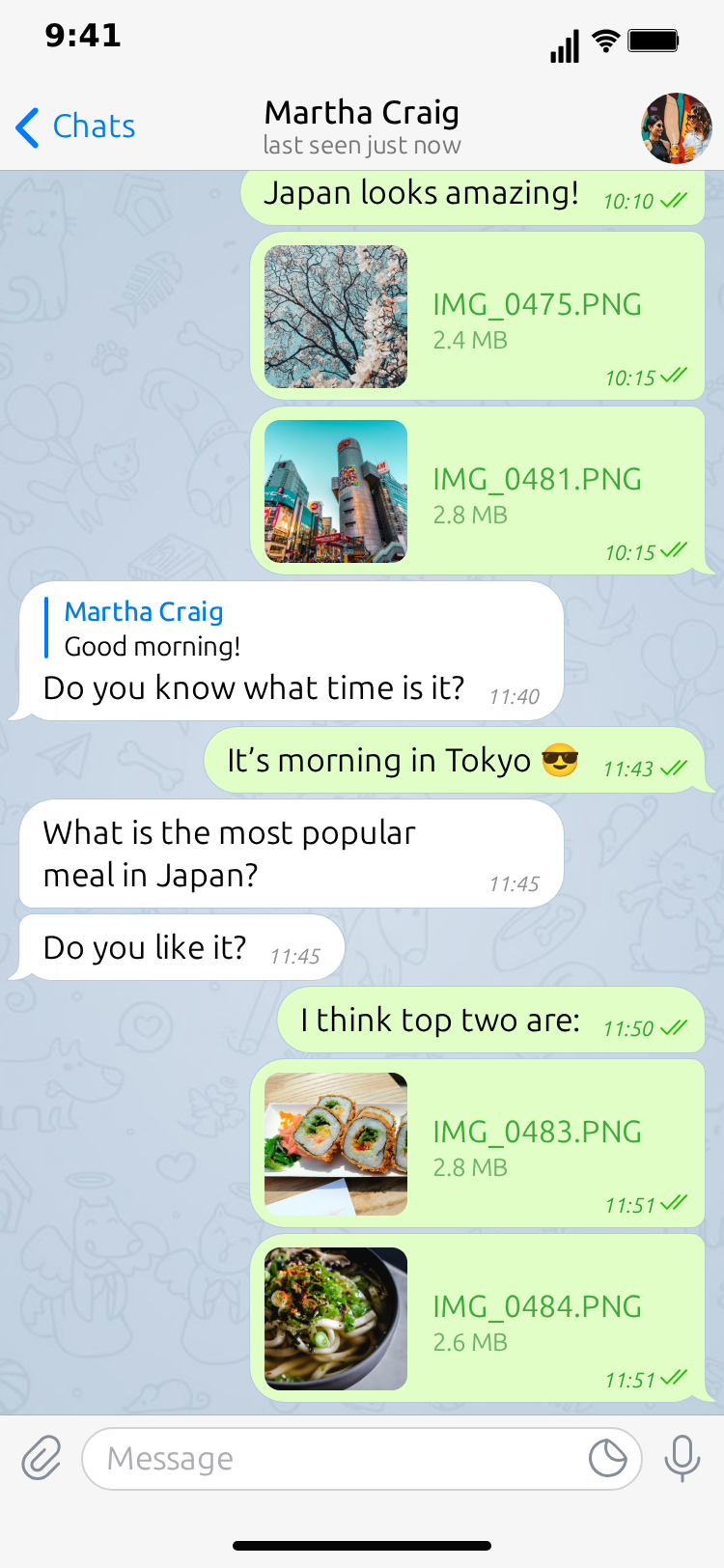
Open message 3 and set Reply to (name) to Sofia Almeida and Quoted text to hey, are you still coming tonight?. The bubble now shows the quote block above the reply, with the quoted sender's name in Telegram's accent colour. This is the turn of the story: the character is answering a specific line, and the viewer sees which one.
Step 4: Add the attachment
Open message 4, leave the content empty, enable Image attachment, and fill in File name invite.png and Size 1.2 MB. The bubble renders the attachment card with the name and size exactly as Telegram shows a file. The attachment is the punchline setup: the invite the character should have read.
Step 5: Time the typing
For each incoming message, set Typing Duration (s). While it runs, the header shows typing, the way Telegram does. Use around 1.5 seconds for the first message, 1.2 for the attachment, and closer to 2 seconds for the longer final line. Set Delay Before (s) on each message for the pause after the previous one; half a second keeps the conversation brisk.
For your own messages, enable Show typing in input field and set Typing Speed (chars/sec) to around 18. The text types into the input bar, then sends. Viewers read this as "the character is typing", which is the pause that makes the reply feel considered.
Step 6: Set the read marks
Under Read marks, give each of your messages a sent ✓ shortly after it appears and a read ✓✓ a second or so later. The gap between ✓ and ✓✓ is the "she saw it" beat. On the final on my way 🏃, keep the ✓✓ so the story ends resolved.
Step 7: Choose the theme
Toggle Light Theme on or off. Light matches a daytime story; dark reads as evening. The plans in our story are for tonight, but the messages are sent at 20:41 in a hurry, so either works. Pick one and keep it for the whole clip.
Free to use. No sign-up. Browser-based.
Open the Telegram editorAdding the chats list, the peek preview and the flow
The conversation alone is a good video. The screens around it make it a great one.
The chats list
Click the Chat list screen tab and add rows: a Name, a Last message preview, a Time, and where useful an Unread count, Pinned or muted. Five or six rows is enough to fill the screen. The conversation you are animating is already there as a live row; it shows the conversation's last message, an unread badge when the conversation ends on incoming messages, and the ✓/✓✓ state of your last message once it has played.
The peek preview
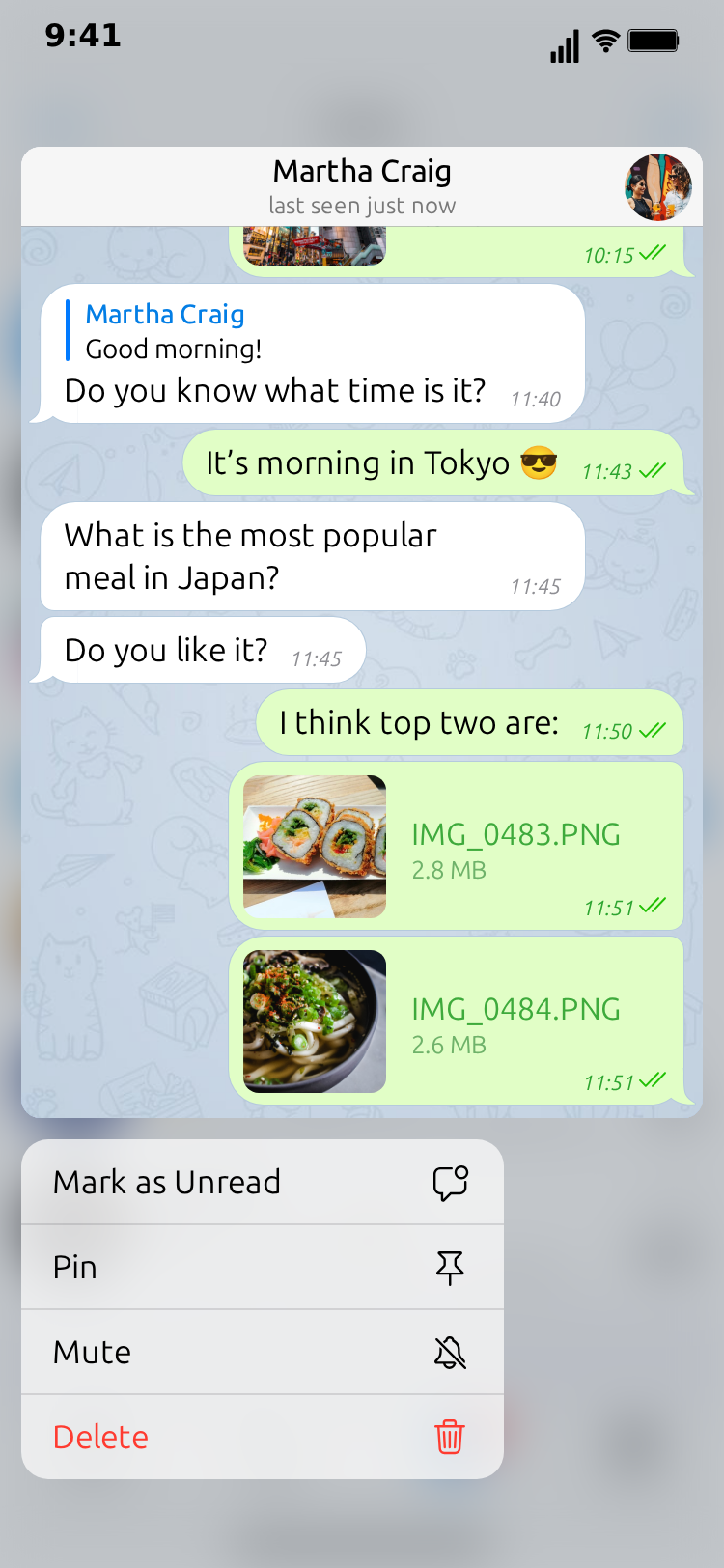
In the Video flow strip, add a step with the Chat screen and the peek transition. The chats list blurs, the conversation card lifts above it and a context menu appears underneath, as it does when you long-press a chat in Telegram. A peek step is a strong opening for a story where the viewer is meant to "spot" a suspicious chat before it opens.
The flow
A flow that works for most stories: Chats (hold 1.8 s) → Chat with push → Chats with pop (hold 1.8 s). Add the peek step between the first Chats step and the push if you want the preview beat. Each step has a Screen, a Transition and, for static screens, Hold seconds; the Chat step runs the conversation's own timeline instead of a hold. The preview's total length updates as you edit the strip.
Five Telegram conversation patterns that consistently work
- The wrong day. Plans confirmed, then the realisation, then the attachment that proves it. This is the pattern in the demo.
- The left on read. Two messages from you, ✓ only, a long delay, then ✓✓ and no reply. End on the chats list with the row showing your last message.
- The wrong chat. A message meant for someone else, sent here. Use the chats list first so the viewer sees the two names.
- The quote that changes everything. A reply quote that answers a message from much earlier in the timestamp sequence.
- The file with the wrong name. An attachment whose file name gives the game away. Keep the size plausible.
Writing dialogue that sounds like Telegram
Telegram conversations read differently from iMessage ones. Users tend to write in lowercase, split a thought across two or three short bubbles, and lean on timestamps rather than long sentences to show urgency. A few habits that keep the dialogue believable:
- Split, do not stack.
yes!!andleaving in 10 minas two bubbles a few seconds apart feel more like a real person than one bubble with both lines. - Let the quote carry the callback. If a character refers to something said earlier, quote it instead of paraphrasing it. That is what the reply feature is for, and it saves a bubble.
- Match the status to the pace.
onlinefor a rapid exchange;last seen 12 minutes agowhen the next message is going to hang with a single ✓ for a while. - Use file names as dialogue.
invite.pngsays "you should have read this".screenshot_2026-09-25.pngsays "I have proof". The attachment card is a line of the script. - One emoji per message at most. Telegram users do use emoji, but a bubble full of them reads as a meme rather than a message.
Choosing timestamps that tell the story
Timestamps are the cheapest storytelling tool in the template and the most under-used. Every message has one, and viewers read them even when they do not notice they are doing it.
- Same minute on consecutive messages means a live exchange. Use it for the fast middle of a conversation.
- A one-minute gap after a question is the "thinking about it" beat. Pair it with typing in the input field so the pause has a visible cause.
- A gap of hours between two bubbles, with a ✓ that only becomes ✓✓ at the end of the gap, is the whole left-on-read genre in two numbers.
- A timestamp that jumps back in a reply quote (
20:41quoted inside a23:15message) tells the viewer the character went digging through the chat.
Keep the times consistent with the status line and with the chats list. If the conversation ends at 20:43, the live row on the list should show 20:43 too, which it does automatically because the row is linked to the conversation.
Tips for maximum engagement
- Open on the chats list with an unread badge on the row that is about to open. The badge is the hook.
- Put the reply quote on the line where the story turns, not on the first reply.
- Stretch the ✓ to ✓✓ gap on the message that matters; shorten it everywhere else.
- Keep emoji to one per message, and only where a real person would use one.
- End on the pop back to the list so the clip loops cleanly on Reels.
Posting to TikTok, Reels and Shorts
The export is a vertical MP4 that all three platforms accept without cropping. Keep the MockClip export free of captions and add on-screen text in your editing app if needed, so the same clip can be re-cut later. The Telegram screen-flow guide for TikTok and Shorts covers hooks, pacing and platform-specific lengths in detail.
Generating the same video from Claude or ChatGPT
If you would rather describe the conversation than click through the editor, MockClip's MCP server has a create_telegram_conversation tool. It takes the contact name and status, the theme, up to twenty messages with optional reply quotes, attachments and typing settings, plus optional chatList rows, calls rows and a flow of screen steps. It returns a link that opens the finished animation in MockClip.
How MockClip compares to alternatives
Screen recording Telegram gives you a real interface but no control: you cannot quote a message that was never sent, and real names and notifications end up in the frame. Overlay-based editors can fake bubbles but not the header, wallpaper, ✓✓ marks or the chats list; see MockClip vs CapCut. The WhatsApp template is the closest sibling in MockClip; choose Telegram when your audience uses Telegram or when the story needs the chats list, the peek or the calls screen.
Common mistakes to avoid
- Attaching a file to a message that also has long text. Telegram shows the attachment card; keep the text short or empty.
- Reply quotes with text that never appeared in the chat. Viewers notice.
- Every ✓✓ at the same delay. Vary them.
- Skipping the hold on the chats list, so the push happens before anyone reads the row.
- Describing reactions, stickers or voice notes in your caption. The template does not render them.
Quick start
- Open the Telegram template.
- Contact name and status.
- Six messages with timestamps.
- One reply quote, one attachment.
- Typing durations, delays, read marks.
- Chats list rows and a chats → push → pop flow, with a peek if you like.
- Export MP4 or GIF.
Related MockClip templates and guides
- Telegram chat maker — the template used in this guide
- Telegram chat animation generator — what the generator can do and why creators use it
- Telegram chat video for TikTok and Shorts — the multi-screen flow, hooks and pacing
- How to make a fake WhatsApp chat video — the WhatsApp version of this tutorial
- How to make a fake iMessage conversation video — the iMessage version
- Fake chat video maker free — cross-platform overview
- Connect MockClip to Claude or ChatGPT — MCP setup
- Pricing — Pro tier for watermark-free exports
Frequently Asked Questions
What is the easiest way to make a fake Telegram conversation video?
Use MockClip's Telegram template in the browser. Type the messages, set who sends each one, add reply quotes and attachments where the story needs them, and export an MP4. No install and no account for the free tier.
Will the video look like a real Telegram screen recording?
Yes. The template renders the Telegram interface: the blue navigation bar with name and status, the wallpaper, incoming and outgoing bubbles with timestamps, reply quotes, attachment cards with file name and size, ✓ and ✓✓ marks, and the chats list. Light and dark themes are both available.
Can I show typing before a message arrives?
Yes. Each incoming message has a typing duration; while it runs, the header shows typing where Telegram shows it. Your own messages can also be typed into the input field before sending.
Can I show the long-press preview of a chat?
Yes. Add a peek step to the video flow. The chats list blurs, the conversation card lifts above it, and a context menu appears underneath, as it does when you long-press a chat in Telegram.
Does the template support group chats, stickers or voice notes?
No. The Telegram template covers one-to-one chats, the chats list, the calls screen and the peek preview. Group chats, channels, stickers, voice notes and reactions are not supported.
Is it legal to make fake Telegram videos?
Fictional and comedic conversations are fine in most places. Do not impersonate real people, do not present a fake exchange as real, and do not use the format for fraud or harassment. A 'dramatised' note in your caption removes any doubt.
Can I make it from Claude or ChatGPT instead of the editor?
Yes. MockClip's MCP server has a create_telegram_conversation tool that accepts the same messages, chat list, calls and flow options and returns a link to the finished animation.
Related Articles
Telegram Chat Animation Generator: Make Fake Chat Videos
Free Telegram chat animation generator. Animate the chats list, reply quotes, image attachments, ✓✓ read marks and typing. Export MP4 or GIF in the browser.
Telegram Chat Video for TikTok & Shorts: Screen Flow Guide
Make Telegram chat videos for TikTok and Shorts that open on the chats list, push into the conversation and pop back. Free browser tool, MP4 and GIF export.
How to Make a Fake WhatsApp Chat Video (2026 Guide)
Complete 2026 guide to creating realistic fake WhatsApp chat videos for TikTok, Reels, and Shorts — typing dots, blue ticks, MP4 export, no install required.
How to Make a Fake iMessage Conversation Video (2026 Guide)
Complete 2026 guide to creating realistic fake iMessage conversation videos for TikTok, Reels, and Shorts — typing bubbles, tapbacks, MP4 export, no install.
Fake Chat Video Maker Free: Create Text Conversation Videos
Free fake chat video maker for TikTok and Reels. Create realistic animated text conversations with iMessage, WhatsApp, and Instagram DM interfaces in minutes.