Gemini vs ChatGPT Chat Video Templates: Which to Use
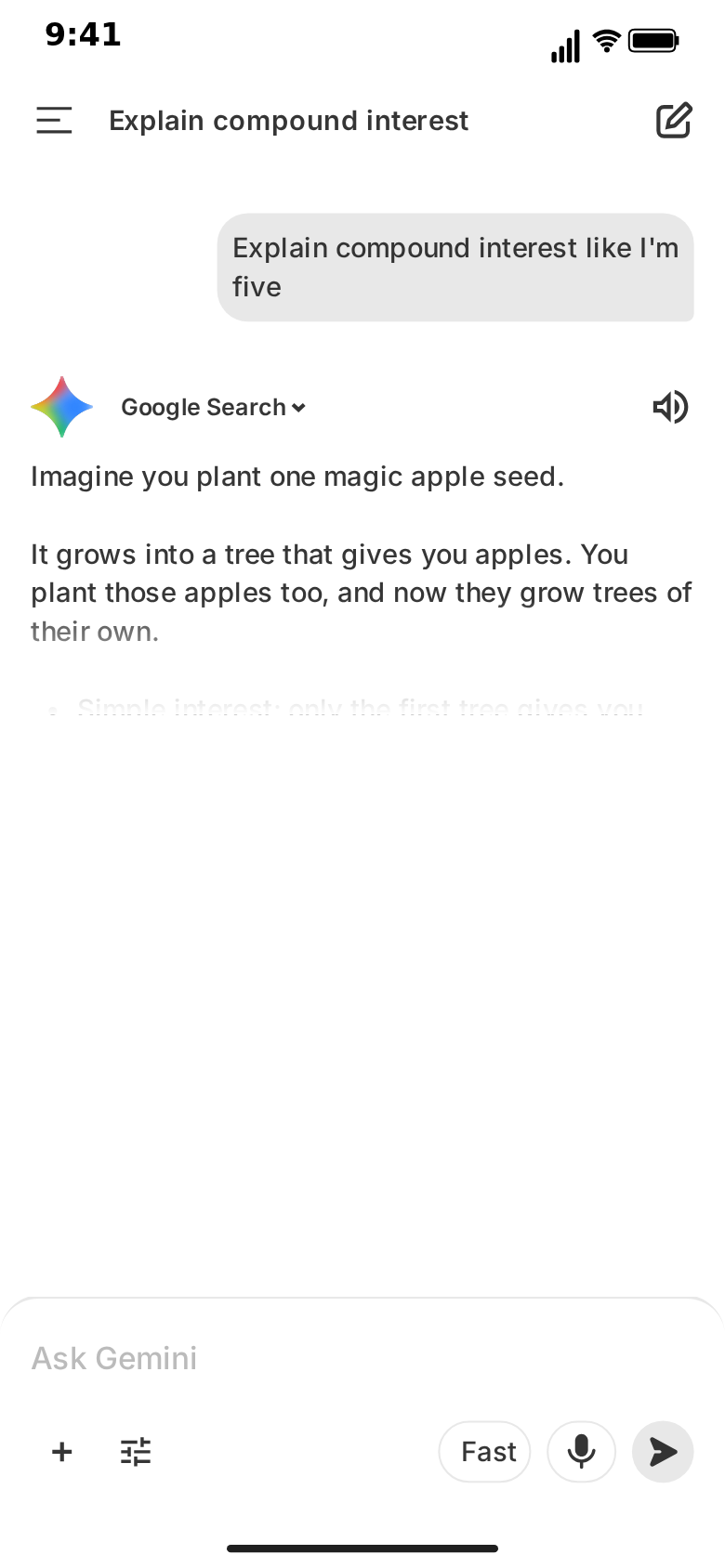
MockClip has two templates for AI chat videos: ChatGPT and Gemini. Both turn a conversation you write into an animated phone screen. Both type the question, pause while the assistant "thinks", reveal the answer at a pace you set and export a vertical MP4. So which one should a given clip use?
The short answer: pick the app your audience uses, then check that the template draws what your script needs. The two templates look similar from a distance and behave quite differently up close. This post compares them element by element, so you can choose before you write a single line.
In both templates, every word is yours. Nothing is sent to Google, OpenAI or any AI model, and neither template is affiliated with the company whose app it recreates.
The quick comparison
| Gemini template | ChatGPT template | |
|---|---|---|
| Your message | Typed into the "Ask Gemini" bar on the new chat's home screen with the iOS keyboard up, sent as a grey bubble on the right, or shown at once | Typed into the composer, sent as a bubble on the right |
| Before the reply | The Gemini sparkle spins and pulses for a set time, with an optional label | A pulsing thinking circle, or a labelled indicator such as searching or reasoning |
| Reply animation | The whole reply revealed top to bottom as one block, behind a soft edge | Character by character, with a block cursor |
| Reply formatting | Plain text; blank lines kept, "* " and "- " lines drawn as bullet points | Markdown: bold, headings, lists, code blocks |
| Images in replies | No | Yes: generated-image blocks that blur-pulse, then resolve |
| After the reply | Action row (thumbs up / down, share, copy, more) fades in; disclaimer under the last reply | Action bar under the finished answer |
| Failure state | An error line instead of the reply | A red error panel |
| Extra screens | "Hello" home screen with one-line suggestion chips and a "New!" banner, where a new chat opens; side drawer with a chats list | Welcome screen with heading and quick action chips |
| Multi-screen flow | Yes: side-drawer transitions (and a fade from the separate home screen), touch indicators | No: one screen |
| Special modes | Editable source label, thinking label, disclaimer, input hint | Temporary chat, header banner (Get Plus, Memory full, custom) |
| Themes | Dark by default, derived light theme | Light and dark |
| Export | MP4 or GIF, 720p or Full HD, 15 to 60 fps, 1:1 crop | MP4 or GIF, 720p or Full HD, 15 to 60 fps, 1:1 crop |
The rest of this post explains what each row means for an actual clip.
Reply animation: a top-to-bottom reveal vs character by character
This is the difference viewers feel most, even if they cannot name it.
The Gemini template reveals each reply from top to bottom as one block. The whole reply, text and bullets, is already laid out underneath; the thread background slides down off it with a soft edge about three lines tall, so the answer appears from the top down, and the chat scrolls so the newest text stays above the input bar. You set the speed in characters per second (100 by default), and the reveal takes the reply's length divided by that speed. The effect is calm and smooth: the answer seems to wash onto the screen.
The ChatGPT template streams character by character with a block cursor at the end of the text. That is the classic "typing AI" look, and it suits clips where the act of generating is part of the point. The ChatGPT streaming text effect guide covers that effect in depth.
For comedy that depends on a punchline, the reveal has an edge: the last line slides into view whole, not letter by letter. For demos where the audience should watch the answer being "written", character streaming is more dramatic.
Thinking: a sparkle vs indicators
Both templates have a pause before the reply, and both let you set exactly how long it lasts.
In Gemini, the sparkle spins and pulses for the number of seconds you choose. You can add a short label beside it, such as "Thinking…", or leave it as the sparkle alone. That is the whole vocabulary, and it is enough for most clips: a short spin for an easy answer, a long one before a punchline.
In ChatGPT, you choose between the pulsing thinking circle and a labelled indicator: searching, reasoning, analysing an image, generating an image, reading a file, browsing, or a custom label. The indicator tells the viewer what kind of work the assistant is doing before the answer says anything. The thinking and searching animation guide shows how to use those as beats.
If your story needs the assistant to visibly "search the web" or "read a document" before answering, ChatGPT is the template. If you only need a pause, Gemini's sparkle is cleaner.
Formatting: plain text vs markdown
This is the row that most often decides the choice.
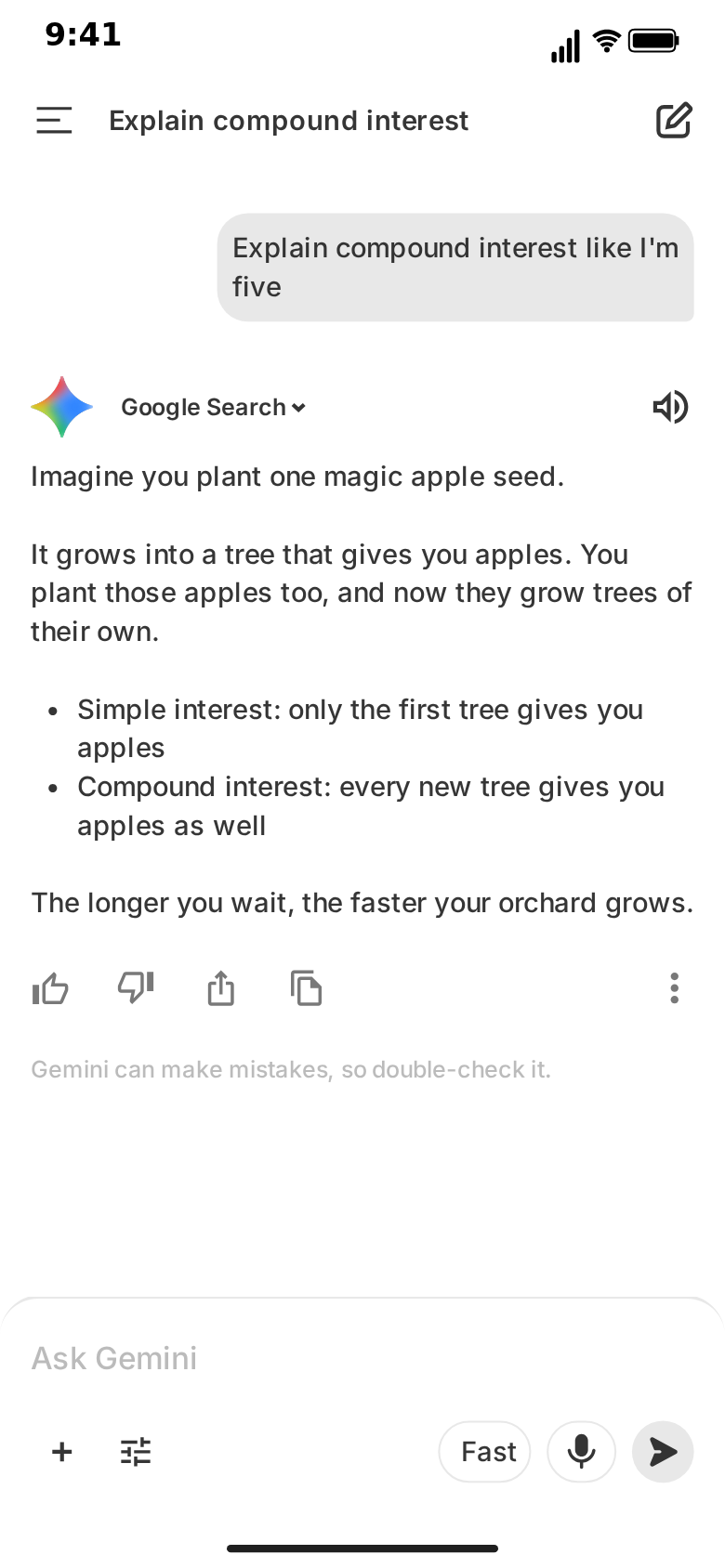
Gemini replies are plain text. Blank lines are kept, so paragraphs work. Lines that start with "* " or "- " are drawn as bullet points with a hanging indent, so short lists work. Nothing else is formatted: there is no bold, no headings, no code blocks, no tables and no images. The screenshot above shows the most a Gemini reply does, and on a phone screen it is plenty.
ChatGPT replies render markdown. Bold phrases, headings, bulleted and numbered lists, and code blocks are drawn with their own styling, and an assistant message can carry an image block that generates and then resolves.
So:
- A reply that needs a code block, a heading or bold emphasis belongs in the ChatGPT template.
- A reply that should show a generated image belongs in the ChatGPT template; the image generation animation guide covers that.
- A reply that is a few short paragraphs and a small list works in either, and looks cleaner in Gemini.
Screens and flow
The ChatGPT template is one screen. It can open on the welcome screen, with its heading and quick action chips, and the welcome clears as the first prompt starts typing. Temporary chat and the header banner change the look of that one screen.
The Gemini template is a small multi-screen app. Besides the chat, it has the "Hello, Maya" home screen (the name is editable) with one-line suggestion chips and a "New!" banner that can be switched off, and a side drawer with a chats list that slides in over the chat. A new chat opens on the home screen: the question is typed there, the home screen fades away when it is sent, and the conversation's title appears in the top bar halfway through the first thinking pause. The Video flow strip arranges the rest: by default the clip plays the conversation, slides the drawer open, then slides it closed. Touch indicators show where the finger taps before each change, and you can turn them off.
That flow makes Gemini clips feel more like a real screen recording: someone opens the app, asks something, then glances at their chat history. The chats list in the drawer is also a storytelling tool. Fill it with titles that say something about the character, and the viewer reads a second joke in the last two seconds of the clip.
Labels and small details
Each template has its own set of small, recognisable details.
Gemini: the label beside the logo on each reply ("Google Search" by default, editable per reply or hidden), the optional thinking label, the disclaimer under the last reply ("Gemini can make mistakes, so double-check it." by default, editable or hidden), the input bar hint, the conversation title in the top bar, and on the home screen the greeting, the chips and the "New!" banner text (or no banner at all). The keyboard can be up while you type, always up, or never.
ChatGPT: the model name in the header, temporary chat (which changes the empty state, the header and the composer placeholder), the header banner with Get Plus, Memory full or custom text, and the composer with its own placeholder. The ChatGPT interface realism guide walks through each of them.
Which one for which clip
| If the clip is… | Use | Because |
|---|---|---|
| A quick explainer for Shorts or Reels | Gemini | Plain text, bullet points and a smooth top-to-bottom reveal read fast on a phone |
| A comedy skit with a long pause before the answer | Gemini | The spinning sparkle is a clean, recognisable pause |
| A product or coding demo | ChatGPT | Code blocks and markdown make the answer look like real output |
| The assistant searching or reading a file | ChatGPT | Labelled indicators show the work before the answer |
| An image-generation reveal | ChatGPT | Image blocks blur-pulse and then resolve |
| A "scrolling through my AI chats" moment | Gemini | The side drawer and chats list are part of the flow |
| A "fresh session" opening | Either | Gemini's home screen or ChatGPT's welcome screen |
| A failure joke | Either | Gemini's error line or ChatGPT's red error panel |
When the script would work in both, follow your audience. If your viewers already ask Gemini things, the Gemini look is the one they will recognise; if they live in ChatGPT, use that. Some creators make both versions of the same joke and post them as a pair.
The same script in both templates
You can write one conversation and build it twice. Here is a short script that suits both:
- You: "Explain compound interest like I'm five"
- Assistant: "Imagine you plant one magic apple seed." (blank line) "It grows into a tree that gives you apples. You plant those apples too, and now they grow trees of their own." (blank line) "* Simple interest: only the first tree gives you apples" / "* Compound interest: every new tree gives you apples as well" (blank line) "The longer you wait, the faster your orchard grows."
In Gemini, set thinking to about 1.5 seconds and the reveal speed to about 60 characters per second so viewers can read along, keep the action row on, and leave the disclaimer in. The two "* " lines are drawn as bullet points, and the whole reply is revealed from top to bottom.
In ChatGPT, give the answer a short pulsing pause or a reasoning indicator, and consider making "Compound interest" bold, since markdown renders there. The answer streams with a block cursor.
The two clips tell the same story with a different rhythm. Watching them side by side is the fastest way to decide which one suits your channel.
What both templates share
Some things are identical, which makes switching between them easy:
- The editor. Both open with Describe it and the Manual editor. The manual editor needs no account; Describe it drafts a whole conversation from one sentence and needs a Google or GitHub sign-in.
- Per-message timing. Delays, typing speed for your messages, thinking time and reply speed.
- The keyboard. Both can show the iOS keyboard while the question is typed, keep it up, or hide it.
- Export. MP4 or GIF, 720p or Full HD, 15 to 60 fps, 9:16 vertical or a 1:1 square crop, with or without the iPhone bezel. The export settings guide covers the choices.
- The watermark. Free exports carry a small watermark; Pro removes it.
Mistakes to avoid in either template
Answers that are too long. A phone screen holds about ten lines of reply comfortably. If the answer scrolls for twenty seconds, viewers stop reading. Cut it, or split it into a second question.
Replies that arrive too fast. If the answer finishes before anyone can read it, it reads as a paste. Slow it down or hold the finished reply on screen.
Formatting the template cannot draw. Bold, headings or code in a Gemini reply show as raw characters. Keep Gemini replies to plain text and simple bullet points.
Mismatched details. A conversation title that does not match the question, or a chats list that does not include the current chat, gives the fake away.
Real people. Keep real names, accounts and private details out of the conversation. Fictional skits and clearly framed reenactments are the safe ground.
Next steps
To build a Gemini clip step by step, follow how to make a fake Gemini chat video. For short-form ideas, the guide to Gemini AI chat skits for TikTok and Shorts has ready-to-build scripts. For the ChatGPT side, start with how to create a fake ChatGPT conversation video. Every other template is one click away in the app picker.
Free to use. No sign-up. Browser-based.
Try the Gemini templateFrequently Asked Questions
What is the main difference between the Gemini and ChatGPT templates?
The Gemini template reveals each plain-text reply from top to bottom as one block, with a soft edge, under a spinning sparkle, opens a new chat on its home screen and can slide a side drawer over the chat. The ChatGPT template streams character by character with a block cursor, renders markdown such as bold, headings, lists and code blocks, and adds labelled indicators like searching or reasoning, image blocks, temporary chat and a header banner.
Can the Gemini template show images or code?
No. Gemini replies are plain text: blank lines are kept and lines starting with '* ' or '- ' are drawn as bullet points, but nothing else is formatted. If your clip needs a code block, a heading or a generated image, use the ChatGPT template.
Do either of the templates use a real AI?
No. In both templates every question and every answer is text you write; nothing is sent to Google, OpenAI or any AI model. The optional Describe it panel uses MockClip's own AI to draft a script you can edit.
Which template is better for TikTok and Shorts?
Both export vertical 9:16 MP4. Gemini's top-to-bottom reveal and plain text suit quick comedy and explainers; ChatGPT's indicators and markdown suit demos and longer, structured answers. Pick the one your audience will recognise from their own phone.
Can I export GIFs from both templates?
Yes. Both export MP4 or GIF at 720p or Full HD and 15 to 60 fps, with or without the iPhone bezel, and both offer a 1:1 square crop.
Do I need an account?
No. The manual editor works without an account on both templates. Describe it, the AI drafting panel, needs a Google or GitHub sign-in to MockClip.
Related Articles
How to Make a Fake Gemini Chat Video (Free, in Browser)
Step-by-step: write, time and export a fake Gemini chat video in your browser, with the typed question, the thinking sparkle and a fading-in reply. Free.
Gemini AI Chat Skits for TikTok and Shorts: Skit Guide
Turn fake Gemini chats into TikTok, Reels and Shorts skits: over-serious answers, long thinking pauses, a chats list that tells a story. Scripts and timing.
ChatGPT Video Realism: Welcome Screen, Errors, Chrome
Your ChatGPT clip is wrong before the first message. Animate the welcome screen, quick actions, temporary chat, header banner and error states in the browser.
How to Recreate the ChatGPT Streaming Text Effect in Videos
Add the iconic ChatGPT word-by-word streaming text animation to your videos. No coding or screen recording needed.