How to Make a Fake Gemini Chat Video (Free, in Browser)
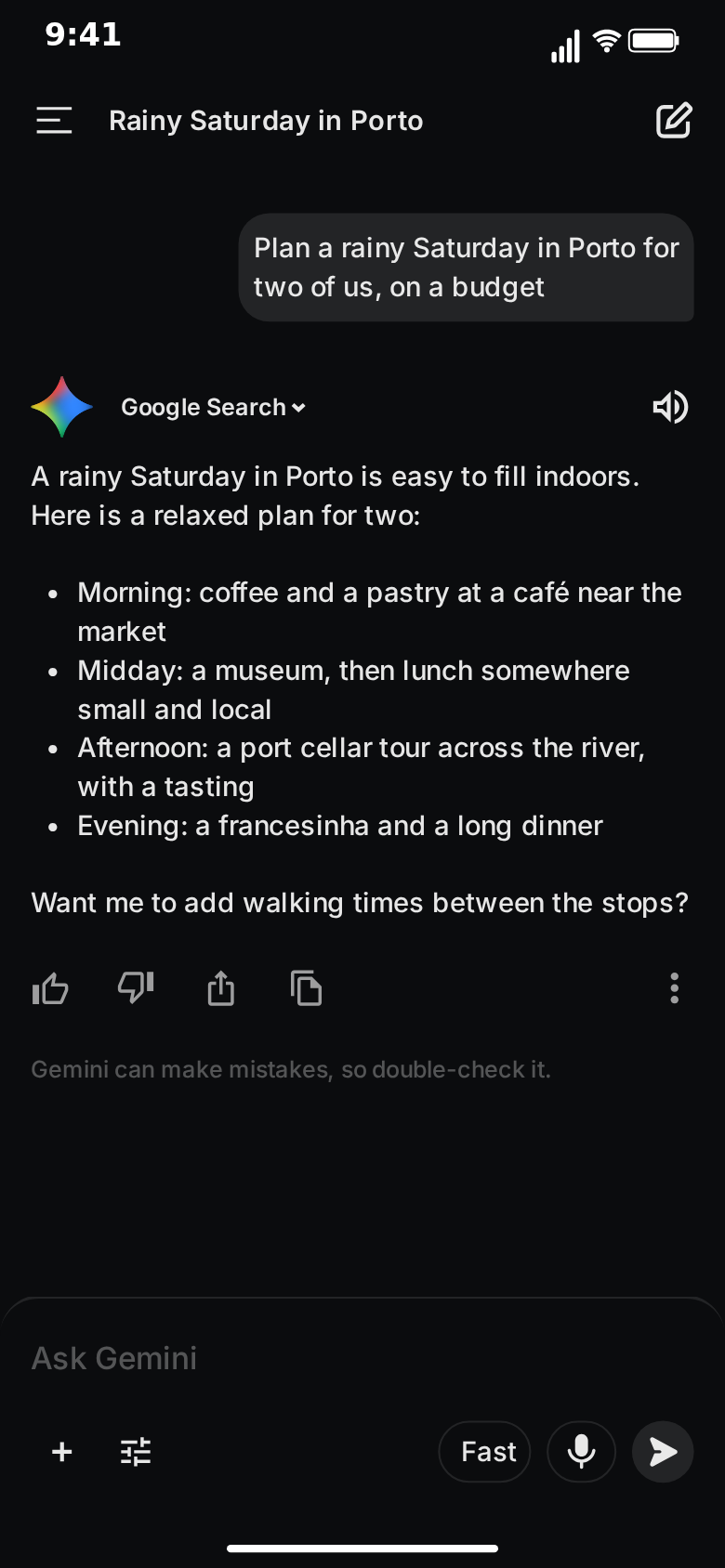
A fake Gemini chat video is a short clip that looks like someone screen-recorded the Gemini app on their phone: a new chat with the "Hello" greeting, a question typed into the "Ask Gemini" bar with the keyboard up, the multicoloured sparkle spinning while it thinks, then an answer revealed from top to bottom before the thumbs up, share and copy icons fade in underneath. This tutorial walks through making one with the free Gemini template in MockClip, from the default project to an exported MP4, with the timing and writing choices that make the result believable.
Everything below happens in the browser. You do not need the Gemini app, a Google account, a video editor or design skills. Nothing is sent to Google and no AI model answers your question: every word in the clip is a word you wrote. MockClip is an independent tool and is not affiliated with Google.
What you will make
By the end you will have a vertical video, around 15 to 25 seconds long, that:
- opens on a new chat showing the "Hello, Maya" home screen, with its suggestion chips,
- types your question into the "Ask Gemini" bar with the iOS keyboard up and a key lighting up for each letter, while the greeting stays visible above the input bar,
- sends it as a grey bubble on the right as the home screen fades away,
- spins and pulses the Gemini sparkle for a second or two while it "thinks", with the conversation's title appearing in the top bar halfway through,
- reveals the whole reply from top to bottom as plain, full-width text, keeping your paragraphs and drawing your list lines as bullet points,
- fades in the action row (thumbs up, thumbs down, share, copy, more) and the disclaimer,
- slides the side drawer open over the chat, then closes it again.
You can stop at any step. A clip that is only the chat is just as valid, and often better for short-form.
Step 1: Open the Gemini template
Go to the Gemini editor. It opens on a ready-made conversation about improving a piece of writing. Press Play once before you change anything. Watching the default flow tells you what every control is going to do: the home screen, the typing, the thinking sparkle, the answer being revealed and the drawer.
The editor has two tabs. Describe it turns a sentence into a full conversation with AI; it needs a Google or GitHub sign-in to MockClip. Manual editor shows every field and works without an account. This tutorial uses the Manual editor, but you can start with Describe it and switch over to adjust the result.
At the top of the editor sit the screen tabs: Chat, Home and Drawer. Each tab shows the fields for that screen. Most of your time goes into Chat.
Step 2: Set the theme and the title
Under the screen tabs you will find the general settings:
- Theme. Dark is the default and follows the original design. Light is derived from it and is one click away. Dark tends to look more like a late-night screen recording; light reads better on bright feeds and in slides.
- Keyboard. "Up while you type" raises the iOS keyboard while your message is being typed and lowers it once it is sent. "Always up" keeps it on screen for the whole chat, and "Never" hides it.
In the Chat tab, the Title field sets the conversation name in the top bar. Real Gemini chats get short descriptive titles, so write one the same way: "Rainy Saturday in Porto", "Explain compound interest", "Fix my cover letter". The title appears in the top bar halfway through the first thinking pause, so it tells the viewer the topic just before the answer arrives.
Step 3: Write your question
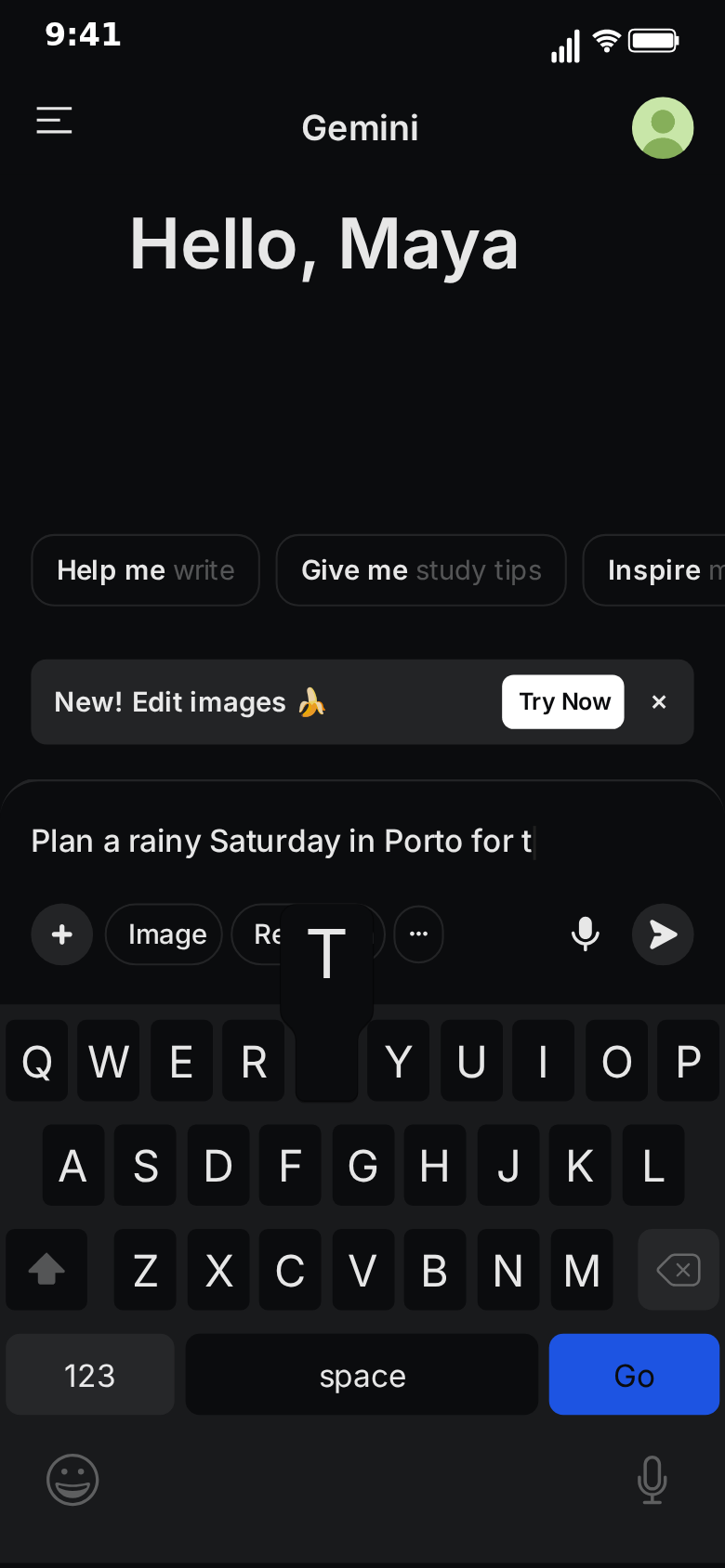
Add a message with + You. Type the question into the text box. Under it you get three controls:
- Wait (s) is the pause before the message starts. Half a second is the default.
- Typed on the keyboard decides how the message arrives. Ticked, the text is typed into the "Ask Gemini" bar letter by letter, the keyboard highlights each key, and the message is sent as a grey bubble on the right. Unticked, the bubble appears at once.
Your first message is typed on the new chat's home screen. As the keyboard rises, the greeting and the suggestion chips move up with the input bar and stay visible above it, exactly like opening the app and starting to type. When the message is sent, the home screen fades away and the conversation takes over. 3. Chars/s is the typing speed. Fourteen characters per second is the default and looks like a normal thumb. Eight looks hesitant; twenty-five looks like someone who has asked this exact question before.
Keep questions short. A one-line question reads at a glance in the input bar and fits in one or two lines once it becomes a bubble. If the question needs context, split it: a short question first, a follow-up after the first answer.
Step 4: Write Gemini's reply
Add a reply with + Gemini and write the text. This is where the template differs most from a messaging app, so it is worth knowing exactly how replies are drawn:
- The reply is plain text set full width under the Gemini sparkle, not in a bubble.
- Blank lines are kept. Leave an empty line between paragraphs and the reply keeps that space.
- List lines become bullet points. Start a line with an asterisk and a space ("* ") or a hyphen and a space ("- ") and it is drawn as a bullet point (•) with a hanging indent; the asterisk or hyphen itself is not shown. A long item wraps under its own text, not under the bullet.
- Nothing else is formatted. There is no bold, no headings, no code blocks, no tables and no images. Write the reply so it works as plain text plus simple lists.
That last point is a feature as much as a limit. Gemini answers that work on a phone screen are short paragraphs and short lists. If your reply needs a table to make sense, it is too long for a short-form video anyway.
A reliable shape for a reply is: one sentence that answers the question, a blank line, three or four bullet points, a blank line, and a closing question or line. The screenshot at the top of this post uses exactly that shape.
Step 5: Set the thinking and reply timing
Each Gemini reply has its own timing controls:
- Wait (s) before the reply starts.
- Thinking (s) is how long the Gemini sparkle spins and pulses before the reply appears. The default is 1.2 seconds. On the first reply, the conversation's title appears in the top bar halfway through this pause.
- Stream chars/s sets how fast the reply is revealed. The default is 100 characters per second, and a reply takes its length divided by that speed: a 300-character reply takes three seconds at the default. The whole reply, text and bullets, is revealed as one block from top to bottom: the background slides down off it with a soft edge about three lines tall, and the chat scrolls so the text stays above the input bar.
- Action row toggles whether thumbs up, thumbs down, share, copy and more fade in when the reply is finished.
Some rules of thumb:
- 1 to 1.5 seconds of thinking for an ordinary answer.
- 2.5 to 4 seconds of thinking before a punchline or a dramatic answer. The spinning sparkle is the pause, and the pause is often the joke.
- The default 100 characters per second suits replies the viewer can take in at a glance. Lower it to 50 to 70 when viewers should read along as the reply appears, or keep the default and hold the finished reply on screen.
If you want the viewer to read every word, add a short Wait on the next message so the finished reply stays on screen for a moment before anything else happens.
Step 6: Adjust the labels
Below the messages, the Labels section controls the small text around the conversation:
- Label beside the logo is the text next to the sparkle at the top of each reply. It reads "Google Search" by default. Leave it empty to hide it. Each reply can also override it with its own Source field.
- While thinking is optional text shown beside the sparkle while it spins, such as "Thinking…". Leave it empty and only the sparkle shows.
- Line under the last reply is the disclaimer. The default reads "Gemini can make mistakes, so double-check it." Leave it empty to hide it.
- Input bar hint is the placeholder in the empty input bar of the conversation.
A reply can also fail. Type into its Error field and the reply shows an error line instead of an answer. That is useful for a joke where the assistant gives up at the worst possible moment.
Step 7: Edit the home screen and the side drawer
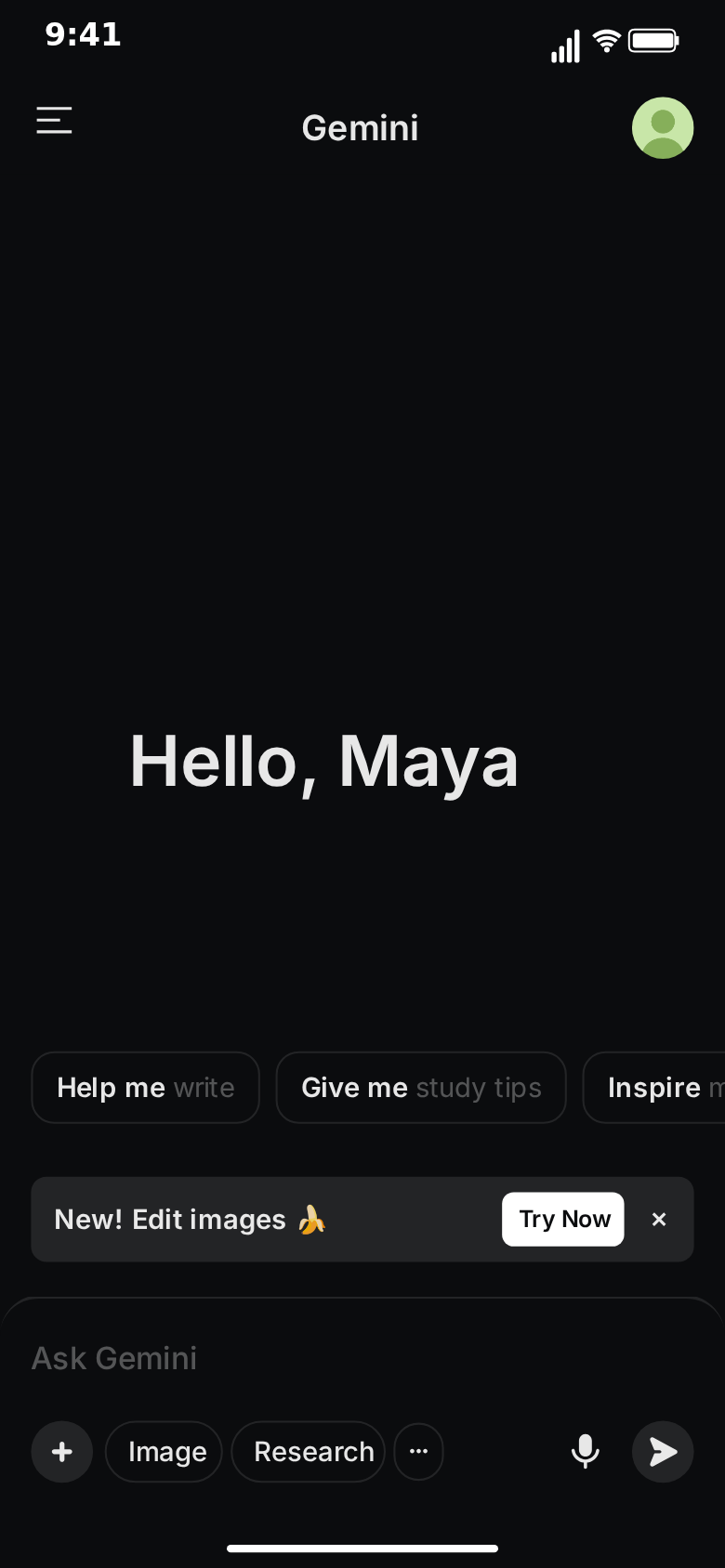
Two screens frame the conversation. Both are edited as text, not played as animated chats.
Home. A new chat opens on this screen: a large greeting, a row of one-line suggestion chips and a "New!" banner above the input bar. It stays on screen while your first message is typed and fades away when it is sent. In the Home tab you can change:
- Greeting: "Hello, Maya" by default. Use an invented name.
- Chips: each chip is one pill with a title and a grey subtitle on one line, as wide as its text, such as "Help me" + "write" or "Give me" + "study tips". The default has three.
- Show Banner and Banner Text: untick Show Banner to hide the banner, or rewrite its text.
- Avatar: the picture in the top corner.
- Placeholder: the hint in the home screen's input bar.
The Home screen also exists as a screen of its own in Video flow, if you want to hold on it before the chat.
Drawer. The side drawer that slides in from the left over the chat, with a chats list. In the Drawer tab you edit the Chats rows. Put your conversation's title at the top and fill the rest with believable past chats: "Birthday message ideas", "Vegetarian dinner recipes", "Fix my Python loop". A good chats list quietly tells a second story; a list full of excuses for being late says something about the character before the conversation does.
Step 8: Arrange the video flow
The Video flow strip decides which screens the clip shows and in what order. The default is:
- Chat. The new chat opens on the home screen, your question is typed there, and the whole conversation plays.
- Drawer, sliding in over the chat and held for 1.5 seconds.
- Chat again, with the drawer sliding away.
You can change each step's screen, transition and hold time, reorder steps, remove them, or add new ones with + Step. The drawer always slides. Tick or untick Show taps to turn the touch indicators on or off; with taps on, a circle shows where the finger lands before each screen change.
For TikTok, Reels and Shorts, get to the hook faster by lowering the Wait on your first message so typing starts almost at once, or by unticking Typed on the keyboard on it so the question appears straight away and the home screen gives way to the chat immediately. Keep the typed opening for tutorials and product walkthroughs, where watching the question being asked helps.
Step 9: Preview and export
Press Play and watch the whole clip. Check three things: that the question can be read while it is typed, that the reply appears at a speed people can follow, and that nothing important ends up behind the input bar or under the platform's caption area.
Then choose the frame and format. 9:16 vertical suits TikTok, Reels and Shorts. The 1:1 square crop suits feeds. You can show or hide the iPhone bezel. Export MP4 for platforms or GIF for chats, docs and slides, at 720p or Full HD and anywhere from 15 to 60 fps. The export settings guide explains which combination suits which platform. Free exports carry a small watermark; Pro removes it.
A complete example script
Here is the Porto conversation from the screenshots, written out so you can see how the pieces fit. It runs about 13 seconds as a chat-only clip.
| # | Side | Content | Settings |
|---|---|---|---|
| 1 | You | Plan a rainy Saturday in Porto for two of us, on a budget | Wait 0.5 s, typed on the keyboard at 14 chars/s |
| 2 | Gemini | A rainy Saturday in Porto is easy to fill indoors. Here is a relaxed plan for two: (blank line) four "* " bullet lines for morning, midday, afternoon and evening (blank line) Want me to add walking times between the stops? | Thinking 1.5 s, default 100 chars/s, action row on |
Title: "Rainy Saturday in Porto". Labels: the defaults. Theme: dark.
Notice what each part is doing. The question is specific enough to be interesting ("for two", "on a budget") but short enough to read while it types. The thinking pause is a little longer than the default, which makes the answer feel considered. The reply opens with a sentence that answers the question, then uses bullet points for the plan, then ends with a question that invites a second clip.
To make your own, keep the structure and swap the content: a short, specific question, a thinking pause sized to the payoff, a one-sentence answer, a short list, a closing line.
Making variations quickly
Once one clip works, variations take minutes.
- Change the question, keep the format. "Plan a rainy Saturday in Lisbon" or "in Edinburgh" with a rewritten list becomes a series.
- Flip the theme. Export the same script in dark and light and see which reads better for your audience.
- Change the opening. The same conversation with the question typed on the home screen, with the question appearing at once, or with a different greeting and chips feels like a different video each time.
- Add a follow-up. A second question and a second reply turn an explainer into a story: the answer, then the user pushing back.
- Shorten for GIF. Keep only the reply being revealed and export a short GIF for a newsletter or slide.
Writing tips that make it believable
Questions that sound typed. Real prompts are casual and a little clumsy: "help me write a toast for my sister's wedding, funny but not mean". Overly polished questions look scripted.
Answers that sound like an assistant. Assistants open with a direct answer, use short paragraphs, and like lists. They also end with an offer: "Want me to make it shorter?" Use that rhythm.
Plain text on purpose. Since replies are plain text, use bullet points and blank lines to give the answer shape. A wall of text with no breaks is hard to read on a phone.
A title that matches. The title in the top bar and the first row of the chats list should match the question. Mismatched titles are the easiest giveaway.
Invented names only. Use an invented greeting name on the home screen and keep real people out of the questions and answers.
Using AI to write the conversation
If you would rather not write the script, switch to Describe it and type one sentence: "someone asks Gemini how to apologise to their roommate for eating their leftovers, and the answer is far too formal". The AI drafts the questions, replies and timing for you to adjust, and follow-up instructions refine it. It requires a Google or GitHub sign-in, and the Describe it guide explains how the drafting and allowances work.
Troubleshooting
A line turned into a bullet point. Lines that start with "* " or "- " are drawn as bullet points. Reword the start of the line if it should stay a normal paragraph.
Bold or heading syntax shows up as raw characters. Replies are plain text, so markdown such as double asterisks or hash signs is not formatted. Remove it.
The answer appears too fast to read. Lower Stream chars/s, or split the reply into a shorter answer and a follow-up.
The keyboard covers the conversation. Set Keyboard to "Up while you type" so it only shows while your message is being typed, or "Never" to hide it.
The disclaimer or source label is not wanted. Empty the field and the line disappears.
The clip starts too slowly. Shorten the Wait on the first message, raise its typing speed, or untick Typed on the keyboard so the question appears at once.
The "New!" banner does not fit the story. Untick Show Banner in the Home tab, or change its Banner Text.
Where to go next
For a side-by-side look at MockClip's two AI chat templates, read Gemini vs ChatGPT chat video templates. For short-form skit ideas and pacing, the guide to Gemini AI chat skits for TikTok and Shorts has ready-to-build scripts. If you also make ChatGPT clips, see how to create a fake ChatGPT conversation video, and browse every template from the app picker.
Free to use. No sign-up. Browser-based.
Make a fake Gemini chatFrequently Asked Questions
How do I make a fake Gemini chat video?
Open MockClip's Gemini template, write your question and Gemini's reply, set the typing speed, thinking time and reply speed, adjust the labels and the home screen, arrange the chat and side drawer in Video flow, then press Play and export MP4 or GIF. It all runs in the browser.
Does the template use the real Gemini?
No. Every question and every reply is text you write. Nothing is sent to Google or to any AI model. The optional Describe it panel uses MockClip's own AI to draft a script, which you then edit.
Can Gemini's replies include images, code blocks or tables?
No. Replies are plain text. Blank lines are kept, and lines that start with '* ' or '- ' are drawn as bullet points, so you can make paragraphs and simple lists, but images, code blocks, tables, headings, bold and other markdown are not drawn.
Do I need a Google or MockClip account?
No Google account is involved at all. The manual editor works without a MockClip account. Describe it, the AI drafting panel, needs a Google or GitHub sign-in to MockClip.
Can I make the message appear without typing?
Yes. Untick 'Typed on the keyboard' on your message and it appears in the chat at once instead of being typed into the Ask Gemini bar. On the first message, that also makes the home screen give way to the chat straight away.
Which formats can I export?
MP4 or GIF, at 720p or Full HD and 15 to 60 fps, with or without the iPhone bezel. Vertical 9:16 suits TikTok, Reels and Shorts, and a 1:1 square crop suits feeds.
Related Articles
Gemini vs ChatGPT Chat Video Templates: Which to Use
MockClip's Gemini and ChatGPT templates compared: reply animation, thinking, formatting, screens and timing. Pick the right AI chat video template for you.
Gemini AI Chat Skits for TikTok and Shorts: Skit Guide
Turn fake Gemini chats into TikTok, Reels and Shorts skits: over-serious answers, long thinking pauses, a chats list that tells a story. Scripts and timing.
How to Create a Fake ChatGPT Conversation Video
The complete 2026 guide to creating realistic fake ChatGPT conversation videos for TikTok, YouTube Shorts, and Reels — no coding, no editing, free.
AI Fake Chat Video Generator: Describe It, Get the Clip
Type what the clip should be and MockClip's Describe it mode writes the messages and timing for WhatsApp, iMessage, ChatGPT, Tinder and more. Refine by second.