Animate the ChatGPT Image Generation Effect (Blur Pulse to Reveal)
When ChatGPT generates an image with DALL·E, it doesn't just pop a finished picture onto the screen. It shows a blurred, shimmering placeholder while the model works, then transitions to the sharp final image. That reveal moment is visually satisfying — and surprisingly hard to fake convincingly in a video editor.
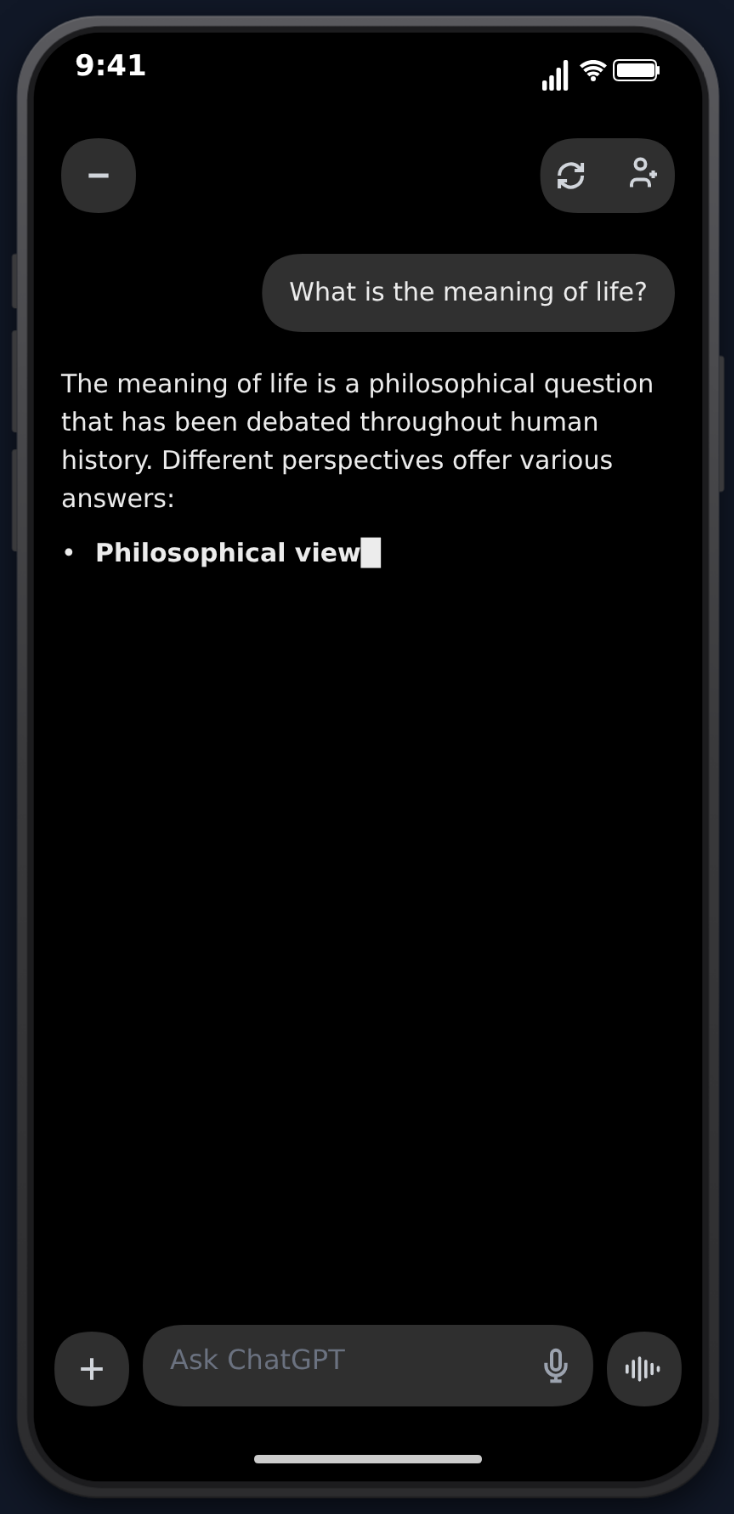 MockClip builds the animation in natively.
What the Animation Actually Looks Like
There are two distinct phases:
Phase 1 — Generating. The image renders behind a pulsing blur filter with subtle brightness variation. The combination produces that "something is forming" feeling — a shimmering, not-quite-resolved placeholder.
Phase 2 — Reveal. Over about half a second, the blur ramps off and brightness returns to normal. The image snaps into focus. It's the same easing ChatGPT's own interface uses.
The animation is baked into the exported MP4, so no screen recording is needed.
Adding an Image to a ChatGPT Message
Open the ChatGPT editor, pick an assistant message, and use the Upload image button inside that message card. Once uploaded, two controls appear beneath the preview:
- Reveal duration — how long the generating phase runs in seconds (default
2) - Position — Before text (image first, then text streams) or After text (text streams first, then image)
Position: Before text
The message starts. The image appears in its blur/pulse generating state for the Reveal duration. It reveals. Then the text streams character-by-character below it.
This matches how ChatGPT typically handles image generation prompts: image lands first, caption follows.
Position: After text
The text streams first. Once it's complete, the image appears below in the generating state, pulses, and reveals.
Useful when the assistant is "describing what it's about to make" before showing it.
Pairing with the Creating Image Action
Before an image generation actually starts, ChatGPT usually shows an action indicator — the spinning loader with a "Creating image…" label. MockClip supports this too via the Action toggle on the message. When enabled, an Action type dropdown exposes:
- Searching the web
- Reasoning
- Analyzing image
- Creating image
- Reading file
- Browsing
- Custom… (with your own label)
Pick Creating image and set a Duration. For the full effect, chain:
- Creating image action indicator (3 seconds)
- Image in generating blur/pulse state (Reveal duration: 2s)
- Image reveal (built-in, under a second)
- Text streams below
That's the same sequence the real ChatGPT interface walks through.
Layout Details
Generated images render left-aligned under the assistant avatar, capped at roughly 70% of the bubble width, with a rounded corner radius matching the ChatGPT web UI. Portrait and landscape images both sit cleanly in the bubble.
Streaming Text Alongside
The image animation composes with the rest of MockClip's ChatGPT features: the thinking pulse, character-by-character text streaming with the blinking cursor, markdown rendering (bold, headings, bullet points), and error bubbles. You can assemble a full realistic turn — thinking → action indicator → image generating → image reveal → streaming text response — inside a single message config.
Why It Matters for Content
AI content videos perform because viewers want to see the process, not just the result. A popped-in image is a static screenshot. A generated image, with the blur-to-sharp reveal, is a beat — a moment of visual tension and payoff that earns the pause on the scroll.
If your content is about AI art, prompt engineering, or any "watch ChatGPT make this" format, the reveal is the shot.
Open the ChatGPT editor, attach an image to an assistant message, and export as MP4. The blur-pulse-to-reveal is baked into the video.
Related MockClip templates and guides
For more on the ChatGPT template itself, open the ChatGPT editor at mockclip.com/app/chatgpt and read the fake ChatGPT conversation walkthrough. If you want to replicate the streaming-text reveal effect without images, see the streaming-text animation guide. To drive MockClip programmatically from Claude or ChatGPT itself, read the MCP integration guide.
Frequently Asked Questions
How does the image generation animation work in MockClip?
It's a two-phase animation. First, the image shows in a 'generating' state — a pulsing blur with slight brightness variation. Then it transitions over roughly half a second to fully sharp. The effect mirrors how ChatGPT's DALL·E generations reveal.
Can I control how long the generating animation runs?
Yes. The Reveal duration field under the uploaded image sets the seconds the image spends in the blur/pulse state before the reveal. Default is 2 seconds. Pair it with a 'Creating image' action indicator for the full effect.
Can the image appear before or after the text?
Both. The Position dropdown offers 'Before text' (image generates and reveals first, then text streams) and 'After text' (text streams first, then the image generates and reveals below it).
What image files can I use?
Any image you upload via the Upload image button is baked into the mockup. PNG and JPG both work. Transparent PNGs keep their transparency.
Related Articles
How to Recreate the ChatGPT Streaming Text Effect in Videos
Add the iconic ChatGPT word-by-word streaming text animation to your videos. No coding or screen recording needed.
How to Create a Fake ChatGPT Conversation Video
The complete 2026 guide to creating realistic fake ChatGPT conversation videos for TikTok, YouTube Shorts, and Reels — no coding, no editing, free.
50 AI Conversation Video Ideas That Actually Go Viral
Proven content ideas for fake ChatGPT conversation videos. Prompts, formats, and hooks that drive millions of views on TikTok and Reels.