How to Recreate the ChatGPT Streaming Text Effect in Videos
The ChatGPT streaming text effect — where words appear one by one with a blinking cursor — has become one of the most recognizable UI animations in the world. It's hypnotic to watch, and it's why ChatGPT conversation videos perform so well on social media.
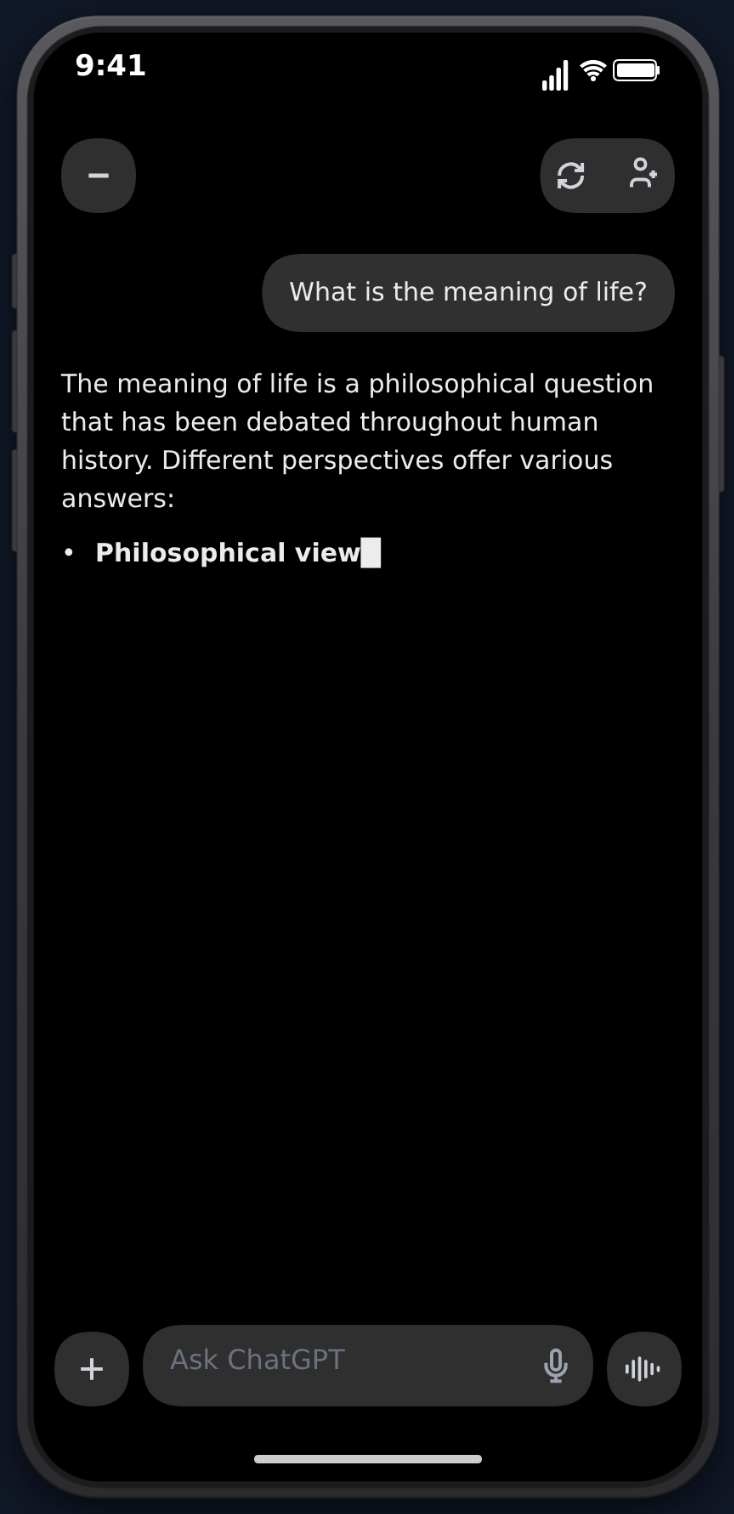 Here's how to get that exact effect in your videos without screen recording or coding.
What Makes the Streaming Effect Special
The ChatGPT streaming animation works for video content because of three psychological principles:
Progressive disclosure. Information revealed gradually holds attention longer than information shown all at once. Each new word gives the viewer a reason to keep watching.
Anticipation. The visible cursor and word-by-word reveal creates a sense of "what's coming next?" that keeps eyes on the screen.
Authenticity. The streaming effect is so strongly associated with ChatGPT that viewers immediately recognize and trust the format. It feels like watching a real AI response.
How to Create It
The Easy Way: MockClip
MockClip replicates the ChatGPT streaming effect natively. When you add an assistant message in the ChatGPT editor, the text automatically streams word-by-word with the blinking cursor animation.
You get the full ChatGPT experience:
- Thinking indicator — the pulsing dot animation before a response
- Word-by-word streaming — text appears progressively with realistic timing
- Blinking cursor — the "block" cursor that follows the text
- Action labels — "Searching the web...", "Analyzing image..." indicators
- Markdown rendering — bold, headings, lists, and code blocks
No coding. No screen recording. No frame-by-frame editing. Just type your conversation and export.
Realistic ChatGPT animation. Free, no account needed.
Create a Streaming Text VideoThe Hard Way: Manual Video Editing
You could also recreate the effect manually in video editing software:
- Type out the full response
- Create keyframes that reveal one word at a time
- Add a cursor element that moves with the text
- Time each reveal to match ChatGPT's speed
- Add the thinking animation as a separate element
This works but takes significantly longer per video — often 30-60 minutes of editing for what MockClip does in 2 minutes.
The Screen Recording Way
Another option is to actually use ChatGPT and screen record the response. The problem: you can't control what ChatGPT says. You'd need to prompt it to produce a specific response, and even then the result may not match your script. Plus, screen recordings often have quality issues, visible UI elements you don't want, and no timing control.
Advanced Effects
Thinking Duration
Longer thinking pauses before dramatic responses build suspense. "Let me think about this..." followed by 3-4 seconds of the pulsing indicator, then a devastating one-line response. MockClip's delay controls let you tune this precisely.
Action Indicators
"Searching the web..." and "Analyzing image..." labels add realism and create narrative beats. Use them before a response that references external information to make it feel like the AI is actually doing work.
Image Generation
MockClip supports image blocks that animate from blurry to clear — mimicking DALL-E image generation. Combine with streaming text for "I asked ChatGPT to imagine..." content.
Speed Variation
Not all messages should stream at the same speed. Short, punchy responses can stream fast. Long, dramatic revelations should stream slower. Vary the speed to match the emotional weight of the content.
Why This Format Keeps Growing
AI content isn't a trend — it's a permanent content category. As more people use ChatGPT daily, the streaming text effect becomes more universally recognized. Videos that use this format benefit from instant familiarity and trust.
The creators who establish themselves in this format now will have a significant advantage as the audience continues to grow. Create your first ChatGPT streaming text video at mockclip.com/app/chatgpt — free and ready in minutes.
Related MockClip templates and guides
The streaming-text effect is built into the ChatGPT template. For full context on producing a ChatGPT-style video end to end, see how to create a fake ChatGPT conversation video. To combine streaming text with image generation reveals, see ChatGPT image generation animations. For automating MockClip from an AI coding agent, read connect MockClip to Claude or ChatGPT.
Frequently Asked Questions
How does MockClip create the streaming text effect?
MockClip renders text character-by-character with a blinking cursor, replicating exactly how ChatGPT streams responses. The speed is adjustable and the effect is baked into the exported MP4.
Can I control how fast the text streams?
Yes. MockClip lets you adjust the streaming speed per message, so you can make responses appear quickly or slowly depending on the dramatic effect you want.
Does it include the ChatGPT thinking animation?
Yes. MockClip includes the pulsing thinking indicator that appears before a response starts streaming, just like the real ChatGPT interface.
Can I add markdown formatting to the streamed text?
Yes. MockClip supports bold text, headings, and bullet points in ChatGPT responses — they render with the same styling as the real ChatGPT interface.
Related Articles
How to Create a Fake ChatGPT Conversation Video
The complete 2026 guide to creating realistic fake ChatGPT conversation videos for TikTok, YouTube Shorts, and Reels — no coding, no editing, free.
App Mockup Videos for Social Media: The Complete Guide
Create app mockup videos for TikTok, Reels, and Shorts. Templates, tips, and strategies for social media content creators.
How to Make Phone Mockup Videos for TikTok
Create phone mockup videos optimized for TikTok. Step-by-step guide with templates, timing tips, and export settings.