Behance Message Video Ideas for Designers: 9 Scripts
Most advice for freelance designers is about conversations: the first enquiry, the rate question, the request to work for exposure, the offer that is too good to be true. Advice like that lands better when the viewer can watch the conversation happen. This post gives you nine Behance message video ideas, each with a script you can paste into MockClip's Behance Messages template and adapt.
The scripts are written for designers, illustrators and people who teach freelancing. They are fiction. Every name and company in them is made up, and yours should be too.
What the template gives you to work with
Know the stage before you write the play. The Behance Messages template draws the messages page of the desktop site inside a browser window and plays a scripted conversation in it as a 16:9 clip. The page has three columns: the conversation list on the left, the thread in the middle and the Info panel on the right.
What you control:
- Both sides of the conversation. You write every line for you and for the contact.
- How lines arrive. Your messages can be typed into the composer character by character before they are sent. Before each of the contact's messages, a three-dot typing bubble shows for the time you set. Every message has its own delay.
- Date lines. A small centred label above a message, such as
TodayorFriday. Bubbles on this page show no time, so the date line is how you tell the viewer that days have passed. - The contact. Name, avatar and a location that appears in the Info panel.
- The second row of the conversation list. Its name, avatar, time and preview line. The open row fills itself in and its preview follows the latest message on screen.
- The look. Light or dark theme, and the browser window on or off.
What it does not do: image attachments, files, project cards, reactions, voice notes, group conversations, links that open, scrolling to another page, or a vertical export. Every script below is written inside those limits. Where a real conversation would include a PDF or a sketch, the script says it in words and you cut to the real thing in your edit.
If you have not used the editor yet, the step-by-step Behance message guide covers each field.
How to read the scripts
Each idea has a short setup, the lines, and timing notes. "Them" is the contact; "Me" is you. A line marked typed should have Show typing in input field ticked, so the viewer watches it being written. Lines without the mark can simply appear.
Typing durations and delays are in seconds and are suggestions. Play the preview and adjust until you can read every bubble comfortably.
Idea 1: The enquiry that becomes a call
This is the template's default clip, and it is the baseline for everything else: a good first contact, answered well.
- Them:
Hi! I came across your brand identity project and loved it. Are you taking on freelance work at the moment? - Me (typed):
Thank you! Yes, I have room for one more project next month. What do you have in mind? - Them:
A logo and packaging refresh for a small coffee roaster. Could we set up a call this week? - Me (typed):
Sounds great. Thursday afternoon works for me.
Timing. Date line Today on the first message. The default uses 1.4 seconds of typing bubble for each of the client's messages and types your replies at 20 characters per second.
Use it for. The opening of a "how I get clients" video, or as the "what a good enquiry looks like" example before you show the bad ones. Your voiceover can point out the three things the reply does: thanks, availability, a question.
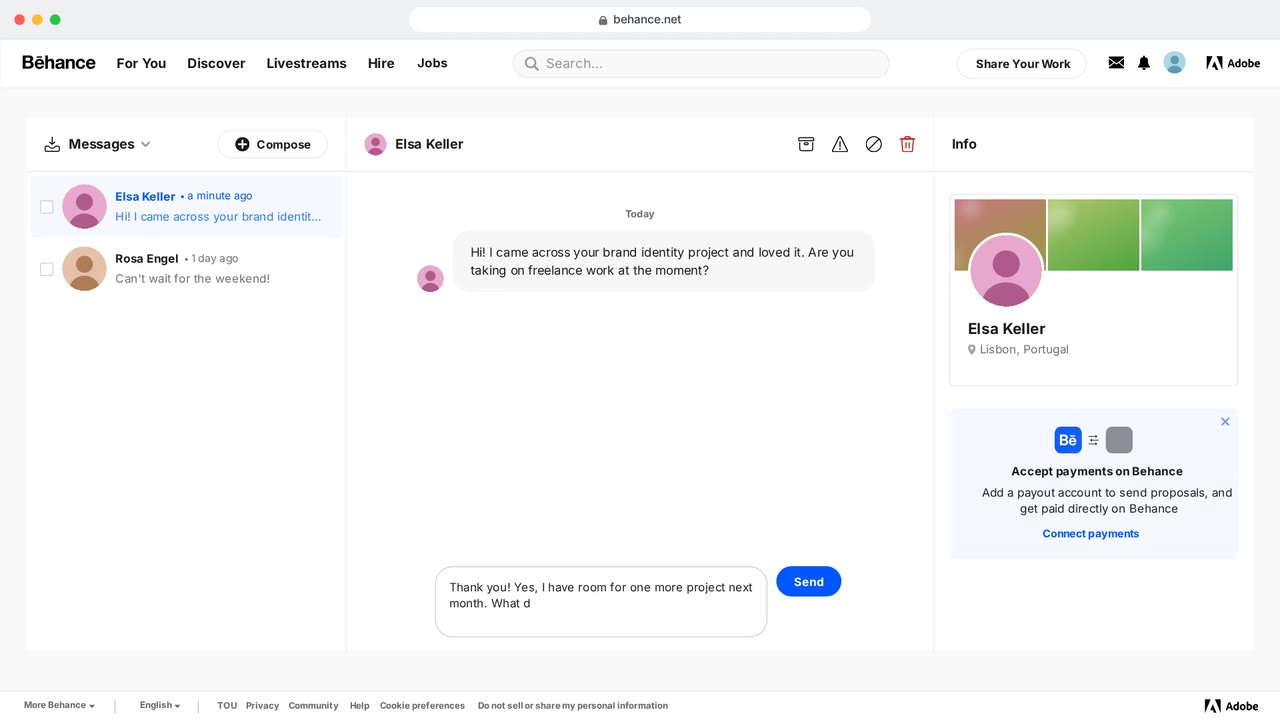
The frame above is idea 1 a few seconds in. The reply is half typed, and the open row on the left already previews the client's message. Pausing your video here is a natural place for a caption such as "What would you answer?".
Idea 2: The rate question
The question every freelancer gets sooner or later, as a conversation. The lesson is that a price needs a scope.
- Them:
Hi, love the editorial illustrations in your last project. What do you charge? - Me (typed):
Thanks! It depends on the scope. How many illustrations, where will they run, and what is the deadline? - Them:
Three spot illustrations for our spring newsletter. We send it in four weeks. - Me (typed):
Great, that helps. I will send a quote with two options by tomorrow morning. - Them:
Perfect. Looking forward to it.
Timing. Give the first client message a short typing bubble, around 1.2 seconds, and the second a longer one, around 2 seconds: they are looking up the details. A 1.5 second delay before your second reply reads as thinking.
Use it for. A pricing tutorial. Freeze on your first reply and explain the three questions. Do not put a number in the script unless your video is about that number; a quote without context ages badly and invites arguments in the comments.
Paste a script, set the timing, export a 16:9 clip. Free to use, no sign-up for the manual editor.
Open the Behance Messages editorIdea 3: Saying no to free work
The request to work for exposure. The value of the clip is the wording of the refusal, so type it slowly.
- Them:
We are a new streetwear label and we love your style. We can't pay for the logo right now, but it would be great exposure for you. - Me (typed):
Thank you for thinking of me. I don't take on unpaid projects, but I'd be glad to send my rates for a logo package. - Them:
Our budget really is zero at the moment. - Me (typed):
Understood. If that changes, my inbox is open. Good luck with the launch!
Timing. Type the first reply at around 14 characters per second so viewers can read it as it forms. Leave a 2 second delay before the client's second line.
Use it for. A short lesson on boundaries. The reply has three parts worth naming on screen: a thank you, a clear no, a door left open. Keep the client polite in your script. A cartoon villain makes the refusal easy; a nice person asking makes it instructive.
Idea 4: Less budget, less scope
The client likes the quote but wants it cheaper. The script shows the alternative to a discount.
- Them:
Thanks for the quote. It is a bit over what we planned. Could you do the full identity for half? - Me (typed):
I can't do the same scope for half, but I can fit your budget with a smaller package: logo and colour palette, no stationery. - Them:
That could work. Can we add the stationery later? - Me (typed):
Yes. I will note it as a second phase in the proposal.
Timing. Date line Wednesday on the first message to suggest the quote went out earlier in the week. Standard half-second delays; this is a calm, quick exchange.
Use it for. A negotiation tutorial. The sentence to highlight is "I can fit your budget with a smaller package". It is a reusable line, so leave it on screen long enough to be read twice.
Idea 5: The fake commission offer
Scam awareness for creatives. The aim is to show the usual shape of a fake offer so viewers recognise it, without using anyone's real messages. Write the scammer's lines with the signs you want to point at: a generic compliment, a large budget with no brief, a hurry, a move off the platform, and a payment method that involves sending money back.
- Them:
Hello, I saw your beautiful artworks. I want to commission 3 illustrations for a private event. Budget is $2,500. - Me (typed):
Thanks for reaching out. Which of my projects did you see, and what is the event? - Them:
No need for details, you have full creative freedom. I will send a check for $3,400, you keep your fee and forward the rest to my event planner. - Them:
Please send your email and phone number so we can proceed quickly today. - Me (typed):
I only work with a signed agreement and payment through the platform. I won't forward money to third parties.
Timing. Give the scammer's two consecutive messages a short delay and a short typing bubble, around half a second each, so they feel like pressure. Type your last reply at a steady pace.
Use it for. An explainer where each red flag gets a caption as its message appears. Set the contact's Location to something plain and the name to an obviously invented one. Do not use the name, photo or wording of a real account, and say in the video that the conversation is a reconstruction of a common pattern. The Marketplace scam awareness guide has more on framing this kind of video responsibly.
Idea 6: The vague brief
"Make it pop." A comedy idea that still teaches something: how to turn a vague request into a brief.
- Them:
We need a poster. Something modern but classic. Fun but serious. - Me (typed):
Happy to help! Who is it for, where will it hang, and is there one thing it must say? - Them:
It's for our jazz night on the 14th. It goes in cafe windows. It must say the date. - Me (typed):
That I can work with.
Timing. A 3 second typing bubble before the client's short second message is the joke: long typing, three plain sentences. In your edit, let the last line sit for a second before the cut.
Use it for. A skit to open a lesson on writing briefs, or a relatable short for a design channel.
Idea 7: The studio that asks for a case study
For job seekers and juniors. A studio or recruiter asks about process, and the reply models a good answer.
- Them:
Hi, I'm the design lead at a small product studio. Your app redesign project caught my eye. Can you tell me about your role on it? - Me (typed):
Thank you! I led the visual design and worked with one researcher and two developers over ten weeks. - Me (typed):
I can walk you through the process and what I would change today. Would a 20 minute call suit you? - Them:
Yes please. I will send some times.
Timing. Two consecutive messages from you: keep the delay between them at 0.4 seconds so they read as one thought in two bubbles.
Use it for. Portfolio advice. Point out that the reply gives a role, a team and a duration in one sentence. For the vertical-video version of professional outreach, the LinkedIn message video ideas post has scripts for the phone format.
Idea 8: The follow-up after silence
This idea is built on date lines. The same thread, three days apart.
- Me (typed), date line
Monday:Hi Jonas, the proposal for the packaging project is in your inbox. Let me know if you have questions. - Me (typed), date line
Thursday:Hi Jonas, a quick follow-up on the proposal. I am holding the March slot for you until Friday. - Them:
Sorry for the delay! We are in. Sending the signed copy today.
Timing. Hold for 2 seconds after the first message before the Thursday line appears, so the silence is felt. Give the client's reply a 2 second typing bubble.
Use it for. A lesson on following up without sounding desperate. The second message has a reason to write (the slot) and a deadline (Friday). The preview in the open row of the list updates with each line, which gives you a second place on screen to point at.
Idea 9: One more small thing
Scope creep, handled politely.
- Them:
The logo looks great! One more small thing: could you also do the menu, the signage and a few social templates? - Me (typed):
Glad you like it! Those are outside our current agreement, but I would love to do them. I will send a quote for the extra pieces today. - Them:
Oh, I thought they were included. - Me (typed):
The agreement covers the logo and brand guide. I will keep the add-on quote simple.
Timing. A 2 second delay before "Oh, I thought they were included." is the uncomfortable pause, and it is the reason to make this a video instead of a text post.
Use it for. A contracts lesson. Cut from the clip to the clause in your contract template that defines the scope.
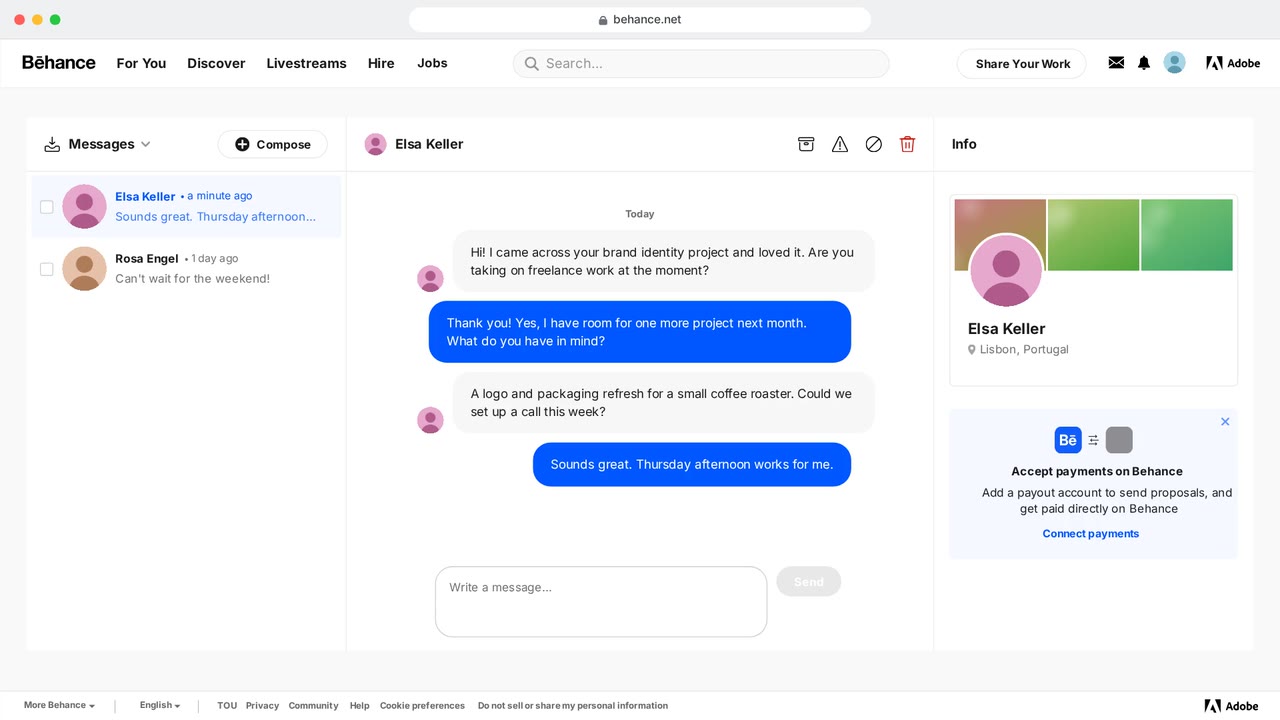
The last frame of a clip shows the full page: the open row previewing the final line, every bubble in the thread, and the Info panel with the contact's name and city. It is a good frame to hold while you deliver the takeaway.
Making the page fit the story
Three small fields do a lot of work in these scripts.
The location. The Info panel shows a place under the contact's name. For a good client, a real-sounding city near your audience makes the enquiry feel ordinary. For idea 5, you can leave it generic so nothing in the frame points at a real place or group of people.
The second row. The conversation list has one row you can edit: a name, an avatar, a time and a preview line. Use it for quiet context. In a video about a busy month, a preview such as Thanks, invoice received! from another client says "this designer has work" without a word of voiceover. In most clips, keep it dull so the eye stays on the thread.
The avatars. The contact's avatar appears beside their bubbles, in the list and in the Info panel. Yours is set in the page fields. Use stock, generated or illustrated pictures. A studio logo you invented works well for a company contact.
Pacing a script for retention
- Type one or two lines, not all of them. Typing in the composer is the most watchable part of the clip and also the slowest. Reserve it for the reply you want viewers to read word by word.
- Vary the typing bubble. A short bubble before a quick answer, a long one before a considered answer. Identical durations feel mechanical.
- Put the pause before the turn. The longest delay belongs before the line that changes the conversation: the refusal, the budget, the "I thought it was included".
- Keep bubbles to two sentences. The thread column is centred and not wide. Long paragraphs become walls of text and slow the typing.
- Count the seconds. The default clip is four messages in 14 seconds. Six messages with two typed replies can run past 20. Play the preview to see the real length, and if your video needs a 10 second insert, cut a message instead of rushing the timing.
Letting Describe it draft a variation
If you want a tenth idea, describe it. In Describe it, type a sentence such as "a client found my illustrations on Behance, asks for a quote and we agree on a call", and the AI writes the messages and their timing for this template. You can refine by pointing at a second ("at 0:05 make him ask about the deadline"), undo a change, or start over, and the result opens in the manual editor.
Describe it requires signing in with Google or GitHub. It drafts text and timing; it does not generate images, and the clip itself is drawn by the same deterministic renderer as a manual one. The Describe it guide shows the flow.
If you work inside Claude or ChatGPT, MockClip's MCP server has a create_behance_message_conversation tool. It takes the contact name, the theme, up to twenty messages with their delays, typing settings and date lines, plus the optional page fields, and returns a link that opens the finished animation in MockClip.
Where the clip goes
The clip is 16:9: 1280x720 on the free plan, Full HD from the Pro plan. That is the native shape for YouTube videos, course lessons, webinars and slides. Put it full frame while you talk over it, or beside your camera.
There is no vertical or square version of a computer clip. For TikTok, Reels and Shorts you have two honest options:
- Build a vertical edit around it. In your own video editor, place the landscape clip in the top half of a 9:16 frame with your camera or captions below, or scale it up so the thread fills the width. Turning the browser window off gives you the bare page to start from.
- Use a phone template instead. If the lesson does not depend on the Behance page, a phone chat is vertical from the start. The LinkedIn message template suits professional outreach, and the Instagram DM template suits illustrators whose enquiries arrive there.
Free exports are MP4 or GIF with a small watermark. Watermark-free and Full HD export start on the Pro plan; see the pricing page for the current plans.
Keep it honest
These clips are staged, and your audience should know that. Three rules keep you out of trouble.
- Do not impersonate real people or companies. Invent the client, the studio and the brand. Do not use a real person's photo as an avatar.
- Do not present a staged exchange as real. Not as proof of a booking, not as a testimonial, not as a "look what this client sent me" post. Add "dramatised" or "re-enactment" to the caption or the screen.
- Use the right template for commercial work. Behance is a trademark of Adobe Inc., and MockClip is not affiliated with it. Real-app templates are for your own content, including monetised posts on your own channels. For paid ads or videos made for a client, MockClip's terms say to use a brand-free app, with the licence that comes with the Studio plan. The Work Chat template is the brand-free desktop conversation page; the client videos guide covers app choice and brand safety for that kind of work.
Scam awareness videos deserve extra care. Show the pattern, name the signs, and avoid suggesting that a particular country, platform or kind of person is behind it.
Common mistakes with Behance message scripts
- A script that needs an attachment. "Here is the file" with no file on screen confuses viewers. Rewrite the line or cut to the file in your edit.
- Six sentences in one bubble. Split the thought into two messages or trim it.
- Every reply typed. The clip doubles in length and the important line gets no emphasis.
- No date line where time passes. Without
Thursday, the follow-up in idea 8 looks like it was sent ten seconds later. - Planning for a 9:16 export. There is none for this template. Decide the layout of the vertical edit before you write.
- A real company as the villain. Invent one.
Quick start
- Open the Behance Messages template.
- Pick one of the nine scripts and paste the lines with + My Message and + Their Message.
- Name the contact, add an avatar and a location.
- Tick typing in the input field on the reply that matters.
- Set the typing bubble and delays; add date lines where days pass.
- Edit the second row of the conversation list, or leave it dull.
- Preview, then export MP4 or GIF.
Related MockClip templates and guides
- Behance Messages template — the template used for every script here
- How to make a fake Behance message video — the field-by-field tutorial
- LinkedIn message video ideas — professional outreach scripts for a vertical phone clip
- Marketplace scam awareness video — framing a scam explainer responsibly
- Describe it: the AI chat video generator — drafting a clip from one sentence
- Chat mockups for client videos — which templates suit client work
- Work Chat template — the brand-free desktop conversation page
- Pricing — plans for watermark-free and Full HD export
Frequently Asked Questions
What kinds of videos can I make with a Behance message clip?
Staged conversations for freelance stories, pricing and portfolio advice, tutorials on answering clients, and scam awareness for creatives. The clip shows the Behance messages page on a computer, so it suits any video about how design work is found and negotiated.
How long should a Behance message script be?
Four to six short messages is a good length. The template's default clip has four messages and runs for 14 seconds. Each reply typed into the composer adds a few seconds, so type the line that matters and let short answers simply appear.
Can the clip show a portfolio image, a file or a project card?
No. The Behance Messages template plays text messages only. Say it in words in the conversation and cut to the artwork, the brief or the invoice in your own video edit.
Can I post a Behance message video on TikTok, Reels or Shorts?
The clip is always 16:9, with no vertical export. Place it inside a vertical edit in your own video editor, for example as the top half of a split screen or zoomed on the thread, or use one of MockClip's phone templates for a native vertical chat.
Is it okay to recreate a real client conversation?
Rewrite it as fiction. Change the names, the company and the details, and say the exchange is dramatised. Do not impersonate real people or companies, and do not present a staged exchange as a real one.
Can I use these clips in a paid ad or a video for a client?
Not with a real-app template. MockClip's real-app templates are for your own content. For paid ads and client work, the terms say to use a brand-free app, and that licence is part of the Studio plan. See the pricing page for details.
Can AI write the script for me?
Yes. In Describe it, type a sentence about the exchange and the AI drafts the messages and their timing, which you then edit. It requires signing in. You can also create the clip from Claude or ChatGPT with the create_behance_message_conversation tool.
Related Articles
How to Make a Fake Behance Message Video (2026 Guide)
Step-by-step guide to a fake Behance message video: the desktop messages page in a browser window, typed replies, a typing bubble and a 16:9 MP4 export.
How to Make a Marketplace Scam Awareness Video (Free)
Make short safety videos that show common Facebook Marketplace scam red flags as fictional chats, each ending on the safe reply. Free, exports MP4.
AI Fake Chat Video Generator: Describe It, Get the Clip
Type what the clip should be and MockClip's Describe it mode writes the messages and timing for WhatsApp, iMessage, ChatGPT, Tinder and more. Refine by second.
How to Make a Fake LinkedIn Message Video (Free, Online)
Step-by-step: build a fake LinkedIn message video in your browser, with a recruiter chat, typing, a video meeting card and the call preview screen. Free.