How to Make a Fake Behance Message Video (2026 Guide)
A message from a stranger who likes your work is where a lot of freelance projects start, and it is a scene that design educators describe often and rarely get to show. This guide walks through making a fake Behance message video in MockClip, from the first line to the exported MP4, using only what the Behance Messages template can do.
The template is a computer template. It does not draw a phone. It draws the Behance messages page as it looks on the desktop site, inside a browser window, and plays your scripted conversation in it as a 16:9 clip. That shape decides where the video fits, so the guide covers that too.
What the finished clip looks like
The video above is the template's default conversation, untouched. It runs for 14 seconds and has four messages.
A contact called Elsa Keller writes first: "Hi! I came across your brand identity project and loved it. Are you taking on freelance work at the moment?" A date line reading "Today" sits above it. Your reply is typed into the composer at the bottom of the thread, character by character, and sent as a blue bubble: "Thank you! Yes, I have room for one more project next month. What do you have in mind?" A three-dot bubble shows while Elsa writes, then her answer lands: "A logo and packaging refresh for a small coffee roaster. Could we set up a call this week?" You type one more line, "Sounds great. Thursday afternoon works for me.", and the clip ends.
Around the thread is the rest of the page. On the left, the conversation list has two rows: the open conversation with Elsa, and a second row from Rosa Engel that reads "Can't wait for the weekend!". On the right, the Info panel shows Elsa's avatar, her name and "Lisbon, Portugal". The whole page sits in a plain browser window with three coloured dots and an address pill.
Watch the top row of the list while the clip plays. Its preview line changes with every message, so it always shows the latest line on screen. You do not script that. The row follows the conversation by itself.
Where a Behance message video is useful
The audience for this format is narrow and that is its strength. Designers, illustrators and people who teach freelancing recognise the page, and the page tells them what kind of conversation this is before they read a word: someone found a portfolio and is asking about work.
That makes the clip a good opening or illustration for:
- Freelance stories. How an enquiry arrived and what happened next, in a video about finding work as a designer.
- Pricing and portfolio advice. A staged answer to a studio or a recruiter, or a reply to a request for free work, inside a tutorial.
- Scam awareness for creatives. The usual shape of a fake commission offer, shown without using anyone's real messages.
- Landscape video and slides. The 16:9 clip drops into a YouTube video, a webinar or a presentation without cropping.
A staged clip is also safer than a screen recording of your real inbox. Nothing from your account ends up in the frame: no client names, no other conversations, no notification you forgot to hide.
How the Behance Messages template works
The template is a canvas renderer. You describe the conversation in the editor, and the preview redraws every frame from that description. The export runs the same renderer at video resolution, so what you preview is what you download.
The page has three columns, and it helps to know which parts are yours:
- The thread (middle). Fully scripted. Every message, who sends it, how long the pause before it is, and how it is typed.
- The conversation list (left). The open row is filled in from your conversation: the contact's name and avatar, and a preview that tracks the latest message. The second row is yours to edit. Nothing else in the list changes.
- The Info panel (right). Shows the contact's name, avatar and a location you set.
Everything else is fixed: the site's navigation bar, the search field, the icons in the thread header, the card under the Info panel, the footer. You cannot edit those and you do not need to. They are what makes the frame read as the Behance messages page.
Step-by-step: building the conversation
Open the Behance Messages template. The editor starts on the default clip described above. We will rebuild it field by field so you know where everything lives, then change it into your own story.
Step 1: Name the contact
The first field in the editor is the contact's name. Type Elsa Keller, or the name of your fictional client. That one field feeds three places: the thread header, the open row of the conversation list and the Info panel.
Open the chat settings under the name and use Contact Avatar (Optional) to upload a picture. The default clip comes with a neutral silhouette, which is fine for a generic client. For a character, use a stock or generated face, or an illustration. Do not use a photo of a real person who has not agreed to be in your video.
Step 2: Fill in the page around the conversation
Still in the chat settings, find the section headed The page around the conversation. These are the fields the page does not take from the messages:
- Location: the line under the contact's name in the Info panel, for example
Lisbon, Portugal. - Open Time: the time shown on the open row of the list, for example
a minute ago. - Other Name, Other Avatar, Other Time and Other Content: the second row of the list. The default is Rosa Engel,
1 day ago,Can't wait for the weekend!. - My Avatar: your own picture.
The second row is a small detail that earns its place. An inbox with one conversation looks staged. A second row with an unrelated, ordinary line makes the page look lived in. Keep it boring on purpose so it does not pull attention from the thread.
Free to use. No sign-up for the manual editor. Browser-based.
Open the Behance Messages editorStep 3: Write the messages
Messages are rows in the editor. Add them with + My Message and + Their Message at the bottom, and use the Me / Other toggle on a row if you need to switch its sender. Drag rows to reorder them.
For the default story, the four lines are:
- Other:
Hi! I came across your brand identity project and loved it. Are you taking on freelance work at the moment? - Me:
Thank you! Yes, I have room for one more project next month. What do you have in mind? - Other:
A logo and packaging refresh for a small coffee roaster. Could we set up a call this week? - Me:
Sounds great. Thursday afternoon works for me.
Four to six messages is a comfortable length for a clip of 12 to 25 seconds. Your messages are blue bubbles; the other person's are grey with their avatar beside them. The bubbles sit in a centred column, so two-line messages read well and five-line messages start to look like an email.
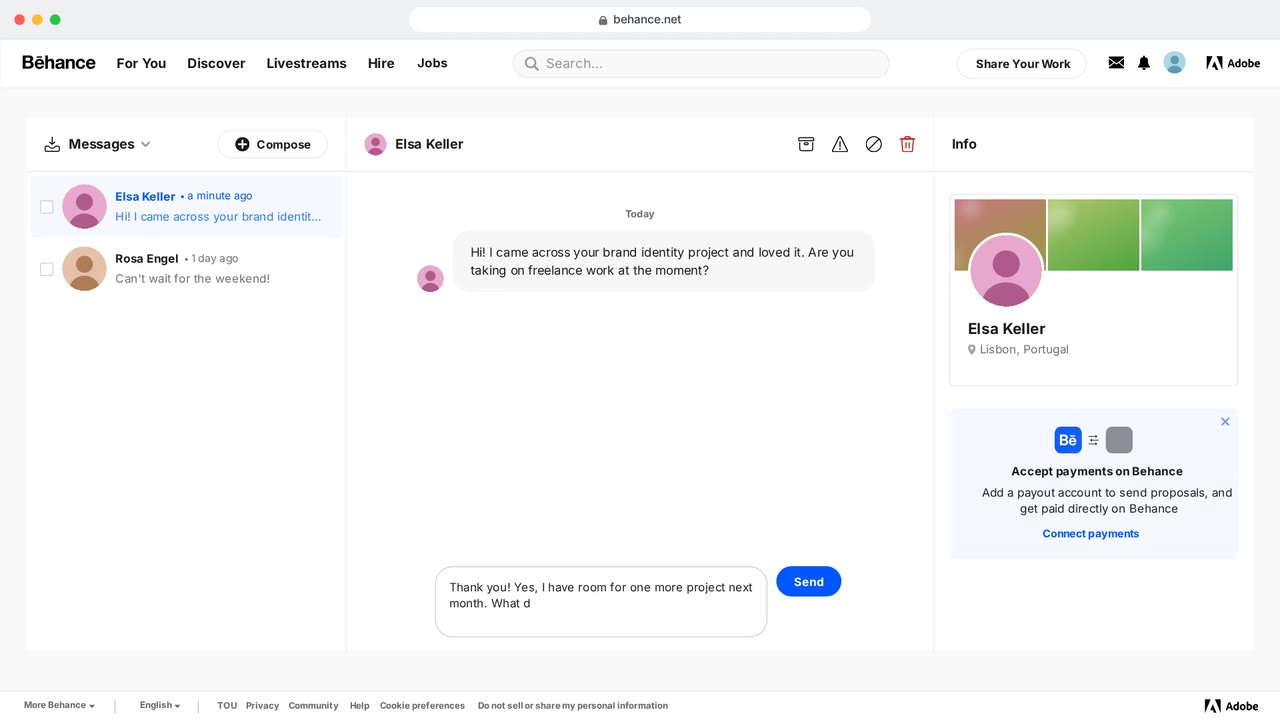
The frame above is the clip a few seconds in. The client's first message is in the thread, the reply is half typed in the composer, the Send button is active, and the open row of the list already previews the first message.
Step 4: Add date lines
A date line is the small centred label above a message, such as Today. Open a message row and type it into Date line above. The placeholder suggests 11:40 or Today; any short text works, so Monday or 3 days later are fine too.
In the chat settings, Date line above the first message is ticked by default, which stamps the first message even if you leave its own field empty. Type the label you want on the first message so the clip says what you mean. Untick the box if the thread should start without one.
Bubbles on this page carry no time of their own, so the date line is your only clock. Use a second one where the story skips ahead: a Thursday above the message that arrives after the call, for example.
Step 5: Time the typing
Each message has Delay Before (s), the pause after the previous message. Half a second, the default, keeps a conversation brisk. Stretch it to two seconds before a line that the other person would have thought about.
For the other person's messages, set Typing Duration (s). While it runs, a three-dot bubble shows in the thread. The default clip uses 1.4 seconds for both of Elsa's messages. Longer messages deserve longer typing; a one-word answer after three seconds of dots is a joke, which is fine if you want the joke.
For your own messages, tick Show typing in input field and set Typing Speed (chars/sec). The text is typed into the composer, which wraps onto new lines as it fills, and is then sent. The default clip types at 20 characters per second. Lower numbers look more deliberate and make the clip longer; a reply of 80 characters at 20 characters per second takes four seconds before it is sent.
Leave the box unticked on a message and it appears in the thread without being typed. That is useful for a quick "Yes." where watching it being typed adds nothing.
Step 6: Choose the theme and the window
In the Scene & look tab, pick the light or the dark theme. Light is the page most people know. Dark suits a video with a dark background, or a late-night story.
The same tab has Show Browser Window. Ticked, the page sits inside the browser window with the dots and the address pill. Unticked, the clip is the bare page, which gives the thread a little more room and suits a video where you add your own frame or zoom in an editor.
There is no phone layout for this template and no aspect ratio to pick. A computer clip is 16:9.
Step 7: Preview and export
Play the preview and read every message at viewing speed. If you cannot finish a bubble before the next one arrives, raise the delay on the following message. If you are waiting, lower it.
Then export. MP4 and GIF are both available. The free export is 720p (1280x720) at 15, 24 or 30 fps with a small watermark. Full HD and watermark-free export start on the Pro plan, and 60 fps is on the Creator plan; the current plans are on the pricing page. The export settings guide covers resolution and frame rate choices in general.
Letting Describe it write the first draft
If you would rather start from a sentence than from an empty list, switch to Describe it. Type what happens, for example "a studio messages me on Behance about my brand identity project and asks if I take freelance work", and the AI drafts the messages and their timing for this template.
You get a "What happens when" list with seconds, so you can see the clip as a timeline. To change something, point at a second: "at 0:06 make her mention a budget". Undo and Start over are there if a change goes the wrong way. The result opens in the manual editor, where every field from the steps above is still yours to adjust.
Two things to know. Describe it requires signing in with Google or GitHub. And it writes text and timing only: the AI does not generate images, and the rendering of the clip itself is not AI. The Describe it guide goes through the flow in detail.
What the template does not do
It is better to know the limits before you write a script around something that cannot be shown.
- Text only. No image attachments, no files, no project cards, no voice notes, no reactions or stickers. If the story needs "here is the moodboard", say it in words and cut to the moodboard in your own edit.
- One-to-one. Two people, you and the contact. No group conversations.
- One page. The clip stays on the messages page. It does not scroll the site, open a profile or click a link. Links you type are plain text.
- Fixed scenery. The navigation bar, the list beyond its two rows and the card under the Info panel cannot be edited.
- No vertical version. The clip is 16:9. There is no 9:16 or square export of a computer template.
- No on-screen keyboard. Your message is typed straight into the composer, as it would be on a computer.
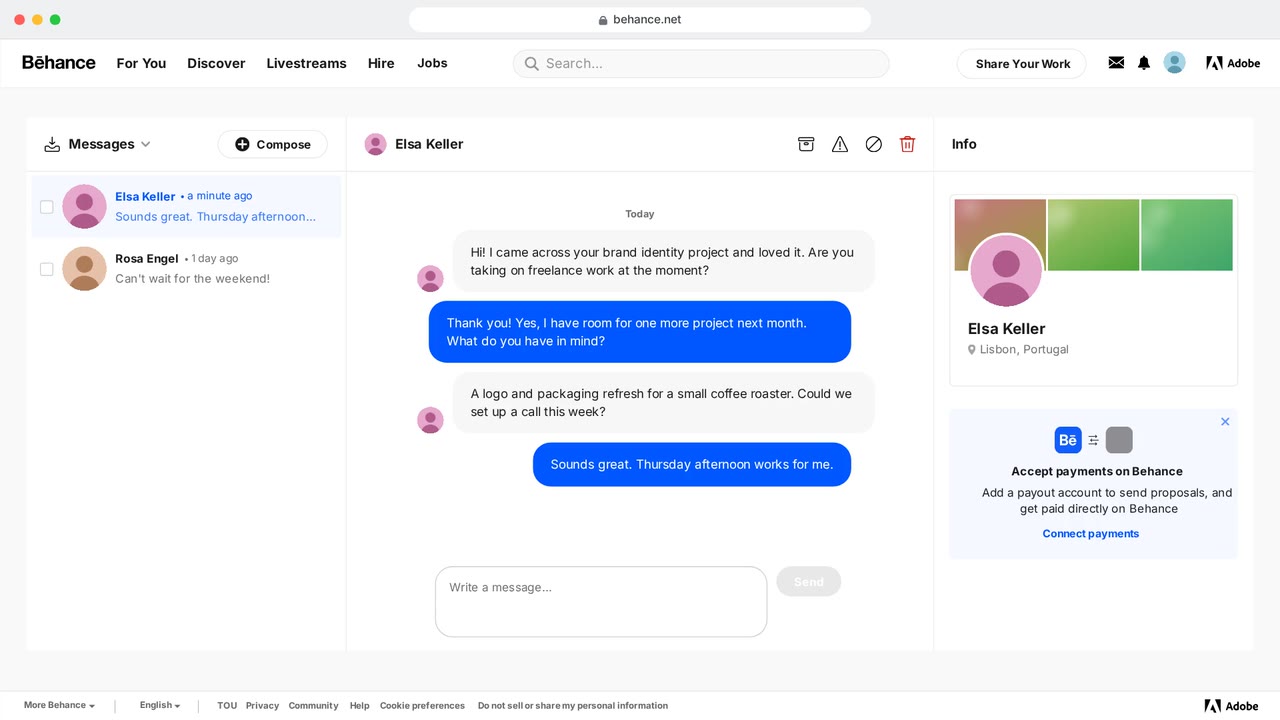
The last frame of the default clip shows all three columns doing their job: the open row previews the final line, the thread holds the four bubbles under the "Today" line, and the Info panel names the contact and her city.
Writing dialogue that sounds like a real enquiry
The page is convincing by default. The words are where a staged conversation gives itself away. A few habits help.
- Open with a specific compliment. Real clients mention a project: "your brand identity project", "the poster series". A generic "love your work" is how mass messages start, which is useful if you are writing a scam example and wrong if you are writing a good client.
- Let the client be vague about scope. First messages rarely contain a brief. "A logo and packaging refresh for a small coffee roaster" is about as detailed as they get. The follow-up question is your character's job.
- Answer the question that was asked. If the client asks whether you are available, say yes or no first, then ask yours. It reads as professional, and it gives the viewer a model to copy.
- Keep each bubble to one or two sentences. The thread column is centred and not very wide. Short bubbles keep the pace and let the typing in the composer finish quickly.
- End on a next step. A call on Thursday, a rate sheet, a polite no. A conversation that stops mid-air leaves the viewer wondering whether the clip was cut.
Pick names that are clearly yours to use. An invented person and an invented company are safest. Do not put a real studio, a real brand or a real art director into a conversation they never had.
Using the 16:9 clip
The clip is landscape, which is the native shape for YouTube, webinars, course lessons and slides. Drop it in full frame, or put it beside a talking head.
For TikTok, Reels and Shorts, be realistic about what a landscape clip can do. It will not fill a vertical frame, and there is no vertical export. Two things work in your own video editor:
- Split screen. Put the clip in the top half of a vertical edit and your camera, captions or commentary in the bottom half.
- Zoom on the thread. Scale the clip up so the middle column fills the width and the list and Info panel fall off the sides. Turn the browser window off first so you start from the bare page, and export in Full HD if your plan allows, because a zoom magnifies every pixel.
If the story does not need the Behance page at all and you want a native vertical chat, use a phone template instead. The LinkedIn message template is the closest in tone for a professional enquiry, and the Instagram DM template suits illustrators whose clients find them there.
Generating the same video from Claude or ChatGPT
If you would rather describe the conversation in a chat than click through the editor, MockClip's MCP server has a create_behance_message_conversation tool. It takes the contact name, the theme, up to twenty messages with their delays, typing settings and date lines, plus the optional page fields: the location and the second row of the conversation list. It returns a link that opens the finished animation in MockClip.
Keep it honest
A staged conversation is a prop. Use it for skits, tutorials, explainers, training and storytelling, and say so. Do not impersonate real people or companies, and do not present a staged exchange as a real one: not as proof that a client hired you, not as a testimonial, not as evidence in a dispute. A short "dramatised" or "re-enactment" note in the caption or on screen is enough.
Two more points. Behance is a trademark of Adobe Inc., and MockClip is not affiliated with it; the template is an independent recreation of the interface for video mockups. And real-app templates are for your own content. If the video is a paid ad or work for a client, MockClip's terms say to use a brand-free app, and the licence for that comes with the Studio plan. The closest brand-free desktop page is the Work Chat template; the details are on the pricing page.
Common mistakes to avoid
- Writing "see attached". The template has no attachments, so the viewer waits for a file that never appears. Rewrite the line.
- Planning a 9:16 export. There is none. Decide at the script stage whether the clip is going into a landscape video or into a vertical edit.
- Every delay the same. Identical half-second gaps and identical typing times feel mechanical. Give the important line a longer pause.
- Typing every message. Watching four long replies being typed is slow. Type the one that matters and let the short ones simply appear.
- A second row that steals the scene.
URGENT: invoice overduein the row below the open conversation will be read first. Keep it dull. - Long paragraphs. A client who writes six sentences in the first message is rare, and the bubble becomes a wall of text.
- Real names. A real agency in a made-up conversation is a problem you do not need.
Quick start
- Open the Behance Messages template.
- Contact name and avatar.
- Location, your avatar and the second row of the list.
- Four to six messages with + My Message and + Their Message.
- A date line on the first message, and another where the day changes.
- Delays, typing durations, and typing in the input field for your key reply.
- Light or dark theme, browser window on or off.
- Export MP4 or GIF.
Related MockClip templates and guides
- Behance Messages template — the template used in this guide
- Behance message video ideas for designers — scripts for enquiries, pricing replies, saying no and spotting fake offers
- How to make a fake LinkedIn message video — a professional conversation on a phone, in a vertical clip
- Describe it: the AI chat video generator — drafting a clip from one sentence
- Chat video export settings — resolution and frame rate choices
- Fake chat video maker free — cross-platform overview
- Connect MockClip to Claude or ChatGPT — MCP setup
- Pricing — plans for watermark-free and Full HD export
Frequently Asked Questions
What is the easiest way to make a fake Behance message video?
Open MockClip's Behance Messages template in the browser, name the contact, write the messages for both sides, set the delays and typing times, then preview the clip and export it as an MP4 or a GIF. The manual editor works without an account.
What does the clip show?
The Behance messages page as it looks on a computer, inside a plain browser window: the conversation list on the left, the thread in the middle and the Info panel with the contact's name, avatar and location on the right. The clip is always 16:9.
Can I export a vertical 9:16 Behance message video?
No. The template draws a desktop page, so the clip is always 16:9. For TikTok, Reels or Shorts, place the landscape clip inside a vertical edit in your own video editor, or use one of MockClip's phone templates for a native vertical chat.
Can I attach images or project cards to a message?
No. The template plays text messages only. Image attachments, files, project cards, reactions and links that open are not part of it.
Which parts of the page can I change?
The conversation, the contact's name, avatar and location, your own avatar, and the second row of the conversation list (name, avatar, time and preview). The open row fills itself in from the conversation. The rest of the page is fixed.
Is it legal to make a fake Behance message video?
Staged conversations for skits, tutorials and explainers are fine in most places. Do not impersonate real people or real companies, do not present a staged exchange as real, and do not use the format for fraud or harassment. A 'dramatised' note in the caption removes any doubt.
Can I make it from Claude or ChatGPT instead of the editor?
Yes. MockClip's MCP server has a create_behance_message_conversation tool that accepts the contact, the messages with their timing and the page fields, and returns a link to the finished animation.
Related Articles
Behance Message Video Ideas for Designers: 9 Scripts
Nine Behance message video ideas with scripts for designers and illustrators: client enquiries, pricing replies, saying no to free work, fake commission offers.
How to Make a Fake LinkedIn Message Video (Free, Online)
Step-by-step: build a fake LinkedIn message video in your browser, with a recruiter chat, typing, a video meeting card and the call preview screen. Free.
AI Fake Chat Video Generator: Describe It, Get the Clip
Type what the clip should be and MockClip's Describe it mode writes the messages and timing for WhatsApp, iMessage, ChatGPT, Tinder and more. Refine by second.
Chat Video Aspect Ratio and FPS: Pick the Right Export Size
Choose the aspect ratio, resolution and frame rate for a chat video: 9:16, iPhone, 3:2 and 1:1 sizes, 720p vs Full HD, 15 to 60 fps, matched to destination.
Fake Chat Video Maker Free: Create Text Conversation Videos
Free fake chat video maker for TikTok and Reels. Create realistic animated text conversations with iMessage, WhatsApp, and Instagram DM interfaces in minutes.