Telegram Chat Video for TikTok & Shorts: Screen Flow Guide
Most fake chat videos start inside the conversation. A Telegram chat video made with MockClip can start where a real person starts: on the chats list, with an unread badge on the row that is about to open. The clip pushes into the conversation, plays it, and pops back out. That multi-screen flow is the difference between "a chat widget" and "someone's phone", and it is the reason the Telegram template is worth choosing for TikTok and Shorts even if your audience also uses other apps.
This guide is about that flow: how to build it, how to time it for each platform, and what to put on each screen so the first two seconds earn the next twenty.
Why the screen flow matters on short-form platforms
TikTok, Reels and Shorts decide within the first two seconds whether a viewer stays. A conversation that opens mid-chat asks the viewer to work out who is talking and why. A chats list does that work for them: names, previews, times and an unread badge tell the viewer "this is a phone, this chat is about to open, something is waiting in it".
The pop back at the end does the opposite job. It closes the scene, shows the final message in the live row, and hands the clip a natural loop point, which Reels in particular rewards.
MockClip's Telegram template is currently the only template on the site that renders these surrounding screens. The WhatsApp, iMessage and Instagram DM templates animate the conversation view only.
What the Telegram template animates
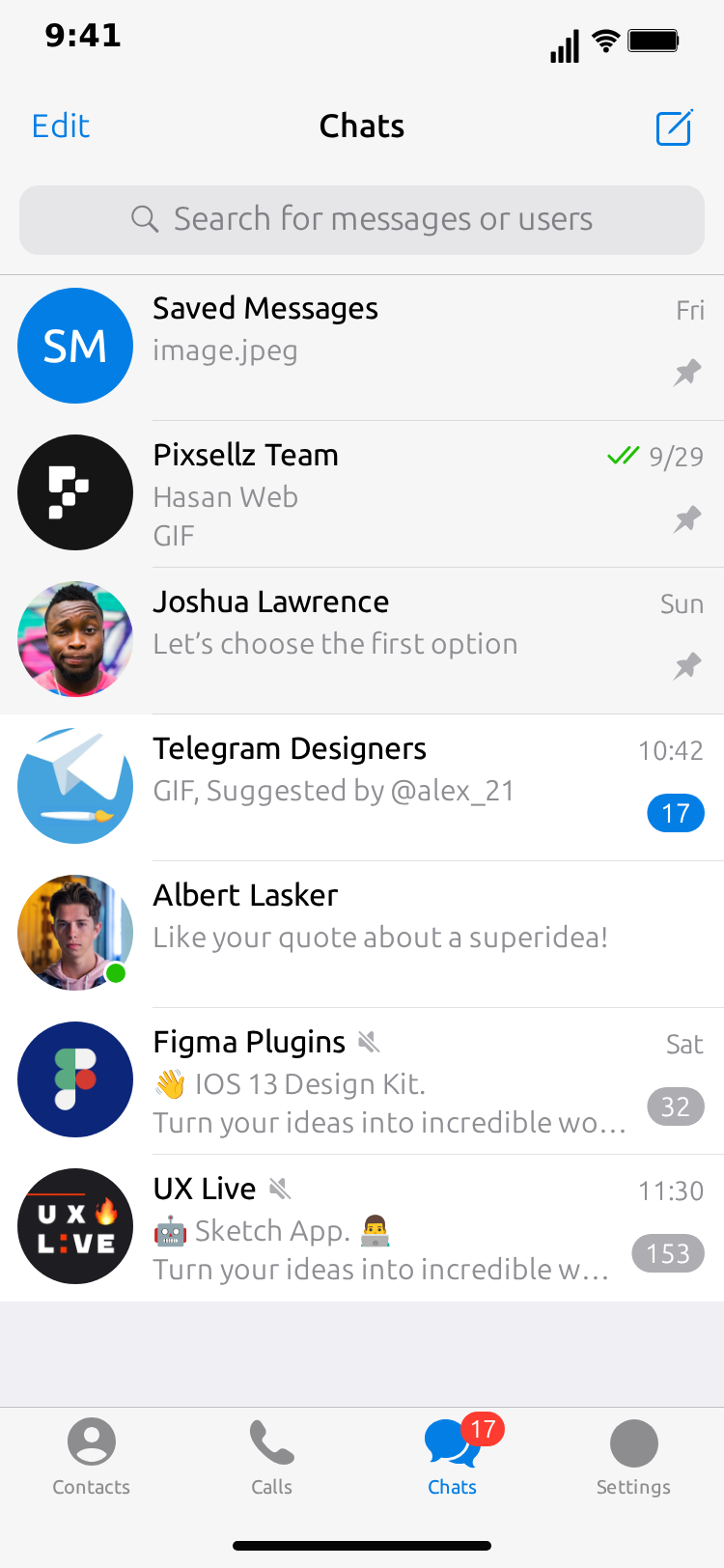
- Chats screen. Rows with avatar, name, last-message preview, time, unread badge, pinned and muted states. The row for your conversation is live: it shows the conversation's last message, an unread badge for trailing incoming messages, and the ✓/✓✓ state of your last message once it has played.
- Chat screen. The conversation itself: header with name and status, typing shown in the header, incoming and outgoing bubbles with timestamps, reply quotes, image attachments with file name and size, sent ✓ and read ✓✓ marks.
- Calls screen. A list of incoming, outgoing and missed calls with a subtitle and a date, plus an All / Missed segment.
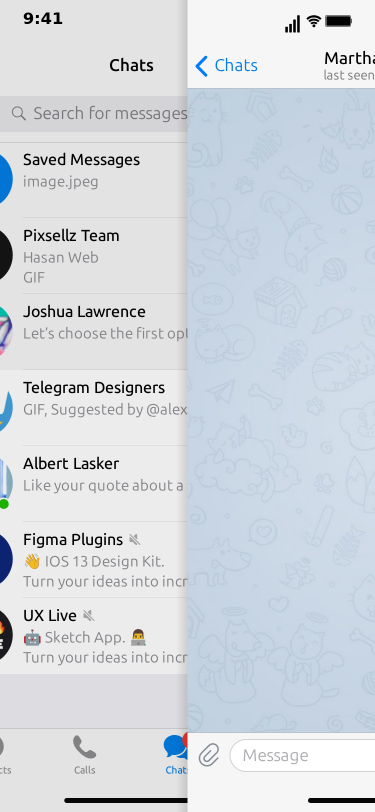
- Peek. The long-press preview: blurred list, the conversation card lifted above it, a context menu underneath.
- Transitions.
push(slide in from the right),pop(slide back out),tab(switch bottom tab) andpeek. - Themes and export. Light and dark, MP4 or GIF.
Not supported: reactions, stickers, voice notes, group chats, channels.
Step-by-step: building a screen-flow Telegram video
Open the Telegram template. Build the conversation first, then wrap it in screens.
Step 1: Write the conversation
Enter a Contact Name and Contact Status, then add six to ten messages under Messages with a Timestamp each. Put one Reply to (name) plus Quoted text on the message where the story turns, and one Image attachment with a File name and Size if the plot needs a file. Set Typing Duration (s) on incoming messages and Show typing in input field on your own. Configure Read marks so the ✓ becomes ✓✓ with a delay that fits the beat.
If you have not built a Telegram conversation before, the step-by-step tutorial goes through each control in detail.
Step 2: Fill the chats list
Click the Chat list screen tab. Add five or six rows with a Name, a Last message preview and a Time. Give one or two rows an Unread count and pin one with Pinned. Your live conversation row is already in the list; put it near the top so it is the first thing a viewer reads.
Make the previews do work. Call me when you get home, can you send me the address? and Your bike is ready for pickup each suggest a life outside the story, which is what makes the phone feel owned.
Step 3: Add the calls screen (optional)
Click the Calls tab and add a few rows with a Name, Incoming, Outgoing or Missed, a Subtitle such as Outgoing (2 min) and a Date. Use the Segment control to show All or Missed. A calls step is a good opener for a "why didn't you pick up" story: the viewer sees three missed calls, then the chat opens.
Step 4: Build the flow
Open the Video flow strip. Each step has a Screen, a Transition into it and, for static screens, Hold seconds. The default flow is the one that works for most videos:
- Chats, hold 1.8 s
- Chat, transition
push(runs the conversation's own timeline) - Chats, transition
pop, hold 1.8 s
Variations that work on short-form platforms:
- Peek opener. Chats → Chat with
peek(hold 1.5 s) → Chat withpush→ Chats withpop. The viewer previews the chat before it opens. - Missed-calls opener. Calls (hold 1.5 s) → Chats with
tab(hold 1.2 s) → Chat withpush→ Chats withpop. - Conversation only. Remove every step. The clip plays the chat alone, like the other templates.
The preview's length updates as you add or remove steps, so you can see the total before exporting.
Step 5: Preview and export
Press play, watch the whole flow, and adjust holds until the list is readable but not slow. Choose MP4 Video for TikTok, Reels and Shorts, or GIF Animation for embedding in a page or a message. The file downloads from your browser.
Free to use. No sign-up. Browser-based.
Open the Telegram chat video makerContent patterns for Telegram Shorts
- The unread badge. End the conversation with two messages from the contact; the live row then opens with a
2badge, and the whole video is the viewer finding out what those two messages were. - The wrong chat. List first, so the viewer sees two similar names. Then the message that went to the wrong one.
- Left on read. Push in, two messages with ✓ only, a long hold, ✓✓, no reply, pop out to a list where the row shows your last message and no badge.
- The file. An image attachment arrives with a file name that tells the story. Keep the size plausible.
- Three missed calls. Calls screen opener, tab to Chats, push into the chat with
where are you??. - The quote. A reply quote that answers a line from much earlier, with the timestamps to prove it.
Timing for each platform
| Platform | Sweet spot | Notes |
|---|---|---|
| TikTok | 15 to 25 s | Hook inside 2 s. Open on the list with a badge or on a peek. |
| Instagram Reels | 15 to 30 s | Loops. End on the pop so the last frame flows into the first. |
| YouTube Shorts | 20 to 45 s | Tolerates longer stories. Room for a calls opener and ten messages. |
Inside those windows: hold the chats list for 1.5 to 2 seconds at the start, keep typing durations between 1 and 2 seconds, keep delays between messages around half a second, and hold the final list for 1.5 to 2 seconds.
Anatomy of the first two seconds
The chats list is on screen for about two seconds before the push. That is the whole hook, so design it deliberately.
- Row one is the story. Put the live conversation row at the top, pinned. Its preview is the conversation's last message, so choose the ending with the list in mind: end on your own line and the row shows
on my way 🏃with a ✓✓, which tells the viewer someone already left; end on one or two lines from the contact and the row shows the last of them with an unread badge, which tells them a message is waiting. - Rows two to five are the world. A parent, a friend, a shop. Their previews should be ordinary. Ordinary context is what makes the top row feel urgent.
- One badge, maybe two. A list where every row has an unread count reads as a neglected phone. One badge on the story row and one somewhere lower is enough.
- The tab bar counts. The Chats tab shows a total of unread messages. If your rows add up to three, the badge says three. Viewers who use Telegram notice when those numbers disagree.
- Status bar and bezel. Keep the iPhone bezel, status bar and home indicator on for social exports; they are what make the frame read as a phone rather than a screenshot.
Light or dark for short-form
Both themes export identically, so the choice is editorial. Dark theme reads as late night and suits left-on-read, missed-call and "why are you up" stories. Light theme reads as daytime and suits plans, errands, and anything with a shop or a workplace in the chats list. If you are unsure, build the story once and export it in both; the theme toggle is a single switch and the flow is unchanged. Posting the two versions a week apart to the same audience is a cheap way to learn which one your viewers respond to.
Reusing one conversation across three cuts
A single Telegram conversation can become three different videos by changing only the flow strip:
- The full cut for Shorts: Calls opener → tab to Chats → push → conversation → pop. Twenty-five to forty seconds.
- The tight cut for TikTok: Chats (1.5 s) → push → conversation → pop. Fifteen to twenty-five seconds.
- The teaser for Reels: Chats → peek (hold 2 s) and stop. Five seconds, no conversation, just the preview card and the context menu. Caption it with "full chat tomorrow".
The messages, quotes, attachments and read marks are shared, so the three exports stay consistent. If you generate the conversation through the MCP tool, the same messages array with three different flow arrays produces the three cuts.
Posting strategy
- Export clean, without captions, and add on-screen text in your editing app so the clip can be re-cut for another platform.
- Post the same story in both themes a week apart. Dark reads as night, light as day; the audiences differ.
- Use the chats list previews to plant a second story you can pay off in a follow-up video.
- On TikTok, write the caption as the first message's text; on Shorts, write it as the payoff.
- Add "dramatised" to the caption when the story could be mistaken for a real exchange.
Generating the flow from Claude or ChatGPT
The MCP server exposes create_telegram_conversation. Pass the contact, the messages, optional chatList and calls rows and a flow of screen steps (each with a screen, a transition and a hold), and the tool returns a link that opens the finished multi-screen animation in MockClip. Without flow, chatList or calls it produces the conversation only.
Common mistakes
- Holding the list for four seconds. Two is plenty; the badge does the rest.
- A chats list with one row. It looks like a test, not a phone.
- Pushing into the chat before the viewer has read the row name.
- Ending inside the conversation when the story would land better on the list.
- Describing stickers, voice notes or group chats in the caption. The template does not render them.
How MockClip compares to other approaches
Screen recording the real app shows a real chats list, but it also shows real contacts and real notifications, and you cannot script the messages. Overlay editors such as CapCut can fake bubbles but not the list, the push, the peek or the ✓✓ marks; see MockClip vs CapCut and MockClip vs Vsub. Among MockClip's own templates, Telegram is the one to pick when the story needs the phone around the chat.
Quick start
- Open the Telegram template.
- Write six to ten messages with a reply quote on the turn.
- Fill the chats list with five rows and a badge on the live row.
- Keep the default flow: Chats → push Chat → pop Chats.
- Export MP4, post vertical.
Related guides and templates
- Telegram chat maker — the template used in this guide
- Telegram chat animation generator — feature overview and first animation
- How to make a fake Telegram conversation video — every editor control, step by step
- WhatsApp chat video for YouTube Shorts — the WhatsApp version of this guide
- Fake text conversation video for YouTube Shorts — Shorts optimisation
- How to go viral with fake conversation videos — hooks and growth
- Pricing — Pro tier for watermark-free exports
Frequently Asked Questions
What makes a Telegram chat video different from a WhatsApp or iMessage one?
In MockClip, the Telegram template is the one that animates the app around the conversation: the clip can start on the chats list, push into the chat, show a long-press peek preview, visit the calls screen and pop back out. The other chat templates animate the conversation view only.
How long should a Telegram chat video be for TikTok?
Fifteen to thirty seconds. That is a chats-list hold of about two seconds, six to ten messages, and a pop back to the list. Longer stories fit YouTube Shorts better than TikTok.
Is the export the right size for TikTok, Reels and Shorts?
Yes. MockClip exports a vertical MP4 (or GIF) that all three platforms accept without cropping.
Can I make the video without the chats list?
Yes. Leave the video flow empty and the clip shows the conversation only, the same as the other chat templates.
Do I need an account?
No. The Telegram template is free in the browser. Free exports carry a small MockClip watermark; the Pro upgrade removes it. See the pricing page.
Can I generate the video from an AI assistant?
Yes. MockClip's MCP server has a create_telegram_conversation tool that accepts messages, chat list rows, calls rows and a flow of screen steps, and returns a link to the finished animation.
Does the template support group chats or channels?
No. It covers one-to-one chats, the chats list, the calls screen and the peek preview. Group chats, channels, stickers, voice notes and reactions are not supported.
Related Articles
Telegram Chat Animation Generator: Make Fake Chat Videos
Free Telegram chat animation generator. Animate the chats list, reply quotes, image attachments, ✓✓ read marks and typing. Export MP4 or GIF in the browser.
How to Make a Fake Telegram Conversation Video (2026)
Step-by-step guide to a realistic fake Telegram conversation video: reply quotes, image attachments, ✓✓ read marks, typing in the header and the peek preview.
WhatsApp Chat Video for YouTube Shorts: Full Guide
Create fake WhatsApp conversation videos for YouTube Shorts and TikTok. Free browser tool with typing indicators, read receipts, and MP4 export.
How to Create Fake Text Conversation Videos for YouTube Shorts
Make animated fake text conversations optimized for YouTube Shorts — with templates, monetisation strategy, voiceover tips, and a full posting playbook.
How to Go Viral With Fake Conversation Videos in 2026
Data-driven strategies for going viral with fake conversation videos on TikTok, Reels, and Shorts. Hooks, timing, and growth tactics.