Telegram Chat Animation Generator: Make Fake Chat Videos
Telegram has a look that viewers recognise instantly: the blue header, the patterned wallpaper, the green outgoing bubbles, the ✓✓ read marks tucked next to the time. A Telegram chat animation generator lets you recreate that look from a script instead of a screen recording, so every message, pause and read receipt lands exactly where you want it.
This guide explains what MockClip's Telegram generator does, how to build your first animation in the Telegram template, and what makes the Telegram template different from every other chat template on the site: the video can start on the chats list, push into the conversation and pop back out, like a real person opening the app.
What is a Telegram chat animation generator
A Telegram chat animation generator is a tool that renders a fake Telegram conversation as a video. You write the messages, decide who sends what, set timestamps and pauses, and the generator draws the Telegram interface frame by frame: the navigation bar with the contact's name and status, the wallpaper, the bubbles, the input bar with the attachment and microphone icons.
The difference between a generator and a screen recording is control. A screen recording shows whatever happened on your phone, including notifications, autocorrect and the real names of real people. A generator shows only what you scripted, in the order and at the pace you chose, at a clean vertical resolution that social platforms accept without cropping.
MockClip's Telegram generator runs entirely in the browser. There is nothing to install, no account to create for the free tier, and the export happens on your machine.
What MockClip's Telegram template can animate
Every element below is a real control in the editor. Nothing here requires a plugin or a paid add-on.
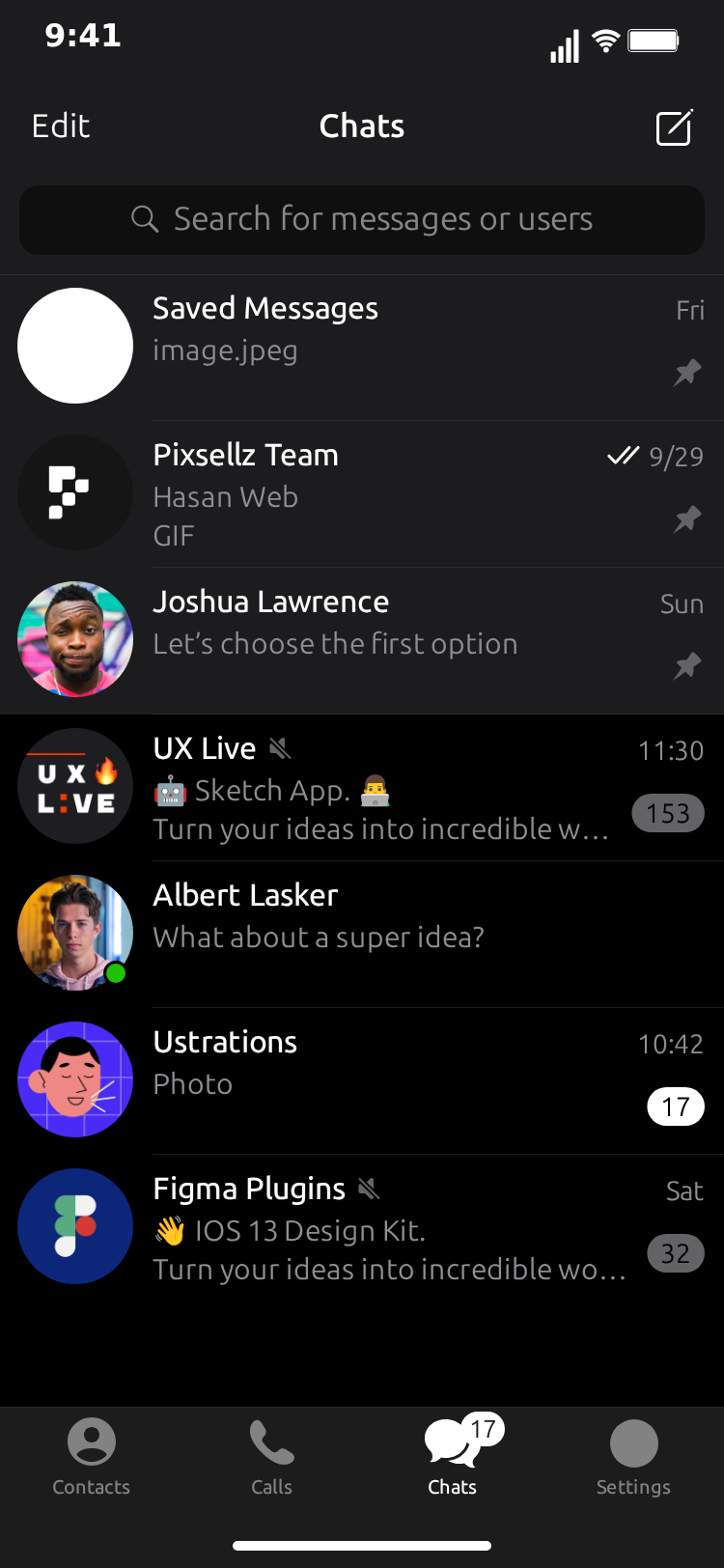
- The chats list. A scrollable list of conversations with avatars, last-message previews, times, unread badges, pinned and muted rows. The row for the conversation you are animating is live: it shows the conversation's last message, an unread badge for trailing incoming messages, and the ✓/✓✓ state of your last message once it has played.
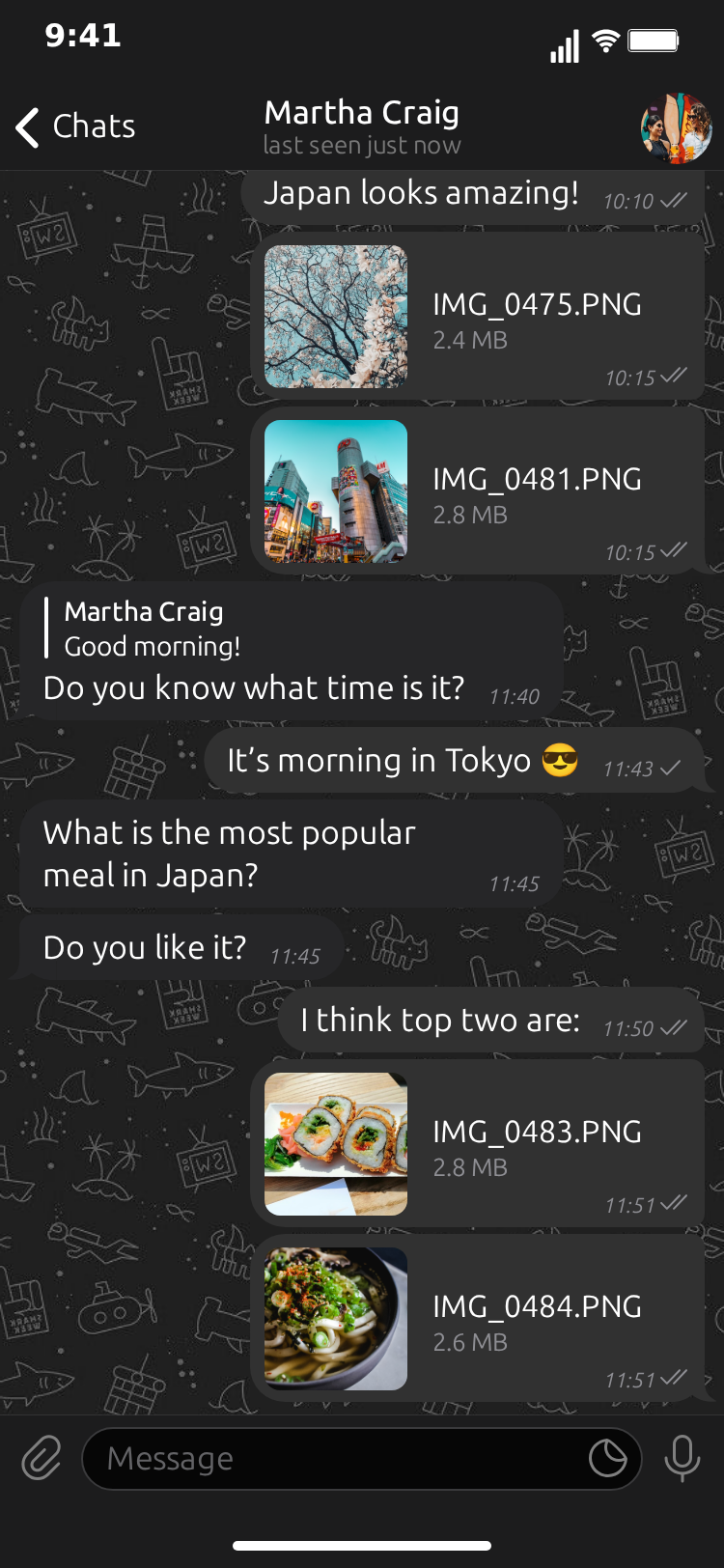
- The conversation. Incoming bubbles on the left, outgoing bubbles on the right, with a timestamp on each message and the contact's name and status in the header.
- Reply quotes. Any message can quote an earlier one, showing the quoted sender's name and the quoted text above the reply, the way Telegram renders a reply.
- Image attachments. A message can carry an image attachment with a file name such as
invite.pngand a file size such as1.2 MB. - Sent ✓ and read ✓✓ marks. Outgoing messages show a single check when sent and a double check when read, each on its own delay.
- Typing in the header. While the other person is typing, the header shows it, exactly where Telegram shows it.
- Typing in the input field. Your own messages can be typed into the input bar first, character by character, before they send.
- The calls screen. A list of incoming, outgoing and missed calls with a date and a subtitle.
- The long-press peek. A blurred chats list with the conversation card lifted above it and a context menu underneath.
- Light and dark themes. One toggle switches the whole template.
- MP4 or GIF export. Both rendered in the browser.
What the template does not do: reactions, stickers, voice notes, group chats and channels. If your idea depends on those, it belongs in a different format.
Why creators use Telegram animations
Telegram is the messaging app of choice for large parts of Europe, Latin America, the Middle East, South and Southeast Asia, and for communities that moved away from WhatsApp. For a creator whose audience lives there, a Telegram animation reads as "my phone" in a way an iMessage animation never will.
There is a second reason. Telegram content on TikTok and Reels tends to be story-driven: a message that arrives at the wrong time, a reply quote that misreads the original, a file that was sent to the wrong chat. Those beats need precise timing, a real reply quote and a believable attachment. A generator gives you all three; a screen recording gives you none of them on demand.
For marketers, a Telegram animation is a fast way to show a support flow, a booking confirmation or a product update as a conversation, without exposing a real customer's chat.
Step-by-step: your first Telegram animation
Open the Telegram template. The editor sits on the left, the phone preview on the right. Follow these steps in order.
Step 1: Set the contact
Type a name into Contact Name and a status into Contact Status. Telegram statuses are short: online, last seen just now, last seen 5 minutes ago. Add a Contact Avatar if you have an image; the header and the chats list both use it.
Step 2: Write the messages
In the Messages section, add a message for each line of the conversation and set whether it is from you or from the contact. Keep each bubble short. Telegram bubbles wrap early, and a long paragraph reads as a wall of text on a phone-shaped video.
Give each message a Timestamp such as 20:41. Timestamps are how viewers read the pace of a story: two messages a minute apart feel like a normal chat, a message that arrives an hour later feels like a cliffhanger.
Step 3: Add a reply quote
Open a message from you, fill in Reply to (name) with the contact's name and Quoted text with the message you are answering. The preview shows the quote block above your bubble immediately. Reply quotes are the single most useful storytelling device in the template: they let a character react to a specific line, which is where most of the comedy and drama in chat videos lives.
Step 4: Attach an image
On any message, enable Image attachment and fill in File name and Size. The bubble shows the attachment card with the name and size the way Telegram does. You do not need a real image file for the card to look right, which is convenient when the attachment is a plot device rather than a picture.
Step 5: Set the timing
Each incoming message has a Typing Duration (s) that controls how long the header shows typing before the bubble appears. Each message also has Delay Before (s), the pause after the previous message. Outgoing messages can turn on Show typing in input field with a Typing Speed (chars/sec) so the text types into the input bar before it sends.
A good default: typing duration between 1 and 2 seconds for short incoming messages, a delay of half a second to a second between messages, and typing speed around 15 to 18 characters per second for your own lines.
Step 6: Configure the read marks
Under Read marks, choose what each outgoing message shows. A single ✓ means sent, ✓✓ means read. Each mark has its own delay after the message appears. The gap between the ✓ and the ✓✓ is your "they saw it" beat; stretch it when the story calls for tension.
Step 7: Add the chats list and the flow
Click the Chat list screen tab. Add five or six rows with a Name, a Last message preview, a Time and, where it helps, an Unread count or Pinned. The conversation you are animating already appears as a live row.
Then look at the Video flow strip. Add a step for the Chats screen, a step for the Chat screen with the push transition, and a final Chats step with the pop transition. Set Hold seconds on the list steps so viewers can read the list before the push. The preview's length updates as you add steps.
Step 8: Preview and export
Press play to watch the whole flow. Toggle Light Theme if the story suits a light interface. Then choose MP4 Video or GIF Animation and export. The file downloads directly from your browser.
Free to use. No sign-up. Browser-based.
Open the Telegram animation generatorTiming patterns that make Telegram animations feel real
Timing is what separates a convincing chat animation from an obviously scripted one. A few patterns that hold up:
- Front-load the typing. The first incoming message should show typing in the header for at least a second. It tells the viewer this is a live conversation, not a screenshot.
- Make the ✓✓ mean something. If your character sends a message that goes unanswered, let the ✓ sit alone for a couple of seconds before the ✓✓ appears. Viewers read the wait.
- Use the reply quote for the turn. The best moment in a chat video is usually a reply that reframes an earlier line. Put the quote on that message so the viewer sees exactly which line is being answered.
- Hold the chats list for at least 1.5 seconds at the start of the flow. That is enough time to read the row previews and understand which chat is about to open.
- End on the list. Popping back to the chats list gives the story a natural close and shows the final message in the live row.
Writing Telegram dialogue that travels
Telegram audiences are international, so dialogue that works tends to be short, literal and emoji-light. A few guidelines:
- Keep messages under 60 characters where possible. Bubbles stay readable and the animation keeps moving.
- Let timestamps carry the passage of time instead of narration.
20:41followed by23:15says "hours passed" without a caption. - Use one attachment per video at most. It is a strong beat; two of them dilute it.
- Give the contact a status that matches the story.
onlinefor a live back-and-forth,last seen 3 hours agofor a message that will be left on read.
Posting Telegram animations to TikTok, Reels and Shorts
The exported MP4 is vertical and ready for every short-form platform.
- TikTok rewards a hook in the first two seconds. Start the flow on the chats list with an unread badge on the row that is about to open. The badge is the hook.
- Instagram Reels tends to loop. End on the pop back to the list so the loop feels intentional.
- YouTube Shorts allows slightly longer clips. A 20 to 30 second flow with a calls screen step at the end works well for story content.
Add your own caption text in your editing app if you want on-screen narration; keep the MockClip export clean so it can be reused.
Generating Telegram animations from an AI client
MockClip's MCP server exposes a create_telegram_conversation tool. From Claude, ChatGPT or any MCP-compatible client you can describe the conversation and get back a link that opens the finished animation in the editor.
The tool takes the contact's name and status, the theme, the list of messages (each with optional reply quote, attachment, timestamp and typing settings), and optionally chatList rows, calls rows and a flow of screen steps. Without flow, chatList or calls it produces the conversation only; with them it produces the same multi-screen video the editor does. The guide to connecting MockClip to Claude or ChatGPT covers the setup.
Common mistakes and how to avoid them
- Skipping the chats list. The list is what makes the video feel like a phone rather than a chat widget. Include it unless the clip is very short.
- Every message read instantly. Real people do not read every message the moment it arrives. Vary the ✓✓ delays.
- Reply quotes on every line. One or two quotes per video are a device; five are noise.
- Attachment with a nonsense size. Use plausible values,
1.2 MBfor a photo,48 KBfor a screenshot. - Wrong theme for the story. Dark theme reads as late-night; light theme reads as daytime. Pick deliberately.
- Claiming features the app does not have. No stickers, no voice notes, no group chats in this template. Write the story around what the template does.
How MockClip compares to alternatives
Screen recording the real Telegram app is free but uncontrollable: notifications, real names and the platform's chrome leak into the frame, and you cannot show a reply quote to a message that was never sent. General video editors such as CapCut can overlay chat-style text, but they do not render Telegram's header, wallpaper, read marks or the chats list; the MockClip vs CapCut comparison goes into detail. Among dedicated fake-chat tools, MockClip is the one whose Telegram template renders a multi-screen flow rather than a single conversation view.
Quick start checklist
- Open the Telegram template.
- Set the contact name and status.
- Write six to ten short messages with timestamps.
- Add one reply quote and, if the story needs it, one image attachment.
- Set typing durations and read-mark delays.
- Add five chats-list rows and the chats → push chat → pop chats flow.
- Preview, then export MP4 or GIF.
Related MockClip templates and guides
- Telegram chat maker — the template used in this guide
- WhatsApp chat maker — the closest alternative for international audiences
- iMessage conversation maker — US-focused chat format
- How to make a fake Telegram conversation video — the full tutorial with reply quotes, attachments and the peek preview
- Telegram chat video for TikTok and Shorts — the screen-flow guide for short-form content
- WhatsApp chat animation generator — the WhatsApp equivalent of this guide
- Fake chat video maker free — cross-platform chat video guide
- How to go viral with fake conversation videos — engagement strategy
- Pricing — Pro tier for watermark-free exports
Frequently Asked Questions
What is a Telegram chat animation generator?
A Telegram chat animation generator is a browser tool that turns a scripted conversation into a video that looks like a screen recording of the Telegram app. MockClip's Telegram template animates the chats list, the conversation with reply quotes, image attachments, sent ✓ and read ✓✓ marks, typing in the header, and exports the result as MP4 or GIF.
Is MockClip's Telegram generator free?
Yes. The Telegram template runs free in the browser with no account required. Free exports carry a small MockClip watermark; the Pro upgrade removes it. See the pricing page for details.
Can the video start on the Telegram chats list instead of inside the conversation?
Yes. That is the Telegram template's signature feature. The Video flow strip lets the clip open on the Chats screen, push into the conversation, and pop back out. You can also add the Calls screen or a long-press peek preview as steps.
Does the generator support reply quotes and image attachments?
Yes. Any message can quote an earlier message (name plus quoted text) and any message can carry an image attachment with a file name and a file size, exactly as Telegram shows them.
Which Telegram features are not supported?
Reactions, stickers, voice notes, group chats and channels are not part of the Telegram template. It focuses on one-to-one chats, the chats list, the calls screen and the peek preview.
What formats can I export?
MP4 video or an animated GIF, rendered in the browser. The vertical output fits TikTok, Instagram Reels and YouTube Shorts without cropping.
Can I generate a Telegram animation from Claude or ChatGPT?
Yes. MockClip has an MCP server with a create_telegram_conversation tool. Describe the conversation in your AI client and it returns a link that opens the finished animation in MockClip, ready to export.
Related Articles
How to Make a Fake Telegram Conversation Video (2026)
Step-by-step guide to a realistic fake Telegram conversation video: reply quotes, image attachments, ✓✓ read marks, typing in the header and the peek preview.
Telegram Chat Video for TikTok & Shorts: Screen Flow Guide
Make Telegram chat videos for TikTok and Shorts that open on the chats list, push into the conversation and pop back. Free browser tool, MP4 and GIF export.
WhatsApp Chat Animation Generator: Create Viral Videos
Free WhatsApp chat animation generator for creating realistic message videos. Animate conversations with typing indicators, read receipts, and timestamps.
Fake Chat Video Maker Free: Create Text Conversation Videos
Free fake chat video maker for TikTok and Reels. Create realistic animated text conversations with iMessage, WhatsApp, and Instagram DM interfaces in minutes.
How to Go Viral With Fake Conversation Videos in 2026
Data-driven strategies for going viral with fake conversation videos on TikTok, Reels, and Shorts. Hooks, timing, and growth tactics.