Slack Channel Videos for TikTok and Shorts: Skit Guide
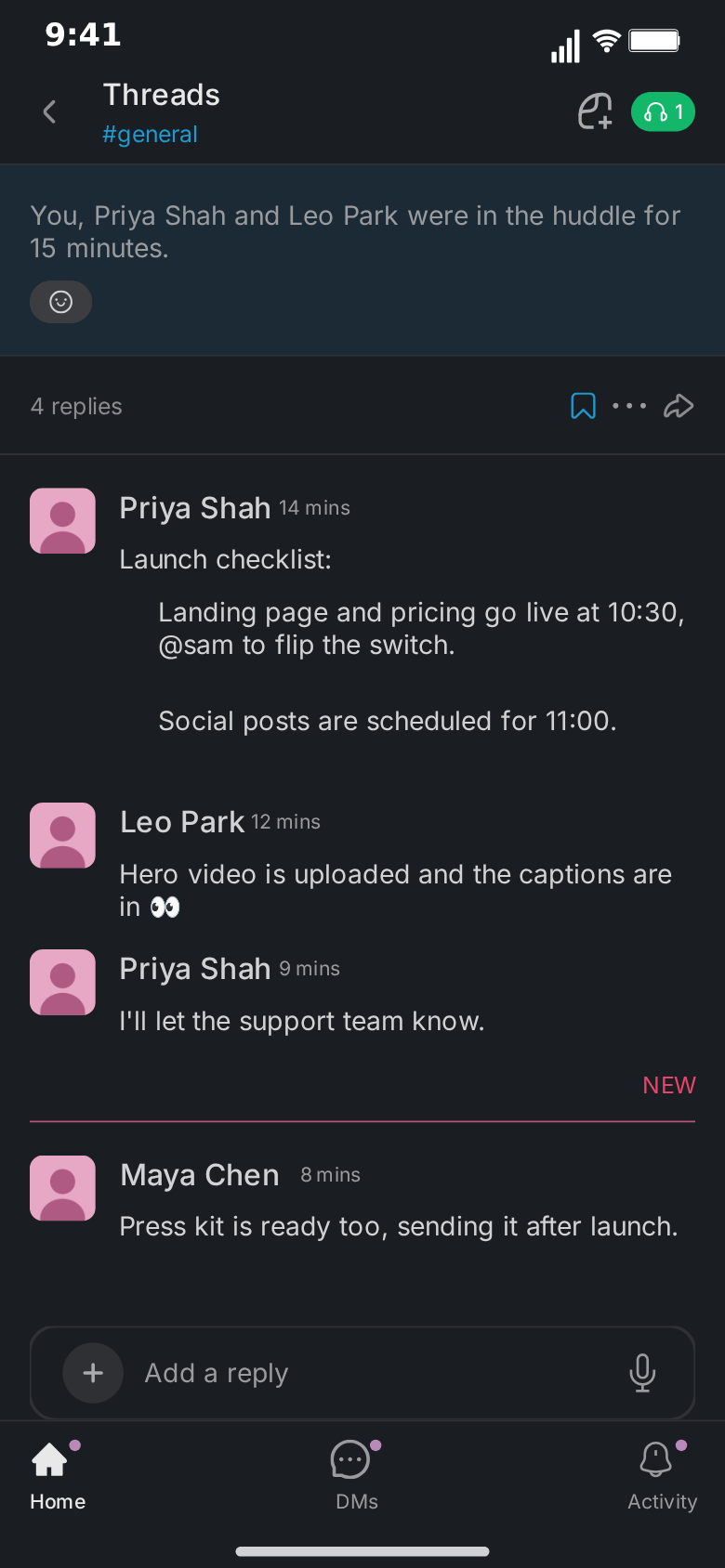
Office humour has always done well online, and a lot of office life now happens in a team channel. The 4:58 pm "quick sync?", the launch that breaks at the worst moment, the message that went to the whole company instead of one person: these stories are funnier when the viewer sees them land in the place they actually happen. A Slack-style channel frame does that in one glance, and it stands out in a feed full of iMessage bubbles.
This guide covers how to turn workplace stories into short-form channel videos that hold attention: the hooks, the pacing, four ready-to-build skits, and the export settings for TikTok, Reels and Shorts. The examples use MockClip's free Slack template, which renders the channel, the Threads list and a thread view in the browser and exports MP4 or GIF. MockClip is an independent tool and is not affiliated with Slack.
Why Slack skits perform
Three things give team-channel content an edge in short-form feeds.
Instant recognition for a huge audience. Anyone who works at a desk knows the layout: flat rows, rounded-square avatars, bold names, reactions under the messages. The viewer knows the genre, work, and decides to stay before reading a word.
A built-in ensemble. One-to-one chat videos have two characters. A channel has a cast: the manager, the overconfident engineer, the designer who saw it coming, the intern. Every teammate's message carries its own author name and avatar, so the whole cast fits in one frame.
Reactions as a laugh track. A "🎉 3" under the announcement or a lonely "👀 1" under a risky message tells the viewer how the room feels without a single extra line. It works like a sitcom laugh track for a silent video.
The hook: the first two seconds
Short-form viewers decide in the first frame, and in a conversation video the first frame is the first thing they read. Write the hook first and rewrite it last.
Hooks that work in a channel frame:
- The timestamp joke. A message from the manager stamped "16:58" that reads "quick sync?". Everyone who has ever worked on a Friday knows what happens next.
- The panic opener. "who merged to main" as the first message, no greeting, no context.
- The announcement. "we're live 🚀" with "🎉 3" under it, followed by a message that undoes it.
- The Threads list first. Open on the Threads list where a channel group shows something has happened, then tap into the channel.
Avoid opening on "good morning team". It is realistic, and it is the scroll trigger.
Pacing: where the pauses go
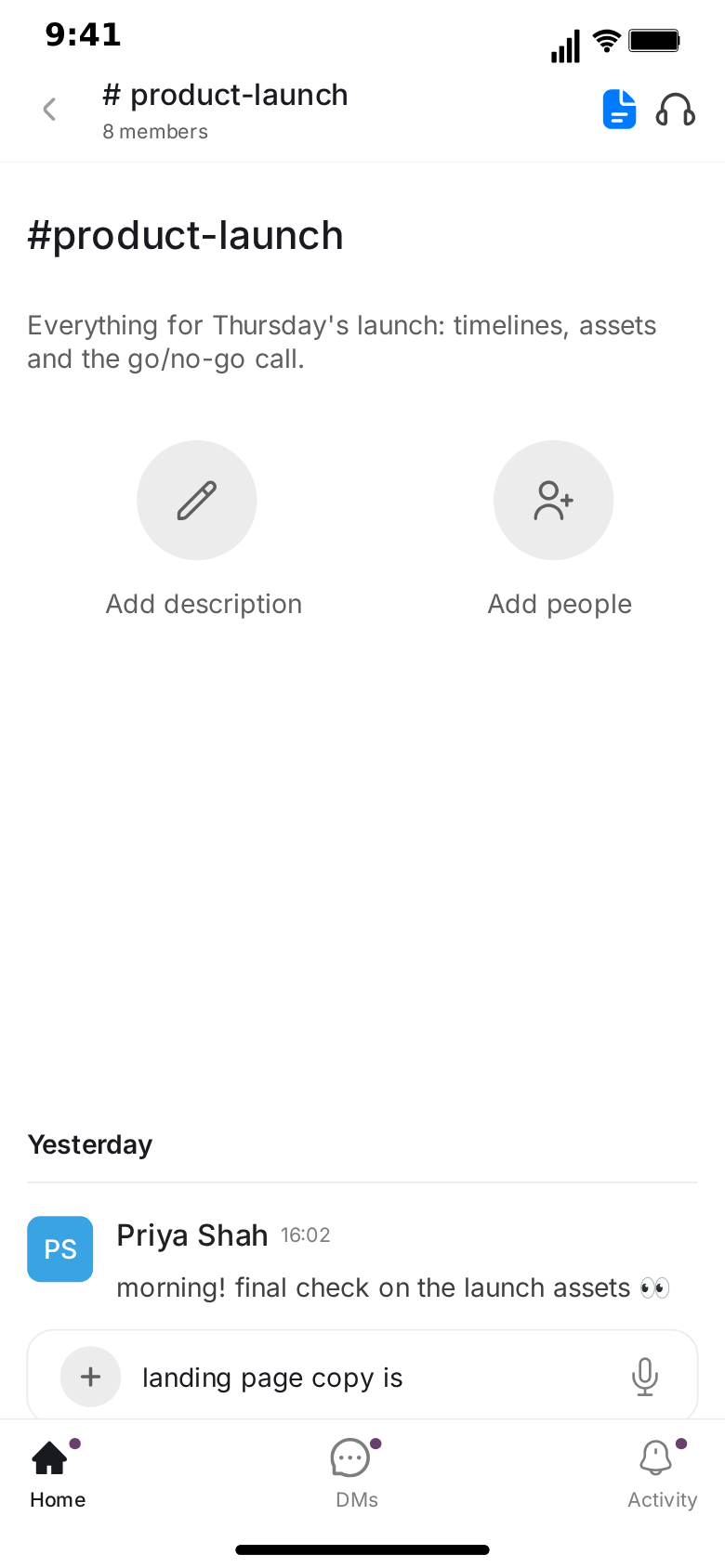
The Slack editor gives every message a delay, and every teammate's message a typing duration during which "Leo Park is typing…" shows above the input bar, naming the author of the next message. That typing line is your best tool for tension: in a team channel, everyone watching the dots knows who is about to speak.
Your own messages can be typed into the input bar first, at a characters-per-second speed you choose. A slow speed is a character hesitating; a fast one is a character who has already lost patience.
A pacing template for a 20-second skit:
- 0–2 s. The hook: the first message, already on screen or arriving fast.
- 2–9 s. The setup: a quick run of short messages from two or three people, 0.4 to 0.8 seconds apart.
- 9–12 s. The pause: two to three seconds of "is typing…" from the person who will deliver the turn.
- 12–16 s. The turn: the reveal, the confession, the punchline.
- 16–20 s. The reaction: one short reply, or just the reaction chips arriving with the last message, then let it sit.
If the clip is longer, add a second turn rather than more setup.
Four Slack skits, ready to build
Each skit below lists the cast, the beats and the timing. Every name is fictional; keep it that way when you adapt them.
1. Launch-day panic
Cast: Priya Shah (product lead), Leo Park (engineer), Maya Chen (design), you.
Flow: Open on the Threads list for a second and a half, tap into "# product-launch".
- Beat 1 (0–3 s). Priya: "we're live 🚀" with reactions "🎉 3".
- Beat 2 (3–7 s). Maya: "the pricing page says $0 for everything". Reactions "👀 1".
- Beat 3 (7–10 s). Three seconds of "Leo Park is typing…".
- Beat 4 (10–13 s). Leo: "that's not a bug that's a growth strategy".
- Beat 5 (13–17 s). Your reply, typed into the input bar at a slow speed: "rolling back".
Why it works: the reactions on Beat 1 set up the celebration that Beat 2 destroys, and the typing pause gives the viewer time to guess Leo's excuse.
2. The 4:58 pm "quick sync?"
Cast: your manager (Sam Rivera), you.
Flow: Channel only, opening block hidden, a "Today" divider on the first message.
- Beat 1 (0–2 s). Sam, stamped "16:58": "quick sync?"
- Beat 2 (2–6 s). Your reply, typed into the input bar at a slow, reluctant speed: "sure, what's up"
- Beat 3 (6–9 s). Two and a half seconds of "Sam Rivera is typing…".
- Beat 4 (9–12 s). Sam: "nothing urgent, just want to walk through Q3 planning"
- Beat 5 (12–14 s). Sam, same run, no header: "should only take an hour"
Why it works: the timestamp is the joke before anyone reads the message. Keep the timestamps honest; the next messages should read "16:59", not "17:30".
3. The reply-all disaster
Cast: Leo Park, Priya Shah, Maya Chen, the whole company in the member line.
Flow: Set the member line to something large, such as "1,204 members", and the channel title to "# general". Keep the opening block visible at first: the description "Company-wide announcements" does the setup for you.
- Beat 1 (0–3 s). Leo: "can someone tell @priya the deck is still a mess lol"
- Beat 2 (3–6 s). Maya: "leo" and, in the same run, "this is #general"
- Beat 3 (6–10 s). Three seconds of "Priya Shah is typing…".
- Beat 4 (10–13 s). Priya: "the deck is fine, thanks Leo 🙂" with reactions "😬 14, 👀 9".
Why it works: the member line and the channel name are the punchline's setup, the @mention is highlighted so viewers spot it at once, and the reaction counts show the whole company watching.
4. The intern who saves the day
Cast: Sam Rivera, Leo Park, Maya Chen, and Priya Shah as the intern.
Flow: Open on the Threads list and push into "# incident". If you like, add the thread view to the flow as a cutaway, with its replies edited to match the story.
- Beat 1 (0–3 s). Sam: "site is down. all hands" under a "Today" divider.
- Beat 2 (3–8 s). A fast run of short messages from Leo and Maya: "not my deploy", "not mine either", "is it DNS". Half a second apart.
- Beat 3 (8–11 s). Three seconds of "Priya Shah is typing…".
- Beat 4 (11–14 s). Priya: "fixed it. the domain expired. renewed it with my own card 🙃"
- Beat 5 (14–17 s). Sam: "who are you" with reactions "🙌 6, 🎉 4".
Why it works: the fast run of denials sets up the senior team as useless, the typing pause makes the viewer guess who will speak, and the reactions crown the intern without anyone writing "great job".
Scripting tips for team-channel skits
Cast first, lines second. Decide who the three or four characters are before you write a single message. Viewers learn a cast in seconds if each person has one trait: the panicker, the deflector, the calm one.
Few authors early. No more than three authors in the first ten seconds. A fourth can arrive later with a mention.
Use the mention as a spotlight. "@leo" is drawn in the link colour; it pulls the eye to whoever is about to be blamed.
Reactions instead of replies. If a line would only say "lol", make it a reaction chip instead. The channel stays readable and the joke lands faster.
Times tell time. Use timestamps to compress or stretch the story: "09:14" to "09:15" is a frantic minute, "16:58" to "16:59" is a Friday ending.
Write the last line first. A setup without a payoff is a disappointing watch, and short-form audiences say so in the comments.
Timing tips that change the result
- The longest pause goes before the turn. Two to three seconds of typing is the right length; more than four feels broken.
- Runs move fast. Messages from the same author, stacked under one header, should land 0.4 to 0.8 seconds apart.
- Your messages are slower. Typing into the input bar takes time on screen. Keep your own lines short, or use them for the moments where hesitation is the joke.
- Let the ending sit. Leave one to two seconds after the last message before the clip pops back to the Threads list or ends.
Formats for each platform
- TikTok, Reels, Shorts. 9:16 vertical MP4. Keep the important lines in the middle two thirds of the screen; platform captions and buttons cover the bottom.
- Feeds and LinkedIn. The 1:1 square crop. Work humour does well on professional networks when it is short.
- Team chats, docs and slides. GIF. Short loops of a single turn work best.
Exports render in the browser as MP4 or GIF at 720p or Full HD, at 15 to 60 fps, with or without the iPhone bezel. Free exports carry a small watermark; Pro removes it. The guide to square chat video export explains when the 1:1 crop beats vertical.
Titles, covers and captions
The video is only half of the post. The other half decides whether it gets watched.
- On-screen title. One short line above the phone frame: "my manager at 4:58 on a Friday". It frames the story without spoiling the turn.
- Cover frame. Pick a frame where the hook message is visible. A cover of the empty opening block is too quiet.
- Caption. Ask the question the video leaves open: "would you join the sync?". Questions earn comments.
- Hashtags. Two or three that describe the content (#corporatehumor, #worklife, #startup), not ten that describe everything.
Building a series
One video is a test; a series is a channel. Workplace skits lend themselves to series because the office persists.
- Recurring cast. Keep the same names and avatars across episodes. Viewers start recognising "Leo Park" and expecting his excuses.
- Recurring channel. Keep "# product-launch" or "# general" as the stage, with the same member line, so every episode looks like the same company.
- Numbered parts. End on the turn and title the next clip "part 2". The Threads list makes a natural recap screen at the start of each part.
- Comment-driven sequels. "What did Priya say next?" is the comment you want. Answer it with the next episode.
Sound, captions and editing
The exported clip is a clean screen-style video. In your editor of choice:
- Voiceover. Read the messages in character, or narrate over them. Leave the typing pauses silent.
- Music. Something light and corporate during the setup, cut at the turn.
- Background. With the bezel, place the phone on a blurred office photo or a solid colour; without it, the channel fills the screen like a real recording.
Mistakes to avoid
Walls of text. A message that wraps to four lines is skipped. Split it into a run.
Even pacing. Every message landing at the same interval is monotonous. Vary it and save the longest pause for the turn.
Real people and companies. Never use real colleagues' names, real company workspaces or real channel names, and never present a fictional channel as evidence about someone. The template's default content uses invented names and example.com links for this reason.
Features the template does not have. The skits above use only what the template draws: text messages with mentions and links, reactions, dividers, the typing line, the opening block and the Threads list and thread screens. Images or files inside messages, huddles as playable screens and replies inside the channel are not part of it, so write around them.
Making it with AI
When ideas come faster than scripts, the Describe it tab drafts a full channel from one sentence, with messages, authors and timing for you to adjust: "the intern fixes the outage everyone else blamed on DNS". It needs a Google or GitHub sign-in. From an AI assistant, the create_slack_conversation tool on MockClip's MCP server does the same and returns a link; the integrations page shows how to connect it.
Next steps
Start with the step-by-step tutorial if you have not made a Slack clip yet, and read the Slack chat animation generator overview for everything the template can show. For broader strategy across chat apps, see how to go viral with fake conversation videos and the Discord DM video guide for TikTok and Shorts.
Free to use. No sign-up. Browser-based.
Make a Slack channel videoFrequently Asked Questions
What makes a Slack channel video work on TikTok?
A recognisable work setting, a hook in the first message, short lines that read at a glance, a typing pause before the turn and a pile of reactions as the payoff. The Slack-style layout tells office workers what kind of story this is before they read anything.
What format should I export for TikTok, Reels and Shorts?
Vertical 9:16 MP4. MockClip's Slack template exports 9:16 directly, at 720p or Full HD and 15 to 60 fps, and also offers a 1:1 square crop for feeds.
How long should a Slack skit be?
Between 12 and 30 seconds for most skits: five to ten messages with one clear turn. Longer stories work better as a numbered series.
Can I have a whole team in one video?
Yes. Every teammate's message has its own author name and optional avatar, so one channel can hold the manager, the intern and everyone in between. Without a photo, the avatar shows the author's initials on a coloured tile.
Can I add voiceover or music?
Yes. Export the MP4 and add voiceover, music or captions in your editor of choice or in the platform's own editor.
Is it allowed to post fake Slack conversations?
Fictional skits and clearly framed reenactments are common content. Use invented names, channels and companies, do not present a fabricated channel as evidence about a real person or employer, and note that MockClip is not affiliated with Slack.
Related Articles
Slack Chat Animation Generator: Make Fake Channel Videos
Free Slack chat animation generator. Animate a team channel with authors, reactions, mentions, typing and the Threads list. Export MP4 or GIF in your browser.
How to Make a Fake Slack Conversation Video (Free)
Step-by-step: script, time and export a fake Slack channel video in your browser, with teammates, reactions, @mentions, typing and the Threads list. Free.
How to Go Viral With Fake Conversation Videos in 2026
Data-driven strategies for going viral with fake conversation videos on TikTok, Reels, and Shorts. Hooks, timing, and growth tactics.
Discord DM Videos for TikTok and Shorts: A Creator Guide
How to turn Discord DM stories into TikTok, Reels and Shorts videos: hooks, pacing, formats and series ideas, with a free browser-based Discord animation tool.