Slack Chat Animation Generator: Make Fake Channel Videos
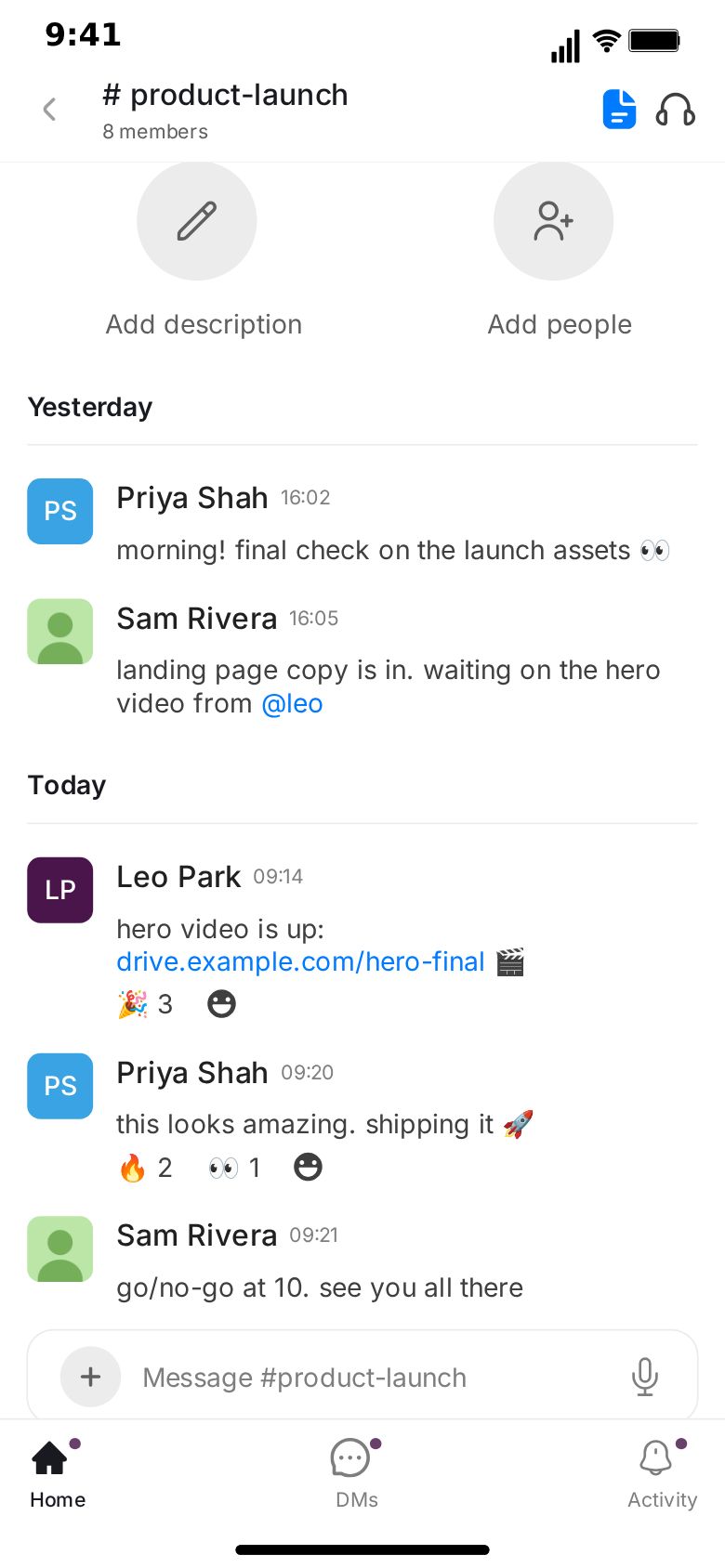
A Slack channel has a look of its own, and anyone who works in an office recognises it at once. Messages are flat rows, not bubbles. Each run starts with a rounded-square avatar, a bold name and a small timestamp, and the follow-up lines stack underneath. Reaction chips pile up under the good news, a teammate's name lights up as an @mention, and "Leo Park is typing…" sits just above the input bar while the whole channel waits. A Slack chat animation generator builds that frame from a script, so a launch-day story, a workplace skit or a product demo reads as "this happened in our team channel" from the first frame.
This guide explains what MockClip's Slack generator does, how to build a first animation in the Slack template, and where it differs from the one-to-one chat templates on the site. MockClip is an independent tool and is not affiliated with Slack.
What is a Slack chat animation generator
A Slack chat animation generator is a tool that renders a fake Slack channel as a video. You write the messages, decide which teammate sends each one, set the pauses between them and the times they show, and the generator draws the interface frame by frame: the header with the back arrow, the channel title and member count, the canvas and headphones icons, the channel itself, the input bar with its "Message #product-launch" placeholder and the tab bar along the bottom.
The difference between a generator and a screen recording is control. A screen recording of a real workspace shows real colleagues, real channel names, unread badges you forgot about and the occasional message nobody outside the company should see. A generator shows only what you scripted, in the order and at the pace you chose, at a clean vertical size that TikTok, Reels and Shorts accept without cropping. Nobody's real workspace is involved, and nothing is sent anywhere.
MockClip's Slack generator runs in the browser. There is nothing to install, the manual editor works without an account, and the export is rendered on your own machine.
What MockClip's Slack template can animate
Every element below is a real control in the editor.
- Flat Slack message rows. No bubbles: the first message of a run shows the author's rounded-square avatar, bold name and time, and later lines from the same author stack underneath. A per-message switch forces the header line back on or hides it.
- A whole team in one channel. Every message from a teammate can have its own author name and avatar. Leave the photo out and the avatar shows the author's initials on a coloured tile, the way "PS" and "LP" appear in the screenshot above.
- Your side of the channel. Your own messages use your name and avatar, set once at the top of the editor. They can be typed into the input bar first, character by character, at a speed you choose.
- Emoji reactions. Reaction chips under any message, such as "🎉 3" or "👀 1", followed by the add-reaction button. Reactions appear together with their message.
- Mentions and links. @mentions and links, whether full URLs or bare domains like docs.example.com, are drawn in the link colour.
- Date dividers. Left-aligned "Yesterday" and "Today" labels over a full-width rule. The first message is stamped "Today" automatically unless it has its own divider, and that stamp can be turned off.
- The channel's opening block. Above the first message sits the channel name, its description and the "Add description" and "Add people" buttons. Once messages fill the screen, it scrolls up and away with them. It can also be hidden.
- Typing line. "Leo Park is typing…" with animated dots appears above the input bar and always names the author of the next message.
- The Threads list and a thread view. Two extra screens with editable names, times and text, used to open or punctuate the clip.
- Screen flow with touch indicators. The clip can open on the Threads list, push into the channel, play the messages and pop back. A touch indicator shows where the finger taps before each screen change.
- Light and dark themes. The light theme follows the design; a dark theme derived from it is one checkbox away.
- MP4 or GIF export. At 720p or Full HD, 15 to 60 fps, with or without the iPhone bezel, in 9:16 vertical or a 1:1 square crop among other formats.
What the template does not do: images, files or link previews inside messages, huddles or calls as screens that play, replies inside the channel view, editing or deleting messages, the channel sidebar, search and workflows. The Home, DMs and Activity tabs at the bottom are drawn as in the design, but they are not screens you can open. If your idea depends on those, it needs a different format.
Why creators use Slack animations
Slack is where a lot of office life now happens. The launch that slipped, the meeting that should have been a message, the manager who writes "quick sync?" at 4:58 pm on a Friday: for millions of people those moments happen in a channel, not in a text thread. Putting a story inside a Slack frame tells the viewer, before they read a single line, that this is about work, about a team, and probably about something going slightly wrong.
There is a second reason. Most fake chat videos are one-to-one: two people, two bubble colours. A Slack channel is a group by nature. Four or five named teammates can react to the same message, a mention can drag someone new into the story, and a pile of reactions under a single line says more about the office mood than any caption could.
Typical uses:
- Product launch stories. The build breaks the night before, someone fixes it at 2 am, and the reactions pile up under "we're live". Founders and indie makers use this for build-in-public posts.
- Workplace skits. The 4:58 pm "quick sync?", the reply-all disaster, the intern who saves the day. Comedy that every office worker has lived through.
- Product demos and onboarding. Show how a team hands off work, announces a release or answers a customer question in a channel, without screen-recording a real workspace. The app demo video guide covers this use in more depth.
- Fiction and web series. Part of a story told through a team channel, with fictional names and avatars for every character.
If you work across platforms, the same idea can also be told one to one in the Discord template or the WhatsApp template; each has its own look and its own screens.
How to make your first Slack animation
- Open the template. Go to the Slack editor. It opens on a ready-made launch-day conversation, so you can press Play and see the whole flow before changing anything.
- Pick Describe it or the Manual editor. Describe it writes the conversation for you from a sentence, such as "the build breaks the night before launch, Leo fixes it at 2 am, the team celebrates". It needs a Google or GitHub sign-in. The Manual editor gives you every field directly and works without an account.
- Name the channel. At the top of the Manual editor, set the channel title for the header, such as "# product-launch", and the member line under it, such as "8 members". The input bar's placeholder follows the channel name.
- Set the opening block. Give the channel's opening block a name and a short description: "Everything for Thursday's launch: timelines, assets and the go/no-go call." Untick it if you want the channel to start straight on the messages.
- Set yourself. Fill in your name and, if you like, an avatar. Those are used on every message you send.
- Write the messages. Add messages, choose Me or Other for each, and type the text. For every teammate's message, fill in the author name and optionally upload an avatar. Give the first message of a run a timestamp such as "09:14".
- Add reactions and dividers. Type reactions as "🎉 3, 👀 1" under a message; a bare emoji counts as one. Type "Yesterday" or "Today" into "Date line above" to put a divider in front of a message.
- Tune the timing. Each message has a delay before it appears. Teammates' messages show the typing line for a set number of seconds first; your own can be typed into the input bar at a characters-per-second speed you choose.
- Choose the screens. In the Video flow strip, decide whether the clip opens on the Threads list, includes the thread view, or stays on the channel.
- Preview and export. Press Play, scrub through the result, then export MP4 or GIF in the format you need.
The first clip takes a few minutes. After that, a variation is a matter of changing a name, a line or a reaction count and exporting again. The step-by-step Slack tutorial walks through each control in more detail.
Writing a Slack conversation that feels real
The layout does a lot of work, but the words decide whether the viewer believes it. A few habits make a channel read as genuine.
Full names, not handles. Unlike Discord, workplace Slack usually shows real-looking display names: "Priya Shah", "Sam Rivera", "Leo Park". Lowercase gamer handles in a work channel look wrong. Use invented names, never colleagues' real ones.
Lowercase, short, a little tired. People write in Slack the way they talk in a corridor: "landing page copy is in", "go/no-go at 10. see you all there". Full formal paragraphs read like an email that ended up in the wrong app.
Mentions that move the story. "waiting on the hero video from @leo" tells the viewer who matters next, and the highlighted mention draws the eye exactly where you want it.
Reactions as a chorus. A single "🎉 3" under the announcement is the team cheering without anyone typing. A lonely "👀 1" under a risky message is the whole office holding its breath.
Times that move. "09:14" on one header, "09:20" on the reply, "09:21" on the next. A channel where every message shows the same minute looks generated.
A divider for backstory. Two messages under "Yesterday", then a "Today" divider, tells the viewer something changed overnight before anyone says what.
The channel's opening block and the screens around it
Most chat generators show only the conversation. The Slack template also draws the moments around it.
The channel's opening block is what a channel looks like when it is young: the channel name in large type, a description underneath, and the round "Add description" and "Add people" buttons. When the clip begins, it sits above the first message. As messages arrive and fill the screen, it scrolls up and out of view, exactly like a real channel filling up. For a story about a brand-new project, leaving it visible is half the setup.
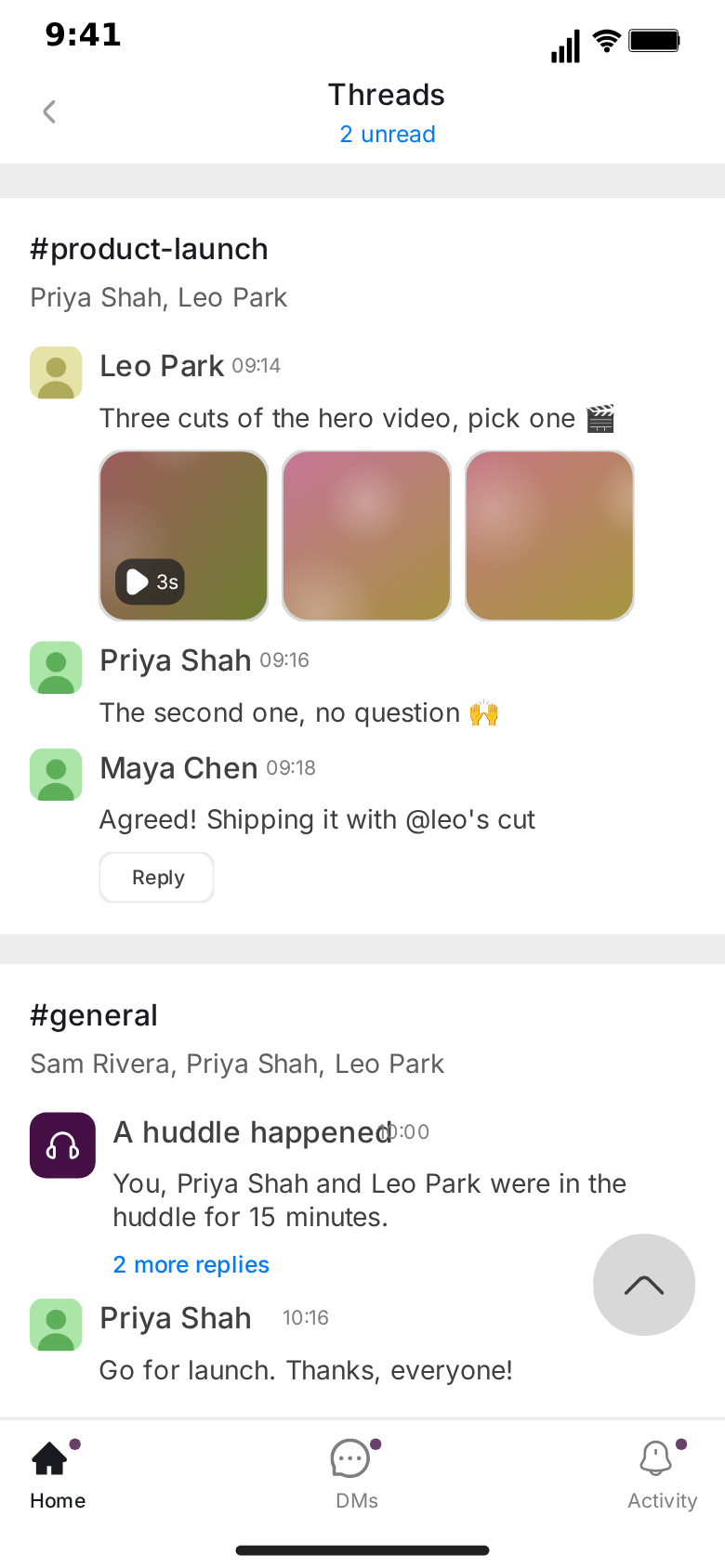
The Threads list shows channel groups with their messages, a huddle summary card and media thumbnails, as in the screenshot above. It is a natural opening shot: the viewer sees that something is happening in #product-launch, the finger taps, and the channel slides in.
The thread view shows a single thread: a huddle summary at the top, the replies with their authors and times, a red NEW divider before the unread replies and the "Add a reply" input at the bottom. It works as a cutaway in the middle of a story or as the final beat.
Both screens are edited as text fields: the names, times and messages on them are yours to change. They appear as screens in the video flow, not as animated chats. The default flow is Threads list, tap, push into the channel, play the messages, pop back. Touch indicators show where the finger taps before each screen change and can be turned off if you prefer clean cuts.
Light and dark themes
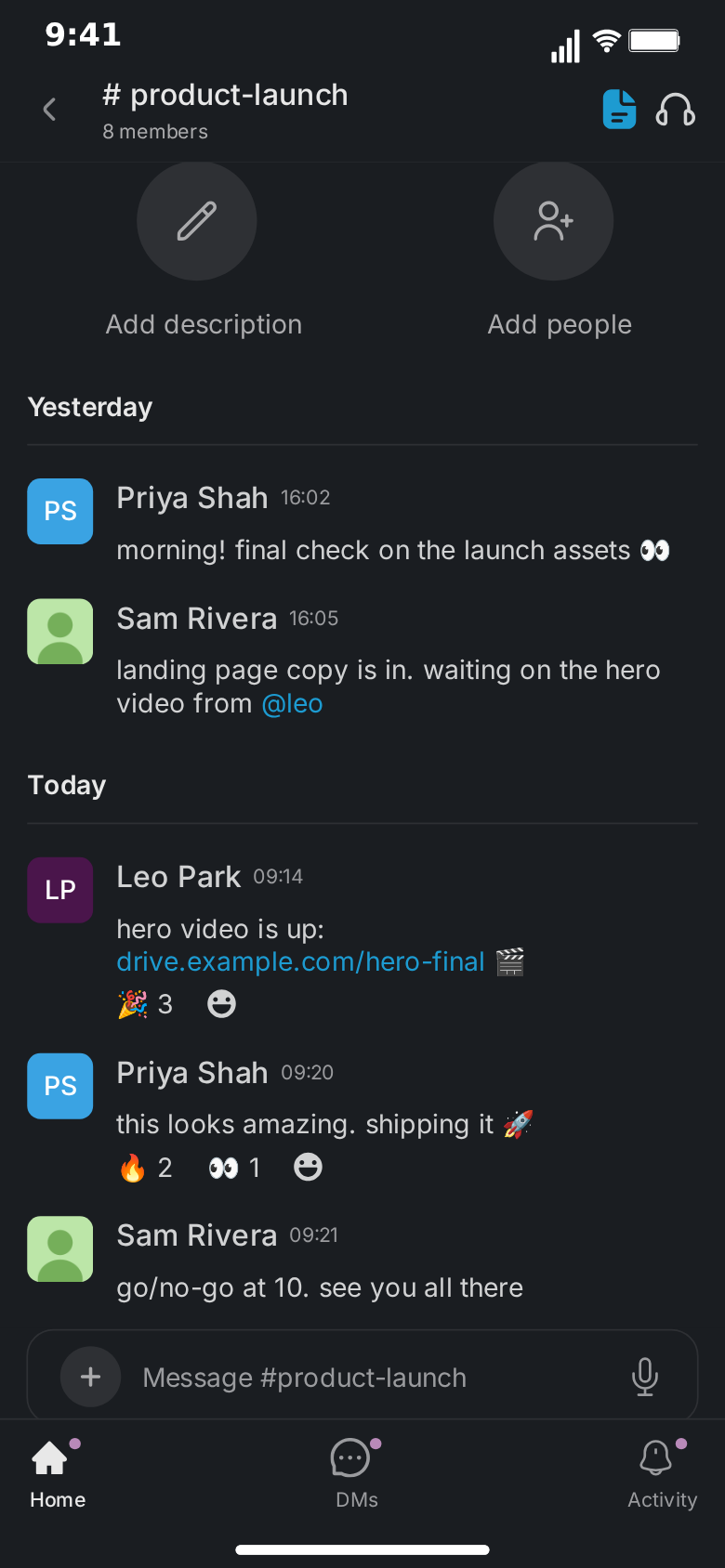
The light theme follows the design the template was built from. The dark theme is derived from it: same layout, same spacing, dark surfaces and lighter text. Light reads as daytime office work; dark reads as late-night launch prep, which makes it a good fit for the "2 am, the build is broken" story. The theme is one checkbox, so it costs nothing to export both and see which your audience prefers.
Formats and export
The template exports MP4 or GIF at 720p or Full HD, at frame rates from 15 to 60 fps. The iPhone bezel can be shown or hidden. Formats include 9:16 vertical for TikTok, Reels and Shorts and a 1:1 square crop for feeds; the guide to chat video export settings explains which to choose for each platform.
Free exports carry a small watermark. Pro removes it; the pricing page lists what each plan includes.
Generating Slack animations with AI
Two AI paths exist. Inside the editor, Describe it turns a sentence into a full channel conversation, with authors, reactions and timing drafted for you to adjust; it requires signing in with Google or GitHub, and the Describe it guide covers how the mode works across templates. Outside the editor, MockClip's MCP server exposes a create_slack_conversation tool to Claude, ChatGPT and other assistants that support MCP. The integrations page and the guide to connecting MockClip to Claude and ChatGPT explain the setup. The assistant writes the script, MockClip renders it, and you get a link that opens the finished animation ready to export.
Slack, Discord, WhatsApp or Telegram?
Pick the app your story lives in.
| If the story is… | Use | Because |
|---|---|---|
| A team, a launch, an office | Slack | Many named authors, reactions and mentions in one channel |
| Gaming, streaming, online friends | Discord | Handles, call cards and the DM list read as Discord |
| Family and friends, international | Ticks and bubbles every viewer knows | |
| Tech, crypto, channel culture | Telegram | Reply quotes and the chats list |
| A public reaction to one post | X | Counters, replies and a scrolling feed |
The chat app format guide compares the chat templates in more detail if you are unsure, and the template picker lists everything MockClip makes.
Common mistakes
Too many people too fast. A channel with six authors in six messages is hard to follow on a phone. Start with two or three characters and let the others arrive with a mention or a reaction.
Too much text per message. A message that wraps to five lines is skipped in a vertical video. Split it into a run of short lines from the same author.
No pauses. A channel where every message lands half a second after the last reads like a log file. Give the punchline a longer delay and let the typing line build tension before it.
Forgetting the opening block. If the story is "the channel we created for the launch", leave the opening block visible at the start. If the story is mid-crisis, hide it and open straight on the messages.
Real names and workspaces. Use invented people, channels and domains. The default conversation uses fictional names and example.com links for exactly this reason.
Frequently asked questions
The answers to the most common questions are in the FAQ at the top of this page: what the generator is, whether it is free, how many people a channel can hold, how the Threads list fits into the flow, dark mode, unsupported features and the AI paths.
Free to use. No sign-up. Browser-based.
Open the Slack animation generatorFrequently Asked Questions
What is a Slack chat animation generator?
A Slack chat animation generator is a browser tool that turns a scripted team conversation into a video that looks like a screen recording of a Slack channel on a phone. MockClip's Slack template draws each message as a flat row with the author's rounded-square avatar, name and time, adds emoji reactions, date dividers and an 'is typing…' line, and exports the result as MP4 or GIF.
Is MockClip's Slack generator free?
Yes. The manual editor runs free in the browser with no account required. Free exports carry a small MockClip watermark; Pro removes it. The pricing page lists the current plans.
Can several people talk in the same channel?
Yes. Every message from a teammate has its own author name and optional avatar, so one channel can hold a whole team. Without a photo, the avatar shows the author's initials on a coloured tile. Your own messages use your name and avatar.
Can the video start on the Threads list?
Yes. The default flow opens on the Threads list, taps into the channel, plays the messages and goes back. A single thread view with a huddle summary, replies and a NEW divider can be added to the flow too. Both are screens whose names, times and text you edit.
Does it support dark mode?
Yes. The light theme follows the design the template was built from, and a dark theme derived from it is one checkbox away in the editor.
Which Slack features are not supported?
Images, files and link previews inside messages, huddles or calls as playable screens, replies inside the channel view, editing or deleting messages, the channel sidebar, search and workflows are not part of the template. The Home, DMs and Activity tabs are drawn in the tab bar but are not screens.
Can I generate a Slack animation from Claude or ChatGPT?
Yes. MockClip's MCP server has a create_slack_conversation tool. Describe the channel conversation and it returns a link that opens the finished animation in MockClip, ready to export.
Related Articles
How to Make a Fake Slack Conversation Video (Free)
Step-by-step: script, time and export a fake Slack channel video in your browser, with teammates, reactions, @mentions, typing and the Threads list. Free.
Slack Channel Videos for TikTok and Shorts: Skit Guide
Turn workplace Slack skits into TikTok, Reels and Shorts videos: launch-day panic, the 4:58 pm quick sync, reply-all chaos. Scripts, timing and export tips.
Discord Chat Animation Generator: Make Fake DM Videos
Free Discord chat animation generator. Animate DMs with names, times, call cards and typing, plus the DM list and server channels. Export MP4 or GIF online.
How to Make an App Demo Video Without Coding or Screen Recording
Create a polished app demo video without writing code, recording your screen, or learning After Effects. The complete 2026 workflow.