How to Make a Fake Etsy Message Video (Step by Step)
A message between a buyer and a small shop is a short story with a clear shape: a question, a pause, an answer, a decision. This guide shows how to make a fake Etsy message video in MockClip, from the first message to the exported file, using only what the Etsy Messages template really draws.
One thing to know before you start: this is a computer template. It recreates the Messages page as it looks on a desktop site and plays the conversation inside a browser window. The clip is 16:9, the shape of a laptop screen or a YouTube video. There is no phone version of it.
MockClip is not affiliated with Etsy, and Etsy is a trademark of Etsy, Inc. The template is an independent recreation of the interface for video mockups. Use it for skits, tutorials, training and stories, keep the people and shops fictional or your own, and do not present a staged exchange as a real one.
Why an Etsy message works on screen
Most chat videos are set on a phone between friends. A shop conversation is different. One side wants something specific, the other side makes it by hand, and both are polite because money and reviews are close by. That gives you tension without anyone raising their voice.
It also gives you a ready audience. Anyone who sells handmade goods knows the custom request that keeps growing, the buyer who needs it by Friday, and the kind note that makes a slow week better. Anyone who buys from small shops knows the wait for a reply. When the page on screen looks like the one they use, they understand the scene before they read the first line.
The desktop page helps too. It shows more than a phone chat does: who the other person is, where they are and what time it is for them. Those details sit beside the thread for the whole clip, so you can set a scene without spending a message on it.
How MockClip's Etsy Messages template works
You describe the conversation in the editor on the left. The preview on the right redraws the page from that description, and the export is the same picture at video resolution, so what you preview is what you download.
The page has three parts:
- The folders on the left. The folder list is fixed scenery. You cannot rename or reorder it.
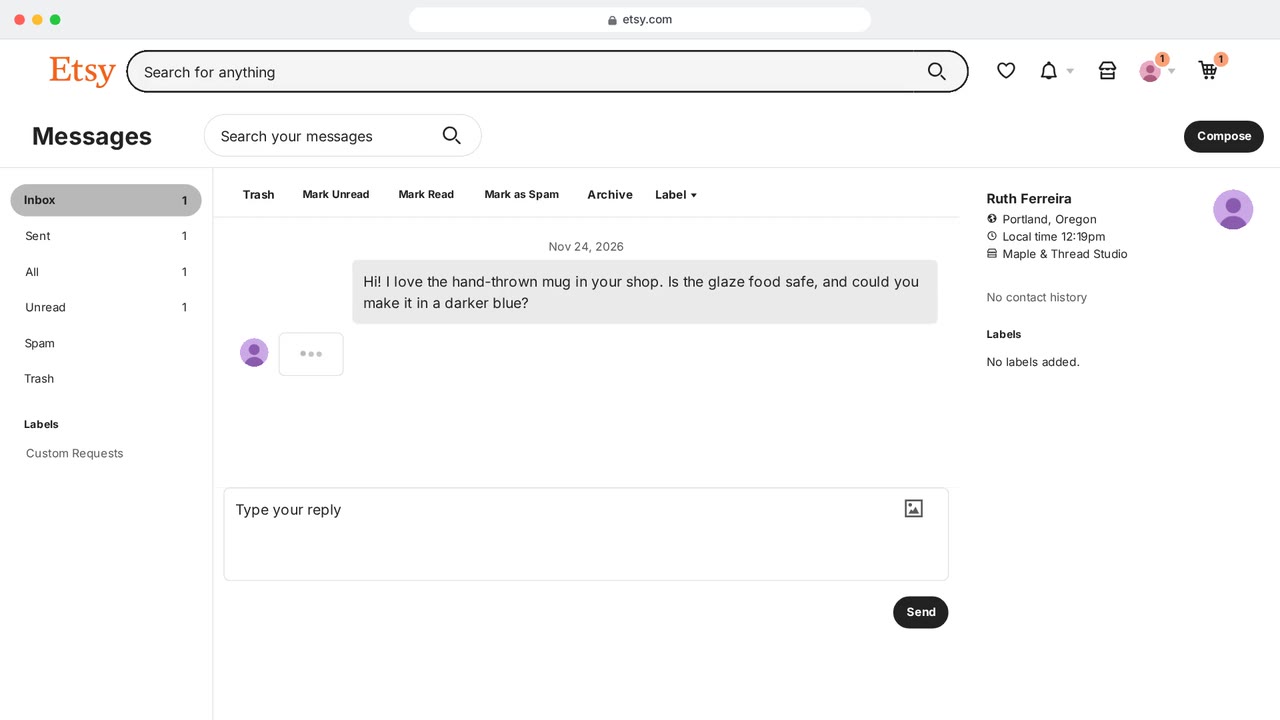
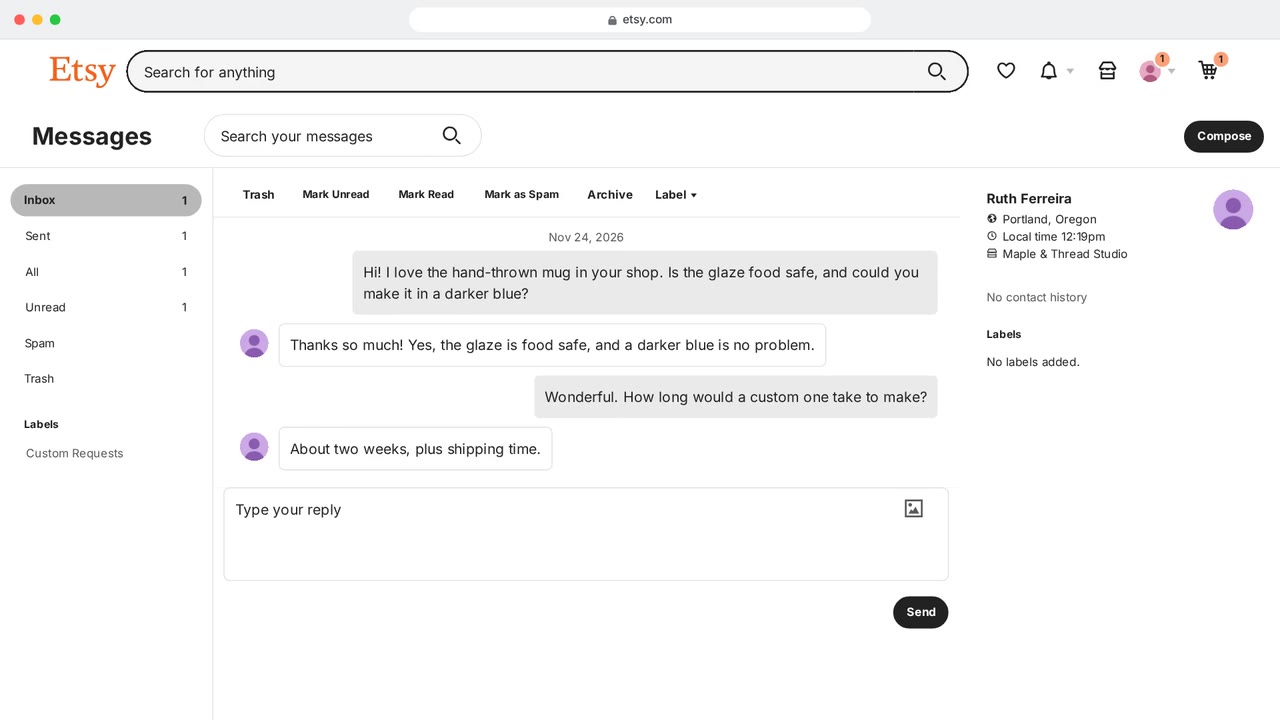
- The thread in the middle. In the light theme your messages sit on the right in grey bubbles, and the other person's messages sit on the left in white outlined bubbles, with their avatar beside the last bubble of each run. Under the thread is the reply box.
- The details panel on the right. It shows the other person's name and avatar, a location, a local time line and a shop name. All of these are editable.
Around the page is a plain browser window: three coloured dots and an address pill with the site's address. You can turn the window off and show the bare page instead.
Three things move during the clip. Your messages are typed character by character into the reply box, which wraps onto a new line before the text reaches the image button, as a real textarea does. A three-dot bubble shows in the thread while the other person is writing. And each message appears after the delay you set.
Free to use. No sign-up. Browser-based.
Open the Etsy Messages editorStep-by-step: building the conversation
Open the Etsy Messages template. We will build the clip in the video above: a buyer asks Maple & Thread Studio whether a mug's glaze is food safe and whether it can be made in a darker blue, the shop answers, and two more lines settle how long a custom one takes.
Step 1: Decide whose page it is
Every Etsy clip is shot from one person's Messages page. In the editor that person is "Me". Their messages are typed into the reply box and land on the right. The other person is named in the details panel and replies on the left.
In our clip the page belongs to the buyer, so the shop is the other person. If you want the seller's point of view, swap the roles: the seller's replies are the ones typed into the reply box, and the buyer is the name in the panel. Decide this first, because it changes who gets the typing bubble and who gets the typed reply.
Step 2: Name the other person and add an avatar
Type Ruth Ferreira into the Contact Name field at the top of the Script tab. Open Chat settings and add a picture under Contact Avatar (Optional). The avatar shows in the details panel and beside the other person's bubbles, so pick a simple, friendly image. A shop logo or a photo of a workbench both read well at this size.
Use invented names. A made-up shop with a believable name does the job, and nobody finds their real shop in someone else's skit.
Step 3: Fill in the details panel
Still in Chat settings, under The page around the conversation, fill in the three text fields:
- Business:
Maple & Thread Studio - Location:
Portland, Oregon - Local Time:
Local time 12:19pm
The Local Time field holds the whole line, so type it the way you want it to read. My Avatar sets your own picture on the page.
These three lines are quiet storytelling. A location far from the buyer hints at a long shipping time. A local time late at night tells the viewer the maker is answering after hours. Keep them consistent with what the messages say.
Step 4: Write the messages
Add lines with + My Message and + Their Message. For our clip:
- Me:
Hi! I love the hand-thrown mug in your shop. Is the glaze food safe, and could you make it in a darker blue? - Them:
Thanks so much! Yes, the glaze is food safe, and a darker blue is no problem. - Me:
Wonderful. How long would a custom one take to make? - Them:
About two weeks, plus shipping time.
Four messages make a clip of about 14 seconds. If a line is in the wrong place, drag its card to reorder it. If you gave a line to the wrong side, switch it between Me and Other on the card itself.
Notice that the first message is long. On a desktop page that is fine, and it is how people write to shops: a greeting, a compliment and two questions in one go. A long first message also gives the reply box time to show its wrapping.
Step 5: Set the date line
The option Date line above the first message in Chat settings is on by default, so the thread opens under a date. Open the first message and type Nov 24, 2026 into Date line above. The date appears centred above the bubble.
The bubbles themselves carry no time, so the date line is where the clip keeps its calendar. Any later message can have a date line of its own. That is how you show a reply that came the next morning, or an update a week later. For a one-sitting conversation like ours, one line above the first message is enough.
Step 6: Time the typing and the delays
Each message has a Delay Before (s). Half a second keeps a conversation moving. Use a longer delay when a pause means something, such as the wait before an awkward answer.
For the other person's messages, set Typing Duration (s). The three-dot bubble shows for that long before the message lands. Around 1.4 seconds suits a short answer. Give a longer or more careful answer 2 seconds or more.
For your own messages, tick Show typing in input field and set Typing Speed (chars/sec). The demo uses 22. At that speed the 108-character opening question takes about five seconds to type, which is long enough for a viewer to read along. If your opening message is longer, raise the speed rather than letting the first ten seconds be typing.
Step 7: Choose the look
Open the Scene & look tab. Pick the light or dark theme, and decide whether to keep Show Browser Window ticked.
Keep the browser window when the clip stands alone or sits in a tutorial, because the window frame tells the viewer they are looking at a website. Turn it off when the clip goes into a slide or a wider edit that already has its own frame, so you do not get a frame inside a frame.
Step 8: Preview and export
Play the preview from the start and read every line at the speed it appears. If you cannot finish a message before the next one arrives, add delay after it. Then export as an MP4 or a GIF.
The export is 720p on the free plan, at 15 to 30 frames per second, with a small watermark. Full HD and watermark-free export start with the Pro plan, and 60 fps is on the Creator plan. The pricing page has the current plans.
Drafting the clip with Describe it
If you would rather start from a sentence than from an empty editor, use Describe it, the default panel on the template's page. Type something like a buyer asks an Etsy seller how long a custom print would take to make, and the AI drafts the messages and their timing. You then edit the result in the manual editor like any other clip.
Describe it writes the script. It does not draw anything: the page is rendered the same way whether you typed the messages or the AI did. It requires signing in with Google or GitHub, while the manual editor works without an account. The Describe it guide covers how to refine a draft.
Five Etsy conversation patterns that work
- The custom request. A buyer asks whether an item can be changed: a colour, a size, a name on it. The shop says yes and gives a making time. This is the pattern in the demo, and it is the easiest one to keep warm and short.
- The request that keeps growing. Each buyer message adds one more change. The shop's replies get shorter. End on a patient reply that sets a limit.
- The deadline. The buyer needs it for a birthday. Use a date line on the first message, another on the reply the next day and a third near the deadline. The dates carry the tension.
- The honest no. The buyer asks for something the maker cannot do well. The shop says so and suggests what it can do instead. This one works as a lesson for new sellers.
- The kind note. A buyer writes after the item arrives to say what it meant to them. One long message, one short grateful reply. Use it to open or close a video about running a small shop.
For full scripts in each of these directions, see Etsy message video ideas for sellers.
Writing messages that sound like a shop conversation
Messages to a shop read differently from texts between friends. A few habits keep the dialogue believable:
- Open with a greeting and a reason. Buyers usually say hello and name the item before they ask.
Hi! I love the hand-thrown mug in your shop.is how these threads really start. - Ask two things at once. People writing on a computer bundle their questions. One long message with two questions feels more real here than two short bubbles.
- Let the seller be specific.
About two weeks, plus shipping time.is better thansoon. Makers know their timings, and specific answers make the shop feel real. - Keep the tone polite on both sides. Even a difficult buyer is usually civil in writing. The comedy or the tension comes from what is asked, not from insults.
- Write full sentences. A desktop message has capital letters and punctuation. Save the lowercase one-word replies for phone chats.
- Leave out anything the template cannot show. There are no photos, files or links that open, so do not write
see the attached photo. Describe the thing in words instead.
Using date lines to tell a story over several days
The date line is the template's one tool for time, and it does a lot of work.
A single line above the first message says the conversation happened in one sitting. Add a second line above a later message and the gap between the two dates becomes part of the story: the buyer wrote on the 24th, the shop answered on the 25th. The viewer does the arithmetic without being told.
The field takes any short text. Nov 24, 2026 reads as a calendar date. Today reads as a live conversation. A time such as 11:40 works when the whole thread happens in one morning and you want to show the wait between two messages.
Two rules keep it tidy. Use one format for the whole clip, and do not put a line above every message. A thread with three date lines reads as three days. A thread with eight reads as clutter.
What the template does not do
Knowing the limits saves you from writing a script the page cannot play.
- It is a one-to-one text conversation. There are no group threads.
- There are no photos, files, voice notes, reactions or stickers in the thread, and no links that open.
- The folder list and the rest of the page around the thread are fixed. You edit the conversation and the details panel, not the scenery.
- The browser window is a frame, not a working browser. There are no tabs, no page scrolling and no clicking.
- The clip is 16:9 only. There is no vertical or square version, no camera scene behind the window and no on-screen keyboard.
- There are no order, checkout or review screens. The template shows the Messages page and nothing else.
Using the clip on YouTube, in slides and in vertical videos
A 16:9 clip fits a YouTube video, a webinar or a presentation without cropping. That is where this template is most at home: a tutorial on answering custom requests, a talk about running a handmade shop, a training deck for a small team.
For TikTok, Reels and Shorts, be realistic. The clip is landscape and stays landscape. The usual approach is to place it inside a vertical edit in your own video editor, for example as the top half of a split screen with you talking underneath, or zoomed in on the thread so the bubbles are large enough to read on a phone. Turn the browser window off first if you only want the bare page in that edit.
If the story does not need to be on this exact page, a phone template gives you a native vertical clip. The Facebook Marketplace template is a buyer and seller chat about one listing on an iPhone, and the Vinted template covers the browse-and-save side of second-hand selling. For frame rates and formats in general, see the export settings guide.
Generating the same video from Claude or ChatGPT
If you would rather describe the conversation than click through the editor, MockClip's MCP server has a create_etsy_message_conversation tool. It takes the contact name, the theme, up to twenty messages with their delays, typing settings and date lines, and the page details: shop name, location and local time. It returns a link that opens the finished animation in MockClip. Say which theme you want when you ask, and check the clip in the preview before you export.
Keeping it honest
A recreated page can look convincing, so a few rules matter here more than with a cartoon:
- Do not use a real shop's name, a real person's name or a real person's photo without their agreement.
- Do not present a staged conversation as a real one. Say in the caption or the voiceover that it is a re-creation or a dramatisation.
- Do not use a clip as evidence of anything: not of an order, a payment, a complaint or a review.
- For paid ads or work you make for a client, the terms say to use a brand-free template rather than one that recreates a real company's design. The brand-free text chat is the place to start, and the pricing page says which plan covers that use.
Common mistakes to avoid
- Starting with a wall of typing. A very long first message at a slow typing speed means nothing happens for ten seconds. Raise the speed or shorten the line.
- Forgetting whose page it is. If the seller is "Me" in half the clip and the buyer in the other half, the bubbles swap sides and the panel describes the wrong person.
- A panel that contradicts the script. A shop in Portland should not say
we ship from London tomorrow. - A date line on every message. Use them only where a new day starts.
- Promising photos.
Here's a picture of the glazefollowed by no picture looks like a bug. Describe the colour instead. - Planning a vertical export. There isn't one. Plan the vertical edit in your video editor from the start.
Quick start
- Open the Etsy Messages template.
- Decide whose page it is: buyer or seller.
- Contact name, avatar, then Business, Location and Local Time.
- Four to six messages with + My Message and + Their Message.
- A date line above the first message, and above any message where a new day starts.
- Delays, typing durations, and typing in the reply box for your own lines.
- Theme, browser window on or off.
- Export MP4 or GIF at 16:9.
Related MockClip templates and guides
- Etsy Messages maker — the template used in this guide
- Etsy message video ideas for sellers — scripts for tutorials, training, order stories and scam awareness
- Airbnb Messages maker — another desktop page in a browser window, for host and guest conversations
- Facebook Marketplace chat video maker — a buyer and seller chat on a phone
- Shopify notification video maker — order banners for shop-owner videos
- Fake chat video maker free — cross-platform overview
- Connect MockClip to Claude or ChatGPT — MCP setup
- Pricing — plans, Full HD and watermark-free export
Frequently Asked Questions
What is the easiest way to make a fake Etsy message video?
Open MockClip's Etsy Messages template in the browser, name the other person, write the messages for both sides, set the delays and typing times, then export an MP4 or a GIF. The manual editor works without an account.
Will the clip look like the Etsy Messages page?
It draws the Messages page at desktop width inside a plain browser window: the folders on the left, the thread in the middle and the other person's details on the right. It is an independent recreation for video mockups and MockClip is not affiliated with Etsy.
Can I export the Etsy clip as a vertical video?
No. The template draws a desktop page, so the clip is always 16:9. For TikTok, Reels or Shorts, place the landscape clip inside a vertical edit in your own video editor, or use one of MockClip's phone templates for a native vertical chat.
Which parts of the page can I change?
The conversation, the other person's name and avatar, your own avatar, and the shop name, location and local time in the details panel. The folder list and the rest of the page are fixed.
Can I send photos, files or links in the conversation?
No. The template is a one-to-one text conversation. Photos, files, voice notes, reactions, stickers and links that open are not part of it, so write the story in words.
Is it OK to make a fake Etsy conversation?
For skits, tutorials, training and storytelling, yes. Do not impersonate a real shop or buyer, do not present a staged exchange as real, and never use the format as proof of an order, a payment or a review.
Can I make it from Claude or ChatGPT instead of the editor?
Yes. MockClip's MCP server has a create_etsy_message_conversation tool that accepts the same contact, messages, date lines and page details and returns a link to the finished animation.
Related Articles
12 Etsy Message Video Ideas for Sellers and Small Shops
Twelve Etsy message video ideas for sellers: shop tutorials, customer-service training, order stories and scam awareness, each with a script and timing notes.
How to Make a Fake Facebook Marketplace Chat Video (Free)
Step-by-step: build a fake Facebook Marketplace chat video in your browser, from the home screen and category grid to the listing, the offer and the haggle.
How to Make a Fake Vinted Listing Video (Free, in Browser)
Step-by-step: build a fake Vinted listing video in your browser, with listing cards that scroll, a heart that pops red and the item page. Free, exports MP4.
Fake Shopify Notification Video Maker: "New Order" Banners
Make a Shopify "New order" notification video: banners sliding in on an iPhone lock screen, one after another, with green screen and transparent export.
Fake Chat Video Maker Free: Create Text Conversation Videos
Free fake chat video maker for TikTok and Reels. Create realistic animated text conversations with iMessage, WhatsApp, and Instagram DM interfaces in minutes.