How to Make a Fake Facebook Marketplace Chat Video (Free)
MockClip's Facebook Marketplace template turns a listing and a conversation you write into an animated iPhone screen. The clip can start on the Marketplace home, open a category grid, flash a colour filter, land on the listing page with the seller's details, and tap Message to open a Messenger-style chat about the item. In the chat the listing stays pinned under the header, your messages type into the input bar while the keyboard slides up, the seller answers after a three-dot typing bubble, and an offer can go out as a card with the amount on it.
This guide goes through the whole process, from the default clip to an exported MP4. The first clip takes about ten minutes; once you know the editor, a new one takes two or three. There is a short checklist near the end you can follow every time.
Everything in the clip is yours: the seller's name, the item, the price, every message and every photo. Nothing is read from or sent to Facebook, and MockClip is not affiliated with, endorsed by or sponsored by Meta Platforms, Inc. The browse screens follow a community design kit of the app, not every detail of the current Facebook release. Use the template for skits, explainers, tutorials and storytelling, and keep the people and listings fictional or your own.
What the template draws
The video is built by putting screens in order, so it helps to know which screens exist before you start.
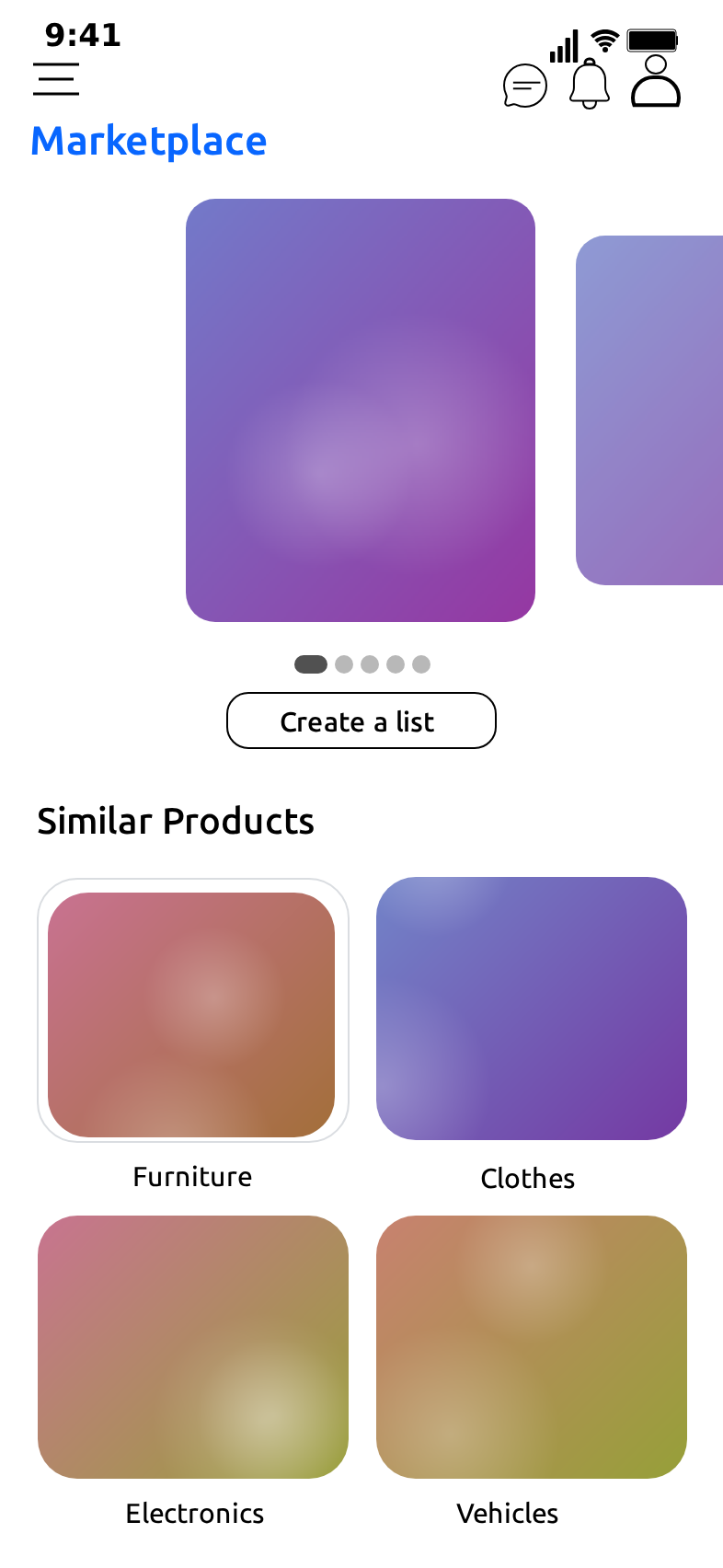
- Marketplace. The Marketplace home: a header, a carousel, a Create a list button and a Similar Products section with four category tiles. Each tile has a title and a photo. The first tile is the one the video taps.
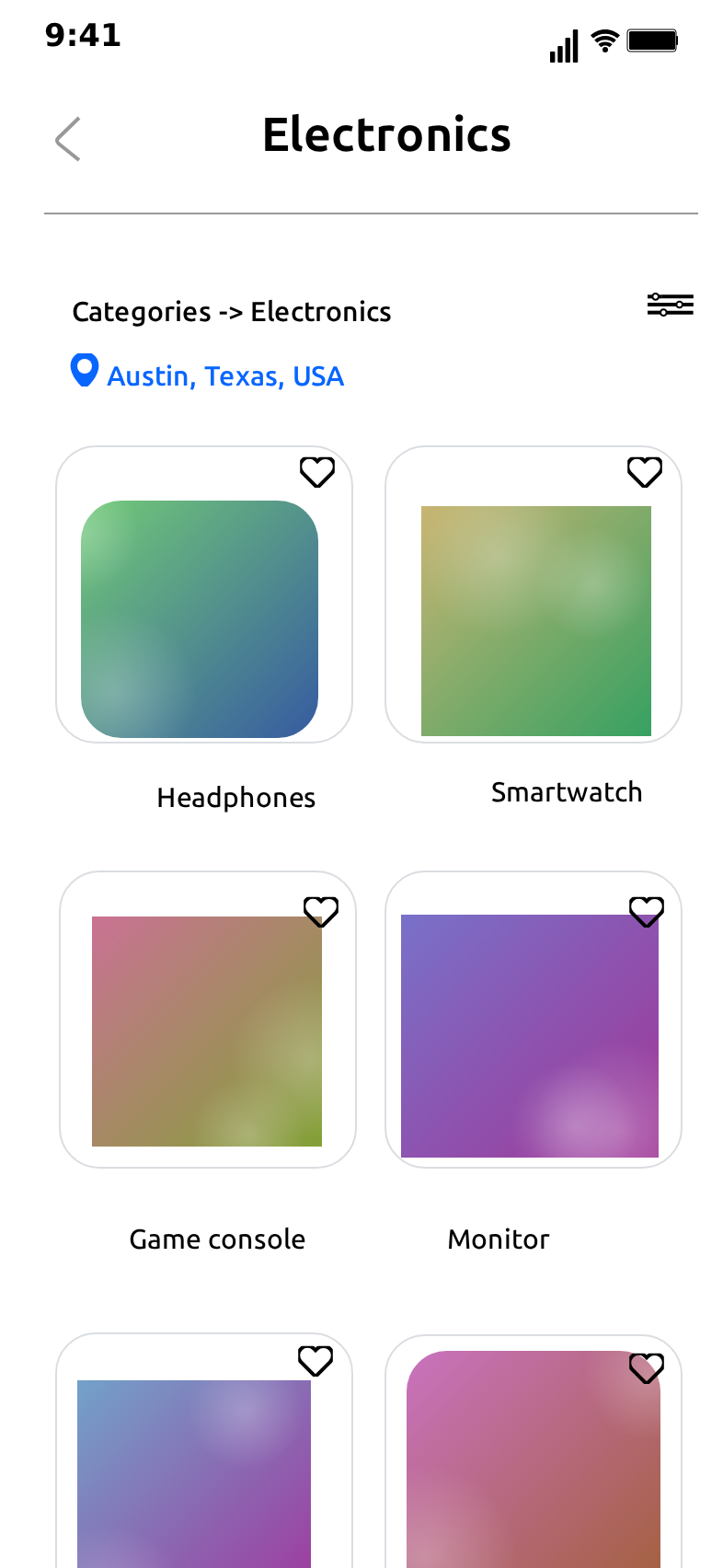
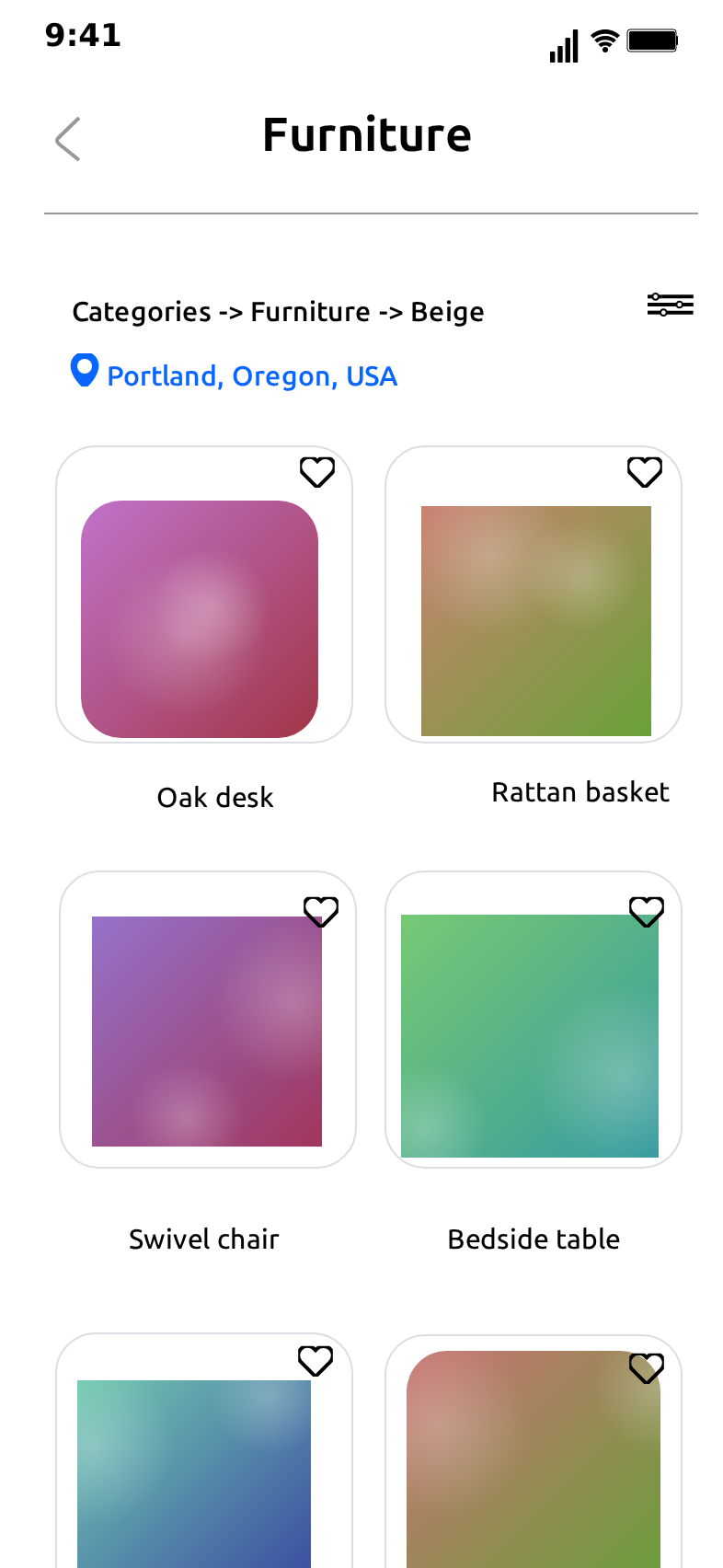
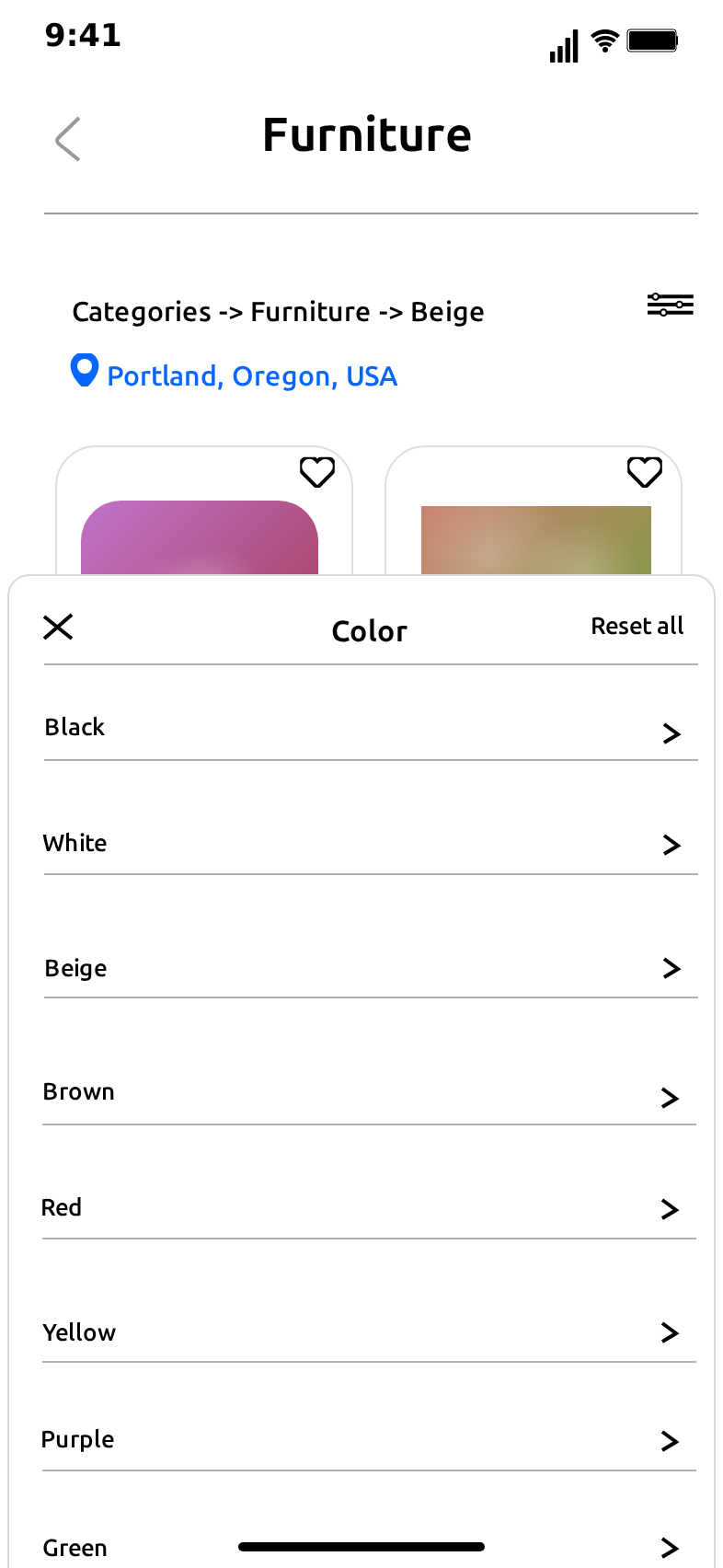
- Category. The grid for one category: the category name as the page title, a breadcrumb line, a location line with a pin, a filter button and six item cards, two by two, each with a photo, a title and a heart. The first card is the one the video opens.
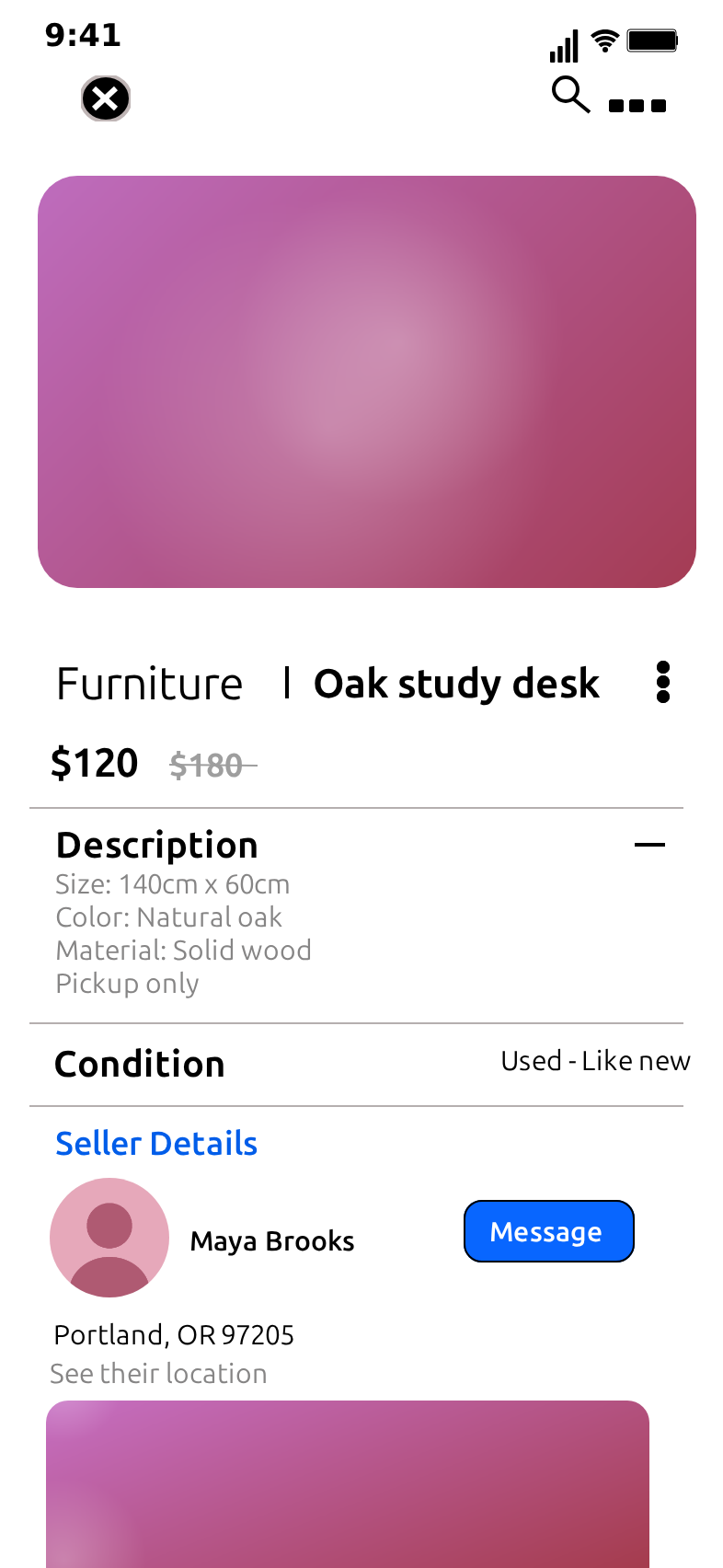
- Listing. The item page: a large photo, the category name and the item title on one line, the price with the old price struck through, a Description block, the Condition row, Seller Details with the seller's avatar, name and a Message button, and the location.
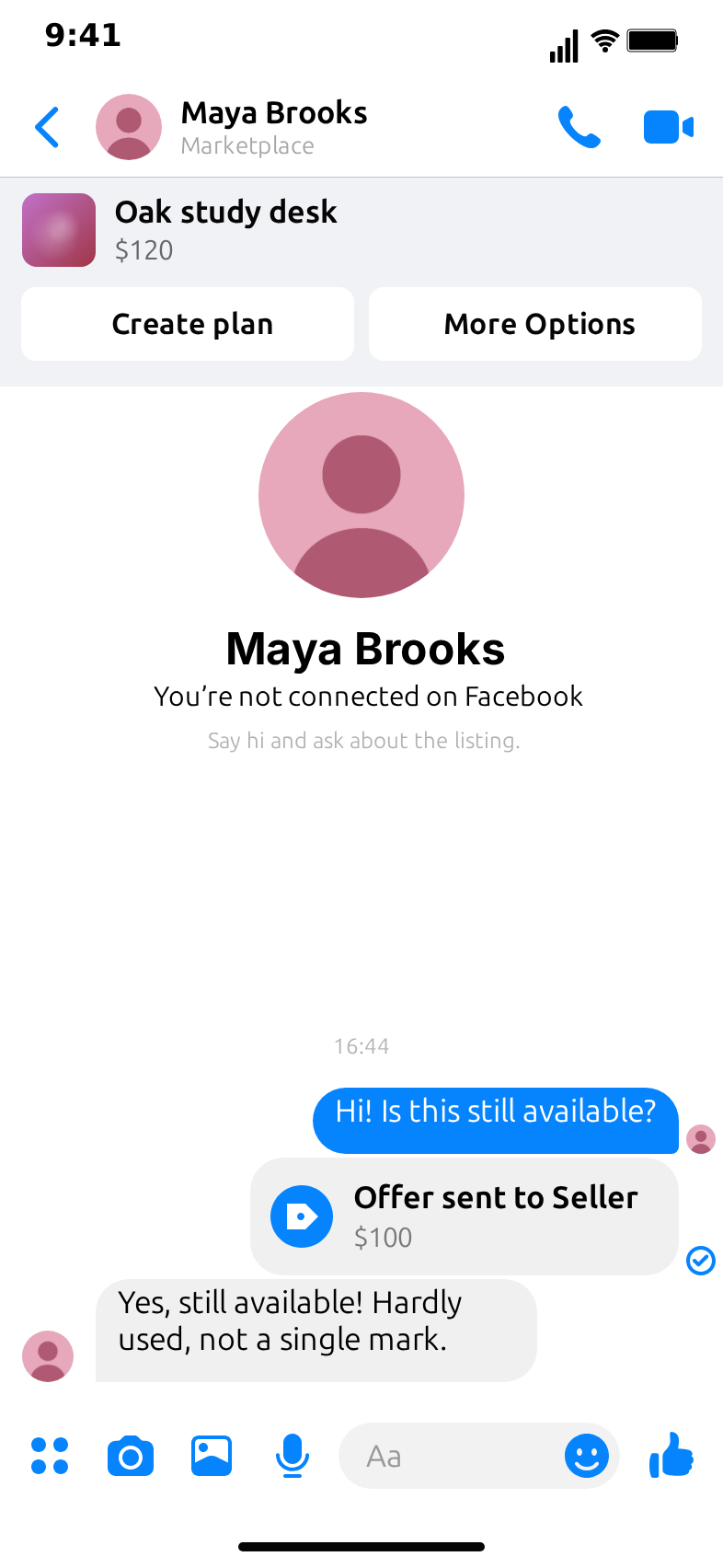
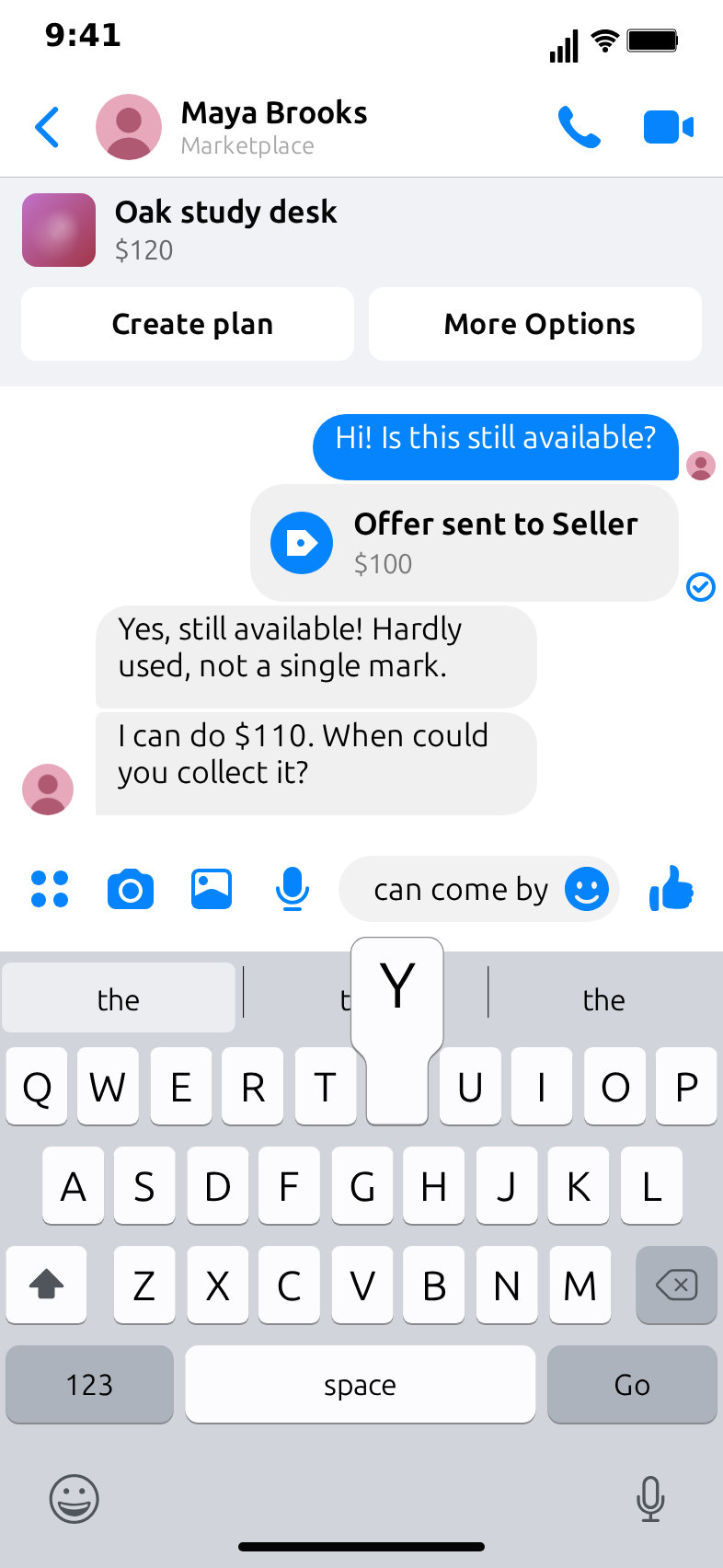
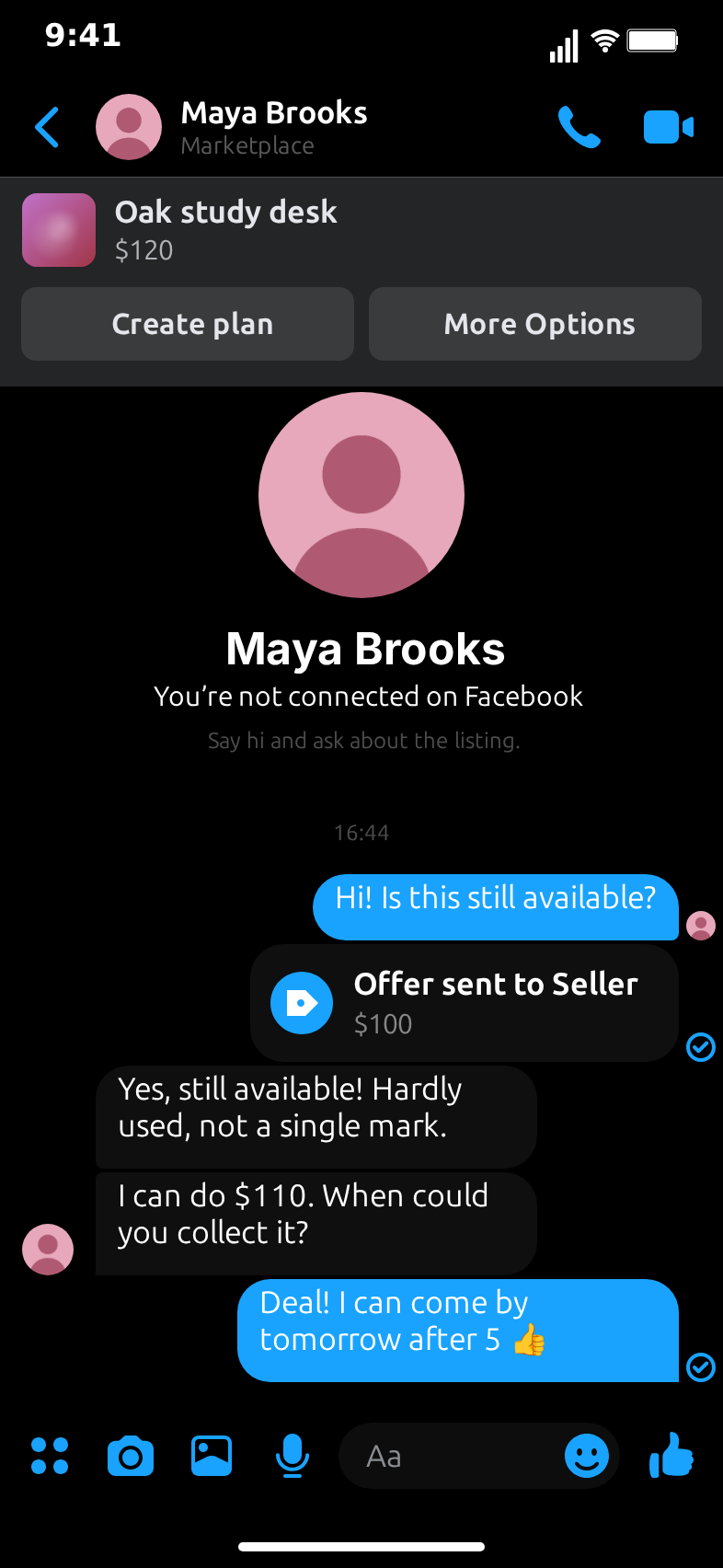
- Chat. A Messenger-style thread with the seller. Under the header sits the listing banner (photo, title, price, and Create plan and More Options buttons drawn as designed). Above the first message is the seller's opening block: a large avatar, the seller's name and two short lines.
- Colour filter and Price filter. Sheets that slide up over the category grid.
There is a light theme and a dark theme. The dark theme turns the screens black, keeps the blue accents and draws your bubbles in blue on black.
Step 1: Open the template and pick a category
Go to mockclip.com/app/facebook-marketplace. The editor opens with a default clip: a buyer browses Furniture, flashes the colour filter, opens an oak study desk listed at $120, taps Message and haggles with the seller, Maya Brooks, over an offer of $100. Press Play under the preview to watch it once. It runs a little over twenty seconds.
At the top of the editor you choose between Describe it, which drafts a clip from one sentence, and the manual editor. This guide uses the manual editor, which works without an account. Describe it is covered near the end.
Under the screen tabs (Chat, Marketplace, Category, Listing, Colour filter and Price filter) and the Video flow strip, the settings start with a Category picker. It offers four ready-made examples:
- Furniture: the default desk listing.
- Electronics: a pair of headphones, with a grid of headphones, a smartwatch, a game console, a monitor, a tablet and a speaker.
- Clothes: a suede jacket, with sneakers, a handbag, a summer dress, denim jeans and a wool coat.
- Vehicles: a 2016 hatchback, with a road bike, a scooter, a pickup truck, a motorbike and an SUV.
Picking one replaces the home tiles, the category page, the listing, the seller's name, the conversation and the video flow with that example. Everything stays editable afterwards, so the quickest way to a new clip is usually to pick the closest example and change what you need. If none of them fits, keep any of them and rename the category yourself in Step 2.
Step 2: Set up the home tiles and the category page
Click the Marketplace tab. The Tiles list holds up to four category tiles, in order: top left, top right, bottom left, bottom right. Each tile has a title and a photo you can upload. The first tile is the one the video taps on its way into the category, so put the category your clip is about first.
Click the Category tab. Here you set:
- Name. The page title, such as "Electronics", "Garden" or "Baby gear". The same name appears on the listing page before the item title.
- Breadcrumb. The small line under the title, for example "Categories -> Electronics" or "Categories -> Clothes -> Beige".
- Location. The blue line with the pin, written the way the app would show it: "Austin, Texas, USA".
- Items. Up to six cards, two by two. Each card has a title and a photo. The first card is the listing the video opens, so make it the item you write about in the chat.
Keep card titles short. "Headphones" or "Road bike" sits neatly under the photo, while a long sentence will crowd the card. The default photos are soft colour gradients, so no real product or brand shows by accident. If you upload your own, use photos of your own items or photos you have the rights to.
Step 3: Write the listing
Click the Listing tab. The listing fields are:
- Title. The item's name, such as "Oak study desk" or "Headphones". It sits after the category name in large bold type. A title that runs into the menu button at the right ends with an ellipsis, so shorter is better.
- Price and Old price. Free text, written exactly as it should appear: "$120", "€85", "£40". The old price is drawn struck through after the price. Leave it empty if there was no reduction.
- Description. A few short lines: size, colour, material, how to collect. One fact per line reads like a real listing.
- Condition. The value on the Condition row, for example "Used - Like new" or "Used - Good".
- Location. The line under the seller, for example "Portland, OR 97205".
- Photo. The large photo at the top of the listing page.
The same listing fills the banner pinned in the chat, so the title, price and photo the buyer sees in the chat always match the page they came from. Change them once and both screens follow.
The seller's name and avatar sit in the settings at the top of the editor (the contact name and avatar). They appear in Seller Details on the listing page, in the chat header and in the opening block.
Step 4: Write the haggle
Click the Chat tab. At the top is the opening block: tick or untick "Show the opening block above the first message" and edit its two lines. The default reads "You're not connected on Facebook" and "Say hi and ask about the listing."
Below it is the message list. "Me" is the buyer; "other" is the seller. For each message you can set:
- Text. What the message says.
- Typing. Your messages can type into the input bar letter by letter before they send. The seller's messages wait behind a three-dot typing bubble for the typing duration you set.
- Delay before. A pause before the message starts, for timing jokes and hesitations.
- Delivered and read. Your messages can get a delivered check and, once read, the seller's mini avatar, each with its own delay.
- Time line. A centred time stamp above a message, such as "16:44". The first message always gets one.
- Offer card. Tick "Offer card" to turn a message into a card with an icon, a title and a detail, for example "Offer sent to Seller" and "$100". A card from you sits on the right; a card from the seller sits on the left. Leave its text empty.
A haggle usually needs four to six messages: the opening question, the offer card, the seller's answer and counter, and the reply that closes the deal (or doesn't). Keep each message to one or two short lines, as people do in the real app. Long paragraphs slow the clip down and are hard to read on a phone.
Step 5: Plan the browse in Video flow
The Video flow strip at the top of the editor lists the steps the video walks through. The default flow is:
- Marketplace, held for 1.5 seconds.
- Category, pushed in, held for 1.2 seconds.
- Colour filter, sliding up as a sheet, held for 1.2 seconds.
- Category again, the sheet dismissed, held for 0.8 seconds.
- Listing, pushed in, held for 1.8 seconds.
- Chat, pushed in. The conversation plays here.
Each step has a transition (push, pop, sheet or dismiss) and a hold time. A small touch indicator shows where the finger taps before each move: on the first home tile, on the filter button, on the first card and on Message. Switch the touch indicators off in the flow settings if you prefer a cleaner look.
Shorten the flow for a faster clip. Listing then Chat is enough when the punchline is in the messages. Drop the colour filter step when the category isn't about colours: the Electronics and Vehicles examples skip it. For a longer story, add a Price filter step, or go back from the chat to the listing with a pop.
Step 6: Choose the theme, the keyboard and the frame
In the settings:
- Theme. Light or dark. Dark suits late-night stories; light reads better on bright feeds.
- Keyboard. Auto slides the keyboard up while your messages type and down when they send. Always keeps it up; never hides it.
- Frame. Show the iPhone frame or not, and choose vertical 9:16 for TikTok, Reels and Shorts, or a 1:1 crop for feeds.
Step 7: Preview and export
Press Play to watch the whole clip. Check that each hold is long enough to read, that the touch indicator lands on Message before the chat opens, and that the last message stays on screen long enough at the end.
Then export as MP4 or GIF at 720p or Full HD, at 15, 24 or 30 frames per second. Exports on the free plan carry a small watermark. Paid plans remove it and add transparent and higher frame rate exports; the pricing page has the details.
Using Describe it instead
If you would rather not fill every field by hand, use Describe it, the AI panel at the top of the editor. Write one sentence about the clip, for example "I browse electronics on Marketplace, open a pair of headphones, send an offer and the seller counters". MockClip's AI drafts the category, the tiles, the listing, the messages, the offer card and the flow, and you can edit every field afterwards. Describe it needs a Google or GitHub sign-in to MockClip; the manual editor does not.
The guide to Describe it explains how it works, and the prompt ideas for TikTok and Shorts collect sentences that give good first drafts.
A checklist for every clip
- Pick the closest category example, or rename the category.
- Put the category your clip is about on the first home tile, and the item it is about on the first card.
- Write the listing: a short title, the price and an old price if there was a reduction, three or four description lines, the condition and the location.
- Set the seller's name and avatar, and decide whether the opening block shows.
- Write four to six messages, with one offer card where the haggle starts.
- Trim the Video flow to what the story needs, and check the hold times.
- Pick the theme, the keyboard mode and the frame, press Play, then export.
Common questions
Can I write my own category? Yes. Type any name on the Category tab, such as "Garden", "Toys" or "Baby gear", then edit the breadcrumb, the location, the six cards and the home tiles to match.
Can there be more than six cards? No. The grid has six slots, like the design it follows, and the home screen has four tiles. The editor stops adding rows once they are full.
Why does the video always open the first card? The flow taps the first card on its way to the listing, so the listing page you write belongs to that card. Reorder the cards to choose which one the buyer opens.
Can I show photos inside the chat? No. The thread shows text messages and offer cards between the buyer and one seller. Photo messages, group chats, reactions and voice notes are not part of this template.
Do the Create plan, More Options and Message buttons do anything? They are drawn as part of the screens. The Message button is where the touch indicator taps before the chat opens; none of the buttons opens anything else.
Related templates
If the deal moves into a regular chat, the Messenger template and the WhatsApp template cover conversations without a listing. For browsing second-hand fashion, the Vinted template draws listing cards that scroll and hearts that pop. The next posts collect Facebook Marketplace skit ideas and show how to make a Marketplace scam awareness video with fictional chats.
Free to use. No sign-up. Browser-based.
Make a fake Facebook Marketplace chat videoFrequently Asked Questions
How do I make a fake Facebook Marketplace chat video?
Open MockClip's Facebook Marketplace template, pick a ready-made category or write your own, fill in the listing and the seller, write the messages for both sides and add an offer card if you want one. Arrange the home, category, listing and chat screens in Video flow, then press Play to preview and export an MP4 or GIF.
Can I use categories other than furniture?
Yes. Start from the Furniture, Electronics, Clothes or Vehicles example, or rename the category and edit its home tiles, breadcrumb, location and up to six item cards yourself. The listing page shows the same category name next to the item's title.
Does the listing in the chat match the product page?
Yes. The banner pinned under the chat header and the listing page read the same title, price and photo, so you change them once and both screens update.
Can the seller make a counteroffer?
Yes. Any message can be an offer card with its own title and amount. Your cards sit on the right and the seller's on the left, and ordinary messages around them carry the back-and-forth.
Do I need an account?
No. The manual editor works without signing up and exports with a small watermark. Describe it, the AI option that drafts a clip from one sentence, needs a Google or GitHub sign-in. See the pricing page for what each plan adds.
Is this connected to Facebook?
No. Every listing, message and photo is something you type or upload in the editor. Nothing is read from or posted to Facebook, and MockClip is not affiliated with Meta Platforms, Inc. Use fictional people and items, or your own.
Related Articles
12 Facebook Marketplace Skit Ideas for TikTok and Reels
Twelve Facebook Marketplace skit ideas, from the lowballer to the test-drive no-show, with timing notes and the clip settings to build each one in your browser.
How to Make a Marketplace Scam Awareness Video (Free)
Make short safety videos that show common Facebook Marketplace scam red flags as fictional chats, each ending on the safe reply. Free, exports MP4.
AI Fake Chat Video Generator: Describe It, Get the Clip
Type what the clip should be and MockClip's Describe it mode writes the messages and timing for WhatsApp, iMessage, ChatGPT, Tinder and more. Refine by second.