Fake Shopify Notification Video Maker: "New Order" Banners
Every store owner knows the feeling of a phone lighting up with "New order". It has become shorthand for a business that works, which is why the banner turns up in so many videos: launch-day vlogs, side-hustle skits, packing-table montages and product ads. A screenshot shows one sale. A video shows them arriving, one after another, with the small pause in between that makes each one feel like news.
MockClip's Shopify notification template animates exactly that moment. You write the orders, set when each one lands, and export a clip of the banners sliding in on an iPhone: on a lock screen, on a flat colour, on a green screen or on a transparent background you can drop over your own footage.
This guide covers what the template draws, how the timing works, which background to pick for which kind of video, how to write order lines that read naturally, and how to export for TikTok, Reels, Shorts and video editors. It also covers the part that matters most with this format: using it honestly.
What the template draws
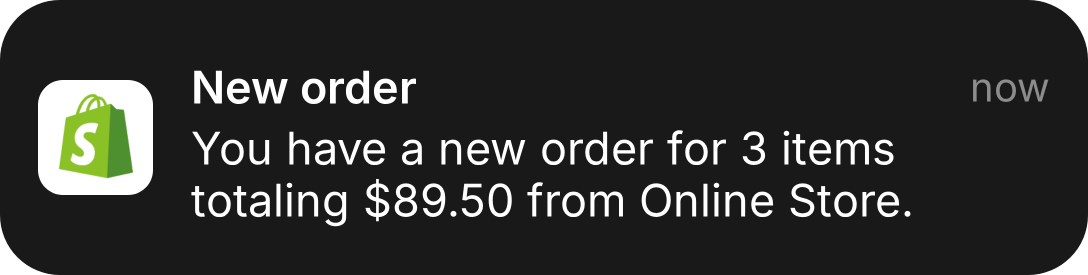
Each banner follows the iOS notification layout the Shopify app uses on an iPhone:
- The Shopify bag icon on a white rounded tile on the left.
- A bold title. "New order" is the classic, but any short title works: "Order #1042", "New order (2)", "Back in stock request".
- The time on the right. The default is "now", but it is free text, so "2m ago", "Sat 7:32 PM" or "yesterday" all work.
- The message underneath. It wraps onto up to four lines; anything longer is cut off with an ellipsis, the way a real banner truncates a long preview.
The banner comes in a dark and a light version. Dark is the default and looks right on most wallpapers and on bright footage. Tick Light Theme for a white banner, which suits dark wallpapers or a phone in light mode.
What the banner does not include is just as useful to know before you plan a video. There are no product images, no customer photos and no custom app icon: every banner carries the same Shopify bag icon. The text you type is the whole content of the banner, so the title, the time and the order line are where the story lives.
How banners arrive
Banners play one at a time. Each one slides down from the top of the screen, stays for its on-screen time and then leaves, either by sliding back up or by fading out, before the next one arrives. Two banners never share the screen, so a sequence of ten orders is ten separate moments rather than a growing pile.
Every banner has three timing fields in the editor:
- Delay (s) is the pause before that banner starts sliding in. The default is half a second.
- On screen (s) is how long the banner stays fully visible. The default is four seconds.
- Leaves by is the exit: Sliding up or Fading.
Because each banner has its own delay, you set the rhythm of the whole clip banner by banner. Long gaps read as a slow first week. Short delays and short on-screen times read as a flash sale. A single long pause before the last banner sets up a payoff. A cash-register "cha-ching" plays as each banner arrives, which gives every order an audible beat; switch off Sound Effects if you plan to add your own audio.
A practical rule: a banner with a one-line message can be read in about two seconds, and a four-line message needs closer to four. If viewers have to pause the video to read the order line, the on-screen time is too short.
Writing order lines that read naturally
The default message follows the format the Shopify app uses for a new order: "You have a new order for 3 items totaling $89.50 from Online Store." A few habits make a sequence of banners feel believable instead of copy-pasted:
- Vary the item counts. One item, then two, then one, then four. Identical banners look like a loop.
- Vary the totals. Real orders rarely land on round numbers. $24.00, $61.90 and $118.40 read as a store; $100, $200 and $300 read as a script.
- Mix the channel. The last part of the line names where the order came from. "from Online Store" is the usual one, and you can write any other channel name your story needs.
- Use the time field. If the banners are meant to arrive over an afternoon, change "now" to "2m ago" on earlier ones, or write clock times.
- Keep it under four lines. A long custom message gets cut off with an ellipsis. That can be a deliberate effect, but usually it means the line should be shorter.
Remember that the numbers you type are only as honest as their context. If the clip will be read as your store's real results, use your real orders. If they are invented, say so (more on this below).
Pick a background
The background decides how you will use the clip:
| Background | Best for |
|---|---|
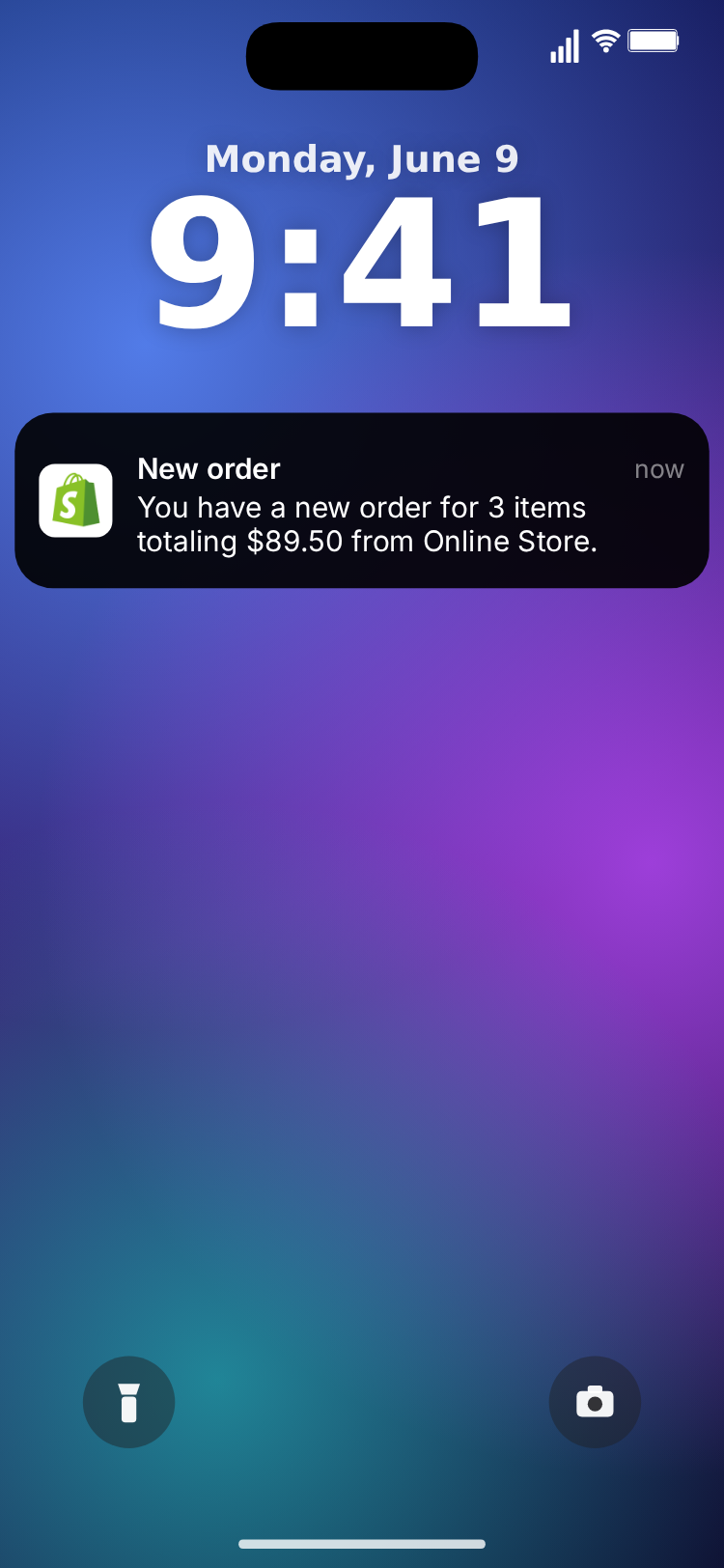
| Lock screen | A self-contained clip: wallpaper, date and clock, the banners under the clock |
| Theme color | A clean, flat backdrop in light or dark |
| Chroma key | Keying the banner over your own footage in any editor |
| Custom image | Your own home screen or a photo behind the banners |
| Transparent | MOV or WebM overlays with real transparency |
Lock screen
The lock screen is the most complete look and the template's starting point. Pick one of the gradient wallpaper presets or upload your own photo, then set the date line and the large clock to whatever fits the story: launch morning, a Sunday night, 3 AM. The flashlight and camera buttons sit at the bottom like on a real iPhone, and the banners slide in under the clock.
This is the background to use when the clip stands on its own, for example as the opening shot of a TikTok or as a cutaway in a vlog.
Theme colour
Default (Theme Color) puts the banners on a plain dark or light screen, matching the theme. It is the simplest option and works well when you want nothing competing with the text, or when the clip will sit inside a larger graphic.
Chroma key
Chroma Key (Solid Color) fills everything around the banner with a solid colour, green by default. You can pick another colour if green clashes with your footage, for example if you are filming a plant shop. Drop the clip into CapCut, Premiere, DaVinci Resolve or any editor with a chroma key effect, key out the colour, and the banner floats over your footage. The green screen iPhone notification guide covers keying settings in detail.
Custom image
Custom Image lets you upload any picture as the backdrop: a screenshot of your own home screen, a photo of your workbench, a product shot. The banners slide in over it exactly as they do on the lock screen.
Transparent
Transparent (Alpha Channel) draws only the banner, with no status bar or home indicator, and keeps everything else see-through. Transparency survives only in the formats that support it: MOV (ProRes 4444) and WebM (VP9). If you export MP4 or GIF with this background, the transparent area is filled with the theme colour instead. The transparent notification video guide explains which editors read each format.
Choose transparent over chroma key when the footage behind the banner has green in it, when you want clean soft edges, or when you are layering several clips in a professional editor.
Hand-held scenes
MockClip can also place the phone screen into real footage of a hand holding a phone. On a hand-held scene the Shopify template uses the lock screen automatically, so the phone in the footage looks like a real locked iPhone receiving orders, unless you have uploaded your own background image. Hand-held scene export is part of the paid plans; plans differ, so check pricing for what each one includes.
Step by step
- Open the template at /app/shopify-notification. It starts with three orders on a lock screen, so you can press play and see the format straight away.
- Write the orders. In the Notifications panel, change each banner's Title, Time and Message. Add or remove banners to match your story.
- Set the timing. Give each banner a Delay (s) and an On screen (s) value, and choose whether it Leaves by sliding up or fading.
- Pick the background and theme. Lock screen for a standalone clip, chroma key or transparent for overlays. Tick Light Theme if you want white banners.
- Check the sound. Leave Sound Effects on for a cha-ching with every order, or switch it off and add your own audio later.
- Export. Choose the format and size, then download.
The whole process takes a few minutes for a short clip, most of it spent on the wording of the orders.
Export formats and sizes
The template exports four file types:
- MP4 for posting directly to TikTok, Instagram Reels, YouTube Shorts and most social platforms.
- GIF for presentations, websites, chat apps and anywhere a looping silent clip is handy.
- MOV (ProRes 4444) for professional editors when you need transparency.
- WebM (VP9) for transparency in browser-based tools and editors that support it.
For short-form video, export vertical 9:16. There is also a 1:1 option that crops to a square, which suits feed posts and carousels. Exports come out at 720p or Full HD.
MockClip is free to try in the browser, with no sign-up for the manual editor. Watermark removal and some export options depend on your plan; see pricing for the current details.
Describe it: let the AI draft the banners
If you would rather start from a draft than from the default three orders, switch to Describe it. Type a sentence such as "a small store's first three orders on launch day" or "a candle shop gets one order a day all week, then five in an hour", and MockClip drafts the banners, the order lines and the timing for you to adjust. Describe it needs a Google or GitHub sign-in. Everything it writes is editable, so treat the draft as a starting point and change the numbers to fit your story.
If you work with an AI assistant that supports MCP, such as Claude Desktop, MockClip also exposes a create_shopify_notification tool, so you can ask the assistant to set up a clip from a conversation. The integrations page lists the available tools.
Common mistakes
Too many banners. Because banners play one at a time, ten banners with the default timing make a long clip. For a rush, shorten both the delay and the on-screen time instead of adding more banners.
Identical orders. The same total on every banner gives the trick away. Vary counts, amounts and times.
Text too long to read. A four-line message on screen for two seconds is unreadable. Shorten the line or give it more time.
The wrong background for the job. If you plan to place the banner over your own footage, do not export the lock screen version and try to crop it. Pick chroma key or transparent from the start.
Transparent MP4. MP4 and GIF cannot carry transparency, so a "transparent" MP4 comes out with a solid theme-coloured background. Export MOV or WebM for overlays.
Related notification templates
The Shopify template shares its engine with MockClip's other notification banners, so the timing and background options work the same way. For a message from a person rather than a store, the iMessage notification template drops texts onto the screen in the same one-at-a-time style; the iMessage notification generator guide walks through it. For a story told in sales, read the companion post with six Shopify notification video ideas, each with the timing that makes it work.
Use it honestly
Fake order notifications are a staple of skits, reenactments and illustrative ads, but they are also a staple of "get rich quick" scams. Keep your videos on the right side of that line:
- Label illustrative numbers. In an ad or a tutorial, a short "illustrative" note in the caption or on screen is enough.
- Do not present invented sales as your real results. If the video implies "this is my store", the orders should be real.
- Keep fake totals away from income claims. Never use the clips to sell a course, coaching or a product on the strength of revenue you did not make.
- Skits are fine when they are clearly skits. A joke about a store getting one order a month is not a financial claim.
MockClip is an independent tool and is not affiliated with or endorsed by Shopify Inc. The banners are drawn by MockClip, not by the Shopify app, and they never connect to a real store, a real order or a Shopify login.
Free to use. No sign-up. Browser-based.
Make a Shopify notification videoFrequently Asked Questions
How do I make a fake Shopify notification video?
Open MockClip's Shopify notification template, write a title such as "New order", the order line and the time for each banner, set the delays, pick a background and export an MP4, GIF, MOV or WebM. No sign-up is needed for the manual editor.
Can the notifications show on a lock screen?
Yes. Choose Lock Screen as the background: a gradient wallpaper or your own photo, with the date and a large clock you can edit. The banners slide in under the clock.
Can I use the banner as an overlay on my own footage?
Yes. Choose Transparent and export MOV (ProRes 4444) or WebM (VP9) to keep the area around the banner see-through, or choose Chroma Key and key out the green in your editor.
What sound plays with each banner?
A cash-register "cha-ching" as each banner slides in. Turn it off with Sound Effects and add your own audio in your editor if you want a different one.
Can several banners stay on screen at once?
Not yet. Banners arrive one at a time: each one slides in, stays for the time you set and leaves before the next one comes. Short delays make the orders feel like they are pouring in.
Is this affiliated with Shopify?
No. MockClip is an independent tool, not affiliated with or endorsed by Shopify Inc. Use the clips for skits, education, mockups and clearly illustrative ads, never to present made-up sales as real results.
Related Articles
Shopify "New Order" Notification Videos: 6 TikTok Ideas
Six short-video ideas built on Shopify "New order" notifications: the first sale, a launch-day rush, slow-week twists and honest ad hooks, with timing.
iMessage Notification Generator: Fake Lock Screen Video
Make a fake iMessage notification video free in the browser. Set the sender, preview text and timing, then export MP4, GIF or a transparent MOV.
Green Screen iPhone Notification Videos (Chroma Key Ready)
Export iPhone text and call notifications on a pure green background — ready to chroma key over any footage in CapCut, Premiere, or DaVinci.
Transparent Notification Video: MOV and WebM Alpha Export
Export iMessage and phone call notification videos with a real alpha channel as ProRes 4444 MOV or VP9 WebM. Drop them on any footage, no green screen to key.