Grok vs Gemini vs ChatGPT Chat Video Templates Compared
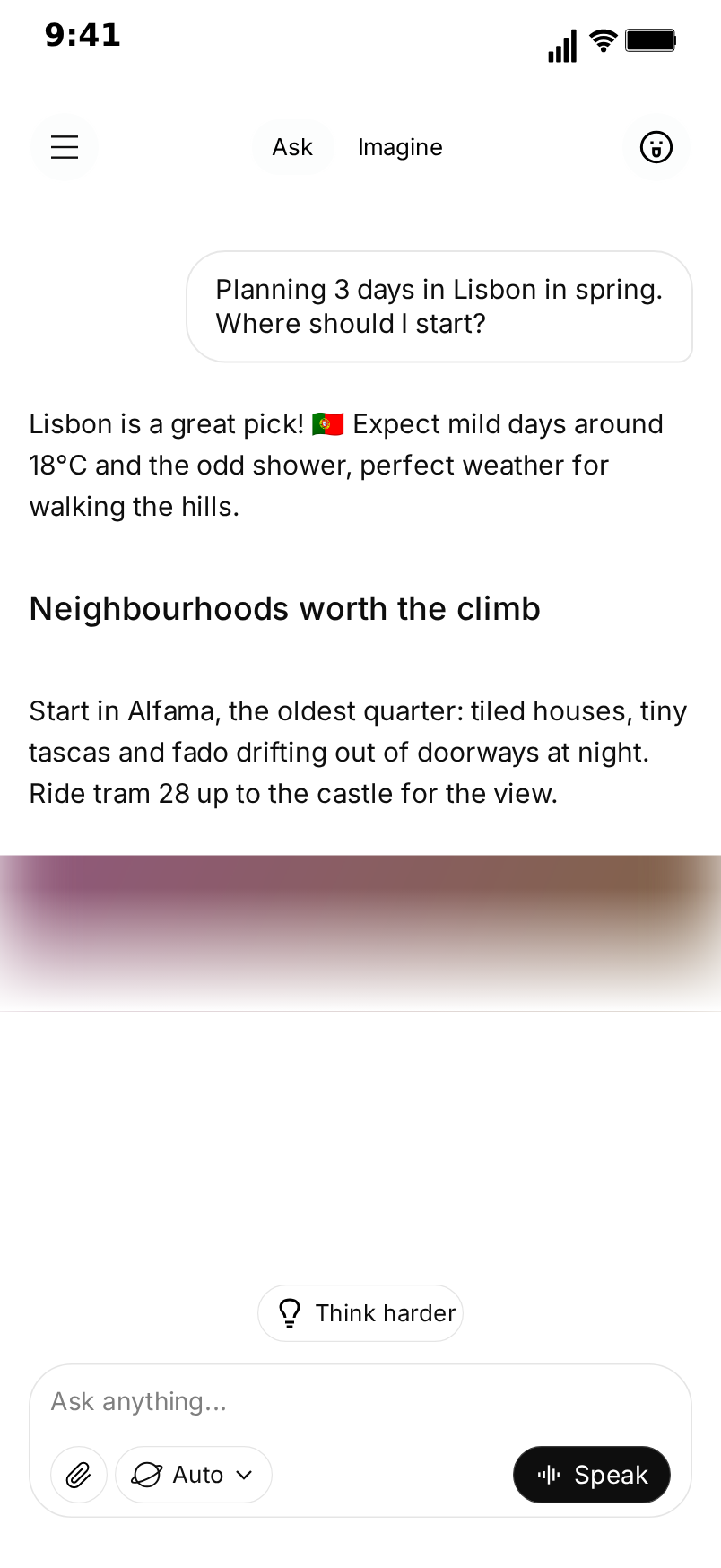
MockClip now has three templates for AI assistant chat videos: Grok, Gemini and ChatGPT. All three turn a conversation you write into an animated phone screen, pause while the assistant "thinks", reveal the answer at a pace you set and export a vertical MP4. From a distance they look alike. Up close, each one draws a different set of things, and that decides which one fits your script.
This post compares the three template by template and element by element: how the question is typed, how the assistant thinks, how the answer appears, what formatting each one draws, what extras sit under a reply, and which screens each one can show. At the end there is a quick guide to picking one.
In all three templates, every word is yours. Nothing is sent to xAI, Google, OpenAI or any AI model, and MockClip is not affiliated with any of the companies whose apps it recreates.
The short answer
- Pick Grok when the clip is about an answer that looks researched: headings, a photo, a "Sources" pill and follow-up questions. It is the most "search result" of the three.
- Pick Gemini when the answer is short and plain, the joke or the point is in the words, and you want the clean Google look with a spinning sparkle.
- Pick ChatGPT when you need markdown as it streams (bold, italic, lists, inline code), labelled indicators such as "Searching the web" or "Reasoning", or a generated-image moment.
If your audience uses one of the three apps every day, that usually settles it: viewers trust the interface they already know.
The question: how your message is typed
All three templates can type your message letter by letter into the input bar with the iOS keyboard up, or make it appear at once. The differences are in what surrounds the typing.
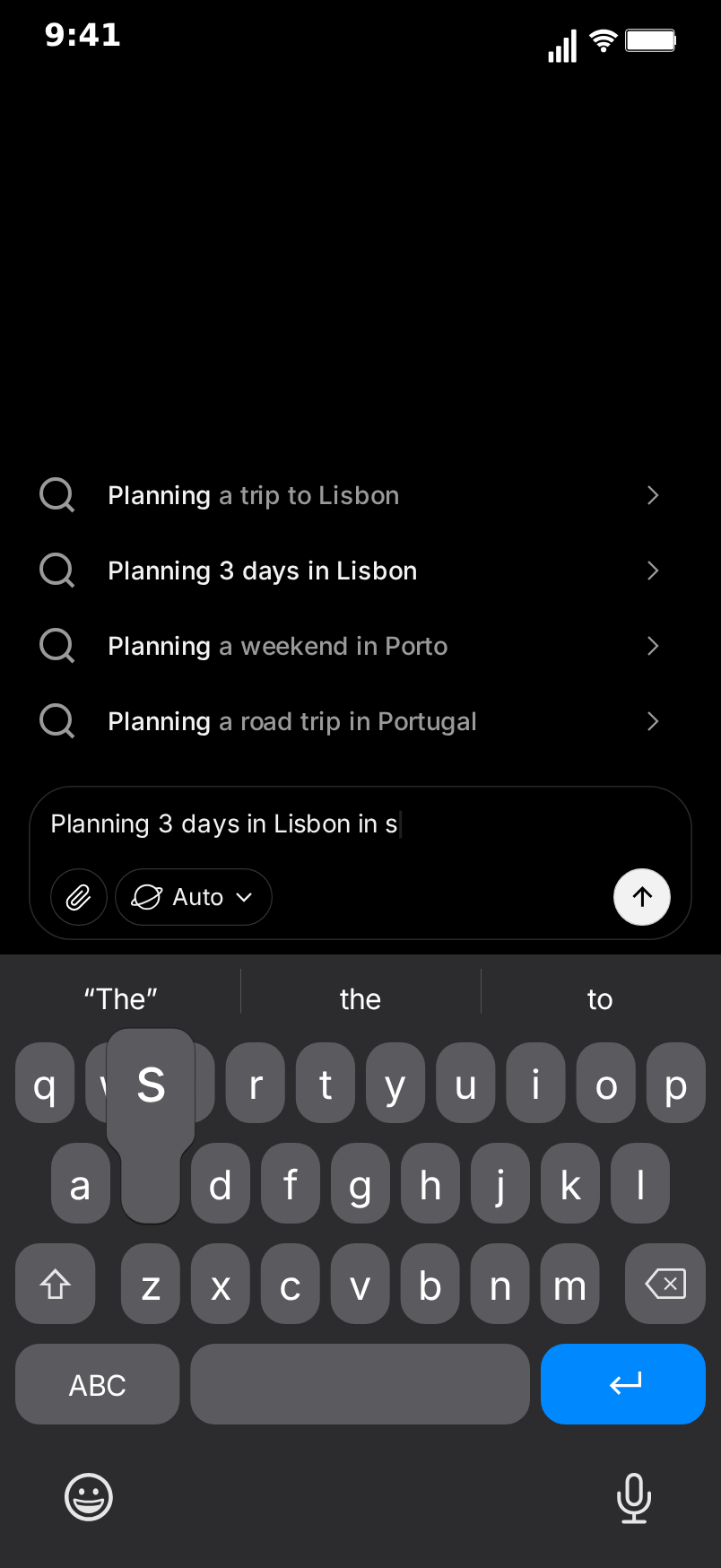
Grok types the question into the "Ask anything..." bar while a list of search suggestions appears above it, with the part that matches what has been typed so far drawn darker. The Speak button turns into a round send button while there is text in the bar. A new chat opens on Grok's home screen, with the logo, the Ask and Imagine switch and the shortcut chips, and the home screen gives way to the chat when the question is sent. The question lands as an outlined white bubble on the right.
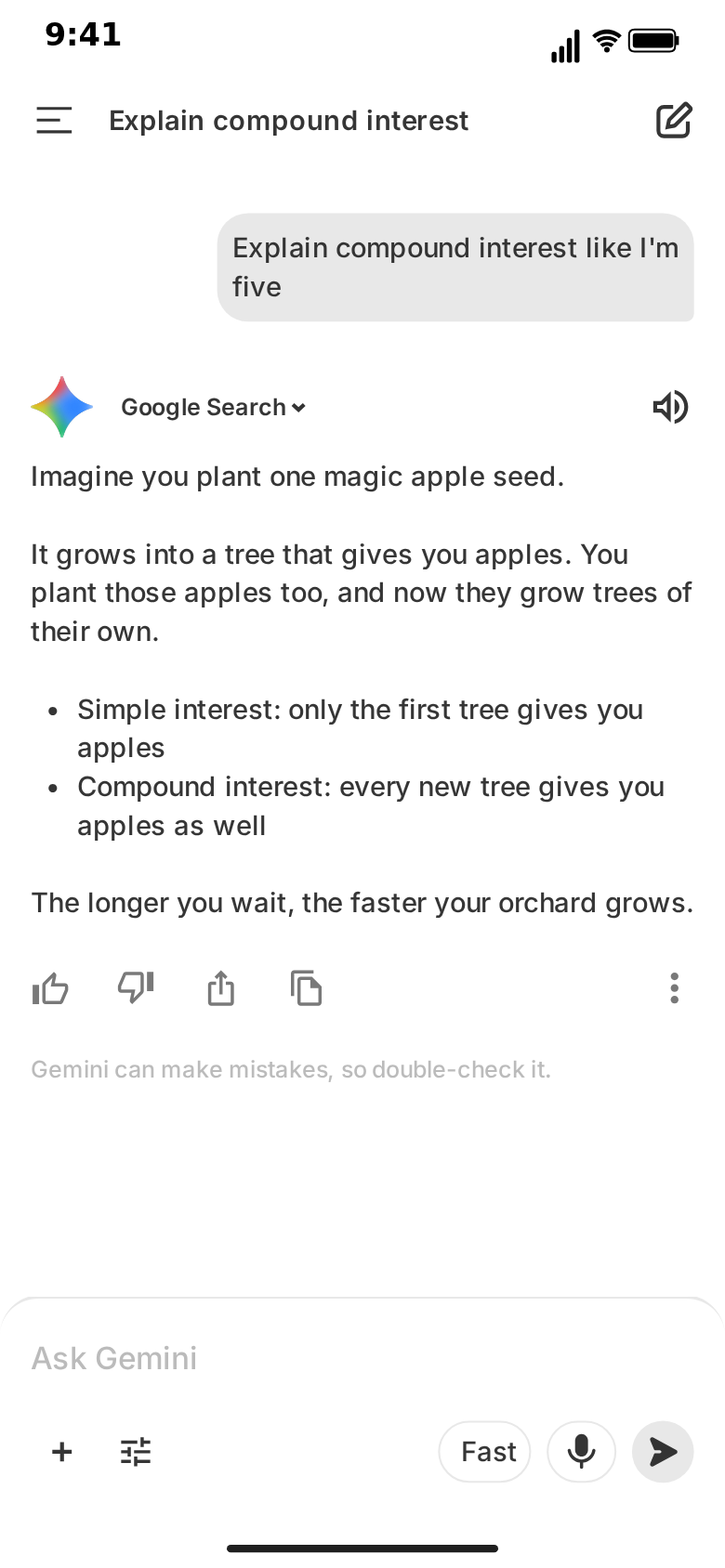
Gemini types into the "Ask Gemini" bar on its "Hello, <name>" home screen, with its suggestion chips still on screen, and sends the question as a grey bubble. The conversation's title appears in the top bar while Gemini thinks.
ChatGPT types into its own input bar and can open on a welcome screen with a greeting and quick actions, or on a Temporary Chat. Its top bar shows a title such as "ChatGPT" with a small arrow, or a banner like "Get Plus" in its place.
Thinking: what happens before the answer
Each template shows a pause before the reply, for as many seconds as you set per reply.
- Grok: three small grey dots pulse in a wave under your message.
- Gemini: the Gemini sparkle spins and pulses where the reply will start, with an optional label beside it.
- ChatGPT: a white pulsing circle, or a labelled action indicator with a spinner instead: Searching the web, Reasoning, Analyzing image, Creating image, Reading file, Browsing or a label you write.
If the thinking step is part of the story ("it searched the web for this"), ChatGPT's labelled indicators say it in words. If you only want a beat before the punchline, Grok's dots and Gemini's sparkle are quieter.
The answer: how the reply appears
This is the biggest difference between the three.
Grok and Gemini reveal the reply from top to bottom as one block. The whole answer is laid out at once and a soft edge slides down over it at the speed you set (100 characters per second by default), so the lines never jump around as they appear. The chat scrolls so the newest line stays above the input bar.
ChatGPT streams the reply character by character, with a block cursor at the end of the text, the way ChatGPT itself types out an answer.
The top-to-bottom reveal reads well in short videos: the viewer can start reading the first lines while the rest arrives. Character streaming is more recognisable for ChatGPT specifically, and is the better choice when the typing effect itself is the point of the clip.
Formatting: what each template draws
| Grok | Gemini | ChatGPT | |
|---|---|---|---|
| Paragraphs and blank lines | Yes | Yes | Yes |
Bullet points (* / - ) | Yes | Yes | Yes |
Headings (## ) | Yes | No | Yes |
| Numbered lists | No | No | Yes |
| Bold, italic, inline code | No | No | Yes |
| Code blocks and tables | No | No | No |
| A picture in the reply | Uploaded photo, sharpens as it appears | No | Generated-image block, clears from a blur |
Grok's headings are drawn in a larger, heavier type with more space above and below them, which is what makes a long Grok answer look structured. Gemini is deliberately plain. ChatGPT renders the most markdown, as it arrives.
None of the three draws fenced code blocks or tables. If your script needs one, write around it: a short list instead of a table, a single line of inline code in ChatGPT instead of a block.
Pictures in replies
Grok takes one photo per reply, which you upload on the reply card. It is shown full width inside the reply, where a line of the reply reads [image], or before or after the text. When the reveal reaches it, the photo shows blurred and slightly dim, then sharpens over a time you set (0.8 seconds by default). It looks like Grok pulling in an image from a search result.
ChatGPT shows an uploaded picture as a generated image: it pulses under a heavy blur for a while, then clears, before or after the text. That is the moment to use for "the AI made a picture".
Gemini has no pictures in replies.
What sits under the answer
Grok adds the most here:
- a "Sources" pill with three overlapping round thumbnails and a count you choose, such as "18 Sources";
- the action row: copy, share, thumbs up, thumbs down, speaker, regenerate and more;
- up to four follow-up questions, each with Grok's curved arrow and a thin divider between them.
All three fade in when the answer is done, and each one can be switched off per reply.
Gemini shows its action row (thumbs up, thumbs down, share, copy, more) under a finished reply, and its disclaimer line under the last one. A source label such as "Google Search" sits beside the logo above each reply.
ChatGPT shows its action bar under a finished reply.
All three can swap a reply for an error line instead of an answer, for a failure state or a joke ending.
Screens and the video flow
Each template can walk through more than the chat, in an order you set in the Video flow strip, with touch indicators where the user taps:
- Grok: the home screen (with an optional "Tap here to speak with Grok" tip), the chat, and the model picker: a frosted card with SuperGrok, Heavy, Expert, Fast, Auto and Grok 4.1 Thinking that fades in over a blurred screen. The "Think harder" pill above the input bar can be hidden.
- Gemini: the "Hello" home screen with one-line suggestion chips and an optional "New!" banner, the chat, and the side drawer with your chats list, which slides in from the left.
- ChatGPT: the welcome screen with quick actions or a Temporary Chat, the chat, and the header banners.
The model picker and the side drawer are for show: picking a model in the Grok clip does not change the reply, and the chats in Gemini's drawer are text you write.
Themes and export
- Grok opens in light, and has a dark theme with a black background, dark grey bubbles and pills and a dark keyboard.
- Gemini opens in dark, and has a light theme.
- ChatGPT has light and dark.
All three export MP4 or GIF at 720p or Full HD, from 15 to 30 fps (60 fps on the Creator plan), with or without the iPhone bezel, and with a 1:1 square crop for feeds. ChatGPT can also export a transparent MOV or WebM on the Creator plan. Exports are rendered in your browser. See the pricing page for what each plan includes.
Timing controls compared
The three templates share the same idea of timing: a wait before each turn, a typing speed for your messages, a thinking time and a reveal or streaming speed for the replies.
- Your messages: typed at a speed you set (14 characters per second by default in Grok and Gemini), or shown at once.
- Thinking: per reply, 1.2 seconds by default in Grok and Gemini.
- The answer: Grok and Gemini set the reveal speed in characters per second; ChatGPT sets the streaming speed of its character-by-character typing.
Because Grok and Gemini reveal the whole block at once, a long answer at the default speed still feels quick. In ChatGPT, a long answer at a slow streaming speed can drag, so raise the speed for long replies.
Which one should you pick?
A few common clips and the template that fits each best:
- "I asked an AI to plan my trip": Grok. Headings for each day, a photo of the place, sources and follow-up questions make it look like real research.
- A comedy skit with an overconfident AI: Gemini or Grok. Short plain answers and a long thinking pause land the joke; Grok's sources pill ("312 Sources" for a silly question) is an extra beat.
- A prompt-engineering tutorial: ChatGPT. The markdown, the inline code and the labelled indicators match what viewers see when they try it themselves.
- "The AI made a picture": ChatGPT, with the generated-image block.
- A product demo for an AI feature: whichever app your product looks closest to, or the one your audience uses.
If you are unsure, write the script first. If it has headings and a photo, use Grok; if it has bold text, numbered steps or code, use ChatGPT; if it is a few plain lines, any of the three works and Gemini is the simplest.
Writing the conversation with AI
All three templates have Describe it, the AI panel at the top of the editor: describe the clip in one sentence and MockClip's AI drafts the questions, replies and timing for you to edit. It knows what each template draws, so on Grok it can write headings, a sources count and follow-ups, and on ChatGPT markdown and action indicators. Describe it needs a Google or GitHub sign-in; the manual editor does not. The Describe it guide covers it in detail.
Where to go next
- Step by step for Grok: how to make a fake Grok chat video.
- Gemini and ChatGPT side by side in more depth: Gemini vs ChatGPT chat video templates.
- ChatGPT's character streaming up close: the ChatGPT streaming text animation effect.
Free to use. No sign-up. Browser-based.
Make a fake Grok chatFrequently Asked Questions
What is the main difference between the Grok, Gemini and ChatGPT templates?
Grok reveals each reply from top to bottom with headings, a photo that sharpens, a sources pill and follow-up questions, after three thinking dots and a typed question with search suggestions. Gemini reveals plain text with bullet points under a spinning sparkle and slides a side drawer. ChatGPT streams markdown character by character with a cursor and adds labelled action indicators and generated-image blocks.
Which template can show images in a reply?
Grok and ChatGPT. Grok shows a photo you upload inside the reply, blurred at first and sharpening as the reveal reaches it. ChatGPT shows an uploaded image as a generated picture that pulses under a blur, then clears. Gemini replies are plain text only.
Do any of the templates use a real AI?
No. In all three, every question and every answer is text you write; nothing is sent to xAI, Google, OpenAI or any AI model. The optional Describe it panel uses MockClip's own AI to draft a script you can edit.
Which template is best for TikTok and Shorts?
All three export vertical 9:16 MP4. Pick the app your audience recognises: Grok for search-style answers with sources and photos, Gemini for short plain-text answers and comedy, ChatGPT for markdown-heavy explainers and AI demos with action indicators.
Can I export GIFs from all three templates?
Yes. All three export MP4 or GIF at 720p or Full HD and 15 to 30 fps (60 fps on the Creator plan), with or without the iPhone bezel, including a 1:1 square crop.
Do I need an account?
No. The manual editor works without an account on all three templates. Describe it, the AI drafting panel, needs a Google or GitHub sign-in to MockClip.
Related Articles
How to Make a Fake Grok Chat Video (Free, in Browser)
Step-by-step: write, time and export a fake Grok chat video in your browser, with search suggestions, thinking dots, headings, a photo and sources. Free.
Gemini vs ChatGPT Chat Video Templates: Which to Use
MockClip's Gemini and ChatGPT templates compared: reply animation, thinking, formatting, screens and timing. Pick the right AI chat video template for you.
How to Make a Fake Gemini Chat Video (Free, in Browser)
Step-by-step: write, time and export a fake Gemini chat video in your browser, with the typed question, the thinking sparkle and a fading-in reply. Free.
How to Recreate the ChatGPT Streaming Text Effect in Videos
Add the iconic ChatGPT word-by-word streaming text animation to your videos. No coding or screen recording needed.