X Feed Animation Generator: Make Fake X Post Videos
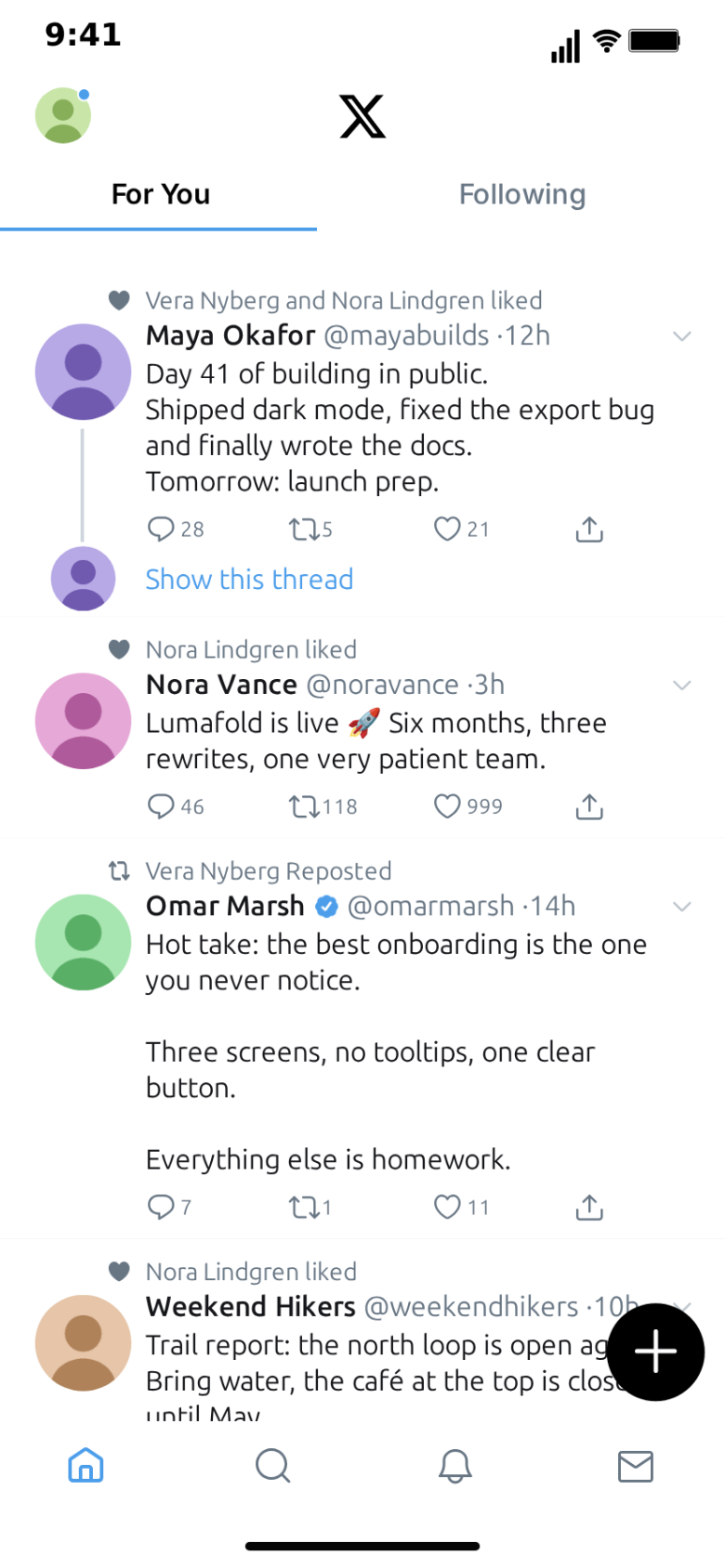
A post on X (formerly Twitter) has a look everyone recognises: a round avatar, a bold name with a verified badge, the handle and the time, a few lines of text with a hashtag in the accent colour, and the row of reply, repost, like and share icons underneath with their counts. A screenshot of that card is a common sight in short-form video. A moving version is not, and that is the point of an X feed animation generator: the feed scrolls, the like icon pops, the counter rolls up, a "12 new posts" pill drops in from the top, and the viewer reads it as a screen recording instead of a still.
This guide explains what MockClip's X generator animates, how to build a first clip in the X template, who it is for, and how it compares to taking a screenshot or recording your own phone.
What is an X feed animation generator
An X feed animation generator is a tool that renders a fake X timeline as a video. You write the posts, set the names, handles, times and counts, decide what happens while each screen is on, and the generator draws the interface frame by frame: the post cards, the context lines above them, the action row, the thread view, the menus and sheets that slide over the feed.
The difference from a screen recording is control. A recording shows your real account, your real feed, whatever was trending that minute and the notifications you forgot to silence. A generator shows only what you scripted, in the order and at the pace you chose, with fictional people in the frame, at a clean resolution that TikTok, Reels and Shorts accept without cropping.
MockClip's X template runs entirely in the browser. There is nothing to install, no account is needed for the Manual editor, and the export renders on your own machine. MockClip is an independent tool and is not affiliated with X Corp; nothing you make is posted anywhere.
What MockClip's X template can animate
Every element below is a real control in the editor.
- Post cards. Avatar, display name, the blue verified badge, the handle and the time, then the text, with hashtags, mentions and links drawn in the accent colour. A post can carry an optional photo, or a video thumbnail with a play button and a length badge. The thumbnail is a still; the video does not play.
- Context lines. A small line above a post that says who liked it, who reposted it, or that it is pinned, exactly where the app puts it.
- Thread links. A "Show this thread" link with a small avatar under a post, the cue that there is more to read.
- The action row. Reply, repost, like and share, each with its count.
- A per-screen script. The home feed and the profile each have their own list of steps that run while the screen is shown: scroll, like, repost, show new posts, pause.
- Likes and reposts that land. A like or repost step pops the icon and rolls the counter to its new value, and the rollover is formatted the way the app does it, so 999 becomes 1K.
- The new posts pill. A pill with your own label, such as
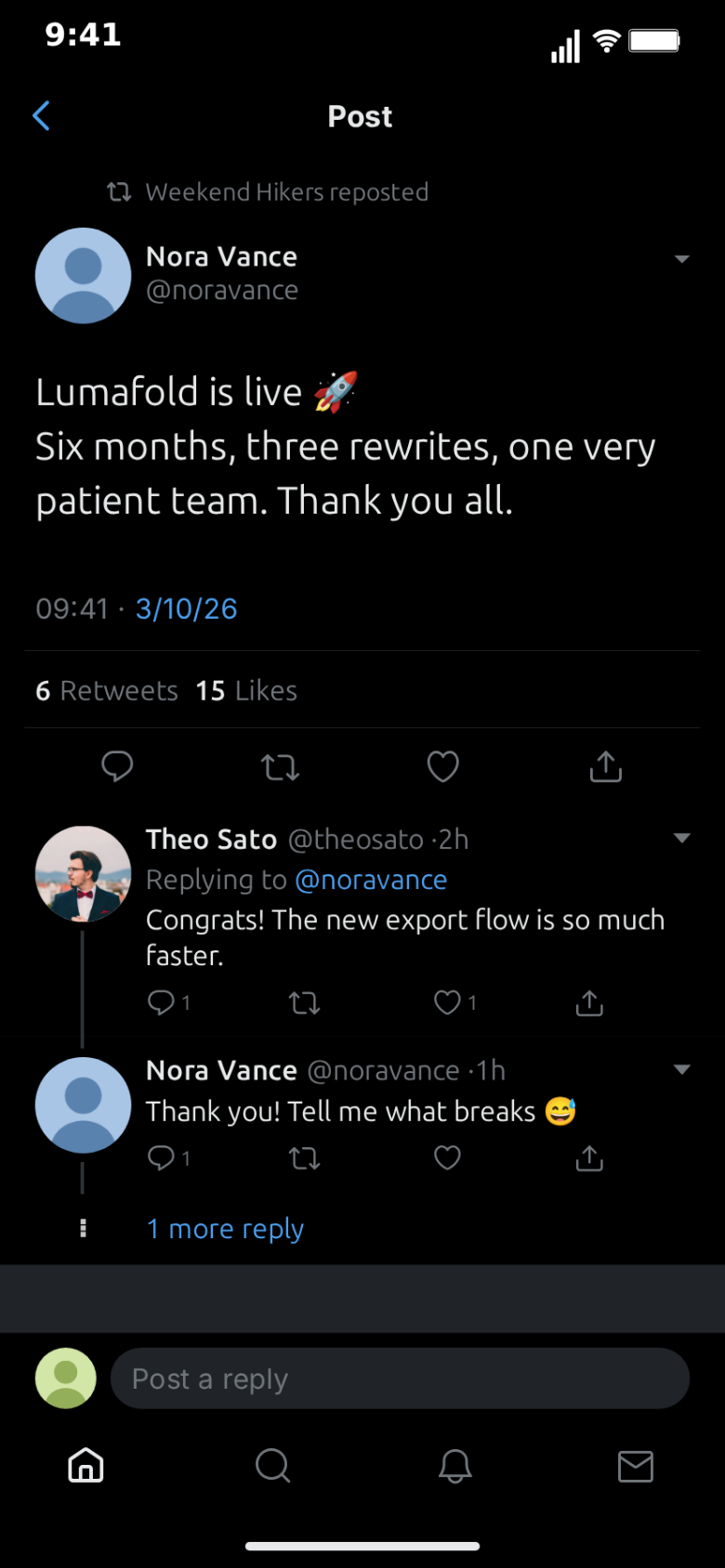
{n} new posts, drops in at the top of the feed, and the pending posts you wrote for it slide onto the top of the timeline. - The thread view. The focused post shown large with its full timestamp line, such as "09:41 · 3/10/26 · Web App", and a stats row, with the replies underneath. Replies can appear one by one, and a "1 more reply" style link sits under a reply that has more.
- The repost sheet. The sheet that slides up over the thread when someone taps repost.
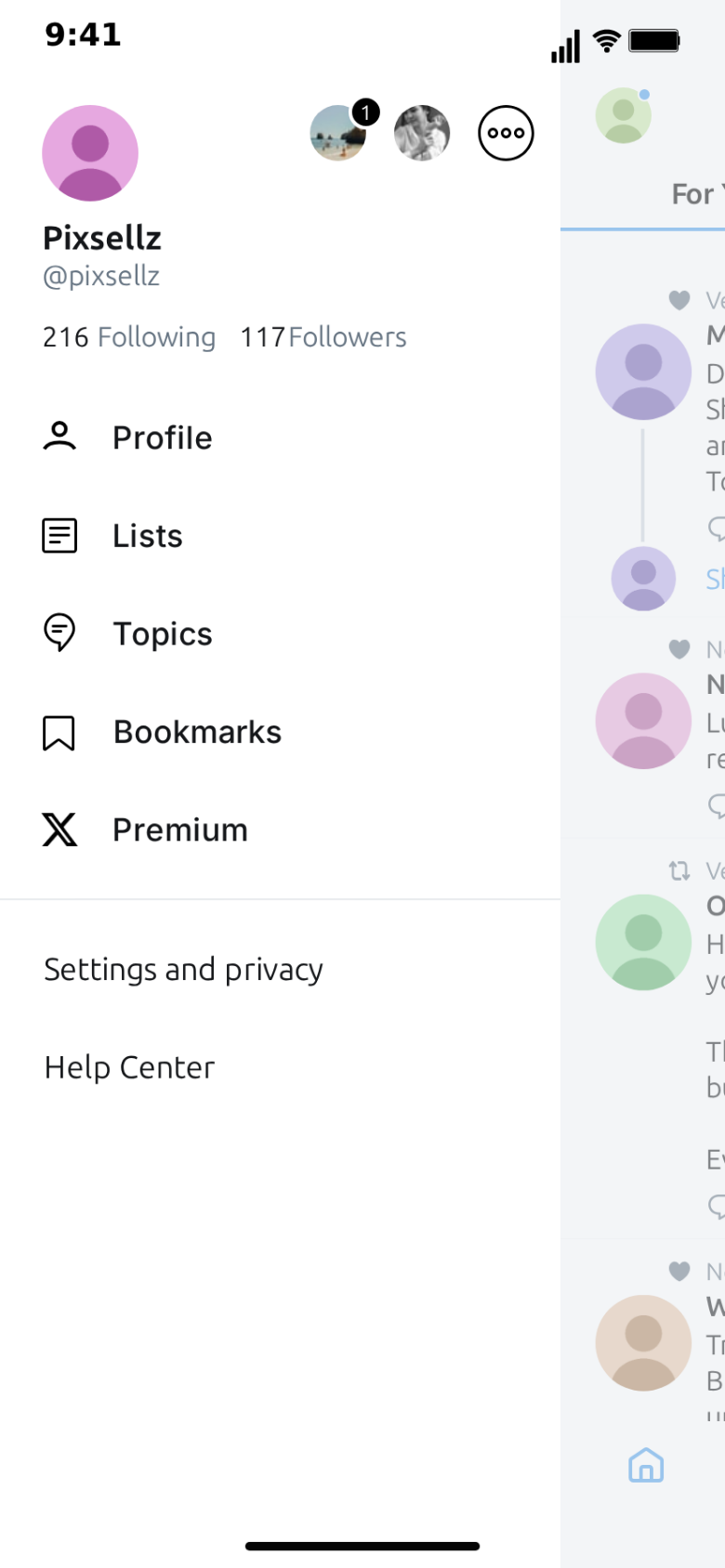
- The side menu. It slides in from the left and pushes the feed aside, and from there the video can open a profile or a lists screen.
- Compose. The compose screen with the on-screen keyboard up. You write the post that belongs to it, and once the video leaves the compose screen, that post sits at the top of the home feed.
- The other tabs. Search, notifications, messages (the inbox list with names, handles, two-line previews and dates), new message and lists, each with rows you edit.
- Screen flow. Pick the screens, the transition into each one (push, pop, tab, fade, modal, dismiss or sheet) and how long each one holds. A touch indicator shows where the finger taps before each move, and it can be turned off.
- Light and Lights out. A light theme and the black Lights out dark theme.
- Sound effects. Optional sounds for likes, new posts and posting, on or off with one switch.
- Export. MP4 or GIF, 720p or Full HD, 15 to 60 frames per second, with or without the iPhone bezel, vertical or 1:1 square.
What the template does not do: the video in a post does not play, the compose screen does not type the text out letter by letter, and quote posts, polls, bookmarks, direct-message conversations (Messages is the inbox list), and gold or grey badges are not part of it. If an idea depends on those, it belongs in a different format.
A tour of the screens
Home. The timeline most videos start on. It has a script of its own, so the clip can open at the top, scroll past three posts, stop on the one that matters, like it, and wait a beat while the counter rolls.
Post. The thread view. The focused post is large, with the full timestamp line and the stats row, and the replies stack under it. Add "Reply appears" steps and new replies arrive one at a time, which is how a thread looks while people are piling in. The post screen's script can also scroll, and like or repost any reply.
Repost sheet. Shown over the post screen. It slides up, holds, and is dismissed, the way it works when someone thumbs the repost icon.
Menu, profile and lists. The side menu slides in from the left and pushes the feed aside; from it the video can move to a profile, which has its own feed and its own script, or to a lists screen.
Compose. The new-post screen with the keyboard. It is a beat in the story rather than a typing animation: the viewer sees someone about to post, and when the flow returns home, the post you wrote for it is waiting at the top.
Search, notifications, messages, new message. Supporting screens with editable rows. They are useful as a quick establishing shot or a tab switch in the middle of a clip.
Why creators use X animations
X is where announcements, arguments and jokes are first posted, and a post card has become shorthand for "someone said this in public". Putting a line inside that frame changes how it lands: the same sentence reads as a headline on a post card and as a caption anywhere else.
Animation adds the part a screenshot cannot carry: time. Likes climbing from 999 to 1K say "this took off" without a word of narration. A new posts pill dropping in says "people are reacting right now". A reply appearing under a hot take says "and then someone answered".
Typical uses:
- Product launches. A fictional launch post from "Lumafold" with a photo of the product, the likes rolling up, and a thread of replies asking where to buy.
- Storytime. A post that starts it, a reply that escalates it, a "1 more reply" link that promises a twist.
- Reaction and commentary videos. A hot take on the screen, the creator reacting over it.
- Explainers and courses. How a thread is structured, how replies and reposts spread a post, shown on a feed rather than described.
- Short fiction. A character's posts over a day, told in a scroll.
Who it is for
Short-form creators who want a recognisable frame for a hook. The guide to X post videos for TikTok and Shorts covers that angle in detail.
Marketers and founders who want to show what a launch post or a customer reply would look like on a phone, without designing a mockup or posting anything real.
Teachers and trainers who explain social media literacy, how threads work, or how a post spreads, and need a clean example with invented people.
Designers and agencies who pitch campaigns and need a moving feed for a deck or a client call.
How to make your first X animation
- Open the template. Go to the X editor. It opens on a ready-made feed with fictional people. Press Play once to see the default flow before you change anything.
- Pick Describe it or the Manual editor. Describe it writes the posts, the script and the screens from one sentence, such as "a fictional app launches, the post goes viral and the replies pile in"; it needs a Google or GitHub sign-in. The Manual editor gives you every field directly and needs no account.
- Write the posts. For each card, set the name, handle, time and text, tick the verified badge if the account should have one, upload an avatar, and add a photo or a video thumbnail if the post needs one. Set the starting reply, repost and like counts.
- Add context. A liked-by, reposted-by or pinned line above a post, and a "Show this thread" link under one, make the feed look lived in.
- Script the home feed. Add steps: scroll to a post, like it, wait, show a new posts pill. Each step has a duration and a wait before it. Use the fling motion for a fast thumb flick and smooth motion for a slow read.
- Choose the screens. In the video flow, decide whether the clip stays on home or pushes into a thread, opens the repost sheet, slides the side menu in, or visits compose. Set the transition and the hold for each.
- Pick the look. Light or Lights out, sound effects on or off.
- Preview and export. Press Play, then export MP4 or GIF at 720p or Full HD, at the frame rate you need, with or without the iPhone bezel, in vertical or 1:1 square.
The step-by-step tutorial walks through each of these screens in more depth, with an example script.
Screenshot, screen recording or generator
There are three common ways to get an X post into a video. Each has a place.
| Screenshot | Screen recording | MockClip X template | |
|---|---|---|---|
| Motion | None | Real | Scripted |
| Likes and counters | Frozen | Whatever happened | Pop and roll to their new value |
| People in frame | Real accounts | Real accounts and your feed | Fictional people you write |
| Control over pace | Edit afterwards | Re-record | Durations and waits per step |
| Needs a real post | Yes | Yes | No |
| Clean frame | Depends | Notifications, ads, trends | Only what you scripted |
| Changing a line | Re-capture | Re-record | Edit a field, export again |
A screenshot is fast, but it is a still. You add motion in an editor with zoom and pans, and the counters never move.
A screen recording has real motion, but it needs a real post, a real account and real people. It also captures everything else on your screen, and changing one word means doing it all again.
A generator sits in between: the motion of a recording with the control of a design file. The cost is that it shows what the template supports and nothing more.
Writing posts that feel real
Short, punchy text. Most posts that travel are one or two lines. A post that fills the card reads as an essay.
Believable handles. "@noravance" for Nora Vance, "@lumafoldapp" for a fictional product. Avoid real people and real brands entirely; the default content uses fictional people for that reason.
Counts that fit the story. A viral post has thousands of likes and a few hundred reposts. A post from a small account has a handful. Mismatched numbers give the fake away.
Times that move. "2m" on the newest post, "1h" further down, "3h" below that. A feed where every post is "now" looks generated.
Hashtags and mentions with restraint. One hashtag or one mention, in the accent colour, reads naturally. Five in a row reads like spam.
Formats, themes and export
The template exports vertical 9:16 for TikTok, Reels and Shorts, and 1:1 square for feeds. The iPhone bezel can be on, for a "this is a phone" look, or off, so the feed fills the frame like a real recording. Exports render at 720p or Full HD, at 15 to 60 frames per second, as MP4 or GIF. The export settings guide explains which combination suits which platform.
Free exports carry a small watermark. Pro removes it.
Generating X animations with AI
Two AI paths exist. Inside the editor, Describe it turns one sentence into the posts, the script and the screens; it needs a Google or GitHub sign-in, and the Describe it guide explains how it works across templates. Outside the editor, MockClip's MCP server exposes a create_x_feed tool you can use from Claude Desktop or another MCP client. The integrations page and the guide to connecting MockClip to an AI assistant cover the setup. The tool returns a link that opens the finished animation in MockClip, ready to preview and export.
X, Reddit or a chat app?
Pick the frame your story belongs in. X fits public statements, launches, hot takes and anything that should look like it was said to everyone. Reddit fits long questions and comment threads; the fake Reddit post video guide covers it. Private conversations belong in a chat template such as Discord or WhatsApp, and the free fake chat video maker guide compares them side by side.
Common mistakes
Too many posts. A feed of ten posts, all scrolled past, has no focus. Three or four posts and one that matters are enough.
No beat on the key moment. If the like lands and the clip moves on instantly, nobody sees the counter roll. Add a pause step after it.
Real accounts. Do not put real people's or real brands' names, handles or photos in a fake post, and never present one as evidence of something someone actually said.
Forgetting the thread. If the story is in the replies, push into the post screen and let "Reply appears" steps reveal them one by one.
Frequently asked questions
The FAQ at the top of this page answers the common questions: what the generator is, whether it is free, the 999 to 1K rollover, video thumbnails, dark mode, your own avatars and photos, and the MCP tool.
Free to use. No sign-up. Browser-based.
Open the X feed animation generatorFrequently Asked Questions
What is an X feed animation generator?
It is a browser tool that turns a scripted timeline into a video that looks like a screen recording of the X (formerly Twitter) app. MockClip's X template draws the post cards, scrolls the feed, pops the like and repost icons while the counters roll up, drops in a new posts pill, opens threads and exports the result as MP4 or GIF.
Is MockClip's X template free?
Yes. The Manual editor runs free in the browser with no account. Free exports carry a small MockClip watermark, which the Pro plan removes; the pricing page has the details. Describe it, the AI path, needs a Google or GitHub sign-in.
Can the like counter go from 999 to 1K?
Yes. A like or repost step pops the icon and rolls the counter to its new value, and the number is formatted the way the app shows it, so 999 rolls over to 1K.
Does the video thumbnail in a post play?
No. A post can carry a photo or a video thumbnail with a play button and a length badge, but the video itself does not play. It is a still frame that reads as a video post.
Is there a dark mode?
Yes. The template has a light theme and a black Lights out dark theme. One control switches every screen.
Can I use my own avatars and photos?
Yes. Avatars and post photos are uploaded in the editor. The default feed uses fictional people, and any names, handles and pictures you add should be invented or yours to use.
Can I generate an X feed animation from Claude?
Yes. MockClip's MCP server has a create_x_feed tool you can use from Claude Desktop or another MCP client. Describe the posts and it returns a link that opens the finished animation in MockClip, ready to export.
Related Articles
How to Make a Fake X Post Video (Free, Step by Step)
Step-by-step: write, script and export a fake X post video in the browser, with likes that roll up, a new posts pill, threads, compose and a repost sheet.
X Post Videos for TikTok and Shorts: A Creator Guide
How to use an animated X post or thread as the hook of a TikTok, Reels or Shorts video: formats, pacing, 9:16 or 1:1 framing, and captions and voiceover after.
How to Make a Fake Reddit Post Video for TikTok
Create animated fake Reddit post videos with upvotes, comments, and the Reddit UI. Free browser tool with MP4 export.
Discord Chat Animation Generator: Make Fake DM Videos
Free Discord chat animation generator. Animate DMs with names, times, call cards and typing, plus the DM list and server channels. Export MP4 or GIF online.
Fake Chat Video Maker Free: Create Text Conversation Videos
Free fake chat video maker for TikTok and Reels. Create realistic animated text conversations with iMessage, WhatsApp, and Instagram DM interfaces in minutes.