Work Chat Video Ideas for Training, Demos and Onboarding
Most workplace lessons are about a conversation. How to give feedback, how to hand work over, how to answer a message that asks for something it should not. Showing the conversation is better than describing it, and a short video of two colleagues messaging does that in fifteen seconds.
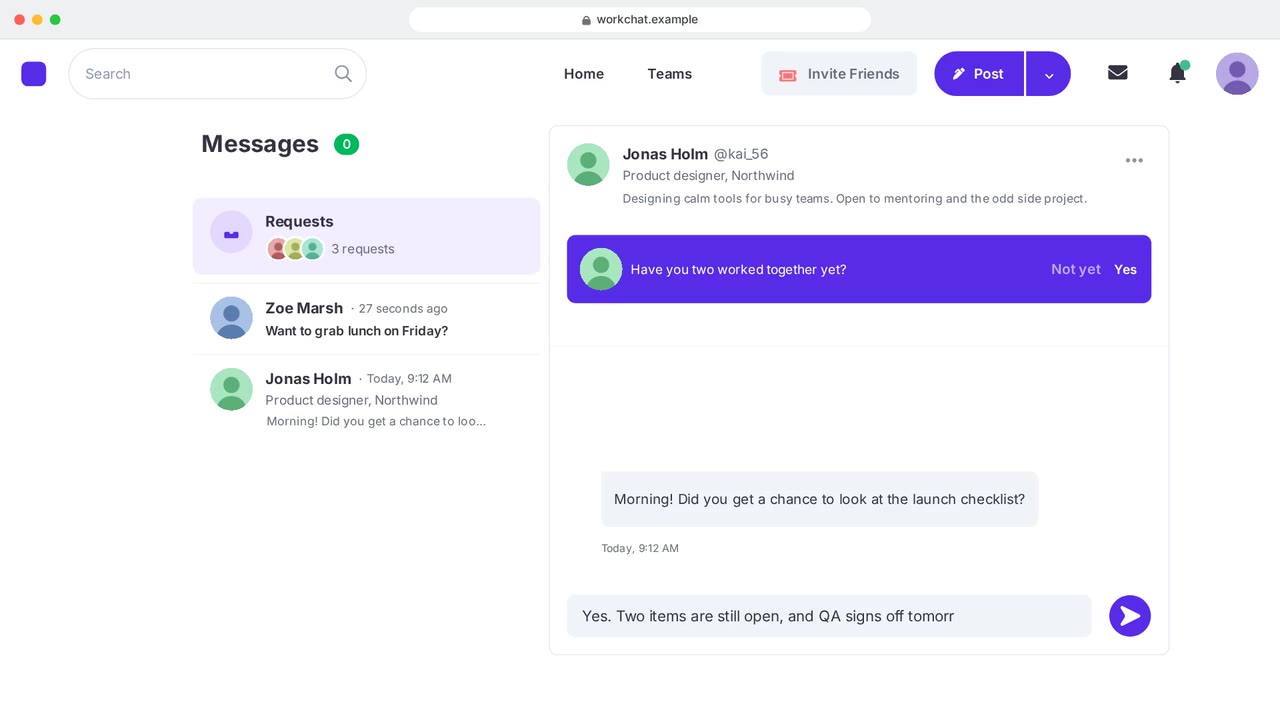
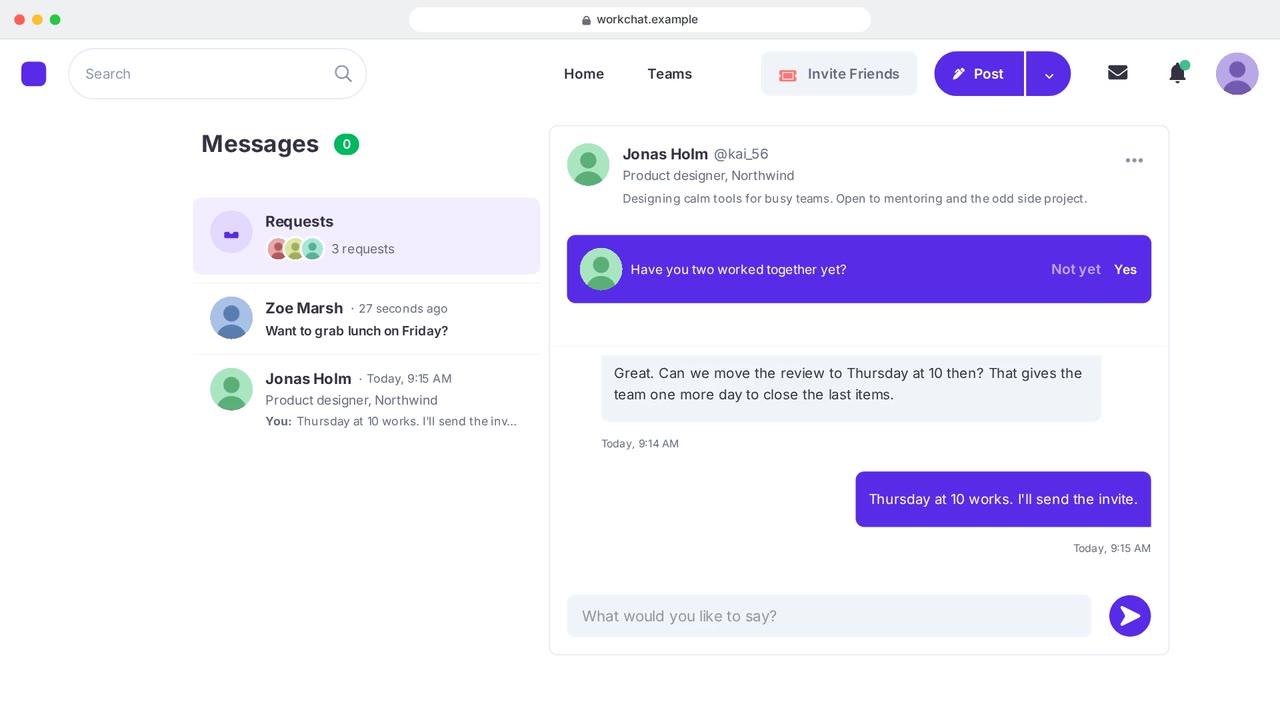
This post collects work chat video ideas with scripts you can copy, for four kinds of people: learning and onboarding teams, security-awareness trainers, SaaS marketers and presenters. All of them use MockClip's Work Chat template, which draws a one-to-one work conversation on a desktop web page in a browser window. It is MockClip's own brand-free design, so no real product's name, logo or people appear in the clip.
Why a workplace conversation without another company's interface
Training and marketing material lives a long time and passes through many hands. A conversation set inside a real product raises questions a learning team or a brand owner would rather not answer: whose interface is that, why is it in our module, and what happens when that product changes its design?
A brand-free page avoids them. The layout, the names and the address in the browser window are invented. The viewer's attention goes to the words, which is where the lesson is.
It also helps with focus. A screen recording of a real workspace carries real channel names, real colleagues and real notifications. A scripted clip carries only what you wrote.
What you have to work with
Every idea below uses the same small set of parts, so it is worth knowing them before you write.
- Two people. You and one contact. The contact has a name, a headline such as a role and company, a handle, a short about line and an avatar, all shown in the conversation header.
- Text messages with typing. Your messages can be typed into the composer character by character before they are sent. A three-dot bubble shows while the other person is writing, for as long as you set.
- A time under each bubble. A small caption with whatever you type:
Today, 9:12 AM,Yesterday, 6:40 PM. - A messages column. The open conversation's row shows the latest message as the clip plays. The second conversation row is yours to edit: a name, a time, a preview line and an avatar.
- The frame. A browser window that can be switched off, light and dark themes, and a Zoom slider from 100 % to 120 %. The clip is always 16:9, exported as an MP4 or a GIF.
What is not there matters as much. There are no group channels, threads, reactions, photos or file attachments, and the page's buttons are scenery. Write every scenario as an exchange between two people in plain text. The step-by-step guide covers each field in the editor.
Ideas for learning and onboarding teams
1. The first-day welcome
Open an onboarding module with the message a new starter would like to receive. It sets the tone and shows the standard you expect from managers.
- Other,
Today, 9:02 AM:Welcome to the team, Sam! Your laptop is at the front desk and your first week is in the calendar. - Me,
Today, 9:04 AM:Thank you! Who should I ask if I get stuck on setup? - Other,
Today, 9:05 AM:Ask me, any time. I've also paired you with Rui for your first two weeks. - Me,
Today, 9:05 AM:Perfect. See you at 10.
Set the contact's headline to the manager's role so the viewer knows who is writing before the first bubble appears.
2. Vague feedback, then specific feedback
Make two clips with the same contact. In the first, the manager writes Good job on the report, just tighten it up a bit. In the second, the manager writes The summary on page one is clear. The cost section needs the Q3 figures before it goes to finance on Friday.
Show them back to back and ask the learner which message they could act on. The contrast teaches more than a slide of bullet points about "actionable feedback". Export the first clip before you rewrite the lines for the second, so you have both files.
3. The handover
A handover before leave is easy to get wrong. Script the good version.
- Me,
Today, 4:30 PM:Handover before I'm off: the supplier contract is signed, the invoice is with finance, and the kickoff is booked for the 14th. - Other,
Today, 4:32 PM:Thanks. Anything still open? - Me,
Today, 4:33 PM:One thing. The client hasn't confirmed the delivery address. I've asked twice. - Other,
Today, 4:34 PM:I'll chase it tomorrow morning. Enjoy your break.
Type the first message into the composer, and raise the typing speed so a message this long does not take more than a few seconds. A careful message forming on screen is the point of the scene.
4. The incident update
Teach the shape of a useful update: what happened, what is affected, what happens next, when the next update comes.
- Other,
Today, 2:10 PM:Checkout errors are up since 2 PM. Do you know what's going on? - Me,
Today, 2:11 PM:Yes. A payment provider change went out at 1:55. We're rolling it back now. - Other,
Today, 2:11 PM:Who is affected? - Me,
Today, 2:12 PM:Card payments only. Next update at 2:30, sooner if it's fixed.
Keep the delays short. An incident is a fast exchange, and the pace should say so.
5. Asking for help well
Show a new employee the difference between Hi, are you there? and a message that carries the whole question: what they tried, what happened, what they need. Make the poor version first, with a long three-dot bubble and a one-word reply. Then the good version, answered in one message. Two clips of ten seconds each make the case.
Write the scenario, set the timing and export a 16:9 clip. The manual editor works without an account.
Open the Work Chat templateIdeas for security-awareness trainers
These are teaching simulations. Use invented names and companies, label the clip as a simulation on screen or in the narration, and always end on the correct response.
6. The gift card request
The classic: a message that pretends to come from a manager.
- Other,
Today, 11:47 AM:Are you at your desk? I need a quick favour and I'm stuck in meetings all day. - Me,
Today, 11:48 AM:Sure, what do you need? - Other,
Today, 11:48 AM:Buy five gift cards for a client gift and send me the codes here. I'll reimburse you this afternoon. Please keep it between us. - Me,
Today, 11:50 AM:I'll call you on your office number first to confirm.
Pause the video after the third message and ask the room to name the warning signs: urgency, secrecy, an unusual payment method, a request to stay inside the chat. Then play the last message.
7. The password request
- Other,
Today, 8:15 AM:IT here. We're migrating accounts this morning. Send me your password so I can move yours first. - Me,
Today, 8:16 AM:We never share passwords in chat. I'll raise a ticket with the service desk.
Two messages are enough. The lesson is that the right answer is short and does not need a debate. Put a role in the contact's headline that sounds official, because that is how such a message would present itself.
8. The handle that is almost right
The conversation header shows a handle after the contact's name. Give the sender a handle one character away from a plausible one, with a digit in place of a letter, and do not mention it in the messages. Ask learners to find the detail before you reveal it. It trains the habit of reading the header, not only the words.
9. The changed bank details
- Other,
Today, 3:20 PM:Quick one before the payment run: our supplier has new bank details. Use the ones I'm about to email you. - Me,
Today, 3:22 PM:I can't change payment details from a chat message. I'll verify with the supplier on the number we have on file. - Other,
Today, 3:22 PM:There's no time, the run closes at 4. - Me,
Today, 3:23 PM:Then it goes in the next run. I'll confirm with you by phone.
The third message is where the pressure is applied. A short typing duration on it, well under a second, makes the push feel immediate.
Ideas for SaaS marketers
10. The conversation your product replaces
Open a product video with the problem as people live it: a colleague asking where something is.
- Other,
Today, 10:05 AM:Do you have the latest numbers for the board deck? - Me,
Today, 10:09 AM:Which version? There are three spreadsheets in the folder. - Other,
Today, 10:10 AM:The one from Tuesday. Or Wednesday. I'm not sure.
Cut to your product. The viewer has seen the pain in ten seconds, in a setting that is not anyone else's interface. The guide to app demo videos without coding covers the rest of the structure.
11. The recommendation between colleagues
A peer telling a peer is a familiar opening for a product story.
- Other,
Today, 1:30 PM:How did you get the client report out so fast? - Me,
Today, 1:31 PM:The new reporting tool builds it from the tracker. Ten minutes instead of a morning. - Other,
Today, 1:31 PM:Send me the link?
Keep the claims in the bubbles to things your product does. The words are still marketing claims even though they appear in a chat. If the clip is for a paid ad or for a client, check the plan section below first.
12. The slide opener
For a webinar or a conference talk, start a section with a ten-second conversation that poses the question the section answers. Can we ship on Friday? followed by It depends what you mean by ship. gives the room a question to think about before the first slide of the section. The 16:9 clip fills a slide without cropping, and with the browser window on it reads as a shared screen.
How to script a work conversation that reads well on screen
Start with the last line. Decide what the viewer should take away, write the message that delivers it, and work backwards. Most of the scripts above end on a commitment or a refusal, because that is the behaviour being taught.
Count the messages. Four to six is comfortable. The sample clip has four and runs for 13 seconds. If a scenario needs ten, split it into two clips with a question or a line of narration between them.
Type the lines that matter. Typing your message into the composer draws the eye to it. Use it on the line that carries the lesson and let short replies simply appear, or the clip slows down.
Use the dots as acting. A three-dot bubble of about a second reads as a prompt reply. Two or three seconds reads as hesitation. In the security scenarios, a very short typing time on the pressure message makes the sender feel insistent.
Let the times carry context. Today, 11:48 PM on a request from a manager is a lesson on boundaries with no extra words. One minute between messages is a live exchange; Yesterday on the first message and Today on the reply is a colleague who was left waiting.
Write for plain text. Nothing in the template shows an attachment, a reaction or a thread. Replace "see attached" with "I've emailed it to you", and a thumbs-up with "Agreed."
Using the header and the messages column
Two parts of the page tell the viewer things before the conversation starts.
The header shows who the other person is. A headline of Engineering manager, Lumen Labs and one about line set the relationship without a line of dialogue. In the security scenarios, the header is part of the exercise: an official-sounding headline and a slightly wrong handle are what a careful reader should catch.
The messages column shows that this is one conversation among others. The open conversation's row follows the clip, so its preview changes with each message. The second row is yours: give it an ordinary name and an ordinary line, such as a lunch plan. Keep it dull on purpose. If that row is more interesting than the conversation, viewers will read it and miss the first message.
Drafting with Describe it
When you need many scenarios, use Describe it to produce first drafts. Type one sentence and the AI writes the messages and their timing for the template. Sentences like these are a starting point:
- "a teammate pings me on the work chat about a slipped deadline and we agree on a new date"
- "a client asks for one more round of changes in the team chat and I push back politely"
- "a new starter asks their manager where to find the expenses policy and gets a clear answer"
The draft opens in the manual editor, where you correct the wording to match your policy and adjust the timing. Describe it requires signing in with Google or GitHub; the manual editor does not. The AI writes the script only, so read every line before it goes into training material. If you work in an assistant, MockClip's MCP server has a create_work_chat_conversation tool that takes the same contact, header lines, theme and messages and returns a link to the finished animation.
Putting the clip to work
- In a learning platform. Upload the MP4 as a lesson, or cut several clips into one module in your video editor with a question card between them.
- In slides. Place the clip on a 16:9 slide. Keep the zoom at the 120 % end of the slider so the text is readable from the back of a room.
- On a landing page or in a help article. A short GIF plays without a player. Keep it to three or four messages so it stays quick to read.
- In a webinar. Play the clip, stop on the last frame and discuss it. A finished conversation on screen is a good backdrop for a question to the audience.
- In a vertical video. The clip has no vertical or square version. Place the landscape clip in a vertical edit in your own video editor, for example as the top half of a split screen with a presenter below, or zoomed in on the conversation. For a chat that is vertical from the start, MockClip's phone templates are the better tool: the brand-free Text Chat for a neutral design, and the guide to chat videos for teachers and classroom lessons shows a phone chat used for teaching.
Plans and commercial use
Every template is free to use, and free exports are 720p MP4 or GIF with a small watermark. Pro removes the watermark and unlocks Full HD, and Creator adds 60 fps. On Free, Pro and Creator, videos are for your own content. Work for clients and paid ads need the Studio plan, so an agency producing training for a customer, or a marketer cutting the clip into a paid campaign, should look at that plan. The pricing page has the current plans and the terms have the exact wording.
Keep it honest
Every conversation in this post is staged, and it should be presented that way. Use invented names, companies and pictures. Do not impersonate a real colleague, customer or executive, and do not pass off a staged exchange as a real one, inside your company or outside it.
This matters most for the security scenarios. A simulated manager message belongs in a lesson, labelled as a simulation, with the correct response shown. It does not belong in a real inbox as a trick on a real person. MockClip's guide to marketplace scam awareness videos covers the same kind of teaching clip for a consumer setting: fictional chats that end on the safe reply.
Mistakes to avoid
- A cast of three. The template plays a conversation between two people. Rewrite a group scenario as two one-to-one clips.
- A wall of text. A policy paragraph in a bubble is unreadable at video speed. One idea per message.
- Ending on the bad behaviour. A phishing example that stops at the request teaches the attack. End on the refusal and the check through another channel.
- Real names in the header. An invented manager teaches the same lesson with none of the risk.
- Different time formats in one thread. Pick one format for the captions and keep it.
- Planning for a vertical export. There is none. Decide where the clip will be shown before you write it.
Quick start
- Open the Work Chat template.
- Pick one idea above and paste its lines in with + My Message and + Their Message.
- Set the contact's name, headline, handle and about line to fit the scenario.
- Give each message a time, and edit the second row of the messages column.
- Set delays and typing durations; type only the key line into the composer.
- Choose the theme, the browser window and the zoom.
- Export an MP4 for slides and learning platforms, or a GIF for a page.
Related MockClip templates and guides
- Work Chat conversation video maker: the template behind every idea in this post
- How to make a work chat conversation video: the step-by-step guide to the editor
- Brand-free app mockups for ads: MockClip's other original designs
- ChatGPT-style chat videos for product marketing demos: a demo format for AI products
- Connect MockClip to Claude or ChatGPT: MCP setup
- Pricing: plans, watermark and Full HD
Frequently Asked Questions
What can I use a work chat video for?
Training and onboarding scenarios, security-awareness lessons, product demos and landing pages, and slides or webinars. The clip is a staged conversation between two colleagues on a desktop page, exported as a 16:9 MP4 or GIF.
Why use a brand-free work chat instead of a real app's interface?
MockClip's Work Chat is an original layout with invented names and an invented address in the browser window, so no real product appears in your training or marketing material. The clip does not show another company's interface.
Can I make a phishing or impersonation example for security training?
Yes, as a clearly labelled simulation with invented names. A message that pretends to come from a manager asking for gift cards or a password is a common teaching scenario. Do not use real colleagues' names or photos, and do not present the exchange as real.
Does the Work Chat template support group channels or threads?
No. It plays a conversation between two people as text messages. Channels, threads, reactions, photos and file attachments are not included, so write each idea as a one-to-one exchange.
Can I export a work chat video for TikTok, Reels or Shorts?
The clip is always 16:9. For a vertical post, place the landscape clip inside a vertical edit in your own video editor, for example as the top half of a split screen, or use one of MockClip's phone templates for a native vertical chat.
How long should a work chat video be?
Four to six messages is a comfortable length. The sample clip has four messages and runs for 13 seconds. Longer scenarios work better as two or three short clips with narration or a question between them.
Which plan do I need for client work or paid ads?
Videos on the Free, Pro and Creator plans are for your own content. Work for clients and paid ads need the Studio plan. The pricing page and the terms have the current details.
Related Articles
How to Make a Work Chat Conversation Video (2026 Guide)
Step-by-step guide to a work chat conversation video: a brand-free desktop page in a browser window, typed messages, times under each bubble, 16:9 MP4 or GIF.
Brand-Free App Mockups for Ads: Chat, Notification & AI UIs
Original, unbranded app mockups for ads and client videos: a text chat, lock screen notifications, an AI assistant and a dating app, in your own name and colour
WhatsApp Chat Videos for Teachers and Classroom Lessons
Build chat mockup videos for teaching — language dialogues, online-safety scenarios, and parent-communication training — using the WhatsApp template.
How to Make a Marketplace Scam Awareness Video (Free)
Make short safety videos that show common Facebook Marketplace scam red flags as fictional chats, each ending on the safe reply. Free, exports MP4.
ChatGPT-Style Chat Videos for Product Marketing Demos
Make a ChatGPT-style chat video for your product demo or ad: MockClip's AI Assistant Chat streams scripted answers under your own product's name and colour.