How to Make a Work Chat Conversation Video (2026 Guide)
A work chat conversation video shows two colleagues messaging on a computer screen: a question lands, a reply is typed, a decision is made. It is a handy clip for training modules, product demos, onboarding and slides. It also has one recurring problem: the interface on screen usually belongs to another company's product.
This guide walks through making one in MockClip with the Work Chat template, from the contact's name to the exported MP4, using only what the template does. Work Chat is MockClip's own brand-free design. It does not recreate any product, so no real product's name, logo or people appear in the frame.
What the Work Chat template draws
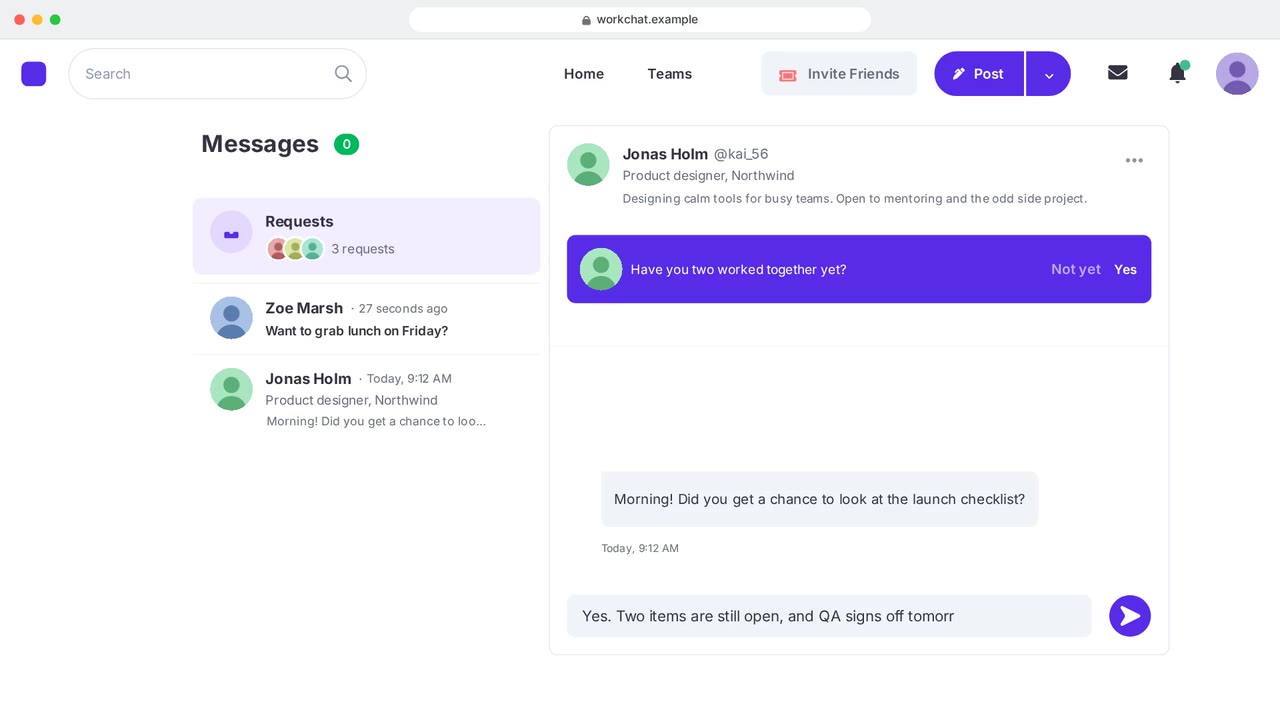
The clip is a web page at desktop width inside a plain browser window, and it is always 16:9: the shape of a laptop screen or a slide. Here is what is on screen.
- The browser window. Three coloured dots and an address pill. The address reads
workchat.example, which is invented. - The page's top bar. A search field, Home and Teams links, an Invite Friends button, a Post button, two icons and your avatar. These are scenery: they are drawn, and they do not open anything.
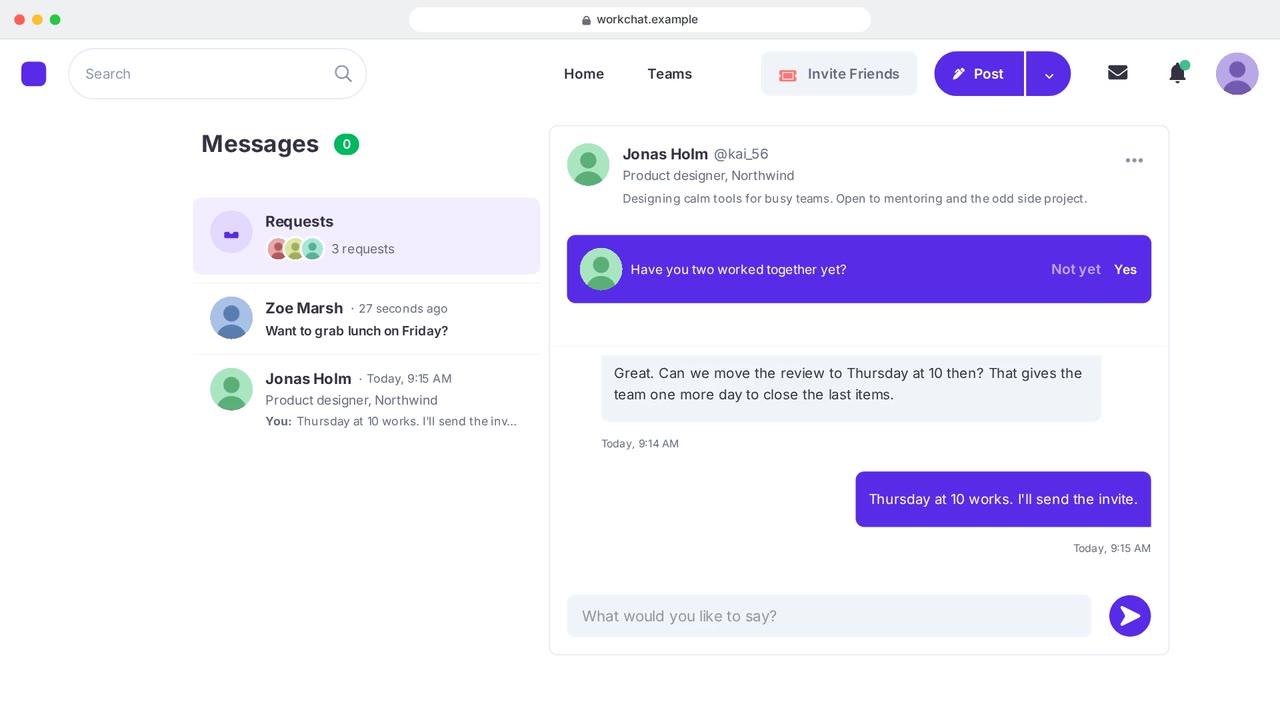
- The messages column. On the left, under a Messages heading: a Requests row, a row for another conversation, and the row of the conversation you are animating. That last row follows the clip. Its preview line is the latest message shown, so it changes as the conversation plays.
- The open conversation. On the right: a header with the contact's avatar, name, handle, headline and a short about line, then the bubbles. The other person's messages are grey and sit on the left. Yours are violet and sit on the right. Each message can carry a time, drawn as a small caption under its bubble.
- The composer. A field at the bottom of the conversation with a send button. Your messages are typed into it character by character before they are sent.
Before each message from the other person, a three-dot bubble shows for as long as you set. That is the whole cast: two people, text messages, typing and times.
How the template works
You describe the conversation in the editor, and the preview redraws every frame from that description. The export runs the same renderer at video resolution, so what you preview is what you download.
Because the clip is a description and not a screen recording, you control every part of it: the names, the headline, the wording, who types when and for how long, and the time under each bubble. Nothing from your real workspace ends up in the frame. No real channel names, no customer names in a sidebar, no notification from a colleague arriving half-way through the take.
Step-by-step: building the conversation
Open the Work Chat template. We will build the clip in the video above: a colleague checks on a launch checklist and the two of you move a review meeting. It is four messages and runs for 13 seconds.
Step 1: Set the contact
Type Jonas Holm into Contact Name at the top of the editor. Open Chat settings under it and fill in the rest:
- Contact Status is the headline under the name. Use a role and a company, such as
Product designer, Northwind. Invent the company. - Contact Avatar (Optional) takes an uploaded picture. It appears in the conversation header and on the conversation's row in the messages column.
- Handle is the short handle shown after the name in the conversation header.
- About is one short line under the headline, for example
Designing calm tools for busy teams. Open to mentoring and the odd side project.
The header is the first thing a viewer reads, so make the headline do some work. "Engineering manager" tells the audience who has authority in the exchange before a single message appears.
Step 2: Fill in the messages column
Still in Chat settings, the section The page around the conversation holds the fields the conversation does not set by itself:
- Other Name, Other Time and Other Content fill the second conversation row of the column: a name, a time such as
27 seconds ago, and a preview line such asWant to grab lunch on Friday? - Other Avatar is that row's picture.
- My Avatar is your own picture on the page.
You do not fill in the row of the open conversation. It takes the contact's name, headline and avatar from Step 1, and its preview is the latest message shown in the clip.
The second row is a small detail that makes the page read as a place where work happens. Keep it mundane. A lunch plan or a quick thanks is right; anything dramatic pulls the eye away from the conversation you are telling.
Step 3: Write the messages
At the bottom of the editor, + Their Message adds a line from the contact and + My Message adds one from you. Each message is a row; open a row to edit its text, and use the Me / Other toggle if you added it on the wrong side. Rows can be reordered.
For our clip:
- Other:
Morning! Did you get a chance to look at the launch checklist? - Me:
Yes. Two items are still open, and QA signs off tomorrow. - Other:
Great. Can we move the review to Thursday at 10 then? That gives the team one more day to close the last items. - Me:
Thursday at 10 works. I'll send the invite.
Four to six messages is a comfortable length for a clip of this kind. The pane shows the latest messages, so in a longer exchange the earlier bubbles move up and out of view, as the first two do by the end of this clip.
Free to start. The manual editor works without an account, in the browser.
Open the Work Chat editorStep 4: Add the times
Each message has a Timestamp field. Whatever you type there is drawn under the bubble, so write it the way you want it read: Today, 9:12 AM, Today, 9:13 AM, and so on. Leave the field empty on a message that should not show a time.
The times in our clip run from 9:12 to 9:15, one minute apart. That reads as two people at their desks, answering promptly. The open row in the messages column picks up the time of the latest message too.
Step 5: Time the conversation
Three settings decide the pace.
- Delay Before (s) is the pause before a message starts. Half a second keeps the exchange brisk.
- Typing Duration (s), on the other person's messages, is how long the three-dot bubble shows before the message appears. The clip uses 1.2 seconds for the opening question and 1.4 for the longer proposal.
- Show typing in input field, on your own messages, types the text into the composer before it is sent. Typing Speed (chars/sec) sets how fast; the clip uses 18.
Typed messages take time in proportion to their length. A 57-character reply at 18 characters a second is on screen for about three seconds before it sends. That is good for a line the viewer should read as it forms, and too slow for a throwaway "ok". Untick the box on short lines and they simply appear.
Step 6: Choose the look
Open the Scene & look tab.
- Theme. Light or dark. Pick the one that sits better on your slide or page background and keep it for every clip in the same piece.
- Show Browser Window. On, the page sits in the browser window with the dots and the address pill. Off, you get the bare page, which suits a layout where the clip is already inside a device frame or a card.
- Zoom. The slider runs from 100 % to 120 %. It zooms the whole page the way a browser does, and the video keeps its size. Use a higher zoom when the clip will be watched small, such as inside a slide or an embedded player.
A computer clip has no phone scenes, no camera moves and no on-screen keyboard. The frame is the page.
Step 7: Preview and export
Play the preview from the start and read every line at viewing speed. If you cannot finish a bubble before the next one arrives, raise the delay before the following message.
Then export. The formats are MP4 and GIF, at 720p and 15, 24 or 30 frames per second. Full HD is available from the Pro plan and 60 fps on the Creator plan. MP4 is the right choice for slides, learning platforms and video editors. GIF suits a short loop in a help article or an email, where a player would be in the way.
Letting Describe it write the first draft
If you would rather start from a sentence than from an empty editor, use Describe it on the same page. Type what should happen, for example "a manager asks for a status update before a launch and we agree on a new review date", and the AI drafts the messages and their timing for the template.
The result comes with a "What happens when" list with seconds, and you can refine it by pointing at a moment, for example asking for a firmer reply at a given second. It then opens in the manual editor, where every field in this guide is yours to change. Describe it requires signing in with Google or GitHub. The manual editor does not. The AI writes the script only; the rendering is the same deterministic renderer either way.
Writing dialogue that sounds like work
A work conversation reads differently from a chat between friends. A few habits keep it believable.
- Lead with the ask. People at work open with the question: "Did you get a chance to look at the launch checklist?" A greeting on its own line followed by a pause costs you a bubble and slows the clip before anything has happened.
- Give the reason in the same message. "Can we move the review to Thursday at 10 then? That gives the team one more day." A request with its reason reads as a competent colleague.
- Close the loop. End on a commitment: who does what next. "I'll send the invite" tells the viewer the scene is over.
- Use full sentences. Capital letters and punctuation fit a work setting. Lowercase fragments make the exchange feel like a private chat.
- Keep names and companies invented. Northwind, Lumen Labs, a made-up product name. Real company names turn a neutral example into a statement about that company.
- One idea per bubble. A bubble that wraps over two lines is fine. A paragraph is not; split it, or cut it.
Timing and times that tell the story
The time under each bubble is a caption, and viewers read captions. Use that.
- One minute apart reads as a live exchange between two people who are at their desks.
- A gap of an hour or more before a reply reads as a busy colleague, a different time zone, or reluctance. Pair it with a longer Delay Before (s) so the pause is felt as well as read.
- An odd hour changes the meaning of the same words. "Can you look at this today?" at
Today, 9:12 AMis routine. AtToday, 11:48 PMit is a scene about boundaries. - A long three-dot bubble before a short answer suggests the other person wrote and deleted something. Two and a half seconds of dots before "Fine." carries more than the word does.
Keep the format of the times consistent from the first message to the last. Mixing 9:12 AM and 09:14 in one thread looks like an editing mistake.
Four conversation patterns that work
- The status check. A question, an honest answer, a new date. This is the clip in this guide, and it suits demos and project-management explainers.
- The handover. One colleague lists what is done and what is open, the other confirms. Useful for onboarding material on how your team hands work over.
- The feedback exchange. A manager gives one specific piece of feedback and the employee asks one clarifying question. Make two versions, a vague one and a specific one, and show them back to back.
- The suspicious request. A message that pretends to come from a manager and asks for gift cards or a password, answered by the correct response: checking through another channel. This is for security-awareness training, shown as a labelled simulation.
The companion post, work chat video ideas for training and demos, has full scripts for these and more.
Where a 16:9 clip fits
The clip is 1280 by 720, or Full HD from the Pro plan. That shape drops into most places a workplace video goes without cropping.
- Slides and webinars. A 16:9 slide takes the clip edge to edge. With the browser window on, it reads as a screen being shared.
- Learning platforms. Upload the MP4 as a lesson video, or cut it into a longer module in your video editor between narration and questions.
- Landing pages and product videos. Use it as the "before" scene: the conversation your product makes shorter, clearer or unnecessary. The guide to making an app demo video without coding covers how to structure the rest.
- Help articles and internal wikis. A short GIF of a model exchange sits well next to a written guideline.
For TikTok, Reels and Shorts, be realistic about the shape. There is no vertical or square version of this template. You can place the landscape clip inside a vertical edit in your own video editor, for example as the top half of a split screen or zoomed in on the conversation. If you want a chat that is vertical from the start, use a phone template: the brand-free Text Chat is the closest relative, and the export settings guide explains the phone formats.
Generating the same video from Claude or ChatGPT
If you would rather describe the conversation in an assistant than click through the editor, MockClip's MCP server has a create_work_chat_conversation tool. It takes the contact's name and headline, the header's handle and about line, the theme, up to twenty messages with optional times, delays and typing settings, and the fields of the second row in the messages column. It returns a link that opens the finished animation in MockClip. Setup is covered in connecting MockClip to Claude and ChatGPT.
Why a brand-free page matters for work content
Workplace video often goes through several reviews. A training module is signed off by a learning team, a webinar deck by marketing, a product video by a brand owner. A conversation set inside another company's product adds a question to each of those reviews: why is their interface in our material?
Work Chat removes the question. The layout, the names and the address in the browser window are invented, so the clip does not show any real product. It also does not date when a real product changes its design.
It is worth being clear about what brand-free does not do. The words in the bubbles are still yours to stand behind, and if you type a real company's name into the headline, that name is now in your video. MockClip's other brand-free designs are described in brand-free app mockups for ads.
Plans and what they cover
Every template is free to use, and free exports are 720p MP4 or GIF with a small watermark. Pro removes the watermark and unlocks Full HD. Creator adds 60 fps. On Free, Pro and Creator, videos are for your own content. Work for clients and paid ads need the Studio plan. The pricing page has the current plans, and the terms have the exact wording.
A note on honesty
Work Chat is for staged conversations: skits, tutorials, explainers, training, demos and storytelling. Do not put a real person's name or photo on words they never wrote, and do not present a staged exchange as a real one. In training material, say on screen or in the narration that the conversation is a simulation. That costs nothing and it keeps trust with the people you are training.
Common mistakes to avoid
- Writing for a group. The template plays a conversation between two people. A script with three speakers needs to be rewritten as a one-to-one exchange or split into two clips.
- Describing things the page cannot show. There are no reactions, threads, photos or file attachments. If a line says "see the attached file", the viewer will look for a file that is not there. Write "I've sent it by email" instead.
- Typing every message. If all of your lines are typed into the composer, the clip drags. Type the lines that matter and let the short ones appear.
- Using 100 % zoom for a small player. Text that is comfortable full-screen is hard to read in a small embedded player. Check the clip at the size it will be watched.
- Planning a vertical export. There is none. Decide the final layout before you write, so the conversation is short enough to read when the clip is scaled down inside a vertical edit.
- Using a real colleague as the contact. Invent the person. A real name on staged words is a problem waiting to happen, even inside one company.
Quick start
- Open the Work Chat template.
- Contact name, headline, handle, about line and avatar.
- The second row of the messages column: name, time, preview.
- Four to six messages with + My Message and + Their Message.
- A time under each bubble, in one consistent format.
- Delays, typing durations, and typing in the composer on the lines that matter.
- Theme, browser window on or off, zoom between 100 % and 120 %.
- Export MP4 or GIF.
Related MockClip templates and guides
- Work Chat conversation video maker: the template used in this guide
- Work chat video ideas for training and demos: scripts for onboarding, security awareness, demos and slides
- Brand-free app mockups for ads: MockClip's other original designs
- Text Chat: a brand-free chat on a phone, for vertical video
- Chat mockups for client videos: choosing a template per brief
- Connect MockClip to Claude or ChatGPT: MCP setup
- Pricing: plans, watermark and Full HD
Frequently Asked Questions
What is the easiest way to make a work chat conversation video?
Open MockClip's Work Chat template in the browser, name the contact, write the messages for both sides, set the delays and typing times, then preview the clip and export it as an MP4 or a GIF. The manual editor works without an account.
Is Work Chat a copy of a real app?
No. It is MockClip's own layout with invented names and an invented address in the browser window. No real product's name, logo or people appear in the clip.
Can I export the work chat video as a vertical 9:16 clip?
No. The template draws a desktop web page, so the clip is always 16:9. For a vertical video, place the landscape clip inside a vertical edit in your own video editor, or use one of MockClip's phone templates for a native vertical chat.
Does the template support group channels, threads, reactions or file attachments?
No. It plays a conversation between two people as text messages. Channels, threads, reactions, photos and file attachments are not included.
Is the work chat video maker free?
You can start for free, and the manual editor works without signing up. Free exports are 720p MP4 or GIF with a small watermark. Plans and their limits are described on the pricing page.
Can I use a real colleague's name and photo in the clip?
Use invented names and pictures. The template is for staged conversations in training, demos, tutorials and skits. Do not impersonate real people, and do not present a staged exchange as a real one.
Can I make the clip from Claude or ChatGPT instead of the editor?
Yes. MockClip's MCP server has a create_work_chat_conversation tool that accepts the contact, the header lines, the theme and the messages with their timing, and returns a link to the finished animation.
Related Articles
Work Chat Video Ideas for Training, Demos and Onboarding
Twelve work chat video ideas with scripts for onboarding, security awareness, SaaS demos and slides, on a brand-free desktop page that exports as a 16:9 clip.
Brand-Free App Mockups for Ads: Chat, Notification & AI UIs
Original, unbranded app mockups for ads and client videos: a text chat, lock screen notifications, an AI assistant and a dating app, in your own name and colour
How to Make an App Demo Video Without Coding or Recording
Make an app demo video in the browser with no code and no screen recording: script a chat-style product demo, brand it with your app name and export MP4.
Chat Mockups for Client Videos: An Agency Workflow Guide
How agencies, freelance editors and small businesses make chat mockups for client videos: briefs, copy sign-off, app choice, revisions, brand safety, delivery.
How to Connect MockClip to Claude and ChatGPT via MCP
Connect MockClip to Claude Desktop, ChatGPT or any MCP client with a free API key, then turn one prompt into a chat mockup video you export in the browser.