How to Make a Fake Text Conversation Video With AI Prompts
Making a fake text conversation video used to mean filling in a form: a name here, a message there, a typing delay for each bubble, a read receipt on the right line. It works, and the manual editors are still there, but it is slow when all you have is an idea. MockClip's Describe it mode replaces the form with a text box. You type what should happen, an OpenAI model writes the conversation as a MockClip clip, and the preview plays a few seconds later.
This tutorial walks through the whole flow on a WhatsApp clip: writing the description, signing in, reading the timeline the AI produced, changing one moment by pointing at its second, fine-tuning by hand, and exporting the MP4. The same steps apply to every other MockClip template.
What you need
Three things, none of them technical.
- A browser. MockClip runs entirely in the browser, on desktop or on a phone. Nothing to install.
- A free account. Generating a clip needs a sign-in with Google or GitHub. It takes a few seconds and the free tier includes two generations.
- An idea. A sentence is enough. "My mom texting the same question three times" is a complete brief for the AI.
Step 1: Pick a template
Every MockClip template has the same AI text box, so start by choosing the app your story belongs to:
- WhatsApp for international, everyday chats with ✓✓ read marks
- iMessage for the blue-bubble look and tapback reactions
- Telegram for chats that open from the chats list
- Instagram DM for creator and brand conversations
- ChatGPT for a person talking to an AI assistant
- Reddit for a post with a comment thread
- Tinder for swipe sequences and matches
- Phone call and phone call notification for incoming calls
- iMessage notification for lock-screen banners
Above the editor column you will see a segmented control: ✨ Describe it on the left, Manual editor on the right. Describe it is selected by default, and the browser remembers whichever side you used last, so if you switched to the manual editor last week you may need to click back.

Step 2: Write the description
The text box is labelled Describe the clip you want. Its placeholder is the best template for a good description:
e.g. two friends arguing about who forgot the concert tickets, 6 messages, she wins
Notice what that sentence contains. It says who (two friends), about what (the concert tickets), how many messages (six) and who wins (she does). Those four pieces give the AI everything it needs to write a conversation with a beginning, a turn and an ending. Leave one out and the AI will guess, which is fine for a first draft but less predictable.
Under the box are three tappable example prompts, different for each template. On WhatsApp they read "two friends arguing about who forgot to buy the concert tickets", "a delivery driver who cannot find my house, five messages of directions" and "a coworker asking me to cover their shift on my birthday". Tapping one fills the box so you can edit it.
A description can be anywhere from 3 to 1,500 characters. Short works. If you want control over names, tone or specific lines, add them: "my sister Marta, she is sarcastic, the last message is just '…'". The AI follows specifics closely and keeps every bubble under about 200 characters, so there is no need to write the actual messages yourself unless you want a particular line word for word.
Step 3: Sign in
If you are not signed in, the green button reads Sign in to generate (2 free). Click it, pick Google or GitHub, and you come straight back to the same page. The description you typed is kept through the round trip, so nothing is lost.
Once signed in the button reads Generate clip, with a small chip next to it showing your remaining allowance, for example "2 free left". You can also press ⌘ or Ctrl + Enter inside the text box to send.
Step 4: Watch the clip and read the timeline
Press Generate clip. The button shows "Writing the clip…" for a few seconds while the AI works. When the result arrives the preview starts playing from 0:00 on its own, and the panel changes in three ways.
First, the label above the box becomes Describe a new clip and the button becomes Generate new clip, so you can start a different idea without leaving the page. The allowance chip drops by one.
Second, a What happens when list appears below. Each row is one message with its seconds, sender and a short summary. For the concert-tickets clip the list reads roughly:
0:01–0:02  #1 Marta: so… tickets? (typing 1.5s)
0:03–0:07  #2 Me: you said you'd get them (typed in, read ✓✓)
0:07–0:09  #3 Marta: I said I'd LOOK. You said "leave it with me" 😅 (typing 2.2s)
0:10–0:15  #4 Me: the show is in 3 hours (typed in, read ✓✓)
0:15–0:18  #5 Marta: "leave it with me" — your words, 14 May. I have the screens… (typing 2.6s)
0:18–0:23  #6 Me: …so we're looking now (typed in, reaction, read ✓✓)
The row that is playing right now lights up in the template's colour, so you can follow the clip line by line.
Third, a small time badge sits in the top corner of the phone preview, for example "0:04.9 / 0:25". It shows the current second and the total length. That number is how you will tell the AI what to change in the next step.
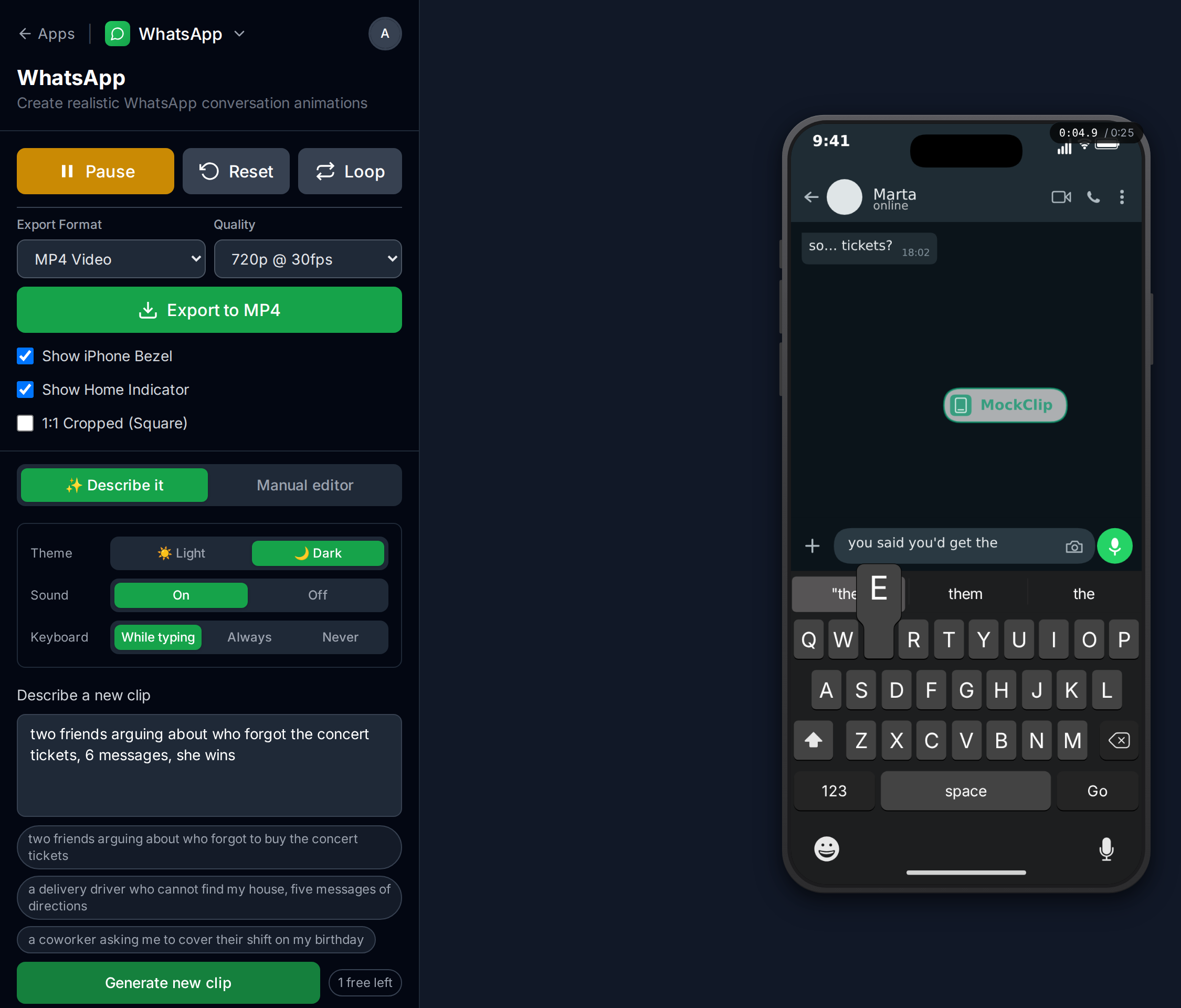
Read the timeline once before you change anything. Most first drafts are usable as they are; the clip above needed no edits.
Step 5: Change something by pointing at the second
Below the create box a second box appears, labelled Change something — say the second. This is where the AI mode earns its keep. Instead of hunting for the right field, you describe the change and name the moment. Three examples that work well on the concert-tickets clip:
- Change a line.
at 0:09 make her reply angrierrewrites message #3 and leaves the other five untouched. - Add a beat.
add a message after 0:15 where he apologisesinserts a new outgoing message between #5 and #6 and shifts the rest. - Change the length.
make it 5 seconds shortertightens delays and typing times across the clip. There is no duration slider; you say it in words.
Press Apply change (or ⌘/Ctrl + Enter). The button shows "Updating…" and the preview restarts with the new version. The AI is instructed to change only what you asked for and keep everything else identical, so a refine never rewrites the whole story.
If you do not like the result, press Undo. MockClip keeps the last ten versions of the clip, so you can step back through several refines. Each refine costs one generation from your allowance, the same as a fresh clip, so it pays to bundle changes into one request: "at 0:09 make her reply angrier and make it 5 seconds shorter" is one generation, not two.
Start over at the bottom of the panel clears the clip and both text boxes.
Step 6: Fine-tune in the manual editor
The clip the AI wrote is not a special object. It is the same config the manual editor uses, so the link Fine-tune in the manual editor → switches the column to the ordinary WhatsApp editor with every field filled in: contact name and status, each message with its typing duration, delay, read-mark timing and reaction. Change any of them by hand.
You can switch back to Describe it afterwards and keep refining, with one caveat the panel itself prints: refining a clip edited by hand may drop details the AI cannot see. Fields that only exist in the manual editor, such as an uploaded image, are not part of the AI's picture of the clip. If you plan to add those, do it last.
Step 7: Export the video
Export works the same way in both modes. Choose MP4 Video or GIF Animation and the quality, then press Export. The file renders in your browser and downloads when it is done. The output is vertical and fits TikTok, Reels and Shorts without cropping.
Exports on the free plan carry a small MockClip watermark. Pro exports are watermark-free, and on the free plan one AI credit buys one export without the watermark, using the checkbox that appears next to the export button once you own credits. The pricing page has the full breakdown.
Free to start. Sign in with Google or GitHub. Two generations included.
Describe an iMessage clipPrompt-writing rules that work
After a few generations you will notice what the AI responds to. These five rules cover most of it.
- Name the people. "my sister Marta" gives the contact a name and a relationship; "someone" makes the AI invent both. Named characters also make refines easier ("make Marta angrier").
- Give it a turn. The best chat videos have a moment where the story flips: the screenshot that proves who said what, the excuse that falls apart. Put the turn in the description and the AI builds the messages around it.
- Say how many messages. Four to ten is the sweet spot for a 15 to 30 second clip, and it is what the AI aims for on its own. Ask for six if you want a tight exchange, ten if you want a slow build.
- Set the tone in one word. "sarcastic", "passive-aggressive", "sweet", "deadpan". One adjective changes every line.
- Say who wins. A conversation that ends on the right beat feels finished. "she wins", "he gives up", "nobody backs down" are all valid endings.
What the AI will not do
Knowing the limits saves generations.
- It does not invent images. If your story needs a photo in the chat, paste an http(s) link to the image in the description and the AI will place it. Otherwise image fields stay empty. Base64 uploads belong in the manual editor.
- It does not do voice. No voice notes on any template; write the story around text.
- It has no duration control. Say "about 20 seconds" or "make it shorter" in words. The AI targets clips between 12 and 35 seconds on its own.
- It caps the length. Chat templates take up to 20 messages. Ask for a novel and you get a shorter clip than you wanted.
- It reads only the clip. On a refine, the AI sees the current messages and the second-by-second list, nothing else. Refer to moments by their seconds, not by "the bit I mentioned earlier".
Allowances, credits and what a generation costs
Every account has an allowance. Free accounts get 2 generations for life. Pro, a €10 one-time purchase, adds 5 generations every month on top of watermark-free exports. When you run out, a €5 pack of 50 credits covers anything beyond that; credits never expire and work on both plans. A generation is charged before the AI is called and refunded if the call fails, so a rephrase after an error does not cost double. The chip next to the Generate button always shows what is left, and the pricing page lists the numbers side by side.
Troubleshooting the four messages you might see
The panel prints a short message when something goes wrong. Each one has a clear fix.
- "You've used your free generations." Your allowance is at zero. The prompt that opens offers Pro or a credit pack; or keep working in the manual editor, which is unlimited.
- "AI generation is paused right now. Try again later or use the manual editor." The AI service is temporarily off. Your description is still in the box; try again later or switch modes and build the clip by hand.
- "That request can't be generated. Try rephrasing it." The AI declined the request. Remove anything it might read as harmful or as targeting a real person, and describe the scene again.
- "Couldn't build the clip. Try rephrasing or shortening the request." The AI produced something that did not fit the template, usually because the description asked for too much. Cut the message count or the number of demands and resend.
Posting the video to TikTok, Reels and Shorts
The export needs no editing before upload, but a few habits improve results. Let the first message land within the first two seconds so the hook is visible before viewers scroll. Keep the clip under 30 seconds for Reels, where loops matter. Add on-screen captions in your posting app rather than baking them into the clip, so the same export works everywhere. The guide to fake text conversation videos for YouTube Shorts covers format choices, and how to go viral with fake conversation videos covers hooks and pacing.
The developer alternative: MCP
If you would rather generate clips from inside Claude, ChatGPT or another AI client, MockClip's MCP server exposes a create_* tool for each template and returns a link that opens the finished clip in the editor. Describe it and the MCP server share the same clip language underneath, so a conversation written one way can be refined the other. The guide to connecting MockClip to Claude or ChatGPT covers the setup. For everyone else, Describe it is the same power without the configuration.
Quick-start checklist
- Open a template, for example WhatsApp, and keep Describe it selected.
- Write one sentence with who, about what, how many messages and who wins.
- Sign in with Google or GitHub when prompted; your text is kept.
- Press Generate clip and watch the preview play.
- Read the What happens when list and note the second of anything you want changed.
- Type the change with its second, press Apply change; Undo if needed.
- Fine-tune in the manual editor only if you need a field the AI does not touch.
- Export MP4 or GIF and post.
Related MockClip templates and guides
- AI fake chat video generator: Describe it — what the AI mode does on every template, with allowances explained
- AI chat video prompt ideas for TikTok, Reels and Shorts — ready-to-paste descriptions by app
- How to make a fake WhatsApp chat video — the manual-editor tutorial for the template used here
- How to make a fake iMessage conversation video — the same tutorial for blue bubbles
- Fake chat video maker free — the cross-platform overview
- WhatsApp template — start a clip
- Pricing — free, Pro and AI credit packs
Frequently Asked Questions
How do I make a fake text conversation video with AI?
Open a MockClip chat template such as WhatsApp or iMessage, keep the editor on Describe it, type what should happen in one or two sentences, and press Generate clip. The AI writes every message, the names and the timing, the preview plays, and you export the result as MP4 or GIF.
Do I need an account to use Describe it?
Yes. Generating a clip needs a free account with Google or GitHub sign-in. The description you typed is kept through the sign-in step, so you do not have to retype it. The manual editor works without an account.
How many AI generations do I get?
Free accounts get 2 generations for life. Pro, a €10 one-time purchase, adds 5 generations every month. Beyond that a €5 pack of 50 credits covers extra generations, and credits never expire. A generation that fails is refunded.
Can I change the conversation after the AI writes it?
Yes, in two ways. Type a change and point at the second, for example 'at 0:09 make her reply angrier', and the AI updates only that part. Or open the manual editor and edit any field by hand, because the result is an ordinary MockClip config.
Can the AI add images or voice notes to the conversation?
No. Describe it writes text, names, statuses and timing. It never invents image URLs; it only uses an http(s) image link you pasted into the description. Voice notes are not part of any template.
Which apps does Describe it work on?
All ten MockClip templates: ChatGPT, iMessage, iMessage notification, WhatsApp, Telegram, Instagram DM, Tinder, Reddit, phone call and phone call notification. The same text box sits above every editor.
Is the exported video watermarked?
Exports on the free plan carry a small MockClip watermark. Pro exports are watermark-free, and on the free plan one credit buys one export without the watermark. The pricing page has the details.
Related Articles
AI Fake Chat Video Generator: Describe It, Get the Clip
Type what the clip should be and MockClip's Describe it mode writes the messages and timing for WhatsApp, iMessage, ChatGPT, Tinder and more. Refine by second.
AI Chat Video Prompt Ideas for TikTok, Reels and Shorts
30+ ready-to-paste prompts for MockClip's Describe it mode: WhatsApp, iMessage, Telegram, ChatGPT, Reddit, Tinder and more. One sentence in, a chat video out.
How to Connect MockClip to Claude and ChatGPT (MCP Setup Guide)
Step-by-step guide to configure MockClip inside Claude Desktop and ChatGPT using the Model Context Protocol. Generate conversation mockup videos from plain-English prompts.
Fake Chat Video Maker Free: Create Text Conversation Videos
Free fake chat video maker for TikTok and Reels. Create realistic animated text conversations with iMessage, WhatsApp, and Instagram DM interfaces in minutes.
How to Make a Fake WhatsApp Chat Video (2026 Guide)
Complete 2026 guide to creating realistic fake WhatsApp chat videos for TikTok, Reels, and Shorts — typing dots, blue ticks, MP4 export, no install required.