How to Make a Fake Snapchat Chat Video (2026 Guide)
A fake Snapchat chat video is a scripted conversation played back inside Snapchat's chat: a name label, a line of text, someone typing, a reply. This guide walks through making one in MockClip, from the first message to the exported file, using only what the Snapchat template draws.
One thing to know before you start. This template is the web chat, the version of Snapchat you open on a computer. The clip shows a browser window with the chat list on the left and the open chat on the right, and it is always 16:9. There is no phone version of the template yet. That makes it a natural fit for YouTube videos, slides and lessons, and a less direct fit for vertical feeds. The section on using the clip covers what to do about that.
What the Snapchat template draws
It helps to know the building blocks before you write a script, because a script that asks for something the template does not draw has to be rewritten later.
What you get:
- The desktop page in a browser window. Three coloured dots, an address pill reading
web.snapchat.com, the chat list on the left and the open chat on the right. You can turn the browser window off and show the bare page. - Name labels in colour. Each run of messages starts with the sender's name in capitals, in that sender's colour, and every line in the run carries a thin bar of the same colour. In the demo, MAYA is purple and ME is green.
- Saved lines. Any message can be marked as saved in chat, which draws it on a grey band.
- Date lines. A small centred line such as
NOVEMBER 24above a message, for the start of a day or a jump in time. - A typing line. While the other person writes, their name and "is typing…" with animated dots show above the Send a chat field.
- Your own typing. Your messages can be typed into the Send a chat field character by character before they are sent.
- More than two voices. A message from the other side can name its own author, so one chat can hold several people.
- A chat list that follows the clip. The open chat's row on the left keeps its status in step with the thread.
- Light and dark themes, and MP4 or GIF export.
What you do not get: photo or video snaps, streak counters, stickers, custom Bitmoji, photos or files in the chat, voice notes, reactions, links that open, or a phone layout. The other rows in the chat list are fixed scenery, so you cannot rename them. If your script needs any of these, change the script, not the plan.
How the template works
The template is a canvas renderer. You describe the conversation in the editor, and the preview redraws every frame from that description. The export runs the same renderer, so what you preview is what you download.
Because the clip is a description and not a screen recording, you control every part of it: the names, the order of the lines, who types when and for how long, which line is saved, where the date changes. Nothing from your own account ends up in the frame, and you never need a second person to play the other side.
Step-by-step: building the conversation
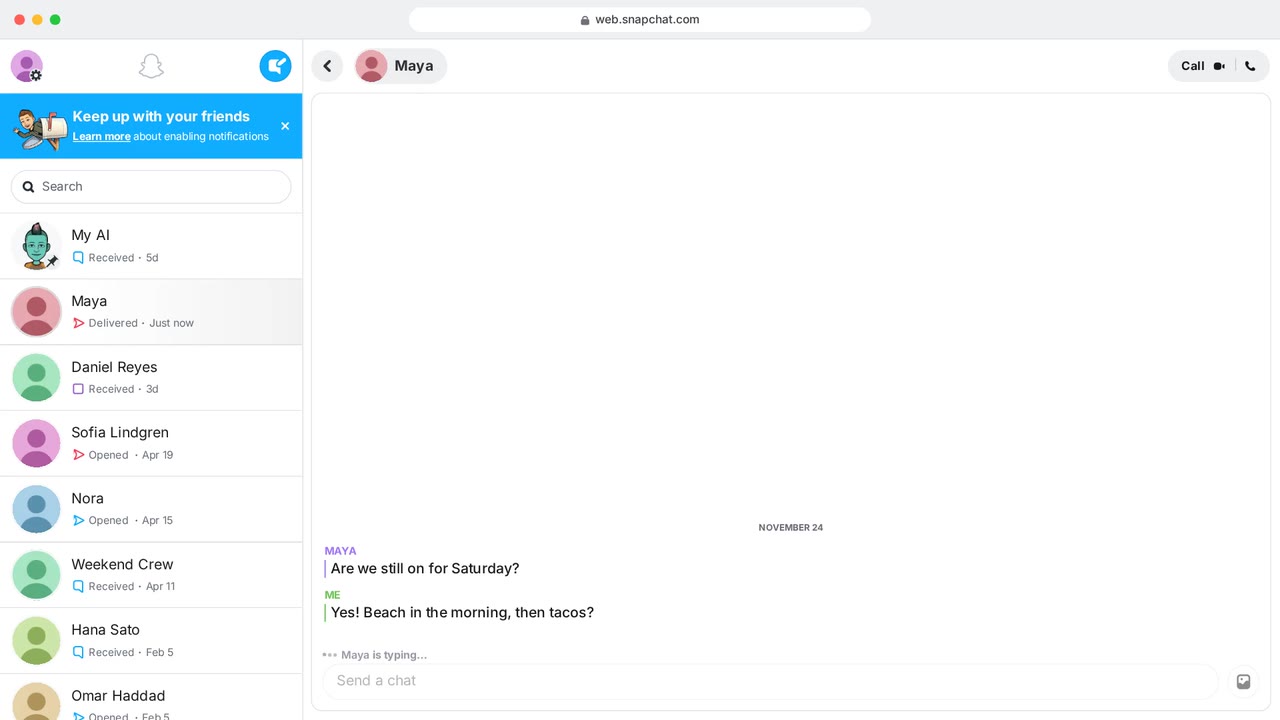
Open the Snapchat template. We will build the clip shown above: Maya checks that Saturday is still on, you suggest the beach and tacos, she offers to drive, and you agree on a time. Five lines, eleven seconds.
The page opens on Describe it, the mode where you type a sentence and an AI drafts the clip. This guide uses the manual editor, which works without an account. Describe it has its own section further down.
Step 1: Set the people
Type Maya in Contact Name. The name appears in the pill at the top of the open chat, on the chat's row in the list, and in capitals above her messages.
Open Chat settings for the rest:
- Contact Avatar (Optional): upload a picture for Maya. It shows in the header pill and on her row in the chat list.
- Your name: the label on your own messages. In the demo it reads
ME. - Your avatar: the picture for your own account.
- Date line above the first message: on by default. It stamps the first message with a date line, which is how most real threads start.
Pick names that are short. A name label is drawn in capitals, and a long name in capitals takes attention away from the line under it.
Step 2: Write the messages
Add lines with + My Message and + Their Message at the bottom of the editor. Each message is a card; the open card shows its text and timing. For the demo:
- Their message:
Are we still on for Saturday? - My message:
Yes! Beach in the morning, then tacos? - Their message:
Perfect. I can drive. - Their message:
Pick you up at 9? - My message:
9 works. I'll bring the snacks 🌮
If a line lands on the wrong side, switch its sender with the Me / Other toggle on the card. To change the order, drag the cards.
Five to eight lines is a comfortable length. The chat area on a desktop page is wide, so a line of ten words still fits on one row, but short lines read faster and viewers are reading while the clip keeps moving.
Step 3: Group lines into runs
Look at messages 3 and 4 in the demo. Maya sends two lines in a row, and they share one MAYA label. That is a run: the first message of a run gets the name label, and the ones that follow continue under it with the same coloured bar.
The editor decides this for you, and you can override it. Open a message, go to its extra fields (behind More on a phone) and find Name label (off = continues the previous message). Leave it on and the message starts with a label. Turn it off and the message continues the one above it.
Two short lines in one run read as a person thinking out loud. Use that for hesitation (Perfect. I can drive. then Pick you up at 9?) and for reveals, where the second line changes the meaning of the first.
Step 4: Mark a saved line
Tick Saved in chat (grey band) on a message and it is drawn on a grey band, like a line someone chose to keep. The demo does not use it, because a beach plan has no line worth keeping. Most stories do have one: the promise, the address, the line that gets quoted back later.
Save one line, maybe two. A thread where every line sits on a grey band tells the viewer nothing about which one matters.
Step 5: Add date lines
The first message in the demo sits under NOVEMBER 24. That text comes from the Date line above field on the first message. Type whatever the story needs: a date, Today, or a time such as 11:40.
You can add a date line above any message. Put one in the middle of a thread and the viewer understands that time has passed, which is the cheapest way to show a reply that came the next day. If you do not want a date line at the top at all, untick Date line above the first message in Chat settings.
The manual editor works without an account. Browser-based, 16:9 export.
Open the Snapchat editorStep 6: Time the conversation
Timing is what separates a chat video from a slideshow of text. Each message has two controls.
For the other person's messages:
- Delay Before (s) is the pause after the previous message.
- Typing Duration (s) is how long the "Maya is typing…" line shows above the Send a chat field before her message appears.
For your own messages:
- Delay Before (s) works the same way.
- Show typing in input field types the message into the Send a chat field before it is sent, at the Typing Speed (chars/sec) you set.
The demo uses these values:
- Maya's first line: delay 0.5, typing 1.2.
- Your reply: delay 0.5, typed into the field at 22 characters per second.
Perfect. I can drive.: delay 0.5, typing 1.0.Pick you up at 9?: delay 0.4, typing 0.8.- Your last line: delay 0.5, typed at 22 characters per second.
Notice that the typing time shrinks as Maya's lines get shorter. Match the typing duration to the length of the line and the pause before a reply to how much thought it needs. A one-word answer after three seconds of typing looks wrong unless the story wants the viewer to wonder what was deleted.
Step 7: Choose the look
Open the Scene & look tab. A computer clip has two choices there that matter:
- Theme. Light or dark. The demo is light. Dark suits a late-night story; light reads better when the clip is small on screen, for example inside a slide.
- Show Browser Window. On, the page sits in a plain browser window with the three dots and the address pill. Off, the clip is the bare page from edge to edge.
Keep the browser window when the point is "this happened on a computer", such as a story about a shared family laptop or a lesson on the web version. Turn it off when you want the chat as large as possible in the frame.
There is nothing else to set for the frame. A computer clip has no phone bezel, no camera scenes and no on-screen keyboard, and its aspect ratio is fixed at 16:9.
Step 8: Preview and export
Play the preview from the start and watch it once without touching anything. Check three things: every line is readable before the next one arrives, the typing line shows long enough to be noticed, and the last line stays on screen for a moment before the clip ends.
Then export. The clip is an MP4 or a GIF at 720p (1280 by 720), between 15 and 30 frames per second, with a small watermark on the free plan. Pro removes the watermark and unlocks Full HD, and 60 fps is part of the Creator plan. The pricing page has the details. For a comparison of formats and frame rates, see the export settings guide.
What the finished clip looks like
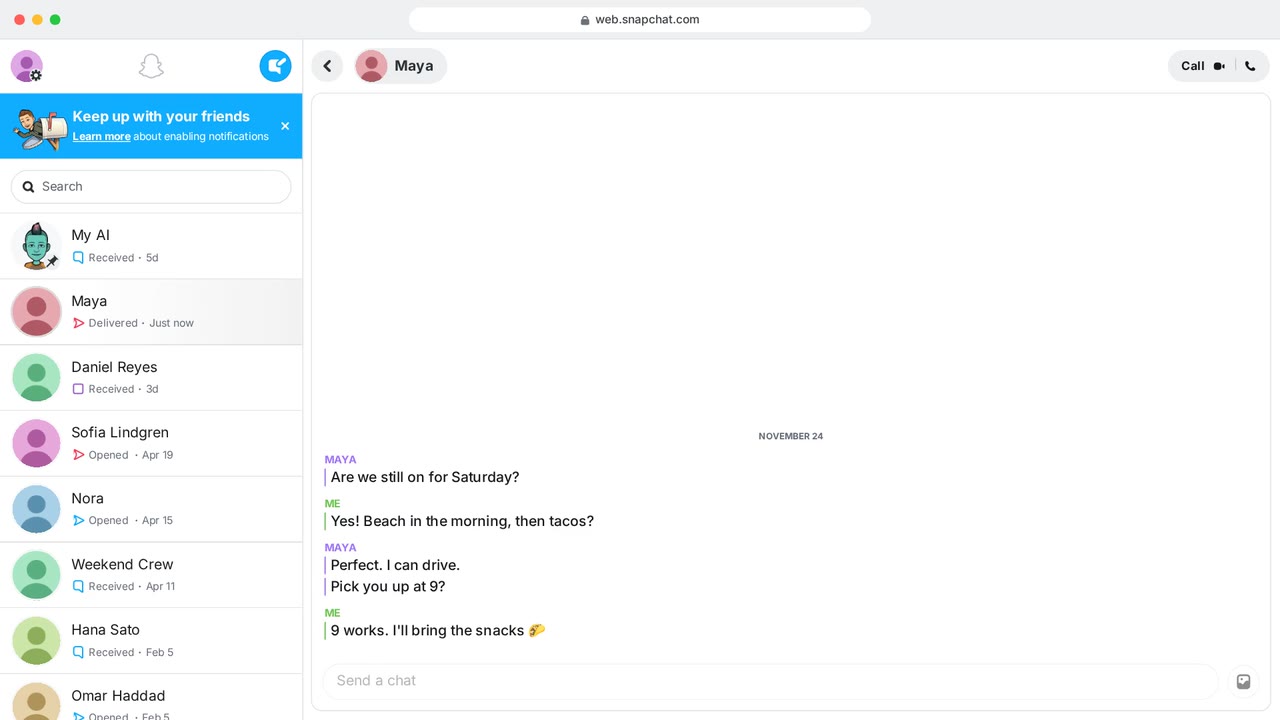
This is the last frame of the demo. Reading it from the top:
- The browser window shows the address
web.snapchat.com. - The header pill carries Maya's avatar and name.
- The thread starts with the
NOVEMBER 24date line. - MAYA is in purple, ME is in green, and each line has a thin bar in its sender's colour.
- Maya's two lines in the middle share one label, because they are one run.
- The 🌮 at the end of the last line is drawn as an emoji.
- On the left, Maya's row in the chat list is highlighted and reads
Delivered · Just now, because the last message in the thread is yours.
The other rows in the list are placeholder names that come with the template. They give the page a lived-in look, and they are not editable.
Adding more than two people
The template can put several voices in one chat. Open one of the other side's messages, go to its extra fields and type a name in the author field (its placeholder reads Author (default Maya)). That message now starts a new run under that author's name, in its own colour.
For a group chat, a practical setup is:
- Put the group's name in Contact Name, for example
Weekend Crew. It shows in the header pill. - Give every incoming message an author:
Nora,Omar,Hana. - Keep your own messages as they are, under your own name.
Set an author on every incoming line. A message without one falls back to the contact name, which in this setup is the name of the group.
Three or four people is the practical limit for a short clip. With more than that, the viewer spends the clip matching colours to names and misses the lines. This is the only multi-person case the template has: there are no member lists, no join or leave notices, and no group settings.
Using the 16:9 clip
The clip is landscape, 1280 by 720 on the free plan and Full HD from Pro. That decides where it fits without extra work.
YouTube videos. A story-time video, a commentary or a tutorial is already 16:9. Drop the clip on the timeline full screen while you narrate, or cut to it for the moment the story reaches the conversation.
Slides, webinars and lessons. A 16:9 clip fills a slide without cropping. Export a GIF when the slide should show the chat without a video player around it.
TikTok, Reels and Shorts. Be honest with yourself about this one: the template does not export a vertical clip, and stretching or cropping a desktop page to 9:16 cuts the chat list or the thread in half. Two approaches work. Place the landscape clip inside a vertical edit in your own video editor, for example as the top half of a split screen with your face or b-roll underneath, or zoomed in on the thread. Or build the chat in one of MockClip's phone templates, which export vertically: iMessage, WhatsApp, Instagram DM or Messenger. None of those is Snapchat, so pick this route only when the app's name is not part of the story.
For more on where each format fits, the sibling post has Snapchat chat video ideas for YouTube stories, with scripts for story-time channels, skits and online-safety lessons.
Drafting the chat with Describe it
If you would rather start from a draft than from an empty editor, use Describe it, the panel the template opens on. Type a sentence about the exchange, for example two friends planning a surprise party, one of them nearly gives it away, and the AI writes the messages, the names and the timing. A "What happens when" list shows each moment with its second, and you can refine by pointing at one: at 0:04 make her reply shorter.
The result opens in the manual editor, where every step above still applies. Two limits to know: Describe it requires signing in with Google or GitHub, and it writes text only. It does not invent avatars or any other image, and the video itself is drawn by the same renderer as a clip you build by hand. The Describe it guide covers prompts in more depth.
Generating the same video from Claude or ChatGPT
If you already work in an AI assistant, MockClip's MCP server has a create_snapchat_conversation tool. It takes the contact name, the theme, your own name and up to twenty messages, each with optional typing, date line, saved and author settings. It returns a link that opens the finished animation in MockClip. Setup is covered in Connect MockClip to Claude or ChatGPT.
Writing dialogue that reads like a Snapchat chat
The interface is only half of what makes the clip believable. The other half is how the lines are written.
- Keep lines short. People chat in fragments.
Perfect. I can drive.is how a person writes;That sounds perfect, and I am able to drive us there.is how a script writes. - Split, do not stack. Two short lines in one run feel more natural than one long line, and the second line gives you a beat to time.
- Let one side lead. In most real chats one person asks and the other answers. Alternating one line each for the whole clip reads like a tennis match.
- One emoji, where a person would put it. The 🌮 at the end of the demo works because it is the last word on the subject.
- End on a line that closes the scene.
9 works. I'll bring the snackssettles the plan. A clip that stops mid-question feels cut off, unless the cliffhanger is the point. - Use the saved line as the hinge. If the story has a line that will matter later, save it. The grey band tells the viewer to remember it without a caption saying so.
Staying honest
A staged chat is a storytelling tool, and it should be presented as one.
- Do not impersonate real people. Use invented names and avatars you have the right to use.
- Do not present a staged exchange as a real one. A "dramatised" or "re-enactment" note in the video or the description removes any doubt.
- Do not use the format for fraud, harassment or to put words in someone's mouth.
MockClip is an independent tool and is not affiliated with Snapchat; Snapchat is a trademark of Snap Inc. On the Free, Pro and Creator plans, clips are for your own content, monetised posts on your own channels included. For a paid ad or a client project, the terms point you to a brand-free app such as Text Chat instead of a real-app template. See pricing for what each plan covers.
Common mistakes to avoid
- Writing a script that needs a snap. The template is text chat only. If the story turns on a photo, describe the photo in a line (
did you see what she posted) and keep the reveal in words. - Planning a vertical export. There is none. Decide before you write whether the clip goes into a landscape video or into a vertical edit as a panel.
- Saving every line. The grey band only means something when it is rare.
- The same typing duration on every message. Vary it with the length of the line.
- No pause at the end. Give the viewer a second with the last line before the clip ends or the edit cuts away.
- Group messages without an author. They fall back to the contact name, which is confusing when the contact name is the group's.
- Long names. Name labels are capitals.
MAYAis a label; a full name with a surname is a headline. - Describing features in your caption that are not on screen. Do not mention streaks or snaps in the title if the clip cannot show them.
Quick start
- Open the Snapchat template.
- Contact name, avatar and your own name in Chat settings.
- Five to eight messages with + My Message and + Their Message.
- One saved line, and a date line where the day changes.
- Delays, typing durations, and typing in the field for your own lines.
- Theme, and the browser window on or off, in Scene & look.
- Export MP4 or GIF at 16:9.
Related MockClip templates and guides
- Snapchat chat maker — the template used in this guide
- Snapchat chat video ideas for YouTube stories — scripts for story-time channels, skits and online-safety lessons
- How to make a fake Messenger conversation video — a template with both a phone and a computer layout
- How to create a fake Instagram DM video — the Instagram DM tutorial
- How to make a fake iMessage conversation video — a vertical phone chat
- Fake chat video maker free — cross-platform overview
- Why fake chat videos look fake — the details that give a staged chat away
- Pricing — Pro for watermark-free, Full HD exports
Frequently Asked Questions
What is the easiest way to make a fake Snapchat chat video?
Open MockClip's Snapchat template in the browser, name your friend, write the messages for both sides, set the delays and typing times, then export an MP4 or a GIF. The manual editor works without signing up.
Is the video vertical like the Snapchat app on a phone?
No. The template draws Snapchat's web chat as it looks on a computer, so the clip is always 16:9. There is no phone version of this template yet. For a vertical chat video, use one of MockClip's phone templates, or place the landscape clip inside a vertical edit in your own video editor.
Can I show snaps, photos, streaks, stickers or Bitmoji?
No. The template plays text chat only. Photo and video snaps, streak counters, stickers and custom Bitmoji are not included. Avatars are images you upload.
What does Saved in chat do?
It draws that message on a grey band, like a line someone chose to keep. Tick it on the one or two lines the story depends on.
Can I make a group chat with more than two people?
Yes, in one way: a message from the other side can carry its own author name, so the chat can have several voices, each with a name label in its own colour. Every author's lines sit on the left with your own.
Is it legal to make fake Snapchat chat videos?
Fictional and comedic conversations are fine in most places. Do not impersonate real people, do not present a staged exchange as real, and do not use the format for fraud or harassment. MockClip is not affiliated with Snapchat, which is a trademark of Snap Inc.
Can I make it from Claude or ChatGPT instead of the editor?
Yes. MockClip's MCP server has a create_snapchat_conversation tool that accepts the contact name, the theme and up to twenty messages with their typing, saved and author settings, and returns a link to the finished animation.
Related Articles
Snapchat Chat Video Ideas for YouTube Stories and Skits
Snapchat chat video ideas for story-time YouTubers, skit creators and online-safety educators, with scripts and timings for a 16:9 web chat clip.
How to Make a Fake Messenger Conversation Video (2026)
Step-by-step guide to a realistic fake Messenger conversation video: the new-friend intro, photo grids, read avatars, the keyboard, sheets, calls and stories.
How to Make a Fake Instagram DM Video in Your Browser
Script a fake Instagram DM conversation, time the typing dots, Seen avatar and reactions, then export MP4, GIF or a transparent clip. Free, no account.
How to Make a Fake iMessage Conversation Video (2026 Guide)
Complete 2026 guide to creating realistic fake iMessage conversation videos for TikTok, Reels, and Shorts — typing bubbles, tapbacks, MP4 export, no install.
Fake Chat Video Maker Free: Create Text Conversation Videos
Free fake chat video maker for TikTok and Reels. Create realistic animated text conversations with iMessage, WhatsApp, and Instagram DM interfaces in minutes.