Snapchat Chat Video Ideas for YouTube Stories and Skits
Most chat videos are tall, because most chat apps live on a phone. The Snapchat template in MockClip is the exception: it draws Snapchat's web chat on a computer, with the chat list on the left and the open chat on the right, as a 16:9 clip. That shape is awkward for a vertical feed and exactly right for a YouTube video.
This post is a list of Snapchat chat video ideas built for that shape: scripts for story-time YouTubers, skit creators and online-safety educators, with the timings and settings that make each one work. Every idea uses only what the template draws. If you have not built a clip yet, start with the step-by-step guide on how to make a fake Snapchat chat video, then come back for the scripts.
What you are working with
Every idea below is built from the same small set of parts. Knowing them saves you from writing a script the template cannot play.
- A text chat. Lines of text from you and from the other side. No snaps, photos, streaks, stickers or Bitmoji.
- Name labels in colour. Each run of messages starts with the sender's name in capitals, in that sender's colour, with a thin bar of the same colour beside the lines.
- Saved lines. A message marked as saved in chat sits on a grey band.
- Date lines. A small centred line above a message, such as
NOVEMBER 24,Todayor11:40. - A typing line. The other person's name and "is typing…" with animated dots above the Send a chat field, for as long as you set.
- Your own typing. Your lines can be typed into the Send a chat field before they are sent.
- Extra authors. A message from the other side can name its own author, which turns the chat into a small group.
- Two themes, one frame option. Light or dark, and the browser window on or off.
The clip is always 16:9: 1280 by 720, or Full HD from the Pro plan. There is no vertical or square version and no phone layout.
Why a landscape chat suits YouTube
A long-form YouTube video is 16:9 already. A phone chat dropped into it leaves two thirds of the frame empty, and you end up filling the sides with a blurred background. A desktop page fills the frame by itself.
The layout also gives the viewer context a phone chat does not. The chat list on the left shows that this conversation is one of several, and the open chat's row keeps its status in step with the thread. The browser window says "someone is sitting at a computer", which is a setting in itself: a shared family laptop, a school computer, a desk at work at the wrong moment.
Wide lines help too. A sentence that would wrap over three rows in a phone bubble sits on one row here, so the viewer reads it in one glance while you keep talking.
Ideas for story-time YouTubers
In a story-time video, you are the narrator and the chat is the evidence. The clip plays while you talk, or you cut to it when the story reaches the conversation. These five formats work with narration over them.
1. The plan that fell apart
Start with the most ordinary chat you can write, because the story is about what happened after it. The default clip is a ready-made example: Maya asks Are we still on for Saturday?, you answer Yes! Beach in the morning, then tacos?, she offers to drive, and you settle on 9. Nothing goes wrong on screen. Your narration does the rest: "This is the last normal conversation we had before the trip."
Settings: light theme, browser window on, typing durations around one second. Keep the timing calm. The contrast with the story you tell afterwards is the point.
2. The line she kept
Build the story around one saved line. Write six or seven messages, and tick Saved in chat (grey band) on the one the story depends on:
- NORA:
ok but you can't tell anyone - ME:
I won't - ME:
I promise - NORA:
I'm serious
Save I promise. The grey band marks it as the line someone chose to keep, and the viewer understands that it will come back. Pause your narration when the band appears.
3. The next-day reply
Use a date line as a chapter break. Write the first half of the chat under one date line, then add a second date line above the reply:
FRIDAY- ME:
can we talk about what happened - ME:
whenever you're ready SATURDAY- HANA:
ok
A whole day of silence takes up one small line in the thread. Give Hana's reply a long Typing Duration (s), three seconds or more, so the "Hana is typing…" line has time to register before the one-word answer lands.
4. Reading along with the typing
For a story where your own words matter, turn on Show typing in input field for your messages and lower the Typing Speed (chars/sec). The line types into the Send a chat field while you read it aloud, then sends. Try 12 to 15 characters per second for a line you read aloud, and adjust until your voice and the typing finish together. The default clip uses 22, which suits a quick reply nobody needs to read along with.
5. The group that went quiet
A story about a friend group needs more than two voices. Put the group's name in Contact Name, then give each incoming message an author. Write a lively opening with three people, then make your own message the last line of the clip. Nobody answers. In your edit, hold on that final frame for a few seconds before you speak. The silence is the story, and your narration picks it up from there.
Build any of these scripts in the browser. The manual editor works without an account.
Open the Snapchat editorIdeas for skit creators
A skit has no narrator, so the chat carries the whole joke. That changes the rules: every line has to be readable in the time it is on screen, and the punchline needs room.
6. The escalating group chat
Three friends plan something simple and it gets out of hand in six lines:
- NORA:
movie night at mine? - OMAR:
I'll bring snacks - HANA:
I'll bring my projector - OMAR:
I'll bring my cousin - HANA:
I'll bring my cousin's band - ME:
Nora has left the chat
Each author gets a name label in a different colour, so the viewer can follow who is escalating. Note that the last line is something you type as a joke. The template has no join or leave notices, so do not script one as a system message.
7. The saved-line punchline
Set up a claim early, save it, and let the last line contradict it. For example: OMAR says I never get lost, saved on its grey band. Five lines later: ok which exit was it. The band marks the first line as the one to remember, so the viewer's eye goes back to it the moment the last line lands.
8. The correction
Use runs for a character who keeps amending their own message. Three lines from the same sender under one name label, each with a short typing duration:
- LUCAS:
I'm on my way - LUCAS:
I'm leaving now - LUCAS:
I'm looking for my keys
To keep the lines in one run, leave Name label (off = continues the previous message) as the editor sets it: the first line gets the label and the others continue under it. The rhythm is the joke, so shorten the delay before each one.
9. The typing that goes nowhere
The typing line is a prop. Give the other person a typing duration of four or five seconds before a reply of k. For a longer bit, follow it with another long typing duration and sorry, wrong chat. This works because the "is typing…" line sits right above the Send a chat field, where the viewer's eye already is.
10. The desktop reveal
Use the browser window as the joke. A skit about answering a private chat on a shared computer needs the viewer to know it is a computer, and the window with its address pill says so before anyone types. Cut from the clip to a shot of someone standing behind the chair.
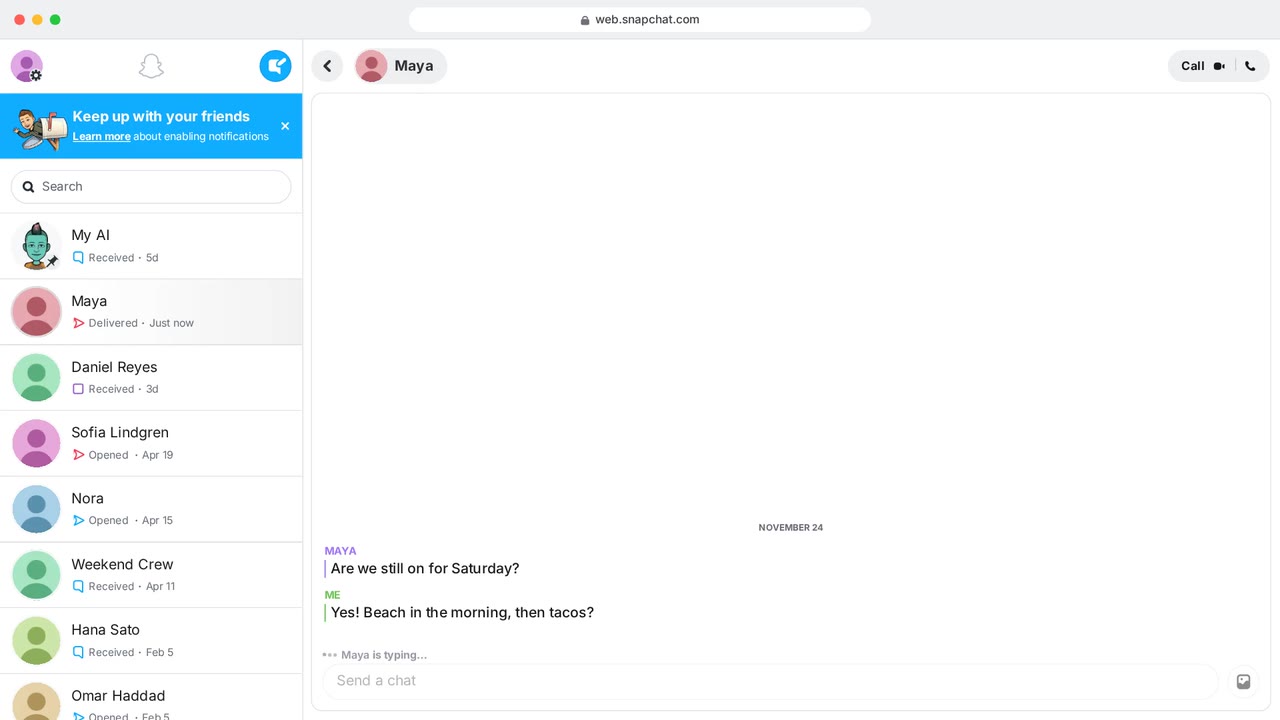
The frame above is the default clip part-way through. Maya's first line and your reply are in the thread, and "Maya is typing…" shows above the Send a chat field. That moment, where one side has spoken and the other is still writing, is where most skit beats sit.
Ideas for online-safety educators
A staged chat solves a real problem for anyone who teaches online safety: you need to show what a risky conversation looks like, and you cannot show a real one. A scripted clip uses nobody's chat, and you control exactly which warning signs appear and in what order.
These scenarios are written as teaching material. Present them as reconstructions, use invented names, and pause the video on each warning sign so the class can name it.
11. The request to move somewhere else
A new contact is friendly for three lines, then asks to continue the conversation on another app, and then asks the student not to mention it.
- ALEX:
you seem really cool - ALEX:
do you have another app? it's easier to talk there - ALEX:
don't tell your parents, they wouldn't get it
Save the last line. The grey band gives you a fixed point to return to: a request for secrecy is the sign to stop and tell a trusted adult.
12. The slow build of personal questions
Each question is harmless alone. Together they are a profile.
- SAM:
what school do you go to? - SAM:
do you walk home? - SAM:
is anyone home after school?
Put a date line between the questions so the class sees that they arrive over several days. Ask students to say at which line they would stop answering.
13. The code from a "friend"
An account the student knows sends an urgent request: I'm locked out, I sent a code to your phone, can you send it to me? Use this to teach that a login code is never shared, and that a friend's account can be used by someone else. Write a second version where the student replies calling you now and ends the chat, and play the two back to back.
14. The pressure to reply
A run of messages from one sender with short delays: hello?, why are you ignoring me, answer me. Shorten the Delay Before (s) on each one so they pile up. The lesson is about pressure and the right not to answer, and the pacing of the clip makes the pressure felt in a way a slide of text does not.
15. The good ending
Show the response you want to teach. The student says no, does not explain, and the next thing the class sees is your slide about blocking, reporting and telling an adult. A clip that models the right answer is more useful than five that only show the risk.
Two notes for classroom use. First, the template is text only, so scenarios about images are told in words: the request is typed, and nothing is shown. That is a limit of the template, and for this audience it is also the appropriate way to teach the subject. Second, on the Free, Pro and Creator plans, clips are for your own content, such as your own channel. If you produce training material for a client or run it as a paid ad, the terms point you to a brand-free app such as Text Chat; the pricing page explains which plan covers that. There is a longer treatment of classroom chat videos in WhatsApp chat videos for teachers and educators.
A script template you can reuse
Most of the ideas above fit one shape. Copy it and replace the lines.
- Date line. Sets the day. On by default above the first message.
- Opening line from the other side. Typing duration about 1.2 seconds. Short enough to read at a glance.
- Your reply. Typed into the field, 15 to 22 characters per second.
- The turn. One or two lines in a run from the other side. This is where the story changes direction.
- The saved line. Whichever line the viewer has to remember. One per clip.
- The last line. Delay before it a little longer than the others. Leave a second of stillness after it in your edit.
Six to eight messages give a clip of roughly ten to twenty seconds, depending on your typing durations. The default clip has five messages and runs eleven seconds. If you need a longer conversation, split it into two clips with a date line at the top of the second. Two short clips are easier to cut around narration than one long one.
Getting the 16:9 clip into your video
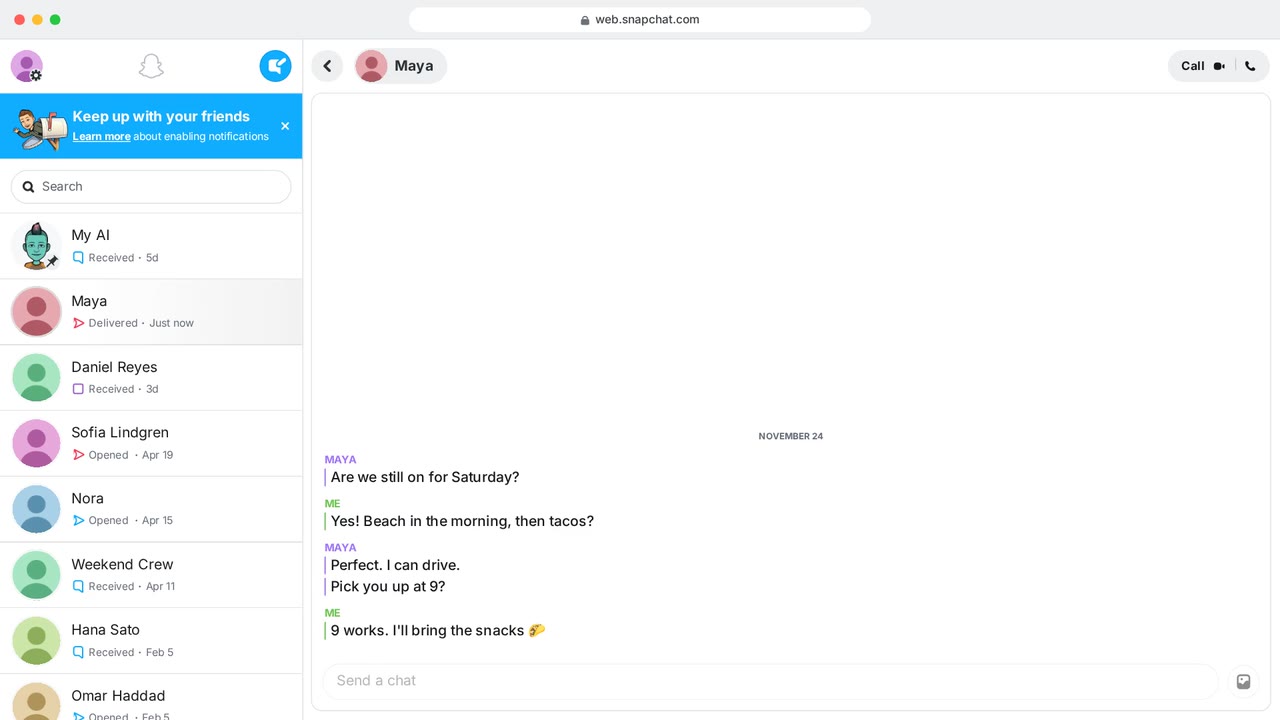
This is the last frame of the default clip, and it shows what you are placing on your timeline: a browser window with the address web.snapchat.com, the chat list on the left with Maya's row highlighted, and the thread on the right. The other rows in the list are placeholder names that come with the template and cannot be edited.
Full screen in a YouTube video. The simplest use. Cut to the clip, narrate over it, cut back.
Beside your camera. Scale the clip down and place it next to your face cam in your video editor. Turn Show Browser Window off first, in the Scene & look tab, so the bare page uses every pixel of the smaller box.
On a slide. A 16:9 clip fills a 16:9 slide. For a lesson, export a GIF if you want the chat on the slide without a video player around it.
In a vertical video. The template does not export 9:16, and there is no setting that changes that. For TikTok, Reels or Shorts, place the landscape clip inside a vertical edit in your own editor: as the top half of a split screen with you underneath, or zoomed in on the thread with the chat list cropped off. If you want a chat that is vertical from the start, use one of MockClip's phone templates, such as iMessage, WhatsApp or Instagram DM. The guide to fake text conversation videos for YouTube Shorts covers that route.
Exports are MP4 or GIF at 720p with a small watermark on the free plan. Pro removes the watermark and unlocks Full HD, which is worth having when the clip fills a 1080p YouTube frame. See pricing for the plans.
Drafting scripts faster
You do not have to type every line by hand.
Describe it. The template opens on a panel where you type a sentence and the AI drafts the clip: the messages, the names and the timing. Prompts that match the ideas above:
two friends plan a beach day, one offers to drivea group of three friends plan a movie night that gets out of handa stranger asks a teenager to move to another app and keep it secret; the teenager says no
You get a "What happens when" list with the second of each moment, and you can refine by pointing at one, for example at 0:06 make the reply one word. The result opens in the manual editor, where you add the saved lines and date lines yourself. Describe it requires signing in with Google or GitHub. It writes text and timing only: it does not create avatars, and the video is drawn by the same renderer as a clip built by hand.
From an AI assistant. MockClip's MCP server has a create_snapchat_conversation tool. It takes the contact name, the theme and up to twenty messages, each with optional typing, date line, saved and author settings, and returns a link that opens the finished animation in MockClip. That is useful when you are already drafting the episode's script in Claude or ChatGPT and want the chat as a clip without retyping it.
Keeping it honest
A staged chat is a prop, and the audience should be able to tell.
- Do not impersonate real people. Invent the names, and use avatars you have the right to use.
- Do not present a staged exchange as a real one. If a story-time video reconstructs a real conversation, say "reconstruction" or "dramatised" on screen or in the description.
- Do not use the format to deceive, harass or defraud anyone. In safety lessons, say plainly that the scenario is scripted.
MockClip is an independent tool and is not affiliated with Snapchat. Snapchat is a trademark of Snap Inc.
Mistakes that weaken these videos
- Lines that outrun the narration. If you talk over the clip, the chat has to move slower than it would alone. Raise the delays until you can read each line aloud before the next arrives.
- A script that needs a snap. Text only. Rewrite the beat so the photo is mentioned and never shown.
- Too many authors. Past four voices, the viewer is matching colours to names instead of reading.
- A saved line on everything. One grey band per clip.
- The same typing time on every reply. Long typing before a short answer is a joke or a threat. Use it once, on purpose.
- Planning for a vertical export. Decide the layout of the final video first, then build the clip for it.
Quick start
- Open the Snapchat template.
- Pick one idea above and write six to eight lines.
- Set the contact name, and an author on each incoming line for a group.
- Mark one saved line and add a date line where the day changes.
- Set delays and typing durations to match your narration or your punchline.
- Choose the theme and the browser window in Scene & look.
- Export MP4 or GIF at 16:9 and place it in your edit.
Related MockClip templates and guides
- Snapchat chat maker — the template behind every idea in this post
- How to make a fake Snapchat chat video — the step-by-step build
- Fake text conversation video for YouTube Shorts — the vertical route with phone templates
- WhatsApp chat videos for teachers and educators — classroom uses of a staged chat
- Reddit story video format explained — another narration-led format
- Why fake chat videos look fake — the details that give a staged chat away
- Pricing — Pro for watermark-free, Full HD exports
Frequently Asked Questions
What kind of videos can I make with a Snapchat chat clip?
Story-time videos where the chat plays while you narrate, skits between two friends or a small group, and online-safety lessons that show what a risky conversation looks like. The clip is text chat in Snapchat's web layout, in 16:9.
Why is the clip landscape and not vertical?
The template draws Snapchat's web chat as it looks on a computer, inside a browser window, so it is always 16:9. There is no phone version yet. That shape fits a YouTube video, a webinar or a slide without cropping.
Can I use these ideas for TikTok, Reels or Shorts?
Yes, with one extra step. The landscape clip is placed inside a vertical edit in your own video editor, for example as the top half of a split screen or zoomed on the thread. For a native vertical chat, use one of MockClip's phone templates.
Can the chat show a snap, a photo, a streak or a Bitmoji?
No. The template plays text chat only. Write the story so that a photo or a snap is talked about in the chat, not shown in it. Avatars are images you upload.
How many people can be in the chat?
A message from the other side can carry its own author name, so a chat can hold several voices, each with a name label in its own colour. Three or four people is a sensible limit for a short clip.
Is it fine to use a staged chat in an online-safety lesson?
Yes, and it is the reason to stage one: nobody's real conversation is shown. Use invented names, say that the exchange is a reconstruction, and do not present it as a real case.
Can an AI write the chat for me?
Yes. Describe it drafts the messages and their timing from a sentence you type, and it requires signing in. From Claude or ChatGPT, MockClip's MCP server has a create_snapchat_conversation tool that returns a link to the finished animation.
Related Articles
How to Make a Fake Snapchat Chat Video (2026 Guide)
Step-by-step guide to a fake Snapchat chat video: the web chat in a browser window, coloured name labels, saved lines, a typing line and 16:9 export.
WhatsApp Chat Videos for Teachers and Classroom Lessons
Build chat mockup videos for teaching — language dialogues, online-safety scenarios, and parent-communication training — using the WhatsApp template.
The Reddit Story Video Format Explained (2026 Guide)
How the Reddit story video format works on TikTok and YouTube Shorts — hook, post screenshot, voiceover, B-roll, and comment payoff broken down step by step.
Why Your Fake Chat Video Looks Fake (And How to Fix It)
A cross-template checklist of the timing, receipts, and interface details that decide whether your fake chat video reads as a real screen recording.