How to Make a Fake Discord Conversation Video (Free)
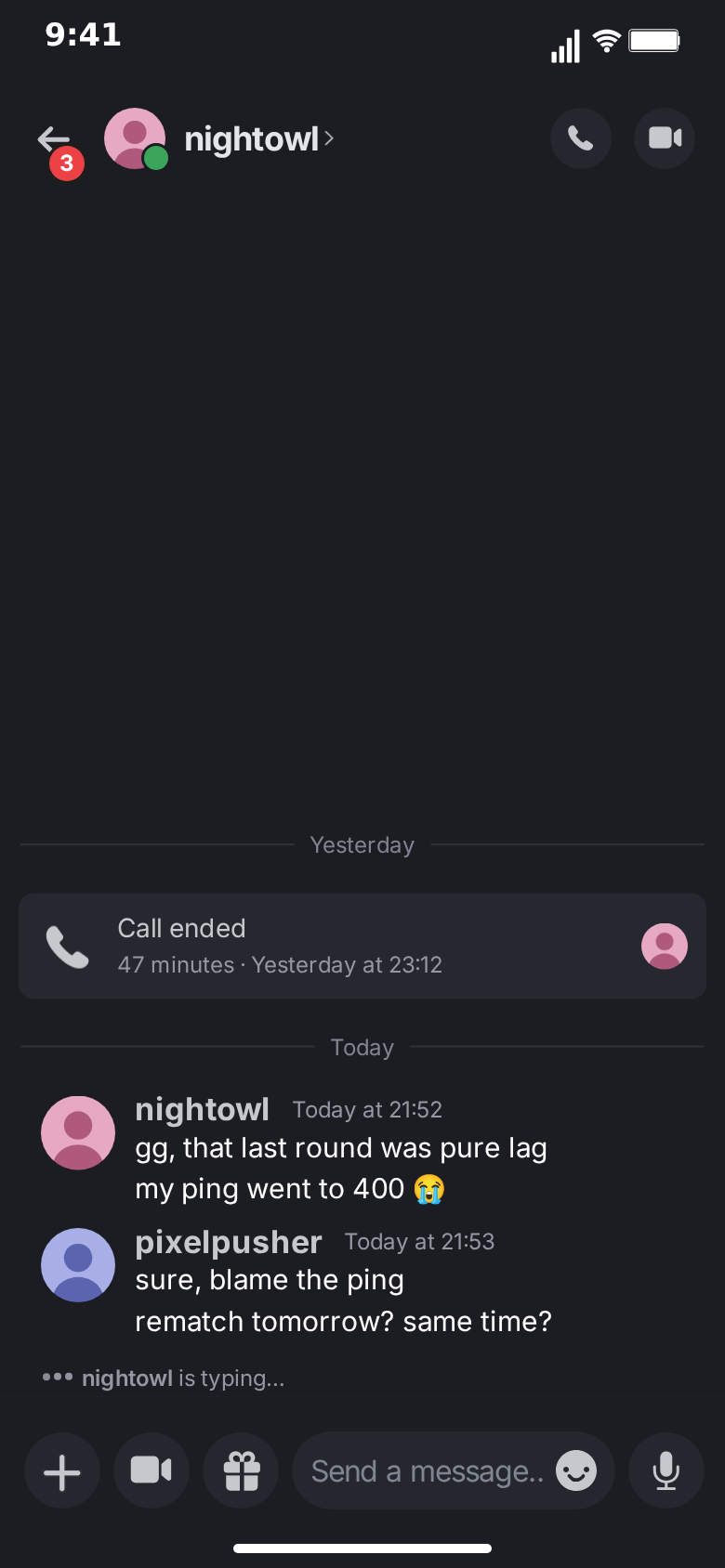
A fake Discord conversation video is a short clip that looks like someone recorded their Discord DMs: messages appearing one by one under round avatars and bold usernames, a call card from last night, a date divider, "is typing…" just above the input bar. This tutorial walks through making one with the free Discord template in MockClip, from an empty editor to an exported MP4, with the timing and writing choices that make the result believable.
Everything below happens in the browser. You do not need Discord, an account, a video editor or design skills.
What you will make
By the end you will have a vertical video, around 15 to 25 seconds long, that:
- opens on the Discord direct-messages list, with the server rail on the left and your conversation at the top of the list,
- taps into the conversation and slides it in,
- shows yesterday's call card, a "Today" divider, and a back-and-forth where the other person is seen typing before each reply,
- slides back out to the list, where the top row now shows the last message.
You can stop at any step: a clip that is only the conversation is just as valid.
Step 1: Open the Discord template
Go to the Discord editor. It opens on a ready-made conversation. Press Play once before you change anything; seeing the full default flow tells you what each control will do.
The editor has two tabs. Describe it turns a sentence into a conversation with AI. Manual editor shows every field. This tutorial uses the Manual editor, but you can start with Describe it and switch over to adjust the result.
Step 2: Set the people
At the top of the Manual editor:
- Contact Name is the other person. Use a handle, the way Discord names look: "nightowl", "kestrel", "lunar.bean".
- Contact Status controls the green online dot on their avatar in the header. "online" shows it.
- Contact Avatar is optional. Upload a picture or leave the generated one.
- Your name and Your avatar are used on the messages you send. Discord shows your own name on your messages, so set something that fits the story.
- Unread badge on the back button is the red number next to the back arrow. A small number, like 3, makes the screen feel lived-in; 0 hides it.
Pick the theme here too. Dark is how most people use Discord and reads instantly; light works when the story is set at work or school.
Step 3: Write the thread
Add messages with the button at the bottom of the list. For each one:
- Choose Me or Other.
- Type the text.
- On the first message of a run, set a Timestamp such as "Today at 21:52".
Messages from the same side that follow each other are grouped automatically: the first shows the avatar, the name and the time, the next ones sit under it with no header. That grouping is what makes a thread look like Discord rather than a generic chat. If you want a header on a message that would otherwise be grouped, or want to hide one, use the "Avatar + name line" switch on that message.
Keep each message short. On a phone screen in a vertical video, one line reads at a glance and three lines read as homework.
Step 4: Add a call card and a date divider
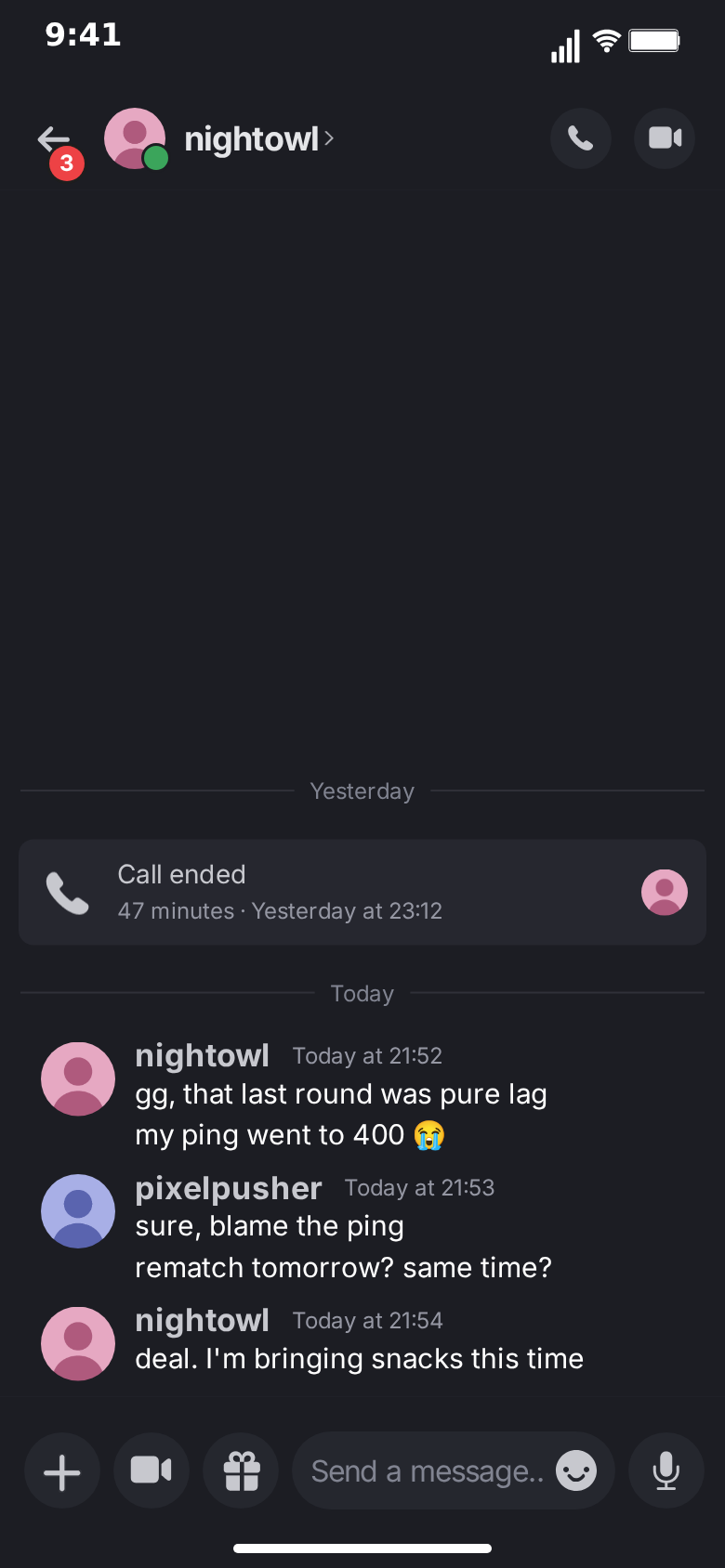
Two small elements do a lot of storytelling:
- Call card. Tick "Call card" on a message. The message becomes a call log entry with a phone icon, a title and a detail line. "Call ended" with "47 minutes · Yesterday at 23:12" says the two people talked for a long time last night. "Missed call" with "Today at 21:55" says someone did not pick up.
- Date divider. Type "Yesterday" or "Today" into Date line above on a message. A centred date with a thin line on each side appears above it.
A call card from yesterday, then a "Today" divider, then the first message of the day is a classic opening: the viewer understands the relationship before reading a word.
Step 5: Set the pacing
Each message has a Delay before in seconds. Messages from the other person also have a Typing duration: for that long, "nightowl is typing…" shows above the input bar with three moving dots, and the thread lifts to make room.
Some rules of thumb:
- 0.4 to 0.8 seconds between messages in a fast run from the same person.
- 1 to 2 seconds of typing before a reply that matters.
- 2 to 3 seconds of typing before the punchline. The wait is the joke.
Your own messages can be typed into the input field first. Turn on typing for a message and set a speed; the text appears in the "Send a message…" field letter by letter, then sends.
Step 6: Choose the screens
The Video flow strip decides what the clip shows:
- Chat only. The conversation alone, from the first message to the last.
- DM list → chat → DM list. The clip opens on the direct-messages list, taps the top row, slides into the conversation, and slides back out at the end. The top row of the list is live: when the clip returns, it shows the last message of the conversation you just watched.
- Server → DM list → chat. Start on a server's channel list for a story that begins in a community, fade to the DM list, then open the chat.
A soft touch indicator shows where the finger taps before each move. Turn "Show taps" off if you want hard cuts.
Step 7: Preview and export
Press Play and watch the whole clip. Check three things: that every message is readable at the speed it appears, that the punchline has room to breathe, and that nothing important hides behind the input bar.
Then pick the format. 9:16 is the TikTok, Reels and Shorts format. 1:1 suits feeds, and 3:2 suits landscape edits. Choose MP4 for platforms and GIF for chats and docs, and export. The render happens in your browser. Free exports carry a small watermark; the one-time Pro upgrade removes it.
A complete example script
Here is the default conversation from the template, written out so you can see how the pieces combine. It runs about 16 seconds as a DM list → chat → DM list clip.
| # | Side | Content | Settings |
|---|---|---|---|
| 1 | Other | Call card: "Call ended" · "47 minutes · Yesterday at 23:12" | Date line above: "Yesterday", delay 0.4 s |
| 2 | Other | gg, that last round was pure lag | Date line above: "Today", timestamp "Today at 21:52", typing 1.2 s |
| 3 | Other | my ping went to 400 😭 | Continues the run, typing 0.9 s |
| 4 | Me | sure, blame the ping | Timestamp "Today at 21:53", typed into the input |
| 5 | Me | rematch tomorrow? same time? | Continues the run, typed into the input |
| 6 | Other | deal. I'm bringing snacks this time | Timestamp "Today at 21:54", typing 1.4 s |
Notice what each row is doing. The call card establishes that these two talk, and talk long. The "Today" divider separates last night from now. Messages 2 and 3 are one run from nightowl, so they share a header; messages 4 and 5 are one run from you. The final message is the payoff, and it gets the longest typing pause.
To make your own, keep the structure and swap the content: a call card or an old message for backstory, a divider, two short runs, a payoff.
Making variations quickly
Once one clip works, variations take minutes:
- Swap the names. Change the contact name and your own name; every header updates.
- Change the payoff. Rewrite the last message only. The setup can stay identical across a series.
- Flip the theme. Export the same script in light and dark and test which performs better with your audience.
- Change the opening screen. The same conversation opened from the DM list, from the server's channel list, or straight on the chat feels like three different videos.
- Shorten for GIF. Drop the setup, keep the last three messages, export as a GIF for a chat or a slide.
Your work stays in the browser while you edit, and a shared link reopens the exact clip, so a series can be built from one master conversation.
Readability checklist
Before exporting, watch the preview once on your phone screen size and check:
- Every message can be read in the time it stays on screen before the next one pushes it up.
- The punchline is not under the platform's caption area at the bottom of a 9:16 video.
- Emoji are used as Discord users use them: one at the end of a message, not five in the middle.
- The contact's avatar and yours are easy to tell apart at a glance; generated avatars use different colours for this reason.
Light or dark?
Most people run Discord in dark mode, and the dark theme is what viewers recognise fastest; it is the right default for gaming and community stories. Light mode has its uses: a story set at school or at work, a brand whose colours sit better on white, or simply standing out in a feed where every other Discord clip is dark. The theme is one control, so export both and let the numbers decide.
Writing tips that make it believable
Handles, not names. Real Discord DMs are between "pixelpusher" and "nightowl", not between two people with first and last names.
Discord-shaped messages. Short, lowercase, sometimes without punctuation. "gg", "brb", "voice in 5?" read as authentic; full paragraphs do not.
Moving timestamps. "Today at 21:52" on one header and "Today at 21:53" on the reply. Identical times on every header look generated.
Calls between messages. A call card in the middle of the thread suggests something happened offscreen. It is the cheapest plot device there is.
A clear turn. The conversation should change direction once: a reveal, a confession, a betrayal, a punchline. Everything before it sets it up; nothing comes after it except the reaction.
Using AI to write the conversation
If you would rather not write the script, switch to Describe it and type one sentence: "a missed call, then 'u up? raid in 5' and I scramble to join". The conversation, call cards and dates are written for you, and follow-up instructions refine it.
From an AI assistant, MockClip's MCP server offers a create_discord_conversation tool. The integrations page lists it, and the guide to connecting MockClip to Claude and ChatGPT shows the setup.
Troubleshooting
A message shows no avatar or name. It continues a run from the same person. Turn on its "Avatar + name line" switch, or put a message from the other side in between.
The divider appears twice. The first message of a thread is stamped with a date line automatically. Untick "Date line above the first message" if your first message already has its own.
The list does not show my conversation. It does, in the top row, once the clip has a DM list step. If the clip is chat-only, add the list in the Video flow strip.
Text is cut off. Long messages wrap; very long ones push earlier messages off the top. Split them into several shorter messages.
Where to go next
The Discord chat animation generator overview lists every element of the template. For short-form strategy, the guide to Discord DM videos for TikTok and Shorts covers hooks and formats. The same workflow applies to the other chat templates: see how to make a fake Telegram conversation video or the free fake chat video maker guide.
Free to use. No sign-up. Browser-based.
Make a fake Discord conversationFrequently Asked Questions
How do I make a fake Discord conversation video?
Open MockClip's Discord template, set the contact's name and avatar and your own, write the messages and pick who sends each one, add call cards or date dividers where you need them, set the delays, choose whether the clip starts on the direct-messages list, then export MP4 or GIF. It all runs in the browser.
Do I need a Discord account or the Discord app?
No. The template recreates the Discord interface itself. Nothing is sent through Discord and no account is needed for the free tier of MockClip.
How do I group several messages under one name like Discord does?
Send them from the same side one after another. The first message of a run shows the avatar, name and time; the following ones continue underneath automatically. Each message also has a switch to force the header on or off.
Can I show someone typing?
Yes. Set a typing duration on a message from the other person and 'name is typing…' appears above the input bar for that long before the message lands. Your own messages can be typed into the input field first.
How long should a fake Discord video be?
For TikTok, Reels and Shorts, 10 to 30 seconds works best: six to twelve messages with a clear turn near the end. Longer stories can be split into parts.
Can I use it without writing the conversation myself?
Yes. The Describe it tab writes a full conversation from one sentence, and the create_discord_conversation MCP tool does the same from Claude, ChatGPT or another assistant.
Related Articles
Discord Chat Animation Generator: Make Fake DM Videos
Free Discord chat animation generator. Animate DMs with names, times, call cards and typing, plus the DM list and server channels. Export MP4 or GIF online.
Discord DM Videos for TikTok and Shorts: A Creator Guide
How to turn Discord DM stories into TikTok, Reels and Shorts videos: hooks, pacing, formats and series ideas, with a free browser-based Discord animation tool.
How to Make a Fake Telegram Conversation Video (2026)
Step-by-step guide to a realistic fake Telegram conversation video: reply quotes, image attachments, ✓✓ read marks, typing in the header and the peek preview.
How to Make a Fake Messenger Conversation Video (2026)
Step-by-step guide to a realistic fake Messenger conversation video: the new-friend intro, photo grids, read avatars, the keyboard, sheets, calls and stories.
Fake Chat Video Maker Free: Create Text Conversation Videos
Free fake chat video maker for TikTok and Reels. Create realistic animated text conversations with iMessage, WhatsApp, and Instagram DM interfaces in minutes.