How to Make a Fake Pinterest Message Video (2026 Guide)
A Pinterest conversation looks different from every other chat on screen. There is no phone. There is a profile page, a row of boards, and a small message panel floating over the right-hand side of a browser window. If your video is about a kitchen makeover, a wedding plan or a growing Pinterest account, that is the screen your viewer expects to see.
This guide shows how to make a fake Pinterest message video in MockClip, from the first name to the exported file. It uses only what the Pinterest Messages template draws, and it says plainly what the template leaves out.
What a Pinterest message video is good for
Pinterest is where people plan things: a room, a menu, a wedding, a weekend build. The conversations that happen there are short and practical. "Want to see what I saved?" "Is this too much?" "Which one do we go with?"
That makes a Pinterest message a natural opening for a project video. A 12-second clip of two people agreeing on sage green cabinets tells the viewer what the next ten minutes are about, and it does so on the screen where the idea was born.
It also suits teaching. If you make videos about using Pinterest for a shop or a blog, a staged conversation between a creator and a client is a clean way to set up a question before you answer it.
Three situations where the format fits well:
- Project intros. Open a makeover, recipe or DIY video with the conversation that started the project.
- Tutorials and courses. Stage a question from a client or a student, then answer it in your own voice.
- Landscape video and slides. The clip is 16:9, so it drops into a YouTube video, a webinar or a presentation without cropping.
How MockClip's Pinterest Messages template works
The template is a canvas renderer. You describe the conversation in the editor, and the preview redraws every frame from that description. The export runs the same renderer at video resolution, so the file you download matches the preview.
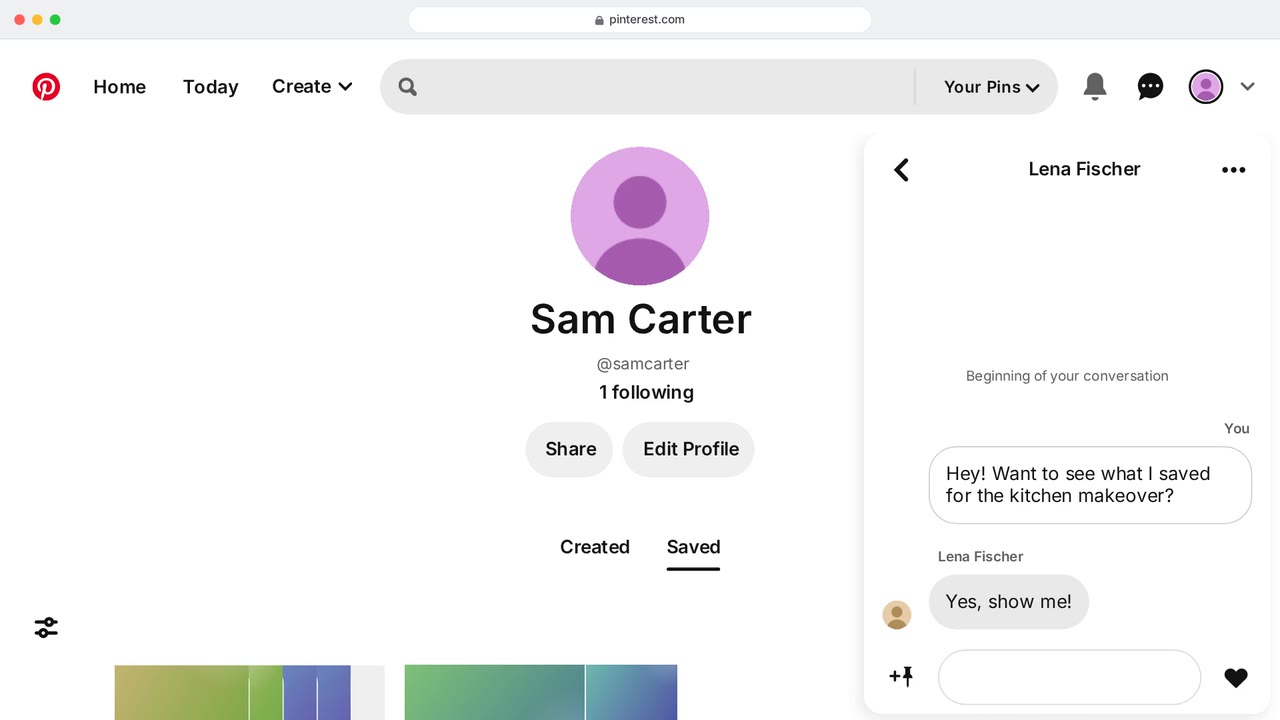
Here is what the clip shows, from the outside in:
- A plain browser window. Three coloured dots on the left and an address pill reading
pinterest.com. You can turn the window off and show the bare page. - The profile page. A top bar with Home, Today and Create, a search field, then the profile: a round picture, a name, a handle, Share and Edit Profile buttons, the Created and Saved tabs, and boards underneath.
- The chat panel. A white card floating over the right side of the page, with a back arrow, the other person's name and a three-dot menu at the top, the thread in the middle and the message field at the bottom.
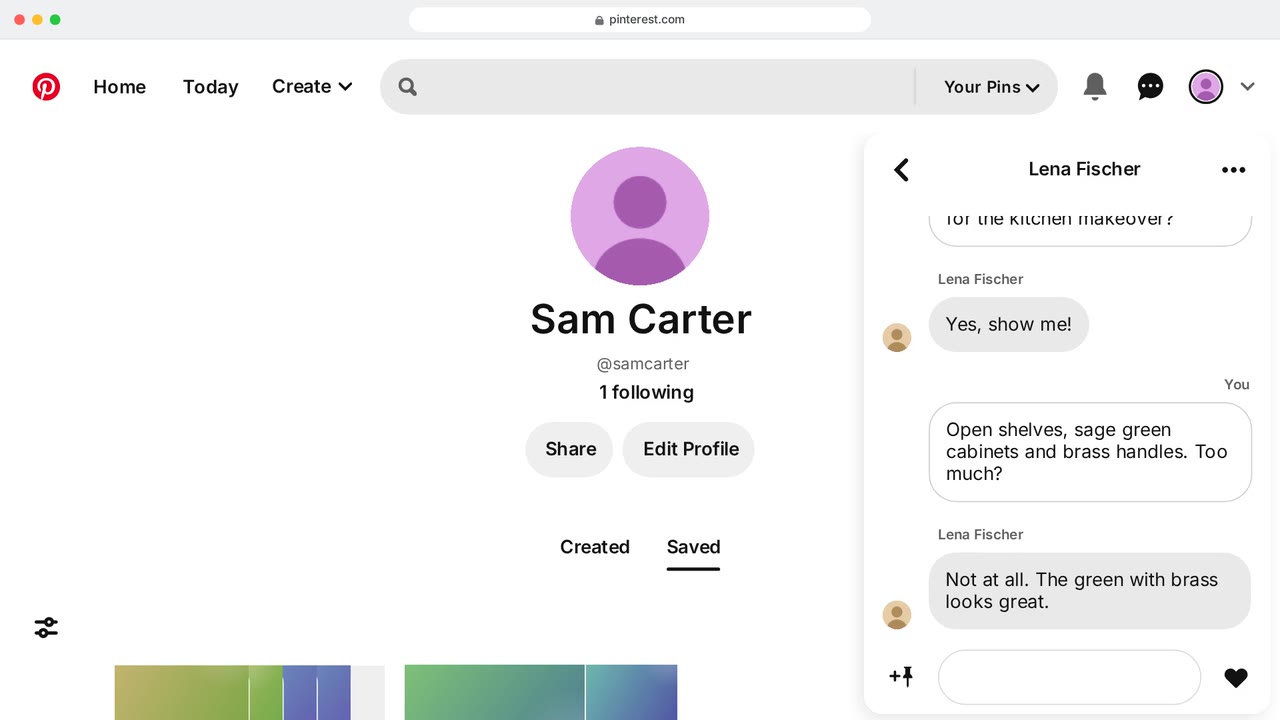
Inside the panel, the two sides look different. Your messages are white bubbles with a thin outline, aligned right, under a small "You" label. The other person's messages are grey bubbles on the left, with their name above the first bubble of a run and their round avatar beside the last one.
Two animations carry the clip. Your own lines can be typed character by character into the panel's field before they are sent. Before each of the other person's lines, a three-dot bubble with their avatar shows for as long as you set.
It is a computer-only template. There is no phone layout for it, and the clip is always 16:9.
Step-by-step: building the conversation
Open the Pinterest Messages template. The editor's Script tab holds the people and the messages; the Scene & look tab holds the browser window, the theme and the zoom.
We will rebuild the demo clip above: you show a friend what you saved for a kitchen makeover, and she approves.
Step 1: Name the other person
At the top of the editor, type Lena Fischer as the contact name. The name appears in two places: centred in the panel's header, and as the small label above her messages.
Open the chat settings and add a picture under Contact Avatar (Optional), or keep the placeholder. Her avatar sits beside her bubbles and beside the typing bubble, so even a small picture gives the thread a face.
Use an invented name. The clip is a staged conversation, and a made-up person keeps it that way.
Step 2: Set your own name and avatar
Still in the chat settings, fill in Your name with Sam Carter and add Your avatar if you have one.
These two fields dress the page, not the thread. Your name is the large name on the profile behind the chat, and your avatar is the profile picture. In the thread itself, your messages always sit under the word "You", as they do in the demo.
This is the detail that makes the scene read correctly: the viewer is looking at your profile, with your messages open on top of it.
Step 3: Edit the page behind the chat
Under The page around the conversation there are two fields:
- Handle: the @name under the profile name. The demo uses
@samcarter. - Board Title: the title of one board on the page. The demo uses
Kitchen makeover, the board the conversation is about.
Everything else on the page is fixed: the top bar, the buttons, the tabs and the board pictures. You cannot add boards or swap their images.
One thing to know about the board title. It sits under the board, low on the page. At the default 130 % zoom that row falls below the bottom edge of the frame, which is why the screenshots in this guide show only the top of the boards. If the title matters to your story, lower the zoom in Step 7 and check the preview.
Step 4: Write the messages
Add lines with + My Message and + Their Message. The demo has four:
- You:
Hey! Want to see what I saved for the kitchen makeover? - Lena:
Yes, show me! - You:
Open shelves, sage green cabinets and brass handles. Too much? - Lena:
Not at all. The green with brass looks great.
Four messages make a clip of about 12 seconds. That is a good length for an intro: one question, one description, one verdict.
Keep each line short. The panel is narrow, and a bubble wraps after a few words. A one-line message hugs its text; a longer one fills the full bubble width and runs to two or three lines, as message 3 does. More than three lines in one bubble starts to feel like an email.
You can drag rows to reorder them and flip a message between the two senders without retyping it.
Free to use. No sign-up. Browser-based.
Open the Pinterest Messages editorStep 5: Add a date line
Each message has a Date line above field. Whatever you type there appears centred in the thread above that message, in small grey text.
The demo puts Beginning of your conversation above the first message, which tells the viewer these two have not messaged before. You could write Today or 11:40 instead.
Use a second date line where a new day starts. A first exchange on Monday and a follow-up under Saturday is a before-and-after story in two labels. A date line also restarts the name label, so the first message after it is labelled again even if the same person is speaking.
Step 6: Time the typing
Each message has a Delay Before (s): the pause after the previous message. Half a second, the default, keeps a conversation brisk. Stretch it to a second or two before a message that should feel considered.
For the other person's messages, set Typing Duration (s). The three-dot bubble shows for that long before the message replaces it. The demo uses 1.0 second for Yes, show me! and 1.3 seconds for the longer final line. Match the duration to the length of the reply: a two-word answer after three seconds of dots feels wrong.
For your own messages, tick Show typing in input field and set Typing Speed (chars/sec). The text types into the panel's field, then sends. The demo uses 22 characters per second, so the 55-character opening line takes two and a half seconds to type. New messages start at 15, which is slower and easier to read along with.
A simple rule: let the viewer finish reading one bubble before the next one starts moving.
Step 7: Zoom, browser window and theme
Switch to the Scene & look tab.
Zoom. The page opens zoomed to 130 %. The slider runs from 100 % to 150 % and works like a browser's zoom: it enlarges the whole page while the video keeps its size, and the chat panel stays in view on the right.
- At 100 % you see more of the page and its boards, and the text is smaller.
- At 130 % the panel is easy to read on a laptop screen and the profile still frames it.
- At 150 % the panel's text is largest and less of the profile fits.
Pick the zoom by where the clip will be watched. For a clip that will be shrunk into a corner or placed inside a vertical edit, go higher.
Show Browser Window. Leave it ticked to keep the window with its dots and address pill. Untick it to export the bare page, which is useful when you are going to place the clip inside your own screen graphic or slide.
Theme. Choose light or dark. Light is the look most people picture when they think of Pinterest. Dark suits an evening story or a dark slide deck. Keep one theme for the whole video.
Exporting the clip
Press play to preview, then export.
- Format. MP4 or GIF. Use MP4 for a video edit; a GIF works for a slide, a blog post or an email.
- Resolution. 720p on the free tier. Full HD (1080p) comes with the Pro plan.
- Frame rate. Between 15 and 30 fps. 60 fps is on the Creator plan.
- Watermark. Free exports carry a small MockClip watermark. Pro removes it.
Plans and what each one includes are on the pricing page. The export settings guide explains how to choose a frame rate and file type for where the clip is going.
The clip has no vertical or square version. It is a desktop page, and a desktop page is wide.
Using the landscape clip in a vertical video
If your main channel is TikTok, Reels or Shorts, you have two honest options.
Place the 16:9 clip inside a vertical edit. Do this in your own video editor. Two layouts work:
- Split screen. The Pinterest clip takes the top half and your own footage (you talking, the room, the dish) takes the bottom half.
- Zoom on the conversation. Scale the clip up and position it so the chat panel fills the width of the vertical frame. The profile falls out of shot, and the conversation becomes the subject. Export at a high zoom setting first so the text holds up.
Use a phone template instead. If the story only needs "two people texting" and not Pinterest specifically, a phone chat fills a vertical frame natively. The Instagram DM template, Messenger and iMessage all export vertical clips.
Drafting the conversation with Describe it
If you would rather start from a sentence than a blank list, use Describe it, the AI panel on the template page. Type a description of the exchange, for example "two friends collecting ideas for a kitchen makeover, one is nervous about green cabinets", and it drafts the messages and their timing.
The draft opens in the manual editor, so you can fix a name, shorten a line or stretch a pause. Describe it requires signing in; the manual editor does not. The Describe it guide covers how to write a description that gives a usable first draft.
The AI writes text and timing only. The rendering is the same deterministic renderer either way.
Generating the same video from Claude or ChatGPT
If you work in an AI assistant, MockClip's MCP server has a create_pinterest_message_conversation tool. It takes the contact name, the theme, up to twenty messages with their delays, typing settings and date lines, your name, and the page's handle and board title. It returns a link that opens the finished animation in MockClip. Setup is covered in Connect MockClip to Claude or ChatGPT.
Writing dialogue that sounds like a Pinterest message
The thread is text only, so the words have to do the work a shared Pin would normally do.
- Name the thing. "Open shelves, sage green cabinets and brass handles" is three pictures in one bubble. "Look at this" is none.
- Ask a real question. "Too much?" gives the other person something to answer and gives the clip a small turn.
- Let the other person be brief.
Yes, show me!is three words and it moves the story. - Point at the board in words. "The third one on the kitchen board" sounds like a message someone would send, and it lets you cut to your own footage of that Pin.
- End on a decision. "The green with brass looks great" is a verdict, and it hands over to the rest of your video.
Write the way two people who know each other write. No greetings paragraph, no sign-off.
A timing guide for a 10 to 20 second clip
Pacing decides whether the clip feels like a conversation or a slideshow.
- Opening line. Start it within half a second. A long empty panel at the start loses the viewer.
- Typed lines. 15 to 22 characters per second. Slower for a short line you want the viewer to read as it appears, faster for a long one.
- Typing bubble. About one second for a short reply, up to two for a long one.
- The beat before the verdict. Add a second of delay before the last message. The pause is where the viewer guesses the answer.
- Total length. Four messages run about 12 seconds. Six to eight messages run roughly twice that. Past that, the oldest bubbles have moved up and out of the panel and the viewer has lost the start.
That last point matters. The thread is anchored to the bottom of the panel, as in the real interface, so each new message pushes the older ones up. In the final frame of the demo, the first message is already half out of view. For an intro clip, four to six messages is the comfortable range.
What the template does not do
It is better to know the limits before you write a script around something that is not there.
- No Pins, boards or images in the chat. Text messages only.
- No reactions, stickers, voice notes or files.
- No group conversations. It is one person and you.
- No editable scenery. The boards and the rest of the page are fixed, apart from the name, avatar, handle and one board title.
- No working browser. The page does not scroll, tabs do not open, links do not click. It is a still page with a live conversation on it.
- No vertical or square export, no camera scenes and no on-screen keyboard. The clip is the page in a browser window, at 16:9.
If your idea needs a photo in the thread, a phone template is the better fit: the Instagram DM template plays photo messages.
Common mistakes to avoid
- Writing "sent you a Pin" and showing nothing. The viewer waits for a picture that never arrives. Describe the Pin, or cut away to it.
- Long paragraphs in one bubble. The panel is narrow. Split a long thought into two messages.
- The same typing time on every reply. Vary it with the length of the message.
- A real person's name or brand on the profile. Use invented names and handles.
- Leaving the zoom at 100 % for a clip that will be shrunk. Small text in a small box is unreadable. Zoom in.
- Planning a 9:16 export. There is none. Plan the vertical layout in your editor from the start.
- Too many messages. After six or so, the opening line has left the panel.
A note on honest use
MockClip is an independent tool. It is not affiliated with, endorsed by or sponsored by Pinterest; Pinterest is a trademark of Pinterest, Inc. The template recreates the interface for skits, tutorials, explainers and demos.
Write every message yourself and use invented names. Do not impersonate a real person or a real brand, and do not present a staged exchange as a real one. A line such as "dramatised" or "reenactment" in your caption removes any doubt.
One more point on usage. Clips from real-app templates are for your own content. For paid ads or client work, MockClip's terms point you to a brand-free template such as Text Chat; the pricing page shows which plan carries that licence.
Quick start
- Open the Pinterest Messages template.
- Contact name and avatar.
- Your name and avatar, then the handle and the board title.
- Four to six messages with + My Message and + Their Message.
- A date line above the first message.
- Delays, typing durations, and typing in the field for your own lines.
- Zoom between 100 % and 150 %, browser window on or off, light or dark.
- Export MP4 or GIF.
Related MockClip templates and guides
- Pinterest Messages template: the template used in this guide
- Pinterest message video ideas for creators: scripts for home, food, wedding, DIY and Pinterest marketing videos
- How to create a fake Instagram DM video: a vertical phone chat with photo messages
- How to make a fake Messenger conversation video: the Messenger version of this tutorial
- Why fake chat videos look fake: pacing and detail mistakes to avoid
- Etsy message template: another desktop conversation in a browser window, for shop stories
- Pricing: Pro for watermark-free, Full HD exports
Frequently Asked Questions
What is the easiest way to make a fake Pinterest message video?
Open MockClip's Pinterest Messages template in the browser. Name the two people, write the messages for both sides, set the delays and typing times, then preview the clip and export it as an MP4 or a GIF. The manual editor needs no account.
Can I send a Pin or a board in the chat?
No. The template plays text messages only. Shared Pins, boards, images and reactions in the chat are not included, so describe the Pin in words or cut to your own footage of it.
Which parts of the page can I change?
The conversation, both people's names and avatars, the handle on the profile and one board title. The boards, the top bar and the rest of the profile page are fixed.
Can I export the clip as a vertical video?
No. The template draws a desktop page, so the clip is always 16:9. For TikTok, Reels or Shorts, place the landscape clip inside a vertical edit in your own video editor, or use one of MockClip's phone templates for a native vertical chat.
What does the Zoom slider do?
It enlarges the whole page the way a browser's zoom does, from 100 % to 150 %, while the video keeps its size. A new clip opens at 130 % so the chat panel is easy to read.
Can I make the video from Claude or ChatGPT instead of the editor?
Yes. MockClip's MCP server has a create_pinterest_message_conversation tool that accepts the names, the messages with their timing, the theme and the page's handle and board title, and returns a link to the finished animation.
Is this affiliated with Pinterest, and is it okay to post?
MockClip is independent and not affiliated with Pinterest; Pinterest is a trademark of Pinterest, Inc. Skits, tutorials and explainers with invented names are fine. Do not impersonate real people and do not present a staged exchange as a real one.
Related Articles
Pinterest Message Video Ideas for Creators and Marketers
Pinterest message video ideas with who-says-what scripts for home, food, wedding and DIY creators, and for anyone teaching Pinterest marketing on video.
How to Make a Fake Instagram DM Video in Your Browser
Script a fake Instagram DM conversation, time the typing dots, Seen avatar and reactions, then export MP4, GIF or a transparent clip. Free, no account.
How to Make a Fake Messenger Conversation Video (2026)
Step-by-step guide to a realistic fake Messenger conversation video: the new-friend intro, photo grids, read avatars, the keyboard, sheets, calls and stories.
AI Fake Chat Video Generator: Describe It, Get the Clip
Type what the clip should be and MockClip's Describe it mode writes the messages and timing for WhatsApp, iMessage, ChatGPT, Tinder and more. Refine by second.
Fake Chat Video Export Settings: MP4, GIF, MOV, WebM, 1:1
Every MockClip export setting explained: MP4, GIF, transparent MOV and WebM, 720p and Full HD, 1:1 square, bezel-less frames, watermark, mobile and links.