Pinterest Message Video Ideas for Creators and Marketers
Most project videos start the same way: a person facing the camera, explaining what they are about to do. A Pinterest message clip gives you a different first shot. The viewer sees a profile page, a chat panel, and two people deciding something. Then the video starts.
This post is a list of concrete ideas for that clip, with who-says-what scripts you can type straight into MockClip's Pinterest Messages template. There are ideas for home, food, wedding and DIY creators, and a set for people who teach Pinterest marketing.
What you have to work with
Before the ideas, a quick inventory. Every script below fits inside these limits.
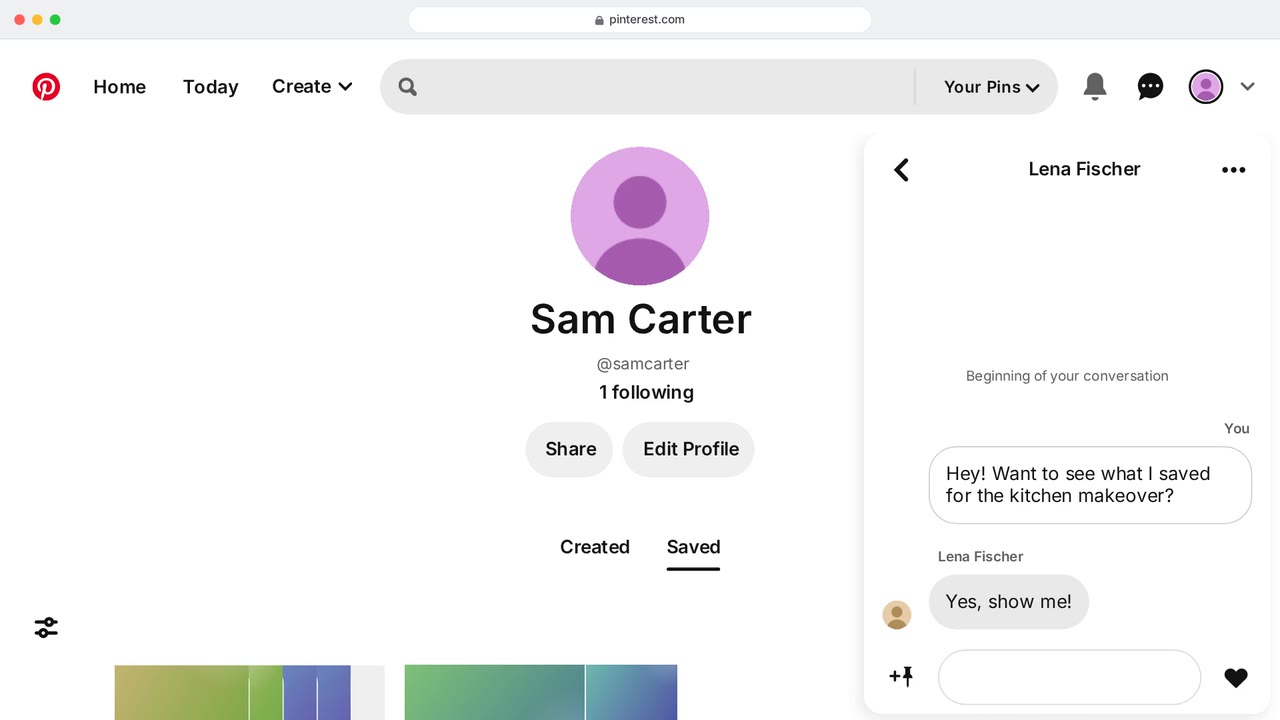
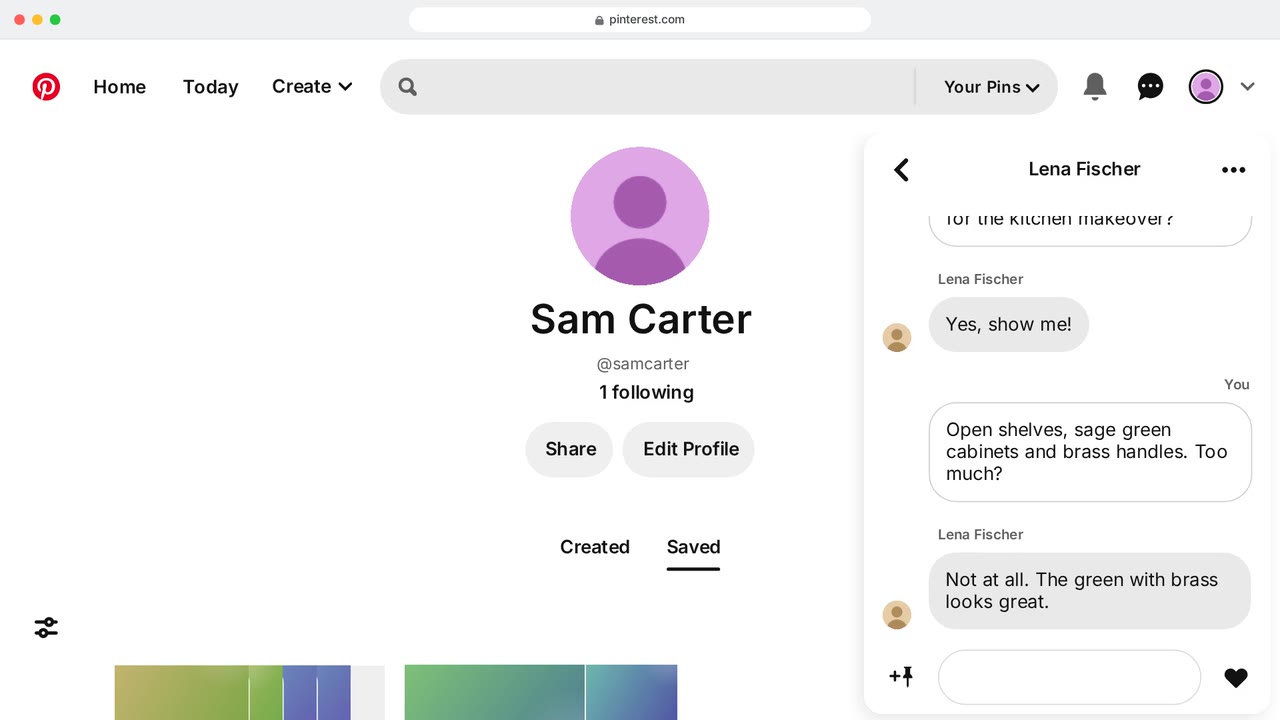
The scene. A Pinterest profile page at desktop width, drawn inside a plain browser window, with the chat panel floating over the right side. The clip is 16:9. There is no phone version.
The people. Two: you and one other person. Your messages are white outlined bubbles on the right under a small "You" label. Theirs are grey bubbles on the left with their name and avatar.
What you can change. Both names and avatars, the handle on the profile, one board title, every message, the delay before each message, how long the other person's typing bubble shows, and whether your own lines type into the field before sending. You can also add a date line above any message.
What is fixed. The top bar, the profile buttons and tabs, and the board pictures.
What the chat cannot show. Pins, boards, photos, reactions, stickers, voice notes or files. It plays text messages only.
The look. Light or dark theme, the browser window on or off, and a Zoom slider from 100 % to 150 %. A new clip opens at 130 %.
The full walkthrough of every field is in how to make a fake Pinterest message video. This post is about what to write.
Three rules for a text-only panel
The thread has no pictures, so the script has to carry them.
1. Say what is in the Pin. In the default clip, the message is Open shelves, sage green cabinets and brass handles. Too much? The viewer sees the kitchen without seeing a photo. "Look at this one" would give them nothing.
2. End on a decision or a question. The clip is a setup. Its last line should hand over to your video: a verdict ("The green with brass looks great"), a dare ("You have until Sunday") or a question you are about to answer.
3. Keep it to four to six messages. The default clip has four and runs 12 seconds. New messages push older ones up the panel, so in a long thread the opening line leaves the frame before the viewer has placed it.
Free to use. No sign-up. Browser-based.
Open the Pinterest Messages editorIdeas for home and interiors creators
Home content is the natural fit. The template's default board is called "Kitchen makeover" for a reason.
1. The "too much?" check
The pattern in the default clip. You describe a bold choice, a friend approves, and the video is the result.
- You:
Hey! Want to see what I saved for the kitchen makeover? - Lena:
Yes, show me! - You:
Open shelves, sage green cabinets and brass handles. Too much? - Lena:
Not at all. The green with brass looks great.
Settings. Board Title Kitchen makeover. Date line above the first message: Beginning of your conversation. Typing bubble about one second on each reply.
Where it goes. The first 12 seconds, before the title card. Cut from Lena's last line straight to the finished kitchen, or to the old one if you are saving the reveal.
2. The budget argument
Two people, one room, two opinions. Good for couples' renovation channels.
- You:
I found the sofa. Deep green velvet, three seats. - Jonas:
How much? - You:
Let's talk about the colour first. - Jonas:
That bad? - You:
It is within budget if we keep the old rug. - Jonas:
Deal. The rug stays.
Settings. Give How much? a short typing bubble, around 0.8 seconds. It should land fast. Add a 1.5 second delay before Let's talk about the colour first. The pause is the joke.
Where it goes. As a cold open for a "living room on a budget" video. Do not put a price in the chat; give the real numbers yourself on camera.
3. The one-week challenge
A friend sets a deadline and the video is the attempt.
- Mara:
Your hallway board has 40 ideas and your hallway has zero. - You:
Harsh. - Mara:
Pick one. You have until Sunday. - You:
Fine. The peg rail with the bench.
Settings. Board Title Hallway. Tick Show typing in input field on your last line and slow the typing speed to about 12 characters per second, so the viewer watches the decision being made.
Where it goes. Before a week-long build or a day-by-day series. Bring the clip back in the last episode with a new line under a Sunday date line.
Ideas for food creators
Food videos usually start at the chopping board. A message clip puts a reason in front of the recipe.
4. The dinner request
- Ines:
You are cooking Friday. Eight people. - You:
Eight?! - Ines:
I saw your pasta board. Make the lemon one. - You:
The lemon ricotta one with the crispy breadcrumbs? - Ines:
That one. Double it.
Settings. Board Title Pasta night. The fourth line is where the dish gets named, so let it type into the field at around 18 characters per second.
Where it goes. Cut from Double it. to the ingredients on the counter. The clip has told the viewer the dish, the occasion and the quantity.
5. The recipe swap
For a "testing a recipe I found" video.
- You:
Have you tried the three-ingredient flatbread everyone saves? - Tom:
Twice. First time it was a cracker. - You:
What did you change? - Tom:
More yoghurt, hotter pan. Try it and tell me.
Settings. Give Tom's last line a typing bubble of nearly two seconds. It is the longest reply and it carries the tip.
Where it goes. At the start, or split in two: the first two lines before the intro, the last two right before you cook.
6. The meal-prep plan
For a weekly series. Here the date line does real work.
- Date line:
Sunday - You:
This week: one tray of roast vegetables, three dinners. - Noor:
Prove it. - Date line:
Wednesday - Noor:
Okay. What was in the grain bowl?
Settings. Type the day into Date line above on the first and fourth messages. A date line restarts the name label, so Noor's name shows again above her Wednesday message.
Where it goes. As a recurring opener. Each episode replaces the Wednesday line with a new question from Noor.
Ideas for wedding creators
Wedding planning is a conversation between two or three people over months. One clip can stand in for all of it.
7. The colour decision
- You:
Final two for the palette: dusty blue with ivory, or terracotta with sage. - Elena:
What is the venue like? - You:
Old stone barn. Lots of wood. - Elena:
Terracotta. The blue will disappear in there.
Settings. Board Title Wedding palette. Light theme.
Where it goes. Before a mood board walkthrough or a "how we chose our colours" video.
8. The planner check-in
For wedding planners and stylists showing how they work. The names are invented, and the caption should say the exchange is staged.
- Client:
We have 14 boards and no decisions. Help. - You:
Send me the three Pins you keep going back to. - Client:
All three have long tables and candles. - You:
Then that is your brief. Let's build from there.
Settings. Name the contact something neutral, such as a first name and surname you have made up. Give the first message a short delay so the clip opens on the problem.
Where it goes. As the opening of a "how I turn a client's saved Pins into a brief" video. The clip states the method; you explain it.
9. The countdown
- Date line:
6 months to go - Bea:
Did you book the florist? - You:
Looking at boards. - Date line:
6 weeks to go - Bea:
Did you book the florist? - You:
Still looking at boards.
Settings. Identical typing times on both of Bea's lines make the repeat land. Keep both of your replies as instant messages with no typing in the field.
Where it goes. A comedy cold open for a "wedding planning mistakes" video.
Ideas for DIY and craft creators
10. The "can you make this?" request
- Kai:
Could you build a plant shelf like the one you saved? The ladder one. - You:
Three shelves, leaning, oak? - Kai:
Yes. But for a balcony. - You:
So it has to survive rain. Give me a weekend.
Settings. Board Title Workshop ideas. Your second line describes the piece, so type it into the field.
Where it goes. The first shot of a build video. The constraint in the last line is the hook.
11. The supplies list
- You:
Starting the patchwork quilt tonight. What am I forgetting? - Rosa:
Rotary cutter, a mat, and more thread than you think. - You:
I have scissors. - Rosa:
You will want the cutter by square twenty.
Where it goes. Before a beginner tutorial. Rosa's list is your materials section; show each item on screen as you cut away.
12. The fail report
- You:
Remember the concrete planter from my board? - Uli:
The smooth grey one? - You:
Mine is not smooth. Or grey. - Uli:
Video. Now.
Where it goes. The opening of an "expectation versus reality" video. It promises the reveal without spending it.
Ideas for people teaching Pinterest marketing
If you teach Pinterest to shop owners, bloggers or other creators, the clip is a way to put a student's question on screen. The 16:9 format matches where this content lives: YouTube lessons, webinars and slide decks.
Keep the scripts to questions and framing. Give the advice itself in your own voice, where you can explain it and stand behind it.
13. The client question
- Priya:
I pin every day and nothing happens. What am I missing? - You:
Send me your three best boards. - Priya:
Sent. Be honest. - You:
I will be. Give me ten minutes.
Where it goes. A cold open for an account review video. Cut to your screen and do the review.
14. The myth
- Dev:
Someone told me I need to pin 50 times a day. True? - You:
Who told you that? - Dev:
A video from years ago. - You:
Okay. Let's go through what I would do with your account.
Where it goes. At the start of a "what I would change" lesson. The chat raises the myth; you deal with it on camera with your own reasoning.
15. The first message to a brand
A staged pitch between a creator and an invented brand, for a lesson on collaborations.
- You:
Hi! I run a small-space decor account and I have built a board around your shelving. Could I send you a short idea? - Brand:
Hi! Yes, please do. - You:
Three Pins showing one shelf styled three ways, in my own home. - Brand:
Send the outline to our partnerships address and we will take a look.
Settings. Invent the brand. Do not use a real company's name or logo as the contact. Let your first line type into the field so the viewer reads the pitch as it is written, then pause the video and break it down.
Where it goes. In a lesson, a workshop or a pitch-writing tutorial.
16. The student check-in
- Date line:
Week 1 - Student:
I set up five boards like you said. Now what? - You:
Good. Next up: titles. Watch module two first. - Date line:
Week 4 - Student:
I rewrote all of them. Can you look?
Where it goes. As a chapter marker between modules of a course video.
A caution for this whole category: do not put invented results in the chat as if they were real. If a script mentions saves, clicks or sales, say on screen that it is an illustration.
Where the clip goes in your video
A 12-second conversation is a building block. Four placements work.
- Cold open. The clip plays before anything else. Best for ideas 1, 2, 9 and 12.
- Chapter break. A new question from the same person marks each section. Best for ideas 6 and 16.
- Picture-in-picture. Scale the clip into a corner while you talk over it. Raise the zoom toward 150 % first so the text survives being shrunk.
- Slides and webinars. Export a GIF and drop it on a slide. Turn off the browser window if the slide already has its own frame.
Using these ideas in vertical video
The clip is always 16:9. It has no vertical or square export, so plan the vertical layout in your own video editor.
- Top half of a split screen. The Pinterest clip on top, your footage underneath: the room, the dish, the build.
- Zoomed on the conversation. Scale the clip up until the chat panel fills the width of the vertical frame. Export at a high zoom so the text stays sharp.
If the idea only needs two people messaging and the Pinterest page adds nothing, a phone template gives you a native vertical chat. The Instagram DM template plays photo messages, which helps when the story needs a picture in the thread, and the Instagram DM ideas for Reels post has scripts for it. WhatsApp and iMessage are the other common choices. The chat app format guide compares them.
Timing notes that apply to every idea
- Delay before a message. Half a second by default. Stretch it to a second or more before a punchline.
- Typing bubble. About one second for a short reply, up to two for a long one.
- Your typed lines. New messages type at 15 characters per second. Go slower for a short line you want read as it appears, faster for a long one.
- One typed line per clip is often enough. If every line of yours types into the field, a six-message clip gets long. Let the important line type and the others appear at once.
- Leave a beat at the end. Hold on the last message in your edit so the viewer can finish reading before the cut.
Turning one idea into a series
The same two names across several videos become characters. Viewers start to expect Mara's deadlines or Noor's "Prove it."
- Keep the names, avatars and handle the same in every episode.
- Change the board title to match each project.
- Use date lines to show time passing between episodes.
- Keep the theme and zoom the same so the clips match when cut together.
Write the scripts for a whole series in one sitting. The voice stays consistent that way.
Mistakes to avoid
- "I sent you a Pin." The chat cannot show one. Describe it or cut to it.
- A real brand or a real person as the contact. Invent names and handles.
- Lessons in the bubbles. In a teaching video, bubbles are for questions and framing. Teach in your own voice.
- Too many messages. Past six, the opening line has left the panel.
- Leaving the zoom low for a small placement. Zoom in before you shrink the clip.
- Expecting a 9:16 file. There is none.
Making these with Describe it or an AI assistant
Each script above can be typed into the manual editor in a couple of minutes, with no account. If you want a faster first draft, the Describe it panel on the template page writes the messages and timing from a sentence, such as "a friend dares me to finally build the hallway peg rail by Sunday". It requires signing in, and the draft opens in the manual editor for changes. The Describe it guide has more on writing descriptions.
If you work in Claude or ChatGPT, MockClip's MCP server has a create_pinterest_message_conversation tool. It takes the contact name, the theme, up to twenty messages with their delays, typing settings and date lines, your name, and the page's handle and board title, and returns a link that opens the finished animation in MockClip.
Exports are MP4 or GIF at 720p on the free tier with a small watermark. Watermark-free and Full HD export start with the Pro plan; the details are on the pricing page.
A note on honest use
MockClip is an independent tool and is not affiliated with, endorsed by or sponsored by Pinterest; Pinterest is a trademark of Pinterest, Inc. The template is for skits, tutorials, explainers, training and storytelling.
Write every message yourself and use invented names, brands and handles. Do not impersonate a real person or company, and do not present a staged exchange as a real one. A word such as "dramatised" in the caption is enough.
Clips from real-app templates are for your own content. For paid ads or client work, MockClip's terms point you to a brand-free template such as Text Chat.
Quick start
- Open the Pinterest Messages template.
- Pick one idea above and type its lines with + My Message and + Their Message.
- Set the two names, the handle and the board title.
- Add a date line where the script has one.
- Set delays and typing bubbles; let one of your lines type into the field.
- Choose the zoom, the theme and whether the browser window shows.
- Export MP4 or GIF and place it in your video.
Related MockClip templates and guides
- Pinterest Messages template: the template these ideas are written for
- How to make a fake Pinterest message video: the step-by-step guide to every field
- Instagram DM video ideas for Reels: scripts for a vertical phone chat
- Why fake chat videos look fake: the pacing and detail mistakes viewers notice
- Connect MockClip to Claude or ChatGPT: MCP setup
- Etsy message template: a desktop conversation for shop and seller stories
- Pricing: plans and what each one includes
Frequently Asked Questions
What kind of videos suit a Pinterest message clip?
Project videos that begin with a plan: room makeovers, recipes, wedding planning and DIY builds. It also suits tutorials about Pinterest itself, where a staged question from a client or student sets up the lesson.
Can the conversation show the Pin we are talking about?
No. The template plays text messages only, with no Pins, boards or images in the chat. Describe the Pin in the message, then cut to your own footage or screenshot of it in your video editor.
How many messages should a Pinterest message clip have?
Four to six. The demo clip has four messages and runs 12 seconds. The thread is anchored to the bottom of the panel, so in a longer conversation the first lines move up and out of view.
Can I use these clips on TikTok, Reels or Shorts?
The clip is always 16:9. For a vertical video, place it inside a vertical edit in your own editor, as the top half of a split screen or zoomed on the conversation, or use one of MockClip's phone templates for a native vertical chat.
Can I use a Pinterest message clip in a paid ad or a client's video?
Real-app templates are for your own content. For paid ads and client work, MockClip's terms point to a brand-free template such as Text Chat, and the licence for that work is part of the Studio plan. See the pricing page for details.
Can AI write the script for me?
Yes. The Describe it panel on the template page drafts the messages and their timing from a sentence you type, and the result opens in the manual editor. Describe it requires signing in; the manual editor does not.
Is MockClip affiliated with Pinterest?
No. MockClip is an independent tool and the template is a recreation of the interface for skits, tutorials and demos. Pinterest is a trademark of Pinterest, Inc. Use invented names and do not present a staged exchange as real.
Related Articles
How to Make a Fake Pinterest Message Video (2026 Guide)
Step-by-step guide to a fake Pinterest message video: a profile page in a browser window, the chat panel over it, typed replies, a typing bubble and zoom.
AI Fake Chat Video Generator: Describe It, Get the Clip
Type what the clip should be and MockClip's Describe it mode writes the messages and timing for WhatsApp, iMessage, ChatGPT, Tinder and more. Refine by second.
Which Chat Video Format Should You Use? Creator Guide
iMessage, WhatsApp, Instagram DM, Reddit or ChatGPT? Compare every MockClip template by what it actually renders, and pick the right one for your video.
Why Your Fake Chat Video Looks Fake (And How to Fix It)
A cross-template checklist of the timing, receipts, and interface details that decide whether your fake chat video reads as a real screen recording.