Messenger Chat Animation Generator: Make Fake Chat Videos
Messenger has a look that people recognise from across a room: the round avatars, the blue gradient bubbles, the tiny avatar that appears under your message when it has been read, the row of story bubbles above the chats. A Messenger chat animation generator recreates that look from a script instead of a screen recording, so every message, pause, read mark and screen change lands exactly where you want it.
This guide explains what MockClip's Messenger generator does, how to build your first animation in the Messenger template, and what makes this template different from every other chat template on the site: the whole app is in it. The clip can start on the chats list, push into the conversation, fade into a video call with a green-screen media area, come back and pop out again, like a real person using the app.
What is a Messenger chat animation generator
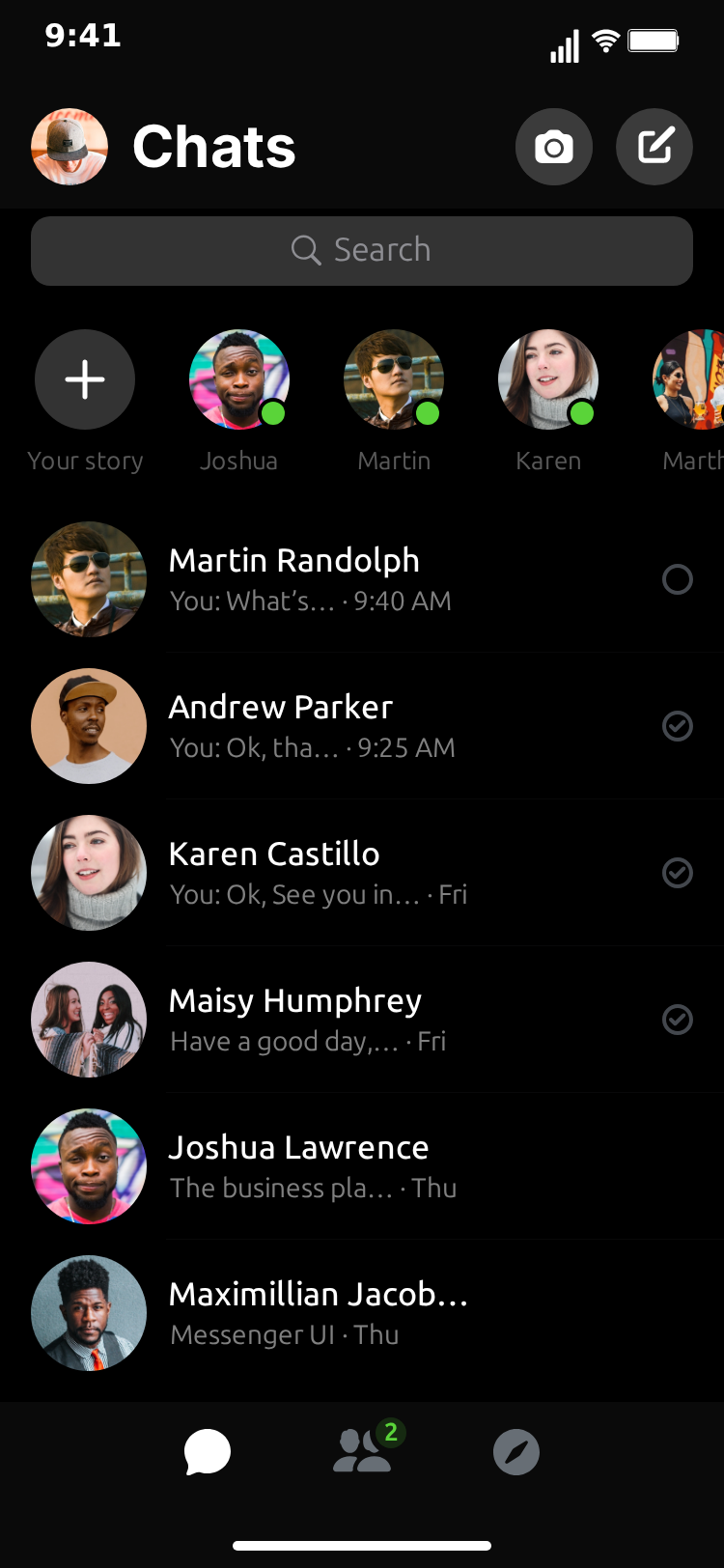
A Messenger chat animation generator is a tool that renders a fake Facebook Messenger conversation as a video. You write the messages, decide who sends what, set pauses and read marks, and the generator draws the Messenger interface frame by frame: the top bar with the contact's name and status, the bubbles, the input bar with its camera, gallery and microphone icons, the keyboard when it is needed.
The difference between a generator and a screen recording is control. A screen recording shows whatever happened on your phone, including notifications, autocorrect and the real names of real people. A generator shows only what you scripted, in the order and at the pace you chose, at a clean vertical resolution that TikTok, Reels and Shorts accept without cropping.
MockClip's Messenger generator runs entirely in the browser. There is nothing to install, no account to create for the free tier, and the export happens on your machine.
What MockClip's Messenger template can animate
Every element below is a real control in the editor. Nothing here requires a plugin or a paid add-on.
- The chats list. The Chats tab with a search field, a strip of story bubbles, a scrollable list of conversations with avatars, previews, times and unread rows. The row for the conversation you are animating is live: it shows the last message and an unread state until the conversation has played.
- The People and Discover tabs. The two other tabs of the app, each editable: the list of recently active people with their online dots, and the Discover screen with its recent businesses and suggested rows.
- The conversation. Incoming bubbles on the left with the contact's avatar, outgoing blue bubbles on the right, date separators between groups, and an opening "You're friends on Facebook" block for a brand new chat.
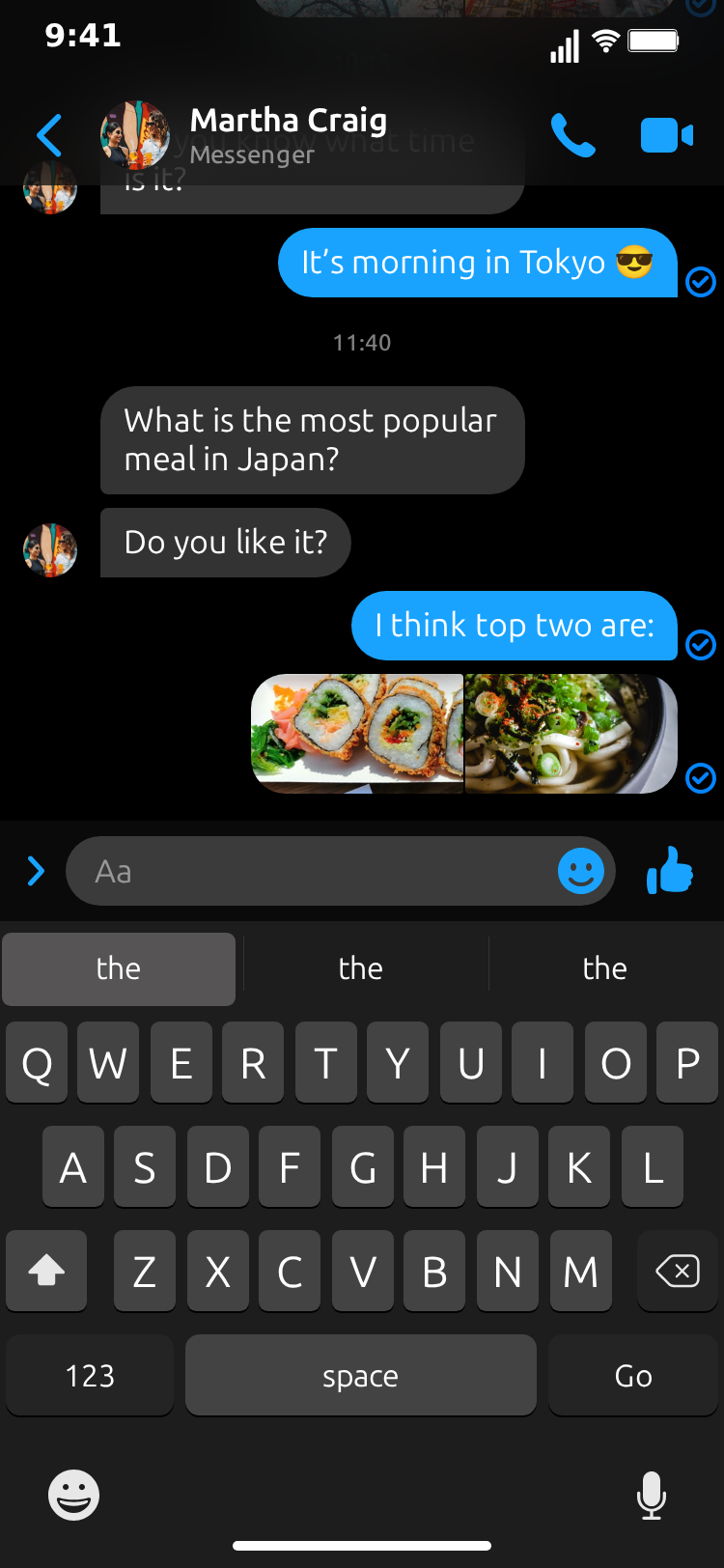
- Photo grids. A message can carry one or more photos, laid out as Messenger lays them out: a single rounded image, or a grid of thumbnails.
- Sent and read marks. An outgoing message shows a small check disc when it is sent and the contact's mini avatar when it has been read, the way Messenger does it.
- Typing indicator. While the other person is typing, the three-dot bubble appears where their next message will land.
- The on-screen keyboard. Your own messages can be typed into the input bar first, with the iOS keyboard sliding up while you type and sliding down when the message sends. A single toggle turns the keyboard on or off for the whole clip.
- The chat actions and GIF sheets. The sheet that slides up over the conversation when you tap the plus button, and the GIF picker with its search bar.
- Swipe actions. A chat row swiped aside to reveal its actions.
- New message, Settings and Profile. The compose screen with suggested people, the settings sheet with its rows and toggles, and the contact's profile.
- Audio call. The call screen with the contact's blurred avatar behind it, a "Contacting…" status that turns into a running timer.
- Video call, camera and story. Three screens with a media area that renders as a chroma-key colour by default, or as a still image you upload.
- Light and dark themes. One toggle switches the whole template.
- MP4 or GIF export. Both rendered in the browser.
What the template does not do: real video inside the media area (that is what the chroma key is for), reactions, voice notes, group chats and real story playback. If your idea depends on those, it belongs in a different format.
Why creators use Messenger animations
Messenger is the messaging app of a huge slice of the world. Anyone with a Facebook account has it, and for many audiences, particularly outside the US, "send me a message" means Messenger, not iMessage. A Messenger animation reads as "my phone" for those viewers in a way an iMessage animation never will.
There is a second reason. Messenger conversations on TikTok and Reels tend to have a social edge that other chat formats lack: the new Facebook friend who says hi, the old classmate who resurfaces, the person you matched with through a mutual. The template's opening intro block ("You're friends on Facebook") and the read avatar are exactly the details those stories turn on.
There is a third reason, and it is specific to this template. Messenger is the only MockClip template whose clip can leave the conversation entirely and come back. A video call, a story, a camera screen, the settings sheet: the whole app is available as steps in the flow. That opens formats other chat templates cannot do, such as a call that interrupts a chat, or a story that a character watches before replying.
For marketers, a Messenger animation is a fast way to show a support flow, a booking confirmation or a customer conversation, without exposing a real customer's chat or a real Facebook page.
Step-by-step: your first Messenger animation
Open the Messenger template. The editor sits on the left, the phone preview on the right. Follow these steps in order.
Step 1: Set the contact
Type a name into Contact Name and a status into Contact Status. Messenger statuses are short: Active now, Active 5m ago, Active yesterday. Add a Contact Avatar if you have an image; the top bar, the incoming bubbles, the chats list row and the read marks all use it.
Step 2: Write the messages
In the Messages section, add a message for each line of the conversation and set whether it is from you or from the contact. Keep each bubble short. Messenger bubbles are narrow and wrap early, and a long paragraph reads as a wall of text on a phone-shaped video.
Give messages a Timestamp where the story needs one. Messenger does not stamp every bubble, so use the Date line above field to put a centred separator such as TODAY 9:41 AM above the first message of a group. Separators are how viewers read the pace of a story: a group stamped an hour later feels like a cliffhanger.
Step 3: Add photos
On any message, add one or more photos. One photo renders as a single rounded image; two or more render as a grid, exactly as Messenger shows a batch of pictures. A photo is a strong beat in a chat video, so one grid per clip is usually enough.
Step 4: Set the timing
Each incoming message has a Typing Duration (s) that controls how long the three-dot indicator shows before the bubble appears. Each message also has Delay Before (s), the pause after the previous message. Outgoing messages can turn on Show typing in input field with a Typing Speed (chars/sec) so the text types into the input bar before it sends.
A good default: typing duration between 1 and 2 seconds for short incoming messages, a delay of half a second to a second between messages, and typing speed around 15 to 18 characters per second for your own lines.
Step 5: Configure the read marks
Under Read marks, choose what each outgoing message shows: the sent check disc, or the contact's mini avatar for read. Each mark has its own delay after the message appears. The gap between sent and read is your "they saw it" beat; stretch it when the story calls for tension.
Step 6: Decide on the keyboard
Turn on Show the keyboard while typing if you want the iOS keyboard to slide up whenever one of your messages is typed into the input bar. The conversation lifts to make room, the input bar collapses, and the keyboard slides back down on send. Leave it off for a calmer clip that keeps the keyboard-down layout throughout.
Step 7: Add the chats list and the flow
Click the Chat list screen tab. Add five or six rows with a name, a preview, a time and, where it helps, an unread state or a pin. Fill the Stories strip with a few names and avatars and set Your avatar (top bar). The conversation you are animating already appears as a live row.
Then look at the Video flow strip. The default flow is already a good one: the Chats screen for a moment, a push into the conversation, a fade into the video call for three seconds, a fade back to the chat, and a pop out to the list. Change it as you like: the strip only offers moves the real app makes, so a tab to People, a modal to New message or a sheet to the chat actions are all one click away. The preview's length updates as you add steps.
Step 8: Preview and export
Press play to watch the whole flow. Toggle Light Theme if the story suits a light interface. Then choose MP4 Video or GIF Animation and export. The file downloads directly from your browser.
Free to use. No sign-up. Browser-based.
Open the Messenger animation generatorThe screens beyond the conversation
Most chat templates stop at the conversation. The Messenger template keeps going, and each extra screen is a storytelling tool.
- Audio call. Add a
fadestep to the Audio call screen from the conversation. The screen shows the contact's name and blurred avatar with a "Contacting…" status; after the number of seconds you set in Connects after (s), the status becomes a running timer. Hold the step for as long as the call should last. - Video call. Same idea, with a full-screen media area. By default the area is a flat chroma-key green so you can composite your own footage behind it in your video editor. Or upload a still image and skip the compositing. The Messenger video call green-screen guide covers the workflow end to end.
- Story. Reachable from the Chats screen with a
fade. It shows a name, an age such as4h, an avatar, a media area (chroma or image) and a progress bar that fills over the time you set in Progress bar fills in (s). - Camera. A
modalfrom the Chats screen: the viewfinder is a media area with the capture controls drawn over it. - New message, Settings, Profile. The compose screen with its suggested people, the settings sheet with its rows, and the contact's profile page. Each is editable field by field.
- Chat actions and GIFs. Sheets that slide up over the conversation and slide back down, useful as a beat between two messages.
- Swipe. A
swipestep on the Chats screen drags a row aside to reveal its actions, then lets it snap back.
Timing patterns that make Messenger animations feel real
Timing is what separates a convincing chat animation from an obviously scripted one. A few patterns that hold up:
- Front-load the typing. The first incoming message should show the three-dot indicator for at least a second. It tells the viewer this is a live conversation, not a screenshot.
- Make the read avatar mean something. If your character sends a message that goes unanswered, let the sent check sit alone for a couple of seconds before the mini avatar appears. Viewers read the wait.
- Use the keyboard for the reply that matters. With the keyboard on, every one of your messages types out. Keep the typing speed high for throwaway lines and slow it down for the message the whole video is about.
- Hold the chats list for at least 1.5 seconds at the start of the flow. That is enough time to read the row previews and the story bubbles and understand which chat is about to open.
- Cut to a call, do not linger. A three-second video call step is a beat, not a scene. Fade in, let the timer tick, fade out.
- End on the list. Popping back to the chats list gives the story a natural close and shows the final message in the live row.
Writing Messenger dialogue that travels
Messenger audiences are international, so dialogue that works tends to be short, literal and emoji-light. A few guidelines:
- Keep messages under 60 characters where possible. Bubbles stay readable and the animation keeps moving.
- Let date separators carry the passage of time instead of narration.
TODAY 9:41 AMfollowed byTODAY 11:15 PMsays "hours passed" without a caption. - Use the intro block for new-friend stories. "You're friends on Facebook" above the first message sets up an entire genre of video in one line.
- Use one photo grid per video at most. It is a strong beat; two of them dilute it.
- Give the contact a status that matches the story.
Active nowfor a live back-and-forth,Active 3h agofor a message that will be left on read.
Posting Messenger animations to TikTok, Reels and Shorts
The exported MP4 is vertical and ready for every short-form platform.
- TikTok rewards a hook in the first two seconds. Start the flow on the chats list with an unread row that is about to open, or on a story that a character is watching. Either one is the hook.
- Instagram Reels tends to loop. End on the pop back to the list so the loop feels intentional.
- YouTube Shorts allows slightly longer clips. A 20 to 30 second flow with a call step in the middle works well for story content.
Add your own caption text in your editing app if you want on-screen narration; keep the MockClip export clean so it can be reused.
Generating Messenger animations from an AI client
MockClip's MCP server exposes a create_facebook_messenger_conversation tool. From Claude, ChatGPT or any MCP-compatible client you can describe the conversation and get back a link that opens the finished animation in the editor.
The tool takes the contact's name and status, the theme, the list of messages (each with optional photos, date line, typing settings and read marks), the keyboard mode (auto, always or never), and optionally chatList rows, stories, per-screen objects for the people, discover, settings, profile, new message, call, video call, camera and story screens, and a flow of screen steps. Without any of the screen data it produces the conversation only; with it, the same multi-screen video the editor does. The guide to connecting MockClip to Claude or ChatGPT covers the setup.
The same description works in the editor's own Describe it panel, which is the default view on the template page: type the story, and the AI writes the messages, names, delays and read marks for you, ready to refine in the manual editor.
Common mistakes and how to avoid them
- Skipping the chats list. The list is what makes the video feel like a phone rather than a chat widget. Include it unless the clip is very short.
- Every message read instantly. Real people do not read every message the moment it arrives. Vary the read-avatar delays.
- A video call with nothing behind it. If you leave the chroma key green and do not composite anything, the export shows a green rectangle. Either drop footage behind it in your editor or switch the media area to a still image.
- Too many screens. Every screen in the app is available, which does not mean every clip should visit all of them. Two or three screen changes per video is plenty.
- Wrong theme for the story. Dark theme reads as late-night; light theme reads as daytime. Pick deliberately.
- Claiming features the app does not have. No reactions, no voice notes, no group chats in this template. Write the story around what the template does.
How MockClip compares to alternatives
Screen recording the real Messenger app is free but uncontrollable: notifications, real names and the platform's chrome leak into the frame, and you cannot stage a video call with a green screen behind the other person. General video editors such as CapCut can overlay chat-style text, but they do not render Messenger's bubbles, read avatars, story strip or tab bar; the MockClip vs CapCut comparison goes into detail. Among dedicated fake-chat tools, MockClip is the one whose Messenger template renders the whole app as a connected flow rather than a single conversation view.
Quick start checklist
- Open the Messenger template.
- Set the contact name, status and avatar.
- Write six to ten short messages with a date line above the first one.
- Add one photo grid if the story needs it.
- Set typing durations, read-mark delays and the keyboard toggle.
- Fill five chats-list rows and a few story bubbles.
- Keep or adjust the default flow: chats, push chat, fade video call, fade chat, pop chats.
- Preview, then export MP4 or GIF.
Related MockClip templates and guides
- Messenger chat maker — the template used in this guide
- Telegram chat maker — the other multi-screen chat template
- WhatsApp chat maker — the closest alternative for international audiences
- How to make a fake Messenger conversation video — the full tutorial with the intro block, sheets and every screen
- Messenger video call green screen video — compositing your own footage into the video call, camera and story screens
- Telegram chat animation generator — the Telegram equivalent of this guide
- WhatsApp chat animation generator — the WhatsApp equivalent of this guide
- Fake chat video maker free — cross-platform chat video guide
- How to go viral with fake conversation videos — engagement strategy
- Pricing — Pro tier for watermark-free exports
Frequently Asked Questions
What is a Messenger chat animation generator?
A Messenger chat animation generator is a browser tool that turns a scripted conversation into a video that looks like a screen recording of the Facebook Messenger app. MockClip's Messenger template animates the chats list, the conversation with photo grids and read avatars, an on-screen keyboard, audio and video calls, the camera and a story, and exports the result as MP4 or GIF.
Is MockClip's Messenger generator free?
Yes. The Messenger template runs free in the browser with no account required. Free exports carry a small MockClip watermark; the Pro upgrade removes it. See the pricing page for details.
Can the video move between Messenger screens?
Yes. The Video flow strip lets the clip open on the Chats tab, push into the conversation, fade into a video call, come back and pop out to the list. Every screen in the template is connected: the People and Discover tabs, the New message, Settings and Profile screens, the chat actions and GIF sheets, the audio call, video call, camera and story.
What is the green area on the video call, camera and story screens?
It is a chroma key. Those three screens have a media area that renders as a flat green colour by default, so you can key it out in CapCut, Premiere or DaVinci Resolve and drop your own footage behind it. You can change the key colour or replace the whole area with a still image.
Does the generator show a keyboard?
Yes. A toggle in the editor shows the iOS keyboard sliding up while your own messages are being typed and sliding down when they send. Turn it off to keep the design's keyboard-down layout for the whole clip.
Which Messenger features are not supported?
Real video playback inside the media area, reactions, voice notes, group chats and real story playback are not part of the template. It focuses on one-to-one chats, the app's tabs and screens, and chroma-key media areas you composite yourself.
Can I generate a Messenger animation from Claude or ChatGPT?
Yes. MockClip has an MCP server with a create_facebook_messenger_conversation tool. Describe the conversation and, optionally, the screens to walk through, and it returns a link that opens the finished animation in MockClip, ready to export.
Related Articles
How to Make a Fake Messenger Conversation Video (2026)
Step-by-step guide to a realistic fake Messenger conversation video: the new-friend intro, photo grids, read avatars, the keyboard, sheets, calls and stories.
Messenger Video Call Green Screen Video: Chroma Key Guide
Make a fake Messenger video call, camera or story clip with a green-screen media area, then key your own footage behind it in CapCut, Premiere or Resolve.
Telegram Chat Animation Generator: Make Fake Chat Videos
Free Telegram chat animation generator. Animate the chats list, reply quotes, image attachments, ✓✓ read marks and typing. Export MP4 or GIF in the browser.
WhatsApp Chat Animation Generator: Create Viral Videos
Free WhatsApp chat animation generator for creating realistic message videos. Animate conversations with typing indicators, read receipts, and timestamps.
Fake Chat Video Maker Free: Create Text Conversation Videos
Free fake chat video maker for TikTok and Reels. Create realistic animated text conversations with iMessage, WhatsApp, and Instagram DM interfaces in minutes.