12 Vinted Reseller Video Ideas You Can Make in Your Browser
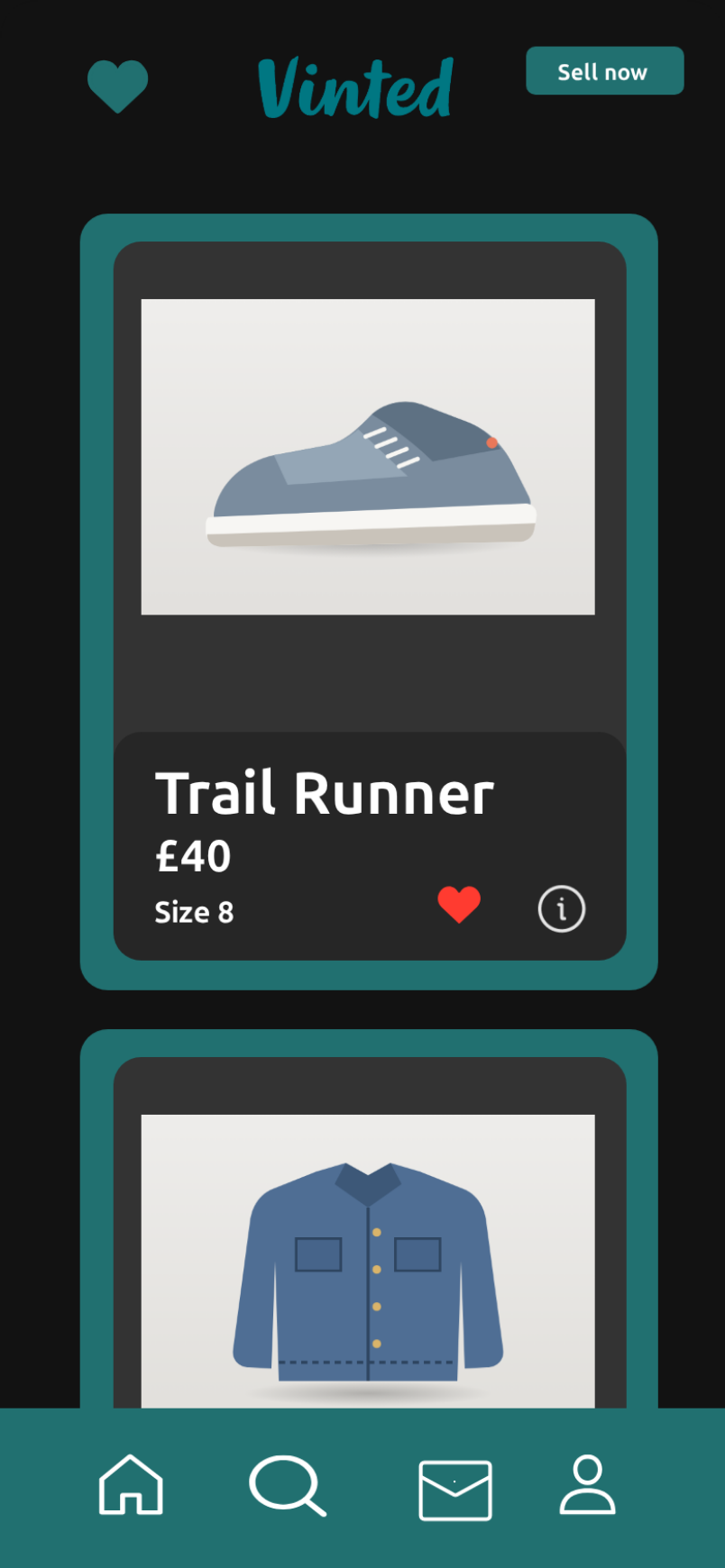
Second-hand fashion content lives on short vertical video: hauls, flips, finds, price checks and "you will not believe what I found" moments. Most of them come down to one beat that the viewer needs to read instantly, usually a listing being hearted, a price being shown, or an item page sliding in.
MockClip's Vinted template draws that beat for you. You write the listings, upload your photos, script a scroll and a heart, and arrange the screens; the template animates the cards, the heart pop, the item page and the transitions, and exports an MP4 or GIF. This post collects twelve clip ideas built on it, each with the listings to write, the home script and the flow. If you have never used the template, the step-by-step guide on how to make a fake Vinted listing video walks through every field first.
Everything in the clips below is written or uploaded by you. Nothing is read from Vinted, and MockClip is not affiliated with Vinted UAB. Keep listings fictional or your own, and use photos you are allowed to use.
How the ideas are written
Each idea lists three things:
- Listings. What to put in the Title, Price and Size line fields, top to bottom. The first listing is usually the star.
- Home script. The steps under "What happens on this screen": Scroll, Like and Pause, each with a short delay.
- Flow. The screens in Video flow, with their transitions: push into the Item page, fade into Item (liked), fade into Quick view, fade into Hearts, push into Saved.
The template has three home-screen actions (scroll, like, pause) and eight screens (Home, Quick view, Quick view (liked), Item, Item (liked), Hearts, Saved and Saved (unliked)). Every idea below fits inside those.
1. The instant heart
The simplest clip there is: a listing appears and the heart pops red within a second.
- Listings. One star item with a clear photo, such as "Wool Coat", "£18", "Size 10", and two more under it.
- Home script. Like listing 1 after 0.6 s. Pause 1.5 s.
- Flow. Home only, held for three seconds.
Use it as an intro beat before talking to camera, or as a reaction cut in a longer video. It works best when the price is the joke: a winter coat for the price of a sandwich.
2. Scroll, stop, heart
The viewer scrolls with you and the scroll stops exactly on the find.
- Listings. Five or six items; put the star in third place.
- Home script. Scroll to listing 3 (slowly), pause 0.5 s, like listing 3.
- Flow. Home for about five seconds.
The pause before the heart is what sells it. Without it, the heart pops while the eye is still moving.
3. Heart it, open it, buy it
The full browse-to-checkout beat, the way the default clip plays.
- Listings. The star first, then two or three others.
- Home script. Like listing 1, scroll to listing 3, scroll to the top.
- Flow. Home (5 s), push into Item (1.4 s), fade into Item (liked) (2.4 s).
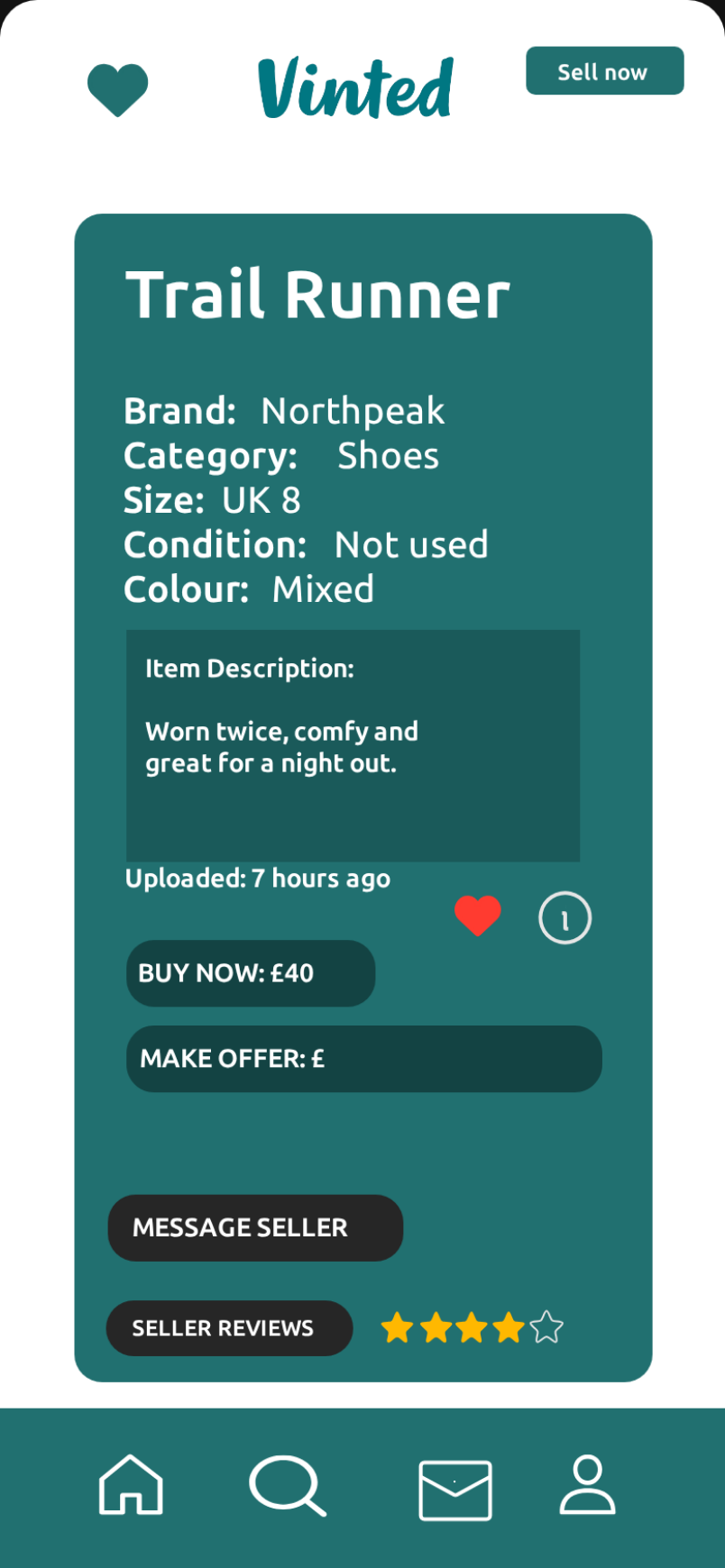
- Item page. Match the star listing: the same title, the price on the "BUY NOW: £…" label, and five detail rows (brand, category, size, condition, colour).
This is the one to start from if you are not sure what to make: change the listings and the item page and you have a new clip.
4. The price check
Show a listing price, then cut to your own commentary.
- Listings. One item with an outrageous price, such as "Plain White Tee", "£95", "Size M". Make the second listing something reasonable for contrast.
- Home script. Pause 1 s, scroll to listing 2, scroll back to the top.
- Flow. Home, then push into Item so the viewer reads the description ("Item Description: worn once, vintage feel").
Export with the bezel for the "phone on screen" look, and record your reaction over it in your editor of choice.
5. Haul recap
Turn a haul into one clip: every item you bought, hearted in order.
- Listings. Every item from the haul, with your own photos.
- Home script. Like listing 1, scroll to 2, like 2, scroll to 3, like 3, and so on.
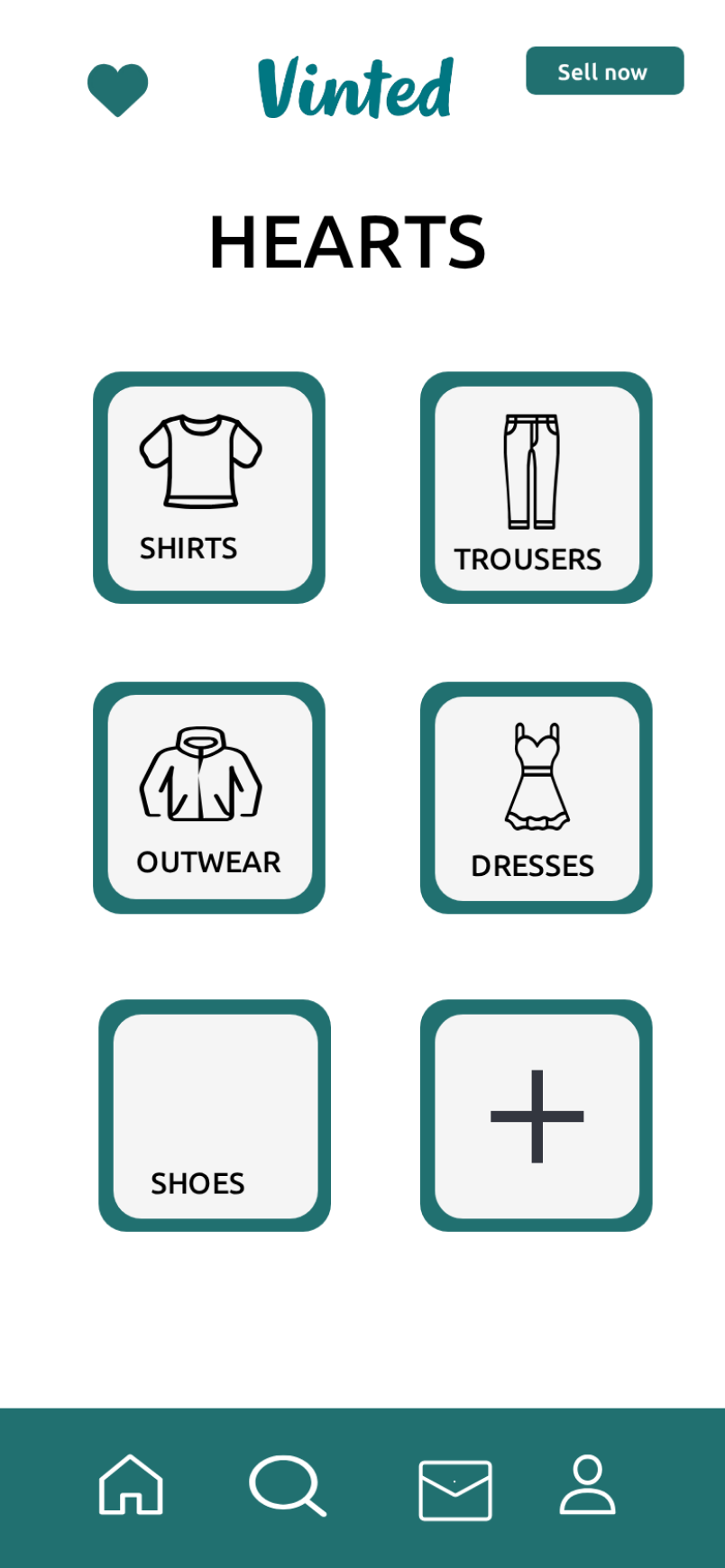
- Flow. Home only, held long enough for the script. Add a fade into Hearts and a push into Saved to end on the grid.
- Saved. Upload the same photos as Photo1 to Photo5 so the grid shows the haul.
The Saved grid makes a satisfying final frame: every item with a red heart in two neat columns.
6. The change of heart
A listing gets hearted, then unhearted. It fits indecisive-shopper jokes.
- Listings. The star first, with Liked unticked.
- Home script. Like listing 1, pause 1.2 s, like listing 1 again (the second Like removes the heart), scroll on.
- Flow. Home only. Or end on Saved (unliked), the grid with one heart removed.
7. Before and after the flip
For upcycling and flip content: the "before" item as listed, then the "after" listing.
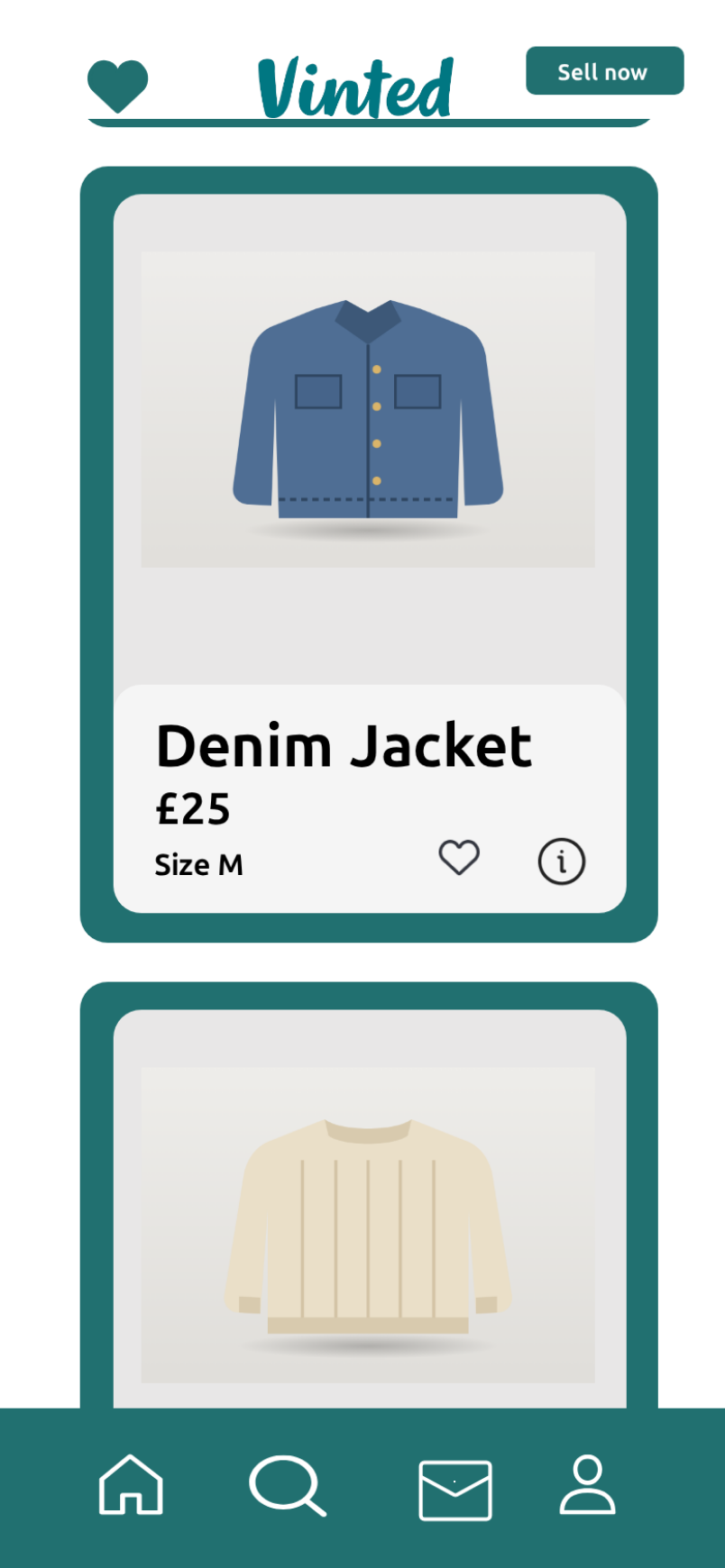
- Listings. Listing 1 is the after ("Cropped Denim Jacket", "£35"); listing 2 is the before ("Denim Jacket", "£6").
- Home script. Scroll to listing 2, pause, scroll to the top, like listing 1.
- Flow. Home, then push into Item for the after's details.
Use your own before and after photos on the two cards so the change is visible in the feed itself.
8. Quick-view walkthrough
A calmer, explain-the-listing clip for tutorials on writing good descriptions.
- Listings. One well-photographed item first.
- Home script. None, or a short pause.
- Flow. Home (1.5 s), fade into Quick view (3 s), fade into Quick view (liked) (1.5 s), push into Item (2 s).
- Item page. Write the description you are teaching: a clear first sentence, condition, measurements.
The quick view shows the details inside the feed, so viewers see how a listing reads at a glance before the full page.
9. Size line jokes
The size line under the price is small, which makes it a good punchline.
- Listings. "Ball Gown", "£12", "Size: emotionally XL", or "Hiking Boots", "£20", "One left boot".
- Home script. Scroll slowly past each listing, pausing a little on each.
- Flow. Home only.
Keep the title normal and let the size line deliver the joke; viewers read top to bottom.
10. The seller's view
Show what a buyer sees when they open your listing, for "how I list my items" content.
- Listings. Your own listing first, exactly as you would title and price it.
- Flow. Push into Item and hold for three seconds so the details can be read, then fade into Item (liked) to show the buyer hearting it.
- Item page. Fill in every row, the description and the upload time ("Uploaded: 2 hours ago").
11. Category reveal
Start from your saved categories and reveal what is inside.
- Flow. Hearts (2 s), push into Saved (3 s), fade into Saved (unliked) (1.5 s).
- Saved. Five photos of the category you are featuring.
It works as a series format: one category per episode.
12. The overnight heart count
A listing is hearted one moment, and by the next clip it is gone.
- Clip one. The listing on Home, hearted.
- Clip two. The same feed, without the listing.
Two short exports, cut together with a title card in between ("the next morning…").
Turning the ideas into a weekly series
One clip is a post; a recurring format is an audience. Several of the ideas above work best as a series with the same structure every week, so viewers know what they are getting and come back for the next one.
- Monday find. Idea 2 (scroll, stop, heart) with your best find of the week as the star listing. The format never changes, only the item does.
- Flip Friday. Idea 7 (before and after the flip) with the week's project. Keep the before listing in second place and the price gap visible on both cards.
- Category of the month. Idea 11 (category reveal), one saved category per month, with the Saved grid showing five photos of the items you kept.
- Price check Sunday. Idea 4 with a listing you found overpriced, followed by your own commentary clip.
Keep a simple note with the listings you used for each episode (title, price, size line, photo), so you can rebuild an episode or reuse its structure later. Changing four fields and two photos is faster than starting from scratch, and the series keeps a consistent look. Exporting each episode with the same theme, the same format and the same bezel setting helps too: viewers recognise the series before they read a word.
Timing cheat sheet
Most of the polish in these clips comes from timing. As a starting point:
| Moment | Suggested time |
|---|---|
| Delay before the first Like | 0.6 to 1 s |
| Pause before a payoff Like | 0.4 to 0.6 s |
| A slow scroll to the third listing | about 1 s |
| Home screen hold with a short script | 4 to 6 s |
| Item page before it is hearted | 1 to 1.5 s |
| Item (liked) as the final frame | 2 to 2.5 s |
| Saved grid as the final frame | 2.5 to 3 s |
Press Play after every change. If the push into the item page starts before the heart has finished popping, lengthen the home screen's hold time rather than shortening the steps.
Making the clips feel natural
A few habits that help every idea above:
- Lead with the star. The first listing is the one the viewer sees longest. Put the item that matters there.
- Pause before the payoff. Half a second of stillness before a heart pops lets the eye arrive first.
- Match the item page. If the flow opens the item page, its title and the price on the Buy now label should match the listing card.
- Use your own photos. Items on a plain background look closest to real listings, and you avoid showing brands you have no rights to.
- Pick the theme for the platform. Dark stands out in a light-mode feed; light reads best in bright, outdoor footage.
- Keep it short. Six to fifteen seconds per clip. String several clips together in your editor if you need more.
Drafting with Describe it
If you want a first draft fast, Describe it, the AI panel at the top of the editor, turns one sentence into listings, a home script and a flow. Sentences that work well with this template:
- "scrolling Vinted for trainers: I heart a pair at £40 and open the listing to buy"
- "my old denim jacket listed at £25 gets hearted and opened"
- "a too-good-to-be-true designer bag at £15: I heart it and open the listing"
You can then edit every field by hand. Describe it needs a Google or GitHub sign-in to MockClip. See the guide to Describe it, the AI video generator and the list of prompt ideas for TikTok and Shorts for more.
Exporting for each platform
- TikTok, Instagram Reels, YouTube Shorts. 9:16, with or without the bezel, MP4 at Full HD.
- Instagram and Facebook feeds. 1:1, the square crop, so the header and the first card stay in frame.
- Presentations and blog posts. A GIF at 720p and 15 fps keeps the file small.
Exports run in the browser, at 720p or Full HD and 15 to 30 fps, or 60 fps on the Creator plan. Free exports carry a small watermark; see the pricing page for what each plan includes.
Related templates
If the story continues as a chat between buyer and seller, the Messenger template and the WhatsApp template cover conversations. For a feed of posts instead of listings, try the X template.
Free to use. No sign-up. Browser-based.
Make a Vinted listing videoFrequently Asked Questions
What makes a good Vinted listing video?
One clear moment the viewer can read in a second: a heart popping red, a price that is too good or too bad, a scroll that stops on the right item. Keep the clip between six and fifteen seconds and make the first listing the star.
Can I use real Vinted listings or photos?
Use your own items and photos, or fictional ones. The template does not import anything from Vinted, and MockClip is not affiliated with Vinted UAB. If you show a photo with a visible brand, make sure you are allowed to use it.
How long should the clip be?
Six to ten seconds for a joke, ten to fifteen for a haul or a walkthrough. The default flow, which hearts a listing, scrolls and opens the item page, runs a little over nine seconds.
Can I make these clips without writing every field?
Yes. Describe it, the AI panel in the editor, drafts listings, a home script and the flow from one sentence. It needs a Google or GitHub sign-in to MockClip; the manual editor works without an account.
Is there a chat with a seller in the template?
No. The Vinted template covers browsing and the item page. For a negotiation as a conversation, pair it with a chat template such as Messenger or WhatsApp in a second clip.
Related Articles
How to Make a Fake Vinted Listing Video (Free, in Browser)
Step-by-step: build a fake Vinted listing video in your browser, with listing cards that scroll, a heart that pops red and the item page. Free, exports MP4.
AI Chat Video Prompt Ideas for TikTok, Reels and Shorts
30+ ready-to-paste prompts for MockClip's Describe it mode: WhatsApp, iMessage, Telegram, ChatGPT, Reddit, Tinder and more. One sentence in, a chat video out.
AI Fake Chat Video Generator: Describe It, Get the Clip
Type what the clip should be and MockClip's Describe it mode writes the messages and timing for WhatsApp, iMessage, ChatGPT, Tinder and more. Refine by second.