Messenger Desktop Chat Video in a Browser Window (2026)
Most Messenger chat videos are a phone screen, and most of the time that is the right shape. Sometimes it is not. A YouTube video, a tutorial recorded on a laptop, a slide in a presentation and a landscape edit are all wide frames, and a tall phone in the middle of a wide frame leaves two empty bars beside it.
MockClip's Messenger template now has a Phone | Computer switch. Set it to Computer and the same conversation moves to the Messenger page of the desktop site, drawn inside a browser window, as a 16:9 clip. This guide shows how to make a messenger desktop chat video step by step, what the computer layout draws and what it leaves to the phone, and where a landscape chat is the better pick.
What a Messenger desktop chat video is
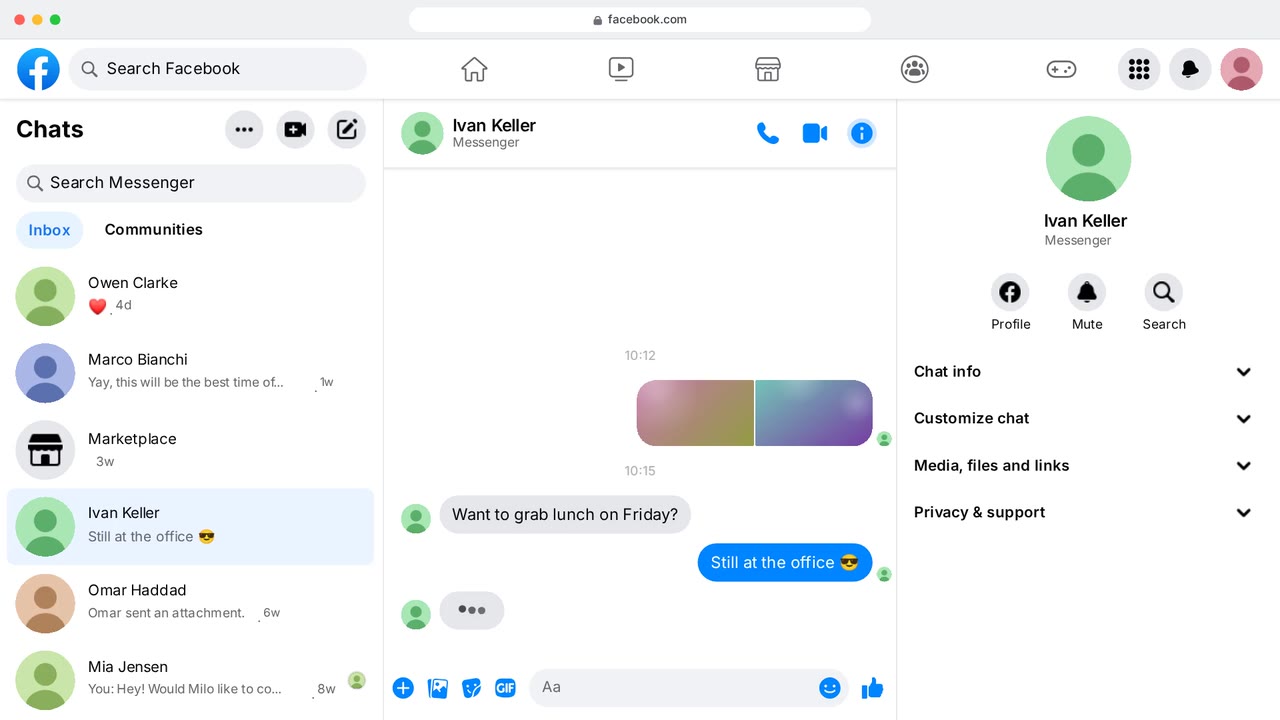
It is a Messenger conversation that plays the way it looks on a computer: the desktop page instead of the app. The page sits in a plain browser window with three coloured dots and an address pill. In the demo above the pill reads facebook.com, the Chats column runs down the left, the open thread sits in the middle and a details panel with the contact's name sits on the right.
The thread is the part that moves. Messages arrive one by one, a three-dot bubble shows while the other person is writing, photos land as a grid, and a small copy of the contact's avatar appears beside your message once it has been read.
Everything is scripted by you. There is no Facebook login, no real account and no real inbox behind it. The browser window is a drawing as well: it has no working tabs, the page does not scroll and its links do not open.
What the computer layout draws, and what stays on the phone
The Messenger template has had a phone layout for a while, and that layout does a lot more than a conversation. Before you plan a video, it helps to know which half of the template you are in.
Drawn on the computer
- The desktop Messenger page in a browser window, as a 16:9 clip.
- Photo grids. A message can be photos instead of text.
- Date separators, the small centred time lines between groups of messages.
- Read marks shown as the contact's mini avatar beside your message.
- The three-dot typing bubble in the thread while the contact writes.
- A Zoom slider that zooms the whole page, up to 120 %. A new clip opens at 120 %.
- The browser window on or off. Turn it off and the clip shows the bare page.
- Light and dark themes, and MP4 or GIF export.
Phone layout only
- The other screens. The chats list, the People tab, the calls and the rest of the Video flow do not run on the computer. The clip is the conversation, start to end.
- The on-screen keyboard. A computer has none, so nothing slides up while you type.
- Camera scenes. The 3D camera and hand-held scenes are for phone clips. There is no background behind the browser window.
- Vertical and square formats. A computer clip has no 9:16 or 1:1 version.
Group chats are a separate case. The template's group chat options are documented for the phone layout, and this guide sticks to one-to-one conversations on the computer.
None of the phone features are lost when you switch. They belong to the other layout, and the switch works in both directions.
Step-by-step: making the clip
The fastest way to learn the layout is to rebuild the demo. When you open the template it already holds this conversation, so you can follow along and change the words as you go.
Step 1: Open the template and switch to Computer
Open the Messenger template. In the editor, open the Scene tab (its label reads Scene & look) and set Device to Computer.
The preview changes from an iPhone to a browser window with the desktop Messenger page inside. The conversation is the one you had on the phone a second ago. Nothing was rewritten.
Step 2: Set the contact
Back in the script, fill in Contact Name and Contact Status, and upload a Contact Avatar if you have one. The demo uses Ivan Keller with the status Messenger.
Pick the avatar with some care. In the demo it is drawn in the thread header, beside the contact's messages and as the read mark, so one image carries the whole clip.
Use an invented name, or your own. More on that in the honesty note near the end.
Step 3: Write the thread
Add messages with + My Message and + Their Message. The demo has seven:
- You: two photos
- Contact:
Want to grab lunch on Friday? - You:
Still at the office 😎 - Contact:
Have you tried the new place downtown? - Contact:
Did it arrive? - You:
Here are the photos - You: two more photos
Seven messages make a 17 second clip with the demo's timing. Take that as a rough guide: a short thread of six to eight messages with similar delays gives you a clip that is long enough to read and short enough to hold as an insert in a longer video.
Keep the lines short. A viewer reads one bubble at a time, and short bubbles keep the thread moving.
Step 4: Add the photo grids
On a message, use Photos (up to 4, shown instead of text) and upload the images. The message becomes a grid in place of a text bubble. The demo opens with a grid of two photos and closes with another.
Photos do good work on a wide frame. A text-only thread leaves a lot of white page around it, and a grid gives the eye something to land on. Use images you have the rights to use.
Step 5: Place the date lines
Set Date line above on the message that starts a new stretch of the conversation. The demo has three: 10:12 above the first photos, 10:15 above the lunch question and 11:40 above the second question.
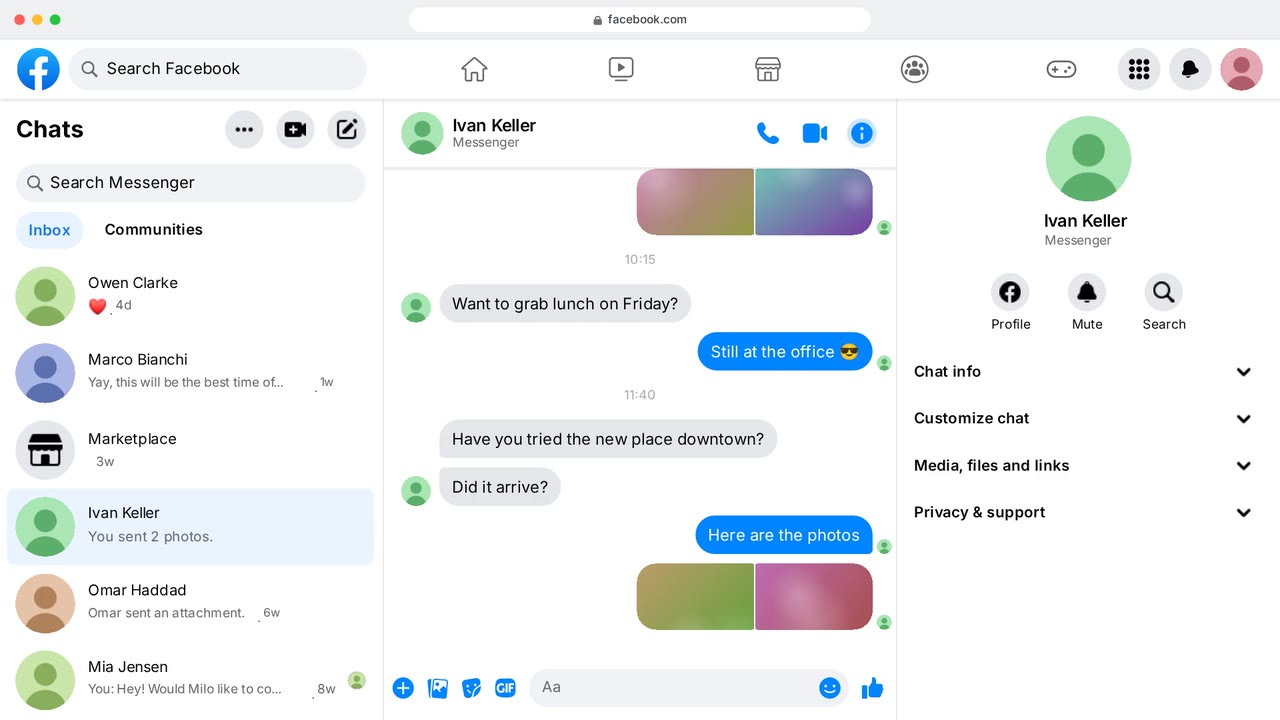
Those three numbers tell a story without a word of dialogue. Three minutes pass between the photos and the question. Then more than an hour passes, and the contact comes back with two messages in a row. A viewer reads that as "he waited, then followed up".
Use date lines sparingly. One per group of messages is how the page looks. One per bubble looks like a log file.
Step 6: Time the typing
For each message from the contact, set Typing Duration (s). While it runs, the three-dot bubble sits in the thread beside the contact's avatar. The demo uses 1.2 seconds per message, which suits short lines. Give a longer line closer to 2 seconds so the wait matches what arrives.
Delay Before (s) is the pause after the previous message. The demo uses half a second throughout. Stretch it on the one line the video is about.
For your own messages, tick Show typing in input field and set Typing Speed (chars/sec). The demo uses 18. The text is written into the page's message field and then sent. There is no keyboard on screen, which is what you would expect from a computer.
Step 7: Set the read marks
Under Read marks on your own messages, choose whether the message gets a sent check and a read mark, each with its own delay. Once a message is read, the mark is the contact's mini avatar beside the bubble. In the still above you can see it next to the photo grid and next to Still at the office 😎.
The gap before the avatar appears is the "seen" beat. Keep it under a second for a lively chat. Hold it longer on a message that is supposed to hang.
Free to use. No sign-up for the manual editor. Switch Device to Computer in the Scene tab.
Open the Messenger editorStep 8: Set the zoom, the browser window and the theme
Three settings decide how the page sits in the frame.
Zoom. The slider zooms the whole page, as a browser does, and the video keeps its size. A new clip opens at 120 %, which is also the top of the slider. Leave it there when the conversation is the subject. Lower it when you want everything on the page smaller, the way zooming out in a browser does.
Show Browser Window. With it on, the page sits inside the window with its dots and address pill, and the clip reads as "someone's computer screen". With it off you get the bare page edge to edge, which is cleaner when your own video already has a frame around the clip, such as a slide or a picture-in-picture box.
Light Theme. The template has a light and a dark theme. Match the footage around the clip: a dark page inside a bright slide is hard to read, and the reverse is just as true.
Step 9: Preview and export
Press play and watch the whole clip once at full speed. Timing problems hide while you scrub.
Then export as MP4 or GIF. The computer clip is 1280x720, and Full HD from the Pro plan. Free exports carry a small watermark. The pricing page has the current details of what each plan includes.
Reading the demo clip beat by beat
It helps to watch the 17 second demo with the script beside it, because every setting from the steps above is visible in it.
- The opening. The thread starts under the
10:12date line with your two-photo grid. The contact's mini avatar appears beside it: read. - The first reply. Under
10:15, the three-dot bubble shows, thenWant to grab lunch on Friday?replaces it. - Your answer.
Still at the office 😎is written into the message field and sent. The avatar lands beside it. In the first still, the highlighted row in the Chats column shows the same line as its preview. - The gap. A new date line,
11:40. The contact types twice:Have you tried the new place downtown?and thenDid it arrive?, the second one grouped right under the first. - The close. You type
Here are the photos, then a second grid of two photos arrives and is marked read. In the final still, the highlighted row in the Chats column readsYou sent 2 photos.
Seven messages, three date lines, two grids, one typing bubble per incoming line. Nothing in it needs the phone layout.
Where a landscape Messenger clip fits
YouTube videos
A standard YouTube video is 16:9, and so is this clip. That makes it a full-frame insert: cut to the conversation, let it play, cut back. Commentary, storytime and video-essay formats use this kind of insert to show "the messages" while the voice-over reads them.
If you appear on camera, you can also shrink the clip to one side of the frame in your editor and keep talking beside it. Check that the bubbles are still readable at that size before you publish.
Tutorials and explainers
If the lesson is about using Messenger on a computer, the example should look like a computer. A support article on where a message lands, a lesson on how a scam message tends to read, or a walkthrough of what the read avatar means can all use a scripted thread in place of a recording of a real inbox. Nobody's private messages end up in the frame, and you can make the example say exactly what the lesson needs.
Say in the video that the conversation is an example. Viewers of a tutorial expect that, and it costs one line of narration.
If the lesson is about messaging in general and not about Messenger, Work Chat is MockClip's own brand-free work conversation page, and it is drawn on a computer too.
Presentations and training
Slides are wide, and a 16:9 clip fills one. An MP4 or a GIF can sit on a slide and play while you talk through it, which beats a row of pasted screenshots when the point is the order in which things were said.
This suits internal training on customer conversations and classroom lessons on online safety. For those, switching Show Browser Window off often looks tidier, since the slide is already the frame.
Landscape edits
In a longer landscape piece, such as a short film, a sketch or a documentary-style recap, a desktop chat works as a cutaway. The character sits at a laptop, and the next shot is their screen. A phone layout cannot stand in for that shot, and the computer layout can.
Six conversation ideas that suit the desktop page
- The office lunch. The demo's own pattern: a casual question, a late reply, a follow-up after a long gap. Change the date lines to change the mood.
- The file hand-off. "Did it arrive?" followed by a photo grid. Use it in a tutorial on sharing photos, or as the setup of a sketch where the wrong photos were sent.
- The support thread. A customer writes, an agent answers in three short lines. Good for training slides. Keep both names invented.
- The suspicious message. A stranger asks for a code or a payment, written the way such messages read. Use it only as a clearly labelled example in a safety lesson.
- The working-late exchange. One side at a desk at 23:40, the other long gone home. The date lines carry the joke.
- The plan that slips. A meeting moved twice across three date lines. Dry, short and familiar to anyone with a calendar.
Writing for a wide frame
A thread that works on a phone does not always work on the desktop page. A few habits help.
- Fewer, clearer messages. On a phone the bubbles fill the screen. On the desktop page the thread is one column of three, so each message is a smaller share of the frame. Six to eight messages read well at 120 % zoom.
- Alternate sides. Your bubbles sit on the right of the thread and the contact's on the left. A run of four messages from one side leaves the other half of the column empty.
- Let the last message matter. There is no pop back to a chats list on the computer. The clip ends on the thread, so the final bubble is the final frame.
- Mind the surrounding page. The viewer can see the rest of the page, so the open conversation should look like it belongs there: an everyday name, an everyday status, a believable time of day.
- Test at the size it will be shown. If the clip will sit in a corner of a YouTube frame or in half of a slide, look at it at that size before you settle on the wording.
When to pick the phone layout instead
The computer layout is not the upgrade and the phone the old version. They are two shapes for two jobs. Stay on the phone when:
- The video is vertical. TikTok, Reels and Shorts are tall frames, and the phone layout fills them natively.
- The story leaves the conversation. Opening on the chats list, visiting the People tab, cutting to an audio or video call and coming back are all Video flow steps, and the flow runs on the phone only. The Messenger conversation tutorial covers that flow in detail.
- You want the keyboard. The keyboard that slides up while you type is a phone feature.
- You need a chroma-key screen. The camera and story screens with a green media area are phone screens. See the Messenger green screen guide.
- You want a camera scene. Scenes are for phone clips.
- It is a group chat. The group options are documented for the phone layout.
Because the switch moves the same conversation, you do not have to choose early. Write the thread once, export the computer clip for the YouTube cut, switch Device back to Phone and export the vertical one for Shorts.
Using the clip in a vertical video
A computer clip is always 16:9. There is no 9:16 export of it. If a landscape chat has to appear in a vertical video, the placing happens in your own video editor: put the clip in the top half of a split screen with your footage below it, or zoom in on the thread so the conversation fills the width.
Zooming crops the sides of the page, so check that the bubbles on both sides stay in frame. If the conversation is the whole video, the phone layout is the simpler route.
Generating the same clip from Claude or ChatGPT
If you would rather describe the conversation than click through the editor, MockClip's MCP server has a create_facebook_messenger_conversation tool. It takes the contact, the messages and the theme, and it accepts device: "computer" for this layout. It returns a link that opens the finished animation in MockClip. The connection guide covers the setup for each client.
Common mistakes to avoid
- Planning a flow for the computer. Chats list steps, calls and sheets do not run there. If the script needs them, it is a phone video.
- Expecting a vertical export. The computer layout is 16:9 only.
- Lowering the zoom and losing the text. At a small size on a slide or in a corner of the frame, a zoomed-out page is hard to read. Start at 120 %.
- A date line on every message. One per group.
- No typing before an incoming message. A reply that appears instantly looks pasted in.
- Every read mark at the same delay. Vary them a little.
- Describing features the page does not draw. Reactions and voice notes are not part of the template, on either device.
A short honesty note
A scripted conversation is a prop. Use it for skits, tutorials, explainers, training, demos and storytelling. Do not put a real, identifiable person's name or face on words they did not say, and do not present a staged exchange as a real one. A line such as "dramatised" or "example conversation" in the video or its caption removes any doubt.
The Messenger design is its owner's trademark, and MockClip is not affiliated with that company. On the Free, Pro and Creator plans, videos are for your own content. For paid ads and client work, the terms say to use a brand-free app instead: read the pricing page and the terms before you plan that kind of project.
Quick start
- Open the Messenger template.
- In the Scene tab, set Device to Computer.
- Set the contact's name, status and avatar.
- Write six to eight messages, with one or two photo grids.
- Add a date line above each new stretch of the conversation.
- Set typing durations, delays and read marks.
- Leave Zoom at 120 %, and decide whether the browser window shows.
- Export MP4 or GIF at 16:9.
Related MockClip templates and guides
- Messenger chat maker — the template used in this guide, with both layouts
- How to make a fake Messenger conversation video — the phone layout, with the chats list and the Video flow
- Messenger chat animation generator — an overview of what the template can do
- Messenger video call green screen video — the phone layout's call, camera and story screens
- Instagram DM maker — the other template with a Phone | Computer switch
- Work Chat — a brand-free work conversation page on a computer
- Fake chat video maker free — a cross-platform overview
- Connect MockClip to Claude or ChatGPT — MCP setup
- Pricing — what each plan includes
Frequently Asked Questions
How do I make a Messenger desktop chat video?
Open MockClip's Messenger template, go to the Scene tab and set Device to Computer. The conversation you wrote moves to the Messenger page of the desktop site, drawn in a browser window. Write the messages, set the typing and read marks, then export an MP4 or a GIF.
What size is the computer clip?
It is always 16:9. The export is 1280x720, and Full HD from the Pro plan. The computer layout has no vertical 9:16 version and no square version, so pick the phone layout when you need a native vertical chat.
Does the computer layout show the chats list screen, calls or the keyboard?
No. The chats list, people and calls screens, the Video flow, the on-screen keyboard and the camera scenes belong to the phone layout. On the computer the clip is the conversation on the desktop page and nothing else.
Do I have to rewrite the conversation for the computer?
No. The Phone | Computer switch moves the same conversation between the two layouts. Write it once, then choose the device that fits the video you are cutting.
Can I post the computer clip on TikTok, Reels or Shorts?
The clip is landscape, so it does not fill a vertical screen by itself. Place it inside a vertical edit in your own video editor, for example as the top half of a split screen or zoomed on the conversation, or use the phone layout for a native vertical chat.
Can I make the page bigger so the bubbles are readable?
Yes. The Zoom slider zooms the whole page the way a browser does, up to 120 %, and a new computer clip already opens at 120 %. You can also turn the browser window off to show the bare page.
Can I make it from Claude or ChatGPT instead of the editor?
Yes. MockClip's MCP server has a create_facebook_messenger_conversation tool. Set its device option to computer and the link it returns opens the conversation on the desktop page.
Related Articles
How to Make a Fake Messenger Conversation Video (2026)
Step-by-step guide to a realistic fake Messenger conversation video: the new-friend intro, photo grids, read avatars, the keyboard, sheets, calls and stories.
Messenger Chat Animation Generator: Make Fake Chat Videos
Free Messenger chat animation generator. Animate the chats list, photo grids, read avatars, calls, camera and story screens. Export MP4 or GIF in the browser.
Messenger Video Call Green Screen Video: Chroma Key Guide
Make a fake Messenger video call, camera or story clip with a green-screen media area, then key your own footage behind it in CapCut, Premiere or Resolve.
How to Make a Fake Instagram DM Video in Your Browser
Script a fake Instagram DM conversation, time the typing dots, Seen avatar and reactions, then export MP4, GIF or a transparent clip. Free, no account.
Fake Chat Video Maker Free: Create Text Conversation Videos
Free fake chat video maker for TikTok and Reels. Create realistic animated text conversations with iMessage, WhatsApp, and Instagram DM interfaces in minutes.