Instagram DM Desktop Video: A Chat in a Browser Window
Most Instagram DM videos are vertical: a phone screen, a thread, a reply that lands badly. That is the right shape for Reels. It is the wrong shape for a YouTube video, a tutorial recorded on a laptop or a slide in a talk, where a phone screen leaves most of the frame empty.
MockClip's Instagram DM template now has a second layout for those cases. A Phone | Computer switch in the editor's Scene tab moves the same conversation to the messages page of the desktop site, drawn in a browser window as a 16:9 clip. This guide shows how to make an Instagram DM desktop video with it, what the computer layout draws and what it leaves out, when the phone layout is still the better pick, and a list of ideas that suit a landscape frame.
What the computer layout is
The Instagram DM template has drawn a phone screen for a long time. The computer layout is a second way to show the same script. Nothing about the conversation changes when you switch: same messages, same order, same delays, same typing times. What changes is the screen it is drawn on.
On the computer you get the messages page of the desktop site inside a plain browser window: three coloured dots, an address pill, and the page below. The page has the site's navigation column on the far left, the inbox next to it, and the open thread on the right. The clip is 16:9, at 1280x720, or Full HD from the Pro plan.
Two things are worth knowing before you start:
- It is a drawing of a page, not a working browser. Nothing scrolls, no tab opens and no link can be clicked. The clip plays the conversation and that is all it does.
- It is always landscape. There is no vertical or square version of the computer clip, and no camera scenes. Those belong to the phone layout.
What the demo clip shows
The video above is the template's own default conversation, switched to Computer. It runs 21 seconds.
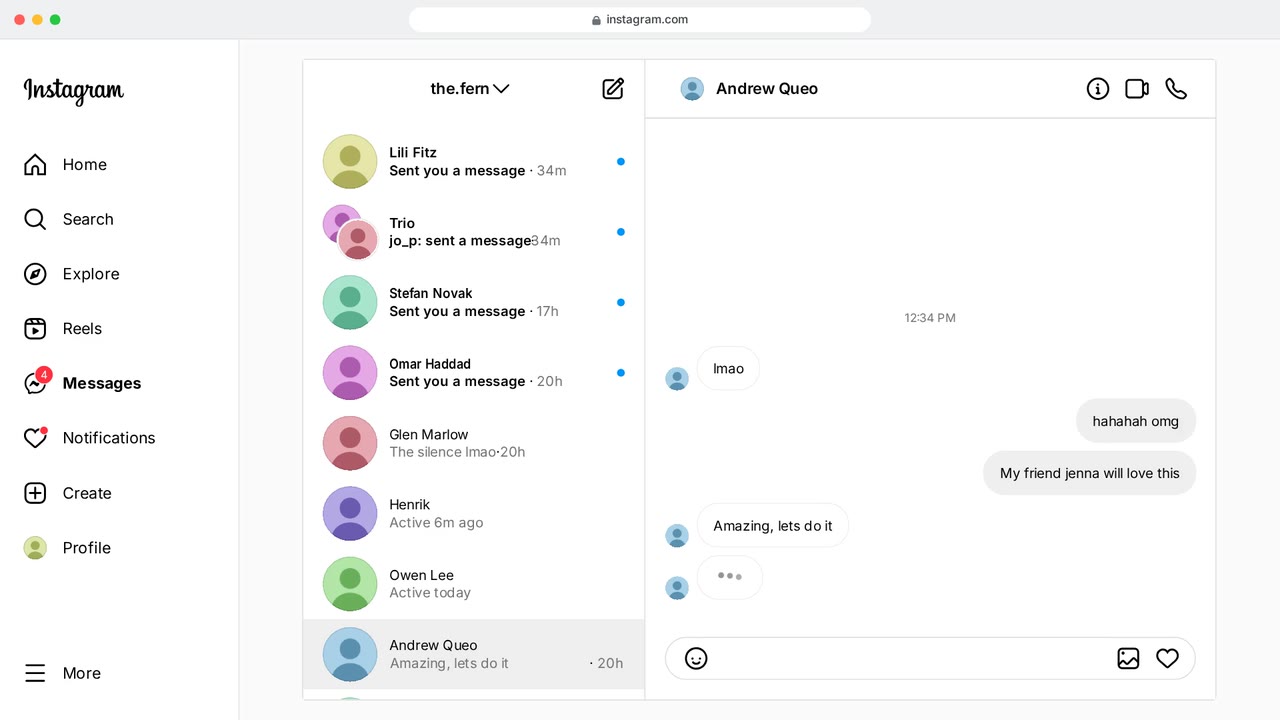
The contact is Andrew Queo. His name and photo sit in the thread header, next to the info, video and call icons. A centred 12:34 PM line opens the thread, three dots appear in a bubble beside his avatar, and his first message arrives: lmao. You answer twice, hahahah omg and My friend jenna will love this, each one typed into the message field at the bottom of the page before it is sent. He replies Amazing, lets do it, the three dots come back, and a longer line follows: I'll send you tomorrow to arrange this, it will be fun !!. Half a second later a heart reaction lands on that bubble.
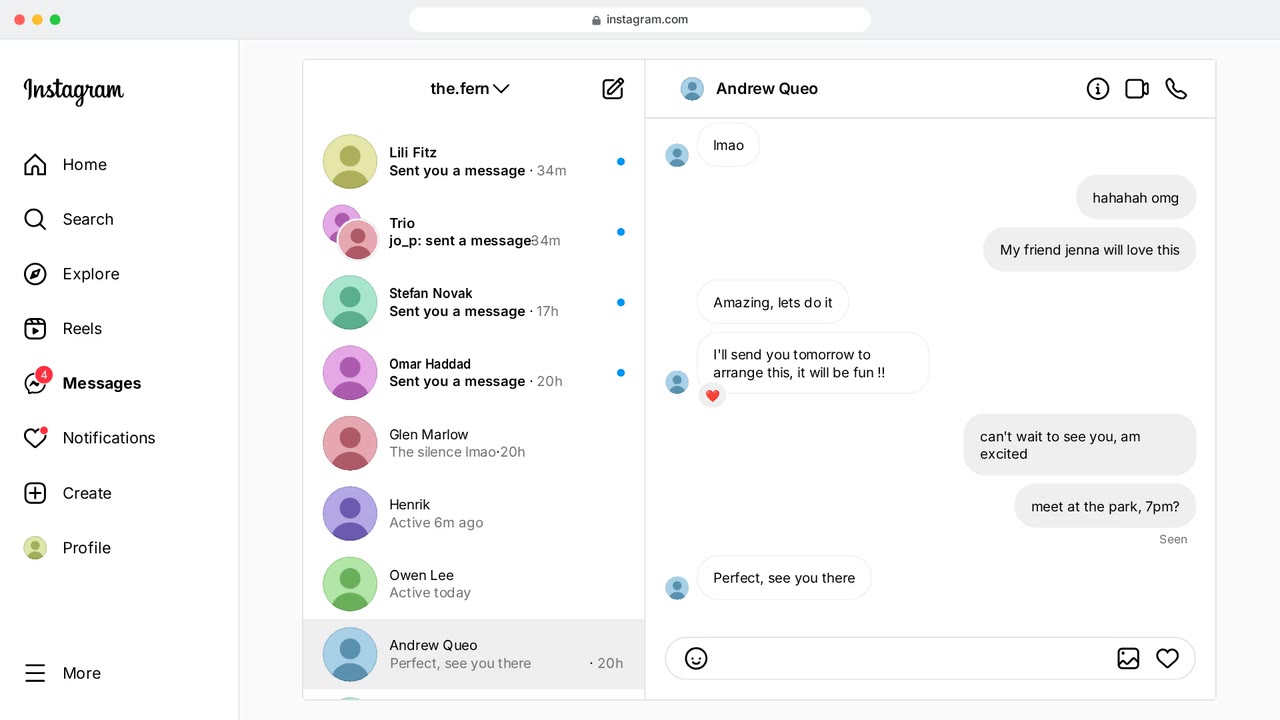
You send two more messages, can't wait to see you, am excited and meet at the park, 7pm?. A second after the last one, the word Seen appears under it. He closes with Perfect, see you there.
Watch the left column while it plays. The row for Andrew Queo in the inbox is highlighted, and its preview line follows the thread: it reads Amazing, lets do it part-way through and Perfect, see you there at the end. That is the detail that makes the page read as live instead of as a screenshot with bubbles added on top.
Step-by-step: making the desktop clip
Open the Instagram DM template. You can write the conversation on either layout, because it is one conversation. The steps below write it first and switch the device near the end, so the last thing you adjust is the frame.
Step 1: Write the thread
In Messages, use + My Message and + Their Message to add the lines in order. Eight messages, as in the demo, give you a clip of about twenty seconds.
If you would rather start from a description, Describe it mode writes the thread for you: type something like "a brand asks me to promote them for exposure, I reply with an invoice" and the AI scripts it. It requires a Google or GitHub sign-in, and the result opens in the manual editor, where every line can be changed.
Step 2: Name the contact and add a photo
Enter the name in Contact Name and upload a picture under Contact Avatar (Optional). The name appears in the thread header and on the conversation's row in the inbox; the photo sits beside the contact's bubbles. Use an invented name and a photo you have the right to use.
On the phone layout there is also a status dropdown (Active now, Active 1h ago and so on). Once the device is set to Computer that field is hidden, because the desktop thread header shows the name only.
Step 3: Time the typing and the replies
Each message has a Delay Before (s), the pause after the previous one. The demo uses 0.3 to 0.8 seconds, which reads as two people who are both at their screens.
For the contact's messages, set Typing Duration (s). While it runs, a three-dot bubble shows in the thread beside their avatar. The demo uses 1.0 second for lmao and 1.8 for the long line. Match the duration to the length of the message and the pause will feel earned.
For your own messages, tick Show typing in input field and set Typing Speed (chars/sec). The text is typed into the page's message field and then sent. The demo uses 12 to 15 characters per second.
Step 4: Add a time line, a reaction and Seen
Three small details do most of the work in a DM story:
- Timestamp (shown above message) puts a centred time such as
12:34 PMabove a message. Use it on the first message, and again wherever the story skips ahead. - Reactions adds a heart, laugh, surprised, sad, angry or thumbs-up to a message, and Reaction Delay (s) sets how long after the message it appears.
- Show "Seen" marks one of your messages as read, after the Seen Delay (s) you choose. The editor's label mentions the avatar because that is how the phone draws it. On the computer layout the word Seen appears under your message.
Step 5: Switch the device to Computer
Open the Scene tab and set Device to Computer. The preview changes from the phone to the browser window, and the clip becomes 16:9. The scene picker and the phone's frame options give way to two controls: Show Browser Window and Zoom.
Step 6: Set the zoom and the window
Zoom enlarges the whole page, as a browser does, while the video keeps its size. The page opens at 110 % and the slider goes up to 120 %. Pick 120 % when the clip will play in a small player or sit in a corner of your frame, so the bubbles stay readable. Go down to 100 % when you want more of the page around the thread.
Show Browser Window draws the window with its three dots and address pill. Turn it off and the bare page fills the frame. That suits a clip that will sit inside something that already has a frame of its own, such as a slide or your own screen layout.
Step 7: Pick the theme and export
Choose the light or the dark theme, press play, and watch the clip once at full length. Then export an MP4 or a GIF. Exports are 720p at 15 to 30 fps, with a small watermark; the Pro plan removes the watermark and unlocks Full HD. The pricing page lists what each plan includes.
Write the thread, then switch Device to Computer in the Scene tab. Browser-based.
Open the Instagram DM editorWhat the computer layout draws, and what it leaves to the phone
The script carries over. Some of the details around it are drawn differently, and a few are not drawn at all.
Drawn on the computer:
- Text messages from both sides, in order, with your delays.
- The three-dot typing bubble for the contact, and your own messages typed into the page's message field.
- The centred time line above a message.
- Reactions on a bubble.
- The word Seen under your last read message.
- The inbox on the left, with the open conversation's row following the latest message.
- The browser window, which can be switched off, and the Zoom slider.
- Light and dark themes.
Not drawn on the computer:
- The contact's status line. Active now and the other statuses are part of the phone header.
- A play mark or a length on a video message. A photo or video message still shows as a picture, but a video is a plain still on the computer. On the phone it shows its opening frame with a play button and its length. It does not play on either layout.
- The on-screen keyboard. A computer has none, so nothing slides up while you type.
- Vertical and square formats, and camera scenes. A computer clip is 16:9 and flat.
The rest of the page is scenery. The navigation column and the other rows in the inbox are drawn as part of the page, and your conversation is the row that changes.
Some things do not exist on either layout, so leave them out of your script and your caption: video that plays, voice messages, stickers or GIFs, vanish mode, story replies and group chats.
Phone or computer: which layout to pick
Pick the computer layout when the frame around the clip is landscape:
- A YouTube video, where a 16:9 clip fills the player.
- A tutorial about work that happens on a laptop, where a phone screen would break the setting.
- A presentation, where the clip takes the full slide.
- A story that needs the inbox in view, so the viewer sees the row update as the reply arrives.
Pick the phone layout when any of these matter:
- The video is for Reels, TikTok or Shorts. The phone layout has a vertical format that fills the screen. The computer clip does not.
- The status line is part of the story. "Active now" under the name while your message gets no answer is a beat only the phone header can show.
- The Seen marker should be the contact's photo. On the phone, a small copy of their profile photo appears under your message. It needs an uploaded avatar. The Seen and reactions guide covers how to time it.
- A video message should look like one. The play button and the length are drawn on the phone only.
- You want the keyboard, a square clip or a camera scene. All three belong to the phone.
You do not have to choose once and for all. The conversation is the same on both, so one script can give you two exports: the phone layout for a vertical teaser and the computer layout for the main video.
Ideas for a desktop DM video
Every idea below is a scripted scene. Use invented names and say that the exchange is staged.
- The collab request, explained. In a video about pricing your work, play a brand's first message and your reply on screen while you talk through each line. The desktop page suits it when the rest of the video is recorded on a computer screen.
- The reply tutorial. Teach a way of answering a common question: the opening message, your reply typed into the field at reading speed, their follow-up. Slow the typing speed so viewers can read along.
- The video essay insert. A commentary video about online etiquette needs examples. A short scripted thread in 16:9 drops into the edit without black bars on either side.
- The desk skit. A character is meant to be working and answers DMs in a browser tab instead. The browser window sets the scene before a word is read.
- The left-on-seen beat. Send a question, let the word Seen appear under it, and hold. On a landscape frame the word is small, so zoom to 120 % and give it two seconds.
- The scam-spotting lesson. For a class or a safety video, script a suspicious message and the right way to respond. Label it as an example so nobody takes it for a real account.
- The talk opener. Start a presentation with a twenty-second thread that sets up your topic. Turn the browser window off so the page fills the slide.
For ideas shaped for a vertical feed, see the Instagram DM video ideas for Reels.
Writing and pacing for a landscape frame
A desktop thread reads differently from a phone thread. The frame is wider, the bubbles take a smaller share of it, and the viewer has two places to look.
- Keep lines short. Long messages wrap inside the bubble. The longest line in the demo wraps onto two rows, and that is about as much as a viewer reads comfortably at video speed.
- Give the inbox row a moment. When a reply arrives, the preview line in the inbox changes too. Leave a delay of half a second or more before the next message so the eye can travel left and back.
- Type slower than you would on a phone clip. Text typed into the message field is small in a 16:9 frame. Around 12 characters per second, as in the demo, is easy to follow.
- Use the time line as a cut. A new centred time above a message tells the viewer that hours have passed, with no narration needed.
- End on a hold. Put Seen or the last reply at least a second before the clip ends, so a viewer who looks away from your face to the screen does not miss it.
Using the landscape clip in a vertical edit
There is no vertical export of the computer layout. If you want the desktop page in a TikTok, a Reel or a Short, you place the landscape clip inside a vertical edit in your own video editor. Two common ways to do it: put the clip in the top half of a split screen with your camera below, or scale it up so the frame shows the thread and crops the navigation column.
If what you want is a chat that fills a vertical screen, do not fight the format. Switch Device back to Phone and export the same conversation in its vertical layout. The fake Instagram DM video guide walks through the phone version, and the YouTube Shorts guide covers vertical pacing.
Generating the same clip from Claude or ChatGPT
If you would rather describe the conversation than click through the editor, MockClip's MCP server has a create_instagram_dm_conversation tool. It takes the contact name, the theme and up to twenty messages with optional typing settings, reactions and a Seen marker. Add device: "computer" and the link it returns opens the conversation on the desktop layout. The setup guide covers connecting it.
Keep it honest
A scripted DM is a prop, like a prop letter in a film. Keep it to skits, tutorials, explainers, training, demos and storytelling. Do not impersonate real people, do not use a real person's name or photo without permission, and do not present a staged exchange as a real one. A "dramatised" or "re-enactment" note in the caption or on screen is enough.
The template recreates a design that is its owner's trademark. MockClip is not affiliated with Instagram or Meta. For paid ads or client work, the terms point you to a brand-free app instead of a real-app template, and the pricing page shows which plan covers that kind of use.
Other templates with a computer layout
Instagram DM is one of two templates with the Phone | Computer switch. The other is Messenger, where the same switch moves a conversation between the two layouts; the Messenger conversation guide covers its phone version. Eight more templates are computer-only and draw a desktop page from the start, among them Reddit Chat, Airbnb and Work Chat, MockClip's own brand-free work conversation page.
Common mistakes to avoid
- Planning a vertical export of the computer clip. It is 16:9 only; use the phone layout for vertical.
- Writing a story that depends on "Active now". The status line is not drawn on the computer.
- Attaching a video message and expecting a play button. On the computer it is a still.
- Leaving the zoom at 100 % for a clip that will play small. Text that reads well in the editor can be hard to read in a corner of a YouTube frame.
- Pointing at other inbox rows in your narration as if they were part of your story. They are fixed scenery.
- Describing story replies, voice messages or group chats in your caption. The template does not draw them.
Quick start
- Open the Instagram DM template.
- Add messages with + My Message and + Their Message.
- Contact name and photo.
- Delays, typing durations and typing speed.
- One time line, one reaction, one Seen.
- Scene tab: Device to Computer.
- Zoom between 100 % and 120 %; browser window on or off.
- Theme, then export MP4 or GIF.
Related MockClip templates and guides
- Instagram DM video maker — the template used in this guide, with both layouts
- How to create a fake Instagram DM video — the phone layout, step by step
- Instagram DM conversation generator — what the template can do
- Instagram DM Seen and reactions — timing the beats that carry a DM story
- Instagram DM video ideas for Reels — ideas for the vertical layout
- How to make a fake Messenger conversation video — the other template with a computer layout
- Connect MockClip to Claude or ChatGPT — MCP setup
- Pricing — what each plan includes
Frequently Asked Questions
How do I make an Instagram DM desktop video?
Open MockClip's Instagram DM template, write the conversation, then open the Scene tab and switch the device from Phone to Computer. The same conversation plays on the messages page of the desktop site, drawn in a browser window. Export it as an MP4 or a GIF.
What size is the computer clip, and can I export it vertical?
A computer clip is always 16:9: 1280x720, or Full HD from the Pro plan. It has no vertical or square version. For a vertical chat, switch the device back to Phone, or place the landscape clip inside a vertical edit in your own video editor.
What is different from the phone layout?
The conversation is the same. On the computer the word Seen shows under your last read message where the phone shows the contact's small photo, the inbox sits on the left and follows the latest message, and there is no on-screen keyboard. The contact's status line, the play button and length on a video message, camera scenes and the vertical and square formats stay with the phone layout.
Can I zoom the page or hide the browser window?
Yes to both. The Zoom slider enlarges the whole page, as a browser does, up to 120 %, and the page opens at 110 %. The Show Browser Window option removes the window with its three dots and address pill, leaving the bare page.
Can I use the desktop clip on TikTok, Reels or Shorts?
Not as a native vertical video. The clip is landscape, so on those platforms it goes inside a vertical edit that you build in your own editor, for example as the top half of a split screen or zoomed in on the conversation. For a chat that fills a vertical frame, use the phone layout of the same template.
Is it okay to make fake Instagram DM videos?
Fictional conversations for skits, tutorials, explainers, training and storytelling are fine in most places. Do not impersonate real people, do not present a staged exchange as real, and do not use the format for fraud or harassment. A 'dramatised' note in the caption removes any doubt. MockClip is not affiliated with Instagram or Meta.
Can I make it from Claude or ChatGPT instead of the editor?
Yes. MockClip's MCP server has a create_instagram_dm_conversation tool. Pass device: "computer" with your messages and it returns a link that opens the conversation on the desktop layout.
Related Articles
How to Make a Fake Instagram DM Video in Your Browser
Script a fake Instagram DM conversation, time the typing dots, Seen avatar and reactions, then export MP4, GIF or a transparent clip. Free, no account.
Instagram DM Conversation Generator: Fake Chat Video
Instagram DM conversation generator that animates fake IG DM threads in the browser: typing, reactions, photo messages, and MP4 or GIF export.
Instagram DM Video: Animate Reactions, Typing, and Seen
Animate Instagram DM reactions, typing bubbles, and the Seen indicator as an MP4. Time each beat, land a heart with no reply, and export vertical.
How to Make a Fake Messenger Conversation Video (2026)
Step-by-step guide to a realistic fake Messenger conversation video: the new-friend intro, photo grids, read avatars, the keyboard, sheets, calls and stories.