How to Make a Fake LinkedIn Post Video (Free, Online)
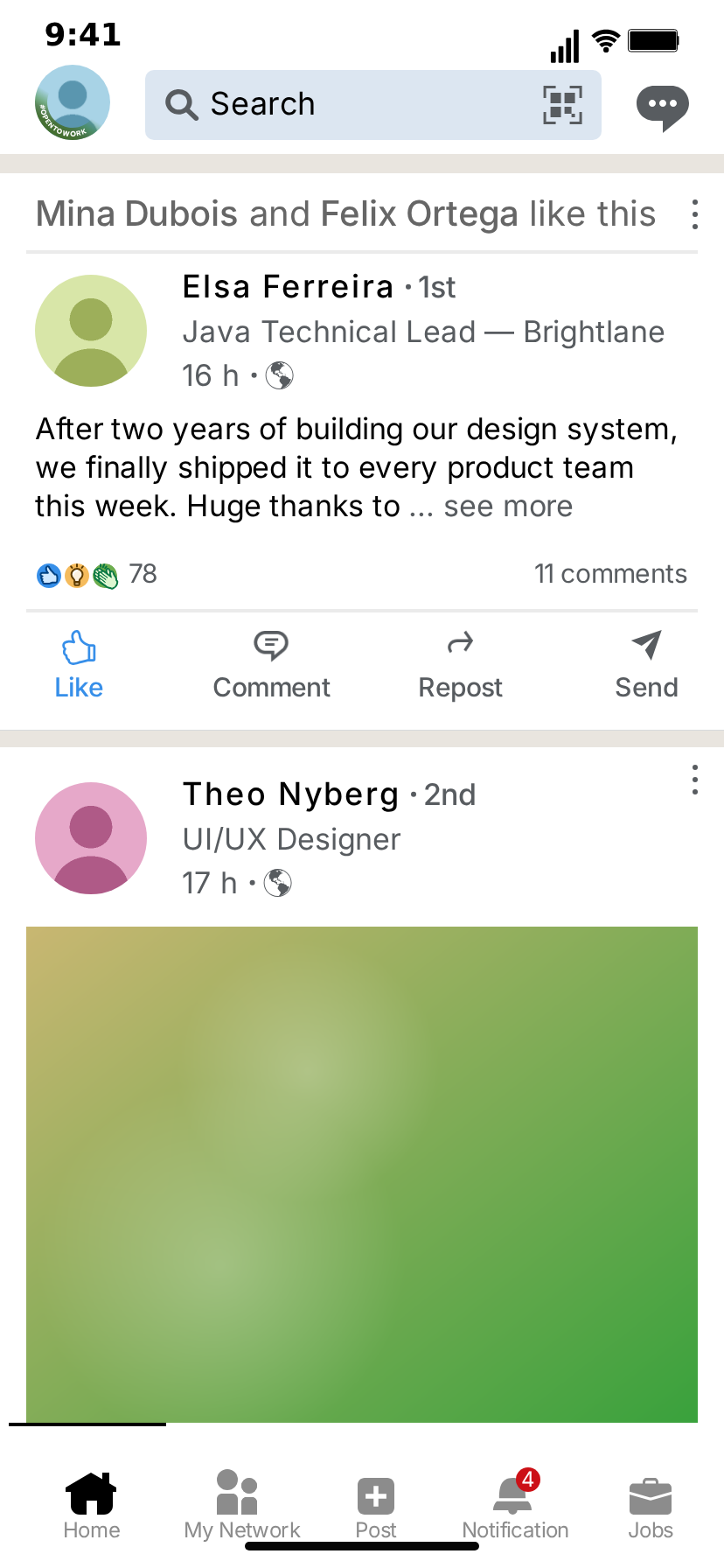
A LinkedIn post is a format everyone recognizes: a name with "· 1st" after it, a job title under it, "2h" and a little globe, a few lines of text cut off with "… see more", and a row of reaction icons with a count. That makes it a handy prop for videos about careers, hiring, marketing or office humour, as long as you do not have to screen-record a real account.
This guide walks through MockClip's free LinkedIn post template step by step: what you will make, how to write the posts, how to script the likes and scrolling, which other screens you can add, and how to export. Everything is written by you and drawn in your browser. Nothing is posted anywhere.
What you will make
A short vertical clip of the LinkedIn home feed on an iPhone screen. By default it:
- shows the feed with two posts,
- scrolls to the second post and likes it while the count rolls up,
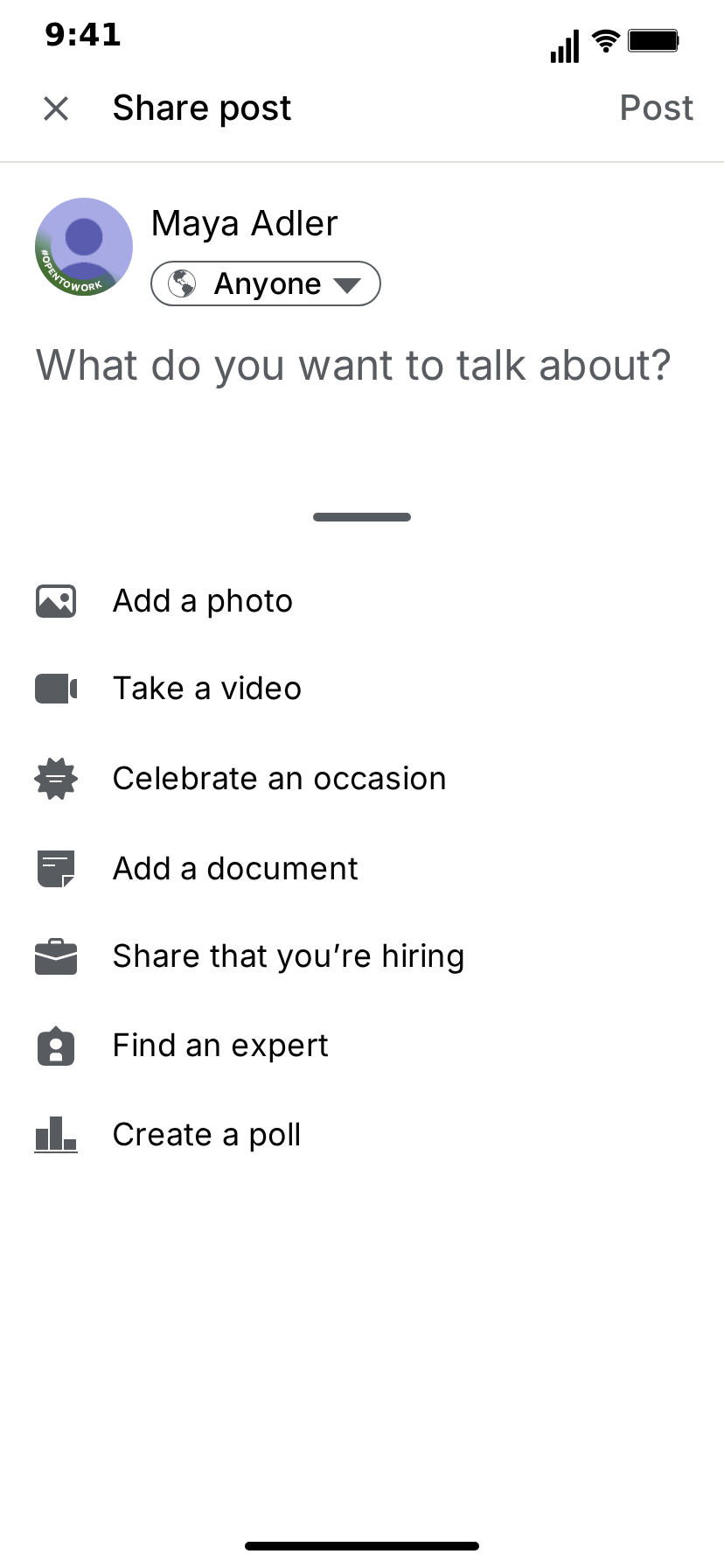
- taps the Post tab and opens the share screen,
- closes it again, and your own post is now at the top of the feed.
You can change every post, every step and which screens appear, in a light or dark theme.
Step 1: Open the LinkedIn post template
Open the LinkedIn post template. The editor sits on the left and the phone preview on the right. The tabs at the top of the editor are the screens: Home, Share post and Notifications. The editor works without an account; signing in is only needed for Describe it (the AI draft) and for paid exports.
Step 2: Write the posts
On the Home tab, the Posts list holds the cards from top to bottom. Each post has:
- Name and Degree: the degree is the "1st", "2nd" or "3rd+" after the name, drawn after a small dot.
- Headline: the line under the name, such as "Product Designer at Northwind".
- Time: "2h", "3d" or "now", drawn with the globe icon after it.
- Text: the post itself. Hashtags and links are drawn in blue. After three lines the card is cut with "… see more", just like the feed.
- Likes, Comments and Reposts: likes show as reaction icons with the count; comments and reposts show on the right as "11 comments · 3 reposts". Leave them empty and the row is hidden.
- Avatar and Image: upload a profile photo and an optional picture that is drawn full width under the text.
- Line above the post: the "likes this" line LinkedIn shows when someone in your network reacted. Wrap names in double asterisks to make them bold:
**Ada Park** and **Sam Lee** like this. It is drawn above the card's header, over a thin divider.
Tick Liked or Reposted if the post should start that way.
Step 3: Script what happens on the feed
Under What happens on this screen you list the steps that play while the feed is shown:
- Scroll to a post, to the top or to the bottom.
- Like a post: the Like icon and label turn blue and the likes count rolls to its new value.
- Repost a post: the Repost label turns blue and the reposts count goes up.
- New posts pill: a pill drops in at the top and the posts from the New posts list slide onto the feed. Set its wording in Pill label, with
{n}for the number. - Pause.
Each step has a delay before it and, for scrolls, a duration and easing. The preview shows the result immediately.
Step 4: Write your own post on the share screen
Open the Share post tab and press + Write a post. That post lands on top of the feed once the video leaves the share screen, so the default flow (feed, share screen, back to the feed) ends with your post in first place. The share screen itself shows your name and avatar, which you set on the same tab.
Step 5: Add the notifications screen
The Notifications tab is a second screen you can add to the flow: three people "and 2,486 others reacted to your post", with the comment quote, the reactions and comments line and the "See notification you missed" button. Rename the three people in First Row Name, Second Row Name and Third Row Name; the rest of each line follows the new name.
Step 6: Arrange the video flow
Video flow lists the screens in the order they play, each with a transition and how long it holds: the feed, then a slide-up to the share screen, then back, or a fade to notifications. Touch indicators show where the user taps before each move (the Post tab, the close icon, the Notification tab); switch them off if you prefer a clean screen.
Step 7: Light or dark
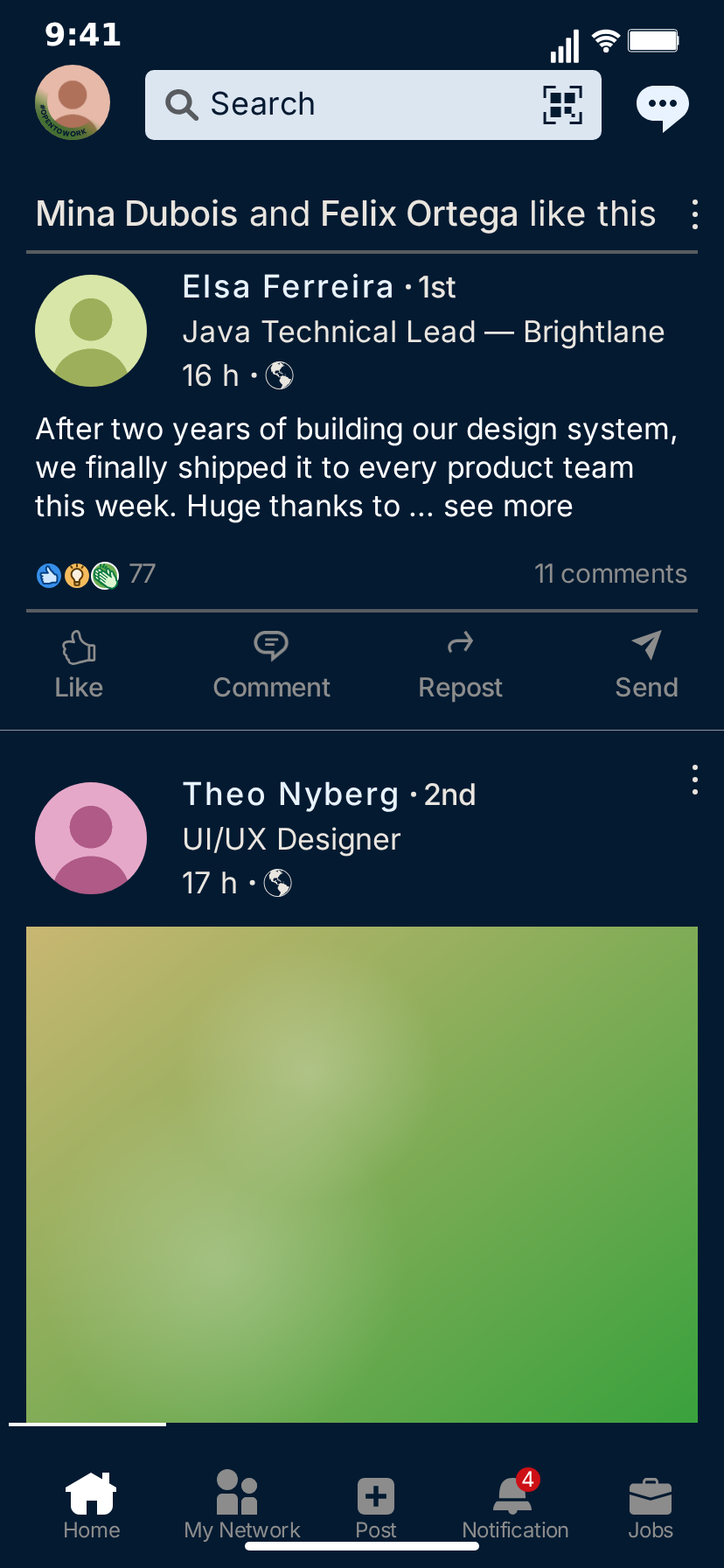
The Theme switch toggles between the light feed on its warm grey background and the dark navy theme. Both follow the design kit the template is built from.
Step 8: Preview and export
Press Play to watch the clip. When it looks right, export:
- MP4 or GIF,
- 720p or Full HD,
- 15 to 30 fps, or 60 fps on the Creator plan,
- with or without the iPhone bezel, in 9:16, other phone formats, or a 1:1 square crop.
A complete example
A "new job" clip in five steps:
- Post 1: you, "1st", "Product Designer at Northwind", "1h", text: "Some personal news: next week I'm starting as Product Designer at Northwind. Thank you to everyone who sent tips, referrals and kind words over the last months!", likes 12, comments 4.
- Post 2: a colleague, "2nd", "Engineering Manager at Brightlane", "3h", a hiring post with a team photo.
- Script: like post 1 after one second, then a new posts pill with two posts congratulating you.
- Share post: "Thanks again, everyone. First day tomorrow!"
- Flow: feed for five seconds, share screen for two, back to the feed.
Three script recipes
The script is where a static mockup becomes a video. These three patterns cover most clips.
The slow burn. One post, one like, a long hold.
- Pause for 1.5 seconds so the first line can be read.
- Like the post. The Like button turns blue and the count rolls up by one.
- Pause for another 2 seconds before the flow moves on.
Use it when the text is the joke or the message: the like is only the beat that tells the viewer "this is the moment".
The scroll past. Several posts, one target.
- Start at the top with an ordinary post.
- Scroll to post 3 with the "fling" easing, so it feels like a thumb flicking past.
- Like post 3.
Use it for "spot the post" content: a feed of normal updates, and the one post that stands out.
The pile-on. A post that takes off.
- Like the post.
- A new posts pill with three posts reacting to it ("Congrats!", "So deserved", "Wait, what?").
- Scroll to the top so the new posts and the original are on screen together.
Use it for announcements: the reactions of the network become the second half of the story.
Choosing the numbers
The reactions row is the most underrated part of a LinkedIn mockup. A few guidelines:
- Ordinary people: 5 to 80 reactions, 0 to 15 comments, reposts rare. Most real posts live here.
- A post that did well: 200 to 2,000 reactions, 30 to 150 comments, a handful of reposts.
- A viral post: 5,000 reactions and up. Use it only when the joke is that it went viral.
- The roll: a like adds one to the count. If you want a visible jump, start at 999 so the count rolls over to the next thousand on screen.
Leave a count empty and that part of the row disappears: no reactions means no icons, no comments means no "N comments".
Writing the headline
The headline under the name is where LinkedIn's personality shows. A real headline is either a job ("Product Designer at Northwind"), a job plus a tagline ("Engineering Manager | Building teams that ship"), or a list of roles separated by bars. For a believable clip keep it under 50 characters so it fits on one line; longer headlines are cut with "…" at the edge of the card. For a comedic clip the headline is a second joke channel: "Visionary | Disruptor | Napping enthusiast".
Writing tips that make it believable
- Use real LinkedIn rhythm. Short first line, a line break, then the story. The see-more cut after three lines makes the opening line do the work, exactly like on the real feed.
- Headlines carry the joke. "Chief Vibes Officer", "Ex-intern, now intern again", "Thought leader in thinking": the headline is where a skit can be funny without saying anything.
- Keep the numbers plausible. 12 reactions and 4 comments reads as a real person; 12,000 reads as a famous one. Rolling 999 to 1K is a fun beat, but only once.
- Invent the people and companies. The template ships with fictional names and generated avatars; keep it that way.
Using AI to write the feed
Signed in, Describe it drafts the whole clip from one sentence, such as "my post about a new job gets liked while I scroll the feed, then I write a thank-you post". It fills the posts, the script and the screens, and you adjust the result in the editor like any other clip.
Formats for each platform
- TikTok, Instagram Reels, YouTube Shorts: 9:16 MP4 at Full HD. Keep the clip between 10 and 25 seconds.
- LinkedIn itself: the 1:1 square crop reads best in the feed; MP4 at Full HD.
- Slides and docs: a GIF at 720p and 15 fps keeps the file small enough to embed.
- Ads and landing pages: MP4 without the bezel, so your own device frame or layout can sit around it.
The same project exports to every format, so you can make one clip and render it several times.
Troubleshooting
- The text stops after three lines. That is the see-more cut. Put the important part in the first two lines.
- My post does not show at the top. The written post appears once the flow leaves the share screen; add a share screen step to the video flow.
- No reaction icons. The reactions row is shown when the post has likes, comments or reposts, or once it is liked in the script.
A note on fair use
MockClip is independent and not affiliated with LinkedIn Corporation. Use the template for fiction, parody, tutorials and mockups, with invented names and companies, and do not present a made-up post as something a real person or company wrote.
Where to go next
For short-form ideas built on this template, see LinkedIn post video ideas for TikTok, Reels and Shorts. For the inbox side of LinkedIn, the LinkedIn message template animates a conversation with a recruiter, a meeting card and the call screen.
Free to use. No sign-up. Browser-based.
Make a fake LinkedIn post videoFrequently Asked Questions
How do I make a fake LinkedIn post video?
Open MockClip's LinkedIn post template, write the posts with a name, connection degree, headline, time and text, add script steps such as scroll and like, pick the screens in the video flow, then press Play and export MP4 or GIF. It all runs in the browser.
Do I need a LinkedIn account?
No. The template draws the LinkedIn-style feed itself. There is no LinkedIn login, nothing is posted to LinkedIn, and the manual editor works without a MockClip account.
Can the likes go up during the video?
Yes. Add a like step to the feed's script: the Like button turns blue and the reactions count rolls to its new value. A post with no reactions gets its reactions row the moment it is liked.
Can I make the post text longer than three lines?
Yes. Write as much as you like. Like the real feed, the card shows the first three lines and ends the third with '… see more'.
Can I add a photo to a post?
Yes. Upload an image on the post and it is drawn full width under the text, keeping its shape. Video posts with a play button are not part of this template.
Is it allowed to make fake LinkedIn posts?
Fictional skits, mockups and clearly framed reenactments are common content. MockClip is independent and not affiliated with or endorsed by LinkedIn Corporation. Use invented names and companies, and do not present a made-up post as real or impersonate a real person or company.
Related Articles
LinkedIn Post Video Ideas for TikTok, Reels and Shorts
Humble-brag announcements, hiring posts, thought-leader parodies and B2B launch mockups: LinkedIn feed skit ideas with ready-to-build posts and scripts.
How to Make a Fake LinkedIn Message Video (Free, Online)
Step-by-step: build a fake LinkedIn message video in your browser, with a recruiter chat, typing, a video meeting card and the call preview screen. Free.
Fake Chat Video Export Settings: MP4, GIF, MOV, WebM, 1:1
Every MockClip export setting explained: MP4, GIF, transparent MOV and WebM, 720p and Full HD, 1:1 square, bezel-less frames, watermark, mobile and links.