How to Make a Fake Gmail Email Video (Free, in Browser)
A fake Gmail email video is a short clip that looks like someone screen-recorded their inbox on an iPhone: a new email slides in at the top, the finger taps it, the email opens, and a reply is typed on the keyboard and sent. It is a compact way to tell a story. One subject line can carry a whole plot: a job offer, an acceptance letter, a rent increase, a breakup that arrives in the most formal way possible.
This tutorial walks through making one with the free Gmail template in MockClip, from the default project to an exported MP4, with the timing and writing choices that make the result believable.
Everything happens in the browser. You do not need a Gmail account, a video editor or design skills. Nothing connects to Google and no email is sent anywhere: every sender, subject and line of text in the clip is something you typed. MockClip is an independent tool and is not affiliated with Google.
What you will make
By the end you will have a vertical video, around 10 to 20 seconds long, that:
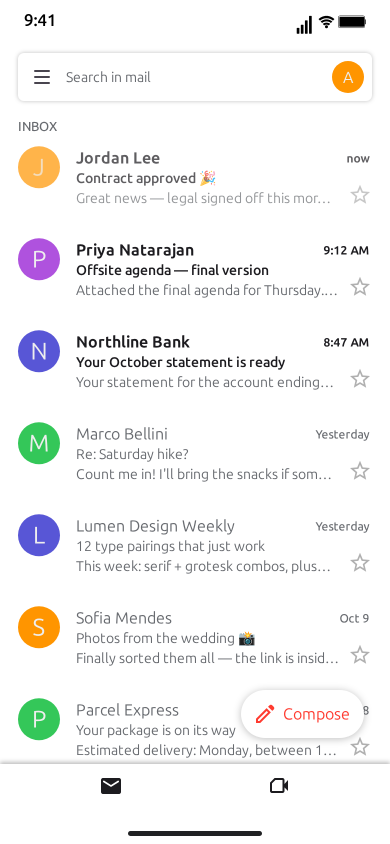
- opens on an iPhone inbox with a column of email rows, each with the sender on a colored letter disc, the time, the subject and a one-line preview, unread rows in bold,
- slides a new email in at the top, pushing the other rows down, with a short sound,
- stars it, so the star fills gold with a small pop,
- taps the row and slides the email screen in, showing the subject, the sender and the body,
- marks it important, filling in the marker beside the subject,
- raises the iOS keyboard and types a reply into a draft under the email, then sends it,
- taps the back chevron and slides back to the inbox, where the email now shows as read.
You can stop at any step. A clip that is only the arrival of one email is just as valid, and often the strongest hook for short-form.
Step 1: Open the Gmail template
Go to the Gmail editor. It opens on a ready-made inbox belonging to "Alex Rivera", with a handful of everyday emails and one arriving during the clip: Jordan Lee writing that a contract was approved. Press Play once before you change anything. Watching the default clip tells you what every part of the editor is going to do.
The editor is split into a few blocks, in this order:
- Screen tabs: Inbox and Email. They switch the paused preview between the two screens, so you can check how a screen looks without playing the clip.
- Settings: theme, keyboard, your name, taps, sound and the watermark.
- What happens: the script, the list of steps the clip plays in order.
- Arriving during the clip: the emails that are not in the inbox yet and slide in while the clip plays.
- Inbox: the rows that are already there when the clip starts, top row first.
It is easiest to work bottom-up: fill the inbox, write the arriving email, then build the script.
Step 2: Set the theme, your name and the general settings
Start with the settings block:
- Theme. Light or dark. Light looks like a daytime phone and suits office and school stories. Dark reads like a late-night screen and suits the "this arrived at 11 pm" kind of drama.
- Keyboard. "While typing a reply" raises the iOS keyboard only while a reply is being typed. "Always up (email screen)" keeps it on screen whenever the email is open. "Never" hides it.
- Your name (replies and the account disc). This is the account owner. The name signs every reply, and its first letter appears on the disc in the search bar at the top of the inbox. Use an invented name.
- Show taps. When ticked, a touch indicator appears before each tap: on the row before an email opens, on the star, on the importance marker, on the back chevron. Untick it for a cleaner look, or keep it when you want viewers to follow where the finger goes.
- Sound Effects. Turns the clip's sounds on or off. The arrival, the star and the sent reply each have a short sound. These are MockClip's own original sounds, not Gmail's.
- Watermark. Free exports carry a small watermark. Pro removes it.
Step 3: Fill the inbox
The Inbox list holds the rows on screen when the clip starts. Click a row in the list to expand it and edit its fields:
- Sender and Time. The time is free text, so "9:41 AM", "Yesterday" or "Oct 3" all work.
- Subject. The bold line of the row, and the title of the email screen.
- Preview. The one-line grey snippet under the subject. Leave it empty and the row uses the first line of the body instead.
- Body (email screen). What the email says when opened.
- "To" line. The small line under the sender on the email screen. It reads "to me" by default.
- Label chip. The small chip beside the subject on the email screen. It reads "Inbox" by default.
- Unread, Starred and Important. The state the email starts in. Unread rows are drawn in bold.
- Disc and Letter. The color of the sender's disc and the letter on it. Leave Letter on "auto" and it uses the sender's initial.
- Photo. Upload a picture to replace the letter disc with a photo. Use your own images or ones you have the right to use.
Use the arrows to reorder rows and the cross to remove one. + Add Email adds a new row at the bottom of the list.
The inbox is the backdrop of your story, and it is worth five minutes. A believable inbox has a mix of senders: a colleague, a delivery update, a newsletter, a friend, a bank statement. It also quietly tells the viewer who the character is. An inbox full of unread "Your free trial ends today" emails says something before the main email even arrives.
Keep five to seven rows. The screen shows a full column of them, and the new email has more impact when it pushes a full inbox down than when it lands in an empty one.
Step 4: Write the email that arrives
The Arriving during the clip list works like the inbox list, with the same fields, but its emails are not on screen at the start. Each one waits until a New email arrives step brings it in. New arriving emails start as unread with the time "now", which is what you want for an email that lands while the viewer watches.
This is the most important email in the clip, so give it care:
- Subject is the hook. Viewers read it as the row slides in, so it has to land in a second or two: "Contract approved 🎉", "Your application decision", "Lease renewal — updated terms". Emoji in subjects work.
- Preview is the second line of the hook. It can set up the twist or give it away. "Great news — legal signed off this morning" promises good news; "We regret to inform you" does the opposite before the email is even opened.
- Body is what viewers read once the email opens. It is plain text: blank lines between paragraphs are kept, and nothing else is formatted. There is no bold, no links, no images and no attachments, so write it the way a short email reads anyway. Three or four short paragraphs fit on screen comfortably.
The subject wraps onto a second line on the email screen when it is long, so you do not have to squeeze it. In the inbox row it is a single line, though, so put the important words first.
Step 5: Build the script
The What happens block is the script. Each button at the bottom adds a step: + New email arrives, + Open email, + Back to inbox, + Star, + Mark important, + Type a reply and + Pause. Steps play in order, one after another, and each one has its own Wait (s): the pause before it starts. Leave Wait empty and it uses an automatic pause, under a second and a half for every step, which already looks natural.
Here is what each step does.
New email arrives. An email from the "Arriving during the clip" list slides in at the top of the inbox, pushing the rows below it down. It arrives unread, in bold, with a sound. The step's dropdown picks which email arrives; left on "next incoming", each arrival step brings in the next email in the list, so you can drop several emails into the inbox in a row.
Star. Taps a star, which fills gold with a small pop and a sound. In the inbox it stars a row; pick the email in the dropdown. On the email screen it stars the open email. Left on its default, it stars the open email, or the top row when you are on the inbox.
Open email. A touch indicator lands on the row, then the email screen slides in over the inbox. From that moment the email counts as read: when you go back, its row is plain instead of bold. You can open any email, from the inbox or from the arriving list, as long as an arriving email has arrived first.
Mark important. Taps the importance marker beside the subject on the open email. It fills in, or clears again if the email was already marked. Use it on the email screen.
Type a reply. The iOS keyboard slides up and your reply is typed letter by letter into a draft under the email. While it is being typed, it is labelled "Draft" in red. The suggestion bar above the keyboard predicts the words as they are typed, the way the real keyboard does. When the text is finished, the reply is sent with a sound and its time becomes "now". The Chars/s field sets the typing speed; 16 characters per second is the default.
Back to inbox. A tap on the back chevron, and the inbox slides back in. Any email you opened is now read.
Pause. Holds the frame for the number of seconds you choose. Use it at the end so viewers can take in the last frame, or in the middle when the joke needs a beat.
Steps can be reordered with the arrows and removed with the cross.
Step 6: Time the reply
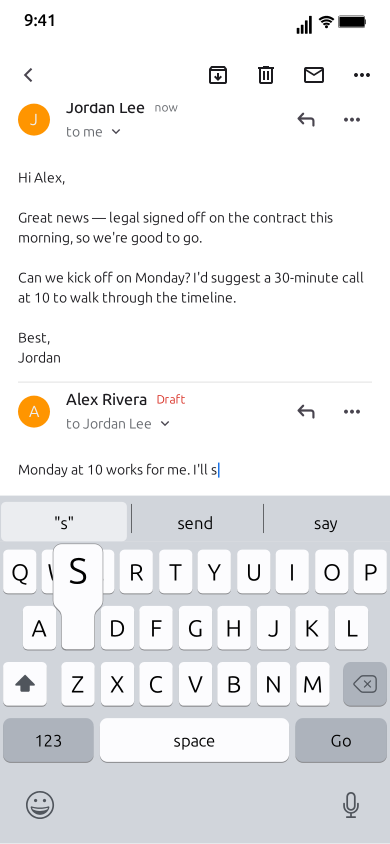
The reply is often the punchline, so its timing deserves a moment.
- Typing speed. The default 16 characters per second looks like an ordinary thumb. 8 to 10 looks hesitant, which suits a reply someone is nervous about sending. 25 or more looks like someone who has written this reply in their head a hundred times.
- Length. A reply of one or two sentences types in a few seconds. A long reply at a slow speed drags; split the idea or shorten the line.
- The wait before it. The Wait on the Type a reply step is the pause between reading the email and starting to answer. A second or two of nothing after a surprising email is a reaction shot in itself.
Replies come from the account owner and show "to" with the sender's name, so the email screen reads as a real exchange: their email above, your answer below it.
Step 7: Mark important, star and finish
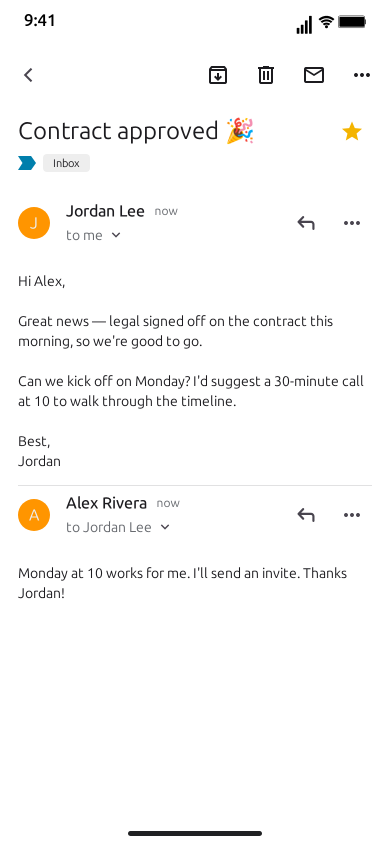
The small actions are what make the clip feel like a real person using the app. A star right after an email arrives says "I've been waiting for this". Marking an email important before replying says "this matters". Neither changes the story, but both make it feel lived-in.
The default script uses this order: arrive, star the new row in the inbox, open it, mark it important, type the reply, go back. Copy it for any good-news story. For bad news, drop the star and add a Pause after opening the email instead.
End with Back to inbox and a short Pause, or end on the email screen with the sent reply on screen. Ending on the inbox shows the consequence: the row that was bold a few seconds ago is now read and starred.
Step 8: Preview and export
Press Play and watch the whole clip. Check three things: that the subject can be read as the row slides in, that the email body is on screen long enough to read, and that the reply types at a speed people can follow. The screen tabs help while editing: switch to Email to check the email screen paused, then back to Inbox.
Then choose the frame and format. 9:16 vertical is the default and suits TikTok, Reels and Shorts. The 1:1 square crop suits feeds, and the square video guide covers when it is worth it. You can show or hide the iPhone bezel. Export MP4 for platforms or GIF for slides, docs and chats, at 720p or Full HD and anywhere from 15 to 60 fps. The export settings guide explains which combination suits which platform.
A complete example script
Here is the default contract clip, written out so you can see how the pieces fit. It runs about 15 seconds.
Inbox (already there): Priya Natarajan, "Offsite agenda — final version"; Northline Bank, "Your October statement is ready"; Marco Bellini, "Re: Saturday hike?"; Lumen Design Weekly, "12 type pairings that just work"; Sofia Mendes, "Photos from the wedding 📸"; Parcel Express, "Your package is on its way"; Dana Okafor, "Quick question about the invoice".
Arriving: Jordan Lee, "Contract approved 🎉", preview "Great news — legal signed off this morning. Can we kick off Monday?", time "now".
| # | Step | Settings |
|---|---|---|
| 1 | New email arrives | Jordan Lee's email, automatic wait |
| 2 | Star | the new row in the inbox |
| 3 | Open email | Jordan Lee's email |
| 4 | Mark important | the open email |
| 5 | Type a reply | "Monday at 10 works for me. I'll send an invite. Thanks Jordan!" at 16 chars/s |
| 6 | Back to inbox | automatic wait |
Your name: Alex Rivera. Theme: light.
Notice what each part is doing. The inbox is ordinary, so the new email stands out. The subject tells the whole story with an emoji. The star and the importance marker show the owner's reaction without a word. The reply is short and specific ("Monday at 10"), which makes it read as real.
To make your own, keep the structure and swap the content: an ordinary inbox, one email with a subject that lands in a second, a small reaction, a short reply.
Making variations quickly
Once one clip works, variations take minutes.
- Change the arriving email, keep the inbox. The same inbox with a different subject becomes a series: good news one day, bad news the next.
- Flip the theme. Export the same script in light and dark and see which reads better for your audience.
- Remove the reply. Arrive, open, pause, back. The silence after a big email is often stronger than any reply.
- Add more arrivals. Two or three "New email arrives" steps in a row, each from a different sender, turn the inbox into a timeline: an interview invite, a follow-up, the decision.
- Shorten for GIF. Keep only the arrival and the star, and export a short GIF for a newsletter or a slide.
Writing tips that make it believable
Subjects that sound sent. Real subject lines are short and practical: "Quick question", "Re: Friday", "Your order has shipped". Overly clever subjects look scripted. Save the joke for the body or the reply.
Bodies that sound written. A greeting, two or three short paragraphs, a sign-off. People do not write emails in one long block, and on a phone screen a long block is hard to read.
Ordinary inbox rows. Newsletters, receipts, delivery updates, a friend's plans. Use invented brand names, like "Parcel Express" or "Lumen Design Weekly" in the default inbox, rather than real companies.
Times that add up. If the new email arrives "now", the rows below it should be earlier today or yesterday. A mismatched timeline is the easiest giveaway.
Invented names only. Use invented names for every sender and for the account owner, and keep real people and real companies out of the story.
Using AI to write the clip
If you would rather not write the script yourself, switch to Describe it and type one sentence: "Alex gets an email from their landlord announcing a rent increase, opens it, and replies far too politely". The AI drafts the inbox, the arriving email and the script for you to adjust. It needs a Google or GitHub sign-in to MockClip, and the Describe it guide explains how it works. If you use Claude Desktop, MockClip's MCP server also has a Gmail inbox tool; the MockClip MCP guide shows how to connect it.
Troubleshooting
An "Open email" step is skipped. It needs the inbox on screen and a row to tap. If it opens an email from the arriving list, put that email's "New email arrives" step before it, and if an email is already open, add "Back to inbox" first.
Mark important has no effect. It acts on the open email, so place it after an "Open email" step and before "Back to inbox".
The email body looks crowded. Shorten it, or leave a blank line between paragraphs. The body is plain text, so markdown such as asterisks or hash signs shows up as typed.
The keyboard covers the email. Set Keyboard to "While typing a reply" so it only rises while a reply is being typed, or "Never" to hide it.
The clip starts too slowly. Lower the Wait on the first step so the new email arrives almost at once.
The ending feels abrupt. Add a Pause of one or two seconds as the last step.
The row preview shows the wrong text. Fill in the Preview field. When it is empty, the row shows the first line of the body.
A note on fair use
The Gmail template is for skits, tutorials, product mockups and education. MockClip is independent and is not affiliated with, endorsed by or sponsored by Google LLC; Gmail is a trademark of Google LLC, and the template uses MockClip's own sounds, not Gmail's. Write every email yourself, use invented names and companies, and do not present a made-up email as a real one or use it to impersonate a real person or organization.
Where to go next
For short-form story ideas with ready-to-build inbox scripts, read fake email video ideas for TikTok, Reels and Shorts. For a broader look at using phone mockups in social content, see the app mockup video guide. If your story moves from email to chat, the Slack template and the iMessage template pick it up from there, and every template is in the app picker. More tutorials are on the blog.
Free to use. No sign-up. Browser-based.
Make a fake Gmail videoFrequently Asked Questions
How do I make a fake Gmail email video?
Open MockClip's Gmail template, fill in the inbox rows and the email that arrives during the clip, then build the script: New email arrives, Star, Open email, Mark important, Type a reply and Back to inbox. Press Play to check the timing and export MP4 or GIF. It all runs in the browser.
Does the template use a real Gmail account or send real emails?
No. There is no Gmail account involved and no email is sent anywhere. Every sender, subject, body and reply is text you type into the editor, and the template only draws and animates it.
Can the email include attachments, images or formatting?
No. The email body is plain text. Blank lines between paragraphs are kept, but there are no attachments, inline images, links, bold text or other formatting.
Who sends the reply in the video?
Replies always come from the account owner, the name you put in 'Your name'. The reply is typed into a draft under the email and then sent, showing 'to' and the sender's name. Other people cannot reply in the thread.
Which formats can I export?
MP4 or GIF, at 720p or Full HD and 15 to 60 fps, with or without the iPhone bezel. Vertical 9:16 is the default and suits TikTok, Reels and Shorts, and a 1:1 square crop suits feeds.
Is MockClip affiliated with Google or Gmail?
No. MockClip is an independent tool and is not affiliated with, endorsed by or sponsored by Google LLC. Gmail is a trademark of Google LLC. Use the template for parody, education, tutorials and mockups, and do not present a made-up email as real or use it to impersonate real people or companies.
Related Articles
Fake Email Video Ideas for TikTok, Reels and Shorts
Skits built around an email arriving: job offers, acceptance letters, rent increases and 'per my last email' drama, with ready-to-build Gmail scripts.
App Mockup Videos for Social Media: A Complete Guide
How to make app mockup videos for TikTok, Reels and Shorts: every MockClip template, the editor steps, export settings per platform and the mistakes to avoid.
AI Fake Chat Video Generator: Describe It, Get the Clip
Type what the clip should be and MockClip's Describe it mode writes the messages and timing for WhatsApp, iMessage, ChatGPT, Tinder and more. Refine by second.
Fake Chat Video Export Settings: MP4, GIF, MOV, WebM, 1:1
Every MockClip export setting explained: MP4, GIF, transparent MOV and WebM, 720p and Full HD, 1:1 square, bezel-less frames, watermark, mobile and links.