Shopify "New Order" Notification Videos: 6 TikTok Ideas
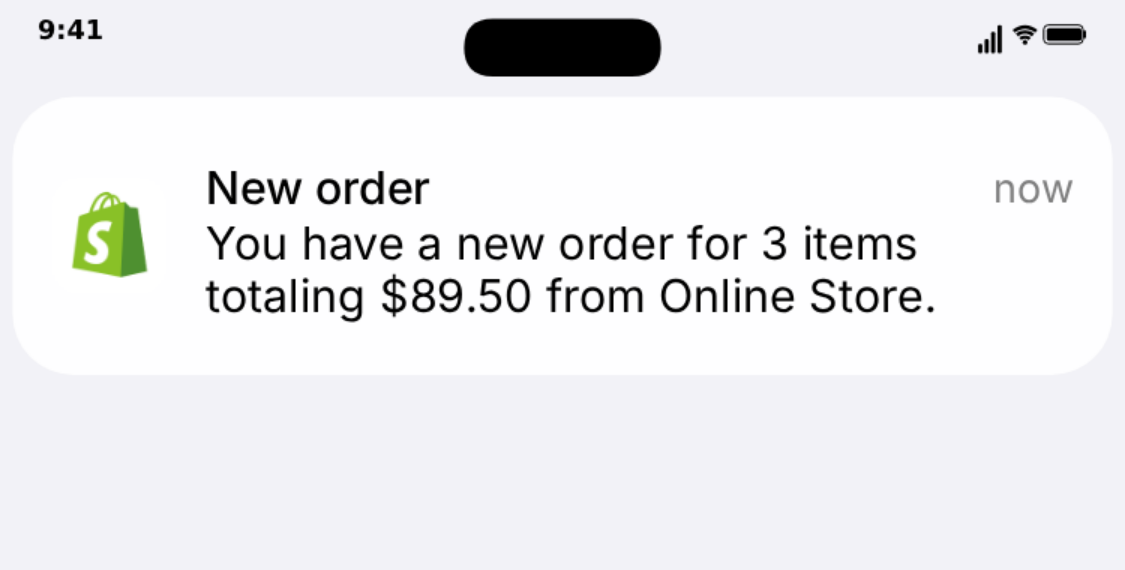
A "New order" banner is one of the most recognisable images in ecommerce content. Viewers read it in a fraction of a second, and they know what it means. That makes it an efficient hook, and a flexible one: the same banner can open a launch vlog, land a joke, set up a story about a slow month or show a product ad's audience that people actually buy the thing.
Below are six ideas you can build with MockClip's Shopify notification template, each with a banner script, the timing that makes it work and a few variations. You write every order yourself, so the numbers are whatever your story needs. Just keep them honest when real money is implied: that point comes up again at the end, because it is the difference between a good video and a misleading one.
All order totals in this post are illustrative examples, not results from a real store.
Why the format works
Three things make notification videos efficient on TikTok, Reels and Shorts.
Instant recognition. The bag icon, the bold "New order" and the order line underneath are familiar to anyone who has run a store or watched ecommerce content. Viewers understand the setup before they finish reading, which saves the first second, the one that decides whether they keep watching.
A built-in rhythm. In MockClip, banners arrive one at a time. Each one slides down from the top, stays for its on-screen time and leaves before the next arrives. That turns a list of orders into a sequence of beats, and you control every gap between them.
An audible cue. Each banner plays a cash-register "cha-ching" as it arrives. Even with the screen half-watched, the chime tells viewers something just happened.
Before you start: the template in one minute
Each banner has a Title (bold, usually "New order"), a Time on the right ("now" by default, any text), and a Message underneath that wraps onto up to four lines. Every banner has its own Delay (half a second by default) and On screen time (four seconds by default), and leaves by sliding up or fading. The background can be an iPhone lock screen, a flat theme colour, a chroma-key green, your own image, or transparent for overlays.
The full walkthrough of every field is in the Shopify notification video maker guide. The ideas below assume you have the template open.
1. The first sale
Hook: a phone on a lock screen, nothing happening, then one banner.
Banner script:
- Delay: 1.5 s
- Title: "New order"
- Time: "now"
- Message: "You have a new order for 1 item totaling $24.00 from Online Store."
- On screen: 4 s, leaves by fading
Keep the first second and a half empty so viewers wait with you. Set the lock screen clock to the moment the story happens: 11:48 at night works well, because a late first sale feels earned. Then cut to your reaction, to the order being packed, or to a handwritten thank-you note going into the box.
This is the most relatable version of the format, because every store owner remembers it. It works best with your real first order: recreate the actual item count and total, and the video becomes a small piece of your store's story rather than a stock clip.
Variations: the first sale from a new country, the first sale of a new product, the first sale after a rebrand. The banner stays the same; the caption carries the context.
2. Launch-day rush
Hook: "I launched at 9 AM. Here's the first ten minutes."
Banner script: six banners, each with:
- Delay: 0.4 s
- On screen: 2 s, leaves by sliding up
- Totals that go up and down: $32.50, $18.00, $64.90, $27.00, $41.20, $95.80 (illustrative)
- Times that move: "now" on all of them, or "9:01 AM", "9:03 AM", "9:04 AM" written into the time field
Short delays and short on-screen times make the orders feel like they are pouring in, without the screen ever filling up. Set the lock screen clock to the launch time so the first frame tells viewers when the story starts. End on your face, the empty shelf, or the packing table covered in boxes.
If the launch was real, use the real orders, even if there were three instead of six. A modest, honest launch video often lands better than an implausible one, because viewers who run stores can tell.
Variations: a restock drop, a Black Friday opening, the hour after a creator posted about the product.
3. The slow week twist
Hook: "Day 1 of zero sales."
Structure: captions count the days over a lock screen with no banner at all. Day 2, day 3, day 4. Then, on day 5, one order arrives.
Banner script for the payoff:
- Delay: 2 s (the pause is the joke)
- Title: "New order"
- Message: "You have a new order for 40 items totaling $612.00 from Online Store." (illustrative)
- On screen: 4 s
The payoff can be a wholesale order, a repeat customer, a mention from a creator, or a bulk order from someone you know. You can also play it for comedy instead: the long-awaited order turns out to be for $3.50.
To film the empty days, export a short lock screen clip with a long delay before the only banner, or a theme-colour clip, and trim it in your editor. Changing the date line between clips helps the day-count read clearly.
4. "Sales" from the wrong place
Hook: a banner that is not what the viewer expects.
The title and order line are free text, so the banner can carry a joke. Some directions:
- An order for 400 units of the one product you thought nobody would buy.
- A "New order" from your mum, for the third time this week.
- An order arriving at 3:12 AM (set the time field and the lock screen clock), followed by you staring at the ceiling.
- A message that runs past four lines, so the ellipsis cuts it off right before the important part.
Keep it short: two or three banners, then the reaction. Comedy versions are clearly skits, so there is no implied financial claim, but avoid using a real customer's name or details.
Banner timing: delay 0.8 s, on screen 3 s. The reaction shot should start as the last banner leaves.
5. Behind the product
Hook: the banner over footage of the work.
Export the banners with a transparent background (MOV or WebM) or on the chroma-key green, then place one over each scene of you making, packing or shipping the product. One banner per scene change ties each step to a sale without saying a word: the candle being poured, the label going on, the box being taped, the courier collecting.
Transparent export draws only the banner, with no status bar or home indicator, so it sits cleanly on top of any footage. The transparent notification video guide explains which editors read MOV and WebM alpha. If your editor only does chroma key, the green screen iPhone notification guide covers keying settings. Pick a different chroma colour if your footage has green in it.
Banner timing: export each banner as its own short clip (one banner per export), or one clip with long delays and trim it into pieces.
6. An honest ad hook
Hook: a cha-ching and a banner in the first second of an ad.
For a product ad, the banner says "people buy this" faster than any caption. Put a single banner over the first shot of the product, then move into the actual pitch: what it is, what it does, why it is better.
Keep it truthful:
- Use your real order lines where you can.
- If the numbers are illustrative, mark them clearly: "illustrative" in the caption or a small on-screen note.
- Never pair invented totals with income claims, course pitches or "I made this much in a week" framing. That is the line between an ad and a scam.
A useful alternative is a banner that carries no total at all. A custom title such as "Order #1042" with a message like "2 items from Online Store" shows activity without implying a sales figure.
Timing cheat sheet
| Goal | Delay before each banner | On screen |
|---|---|---|
| A single, important order | 1–1.5 s | 3–4 s |
| A steady stream | 0.6–1 s | 2–3 s |
| A rush | 0.3–0.5 s | 2 s |
| A dramatic pause | 1.5 s or more | 4 s |
Banners arrive one at a time: each leaves (sliding up or fading) before the next comes in, so a rush feels fast without the screen filling up. Sliding up suits rushes, because each exit points toward the next arrival. Fading suits single, important banners, because it lets the moment linger.
A rough guide for reading time: a one-line message needs about two seconds on screen, a four-line message closer to four. When in doubt, watch the preview on your phone at full size and see whether you can read every banner without pausing.
Choosing the background for each idea
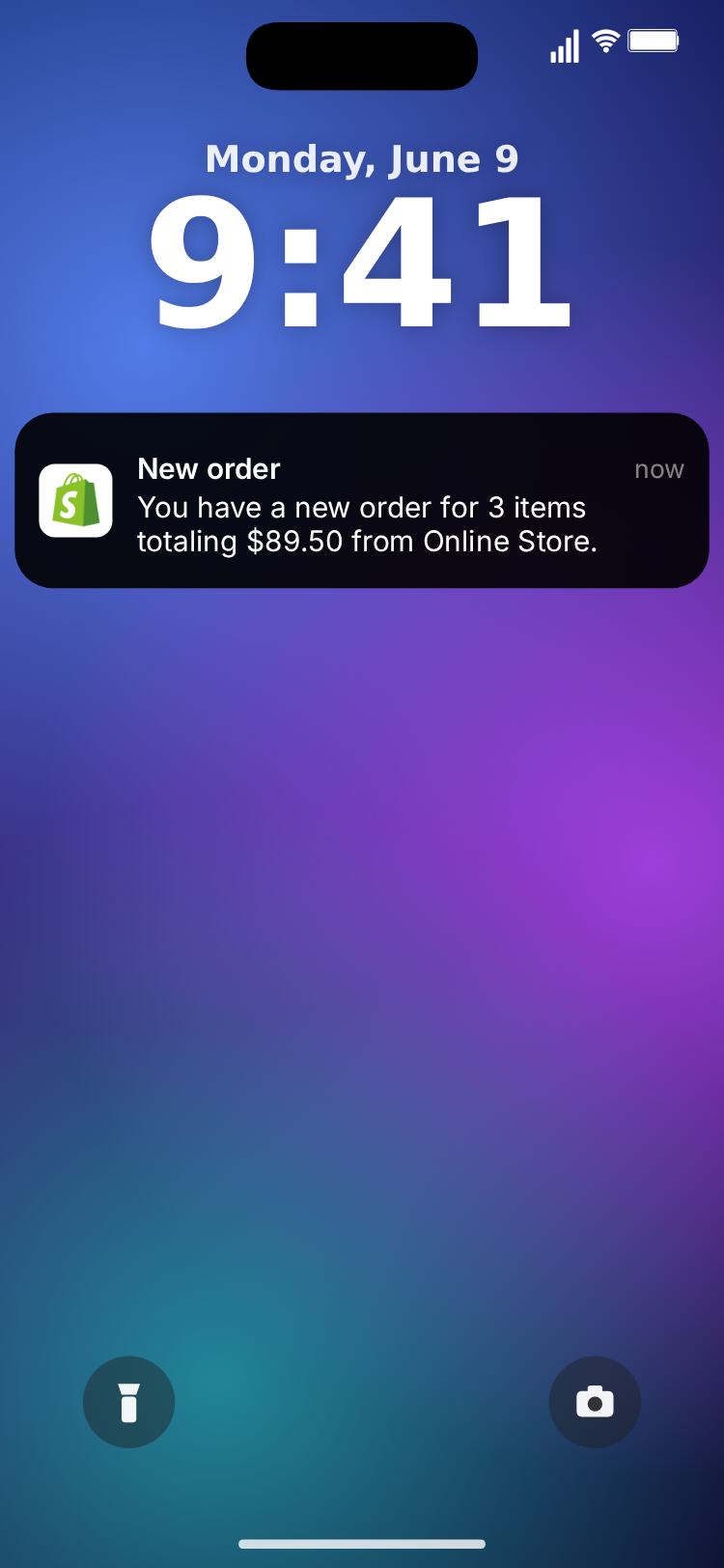
- Lock screen for ideas 1, 2 and 3. The editable clock and date line carry part of the story: the launch time, the late night, the day count. Pick a gradient wallpaper or upload your own photo.
- Transparent or chroma key for ideas 5 and 6, where the banner sits over your own footage.
- Theme colour for quick tests, or when the clip will sit inside a larger edit with its own design.
- Custom image when you want a specific photo behind the banners, such as your workshop or your product.
Theme: dark banners read best on bright wallpapers and footage; light banners on dark ones. Try both in the preview before exporting.
Turning one idea into a series
A single good clip can become a format. Some series that suit notification banners:
- "Every order this week": one episode per day, with the real orders from that day. Honest numbers make this one work.
- "Packing your orders": a banner opens each episode, then the packing footage follows.
- "Store owner problems": a recurring skit where every banner is a small disaster (an order to the wrong country, 40 units of something out of stock).
Keep the same wallpaper, theme and timing across episodes so returning viewers recognise the format instantly.
Sound, captions and editing
Each banner plays a cash-register "cha-ching" as it arrives. Leave it on for a clear beat per order, or switch off Sound Effects and add your own audio, music or voiceover in your editor. If you want a cash-register sound, use one you have the rights to; MockClip does not include Shopify's sound.
Captions do much of the storytelling in these videos. The banner shows what happened; the caption says why it matters ("first sale after 47 days", "this order paid for the new printer"). Place captions above or below the banner area so they never cover the order line.
Export settings
- Format: vertical 9:16 MP4 for TikTok, Reels and Shorts. GIF for presentations or websites. MOV (ProRes 4444) or WebM (VP9) for transparent overlays; MP4 and GIF fill the transparent area with the theme colour.
- Square: a 1:1 crop for feed posts and carousels.
- Size: 720p or Full HD.
- Plans: MockClip is free to try in the browser. Watermark removal and some export options depend on the plan; see pricing.
Drafting with Describe it
If you would rather start from a draft, switch to Describe it and type one sentence: "a small store's first three orders on launch day", "a bakery gets no orders for a week and then a huge catering order", or "five orders in a row at 3 AM". MockClip drafts the banners, order lines and timing for you to edit. It needs a Google or GitHub sign-in. Check the numbers it writes, and change them to your real orders if the video is about your store.
Mistakes to avoid
Every banner the same. Identical totals and item counts look like a loop. Vary them.
Too many banners. Six banners at default timing already make a clip of nearly half a minute. For a rush, shorten the delays and on-screen times instead of adding orders.
Unreadable timing. A long message on screen for two seconds is wasted. Shorten the text or give it more time.
Implied income from invented orders. A skit is a skit. A video that suggests "this is my store's revenue" should use real orders, and invented totals should never support an income claim or a course pitch.
Other notification formats
The same one-at-a-time banner rhythm works for messages from people as well as stores. The iMessage notification template drops texts onto the lock screen with the same delay and on-screen controls, and the iMessage notification maker guide covers how to sequence them. Mixing the two in an edit, an order banner followed by a text from a friend, makes a natural two-beat story.
MockClip is an independent tool and is not affiliated with or endorsed by Shopify Inc. The banners are drawn by MockClip and never connect to a real store, order or account.
Free to use. No sign-up. Browser-based.
Make a Shopify notification videoFrequently Asked Questions
How long should a Shopify notification video be?
Most work in 8 to 20 seconds: a hook in the first second, three to six banners, and a payoff. Banners of 2 to 3 seconds with half-second to one-second delays read comfortably on a phone.
What format should I export for TikTok and Reels?
Vertical 9:16 MP4 from MockClip. If you want to place the banner over your own footage instead, export a transparent MOV or WebM, or use the chroma-key background.
Can I show real numbers from my store?
Yes, you type every title, order line and total yourself, so you can recreate real orders. If the numbers are illustrative, say so on screen or in the caption.
Is it allowed to post fake Shopify notifications?
Skits, reenactments and clearly illustrative ads are common. Do not present invented sales as real results, and keep the clips away from income claims; MockClip is not affiliated with Shopify.
Related Articles
Fake Shopify Notification Video Maker: "New Order" Banners
Make a Shopify "New order" notification video: banners sliding in on an iPhone lock screen, one after another, with green screen and transparent export.
Transparent Notification Video: MOV and WebM Alpha Export
Export iMessage and phone call notification videos with a real alpha channel as ProRes 4444 MOV or VP9 WebM. Drop them on any footage, no green screen to key.
Green Screen iPhone Notification Videos (Chroma Key Ready)
Export iPhone text and call notifications on a pure green background — ready to chroma key over any footage in CapCut, Premiere, or DaVinci.
iMessage Notification Maker: Stacked Alert Sequences
Build fake iPhone notification stacks as MP4. Chain multiple iMessage alerts with per-banner timing, fade or slide dismissal, and chroma-key export.