How to Animate iMessage Tapback Reactions in a Video
Tapback reactions — the little hearts, thumbs ups, and "HAHA" tags that sit on top of iMessage bubbles — are one of the most recognizable details of iOS texting. If your fake conversation video skips them, it feels off.
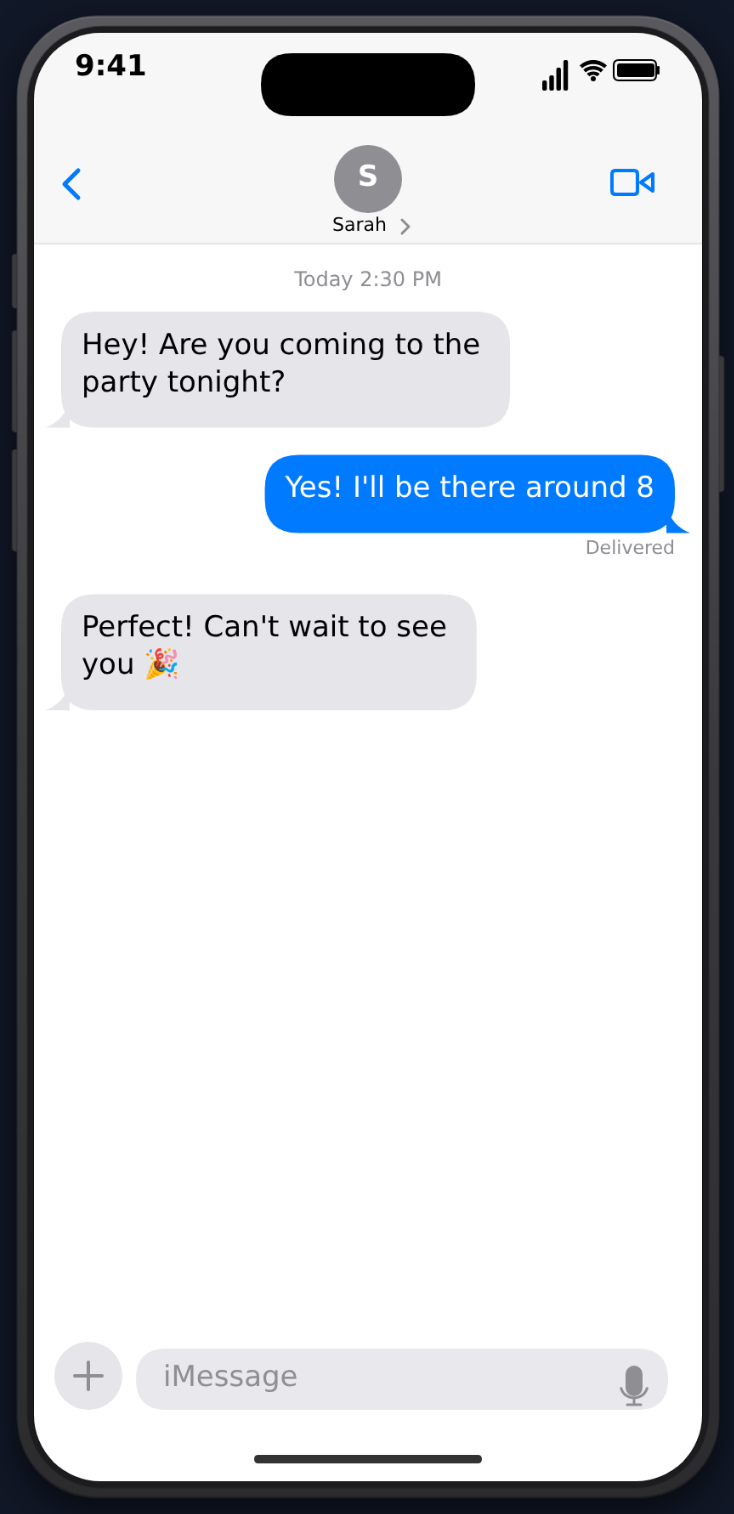 Here's how to add them with accurate timing and positioning in MockClip.
What a Tapback Actually Is
On a real iPhone, tapbacks are added by pressing and holding a message, then picking one of six reactions:
- Heart — love / agreement
- Thumbs Up — yes / acknowledged
- Thumbs Down — no / disagree
- Ha Ha — funny
- Exclamation — emphasis / surprise
- Question — confused
They render as a small badge attached to the top-left or top-right corner of the bubble, depending on which side of the conversation reacted.
MockClip implements all six, with the correct iOS-style badge and the correct attachment corner.
Building a Reacted Message in the Editor
In the iMessage editor, every message card has a Tapback Reactions row with six emoji buttons — ❤️ 👍 👎 😂 ‼️ ❓. Tap one (or more) to add that reaction to the message.
As soon as any reaction is selected, a Tapback Delay (s) field appears below the picker. That's the number of seconds after the message appears before the reaction pops in. Default is 0.5 — long enough for the viewer to read the bubble, short enough to feel like a real instant reaction.
Stacking Reactions
You can toggle on multiple reaction types for the same message — useful for a group-chat feel or when you want both "sides" to react to the same bubble. A joke message can carry a Heart and a Ha Ha at once.
Pairing with Read Receipts and Typing
Reactions look most convincing when combined with MockClip's other iMessage details, all surfaced directly in the editor:
- Typing indicator — on an incoming message, set Typing Duration (s) to show the three-dot animation before the bubble appears. Toggle Cancel typing to have the dots appear and then vanish without a message — the "they started typing and stopped" anxiety beat.
- Delivered / Read — on your own messages, check Delivered and Read, and fill the read-time field (e.g.
2:34 PM) to animate the receipt update. - Delivered Quietly — the Delivered Quietly checkbox swaps "Delivered" for "Delivered Quietly", the iOS indicator when the sender is on focus/DND.
- Silenced notifications banner — the Contact has silenced notifications toggle (in the top settings block) renders the "has notifications silenced" strip with the "Notify Anyway" button in the chat header.
- Date Label — each message has an optional Date Label (shown above message) field (e.g.
Today 3:25 PM) to insert a date separator.
Layering a typing indicator → message → tapback → read receipt sequence is what makes a mockup read as real texting.
Timing Tips
The delay fields are where a mockup earns its realism:
- Delay Before (s) on the message — gap between this message and the previous one. Vary it. A flat cadence of every 1s looks scripted.
- Typing Duration (s) on incoming messages — 1.5–3s feels natural for a short reply, 4–6s for a longer one.
- Tapback Delay (s) — keep it short (0.3–0.8s) for emotional reactions, longer (2–4s) for a "they had to think about it" beat.
Image Attachments + Reactions
Any message can also carry an Image Attachment (uploaded in the editor) with an optional caption. Reactions work on image messages too — a heart on a photo is one of the most common iPhone screenshots in the wild, and it replicates cleanly here.
Export
Finished animations export as MP4. The tapback, Delivered/Read, and typing animations all render frame-accurate into the export, so the file you post is identical to the preview.
Open the iMessage editor, add any message, click the ❤️ in the Tapback Reactions row, and hit play to see it in action.
Related MockClip templates and guides
The iMessage template supports every tapback type natively. If you're producing prank content with tapbacks, see the iMessage prank text video guide. For creators who also work in WhatsApp, the WhatsApp conversation guide covers the equivalent reaction features. For a broader tool comparison, read the best fake text message video makers.
Frequently Asked Questions
Which tapback reactions are supported?
All six iMessage tapbacks are in the Tapback Reactions picker: Heart, Thumbs Up, Thumbs Down, Ha Ha, Exclamation, and Question. Each renders with the authentic iOS styling and attaches to the top corner of the target message.
Can a reaction come from either side of the conversation?
Yes. Reactions on messages from 'other' attach to gray bubbles as your reaction; reactions on your 'me' messages attach to blue bubbles as their reaction. The direction follows whichever bubble you add the Tapback Reactions to.
Can I control when the reaction appears after the message?
Yes. The Tapback Delay (s) field under the reactions picker controls how many seconds after the message is sent the reaction pops in. The default is 0.5 seconds, which matches how quickly a real tap-and-hold reaction lands.
Can a message have multiple reactions?
Yes. The Tapback Reactions picker lets you toggle on multiple reaction types for the same message, so you can stack a Heart and a Ha Ha on the same bubble.
Related Articles
How to Make Fake iMessage Prank Text Videos
Create funny fake iMessage conversation videos for pranks and comedy content. Typing bubbles, read receipts, and MP4 export.
How to Create a Fake ChatGPT Conversation Video
The complete 2026 guide to creating realistic fake ChatGPT conversation videos for TikTok, YouTube Shorts, and Reels — no coding, no editing, free.
How to Create Fake Text Conversation Videos for YouTube Shorts
Make animated fake text conversations optimized for YouTube Shorts — with templates, monetisation strategy, voiceover tips, and a full posting playbook.